phone MERCEDES-BENZ CL CLASS 2013 User Guide
[x] Cancel search | Manufacturer: MERCEDES-BENZ, Model Year: 2013, Model line: CL CLASS, Model: MERCEDES-BENZ CL CLASS 2013Pages: 496, PDF Size: 7.5 MB
Page 24 of 496
Connecting a mobile phone
(general information) .....................183
De-authorizing a mobile phone ......186
Ending an active call ......................189
Entering a number .........................188
External authorization (Bluetooth ®
) 185
Function restrictions ......................182
General notes ................................ 181
Keypad ........................................... 114
Menu (on-board computer) ............346
Number from the phone book ........ 346
Operating options ..........................182
Overview of functions ....................189
Reception and transmission
volume ........................................... 187
Redialing ........................................ 347
Rejecting/ending a call .................346
Rejecting a call .............................. 187
Rejecting or accepting a waiting
call ................................................. 189
Safety notes .................................. 181
Sending DTMF tones ...................... 191
Switching hands-free microphone
on/off ............................................ 189
Toggling ......................................... 189
Using the telephone ....................... 187
see Bluetooth ®
see Call lists
Telephone mode
Redialing ........................................ 188
Telephone module with
Bluetooth ®
SIM Access Profile
see separate installation instructions
Temperature
Coolant .......................................... 336
Coolant (on-board computer) ......... 343
Engine oil (on-board computer) ...... 343
Outside temperature ...................... 337
Setting (climate control) ................265
Setting (COMAND) .........................240
Theft deterrent systems
ATA (Anti-Theft Alarm system) .........70
Immobilizer ...................................... 70
Tilt/sliding sunroof
see Sliding sunroof Time
Setting ........................................... 131
Setting summer/standard time .....132
Setting the format .........................131
Setting the time ............................. 131
Setting the time/date format ........131
Setting the time zone ..................... 132
Timing (RACETIMER) ......................... 344
Tiredness assistant see ATTENTION ASSIST
Tire pressure
Calling up (on-board computer) .....461
Checking manually ........................461
Display message ............................ 382
Important safety notes ..................461
Maximum ....................................... 461
Notes ............................................. 459
Recommended ............................... 458
Tire pressure monitoring system
Checking the tire pressure
electronically ................................. 463
Function/notes ............................. 461
General notes ................................ 461
Important safety notes ..................462
Restarting ...................................... 464
Warning lamp ................................. 398
Warning message .......................... 463
Tires
Aspect ratio (definition) .................476
Average weight of the vehicle
occupants (definition) ....................474
Bar (definition) ............................... 474
Characteristics .............................. 474
Checking ........................................ 455
Definition of terms .........................474
Direction of rotation ......................477
Display message ............................ 382
Distribution of the vehicle
occupants (definition) ....................476
DOT, Tire Identification Number
(TIN) ............................................... 473
DOT (Department of
Transportation) (definition) ............474
GAWR (Gross Axle Weight Rating)
(definition) ..................................... 475
GVW (Gross Vehicle Weight)
(definition) ..................................... 47522Index
Page 39 of 496
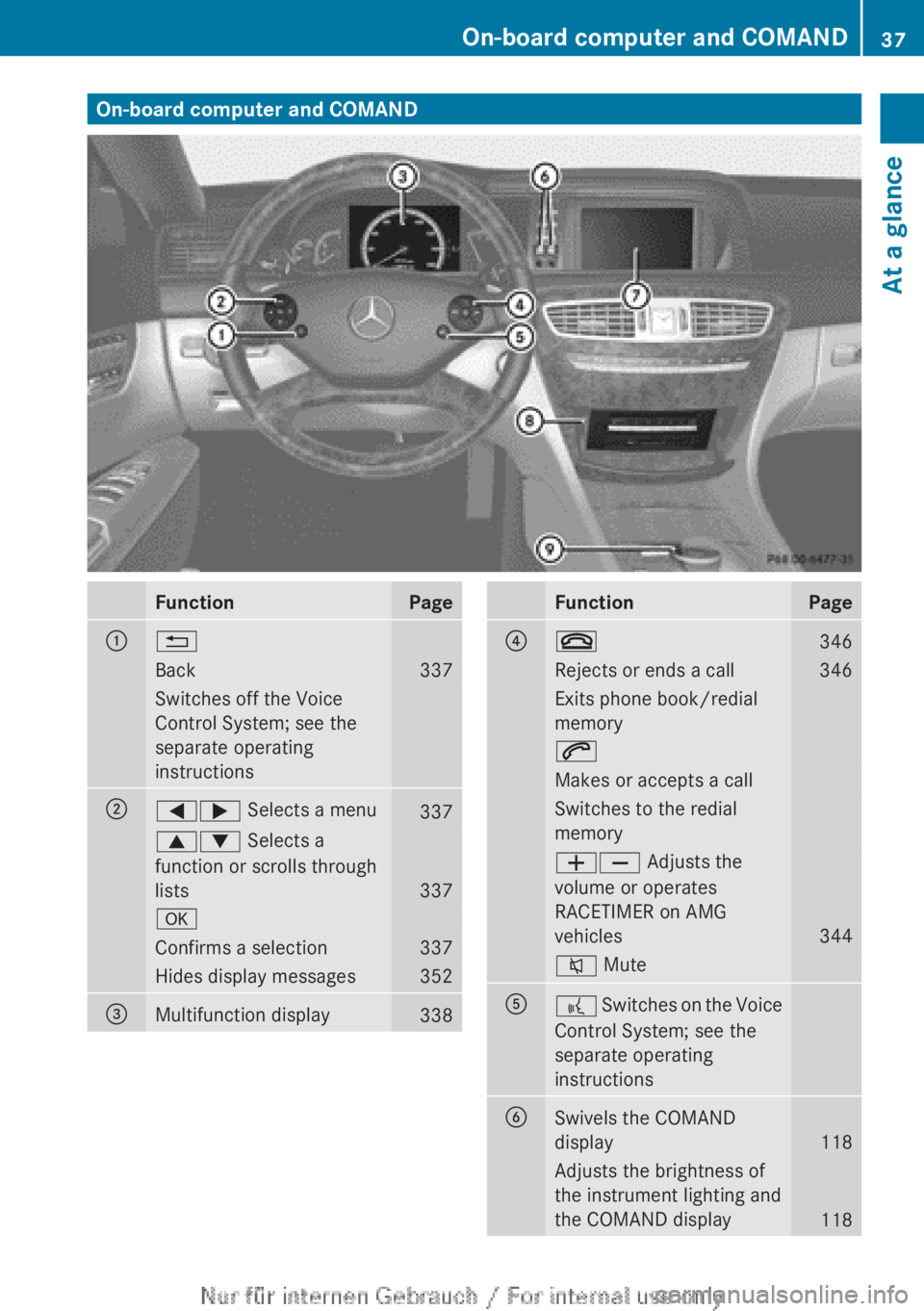
On-board computer and COMANDFunctionPage:%Back337Switches off the Voice
Control System; see the
separate operating
instructions;=; Selects a menu3379: Selects a
function or scrolls through
lists
337
aConfirms a selection337Hides display messages352=Multifunction display338FunctionPage?~346Rejects or ends a call346Exits phone book/redial
memory6Makes or accepts a callSwitches to the redial
memoryWX Adjusts the
volume or operates
RACETIMER on AMG
vehicles
344
8 MuteA? Switches on the Voice
Control System; see the
separate operating
instructionsBSwivels the COMAND
display
118
Adjusts the brightness of
the instrument lighting and
the COMAND display
118
On-board computer and COMAND37At a glance
Page 41 of 496
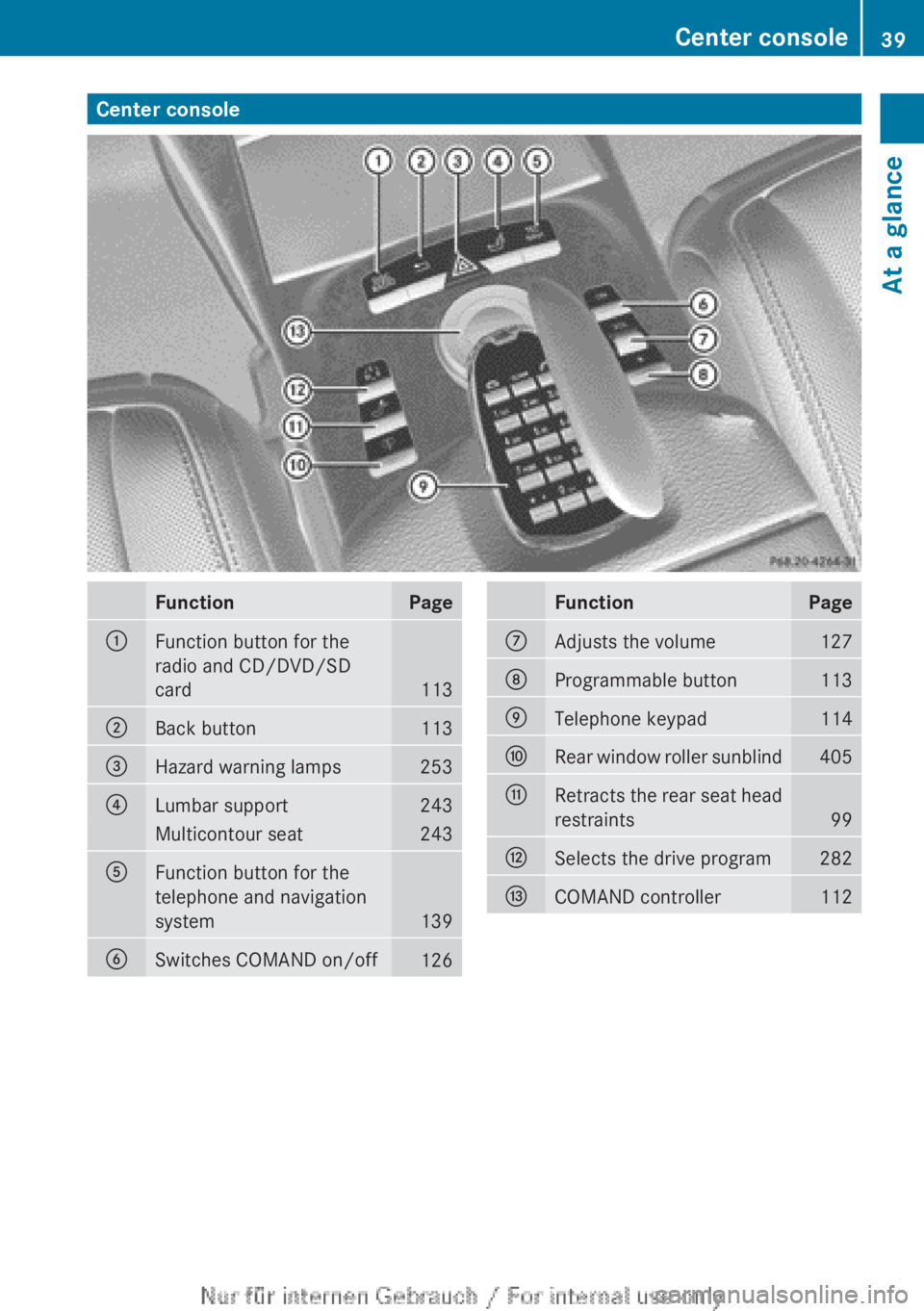
Center consoleFunctionPage:Function button for the
radio and CD/DVD/SD
card
113
;Back button113=Hazard warning lamps253?Lumbar support243Multicontour seat243AFunction button for the
telephone and navigation
system
139
BSwitches COMAND on/off126FunctionPageCAdjusts the volume127DProgrammable button113ETelephone keypad114FRear window roller sunblind405GRetracts the rear seat head
restraints
99
HSelects the drive program282ICOMAND controller112Center console39At a glance
Page 42 of 496
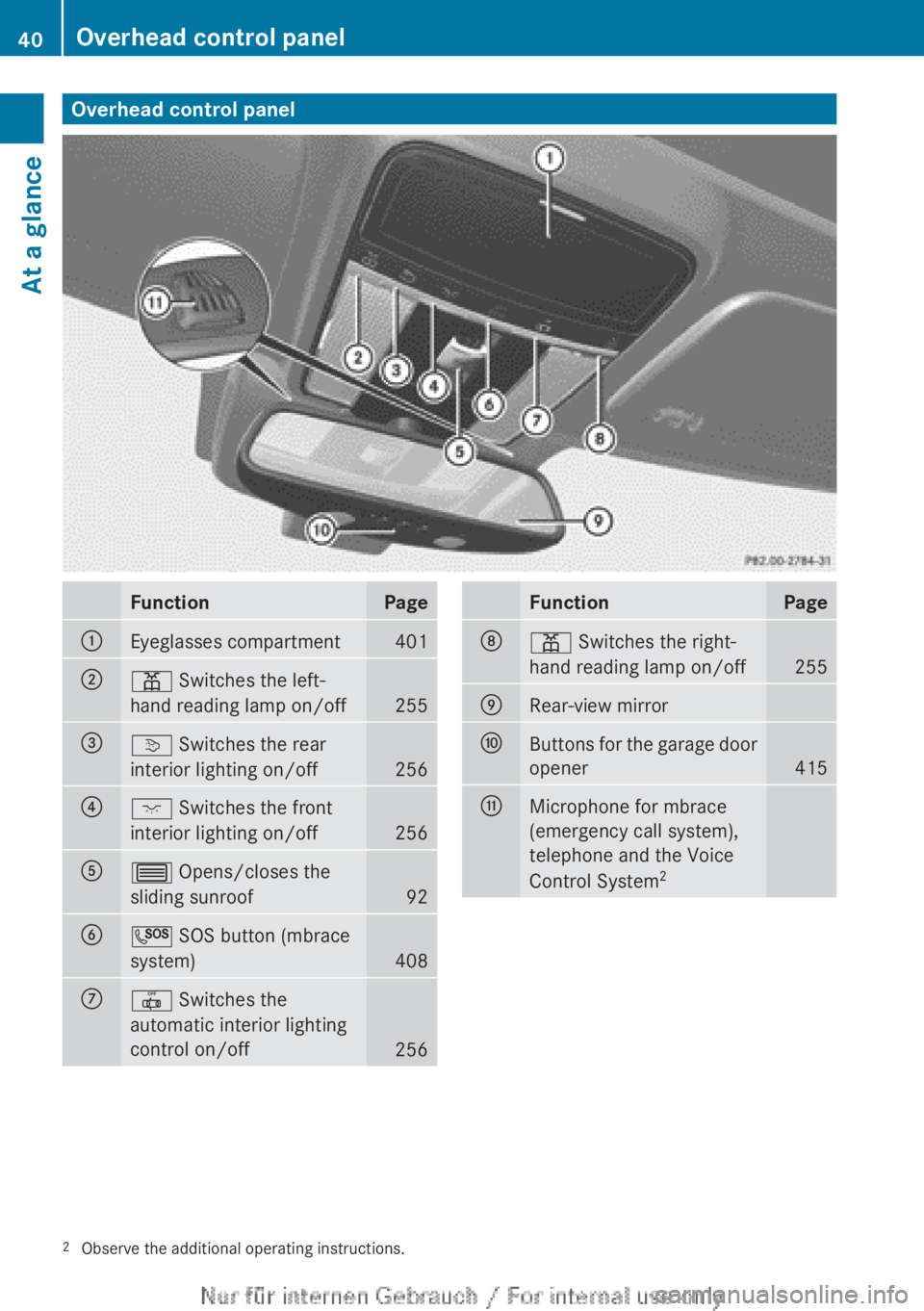
Overhead control panelFunctionPage:Eyeglasses compartment401;p Switches the left-
hand reading lamp on/off
255
=v Switches the rear
interior lighting on/off
256
?c Switches the front
interior lighting on/off
256
A3 Opens/closes the
sliding sunroof
92
BG SOS button (mbrace
system)
408
C| Switches the
automatic interior lighting
control on/off
256
FunctionPageDp Switches the right-
hand reading lamp on/off
255
ERear-view mirrorFButtons for the garage door
opener
415
GMicrophone for mbrace
(emergency call system),
telephone and the Voice
Control System 22
Observe the additional operating instructions.40Overhead control panelAt a glance
Page 73 of 496

iIf the alarm stays on for more than
30 seconds, the mbrace (USA only) or TELE
AID (Canada only) emergency call system
initiates a call to the Customer Assistance
Center automatically. The emergency call
system initiates the call provided that:
R you have subscribed to the mbrace/
TELE AID service.
R the mbrace/TELE AID service has been
activated properly.
R the required mobile phone, power supply
and GPS are available.XTo arm: lock the vehicle with the SmartKey
or KEYLESS-GO.
Indicator lamp : flashes. The alarm
system is armed after approximately
30 seconds.XTo disarm: unlock the vehicle with the
SmartKey or KEYLESS-GO.XTo stop the alarm using the SmartKey:
insert the SmartKey into the ignition lock.
The alarm is switched off.
or
XPress the % or & button on the
SmartKey.
The alarm is switched off.XTo stop the alarm using KEYLESS-GO:
grasp the outside door handle. The
SmartKey must be outside the vehicle.
The alarm is switched off.
or
XPress the Start/Stop button on the
dashboard. The SmartKey must be inside
the vehicle.
The alarm is switched off.Theft deterrent locking system71SafetyZ
Page 78 of 496
2. This device must be able to
accommodate interference that is
received, including interference which
could cause unwanted functions.
Unapproved modifications to this device
may lead to withdrawal of permission to
operate it.
The product label with FCC ID and IC
certification number can be found in the
battery case of the SmartKey.
Important information for using
KEYLESS-GO
R You can use the KEYLESS-GO key as a
conventional key.
R You can combine KEYLESS-GO functions
with those of a conventional key, e.g. open
with KEYLESS-GO and close with the
& button.
R Always carry your KEYLESS-GO key on your
person.
R Never keep the KEYLESS-GO key with:
- electronic equipment, such as your
mobile phone or another key
- metal objects, such as coins or metal foil
This may impair the functioning of
KEYLESS-GO.
R To open or close the vehicle, the KEYLESS-
GO key should be no more than 3 ft (1 m)
from the door or trunk.
R If the vehicle is parked for more than
72 hours, the KEYLESS-GO function is
deactivated. Pull one of the outer door
handles and turn on the ignition to
reactivate the KEYLESS-GO function.
R When the KEYLESS-GO key is removed
from the vehicle, it is possible that the
system may not recognize it. In this case,
the vehicle cannot be locked or started with
KEYLESS-GO.
R If the KEYLESS-GO key has been removed
from the vehicle, e.g. if a passenger leaves
the vehicle with the KEYLESS-GO key:
- while someone is holding the Start/Stop
button or attempting to lock the vehicle
using the outer door handle, the Key
Not Detected message will appear in
the multifunction display.
- while the engine is running, the red Key
Not Detected message will appear in
the multifunction display as you pull
away. Find the KEYLESS-GO key and
change its position in the vehicle. Place
the KEYLESS-GO key in a location such
as the front-passenger seat, or carry it in
your shirt pocket.
R If you have started the engine using the
Start/Stop button, you can turn if off again
by:
- pressing the Start/Stop button again
- inserting the KEYLESS-GO key into the
ignition lock when the vehicle is
stationary and the automatic
transmission is in parking position P.
R You may accidentally unlock the vehicle if
the KEYLESS-GO key is within 3 ft (1 m) of
the vehicle and:
- a jet of water splashes an outer door
handle
or
- you are cleaning an outer door handle.
R Note that the engine can be started by any
vehicle occupant if a KEYLESS-GO key is in
the vehicle.
Option 1: there is a KEYLESS-GO key in the
vehicle and a KEYLESS-GO key outside the
vehicle. If you leave the KEYLESS-GO key
behind when you get out and lock the
vehicle, a message does not appear in the
multifunction display.
Option 2: there is a KEYLESS-GO key in the
vehicle but no KEYLESS-GO key outside the
vehicle. When you get out and try to lock
the vehicle, the Key Detected in
Vehicle message appears in the
multifunction display. The vehicle is not
locked in this case.
When starting the engine and while driving,
KEYLESS-GO also checks whether a valid key76SmartKeyOpening and closing
Page 111 of 496

Useful information ............................110
Introduction ...................................... 110
At a glance ......................................... 112
System settings ................................ 130
Navigation ......................................... 138
Telephone .......................................... 181
Audio .................................................. 199
Video .................................................. 228
Vehicle ............................................... 235109COMAND
Page 112 of 496
Useful information
i This Operator's Manual describes all
models and all standard and optional
equipment of your vehicle available at the
time of publication of the Operator's
Manual. Country-specific differences are
possible. Please note that your vehicle may
not be equipped with all features
described. This also applies to safety-
related systems and functions.
i Please read the information on qualified
specialist workshops ( Y page 29).
Introduction
Operating safety
Important safety notes
GWARNING
Making alterations to electronic components
can cause malfunctions.
Radio, satellite radio, amplifier, DVD changer,
navigation module, phone and voice control
are networked. If one component is not
functional or if it has been incorrectly
removed/replaced, this could impair the
operation of other components.
This could seriously jeopardize the
operational safety of your vehicle.
We recommend that you always have
maintenance work on electronic components
carried out at an authorized Mercedes-Benz
Center.
GWARNING
In order to avoid distraction which could lead
to an accident, the driver should enter system
settings while the vehicle is at a standstill, and
operate the system only when permitted by
road, weather and traffic conditions.
Bear in mind that at a speed of just 30 mph
(approximately 50 km/h), your car covers a
distance of 44 feet (approximately 14 m) every
second.
COMAND supplies you with information to
help you select your route more easily and
guide you conveniently and safely to your
destination. For safety reasons, we
encourage the driver to stop the vehicle in a
safe place before answering or placing a call,
or consulting the COMAND screen to read
navigational maps, instructions, or
downloaded information.GWARNING
While the navigation system provides
directional assistance, the driver must remain
focused on safe driving behavior, especially
attention to traffic and street signs, and
should utilize the system's audio cues while
driving.
The navigation system does not supply any
information on stop signs, yield signs, traffic
regulations or traffic safety rules. Their
observance always remains in the driver's
personal responsibility. DVD maps do not
cover all areas nor all routes within an area.
GWARNING
This equipment complies with FCC radiation
exposure limits set forth for uncontrolled
equipment and meets the FCC radio
frequency (RF) Exposure Guidelines in
Supplement C to OET65.
This equipment has very low levels of RF
energy that is deemed to comply without
maximum permissive exposure evaluation
(MPE). But it is desirable that it should be
installed and operated with at least 8 inches
(20 cm) and more between the radiator and a
person's body (excluding extremities: hands,
wrists, feet and legs.)
Declarations of conformity
Vehicle components which receive and/
or transmit radio waves
USA only: The wireless devices of this vehicle
comply with Part 15 of the FCC Rules.
Operation is subject to the following two
conditions: 1) These devices may not cause
110IntroductionCOMAND
Page 114 of 496
At a glance
COMAND operating system
Overview
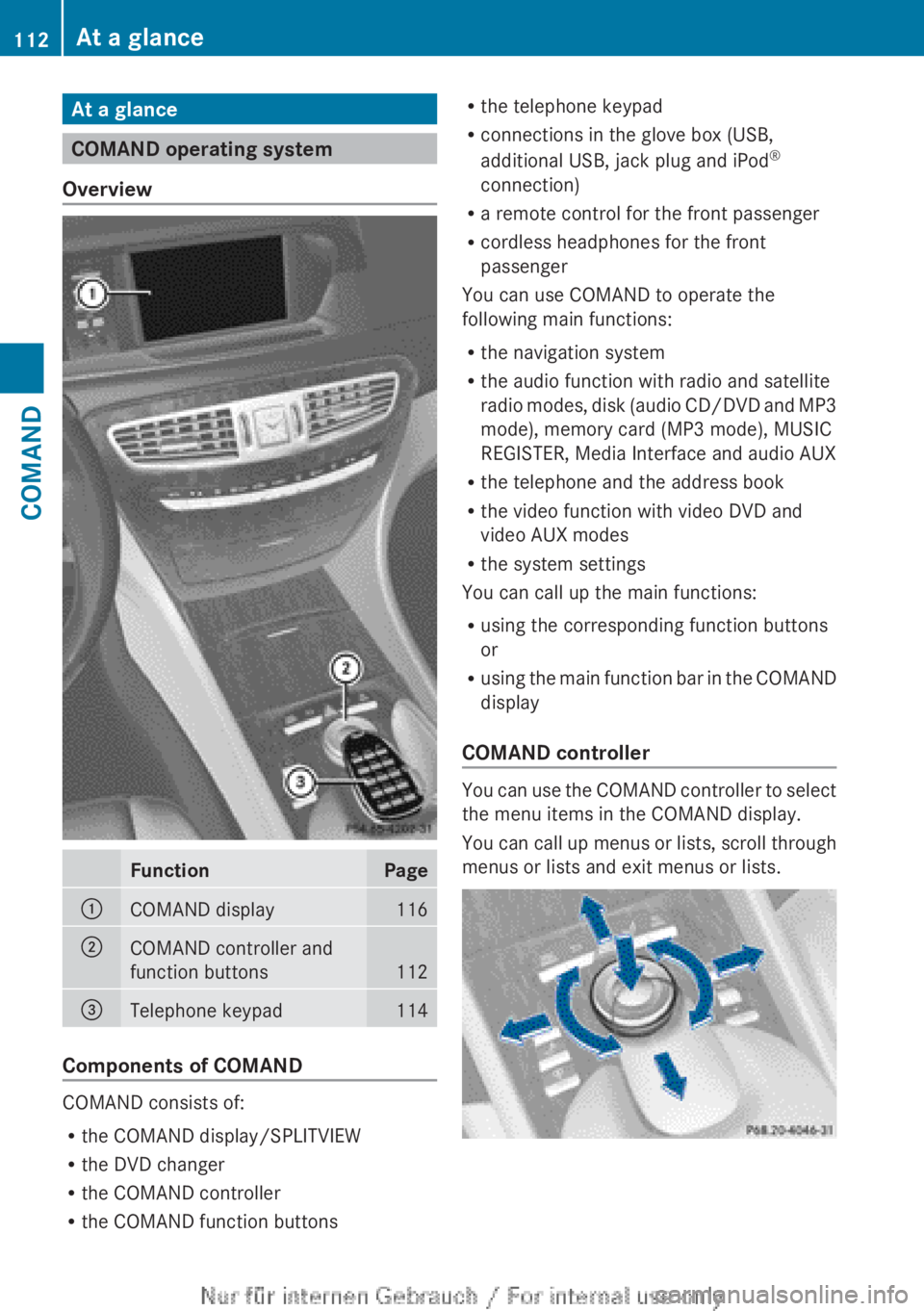
FunctionPage:COMAND display116;COMAND controller and
function buttons
112
=Telephone keypad114
Components of COMAND
COMAND consists of:
R the COMAND display/SPLITVIEW
R the DVD changer
R the COMAND controller
R the COMAND function buttons
R
the telephone keypad
R connections in the glove box (USB,
additional USB, jack plug and iPod ®
connection)
R a remote control for the front passenger
R cordless headphones for the front
passenger
You can use COMAND to operate the
following main functions:
R the navigation system
R the audio function with radio and satellite
radio modes, disk (audio CD/DVD and MP3
mode), memory card (MP3 mode), MUSIC
REGISTER, Media Interface and audio AUX
R the telephone and the address book
R the video function with video DVD and
video AUX modes
R the system settings
You can call up the main functions:
R using the corresponding function buttons
or
R using the main function bar in the COMAND
display
COMAND controller
You can use the COMAND controller to select
the menu items in the COMAND display.
You can call up menus or lists, scroll through
menus or lists and exit menus or lists.
112At a glanceCOMAND
Page 115 of 496
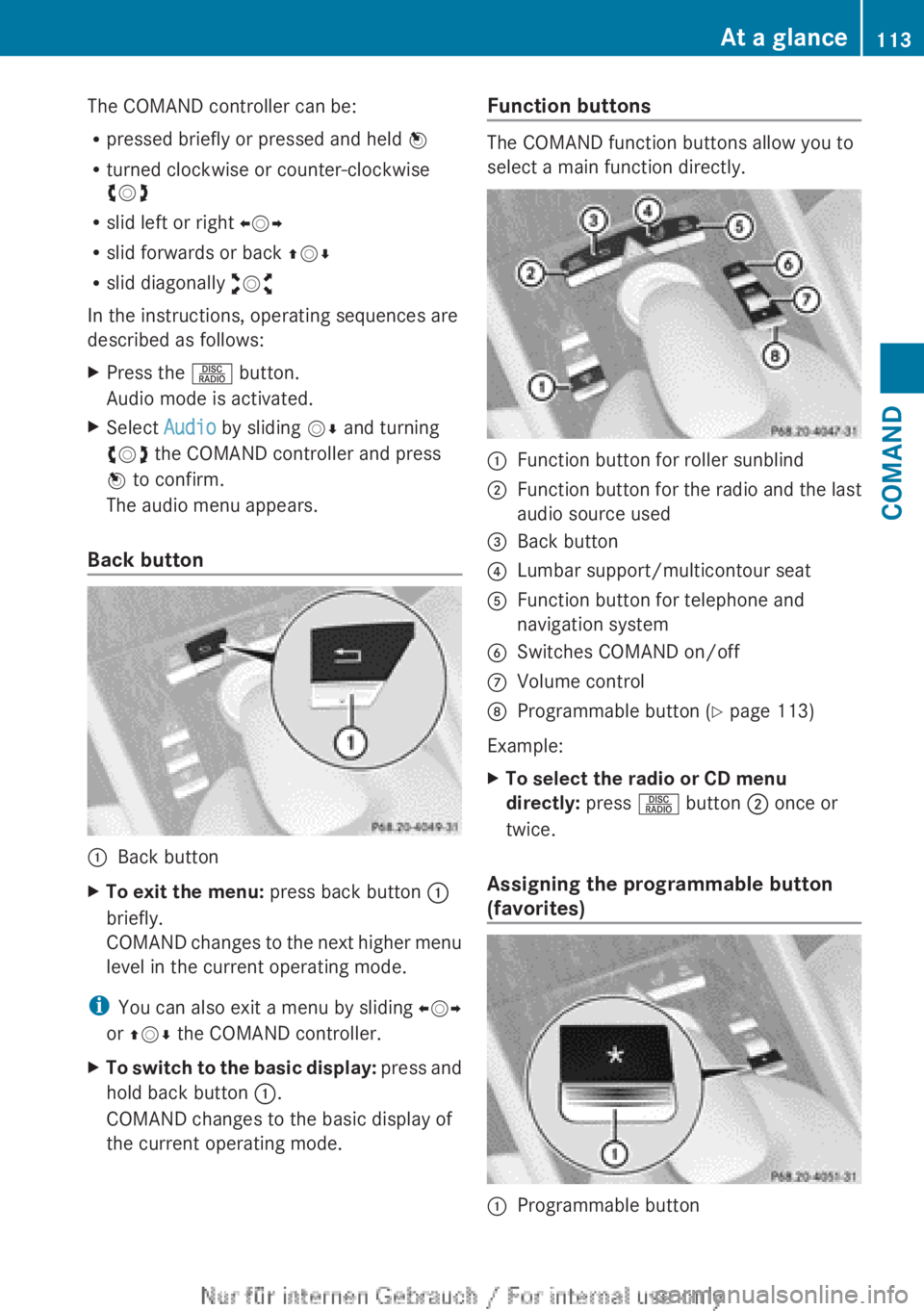
The COMAND controller can be:
R pressed briefly or pressed and held W
R turned clockwise or counter-clockwise
cVd
R slid left or right XVY
R slid forwards or back ZVÆ
R slid diagonally aVb
In the instructions, operating sequences are
described as follows:XPress the R button.
Audio mode is activated.XSelect Audio by sliding VÆ and turning
cVd the COMAND controller and press
W to confirm.
The audio menu appears.
Back button
:Back buttonXTo exit the menu: press back button :
briefly.
COMAND changes to the next higher menu
level in the current operating mode.
i You can also exit a menu by sliding XVY
or ZV Æ the COMAND controller.
XTo switch to the basic display: press and
hold back button :.
COMAND changes to the basic display of
the current operating mode.Function buttons
The COMAND function buttons allow you to
select a main function directly.
:Function button for roller sunblind;Function button for the radio and the last
audio source used=Back button?Lumbar support/multicontour seatAFunction button for telephone and
navigation systemBSwitches COMAND on/offCVolume controlDProgrammable button ( Y page 113)
Example:
XTo select the radio or CD menu
directly: press R button ; once or
twice.
Assigning the programmable button
(favorites)
:Programmable buttonAt a glance113COMANDZ