change wheel MERCEDES-BENZ CL CLASS 2013 Owner's Manual
[x] Cancel search | Manufacturer: MERCEDES-BENZ, Model Year: 2013, Model line: CL CLASS, Model: MERCEDES-BENZ CL CLASS 2013Pages: 496, PDF Size: 7.5 MB
Page 299 of 496
traffic because conditions do not allow safe
driving at a constant speed.
R The use of the cruise control can be
dangerous on slippery roads. Rapid
changes in tire traction can result in wheel
spin and loss of control.
R Deactivate the cruise control when driving
in fog.
The "Resume" function should only be
operated if the driver is fully aware of the
previously set speed and wishes to resume
this particular preset speed.
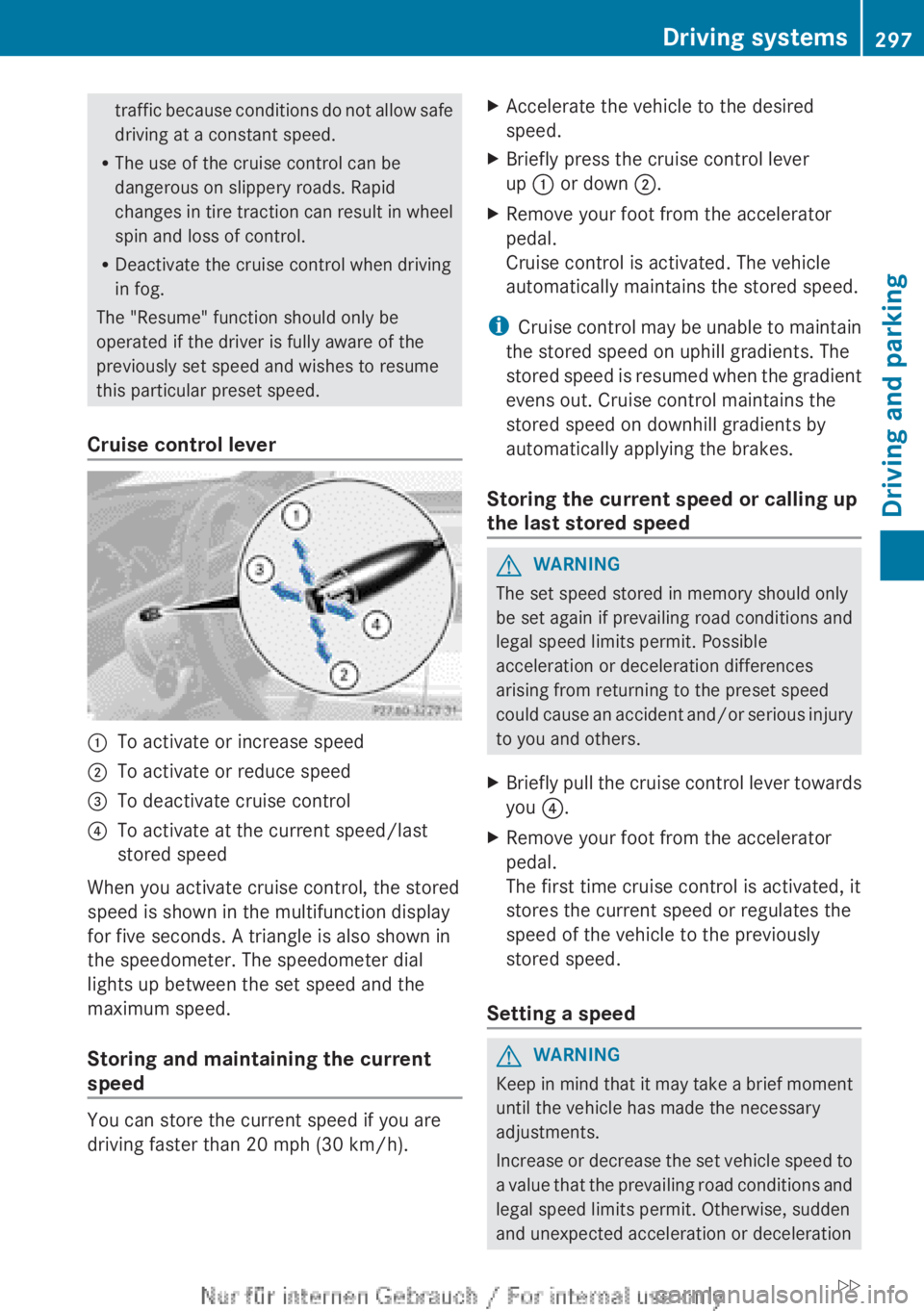
Cruise control lever:To activate or increase speed;To activate or reduce speed=To deactivate cruise control?To activate at the current speed/last
stored speed
When you activate cruise control, the stored
speed is shown in the multifunction display
for five seconds. A triangle is also shown in
the speedometer. The speedometer dial
lights up between the set speed and the
maximum speed.
Storing and maintaining the current
speed
You can store the current speed if you are
driving faster than 20 mph (30 km/h).
XAccelerate the vehicle to the desired
speed.XBriefly press the cruise control lever
up : or down ;.XRemove your foot from the accelerator
pedal.
Cruise control is activated. The vehicle
automatically maintains the stored speed.
i Cruise control may be unable to maintain
the stored speed on uphill gradients. The
stored speed is resumed when the gradient
evens out. Cruise control maintains the
stored speed on downhill gradients by
automatically applying the brakes.
Storing the current speed or calling up
the last stored speed
GWARNING
The set speed stored in memory should only
be set again if prevailing road conditions and
legal speed limits permit. Possible
acceleration or deceleration differences
arising from returning to the preset speed
could cause an accident and/or serious injury
to you and others.
XBriefly pull the cruise control lever towards
you ?.XRemove your foot from the accelerator
pedal.
The first time cruise control is activated, it
stores the current speed or regulates the
speed of the vehicle to the previously
stored speed.
Setting a speed
GWARNING
Keep in mind that it may take a brief moment
until the vehicle has made the necessary
adjustments.
Increase or decrease the set vehicle speed to
a value that the prevailing road conditions and
legal speed limits permit. Otherwise, sudden
and unexpected acceleration or deceleration
Driving systems297Driving and parkingZ
Page 302 of 496
GWARNING
The DISTRONIC PLUS cannot take road and
traffic conditions into account. Only use the
DISTRONIC PLUS if the road, weather and
traffic conditions make it advisable to travel
at a constant speed.
GWARNING
Use of the DISTRONIC PLUS can be
dangerous on slippery roads. Rapid changes
in tire traction can result in wheel spin and
loss of control.
The DISTRONIC PLUS does not function in
adverse sight and distance conditions. Do not
use the DISTRONIC PLUS during conditions of
fog, heavy rain, snow or sleet.
GWARNING
The DISTRONIC PLUS cannot take weather
conditions into account. Switch off the
DISTRONIC PLUS or do not switch it on if:
R roads are slippery or covered with snow or
ice. The wheels could lose traction while
braking or accelerating, and the vehicle
could skid.
R the DISTRONIC PLUS system sensor covers
are dirty or visibility is diminished due to
snow, rain or fog, for example. The distance
control system functionality could be
impaired.
Always pay attention to surrounding traffic
conditions even while the DISTRONIC PLUS is
switched on. Otherwise, you may not be able
to recognize dangerous situations until it is
too late. This could cause an accident in which
you and/or others could be injured.
GWARNING
The "Resume" function should only be
operated if the driver is fully aware of the
previously set speed and wishes to resume
this particular preset speed.
GWARNING
Your undivided attention to street and traffic
conditions is necessary at all times whether
DISTRONIC PLUS is active or not.
The use of DISTRONIC PLUS can be
dangerous on winding roads or in heavy traffic
because conditions do not allow safe driving
at a constant speed.
DISTRONIC PLUS does not react to stationary
objects on the road (for example, a vehicle
stopped in traffic or an abandoned vehicle).
DISTRONIC PLUS likewise does not react to
oncoming vehicles.
Deactivate DISTRONIC PLUS:
R when changing to the right lane, if the
vehicles in the left lane are driving slower
R when driving into a filter lane or an
expressway exit
R in complex driving situations, for example
in construction sites on an expressway
In these situations DISTRONIC PLUS will
maintain the set speed if it is not deactivated.
DISTRONIC PLUS is intended only for
maintaining a set speed and a set distance
from the objects moving in front of the
vehicle.
GWARNING
An intermittent warning sounds and the
distance warning lamp · in the instrument
cluster is illuminated if the DISTRONIC PLUS
system calculates that the distance to the
vehicle ahead and your vehicle's current
speed indicate that the DISTRONIC PLUS will
not be capable of slowing the vehicle
sufficiently to maintain the preset following
distance, which creates a danger of a
collision.
Immediately brake the vehicle to increase
your distance to the preceding vehicle. The
warning sound is intended as a final caution
in which you should intercede with your own
braking inputs to avoid a potentially
dangerous situation. Do not wait for the
operation of the warning signal to intercede
300Driving systemsDriving and parking
Page 319 of 496
Guidance only shows parking spaces on the
passenger side in the default setting. Parking
spaces on the driver's side are displayed as
soon as the turn signal on the driver's side is
activated. To park on the driver's side, you
must leave the driver's side turn signal
switched on until you have engaged reverse
gear. If a parking space is detected, parking
symbol ; changes to blue. Additionally, an
arrow pointing to the right = or left : is
shown.
Parking Guidance will only detect parking
spaces:
R that are closed in at the back
R that are parallel to the direction of travel
R that are at least 5 ft (1.5 m) wide
R that are at least 4.3 ft (1.3 m) longer than
your vehicle.
A parking space is displayed while you are
driving past it, and until you are
approximately 50 ft (15 m) away from it.
Parking
The following instructions refer to parking in
a space on the front-passenger side. To park
in a space on the driver's side, mirror the
instructions.
GWARNING
The Parking Guidance is only an aid and may
not detect all obstacles. The Parking
Guidance does not relieve you of the
responsibility to pay attention. You are always
responsible for safety and must continue to
pay attention to your immediate surroundings
when parking and maneuvering. Otherwise,
you could endanger yourself and others.
XStop the vehicle when the blue parking
space symbol shows the desired parking
space in the instrument cluster.XEngage reverse gear.
The multifunction display shows the
message: Check surroundings
Confirm with OK .XPress a on the multifunction steering
wheel to confirm.
The display in the instrument cluster
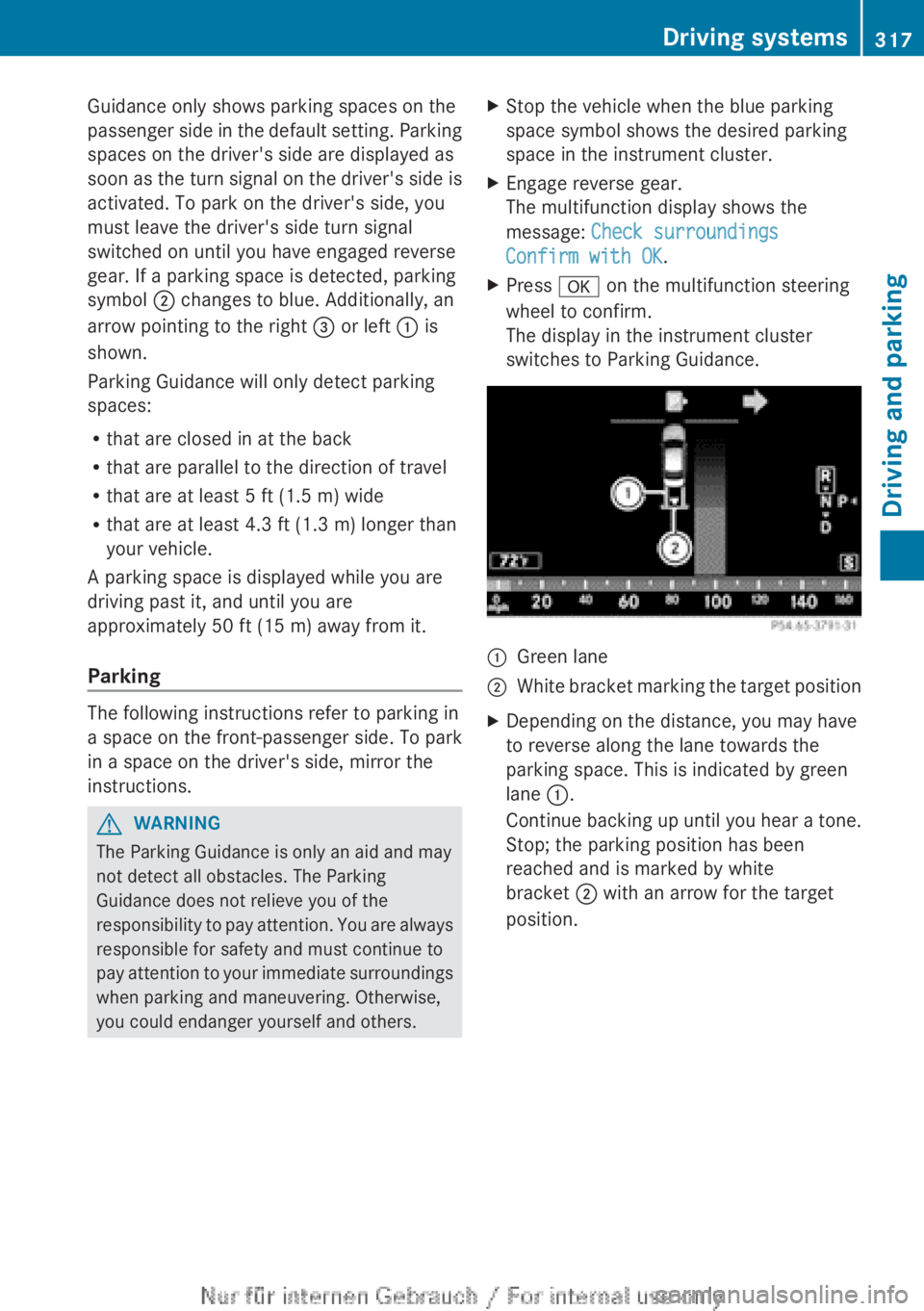
switches to Parking Guidance.:Green lane;White bracket marking the target positionXDepending on the distance, you may have
to reverse along the lane towards the
parking space. This is indicated by green
lane :.
Continue backing up until you hear a tone.
Stop; the parking position has been
reached and is marked by white
bracket ; with an arrow for the target
position.Driving systems317Driving and parkingZ
Page 326 of 496
XTo activate: activate Adaptive Highbeam
Assist ( Y page 254).XPress button :.
The Night View Assist Plus with spotlight
function display appears in the
multifunction display.
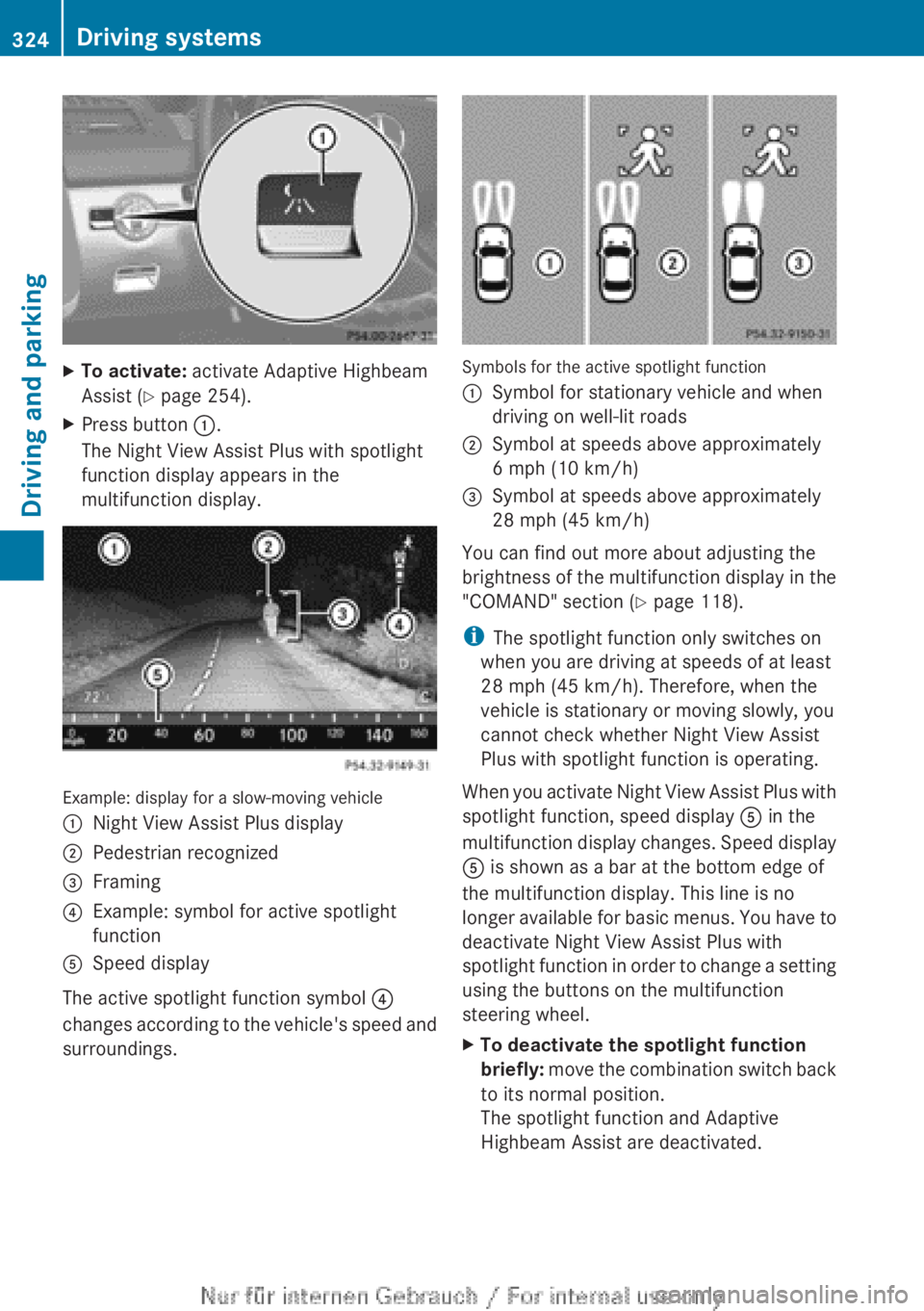
Example: display for a slow-moving vehicle
:Night View Assist Plus display;Pedestrian recognized=Framing?Example: symbol for active spotlight
functionASpeed display
The active spotlight function symbol ?
changes according to the vehicle's speed and
surroundings.
Symbols for the active spotlight function
:Symbol for stationary vehicle and when
driving on well-lit roads;Symbol at speeds above approximately
6 mph (10 km/h)=Symbol at speeds above approximately
28 mph (45 km/h)
You can find out more about adjusting the
brightness of the multifunction display in the
"COMAND" section ( Y page 118).
i The spotlight function only switches on
when you are driving at speeds of at least
28 mph (45 km/h). Therefore, when the
vehicle is stationary or moving slowly, you
cannot check whether Night View Assist
Plus with spotlight function is operating.
When you activate Night View Assist Plus with
spotlight function, speed display A in the
multifunction display changes. Speed display
A is shown as a bar at the bottom edge of
the multifunction display. This line is no
longer available for basic menus. You have to
deactivate Night View Assist Plus with
spotlight function in order to change a setting
using the buttons on the multifunction
steering wheel.
XTo deactivate the spotlight function
briefly: move the combination switch back
to its normal position.
The spotlight function and Adaptive
Highbeam Assist are deactivated.324Driving systemsDriving and parking
Page 327 of 496
If you push the combination switch forward
beyond the point of resistance again, both
systems are reactivated.XTo deactivate: press button : again.XDeactivate Adaptive Highbeam Assist
( Y page 254).
i
If you do not wish to use the spotlight
function, you first need to deactivate Night
View Assist Plus and then activate it again
without the spotlight function
( Y page 325).
Activating/deactivating Night View
Assist Plus without spotlight function
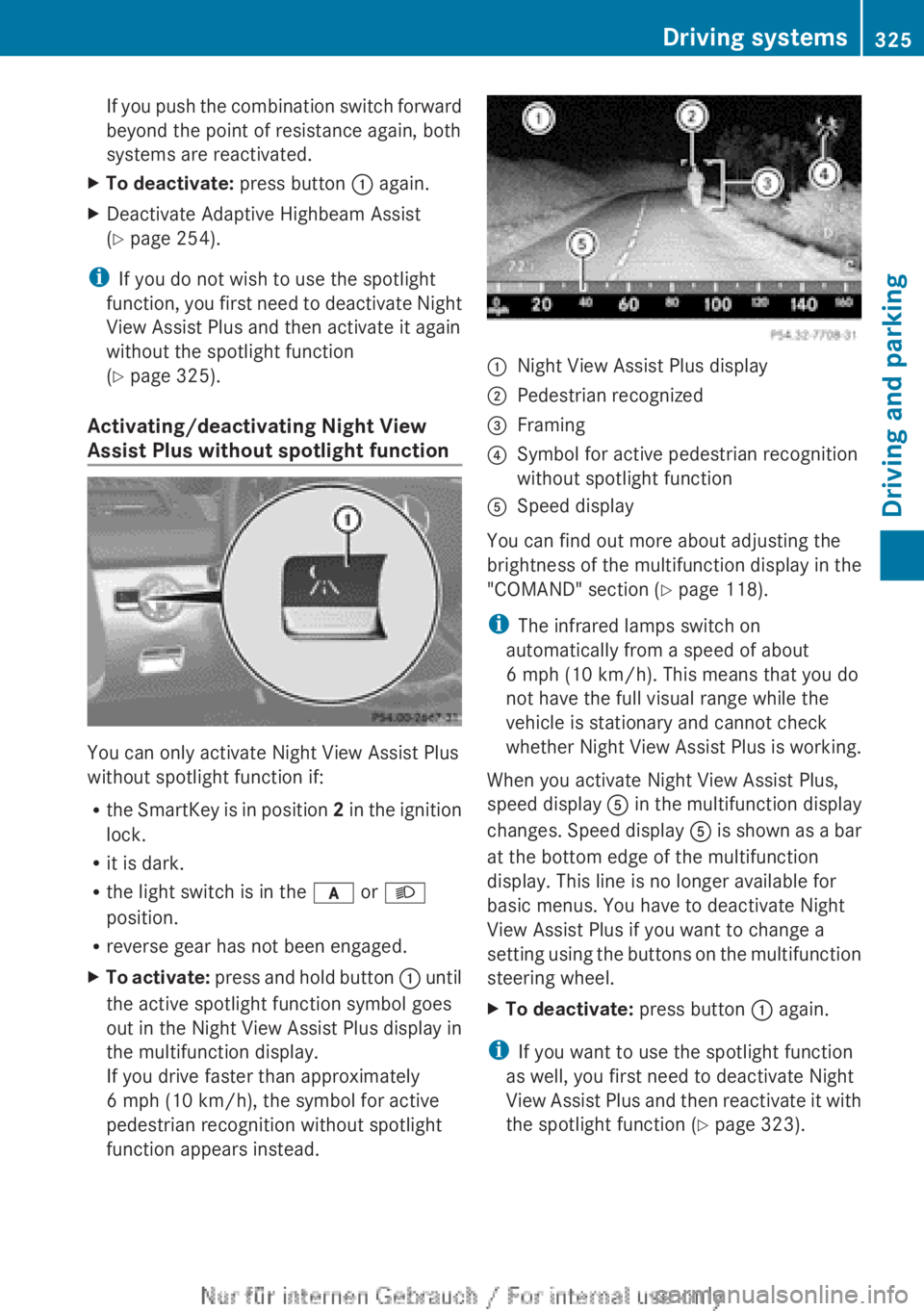
You can only activate Night View Assist Plus
without spotlight function if:
R the SmartKey is in position 2 in the ignition
lock.
R it is dark.
R the light switch is in the c or L
position.
R reverse gear has not been engaged.
XTo activate: press and hold button : until
the active spotlight function symbol goes
out in the Night View Assist Plus display in
the multifunction display.
If you drive faster than approximately
6 mph (10 km/h), the symbol for active
pedestrian recognition without spotlight
function appears instead.:Night View Assist Plus display;Pedestrian recognized=Framing?Symbol for active pedestrian recognition
without spotlight functionASpeed display
You can find out more about adjusting the
brightness of the multifunction display in the
"COMAND" section ( Y page 118).
i The infrared lamps switch on
automatically from a speed of about
6 mph (10 km/h). This means that you do
not have the full visual range while the
vehicle is stationary and cannot check
whether Night View Assist Plus is working.
When you activate Night View Assist Plus,
speed display A in the multifunction display
changes. Speed display A is shown as a bar
at the bottom edge of the multifunction
display. This line is no longer available for
basic menus. You have to deactivate Night
View Assist Plus if you want to change a
setting using the buttons on the multifunction
steering wheel.
XTo deactivate: press button : again.
i
If you want to use the spotlight function
as well, you first need to deactivate Night
View Assist Plus and then reactivate it with
the spotlight function ( Y page 323).
Driving systems325Driving and parkingZ
Page 333 of 496
the mph display unit is selected, the
assistance range begins at 40 mph.GWARNING
Active Lane Keeping Assist does not keep
your vehicle in its lane. It is only an aid and
may detect the lane markings on the road
incorrectly or not at all.
The system may be impaired or may not
function if:
R several or no lane markings for a single lane
are present.
R there is poor visibility, e.g. due to
insufficient illumination of the road, or due
to snow, rain, fog or spray.
R there is glare, e.g. from oncoming traffic,
the sun, or reflection from other vehicles.
R the windshield is dirty, fogged up or
covered, for instance by a sticker, in the
vicinity of the camera.
R the lane markings are worn away, dark or
covered up, e.g. by dirt or snow.
R the distance to the vehicle in front is too
small and the lane markings thus cannot be
detected.
R the lane markings on the road are unclear,
e.g. near roadworks.
R the lane markings change quickly, e.g.
lanes branch off, cross one another or
merge.
R the road is narrow and winding.
Active Lane Keeping Assist cannot detect
road and traffic conditions. It is not a
substitute for attentive driving. You are
responsible for the vehicle's speed, braking in
good time, and steering correctly. Always
adapt your driving style to suit the prevailing
road and weather conditions. Always pay
attention to traffic conditions and your
surroundings. Otherwise, you may fail to
recognize dangers in time, cause an accident
and injure yourself and others.
Warning vibration in the steering wheel
A warning may be given if a front wheel
passes over a lane marking. It will warn you
by means of intermittent vibration in the
steering wheel for up to 1.5 seconds.
In order that you are warned only when
necessary and in good time if you cross the
lane marking, the system recognizes certain
conditions and warns you accordingly.
The warning vibration occurs earlier if:
R you approach the outer lane marking on a
bend.
R the road has very wide lanes, e.g. a
freeway.
R the system recognizes solid lane markings.
The warning vibration occurs later if:
R the road has narrow lanes.
R you cut the corner on a bend.
No warning vibration occurs if:
R you clearly and actively steer, brake or
accelerate.
R you cut the corner on a sharp bend.
R a driving safety system intervenes, e.g.
ABS, BAS or ESP ®
.
R you switch on the turn signals. In this event,
the warnings are suppressed for a certain
period of time.
Lane-correcting brake application
If you leave your lane under certain
circumstances the vehicle will brake briefly
on one side. This is meant to assist you in
bringing the vehicle back to the original lane.
This function is available in the range between
40 mph and 120 mph (60 km/h and
200 km/h).
A lane-correcting brake application can only
be made after driving over a solid,
recognizable lane marking. Before this, a
warning must be given by means of
intermittent vibration in the steering wheel.
In addition, a lane with lane markings on both
sides must be recognized. The brakeDriving systems331Driving and parkingZ
Page 339 of 496
! A display message is shown if the coolant
temperature is too high.
If the coolant temperature is over
248 ‡(120 †), do not continue driving. The
engine will otherwise be damaged.
Tachometer
The red band in the tachometer indicates the
engine's overrevving range.
! Do not drive in the overrevving range, as
this could damage the engine.
The fuel supply is interrupted to protect the
engine when the red band is reached.
Outside temperature display
The outside temperature display is in the
multifunction display ( Y page 338).
GWARNING
The outside temperature indicator is not
designed to serve as an ice-warning device
and is therefore unsuitable for that purpose.
Indicated temperatures just above the
freezing point do not guarantee that the road
surface is free of ice. The road may still be icy,
especially in wooded areas or on bridges.
Changes in the outside temperature are
displayed after a short delay.
Operating the on-board computer
The on-board computer is activated as soon
as you turn the SmartKey to position 2 in the
ignition lock.
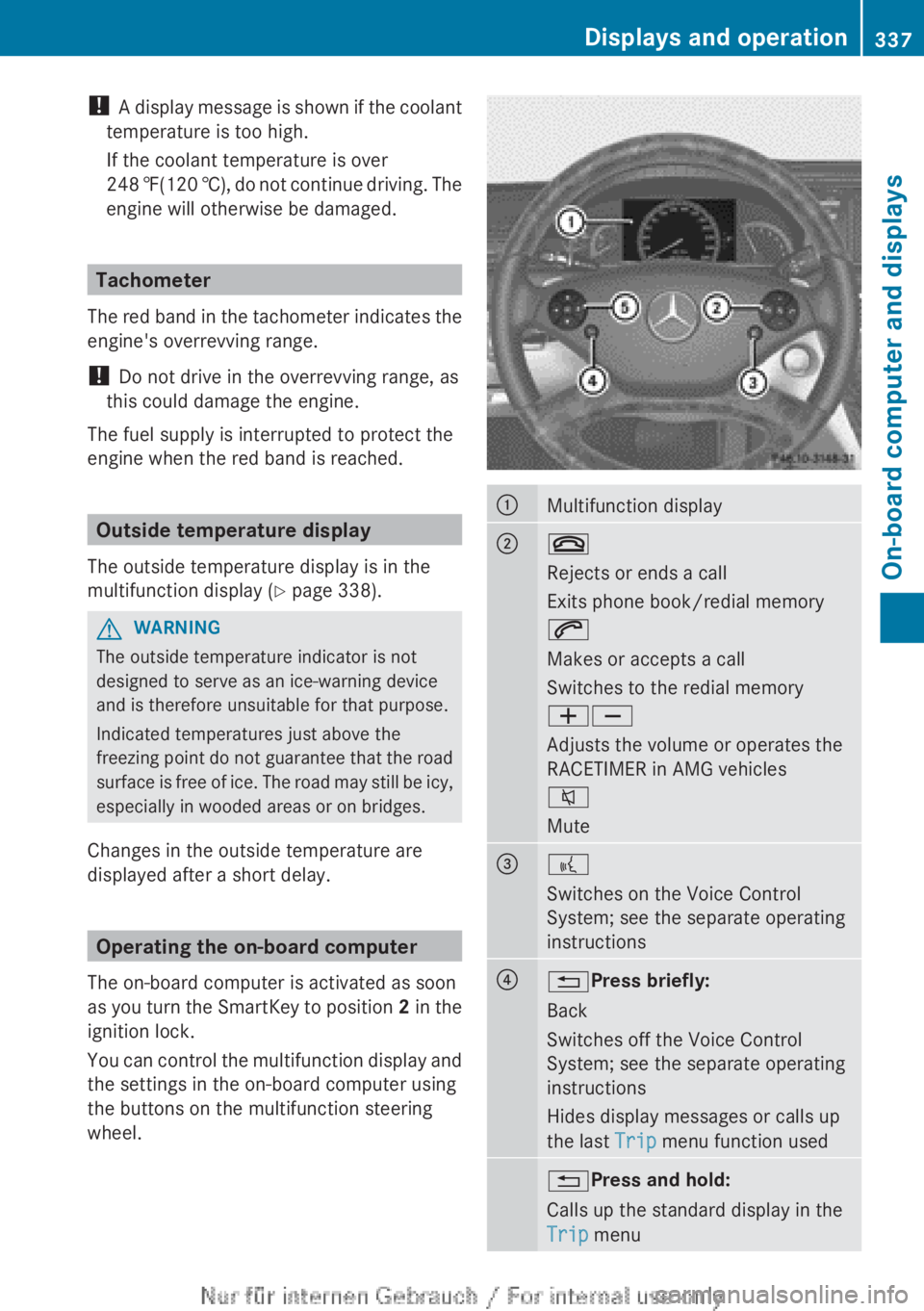
You can control the multifunction display and
the settings in the on-board computer using
the buttons on the multifunction steering
wheel.
:Multifunction display;~
Rejects or ends a call
Exits phone book/redial memory
6
Makes or accepts a call
Switches to the redial memory
WX
Adjusts the volume or operates the
RACETIMER in AMG vehicles
8
Mute=?
Switches on the Voice Control
System; see the separate operating
instructions?% Press briefly:
Back
Switches off the Voice Control
System; see the separate operating
instructions
Hides display messages or calls up
the last Trip menu function used% Press and hold:
Calls up the standard display in the
Trip menuDisplays and operation337On-board computer and displaysZ
Page 343 of 496
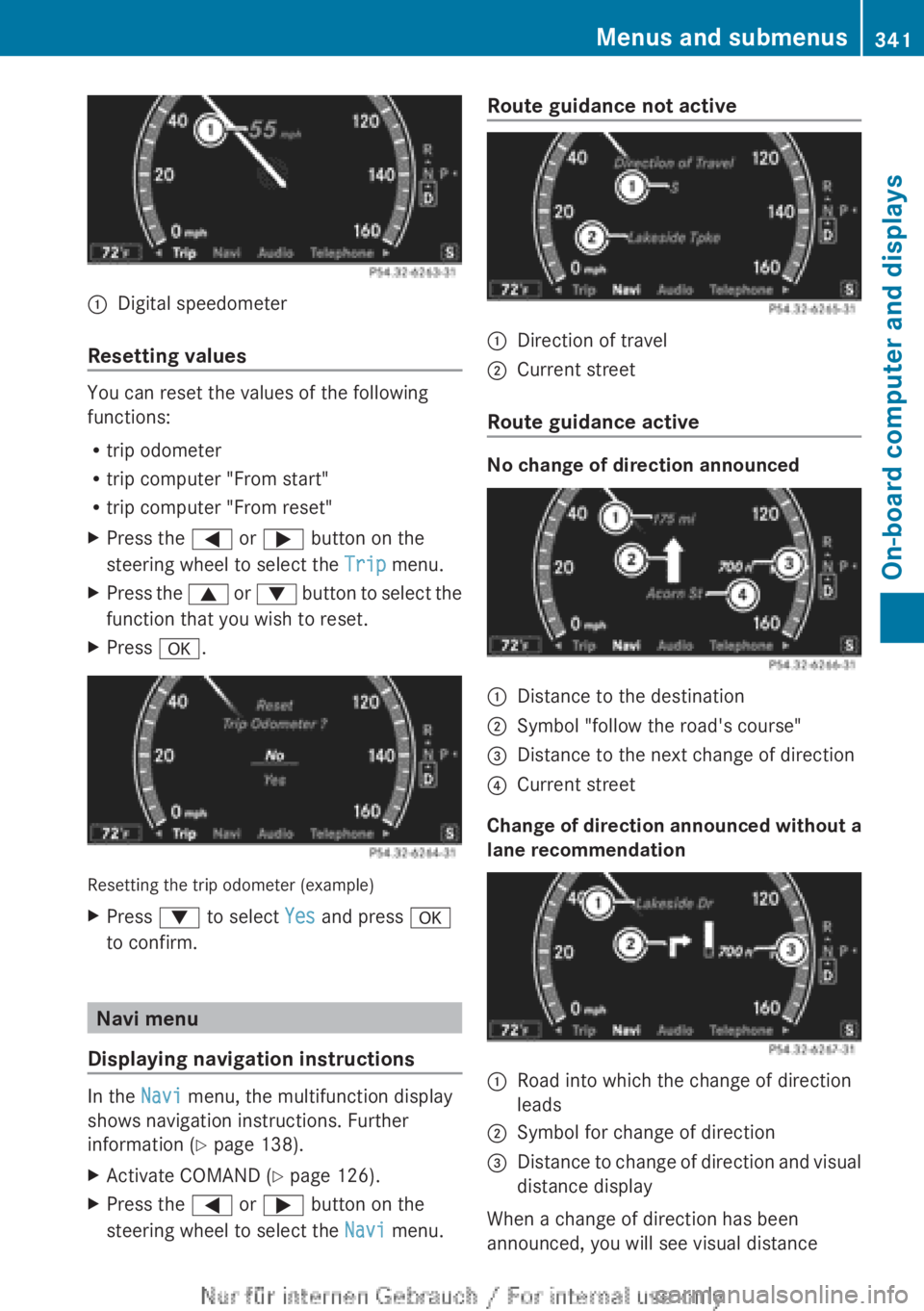
:Digital speedometer
Resetting values
You can reset the values of the following
functions:
R trip odometer
R trip computer "From start"
R trip computer "From reset"
XPress the = or ; button on the
steering wheel to select the Trip menu.XPress the 9 or : button to select the
function that you wish to reset.XPress a.
Resetting the trip odometer (example)
XPress : to select Yes and press a
to confirm.
Navi menu
Displaying navigation instructions
In the Navi menu, the multifunction display
shows navigation instructions. Further
information ( Y page 138).
XActivate COMAND ( Y page 126).XPress the = or ; button on the
steering wheel to select the Navi menu.Route guidance not active:Direction of travel;Current street
Route guidance active
No change of direction announced
:Distance to the destination;Symbol "follow the road's course"=Distance to the next change of direction?Current street
Change of direction announced without a
lane recommendation
:Road into which the change of direction
leads;Symbol for change of direction=Distance to change of direction and visual
distance display
When a change of direction has been
announced, you will see visual distance
Menus and submenus341On-board computer and displaysZ
Page 344 of 496
display = next to the symbol for the change
of direction ;. This decreases in size as you
approach the announced change of direction.
Change of direction announced with a
lane recommendation
Lane recommendations are only displayed if
the relevant data is available on the digital
map.:Road into which the change of direction
leads;Symbol for change of direction=Distance to change of direction and visual
distance display?Lane recommendation
On multiple-lane roads, COMAND can provide
lane recommendation ? for the next change
of direction. During the change of direction,
additional lanes may be displayed.
:Uninterrupted lane;New lane during a change of direction=Lane recommended for the change of
directionOther status indicators of the
navigation system
R O : you have reached the destination or an
intermediate destination.
R New route ...: COMAND is calculating the
new route.
R Direction of Dest. Off map or
Direction of Dest. Off mapped road :
the vehicle position is outside the area of
the digital map (off-map position).
R Direction of Dest. No Route : no route
could be calculated to the selected
destination.
Audio menu
Selecting a radio station
i SIRIUS XM satellite radio functions like a
normal radio.
For more information on satellite radio
operation, see the separate operating
instructions.
XSwitch on COMAND and select Radio
( Y page 199).XPress the = or ; button on the
steering wheel to select the Audio menu.:Memory slot (only if the station is stored);Station=Waveband342Menus and submenusOn-board computer and displays
Page 345 of 496
XTo select a stored station: briefly press
the 9 or : button.XTo select a station from the station
list: press and briefly hold the : or
9 button.XTo select a station using station
search 15
: press and briefly hold the 9
or : button.XPress a to stop the station search
function at the desired station.
Operating an audio player or audio
media
Audio data from various audio devices or
media can be played, depending on the
equipment installed in the vehicle.
XSwitch on COMAND and select audio
device or audio medium ( Y page 209).XPress the = or ; button on the
steering wheel to select the Audio menu.
CD player display (example)
:Current title;Medium (disc number only for DVD
changer)XTo select the next/previous track:
briefly press the 9 or : button.XTo select a track from the track list
(rapid scrolling): press and hold the
9 or : button until the desired track
has been reached.
If you press and hold the 9 or :
button, the rapid scrolling speed is increased.
Not all audio drives or data carriers support
this function.
If track information is stored on the audio
device or medium, the multifunction display
will show the number and name of the track.
The current track does not appear in audio
AUX mode ( Auxiliary audio mode: external
audio source connected).
Video DVD operationXSwitch on COMAND and select video DVD
( Y page 229).XPress the = or ; button on the
steering wheel to select the Audio menu.:Current scene;Medium (disc number only for DVD
changer)XTo select the next or previous scene:
briefly press the 9 or : button.XTo select a scene from the scene list
(rapid scrolling): press and hold the
9 or : button until the desired
scene has been reached.
AMG menu in AMG vehicles
AMG displays
XPress the = or ; button on the
steering wheel to select the AMG menu.15
Only if no station list is received.Menus and submenus343On-board computer and displaysZ