mirror MERCEDES-BENZ CL CLASS 2013 Owner's Manual
[x] Cancel search | Manufacturer: MERCEDES-BENZ, Model Year: 2013, Model line: CL CLASS, Model: MERCEDES-BENZ CL CLASS 2013Pages: 496, PDF Size: 7.5 MB
Page 107 of 496

should have a good overview of traffic
conditions.
Folding the exterior mirrors in or out
electrically
XMake sure that the SmartKey is in position
1 or 2 in the ignition lock.XBriefly press button :.
Both exterior mirrors fold in or out.
i Make sure that the exterior mirrors are
always folded out fully while driving. They
could otherwise vibrate.
Folding the exterior mirrors in or out
automatically
When the "Automatic mirror folding" function
is activated in COMAND ( Y page 236):
R the exterior mirrors fold in automatically as
soon as you lock the vehicle from the
outside.
R the exterior mirrors fold out again
automatically as soon as you unlock the
vehicle and then open the driver's or front-
passenger door.
i If the exterior mirrors have been folded in
manually, they do not fold out.
Exterior mirror out of position
If an exterior mirror has been pushed out of
position, proceed as follows:
XPress the mirror-folding button
( Y page 105) repeatedly until you hear the
mirror engage in position.
The mirror housing is engaged again and
you can adjust the exterior mirrors as usual
( Y page 104).
Automatic anti-glare mirrors
GWARNING
If incident light from headlamps is prevented
from striking the sensor in the rear-view
mirror, for instance, by luggage piled too high
in the vehicle, the mirror's automatic anti-
glare function will not operate.
Incident light could then blind you. This may
distract you from the traffic conditions and,
as a result, you may cause an accident.
The rear-view mirror and the exterior mirror
on the driver's side automatically go into anti-
glare mode if the ignition is switched on and
incident light from headlamps strikes the
sensor in the rear-view mirror.
The mirrors do not go into anti-glare mode if
reverse gear is engaged or the interior lighting
is switched on.
Parking position for the exterior
mirror on the front-passenger side
Setting and storing the parking position
You can position the front-passenger side
exterior mirror in such a way that you can see
the rear wheel on that side as soon as you
engage reverse gear. You can store this
position.
Mirrors105Seats, steering wheel and mirrorsZ
Page 108 of 496

XMake sure that the vehicle is stationary and
that the SmartKey is in position 2 in the
ignition lock.XPress button = for the exterior mirror on
the front-passenger side.XEngage reverse gear.
The exterior mirror on the front-passenger
side moves to the preset parking position.XUse adjustment button ; to adjust the
exterior mirror. You should see the rear
wheel and the curb in the exterior mirror.
The parking position is stored.
i If you shift the transmission to another
position, the exterior mirror on the front-
passenger side returns to the driving
position.
i You can also store the parking position
using memory button M : .
XMake sure that the SmartKey is in
position 2 in the ignition lock.XWith the exterior mirror on the front-
passenger side activated, use
adjustment button ; to adjust the
exterior mirror. You should see the
rear wheel and the curb in the exterior
mirror on the front-passenger side.XPress memory button M : and one of
the arrows on adjustment button ;
within three seconds.
The parking position is stored if the
exterior mirror does not move.
If the mirror moves out of position, repeat
the steps.
Calling up a stored parking position
settingXTurn the SmartKey to position 2 in the
ignition lock.XAdjust the exterior mirror on the front-
passenger side with the corresponding
button ( Y page 104).XEngage reverse gear.
The exterior mirror on the front-passenger
side moves to the stored parking position.
The exterior mirror on the front-passenger
side moves back to its original position:
R as soon as you exceed a speed of 9 mph
(15 km/h)
R about ten seconds after you have
disengaged reverse gear
R if you press button ? for the exterior
mirror on the driver's side
Memory function
Storing settings
GWARNING
Do not activate the memory function while
driving. Activating the memory function while
driving could cause the driver to lose control
of the vehicle.
With the memory function, you can store up
to three different settings, e.g. for three
different people.
The following settings are stored as a single
memory preset:
R seat, backrest, head restraint position and
contour of the backrest in the lumbar
region
R active multicontour seat: activated/
deactivated
R multicontour seat: the side bolsters of the
seat cushion and the backrest as well as
the contour of the backrest in the lumbar
and shoulder regions
106Memory functionSeats, steering wheel and mirrors
Page 109 of 496

Rdriver's side: steering wheel position
R driver's side: position of the exterior
mirrors on the driver's and front-passenger
sidesXAdjust the seat ( Y page 98).XOn the driver's side, adjust the steering
wheel (Y page 103) and the exterior mirrors
( Y page 104).XBriefly press the M memory button and
then press storage position button 1, 2 or
3 within three seconds until you hear an
acknowledgment tone.
The settings are stored in the selected
storage position.
Calling up a stored setting
XPress and hold the relevant storage
position button 1, 2 or 3 until the seat,
steering wheel and exterior mirrors are in
the stored position.
i If you release the storage position button,
the seat, steering wheel and mirror setting
functions stop immediately. The
multicontour seat setting or lumbar
support adjustment is still carried out.
Memory function107Seats, steering wheel and mirrorsZ
Page 118 of 496
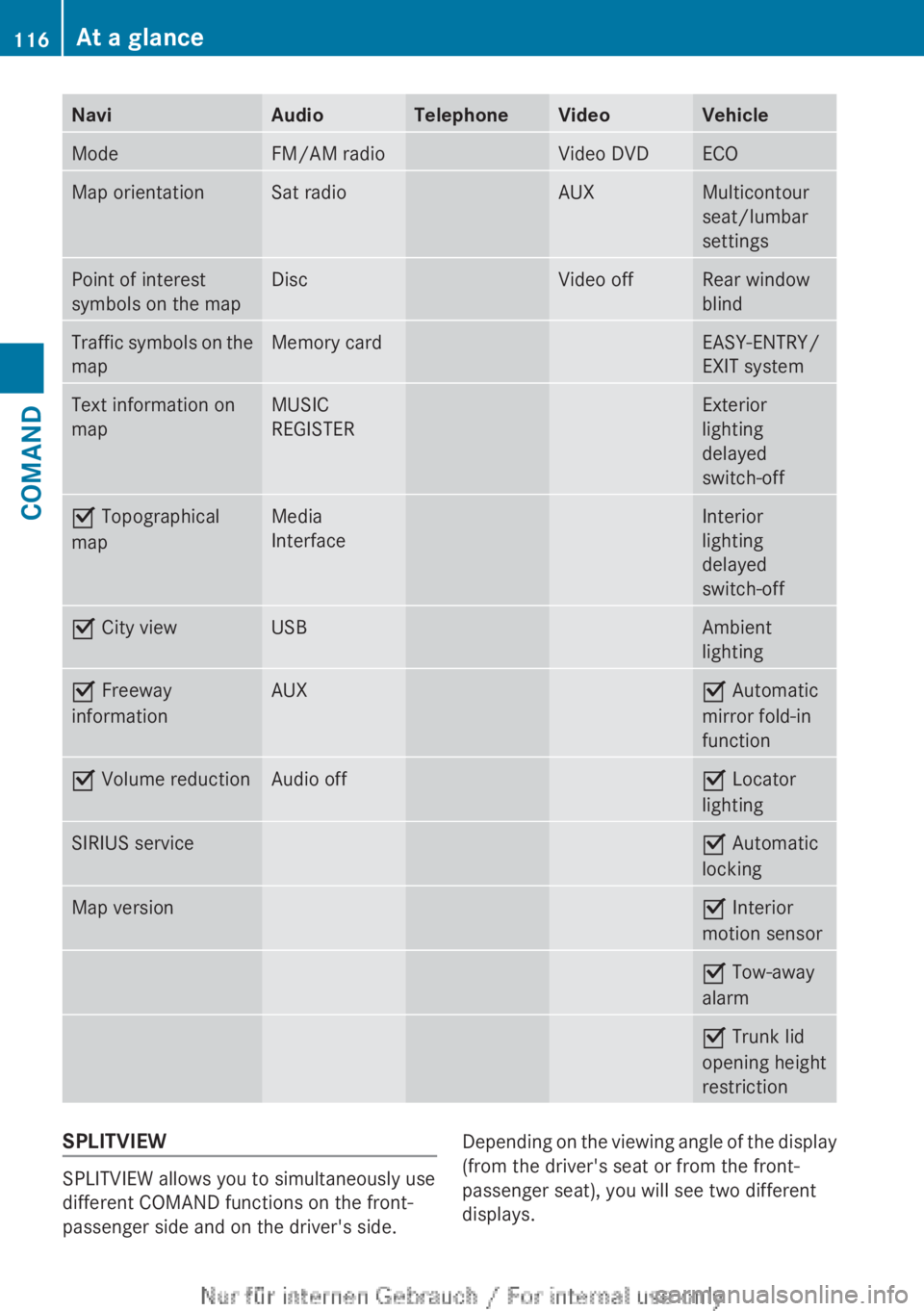
NaviAudioTelephoneVideoVehicleModeFM/AM radioVideo DVDECOMap orientationSat radioAUXMulticontour
seat/lumbar
settingsPoint of interest
symbols on the mapDiscVideo offRear window
blindTraffic symbols on the
mapMemory cardEASY-ENTRY/
EXIT systemText information on
mapMUSIC
REGISTERExterior
lighting
delayed
switch-offO Topographical
mapMedia
InterfaceInterior
lighting
delayed
switch-offO City viewUSBAmbient
lightingO Freeway
informationAUXO Automatic
mirror fold-in
functionO Volume reductionAudio offO Locator
lightingSIRIUS serviceO Automatic
lockingMap versionO Interior
motion sensorO Tow-away
alarmO Trunk lid
opening height
restrictionSPLITVIEW
SPLITVIEW allows you to simultaneously use
different COMAND functions on the front-
passenger side and on the driver's side.
Depending on the viewing angle of the display
(from the driver's seat or from the front-
passenger seat), you will see two different
displays.116At a glanceCOMAND
Page 237 of 496
gradually. This enables you to determine
whether the system is able to play the
music at high volume without distorting it.
Vehicle
Vehicle functions
General information
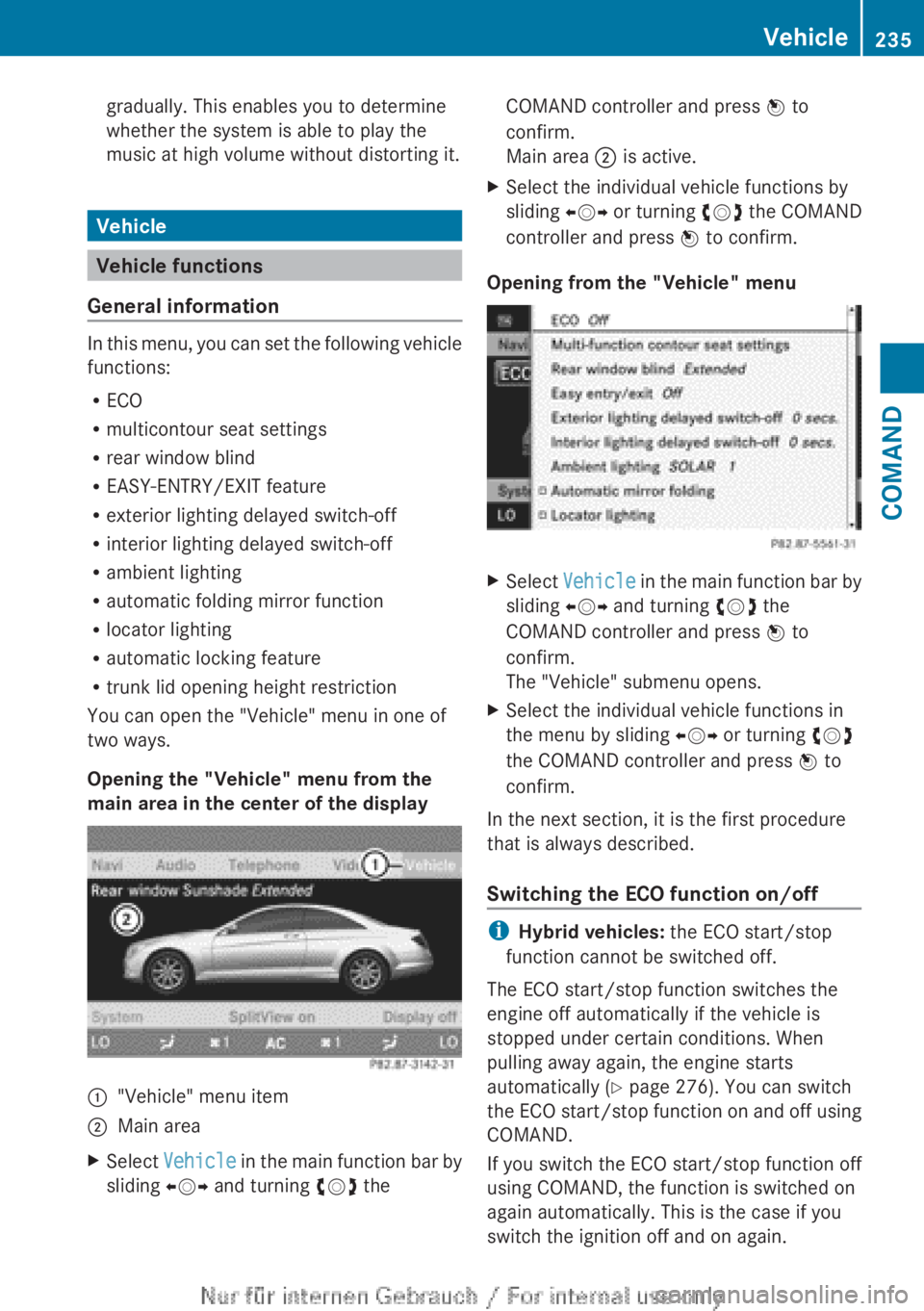
In this menu, you can set the following vehicle
functions:
R ECO
R multicontour seat settings
R rear window blind
R EASY-ENTRY/EXIT feature
R exterior lighting delayed switch-off
R interior lighting delayed switch-off
R ambient lighting
R automatic folding mirror function
R locator lighting
R automatic locking feature
R trunk lid opening height restriction
You can open the "Vehicle" menu in one of
two ways.
Opening the "Vehicle" menu from the
main area in the center of the display
:"Vehicle" menu item;Main areaXSelect Vehicle in the main function bar by
sliding XVY and turning cVd theCOMAND controller and press W to
confirm.
Main area ; is active.XSelect the individual vehicle functions by
sliding XVY or turning cVd the COMAND
controller and press W to confirm.
Opening from the "Vehicle" menu
XSelect Vehicle in the main function bar by
sliding XVY and turning cVd the
COMAND controller and press W to
confirm.
The "Vehicle" submenu opens.XSelect the individual vehicle functions in
the menu by sliding XVY or turning cVd
the COMAND controller and press W to
confirm.
In the next section, it is the first procedure
that is always described.
Switching the ECO function on/off
i Hybrid vehicles: the ECO start/stop
function cannot be switched off.
The ECO start/stop function switches the
engine off automatically if the vehicle is
stopped under certain conditions. When
pulling away again, the engine starts
automatically ( Y page 276). You can switch
the ECO start/stop function on and off using
COMAND.
If you switch the ECO start/stop function off
using COMAND, the function is switched on
again automatically. This is the case if you
switch the ignition off and on again.
Vehicle235COMANDZ
Page 238 of 496
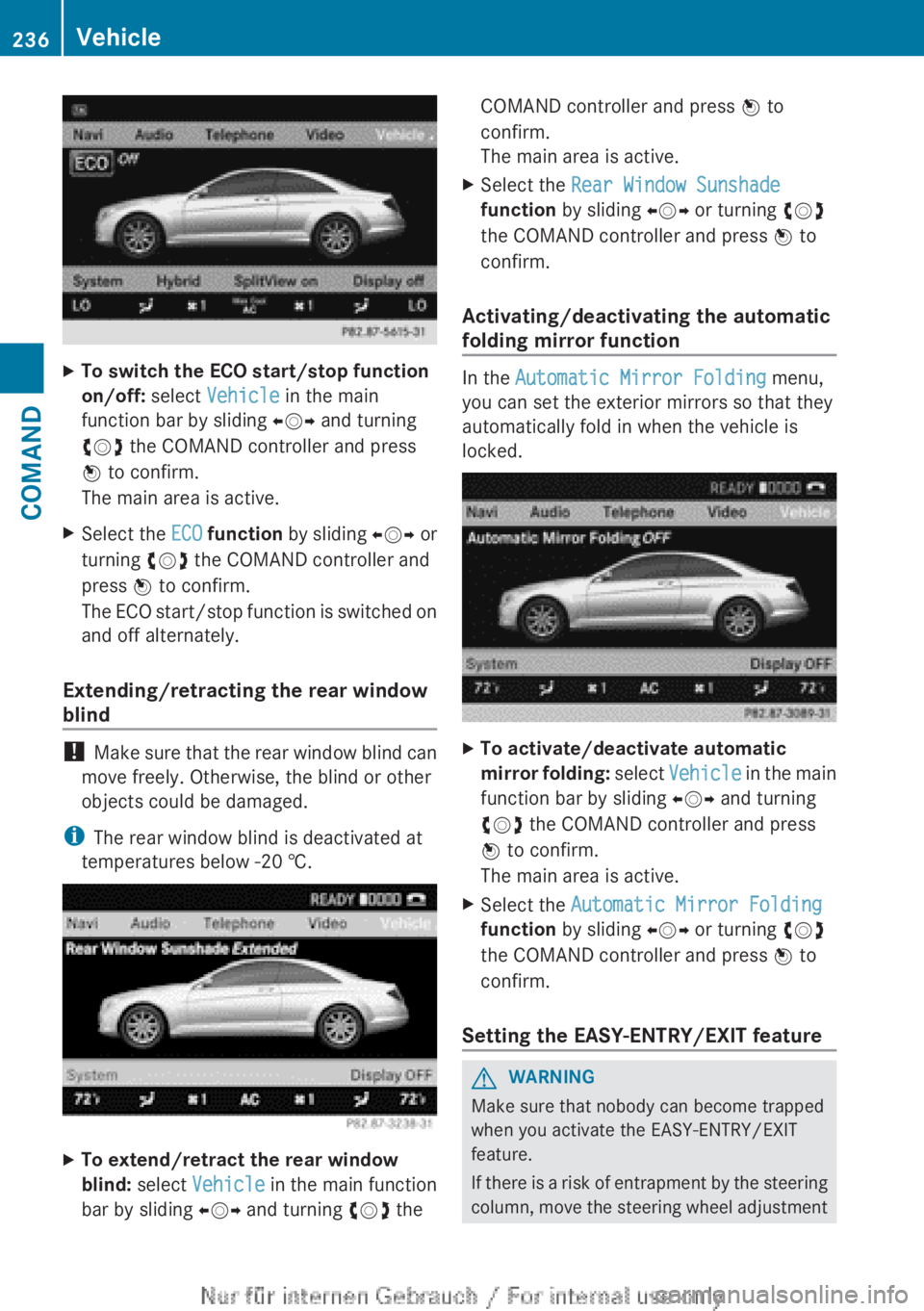
XTo switch the ECO start/stop function
on/off: select Vehicle in the main
function bar by sliding XVY and turning
cVd the COMAND controller and press
W to confirm.
The main area is active.XSelect the ECO function by sliding XVY or
turning cVd the COMAND controller and
press W to confirm.
The ECO start/stop function is switched on
and off alternately.
Extending/retracting the rear window
blind
! Make sure that the rear window blind can
move freely. Otherwise, the blind or other
objects could be damaged.
i The rear window blind is deactivated at
temperatures below -20 †.
XTo extend/retract the rear window
blind: select Vehicle in the main function
bar by sliding XVY and turning cVd theCOMAND controller and press W to
confirm.
The main area is active.XSelect the Rear Window Sunshade
function by sliding XVY or turning cVd
the COMAND controller and press W to
confirm.
Activating/deactivating the automatic
folding mirror function
In the Automatic Mirror Folding menu,
you can set the exterior mirrors so that they
automatically fold in when the vehicle is
locked.
XTo activate/deactivate automatic
mirror folding: select Vehicle in the main
function bar by sliding XVY and turning
cVd the COMAND controller and press
W to confirm.
The main area is active.XSelect the Automatic Mirror Folding
function by sliding XVY or turning cVd
the COMAND controller and press W to
confirm.
Setting the EASY-ENTRY/EXIT feature
GWARNING
Make sure that nobody can become trapped
when you activate the EASY-ENTRY/EXIT
feature.
If there is a risk of entrapment by the steering
column, move the steering wheel adjustment
236VehicleCOMAND
Page 240 of 496
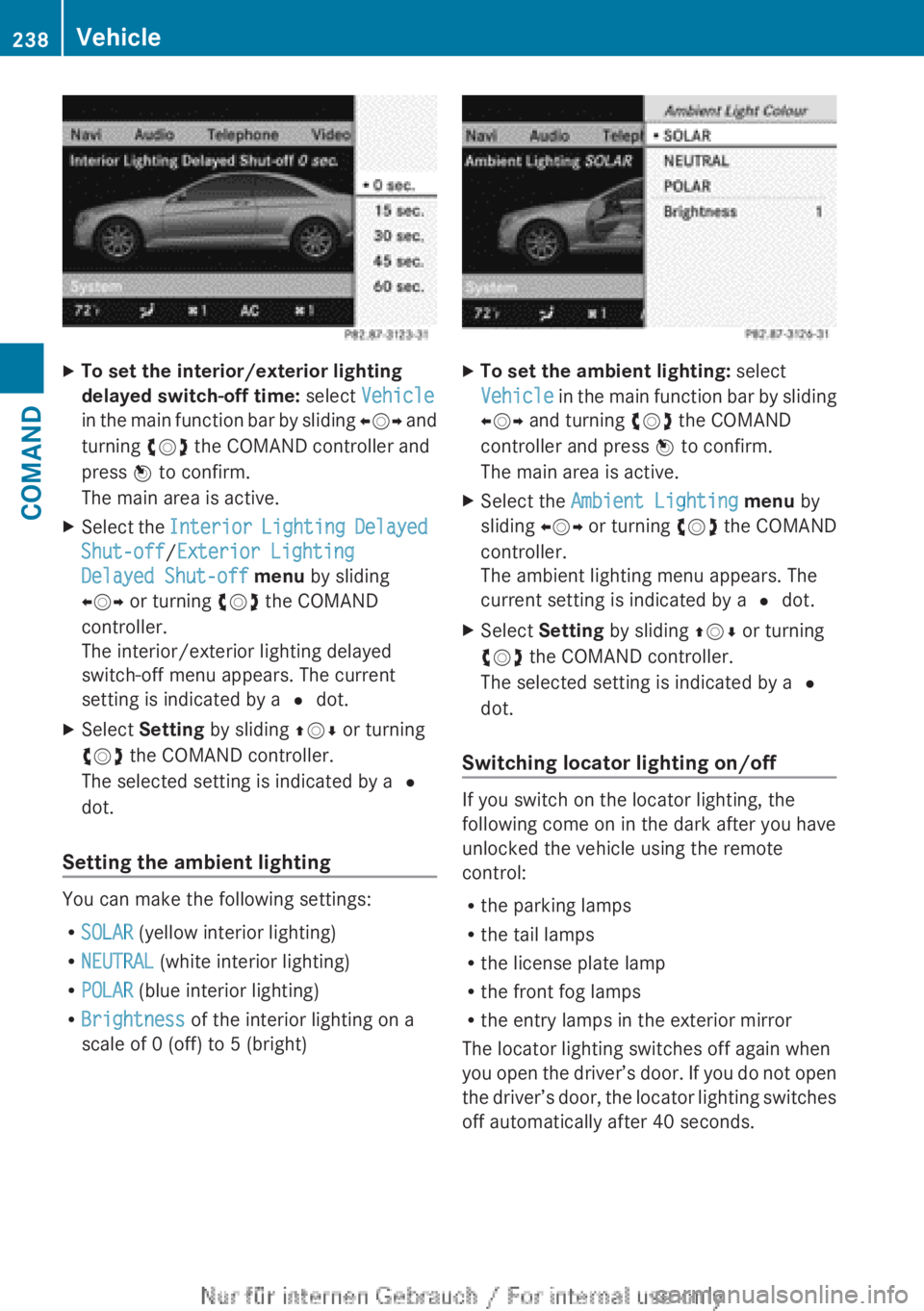
XTo set the interior/exterior lighting
delayed switch-off time: select Vehicle
in the main function bar by sliding XVY and
turning cVd the COMAND controller and
press W to confirm.
The main area is active.XSelect the Interior Lighting Delayed
Shut-off /Exterior Lighting
Delayed Shut-off menu by sliding
XVY or turning cVd the COMAND
controller.
The interior/exterior lighting delayed
switch-off menu appears. The current
setting is indicated by a # dot.XSelect Setting by sliding ZVÆ or turning
cVd the COMAND controller.
The selected setting is indicated by a #
dot.
Setting the ambient lighting
You can make the following settings:
R SOLAR (yellow interior lighting)
R NEUTRAL (white interior lighting)
R POLAR (blue interior lighting)
R Brightness of the interior lighting on a
scale of 0 (off) to 5 (bright)
XTo set the ambient lighting: select
Vehicle in the main function bar by sliding
XVY and turning cVd the COMAND
controller and press W to confirm.
The main area is active.XSelect the Ambient Lighting menu by
sliding XVY or turning cVd the COMAND
controller.
The ambient lighting menu appears. The
current setting is indicated by a # dot.XSelect Setting by sliding ZVÆ or turning
cVd the COMAND controller.
The selected setting is indicated by a #
dot.
Switching locator lighting on/off
If you switch on the locator lighting, the
following come on in the dark after you have
unlocked the vehicle using the remote
control:
R the parking lamps
R the tail lamps
R the license plate lamp
R the front fog lamps
R the entry lamps in the exterior mirror
The locator lighting switches off again when
you open the driver’s door. If you do not open
the driver’s door, the locator lighting switches
off automatically after 40 seconds.
238VehicleCOMAND
Page 319 of 496
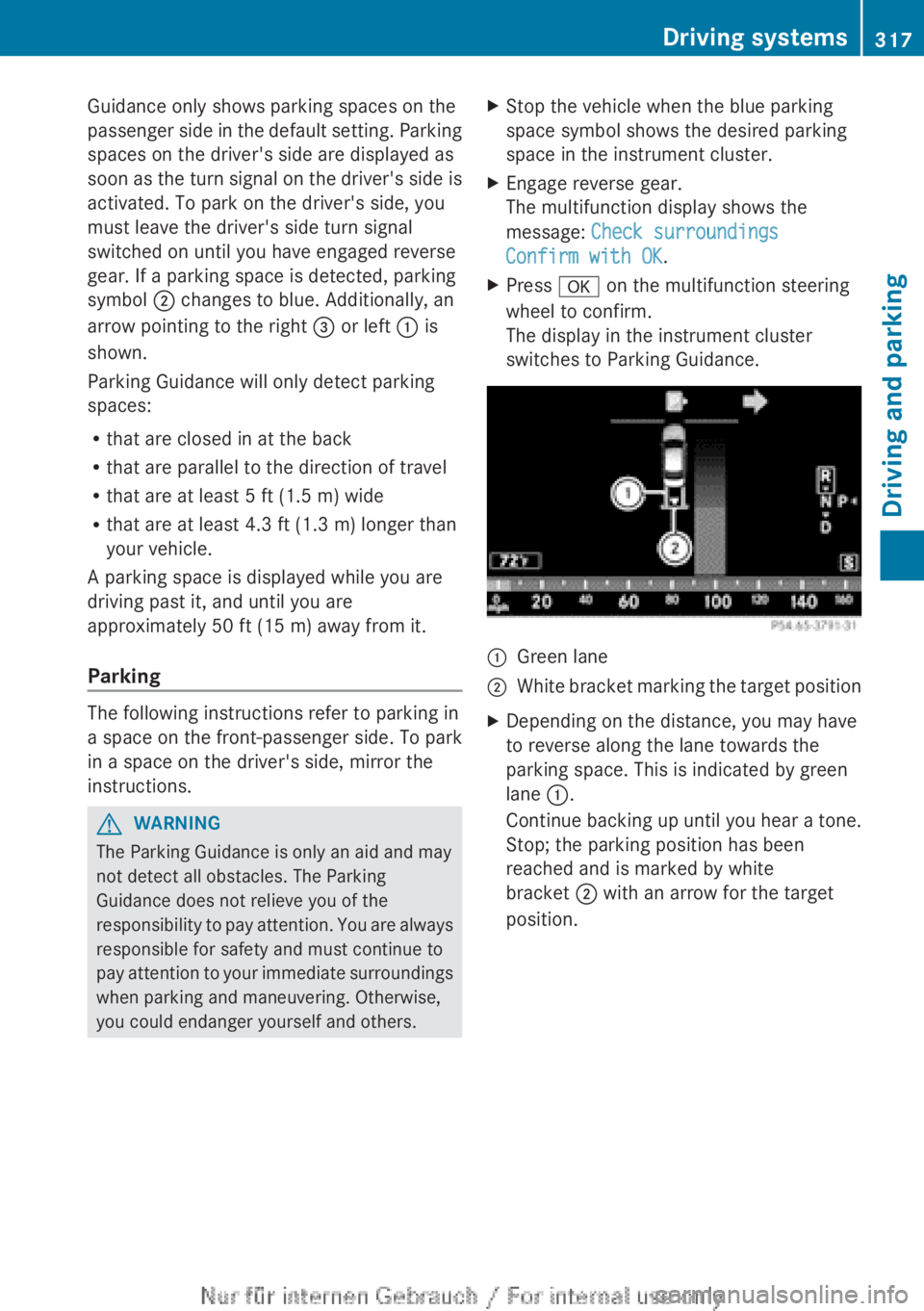
Guidance only shows parking spaces on the
passenger side in the default setting. Parking
spaces on the driver's side are displayed as
soon as the turn signal on the driver's side is
activated. To park on the driver's side, you
must leave the driver's side turn signal
switched on until you have engaged reverse
gear. If a parking space is detected, parking
symbol ; changes to blue. Additionally, an
arrow pointing to the right = or left : is
shown.
Parking Guidance will only detect parking
spaces:
R that are closed in at the back
R that are parallel to the direction of travel
R that are at least 5 ft (1.5 m) wide
R that are at least 4.3 ft (1.3 m) longer than
your vehicle.
A parking space is displayed while you are
driving past it, and until you are
approximately 50 ft (15 m) away from it.
Parking
The following instructions refer to parking in
a space on the front-passenger side. To park
in a space on the driver's side, mirror the
instructions.
GWARNING
The Parking Guidance is only an aid and may
not detect all obstacles. The Parking
Guidance does not relieve you of the
responsibility to pay attention. You are always
responsible for safety and must continue to
pay attention to your immediate surroundings
when parking and maneuvering. Otherwise,
you could endanger yourself and others.
XStop the vehicle when the blue parking
space symbol shows the desired parking
space in the instrument cluster.XEngage reverse gear.
The multifunction display shows the
message: Check surroundings
Confirm with OK .XPress a on the multifunction steering
wheel to confirm.
The display in the instrument cluster
switches to Parking Guidance.:Green lane;White bracket marking the target positionXDepending on the distance, you may have
to reverse along the lane towards the
parking space. This is indicated by green
lane :.
Continue backing up until you hear a tone.
Stop; the parking position has been
reached and is marked by white
bracket ; with an arrow for the target
position.Driving systems317Driving and parkingZ
Page 321 of 496
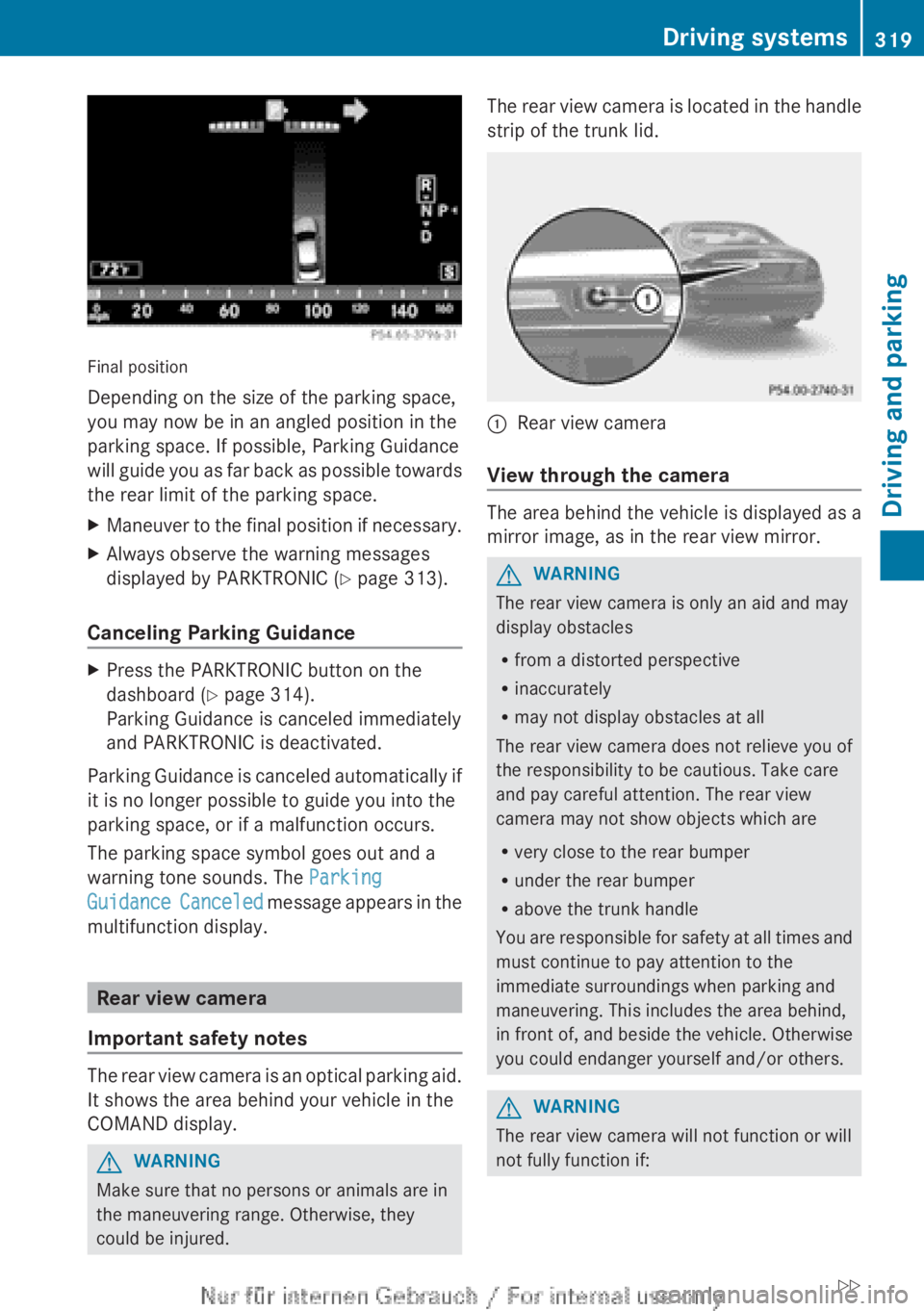
Final position
Depending on the size of the parking space,
you may now be in an angled position in the
parking space. If possible, Parking Guidance
will guide you as far back as possible towards
the rear limit of the parking space.
XManeuver to the final position if necessary.XAlways observe the warning messages
displayed by PARKTRONIC ( Y page 313).
Canceling Parking Guidance
XPress the PARKTRONIC button on the
dashboard ( Y page 314).
Parking Guidance is canceled immediately
and PARKTRONIC is deactivated.
Parking Guidance is canceled automatically if
it is no longer possible to guide you into the
parking space, or if a malfunction occurs.
The parking space symbol goes out and a
warning tone sounds. The Parking
Guidance Canceled message appears in the
multifunction display.
Rear view camera
Important safety notes
The rear view camera is an optical parking aid.
It shows the area behind your vehicle in the
COMAND display.
GWARNING
Make sure that no persons or animals are in
the maneuvering range. Otherwise, they
could be injured.
The rear view camera is located in the handle
strip of the trunk lid.:Rear view camera
View through the camera
The area behind the vehicle is displayed as a
mirror image, as in the rear view mirror.
GWARNING
The rear view camera is only an aid and may
display obstacles
R from a distorted perspective
R inaccurately
R may not display obstacles at all
The rear view camera does not relieve you of
the responsibility to be cautious. Take care
and pay careful attention. The rear view
camera may not show objects which are
R very close to the rear bumper
R under the rear bumper
R above the trunk handle
You are responsible for safety at all times and
must continue to pay attention to the
immediate surroundings when parking and
maneuvering. This includes the area behind,
in front of, and beside the vehicle. Otherwise
you could endanger yourself and/or others.
GWARNING
The rear view camera will not function or will
not fully function if:
Driving systems319Driving and parkingZ
Page 329 of 496
Problems with Night View Assist PlusProblemPossible causes/consequences and M SolutionsThe picture quality of
Night View Assist Plus
has deteriorated.The windshield wipers are smearing the windshield.XReplace the wiper blades ( Y page 258).The windshield is smeared after the vehicle has been cleaned in a
car wash.XClean the windshield ( Y page 430).There is windshield chip damage in the camera's field of vision.XReplace the windshield.The windshield is fogged up on the inside.XDefrost the windshield ( Y page 266).The windshield is iced up.XDe-ice the windshield ( Y page 265).There is dirt on the inside of the windshield.XClean the inside of the windshield ( Y page 430).Active Driving Assistance package
General notes
The Active Driving Assistance package
consists of DISTRONIC PLUS ( Y page 298),
Active Blind Spot Assist ( Y page 327) and
Active Lane Keeping Assist ( Y page 330).
Active Blind Spot Assist
Important safety notes
Active Blind Spot Assist uses a radar sensor
system to monitor the side areas of your
vehicle which are behind the driver. A warning
display in the exterior mirrors draws your
attention to vehicles detected in the
monitored area. If you then switch on the
corresponding turn signal to change lanes,
you will also receive a visual and audible
collision warning. If a risk of lateral collision
is detected, corrective braking may help you
avoid a collision. To support the course-
correcting brake application, Active Blind
Spot Assist also uses the forward-facing radar
sensor system. Active Blind Spot Assist
supports you from a speed of approximately
20 mph (30 km/h).GWARNING
Active Blind Spot Assist is only an aid, and
may detect vehicles/obstacles incorrectly or
not at all.
The system may be impaired or may not
function if:
R there is poor visibility, e.g. due to snow,
rain, fog or spray.
R the rear and/or front sensors are dirty.
Active Blind Spot Assist may not detect
narrow vehicles, such as motorcycles or
bicycles, or may only detect them too late. It
cannot detect vehicles that are overtaken at
a small distance and then enter the blind spot
area.
Active Blind Spot Assist cannot detect road
and traffic conditions. It is not a substitute for
Driving systems327Driving and parkingZ