ESP MERCEDES-BENZ CL CLASS 2013 Workshop Manual
[x] Cancel search | Manufacturer: MERCEDES-BENZ, Model Year: 2013, Model line: CL CLASS, Model: MERCEDES-BENZ CL CLASS 2013Pages: 496, PDF Size: 7.5 MB
Page 163 of 496
iIf the first or last route section is
highlighted, you cannot select Previous or
Next .XTo zoom in or out of the map: select N
or M and press W to confirm.XTo close the route overview: select
Back and press W to confirm.
Where am I?
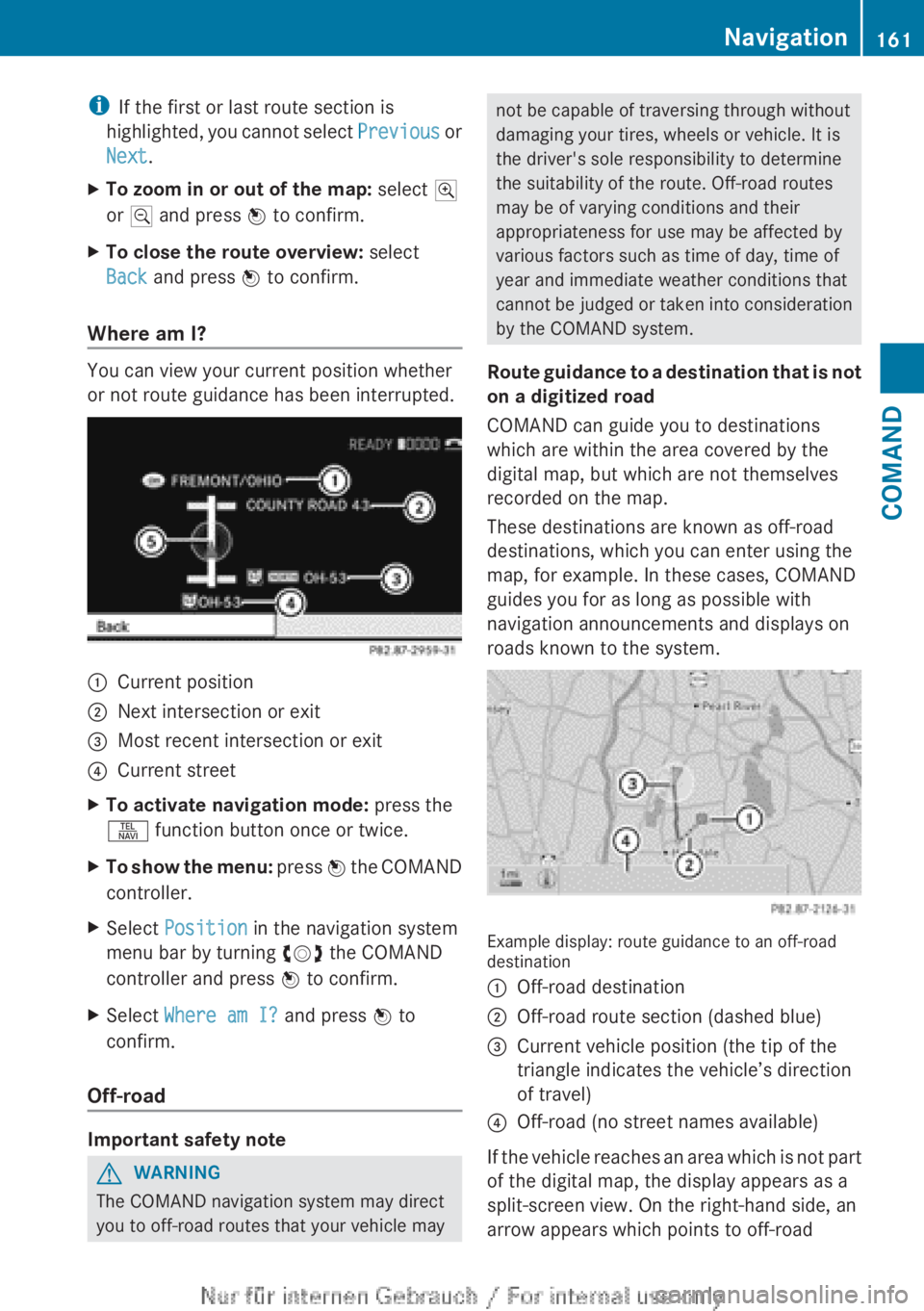
You can view your current position whether
or not route guidance has been interrupted.
:Current position;Next intersection or exit=Most recent intersection or exit?Current streetXTo activate navigation mode: press the
S function button once or twice.XTo show the menu: press W the COMAND
controller.XSelect Position in the navigation system
menu bar by turning cVd the COMAND
controller and press W to confirm.XSelect Where am I? and press W to
confirm.
Off-road
Important safety note
GWARNING
The COMAND navigation system may direct
you to off-road routes that your vehicle may
not be capable of traversing through without
damaging your tires, wheels or vehicle. It is
the driver's sole responsibility to determine
the suitability of the route. Off-road routes
may be of varying conditions and their
appropriateness for use may be affected by
various factors such as time of day, time of
year and immediate weather conditions that
cannot be judged or taken into consideration
by the COMAND system.
Route guidance to a destination that is not
on a digitized road
COMAND can guide you to destinations
which are within the area covered by the
digital map, but which are not themselves
recorded on the map.
These destinations are known as off-road
destinations, which you can enter using the
map, for example. In these cases, COMAND
guides you for as long as possible with
navigation announcements and displays on
roads known to the system.
Example display: route guidance to an off-road
destination
:Off-road destination;Off-road route section (dashed blue)=Current vehicle position (the tip of the
triangle indicates the vehicle’s direction
of travel)?Off-road (no street names available)
If the vehicle reaches an area which is not part
of the digital map, the display appears as a
split-screen view. On the right-hand side, an
arrow appears which points to off-road
Navigation161COMANDZ
Page 165 of 496
Real-time traffic reports on the map
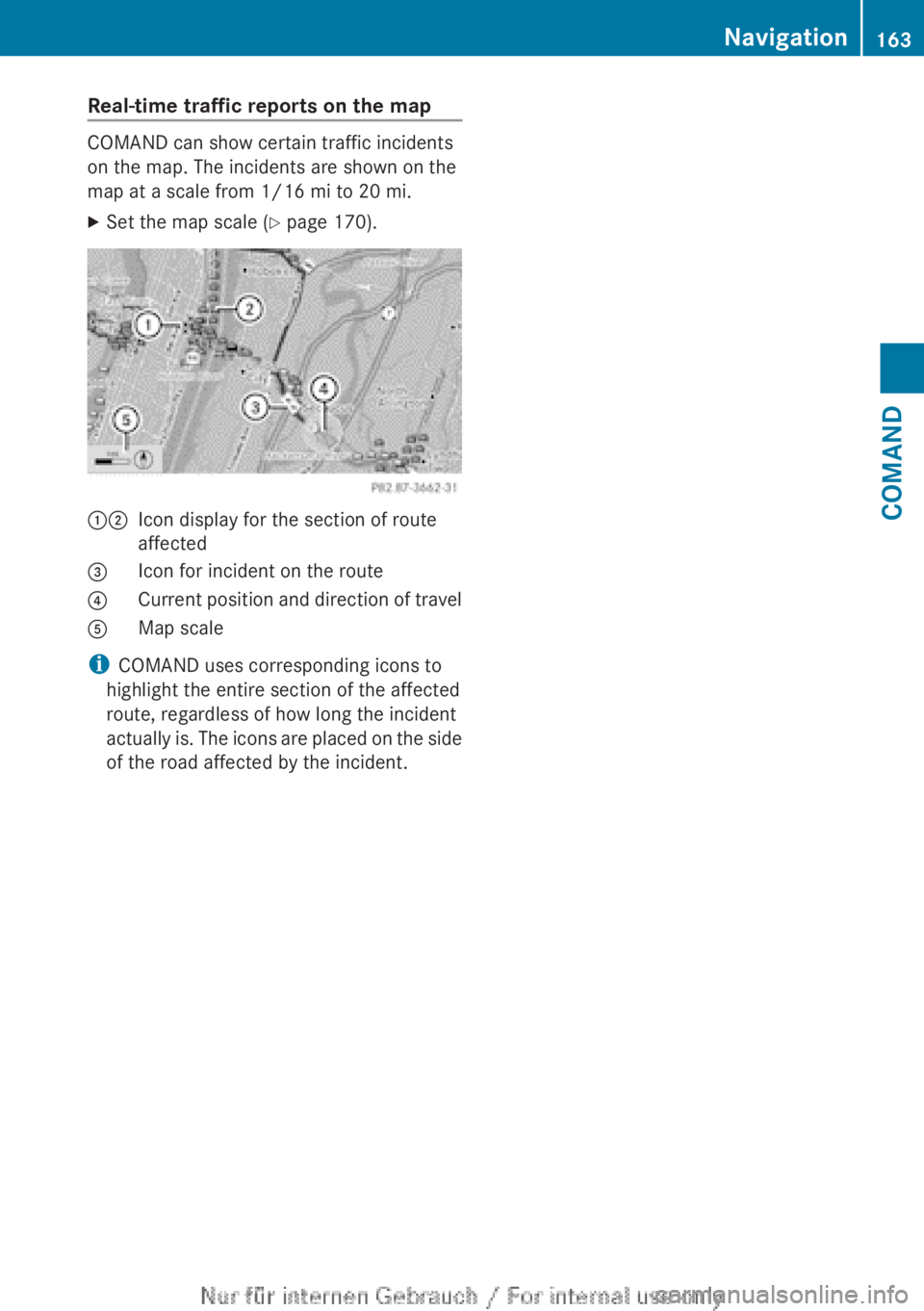
COMAND can show certain traffic incidents
on the map. The incidents are shown on the
map at a scale from 1/16 mi to 20 mi.
XSet the map scale ( Y page 170).12Icon display for the section of route
affected3Icon for incident on the route4Current position and direction of travel5Map scale
i COMAND uses corresponding icons to
highlight the entire section of the affected
route, regardless of how long the incident
actually is. The icons are placed on the side
of the road affected by the incident.
Navigation163COMANDZ
Page 171 of 496
will appear asking whether you wish to
overwrite the existing data.XSelect Yes or No and press W to confirm.
If you select Yes, COMAND stores the data.
Deleting a destination or the home
address from the destination memory
XTo activate navigation mode: press the
S function button once or twice.XTo show the menu: press W the COMAND
controller.XSelect Destination in the navigation
system menu bar by turning cVd the
COMAND controller and press W to
confirm.XSelect From Memory and press W to
confirm.
You will see the destination memory list
either with the character bar (option 1) or
as a selection list (option 2).XOption 1: destination memory list with
character bar: proceed as described in the
"Entering characters using the character
bar" section ( Y page 122).XOption 2: destination memory list as
selection list: select a destination by
turning cVd the COMAND controller and
press W to confirm.
You see the address data of the selected
entry.XSelect Delete and press W to confirm.
A prompt appears asking whether you wish
to delete the destination.XSelect Yes or No and press W to confirm.
If you select Yes, COMAND deletes the
destination. You will see a message to this
effect.
If you select No, the process is aborted.
i
If the navigable address data for the
destination being deleted is also assigned
to an address book entry, COMAND will
also delete this data from there. If the
corresponding address book entry does
not contain any further data, such as
telephone numbers, COMAND deletes the
entire address book entry.
Previous destinations
Introduction
COMAND automatically stores the previous
destinations for which the route calculation
has been started. If the memory is full,
COMAND deletes the oldest destination. You
can also save a destination from the list of
previous destinations in the destination
memory. It will be stored there permanently.
Storing a destination permanently in
the destination memory
XProceed as described in the "From the list
of previous destinations" section
( Y page 167).
Storing the vehicle position in the list of
previous destinations
XTo activate navigation mode: press the
S function button once or twice.XTo show the menu: press W the COMAND
controller.XSelect Position in the navigation system
menu bar by turning cVd the COMAND
controller and press W to confirm.XSelect Store Vehicle Position and
press W to confirm.
COMAND stores the current vehicle
position as a destination in the list of
previous destinations.Navigation169COMANDZ
Page 172 of 496
Storing the crosshair position in the list
of previous destinations
Route guidance not active
A crosshair appears on the map if you have
moved the map manually. You can store the
crosshair position as a destination in the list
of previous destinations.
XTo show the menu: press W the COMAND
controller.XSelect Position in the navigation system
menu bar by turning cVd the COMAND
controller and press W to confirm.XSelect Save Crosshair Position and
press W to confirm.
Route guidance is active
XSelect Destination in the navigation
system menu bar by turning cVd the
COMAND controller and press W to
confirm.XSelect Save Destination and press W to
confirm.
Deleting one of the previous
destinations
XTo activate navigation mode: press the
S function button once or twice.XTo show the menu: press W the COMAND
controller.XSelect Destination in the navigation
system menu bar by turning cVd the
COMAND controller and press W to
confirm.XSelect From Last Destinations and
press W to confirm.
The list of last destinations appears.XSelect the desired destination and press
W to confirm.
The destination address appears.XSelect Delete and press W to confirm.
A prompt appears asking whether the entry
should be deleted.XSelect Yes or No and press W to confirm.
If you select Yes, the entry is deleted.
If you select No, the process is aborted.
Map operation and settings
Note
Company logos displayed on the map are
trademarks of the respective companies and
used solely for the purpose of indicating the
location of these companies. The use of such
logos on the map does not indicate approval
of, support of or advertising by these
companies for the navigation system itself.
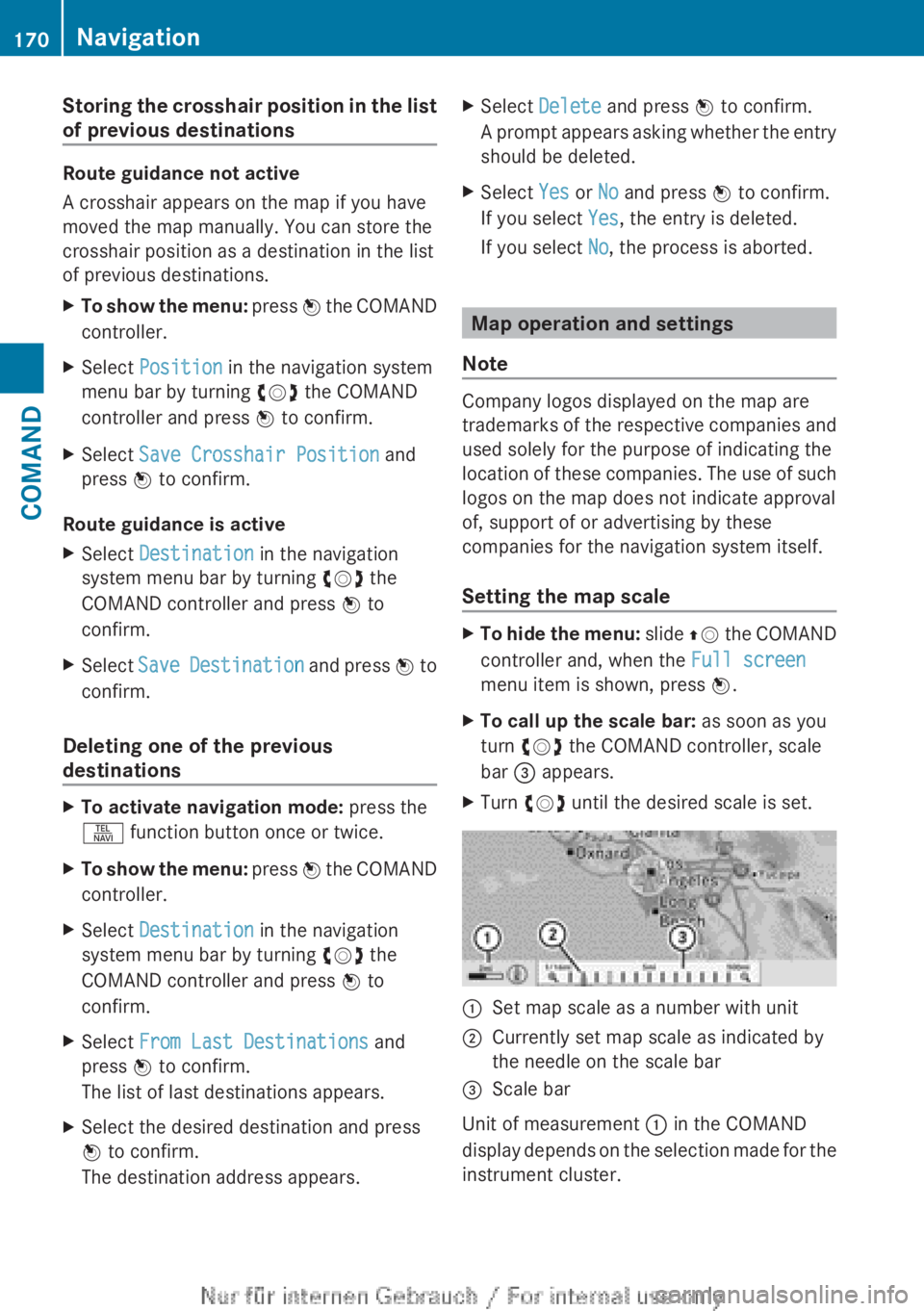
Setting the map scale
XTo hide the menu: slide ZV the COMAND
controller and, when the Full screen
menu item is shown, press W.XTo call up the scale bar: as soon as you
turn cVd the COMAND controller, scale
bar = appears.XTurn cVd until the desired scale is set.:Set map scale as a number with unit;Currently set map scale as indicated by
the needle on the scale bar=Scale bar
Unit of measurement : in the COMAND
display depends on the selection made for the
instrument cluster.
170NavigationCOMAND
Page 173 of 496
Moving the map
Showing the crosshair
XTo hide the menu: slide ZV the COMAND
controller and, when the Full screen
menu item is shown, press W.XTo move the map: slide XVY, ZV Æ or
aVb the COMAND controller.
A crosshair appears on the map. If you slide
it again, the map moves in the
corresponding direction under the
crosshair.
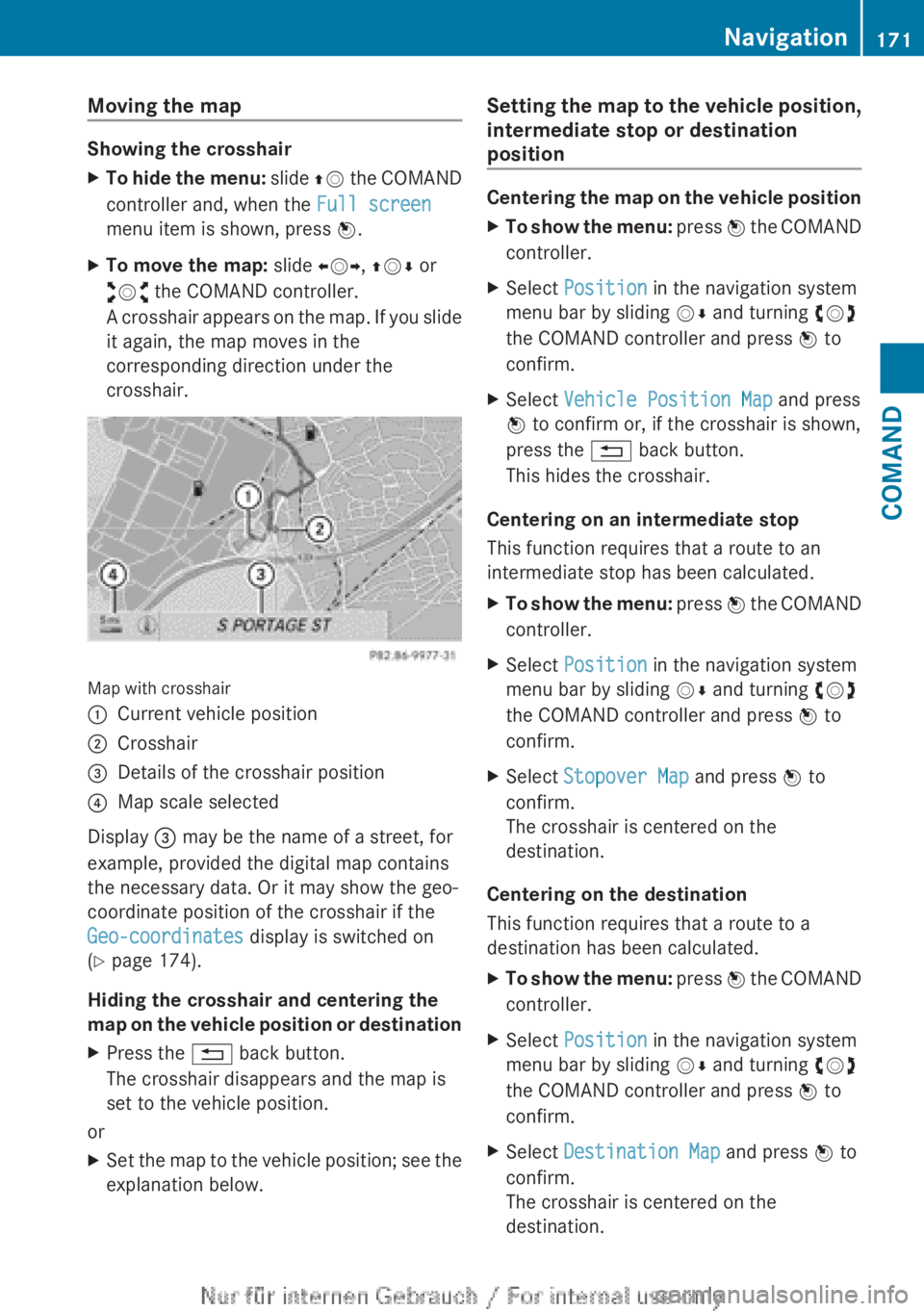
Map with crosshair
:Current vehicle position;Crosshair=Details of the crosshair position?Map scale selected
Display = may be the name of a street, for
example, provided the digital map contains
the necessary data. Or it may show the geo-
coordinate position of the crosshair if the
Geo-coordinates display is switched on
( Y page 174).
Hiding the crosshair and centering the
map on the vehicle position or destination
XPress the % back button.
The crosshair disappears and the map is
set to the vehicle position.
or
XSet the map to the vehicle position; see the
explanation below.Setting the map to the vehicle position,
intermediate stop or destination
position
Centering the map on the vehicle position
XTo show the menu: press W the COMAND
controller.XSelect Position in the navigation system
menu bar by sliding VÆ and turning cVd
the COMAND controller and press W to
confirm.XSelect Vehicle Position Map and press
W to confirm or, if the crosshair is shown,
press the % back button.
This hides the crosshair.
Centering on an intermediate stop
This function requires that a route to an
intermediate stop has been calculated.
XTo show the menu: press W the COMAND
controller.XSelect Position in the navigation system
menu bar by sliding VÆ and turning cVd
the COMAND controller and press W to
confirm.XSelect Stopover Map and press W to
confirm.
The crosshair is centered on the
destination.
Centering on the destination
This function requires that a route to a
destination has been calculated.
XTo show the menu: press W the COMAND
controller.XSelect Position in the navigation system
menu bar by sliding VÆ and turning cVd
the COMAND controller and press W to
confirm.XSelect Destination Map and press W to
confirm.
The crosshair is centered on the
destination.Navigation171COMANDZ
Page 179 of 496
Information about new versions of map
software can be obtained from an authorized
Mercedes-Benz Center.
You can have your map software updated
there with a DVD, or you can update it
yourself.
Updating processGWARNING
Never leave the engine running in enclosed
spaces. The exhaust gases contain toxic
carbon monoxide. Breathing in exhaust fumes
is a health hazard and can lead to
unconsciousness or death.
The update process can take a long time (over
an hour), depending on the size of the digital
map. During this time, you will only be able to
switch on radio mode and to accept incoming
calls. The update will be completed more
quickly if the vehicle is stationary.
If the starter battery is not sufficiently
charged, COMAND may end the process
automatically. This protects the battery. If
this occurs, restart the update with the
engine running.
Displaying information on the map
version currently in use
XTo activate navigation mode: press the
S function button once or twice.XTo show the menu: press W the COMAND
controller.XSelect Navi in the main function bar by
sliding VÆ and turning cVd the COMAND
controller and press W to confirm.XSelect Map version and press W to
confirm.
Notes on handling DVDs
R Only hold DVDs by the edge.
R Handle DVDs carefully to prevent reading
errors.
R Avoid getting scratches, fingerprints and
dust on DVDs.
R Use a commercially-available cleaning
cloth to clean discs. When cleaning CDs,
you should wipe in straight lines from the
center outwards rather than in a circular
motion.
R Place DVDs back in their cases after use.
R Protect DVDs from heat and direct sunlight.
Map software copy protection
Map software for COMAND is subject to a
charge. The map software has just one
activation code which is usable in one vehicle
only, and is not transferable. You can obtain
the six-digit activation code from an
authorized Mercedes-Benz Center. If you
have lost the activation code, contact an
authorized Mercedes-Benz Center. If
COMAND does not accept the activation
code that you have received, also contact an
authorized Mercedes-Benz Center.
Your vehicle is supplied with map software at
the factory. Depending on the country, map
software for your region is either pre-installed
or the map software is supplied as a DVD. You
do not require an activation code for the map
software that is provided with your vehicle.
If the map software on your vehicle has been
installed at the factory and you wish to
reinstall it, this also does not necessitate
entry of the activation code.
Installation processXLoad the map software DVD in the DVD
drive ( Y page 209).
COMAND checks the DVD and shows a
corresponding message in the display.
Map software is not compatible with the
navigation system
You will see a message that the map software
cannot be installed.
XTo confirm the message: press W.
COMAND ejects the DVD.XTake the DVD out of the slot.XInsert a DVD which is compatible with the
vehicle’s navigation system.Navigation177COMANDZ
Page 185 of 496
Ra valid and operational SIM card must be
inserted in the mobile phone.
R the mobile phone is connected to COMAND
via Bluetooth ®
.
If you cannot make an emergency call, you
must arrange rescue measures yourself.XEnter numbers using the number keypad
( Y page 188).XPress the 6 button.
The telephone makes the connection.XWait for the emergency call center to
respond and then describe the emergency.
i If no SIM card has been inserted in a GSM
phone or if there is no service available for
a CDMA phone, the NO SERVICE message
appears in COMAND. In this case, an
emergency call can only be transmitted via
the mobile phone itself and not via
COMAND.
Telephony via the Bluetooth ®
interface
Conditions
On the mobile phone
For telephony via COMAND's Bluetooth ®
interface, a Bluetooth ®
-capable mobile
phone is required.
i Not all mobile phones available on the
market are equally suitable. More detailed
information on suitable mobile phones and
on connecting Bluetooth ®
-capable mobile
phones with COMAND can be found on the
Internet at
http://www.mbusa-mobile.com . Or call
the Mercedes-Benz Customer Assistance
Center on
1-800-FOR-MERCedes(1-800-367-6372)
(for the USA) or Customer Relations on
1-800-387-0100 (for Canada).
The battery of the mobile phone should
always be kept sufficiently charged in order
to prevent malfunctions.
In preparation for telephoning via the
Bluetooth ®
interface, you should check the
following items on your mobile phone (see the
mobile phone operating instructions):XHands-Free Profile
The mobile phone must support Hands-
Free Profile 1.0 or above.
i Certain displays and functions (e.g. signal
strength display, conference connection)
are available, depending on the supported
version of the Hands-Free Profile.
XBluetooth ®
visibility
On certain mobile phones, the device itself
must be made "visible" for other devices,
as well as activating the Bluetooth ®
function (see the mobile phone operating
instructions).XBluetooth ®
device name
Every Bluetooth ®
device has its own
Bluetooth ®
device name. This device name
is freely definable, but can be identical for
all devices from the same manufacturer. It
is therefore recommended that you change
this name so that you can easily recognize
your mobile phone (see the mobile phone
operating instructions).XSwitch on the mobile phone and enter the
PIN when prompted to do so (see the
mobile phone operating instructions).XActivate Bluetooth ®
functions and, where
necessary, Bluetooth ®
visibility on the
mobile phone (see the mobile phone
operating instructions).
In COMAND
XActivate the Bluetooth ®
function in
COMAND ( Y page 135).
Connecting a mobile phone
General information
Before using your mobile phone with
COMAND for the first time, you will need to
connect it.
Telephone183COMANDZ
Page 189 of 496
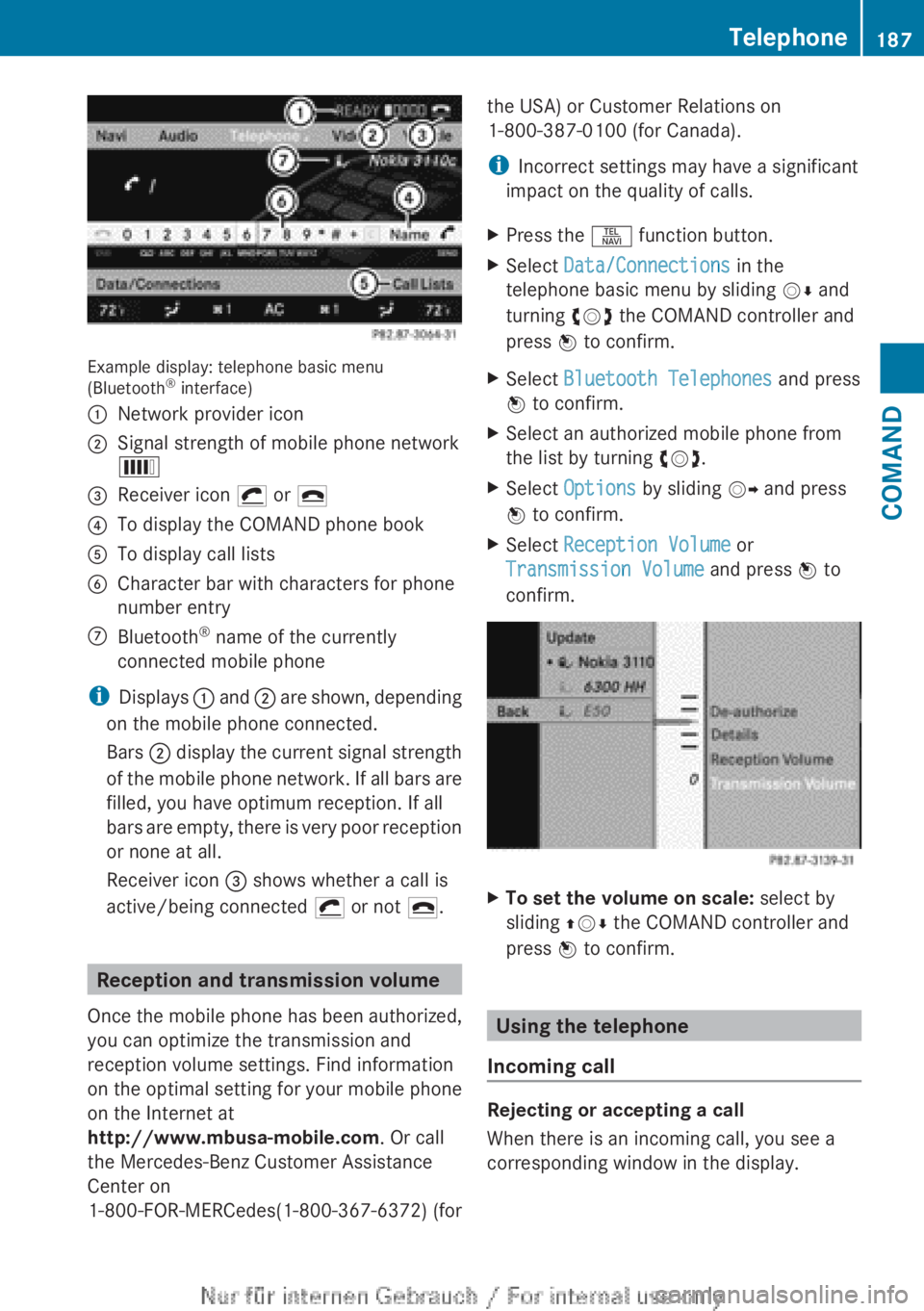
Example display: telephone basic menu
(Bluetooth ®
interface)
:Network provider icon;Signal strength of mobile phone network
È=Receiver icon ¡ or ¢?To display the COMAND phone bookATo display call listsBCharacter bar with characters for phone
number entryCBluetooth ®
name of the currently
connected mobile phone
i Displays : and ; are shown, depending
on the mobile phone connected.
Bars ; display the current signal strength
of the mobile phone network. If all bars are
filled, you have optimum reception. If all
bars are empty, there is very poor reception
or none at all.
Receiver icon = shows whether a call is
active/being connected ¡ or not ¢.
Reception and transmission volume
Once the mobile phone has been authorized,
you can optimize the transmission and
reception volume settings. Find information
on the optimal setting for your mobile phone
on the Internet at
http://www.mbusa-mobile.com . Or call
the Mercedes-Benz Customer Assistance
Center on
1-800-FOR-MERCedes(1-800-367-6372) (for
the USA) or Customer Relations on
1-800-387-0100 (for Canada).
i Incorrect settings may have a significant
impact on the quality of calls.XPress the S function button.XSelect Data/Connections in the
telephone basic menu by sliding VÆ and
turning cVd the COMAND controller and
press W to confirm.XSelect Bluetooth Telephones and press
W to confirm.XSelect an authorized mobile phone from
the list by turning cVd.XSelect Options by sliding VY and press
W to confirm.XSelect Reception Volume or
Transmission Volume and press W to
confirm.XTo set the volume on scale: select by
sliding ZVÆ the COMAND controller and
press W to confirm.
Using the telephone
Incoming call
Rejecting or accepting a call
When there is an incoming call, you see a
corresponding window in the display.
Telephone187COMANDZ
Page 193 of 496
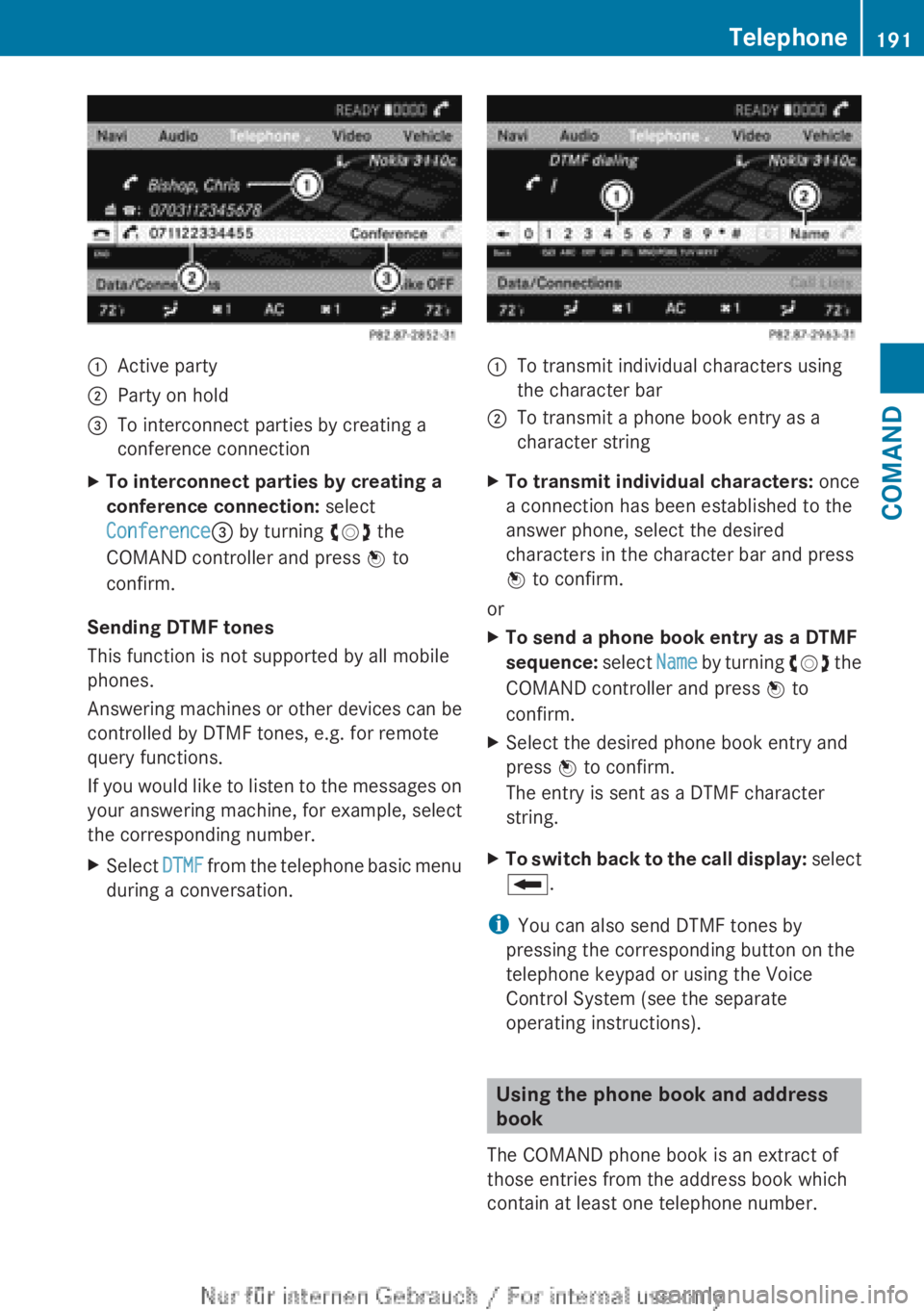
:Active party;Party on hold=To interconnect parties by creating a
conference connectionXTo interconnect parties by creating a
conference connection: select
Conference = by turning cVd the
COMAND controller and press W to
confirm.
Sending DTMF tones
This function is not supported by all mobile
phones.
Answering machines or other devices can be
controlled by DTMF tones, e.g. for remote
query functions.
If you would like to listen to the messages on
your answering machine, for example, select
the corresponding number.
XSelect DTMF from the telephone basic menu
during a conversation.:To transmit individual characters using
the character bar;To transmit a phone book entry as a
character stringXTo transmit individual characters: once
a connection has been established to the
answer phone, select the desired
characters in the character bar and press
W to confirm.
or
XTo send a phone book entry as a DTMF
sequence: select Name by turning cVd the
COMAND controller and press W to
confirm.XSelect the desired phone book entry and
press W to confirm.
The entry is sent as a DTMF character
string.XTo switch back to the call display: select
B .
i
You can also send DTMF tones by
pressing the corresponding button on the
telephone keypad or using the Voice
Control System (see the separate
operating instructions).
Using the phone book and address
book
The COMAND phone book is an extract of
those entries from the address book which
contain at least one telephone number.
Telephone191COMANDZ
Page 197 of 496
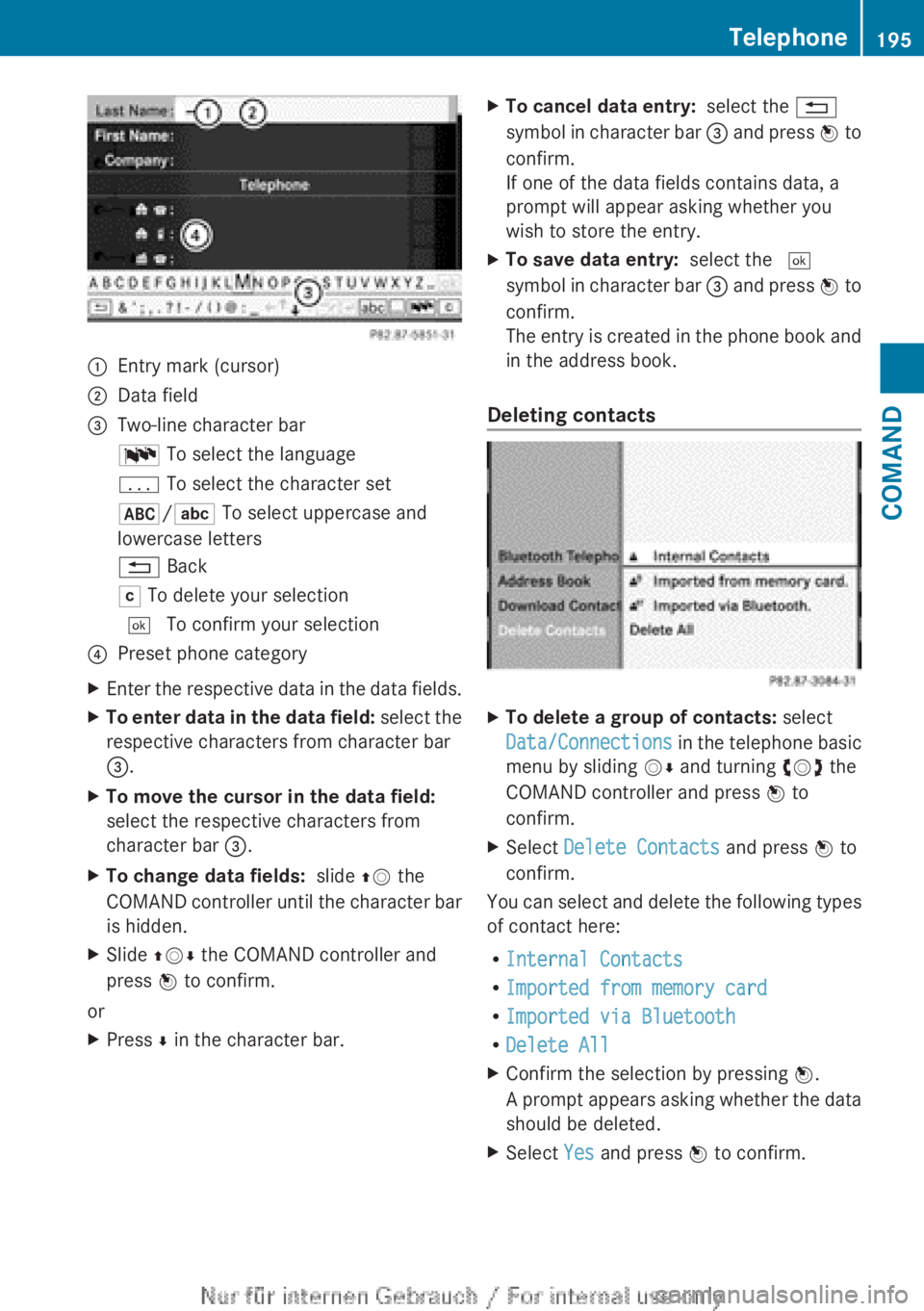
:Entry mark (cursor);Data field=Two-line character barB To select the languagep To select the character set*/E To select uppercase and
lowercase letters% BackF To delete your selection¬ To confirm your selection?Preset phone categoryXEnter the respective data in the data fields.XTo enter data in the data field: select the
respective characters from character bar
= .XTo move the cursor in the data field:
select the respective characters from
character bar =.XTo change data fields: slide ZV the
COMAND controller until the character bar
is hidden.XSlide ZVÆ the COMAND controller and
press W to confirm.
or
XPress Æ in the character bar.XTo cancel data entry: select the %
symbol in character bar = and press W to
confirm.
If one of the data fields contains data, a
prompt will appear asking whether you
wish to store the entry.XTo save data entry: select the ¬
symbol in character bar = and press W to
confirm.
The entry is created in the phone book and
in the address book.
Deleting contacts
XTo delete a group of contacts: select
Data/Connections in the telephone basic
menu by sliding VÆ and turning cVd the
COMAND controller and press W to
confirm.XSelect Delete Contacts and press W to
confirm.
You can select and delete the following types
of contact here:
R Internal Contacts
R Imported from memory card
R Imported via Bluetooth
R Delete All
XConfirm the selection by pressing W.
A prompt appears asking whether the data
should be deleted.XSelect Yes and press W to confirm.Telephone195COMANDZ