AUX MERCEDES-BENZ CL CLASS 2013 Owners Manual
[x] Cancel search | Manufacturer: MERCEDES-BENZ, Model Year: 2013, Model line: CL CLASS, Model: MERCEDES-BENZ CL CLASS 2013Pages: 496, PDF Size: 7.5 MB
Page 7 of 496
Rear ............................................... 269
Setting ........................................... 268
Setting the center air vents ...........268
Setting the side air vents ...............268
Stowage compartment ..................268
Alarm system
see ATA (Anti-Theft Alarm system)
Alertness Assistant
see ATTENTION ASSIST
Alternative route ............................... 159
Ambient light setting (COMAND) ..... 238
AMG menu (on-board computer) ..... 343
Anticipatory occupant protection
see PRE-SAFE ®
(anticipatory
occupant protection)
Anti-lock Braking System
see ABS (Anti-lock Braking System)
Anti-Theft Alarm system
see ATA (Anti-Theft Alarm system)
Ashtray ............................................... 405
Assistance menu (on-board
computer) .......................................... 347
ATA (Anti-Theft Alarm system)
Activating/deactivating ...................70
Function ........................................... 70
Switching off the alarm ....................70
ATTENTION ASSIST
Activating/deactivating .................348
Display message ............................ 375
Function/notes ............................. 321
Audio
Radio mode ................................... 199
Audio database
see MUSIC REGISTER
Audio DVD
Mode, switching to ........................210
Pause function ............................... 211
Playback options ........................... 216
Safety notes .................................. 209
Setting the audio format ................216
Stop function ................................. 212
Audio format, setting
Audio DVD ..................................... 216
Video DVD ..................................... 233
Audio menu (on-board computer) .... 342
Authorized Mercedes-Benz Center see Qualified specialist workshop Authorized workshop
see Qualified specialist workshop
AUTO lights
Display message ............................ 370
see Lights
Automatic engine start (ECO start/
stop function) .................................... 277
Automatic engine switch-off (ECO
start/stop function) .......................... 276
Automatic headlamp mode .............. 251
Automatic transmission Automatic drive program ...............283
Changing gear ............................... 282
DIRECT SELECT lever .....................279
Display message ............................ 385
Drive position (ECO start/stop
function) ........................................ 280
Driving tips .................................... 282
Emergency running mode ..............286
Engaging drive position .................. 280
Engaging neutral ............................ 280
Engaging reverse gear ...................279
Engaging the park position ............279
Kickdown ....................................... 282
Manual drive program ....................284
Neutral (ECO start/stop function) . 280
Problem (malfunction) ...................286
Program selector button ................282
Pulling away ................................... 275
Shift ranges ................................... 283
Starting the engine ........................274
Steering wheel paddle shifters ......283
Transmission position display ........280
Transmission positions ..................281
Automatic transmission
emergency mode ............................... 286
Autostore ........................................... 201
see Station memory (radio)
AUX (audio)
Notes/socket ................................ 227
Switching to ................................... 228
AUX (video)
Setting the picture .........................228
Setting the volume and sound .......234
Showing/hiding the menu .............234
Switching to ................................... 234Index5
Page 22 of 496
Setting the volumeTelephone calls .............................. 127
Video AUX ..................................... 234
Side impact air bag ............................. 49
Side marker lamp (display
message) ............................................ 369
Side windows Cleaning ......................................... 430
Convenience closing feature ............89
Convenience opening feature ..........89
Important safety information ...........88
Opening/closing .............................. 89
Resetting ......................................... 90
Troubleshooting ............................... 91
Sliding sunroof
Important safety notes ....................91
Opening/closing .............................. 92
Resetting ......................................... 93
Troubleshooting ............................... 93
SmartKey
Changing the battery .......................78
Changing the programming .............77
Checking the battery .......................78
Convenience closing feature ............89
Convenience opening feature ..........89
Display message ............................ 387
Important safety notes ....................74
Malfunction ...................................... 80
Positions (ignition lock) .................273
Starting the engine ........................274
SMS message
see Text message
Snow chains ...................................... 457
Socket Glove box ....................................... 407
Sockets
Points to observe before use .........406
Trunk ............................................. 407
Sound menu ....................................... 128
Sounds see Sound settings
Sound settings
Balance and fader ..........................128
Calling up the sound menu ............128
Surround sound ............................. 129
Treble and bass ............................. 128Spare wheel
Notes/data .................................... 479
Storage location ............................ 436
see Emergency spare wheel
Specialist workshop ............................ 29
Speech control see Voice Control System
Speed, controlling
see Cruise control
Speedometer
Activating/deactivating the
additional speedometer .................350
Digital ............................................ 340
In the Instrument cluster .................35
Selecting the unit of measurement 350
see Instrument cluster
SPLITVIEW ......................................... 116
Spotlight function ............................. 322
SRS (Supplemental Restraint
System) Display message ............................ 362
Introduction ..................................... 44
Warning lamp ................................. 395
Warning lamp (function) ................... 44
Standing lamps
Display message ............................ 369
Switching on/off ........................... 250
Starting (engine) ................................ 274
Station memory ................................. 201
Steering (display message) .............. 387
Steering wheel Adjusting (electrically) ...................103
Button overview ............................... 37
Buttons (on-board computer) ......... 337
Cleaning ......................................... 433
Important safety notes ..................102
Paddle shifters ............................... 283
Steering wheel heating ..................103
Storing settings (memory function) 106
Steering wheel heating
Switching on/off ........................... 103
Steering wheel paddle shifters ........ 283
Stop function Audio DVD ..................................... 212
Video DVD ..................................... 231
Stopwatch (RACETIMER) ................... 34420Index
Page 26 of 496
Locking separately ...........................86
Opening automatically from inside ..86
Trunk lid
Display message ............................ 386
Power closing feature ......................83
Trunk lid opening height restriction 239
Turn signals Display message ............................ 367
Switching on/off ........................... 252
TV
Automatic picture shutoff ..............228
Picture settings .............................. 228
Type identification plate
see Vehicle identification plate
U
Unlocking Emergency unlocking .......................83
From inside the vehicle (central
unlocking button) ............................. 82
USB
see Media Interface
V
Vanity mirror (in the sun visor) ........ 404
Vehicle Correct use ...................................... 29
Data acquisition ............................... 30
Display message ............................ 385
Emergency locking ........................... 83
Emergency unlocking .......................83
Equipment ....................................... 26
Individual settings ..........................349
Limited Warranty ............................. 30
Loading .......................................... 464
Lowering ........................................ 441
Maintenance .................................... 27
Parking for a long period ................ 291
Pulling away ................................... 275
Raising ........................................... 438
Reporting problems .........................30
Towing away .................................. 446
Transporting .................................. 448
Vehicle data ................................... 490
Vehicle battery
see Battery (vehicle)
Vehicle data ....................................... 490
Vehicle dimensions ........................... 490
Vehicle identification number see VIN
Vehicle identification plate .............. 482
Vehicle level Active Body Control (ABC) .............310
AIRMATIC ...................................... 309
Display message ............................ 377
Vehicle level (display message) ....... 376
Vehicle tool kit .................................. 436
Video see Video DVD
Video AUX
Setting the picture .........................228
Video DVD
Automatic picture shutoff ..............228
DVD menu ..................................... 232
Fast forward/rewind ...................... 231
Function restrictions ......................230
Interactive content ........................234
Notes on discs ............................... 229
Operation ....................................... 229
Pause function ............................... 231
Playing conditions .......................... 229
Safety notes .................................. 229
Selecting ........................................ 231
Selecting a film/title ...................... 232
Selecting a scene/chapter ............231
Setting the audio format ................233
Setting the language ......................233
Setting the picture .........................228
Showing/hiding the control menu . 230
Showing/hiding the menu .............230
Stop function ................................. 231
Subtitles ........................................ 233
Switching to ................................... 230
VIN ...................................................... 482
Voice Control System Settings ......................................... 132
Volume, adjusting
COMAND ....................................... 127
Navigation messages .....................12724Index
Page 114 of 496
At a glance
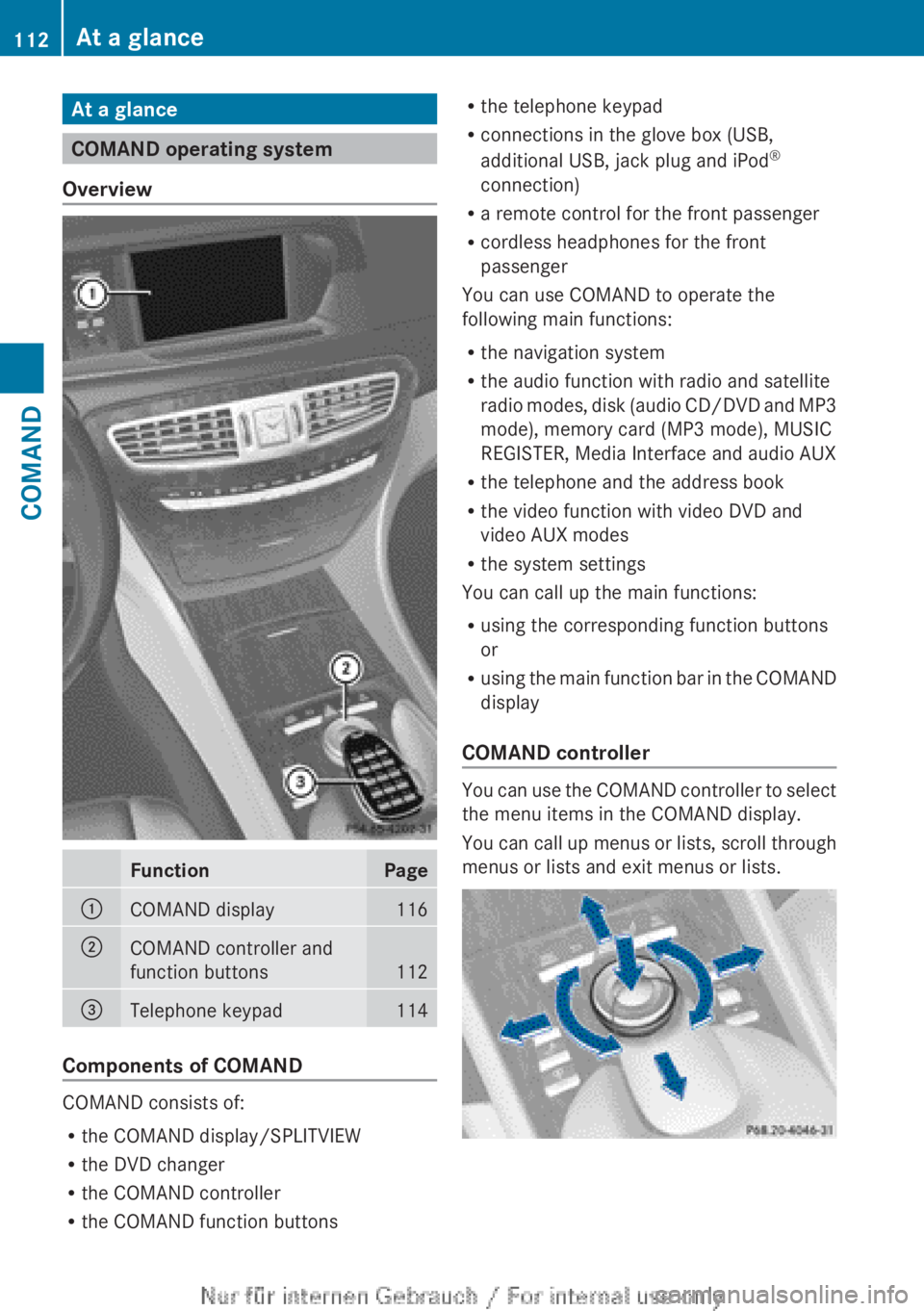
COMAND operating system
Overview
FunctionPage:COMAND display116;COMAND controller and
function buttons
112
=Telephone keypad114
Components of COMAND
COMAND consists of:
R the COMAND display/SPLITVIEW
R the DVD changer
R the COMAND controller
R the COMAND function buttons
R
the telephone keypad
R connections in the glove box (USB,
additional USB, jack plug and iPod ®
connection)
R a remote control for the front passenger
R cordless headphones for the front
passenger
You can use COMAND to operate the
following main functions:
R the navigation system
R the audio function with radio and satellite
radio modes, disk (audio CD/DVD and MP3
mode), memory card (MP3 mode), MUSIC
REGISTER, Media Interface and audio AUX
R the telephone and the address book
R the video function with video DVD and
video AUX modes
R the system settings
You can call up the main functions:
R using the corresponding function buttons
or
R using the main function bar in the COMAND
display
COMAND controller
You can use the COMAND controller to select
the menu items in the COMAND display.
You can call up menus or lists, scroll through
menus or lists and exit menus or lists.
112At a glanceCOMAND
Page 118 of 496
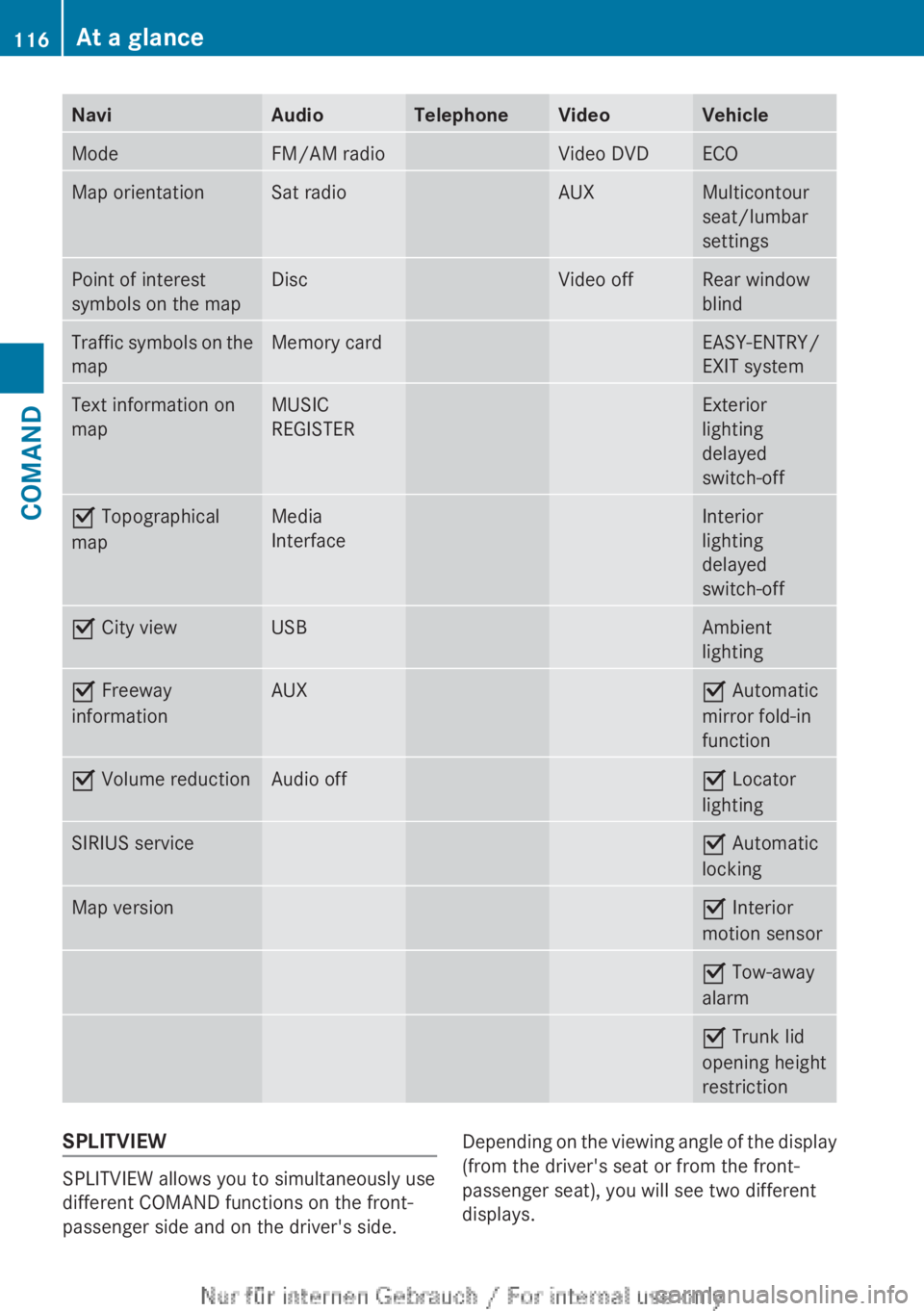
NaviAudioTelephoneVideoVehicleModeFM/AM radioVideo DVDECOMap orientationSat radioAUXMulticontour
seat/lumbar
settingsPoint of interest
symbols on the mapDiscVideo offRear window
blindTraffic symbols on the
mapMemory cardEASY-ENTRY/
EXIT systemText information on
mapMUSIC
REGISTERExterior
lighting
delayed
switch-offO Topographical
mapMedia
InterfaceInterior
lighting
delayed
switch-offO City viewUSBAmbient
lightingO Freeway
informationAUXO Automatic
mirror fold-in
functionO Volume reductionAudio offO Locator
lightingSIRIUS serviceO Automatic
lockingMap versionO Interior
motion sensorO Tow-away
alarmO Trunk lid
opening height
restrictionSPLITVIEW
SPLITVIEW allows you to simultaneously use
different COMAND functions on the front-
passenger side and on the driver's side.
Depending on the viewing angle of the display
(from the driver's seat or from the front-
passenger seat), you will see two different
displays.116At a glanceCOMAND
Page 119 of 496
For example, the "Navi" function can be used
from the driver's side while the "Video"
function is used on the front-passenger side.
Use the remote control to operate COMAND
from the front-passenger side with
SPLITVIEW.
Please bear the following in mind
R Your vehicle may be equipped with
SPLITVIEW, depending on its date of
production. The use of SPLITVIEW is
currently not permitted in the following
states: AL, AZ, CO, IL, LA, MA, MD, NH, PA,
VA, VT, WA, WI, and WV or in the Canadian
provinces of Manitoba, Newfoundland,
New Brunswick, and Prince Edward Island.
It is the driver's responsibility to observe
ALL regional legally prescribed regulations.
If your vehicle is registered in a state or
province in which SPLITVIEW is not
approved, this function must be
deactivated. Please contact an authorized
specialist dealer to check whether
SPLITVIEW is approved in your state or
province.
R Volume adjustment for the cordless
headphones can be carried out on the
headphones. Before putting on the
headphones, make sure that the volume
has not been set too high.
R The remote control can be used for the
volume adjustment of corded headphones.
R You can only use media from the driver's
and front-passenger sides separately if the
media are from different sources. Example:
on the driver's side, an audio CD is being
played by the DVD changer. This means
that on the front-passenger side, the DVD
changer cannot be used to play a different
disc type, for instance a video DVD.
However, other media can be used at the
same time on the front-passenger side,
including radio, memory card, MUSIC
REGISTER, Media Interface, USB or AUX.
R If you use the same medium on both sides,
settings for this medium can be carried out
from either side.R There must be intervisibility between the
headphones and the display so that
COMAND can optimally transmit music and
speech via the infrared signal on the front-
passenger's headphones. For this reason,
please also observe that the headphones
have left and right sides, and use them
correctly.
R Only entertainment functions, i.e. audio
and video, can be used separately via
SPLITVIEW.
R The multifunction steering wheel can only
be used for functions which relate to the
driver's side.
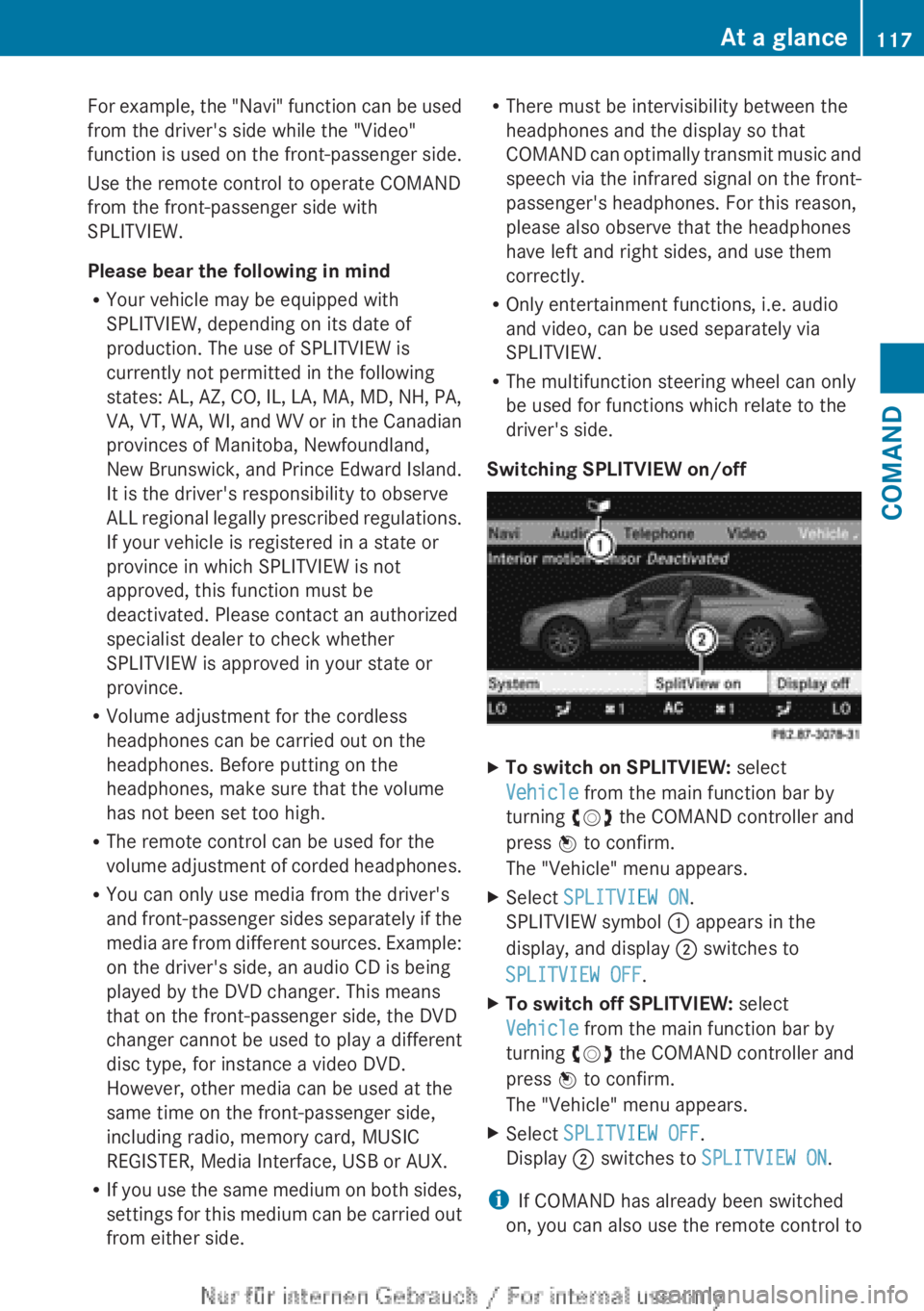
Switching SPLITVIEW on/offXTo switch on SPLITVIEW: select
Vehicle from the main function bar by
turning cVd the COMAND controller and
press W to confirm.
The "Vehicle" menu appears.XSelect SPLITVIEW ON .
SPLITVIEW symbol : appears in the
display, and display ; switches to
SPLITVIEW OFF .XTo switch off SPLITVIEW: select
Vehicle from the main function bar by
turning cVd the COMAND controller and
press W to confirm.
The "Vehicle" menu appears.XSelect SPLITVIEW OFF .
Display ; switches to SPLITVIEW ON .
i
If COMAND has already been switched
on, you can also use the remote control to
At a glance117COMANDZ
Page 131 of 496
Surround sound
General information
If your vehicle is equipped with the harman/
kardon ®
Logic 7 ®
surround sound system,
you can provide the optimum sound
experience for every passenger.
The harman/kardon ®
Logic7 ®
surround
sound system is available for the following
operating modes:
R radio (FM only)
R satellite radio
R audio CD
R audio DVD (MLP™, dts™, PCM and
Dolby ®
Digital audio formats)
R MP3
R Media Interface
R video DVD (PCM, dts™ and Dolby ®
Digital
audio formats)
R AUX
Because some DVDs contain both stereo and
multichannel audio formats, it may be
necessary to set the audio format
( Y page 216).
i The Logic7 ®
ON function enables
playback of stereo recordings, for instance,
with a surround sound experience for every
passenger. It enables optimum playback of
music and films on CDs, audio DVDs or
video DVDs with multichannel audio
formats, such as MLP™, dts™ or Dolby ®
Digital. This results in sound
characteristics like those intended by the
sound engineer when the original was
recorded.
i If you select Logic7®
OFF , the sound
system plays all playable formats as stored
on the medium. Due to the design of the
passenger compartment, an optimum
audio experience cannot be guaranteed for
all passengers.
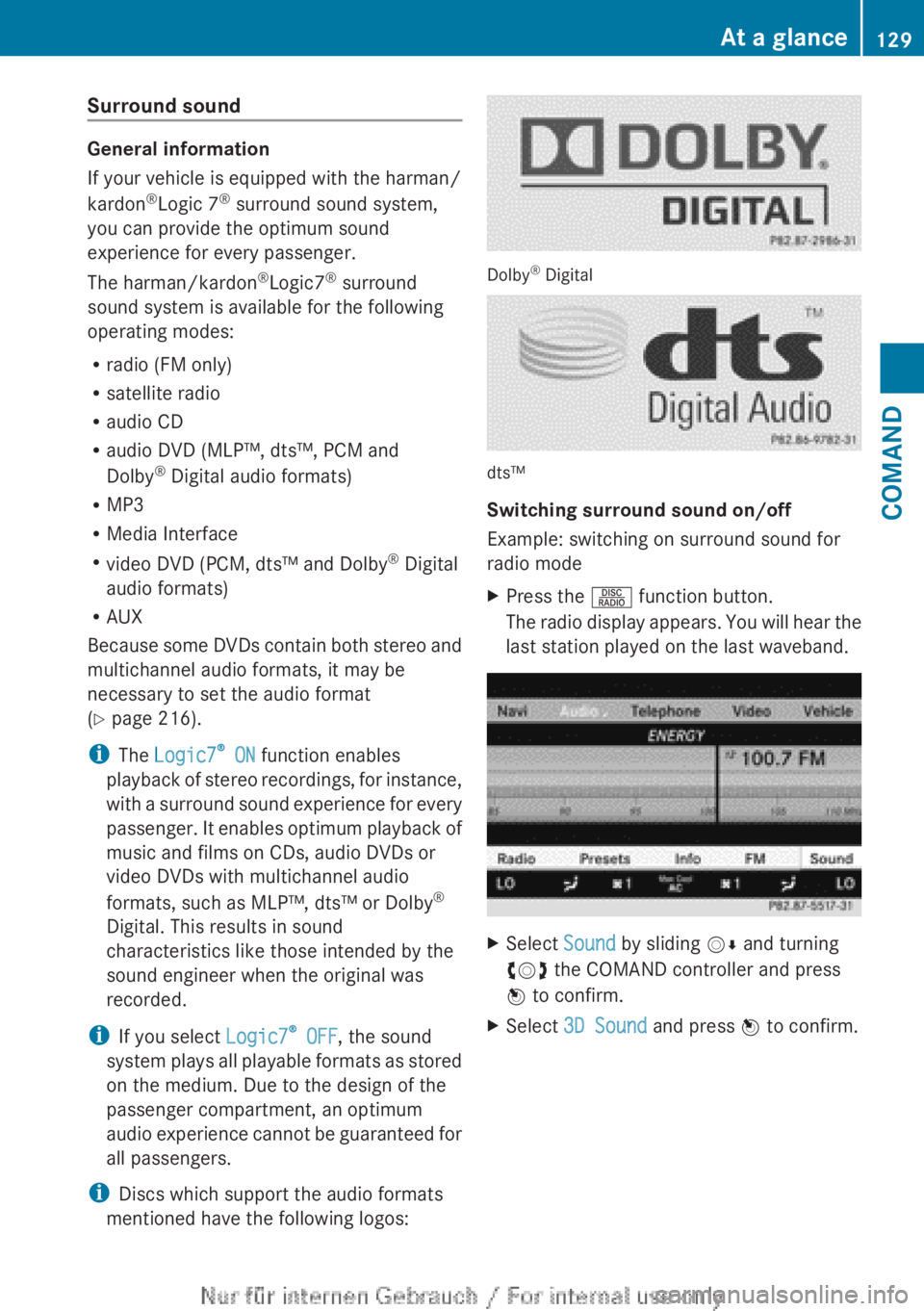
i Discs which support the audio formats
mentioned have the following logos:
Dolby ®
Digital
dts™
Switching surround sound on/off
Example: switching on surround sound for
radio mode
XPress the R function button.
The radio display appears. You will hear the
last station played on the last waveband.XSelect Sound by sliding VÆ and turning
cVd the COMAND controller and press
W to confirm.XSelect 3D Sound and press W to confirm.At a glance129COMANDZ
Page 229 of 496
The tracks in the currently active category
or folder, including any subfolders, are
played in random order.
i For USB devices, the random playlists
offer a maximum of 300 tracks chosen at
random.XTo select a playback option: select
Media Interface in the basic display by
sliding VÆ and turning cVd the COMAND
controller and press W to confirm.
The options list appears. The # dot
indicates the option selected.XSelect an option and press W to confirm.
Separate USB connection
In addition to the USB connection on the
Media Interface, there is another USB
connection in the glove box. This connection
can also be used to play audio files.
Electrical consumption at this connection
must not exceed a continuous current of
500 mA. If the electrical consumption is
higher, use a separate source to provide
power for the USB device (e.g.
12 V power supply).
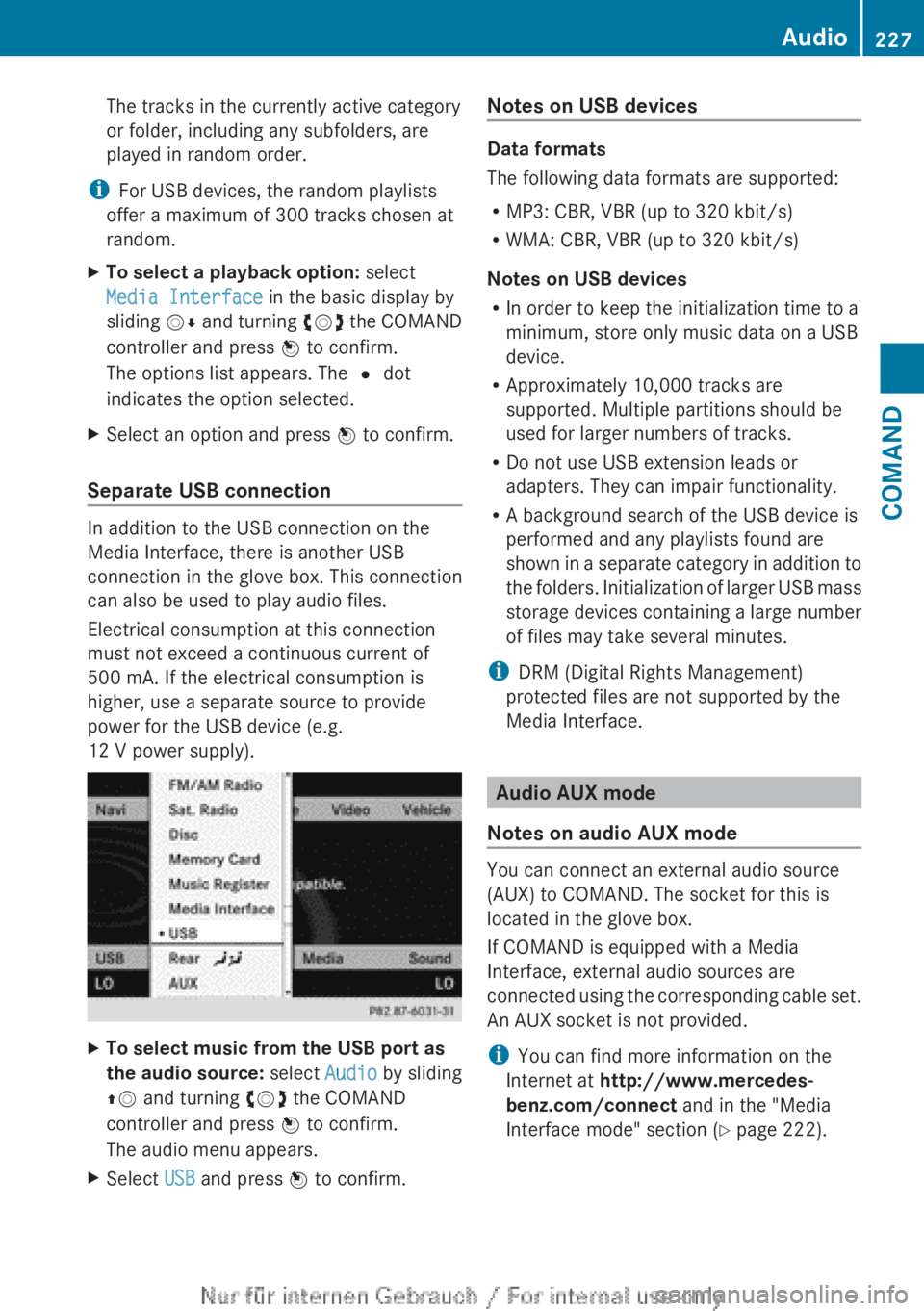
XTo select music from the USB port as
the audio source: select Audio by sliding
ZV and turning cVd the COMAND
controller and press W to confirm.
The audio menu appears.XSelect USB and press W to confirm.Notes on USB devices
Data formats
The following data formats are supported:
R MP3: CBR, VBR (up to 320 kbit/s)
R WMA: CBR, VBR (up to 320 kbit/s)
Notes on USB devices
R In order to keep the initialization time to a
minimum, store only music data on a USB
device.
R Approximately 10,000 tracks are
supported. Multiple partitions should be
used for larger numbers of tracks.
R Do not use USB extension leads or
adapters. They can impair functionality.
R A background search of the USB device is
performed and any playlists found are
shown in a separate category in addition to
the folders. Initialization of larger USB mass
storage devices containing a large number
of files may take several minutes.
i DRM (Digital Rights Management)
protected files are not supported by the
Media Interface.
Audio AUX mode
Notes on audio AUX mode
You can connect an external audio source
(AUX) to COMAND. The socket for this is
located in the glove box.
If COMAND is equipped with a Media
Interface, external audio sources are
connected using the corresponding cable set.
An AUX socket is not provided.
i You can find more information on the
Internet at http://www.mercedes-
benz.com/connect and in the "Media
Interface mode" section ( Y page 222).
Audio227COMANDZ
Page 230 of 496
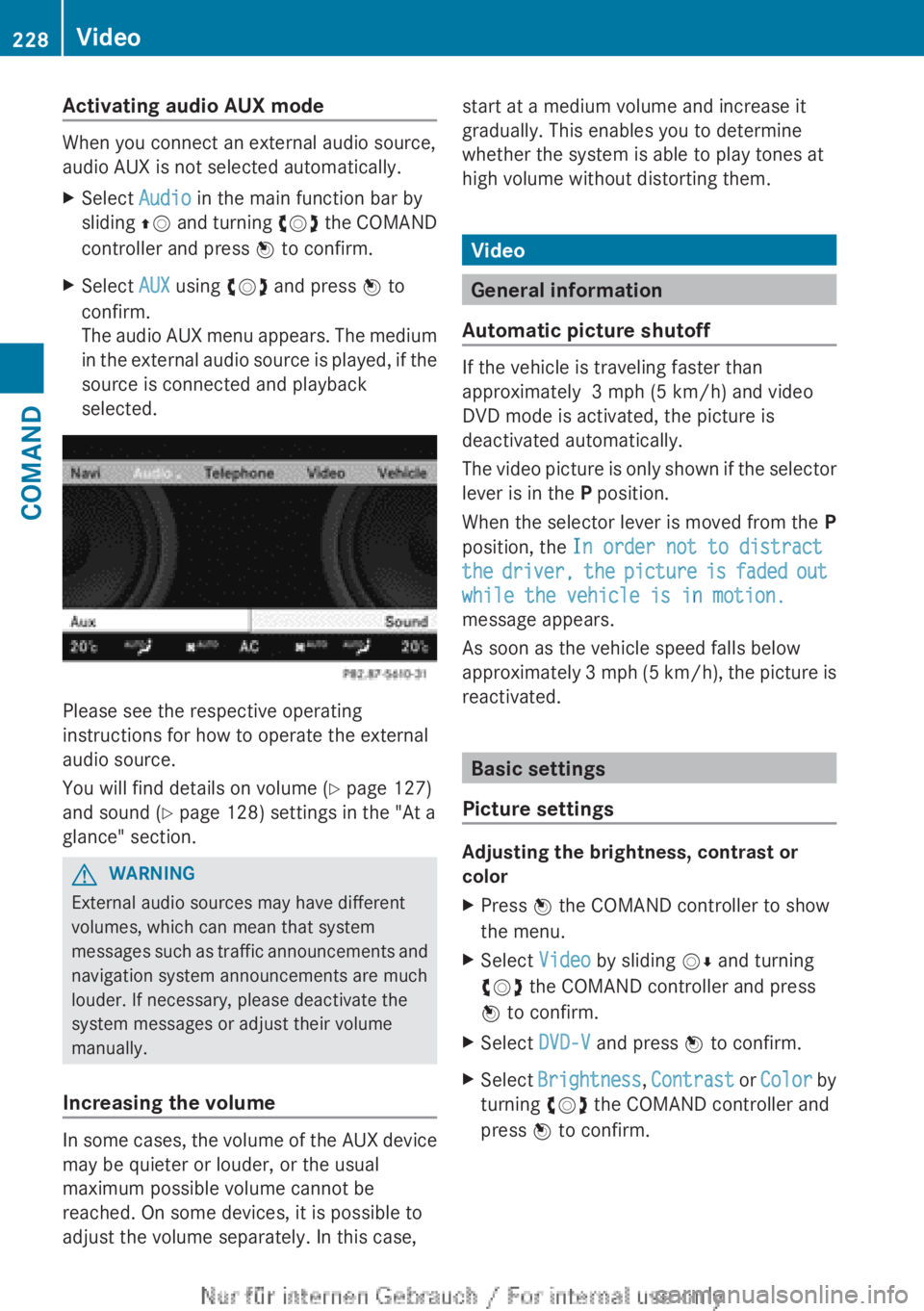
Activating audio AUX mode
When you connect an external audio source,
audio AUX is not selected automatically.
XSelect Audio in the main function bar by
sliding ZV and turning cVd the COMAND
controller and press W to confirm.XSelect AUX using cVd and press W to
confirm.
The audio AUX menu appears. The medium
in the external audio source is played, if the
source is connected and playback
selected.
Please see the respective operating
instructions for how to operate the external
audio source.
You will find details on volume ( Y page 127)
and sound ( Y page 128) settings in the "At a
glance" section.
GWARNING
External audio sources may have different
volumes, which can mean that system
messages such as traffic announcements and
navigation system announcements are much
louder. If necessary, please deactivate the
system messages or adjust their volume
manually.
Increasing the volume
In some cases, the volume of the AUX device
may be quieter or louder, or the usual
maximum possible volume cannot be
reached. On some devices, it is possible to
adjust the volume separately. In this case,
start at a medium volume and increase it
gradually. This enables you to determine
whether the system is able to play tones at
high volume without distorting them.
Video
General information
Automatic picture shutoff
If the vehicle is traveling faster than
approximately 3 mph (5 km/h) and video
DVD mode is activated, the picture is
deactivated automatically.
The video picture is only shown if the selector
lever is in the P position.
When the selector lever is moved from the P
position, the In order not to distract
the driver, the picture is faded out
while the vehicle is in motion.
message appears.
As soon as the vehicle speed falls below
approximately 3 mph (5 km/h), the picture is
reactivated.
Basic settings
Picture settings
Adjusting the brightness, contrast or
color
XPress W the COMAND controller to show
the menu.XSelect Video by sliding VÆ and turning
cVd the COMAND controller and press
W to confirm.XSelect DVD-V and press W to confirm.XSelect Brightness , Contrast or Color by
turning cVd the COMAND controller and
press W to confirm.228VideoCOMAND
Page 236 of 496
XSelect DVD Functions and press W to
confirm.XSelect Subtitles or Camera angle and
press W to confirm.
In both cases, a menu appears. The # dot
in front of an entry indicates the current
setting.XSelect a setting by turning cVd the
COMAND controller and press W to
confirm.XTo exit the menu: slide XVY the COMAND
controller.
Interactive content
DVDs can contain interactive content (e.g. a
video game). In a video game, for example,
you may be able to influence events by
selecting and triggering actions. The type and
number of actions depend on the DVD.
XSelect an action by sliding ZVÆ or XVY the
COMAND controller and press W to
execute it.
A menu appears and the first entry,
Select , is highlighted.XPress W the COMAND controller.
AUX video mode
AUX jacks
An external video source (video AUX) can be
connected to COMAND via the media
interface (Y page 222) using the AUX jacks in
the glove box.
i In vehicles with a rear view camera, the
video AUX jack cannot be used for external
video sources.
Switching to video AUX modeXSelect Video in the main function bar by
sliding ZV and turning cVd the COMAND
controller and press W to confirm.
If video AUX mode was the last mode
selected, it will now be active.
If another video source is switched on, you
can now switch to video AUX mode in the
video menu.XSelect Video and press W to confirm.XSelect AUX and press W to confirm.
The video AUX menu appears. You will hear
and see the content of the external video
source if it is connected and switched to
playback.
For details on how to operate the external
video source, see the respective device's
operating instructions.
Showing/hiding the menu
XTo show: press W the COMAND
controller.XTo hide: slide ZV the COMAND controller
and confirm Full screen by pressing W.
Volume and sound settings
You will find details on volume ( Y page 127)
and sound ( Y page 128) settings in the "At a
glance" section.
GWARNING
External video sources may have different
volumes, which can mean that system
messages such as traffic announcements and
navigation system announcements are much
louder. If necessary, please deactivate the
system messages or adjust their volume
manually.
i In some cases, the volume of the AUX
device may be quieter or louder, or the
usual maximum possible volume cannot be
reached. On some devices, it is possible to
adjust the volume separately. In this case,
start at a medium volume and increase it
234VideoCOMAND