change wheel MERCEDES-BENZ CLA 2013 User Guide
[x] Cancel search | Manufacturer: MERCEDES-BENZ, Model Year: 2013, Model line: CLA, Model: MERCEDES-BENZ CLA 2013Pages: 352, PDF Size: 5.37 MB
Page 202 of 352
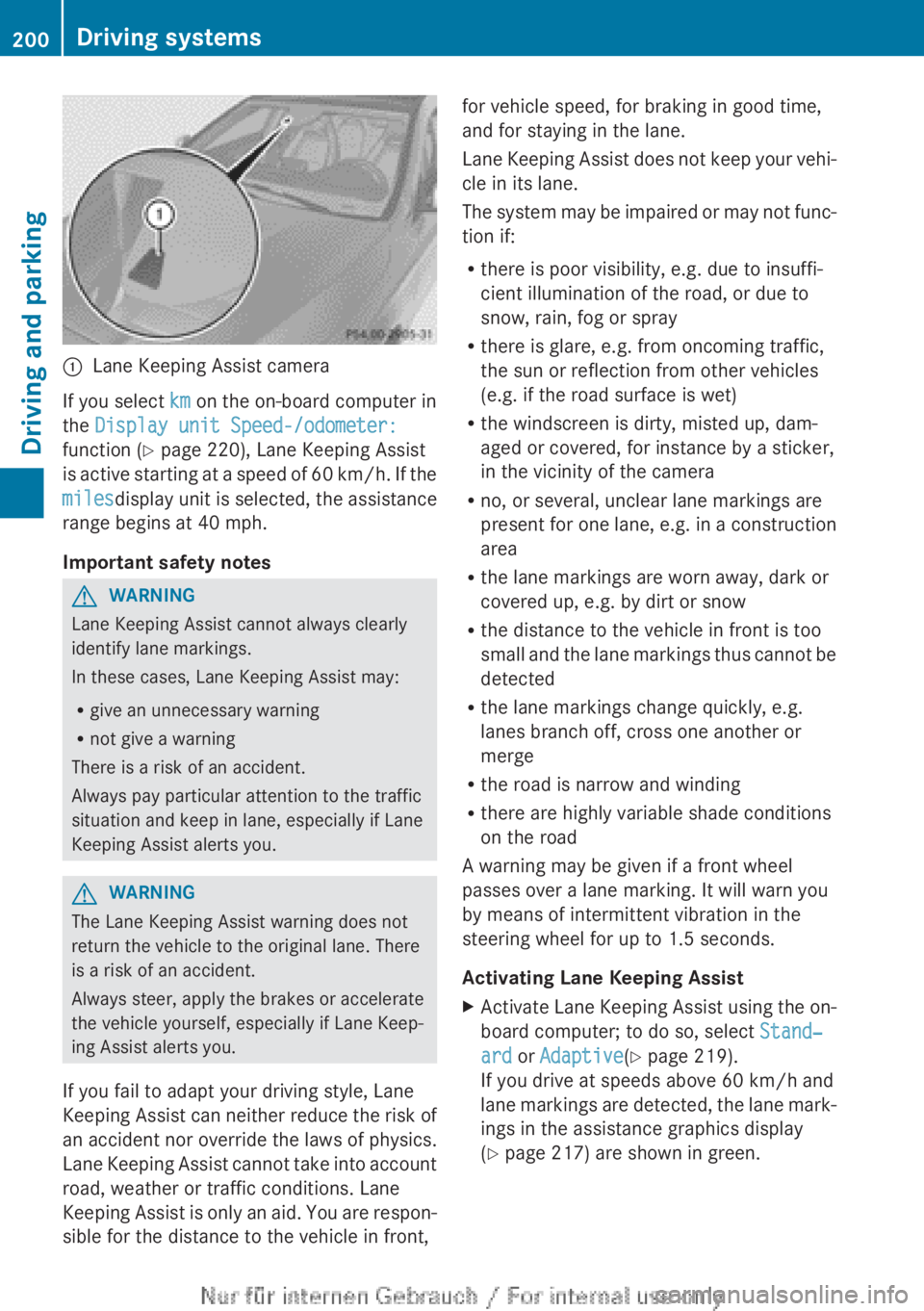
:Lane Keeping Assist camera
If you select km on the on-board computer in
the Display unit Speed-/odometer:
function ( Y page 220), Lane Keeping Assist
is active starting at a speed of 60 km/h. If the
miles display unit is selected, the assistance
range begins at 40 mph.
Important safety notes
GWARNING
Lane Keeping Assist cannot always clearly
identify lane markings.
In these cases, Lane Keeping Assist may:
R give an unnecessary warning
R not give a warning
There is a risk of an accident.
Always pay particular attention to the traffic
situation and keep in lane, especially if Lane
Keeping Assist alerts you.
GWARNING
The Lane Keeping Assist warning does not
return the vehicle to the original lane. There
is a risk of an accident.
Always steer, apply the brakes or accelerate
the vehicle yourself, especially if Lane Keep-
ing Assist alerts you.
If you fail to adapt your driving style, Lane
Keeping Assist can neither reduce the risk of
an accident nor override the laws of physics.
Lane Keeping Assist cannot take into account
road, weather or traffic conditions. Lane
Keeping Assist is only an aid. You are respon-
sible for the distance to the vehicle in front,
for vehicle speed, for braking in good time,
and for staying in the lane.
Lane Keeping Assist does not keep your vehi-
cle in its lane.
The system may be impaired or may not func-
tion if:
R there is poor visibility, e.g. due to insuffi-
cient illumination of the road, or due to
snow, rain, fog or spray
R there is glare, e.g. from oncoming traffic,
the sun or reflection from other vehicles
(e.g. if the road surface is wet)
R the windscreen is dirty, misted up, dam-
aged or covered, for instance by a sticker,
in the vicinity of the camera
R no, or several, unclear lane markings are
present for one lane, e.g. in a construction
area
R the lane markings are worn away, dark or
covered up, e.g. by dirt or snow
R the distance to the vehicle in front is too
small and the lane markings thus cannot be
detected
R the lane markings change quickly, e.g.
lanes branch off, cross one another or
merge
R the road is narrow and winding
R there are highly variable shade conditions
on the road
A warning may be given if a front wheel
passes over a lane marking. It will warn you
by means of intermittent vibration in the
steering wheel for up to 1.5 seconds.
Activating Lane Keeping AssistXActivate Lane Keeping Assist using the on-
board computer; to do so, select Stand‐
ard or Adaptive (Y page 219).
If you drive at speeds above 60 km/h and
lane markings are detected, the lane mark-
ings in the assistance graphics display
( Y page 217) are shown in green.200Driving systemsDriving and parking
Page 211 of 352
At high outside temperatures and when driv-
ing uphill, the coolant temperature may rise
to the end of the scale.
Rev counter
! Do not drive in the overrevving range.
Doing so will damage the engine.
The red band in the rev counter indicates the
engine's overrevving range.
The fuel supply is interrupted to protect the
engine when the red band is reached.
Outside temperature display
You should pay special attention to road con-
ditions when temperatures are around the
freezing point.
The outside temperature display is in the mul-
tifunction display.
Changes in the outside temperature are dis-
played after a short delay.
Speedometer with segments
The speedometer is divided into segments on
vehicles with DISTRONIC PLUS.
The segments in the speedometer indicate
which speed range is available.
R Cruise control activated ( Y page 168):
The segments light up from the stored
speed to the maximum speed.
R Variable SPEEDTRONIC activated
( Y page 171):
The segments light up from the start of the
scale to the selected limit speed.
R DISTRONIC PLUS activated ( Y page 173):
One or two segments in the set speed
range light up.
R DISTRONIC PLUS detects a vehicle in front:
The segments between the speed of the
vehicle in front and the stored speed light
up.
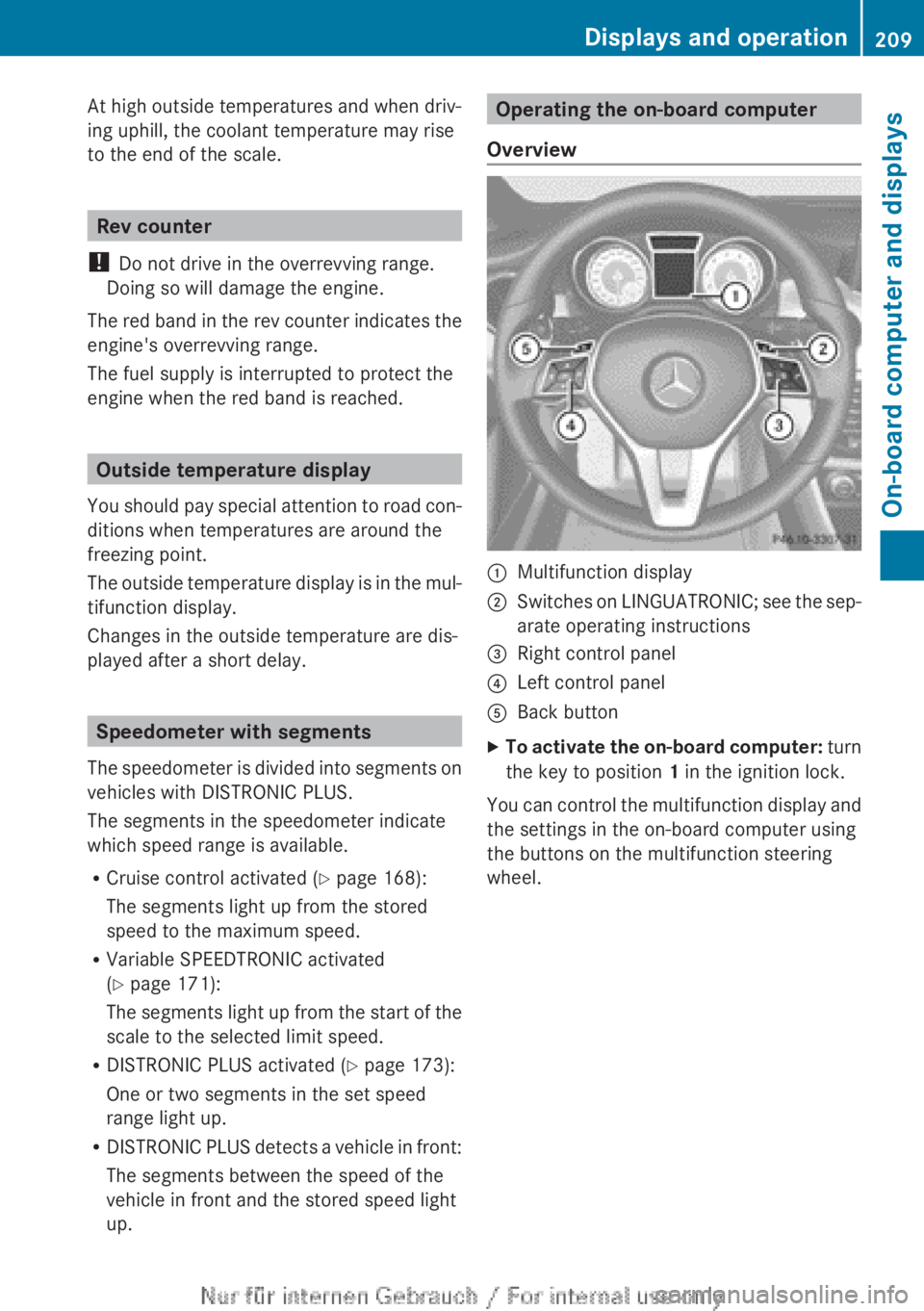
Operating the on-board computer
Overview:Multifunction display;Switches on LINGUATRONIC; see the sep-
arate operating instructions=Right control panel?Left control panelABack buttonXTo activate the on-board computer: turn
the key to position 1 in the ignition lock.
You can control the multifunction display and
the settings in the on-board computer using
the buttons on the multifunction steering
wheel.
Displays and operation209On-board computer and displaysZ
Page 215 of 352
XPress the = or ; button on the steer-
ing wheel to select the Trip menu.XPress the 9 or : button to select the
function that you wish to reset.XPress the a button.XPress the : button to select Yes and
press a to confirm.
i
If you reset the values in the ECO display,
the values in the "From start" trip computer
are also reset. If you reset the values in the
"From start" trip computer, the values in
the ECO display are also reset.
Navigation menu
Displaying navigation instructions
XSwitch on Audio 20 with Becker ®
MAP
PILOT or COMAND Online (see the sepa-
rate operating instructions).XPress the = or ; button on the steer-
ing wheel to select the Navi menu.
In the Navi menu, the multifunction display
shows navigation instructions. For more
information, see the separate operating
instructions.
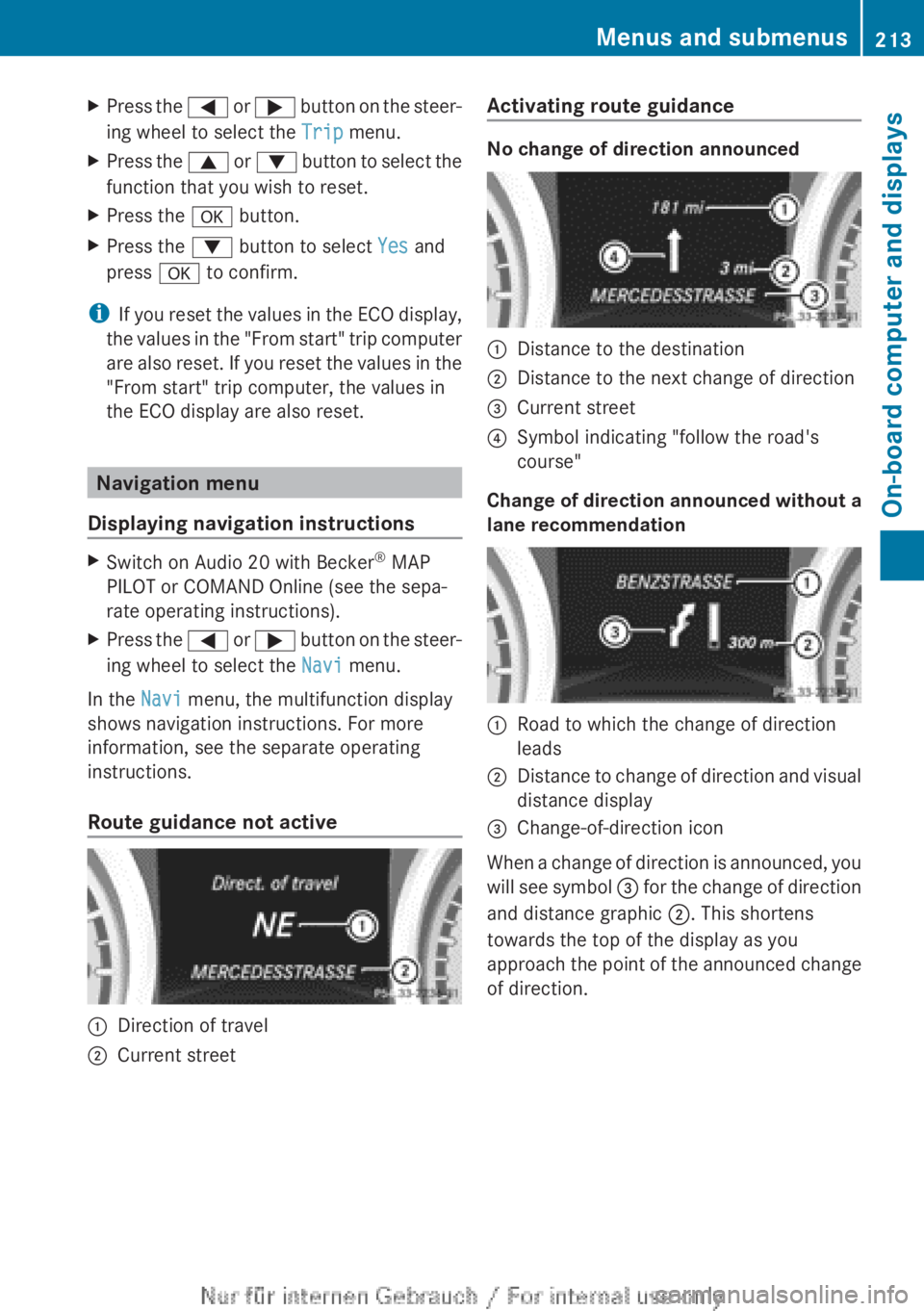
Route guidance not active
:Direction of travel;Current streetActivating route guidance
No change of direction announced
:Distance to the destination;Distance to the next change of direction=Current street?Symbol indicating "follow the road's
course"
Change of direction announced without a
lane recommendation
:Road to which the change of direction
leads;Distance to change of direction and visual
distance display=Change-of-direction icon
When a change of direction is announced, you
will see symbol = for the change of direction
and distance graphic ;. This shortens
towards the top of the display as you
approach the point of the announced change
of direction.
Menus and submenus213On-board computer and displaysZ
Page 216 of 352
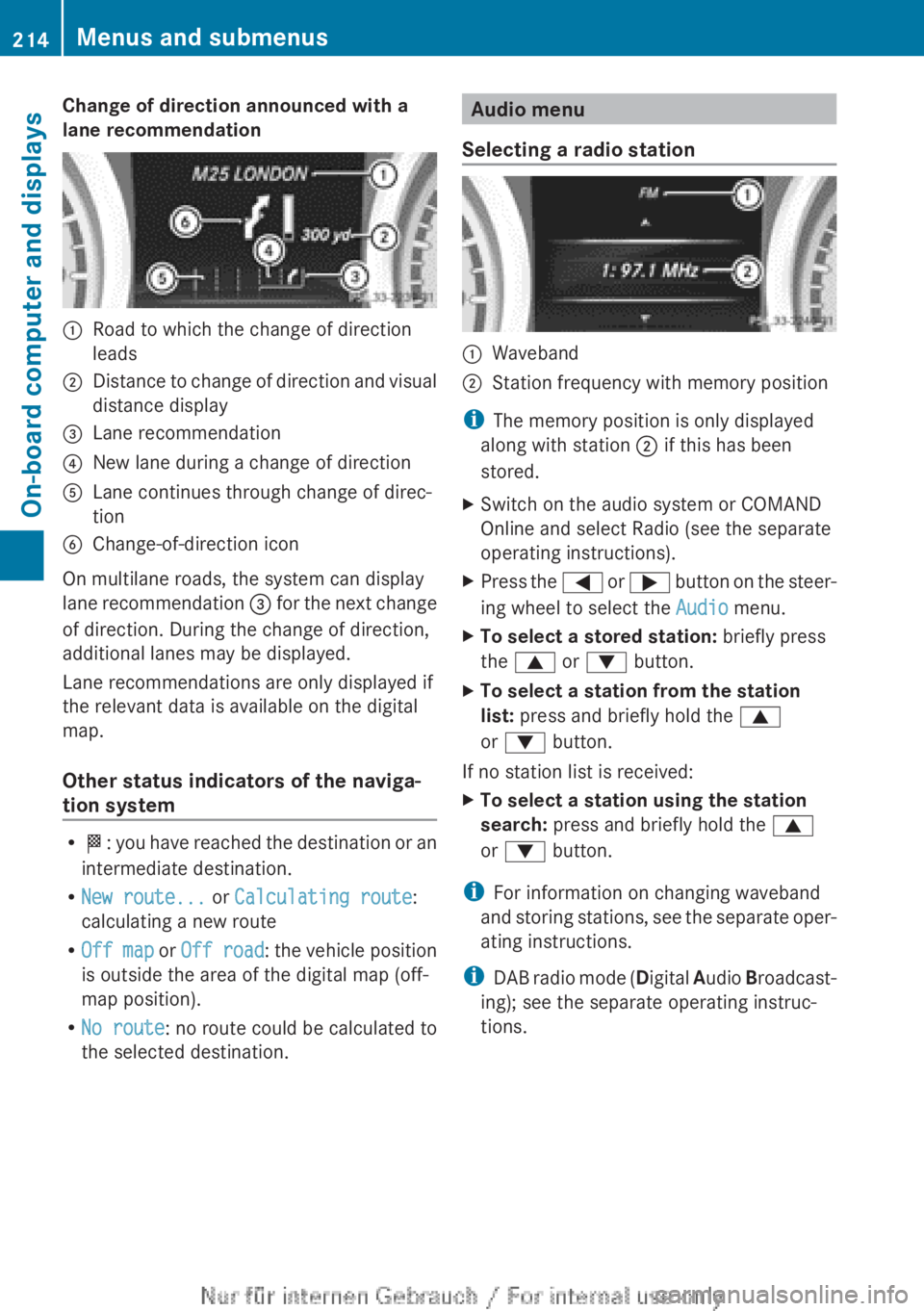
Change of direction announced with a
lane recommendation:Road to which the change of direction
leads;Distance to change of direction and visual
distance display=Lane recommendation?New lane during a change of directionALane continues through change of direc-
tionBChange-of-direction icon
On multilane roads, the system can display
lane recommendation = for the next change
of direction. During the change of direction,
additional lanes may be displayed.
Lane recommendations are only displayed if
the relevant data is available on the digital
map.
Other status indicators of the naviga-
tion system
R O : you have reached the destination or an
intermediate destination.
R New route... or Calculating route :
calculating a new route
R Off map or Off road : the vehicle position
is outside the area of the digital map (off-
map position).
R No route : no route could be calculated to
the selected destination.
Audio menu
Selecting a radio station:Waveband;Station frequency with memory position
i The memory position is only displayed
along with station ; if this has been
stored.
XSwitch on the audio system or COMAND
Online and select Radio (see the separate
operating instructions).XPress the = or ; button on the steer-
ing wheel to select the Audio menu.XTo select a stored station: briefly press
the 9 or : button.XTo select a station from the station
list: press and briefly hold the 9
or : button.
If no station list is received:
XTo select a station using the station
search: press and briefly hold the 9
or : button.
i
For information on changing waveband
and storing stations, see the separate oper-
ating instructions.
i DAB radio mode ( Digital Audio Broadcast-
ing); see the separate operating instruc-
tions.
214Menus and submenusOn-board computer and displays
Page 217 of 352
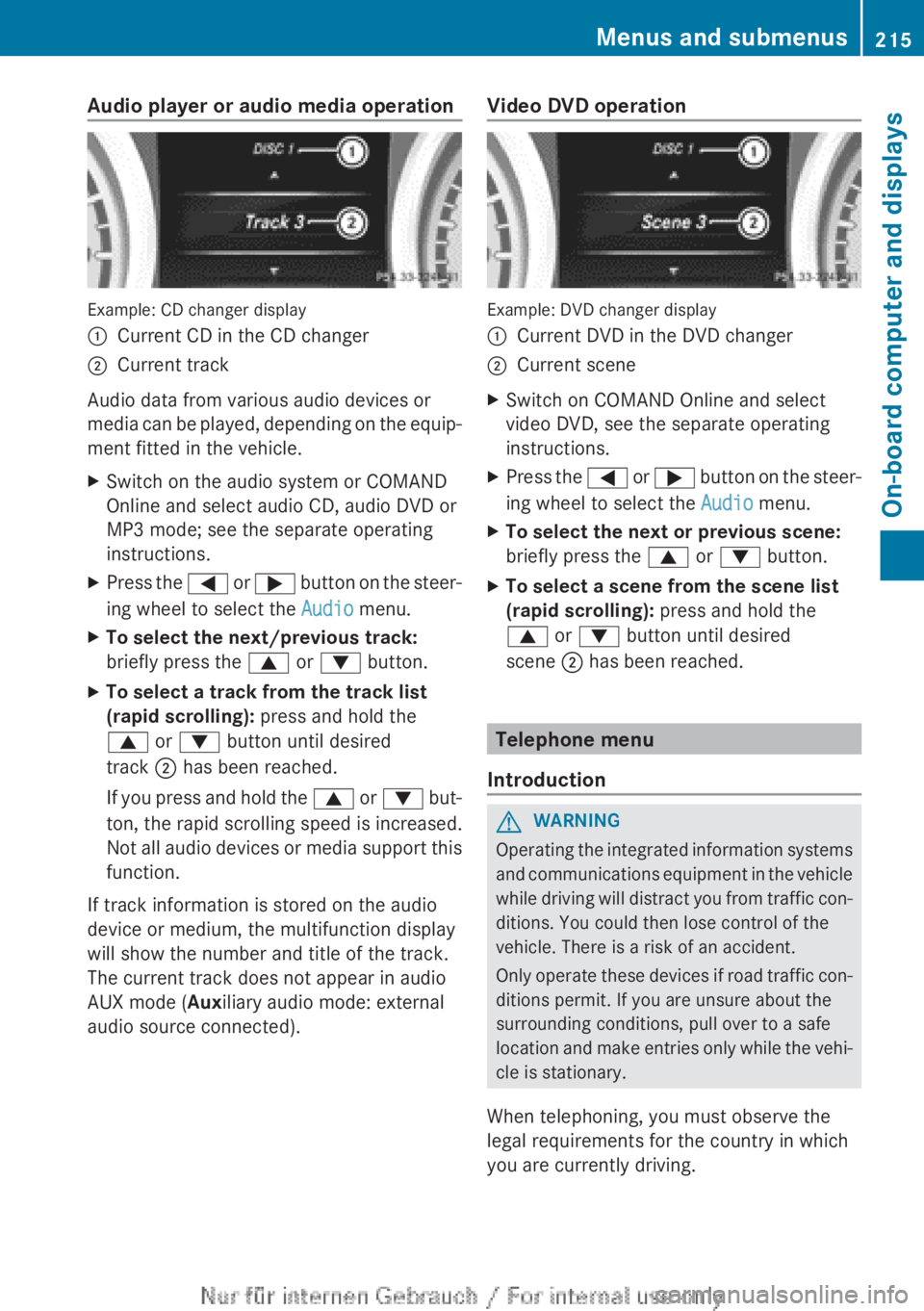
Audio player or audio media operation
Example: CD changer display
:Current CD in the CD changer;Current track
Audio data from various audio devices or
media can be played, depending on the equip-
ment fitted in the vehicle.
XSwitch on the audio system or COMAND
Online and select audio CD, audio DVD or
MP3 mode; see the separate operating
instructions.XPress the = or ; button on the steer-
ing wheel to select the Audio menu.XTo select the next/previous track:
briefly press the 9 or : button.XTo select a track from the track list
(rapid scrolling): press and hold the
9 or : button until desired
track ; has been reached.
If you press and hold the 9 or : but-
ton, the rapid scrolling speed is increased.
Not all audio devices or media support this
function.
If track information is stored on the audio
device or medium, the multifunction display
will show the number and title of the track.
The current track does not appear in audio
AUX mode ( Auxiliary audio mode: external
audio source connected).
Video DVD operation
Example: DVD changer display
:Current DVD in the DVD changer;Current sceneXSwitch on COMAND Online and select
video DVD, see the separate operating
instructions.XPress the = or ; button on the steer-
ing wheel to select the Audio menu.XTo select the next or previous scene:
briefly press the 9 or : button.XTo select a scene from the scene list
(rapid scrolling): press and hold the
9 or : button until desired
scene ; has been reached.
Telephone menu
Introduction
GWARNING
Operating the integrated information systems
and communications equipment in the vehicle
while driving will distract you from traffic con-
ditions. You could then lose control of the
vehicle. There is a risk of an accident.
Only operate these devices if road traffic con-
ditions permit. If you are unsure about the
surrounding conditions, pull over to a safe
location and make entries only while the vehi-
cle is stationary.
When telephoning, you must observe the
legal requirements for the country in which
you are currently driving.
Menus and submenus215On-board computer and displaysZ
Page 221 of 352
XPress the a button.
The current selection is displayed.XTo activate/deactivate: press the a
button again.
When ATTENTION ASSIST ( Y page 195) is
deactivated, the é symbol appears in
the multifunction display in the assistance
graphics display.
Activating/deactivating Blind Spot
Assist
XPress the = or ; button on the steer-
ing wheel to select the Assist menu.XPress 9 or : to select Blind Spot
Asst. .XPress the a button.
The current selection is displayed.XTo activate/deactivate: press the a
button again.
For further information about Blind Spot
Assist, see ( Y page 197).
When the Blind Spot Assist: Sensors
deactivated message is shown, the radar
sensors are deactivated.
XSwitch on the radar sensor system
( Y page 223).
Activating/deactivating Lane Keeping
Assist
XPress the = or ; button on the steer-
ing wheel to select the Assist menu.XPress 9 or : on the steering wheel
to select Lane Keeping Assist .XPress the a button.
The current selection is displayed.XPress a to confirm.XPress the : or 9 button to set Off,
Standard or Adaptive .XPress the a button to save the setting.
When Lane Keeping Assist ( Y page 199) is
activated, the multifunction display in theassistance graphic shows the lane mark-
ings in green.
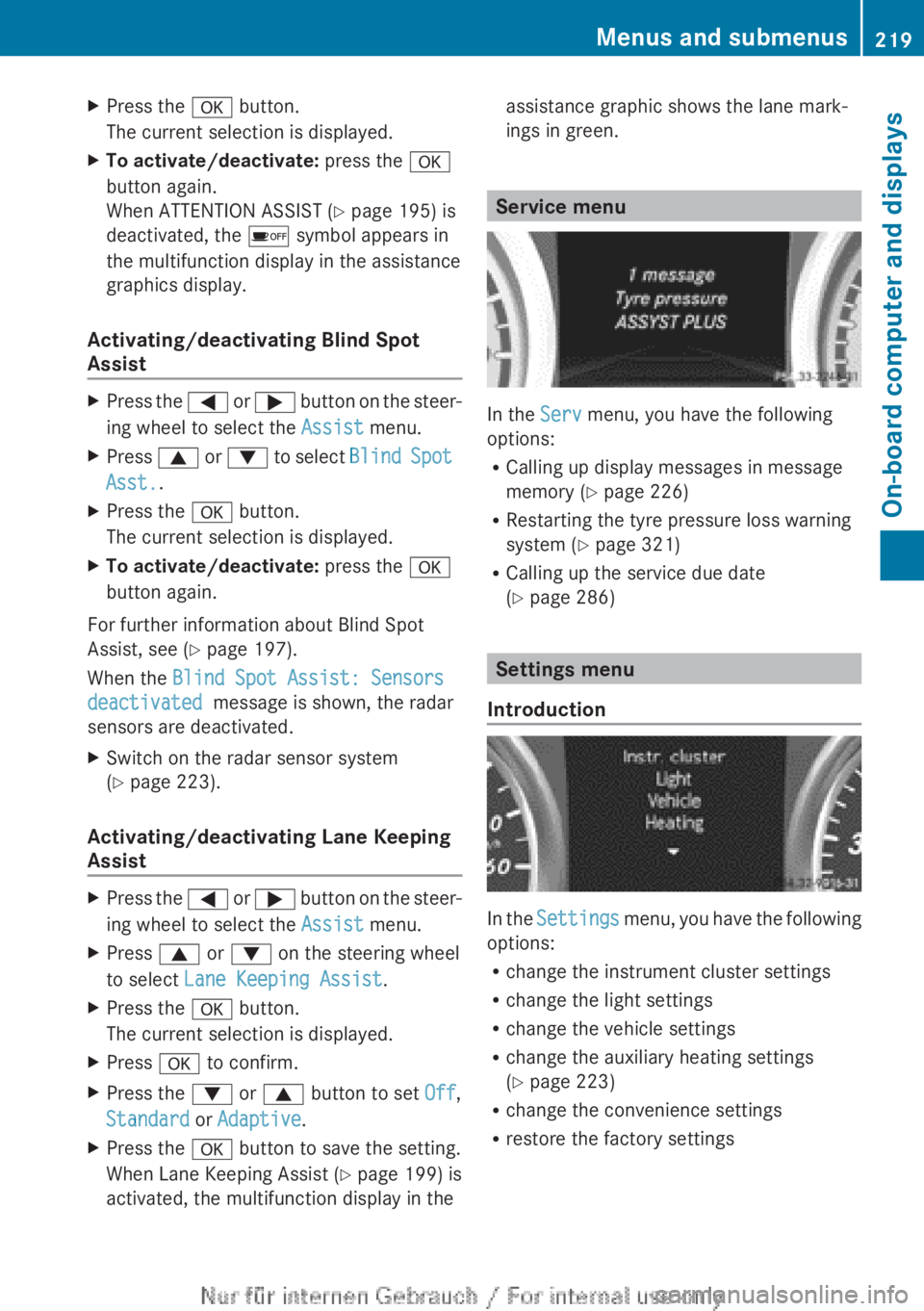
Service menu
In the Serv menu, you have the following
options:
R Calling up display messages in message
memory ( Y page 226)
R Restarting the tyre pressure loss warning
system ( Y page 321)
R Calling up the service due date
( Y page 286)
Settings menu
Introduction
In the Settings menu, you have the following
options:
R change the instrument cluster settings
R change the light settings
R change the vehicle settings
R change the auxiliary heating settings
( Y page 223)
R change the convenience settings
R restore the factory settings
Menus and submenus219On-board computer and displaysZ
Page 223 of 352
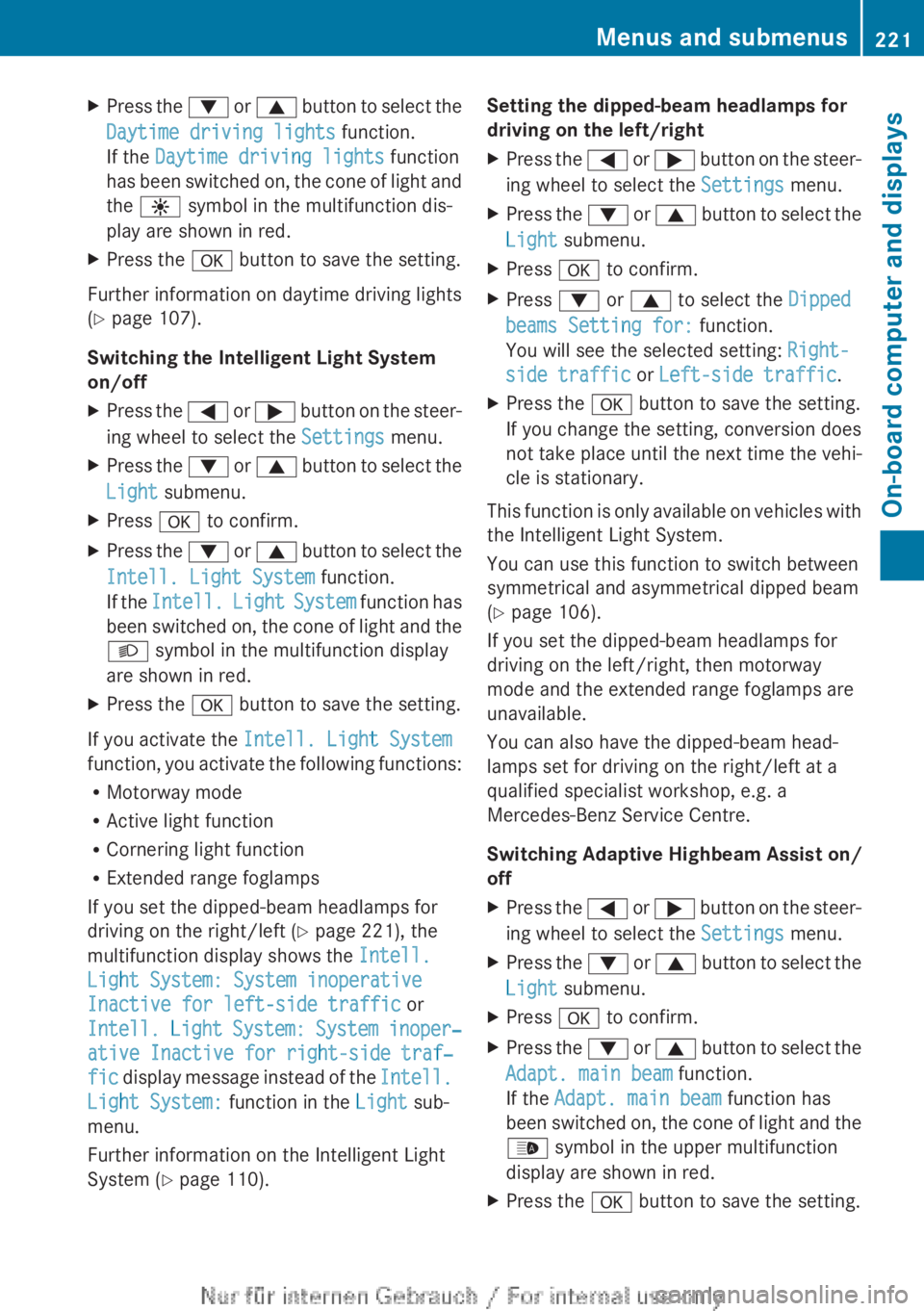
XPress the : or 9 button to select the
Daytime driving lights function.
If the Daytime driving lights function
has been switched on, the cone of light and
the W symbol in the multifunction dis-
play are shown in red.XPress the a button to save the setting.
Further information on daytime driving lights
( Y page 107).
Switching the Intelligent Light System
on/off
XPress the = or ; button on the steer-
ing wheel to select the Settings menu.XPress the : or 9 button to select the
Light submenu.XPress a to confirm.XPress the : or 9 button to select the
Intell. Light System function.
If the Intell. Light System function has
been switched on, the cone of light and the
L symbol in the multifunction display
are shown in red.XPress the a button to save the setting.
If you activate the Intell. Light System
function, you activate the following functions:
R Motorway mode
R Active light function
R Cornering light function
R Extended range foglamps
If you set the dipped-beam headlamps for
driving on the right/left ( Y page 221), the
multifunction display shows the Intell.
Light System: System inoperative
Inactive for left-side traffic or
Intell. Light System: System inoper‐
ative Inactive for right-side traf‐
fic display message instead of the Intell.
Light System: function in the Light sub-
menu.
Further information on the Intelligent Light
System ( Y page 110).
Setting the dipped-beam headlamps for
driving on the left/rightXPress the = or ; button on the steer-
ing wheel to select the Settings menu.XPress the : or 9 button to select the
Light submenu.XPress a to confirm.XPress : or 9 to select the Dipped
beams Setting for: function.
You will see the selected setting: Right-
side traffic or Left-side traffic .XPress the a button to save the setting.
If you change the setting, conversion does
not take place until the next time the vehi-
cle is stationary.
This function is only available on vehicles with
the Intelligent Light System.
You can use this function to switch between
symmetrical and asymmetrical dipped beam
( Y page 106).
If you set the dipped-beam headlamps for
driving on the left/right, then motorway
mode and the extended range foglamps are
unavailable.
You can also have the dipped-beam head-
lamps set for driving on the right/left at a
qualified specialist workshop, e.g. a
Mercedes-Benz Service Centre.
Switching Adaptive Highbeam Assist on/
off
XPress the = or ; button on the steer-
ing wheel to select the Settings menu.XPress the : or 9 button to select the
Light submenu.XPress a to confirm.XPress the : or 9 button to select the
Adapt. main beam function.
If the Adapt. main beam function has
been switched on, the cone of light and the
_ symbol in the upper multifunction
display are shown in red.XPress the a button to save the setting.Menus and submenus221On-board computer and displaysZ
Page 226 of 352
XPress a to confirm.
You will see the selected setting.XPress a to confirm.XPress the : or 9 button to select A,
B or Change C .XPress a to confirm.
You can now change the departure time.XPress the = or ; button to select the
display to be changed: hours, minutes.XPress the : or 9 button to set the
selected display.XPress the a button to store the entry.
The yellow indicator lamp on the auxiliary
heating button lights up.
Selecting the departure time or deactivat-
ing a selected departure time
XPress the = or ; button on the steer-
ing wheel to select the Settings menu.XPress the : or 9 button to select the
Heating submenu.XPress a to confirm.
You will see the selected setting.XPress a to confirm.XPress : or 9 to select one of the
three departure times or Timer off (no
timer active).XPress a to confirm.
If a departure time is selected, the yellow
indicator lamp lights up on the auxiliary
heating button.
Changing the departure time
Only vehicles with auxiliary heating
( Y page 136) have this function.
In the Heating submenu, you can select a
stored departure time or change a departure
time.
The auxiliary heating timer function calcu-
lates the switch-on time according to the out-
side temperature so that the vehicle is pre-
heated by the departure time. When the
departure time is reached, the auxiliary heat-
ing continues to heat for a further five
minutes and then switches off. The auxiliary
heating adopts the THERMATIC or
THERMOTRONIC temperature setting.
You can switch off the auxiliary heating by
using the remote control or the auxiliary heat-
ing button on the centre console.GDANGER
If the exhaust pipe is blocked or sufficient
ventilation is not possible, toxic exhaust
fumes can enter the vehicle, especially car-
bon monoxide. This is the case, e.g. in
enclosed spaces, or if the vehicle is stuck in
snow. There is a risk of fatal injuries.
You should switch off the auxiliary heating in
enclosed spaces which do not have an extrac-
tion system, e.g. a garage. If the vehicle is
stuck in snow and you must leave the auxiliary
heating running, keep the exhaust pipe and
the area around the vehicle clear of snow. To
guarantee a sufficient supply of fresh air, open
a window on the side of the vehicle away from
the wind.
GWARNING
When the auxiliary heating is switched on,
parts of the vehicle can become very hot.
Flammable material such as leaves, grass or
twigs may ignite if they come into contact with
hot parts of the exhaust system for extended
periods. There is a risk of fire.
When the auxiliary heating is switched on,
make sure that no flammable material can
come into contact with hot vehicle compo-
nents.
! Operating the auxiliary heating/ventila-
tion draws on the vehicle battery. After you
have heated or ventilated the vehicle a
maximum of two times, drive for a longer
distance.
i Switch the auxiliary heating on regularly
once a month for about ten minutes.
224Menus and submenusOn-board computer and displays
Page 295 of 352
when cleaning. This could lead to irrepara-
ble damage to the display.XBefore cleaning the display, make sure that
it is switched off and has cooled down.XClean the display surface using a commer-
cially available microfibre cloth and TFT/
LCD display cleaner.XDry the display surface using a dry micro-
fibre cloth.
Cleaning the plastic trim
GWARNING
Care products and cleaning agents containing
solvents can cause surfaces in the cockpit to
become porous. This could result in plastic
parts breaking away when the airbags are
deployed. There is a danger of injury.
Do not use care products and cleaning agents
containing solvents to clean the cockpit.
! Do not affix the following to plastic surfa-
ces:
R stickers
R films
R scented oil bottles or similar items
You could otherwise damage the plastic.
! Do not allow cosmetics, insect repellent
or sunscreen to come in contact with the
plastic trim. This maintains the high-quality
look of the surfaces.
XWipe the plastic trim with a damp, lint-free
cloth, e.g. a microfibre cloth.XHeavy soiling: use car care and cleaning
products recommended and approved by
Mercedes-Benz.
The surface may change colour tempora-
rily. Wait until the surface is dry again.
Cleaning the steering wheel and gear or
selector lever
XThoroughly wipe with a damp cloth or use
leather care agents that have been recom-
mended and approved by Mercedes-Benz.Cleaning wooden trim and trim ele-
ments
! Do not use solvent-based cleaning agents
such as tar remover, wheel cleaners, pol-
ishes or waxes. There is otherwise a risk of
damaging the surface.
XWipe the wooden trim and trim elements
with a damp, lint-free cloth, e.g. a microfi-
bre cloth.XHeavy soiling: use car care and cleaning
products recommended and approved by
Mercedes-Benz.
Cleaning the seat covers
General notes
! Do not use microfibre cloths to clean gen-
uine leather, artificial leather or
Alcantara® covers. If used often, these can
damage the cover.
i Note that regular care is essential to
make sure that the appearance and com-
fort of the covers are retained over time.
Genuine leather seat covers
Leather is a natural product.
It exhibits natural surface characteristics, for
example:
R Differences in the texture
R Signs of stretching and marking
R Slight nuances of colour
These are characteristics of leather and not
material defects.
! To retain the natural appearance of the
leather, observe the following cleaning
instructions:
R Clean genuine leather covers carefully
with a damp cloth and then wipe the cov-
ers down with a dry cloth.
R Make sure that the leather does not
become soaked. It may otherwise
become rough and cracked.
R Only use leather care agents that have
been tested and approved by Mercedes-
Care293Maintenance and careZ
Page 299 of 352
Fire extinguisher
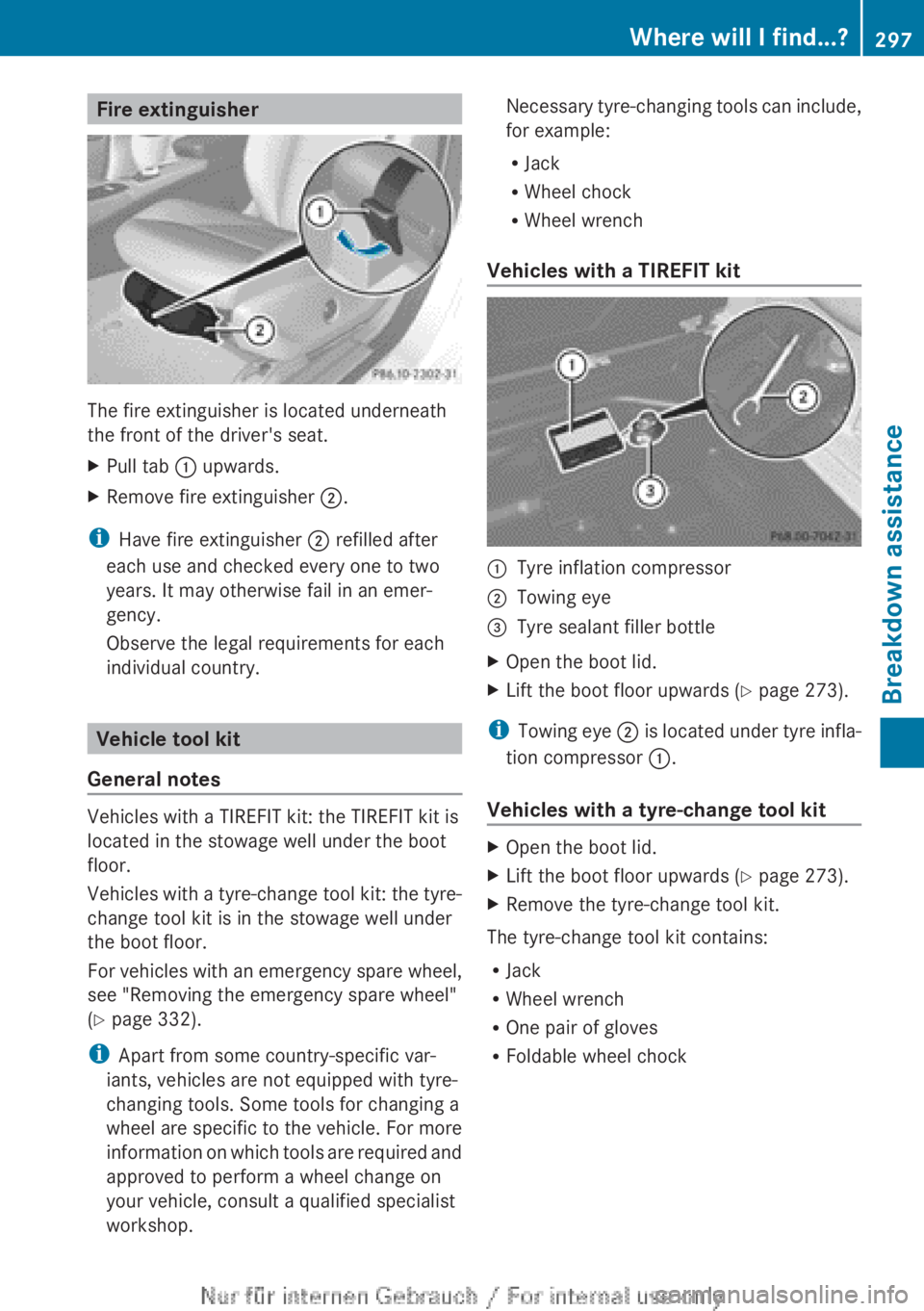
The fire extinguisher is located underneath
the front of the driver's seat.
XPull tab : upwards.XRemove fire extinguisher ;.
i
Have fire extinguisher ; refilled after
each use and checked every one to two
years. It may otherwise fail in an emer-
gency.
Observe the legal requirements for each
individual country.
Vehicle tool kit
General notes
Vehicles with a TIREFIT kit: the TIREFIT kit is
located in the stowage well under the boot
floor.
Vehicles with a tyre-change tool kit: the tyre-
change tool kit is in the stowage well under
the boot floor.
For vehicles with an emergency spare wheel,
see "Removing the emergency spare wheel"
( Y page 332).
i Apart from some country-specific var-
iants, vehicles are not equipped with tyre-
changing tools. Some tools for changing a
wheel are specific to the vehicle. For more
information on which tools are required and
approved to perform a wheel change on
your vehicle, consult a qualified specialist
workshop.
Necessary tyre-changing tools can include,
for example:
R Jack
R Wheel chock
R Wheel wrench
Vehicles with a TIREFIT kit:Tyre inflation compressor;Towing eye=Tyre sealant filler bottleXOpen the boot lid.XLift the boot floor upwards ( Y page 273).
i
Towing eye ; is located under tyre infla-
tion compressor :.
Vehicles with a tyre-change tool kit
XOpen the boot lid.XLift the boot floor upwards ( Y page 273).XRemove the tyre-change tool kit.
The tyre-change tool kit contains:
R Jack
R Wheel wrench
R One pair of gloves
R Foldable wheel chock
Where will I find...?297Breakdown assistance