display MERCEDES-BENZ CLA 2019 Owners Manual
[x] Cancel search | Manufacturer: MERCEDES-BENZ, Model Year: 2019, Model line: CLA, Model: MERCEDES-BENZ CLA 2019Pages: 330, PDF Size: 23.57 MB
Page 236 of 330
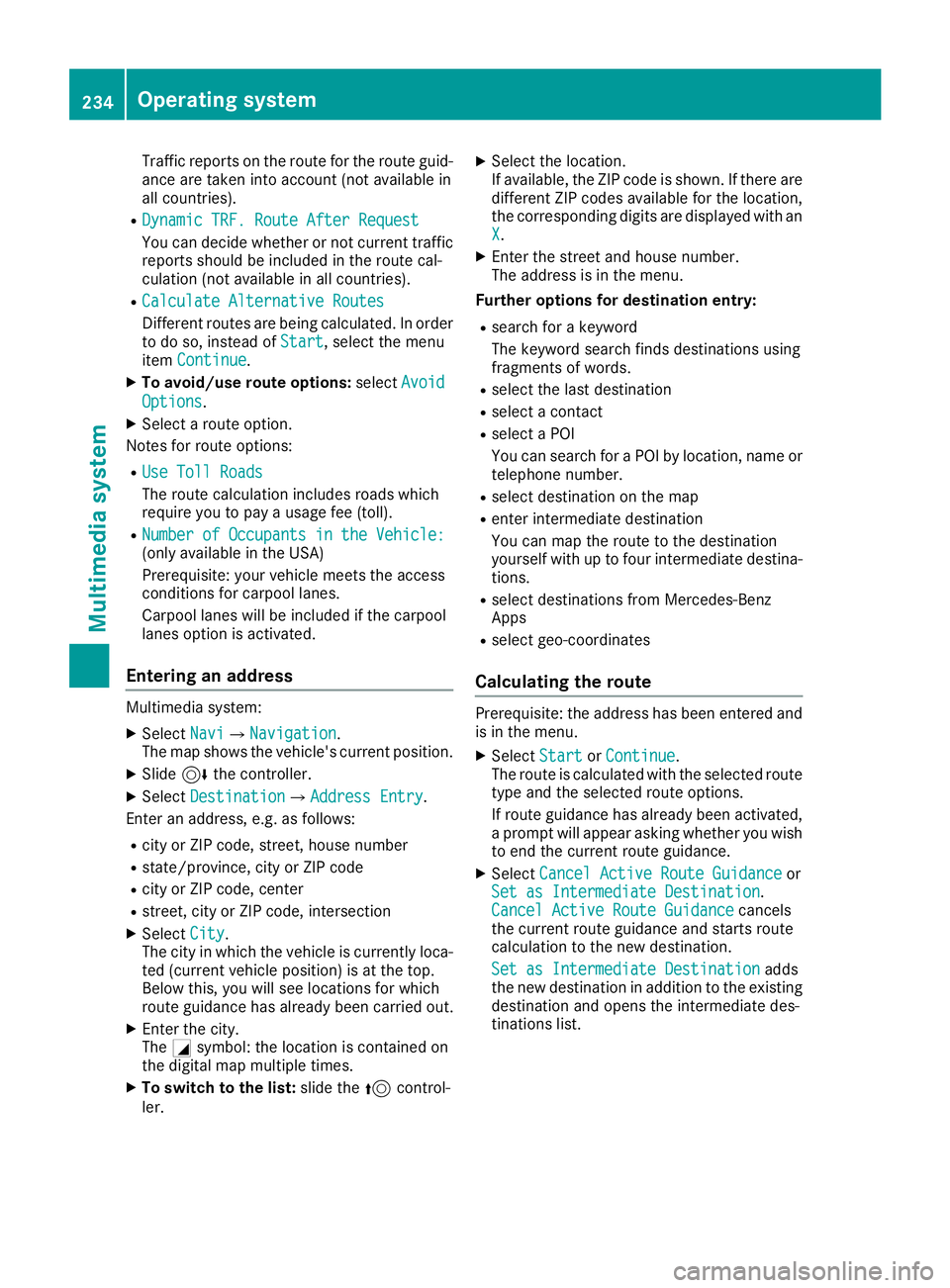
Traffic reports on the route for the route guid-ance are taken into account (not available inall countries).
RDynamic TRF. Route After RequestDynamic TRF. Route After Request
You can decide whether or not current trafficreports should be included in the route cal-culation (not available in all countries).
RCalculate Alternative RoutesCalculate Alternative Routes
Different routes are being calculated. In orderto do so, instead ofStartStart, select the menuitemContinueContinue.
XTo avoid/use route options:selectAvoidAvoid
OptionsOptions.
XSelect a route option.
Notes for route options:
RUse Toll RoadsUse Toll Roads
The route calculation includes roads whichrequire you to pay a usage fee (toll).
RNumber of Occupants in the Vehicle:Number of Occupants in the Vehicle:(only available in the USA)
Prerequisite: your vehicle meets the accessconditions for carpool lanes.
Carpool lanes will be included if the carpoollanes option is activated.
Entering an address
Multimedia system:
XSelectNaviNavi{NavigationNavigation.The map shows the vehicle's current position.
XSlide6the controller.
XSelectDestinationDestination{Address EntryAddress Entry.
Enter an address, e.g. as follows:
Rcity or ZIP code, street, house number
Rstate/province, city or ZIP code
Rcity or ZIP code, center
Rstreet, city or ZIP code, intersection
XSelectCityCity.The city in which the vehicle is currently loca-ted (current vehicle position) is at the top.Below this, you will see locations for whichroute guidance has already been carried out.
XEnter the city.TheCsymbol: the location is contained onthe digital map multiple times.
XTo switch to the list:slide the5control-ler.
XSelect the location.If available, the ZIP code is shown. If there aredifferent ZIP codes available for the location,the corresponding digits are displayed with anXX.
XEnter the street and house number.The address is in the menu.
Further options for destination entry:
Rsearch for a keyword
The keyword search finds destinations usingfragments of words.
Rselect the last destination
Rselect a contact
Rselect a POI
You can search for a POI by location, name ortelephone number.
Rselect destination on the map
Renter intermediate destination
You can map the route to the destinationyourself with up to four intermediate destina-tions.
Rselect destinations from Mercedes-BenzApps
Rselect geo-coordinates
Calculating the route
Prerequisite: the address has been entered andis in the menu.
XSelectStartStartorContinueContinue.The route is calculated with the selected routetype and the selected route options.
If route guidance has already been activated,a prompt will appear asking whether you wishto end the current route guidance.
XSelectCancel Active Route GuidanceCancel Active Route GuidanceorSet as Intermediate DestinationSet as Intermediate Destination.Cancel Active Route GuidanceCancel Active Route Guidancecancelsthe current route guidance and starts routecalculation to the new destination.
Set as Intermediate DestinationSet as Intermediate Destinationaddsthe new destination in addition to the existingdestination and opens the intermediate des-tinations list.
234Operating system
Multimedia system
Page 238 of 330
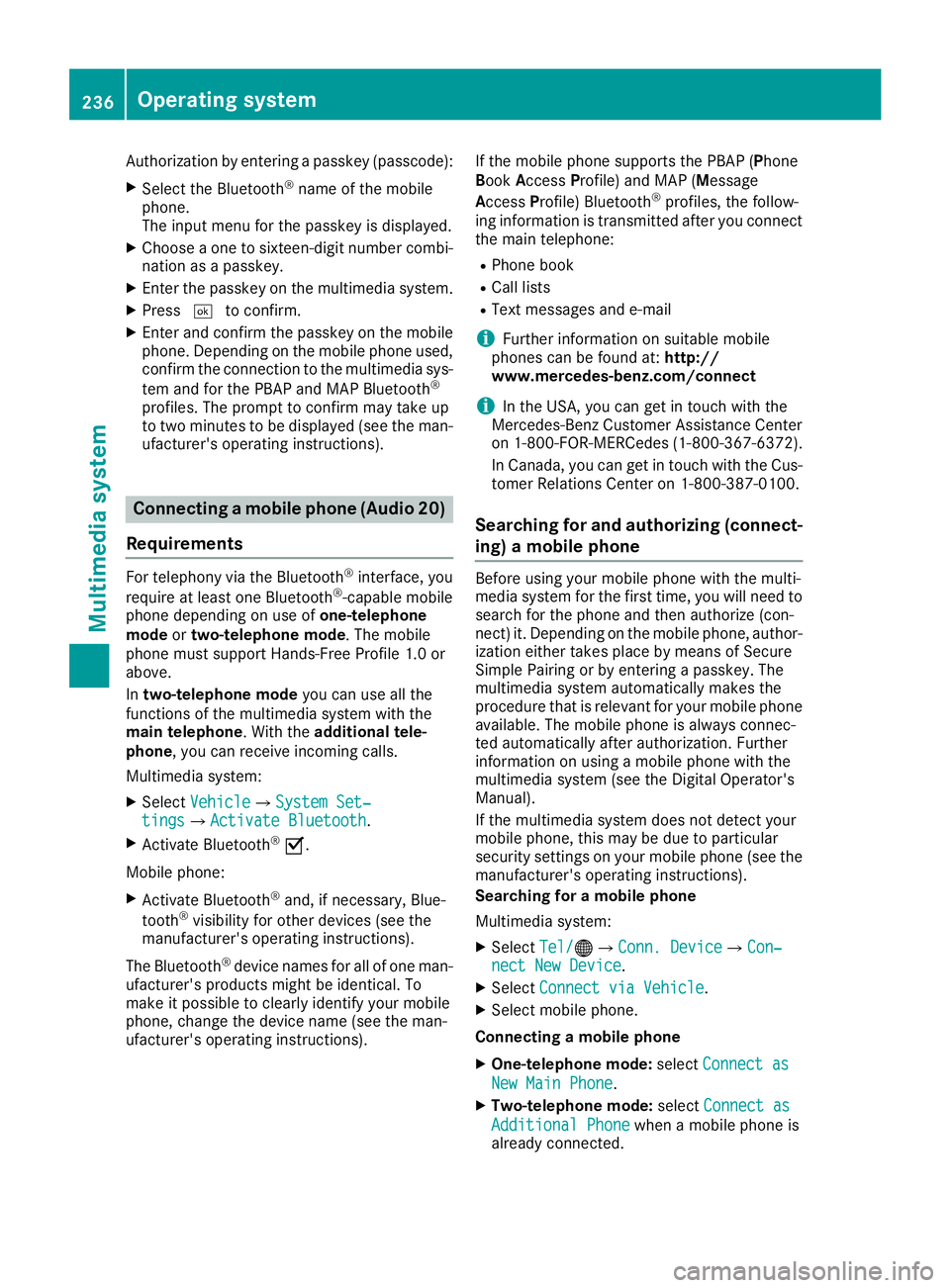
Authorization by entering a passkey (passcode):
XSelect the Bluetooth®name of the mobilephone.The input menu for the passkey is displayed.
XChoose a one to sixteen-digit number combi-nation as a passkey.
XEnter the passkey on the multimedia system.
XPressTto confirm.
XEnter and confirm the passkey on the mobilephone. Depending on the mobile phone used,confirm the connection to the multimedia sys-
tem and for the PBAP and MAP Bluetooth®
profiles. The prompt to confirm may take upto two minutes to be displayed (see the man-ufacturer's operating instructions).
Connecting a mobile phone (Audio 20)
Requirements
For telephony via the Bluetooth®interface, you
require at least one Bluetooth®-capable mobilephone depending on use ofone-telephonemodeortwo-telephone mode. The mobilephone must support Hands-Free Profile 1.0 orabove.
Intwo-telephone modeyou can use all thefunctions of the multimedia system with themain telephone. With theadditional tele-phone, you can receive incoming calls.
Multimedia system:
XSelectVehicleVehicle{System Set‐System Set‐tingstings{Activate BluetoothActivate Bluetooth.
XActivate Bluetooth®s.
Mobile phone:
XActivate Bluetooth®and, if necessary, Blue-
tooth®visibility for other devices (see themanufacturer's operating instructions).
The Bluetooth®device names for all of one man-ufacturer's products might be identical. Tomake it possible to clearly identify your mobilephone, change the device name (see the man-ufacturer's operating instructions).
If the mobile phone supports the PBAP (PhoneBookAccessProfile) and MAP (Message
AccessProfile) Bluetooth®profiles, the follow-ing information is transmitted after you connectthe main telephone:
RPhone book
RCall lists
RText messages and e-mail
iFurther information on suitable mobilephones can be found at:http://www.mercedes-benz.com/connect
iIn the USA, you can get in touch with theMercedes-Benz Customer Assistance Centeron 1-800-FOR-MERCedes (1-800-367-6372).
In Canada, you can get in touch with the Cus-tomer Relations Center on 1-800-387-0100.
Searching for and authorizing (connect-
ing) a mobile phone
Before using your mobile phone with the multi-media system for the first time, you will need tosearch for the phone and then authorize (con-nect) it. Depending on the mobile phone, author-ization either takes place by means of SecureSimple Pairing or by entering a passkey. Themultimedia system automatically makes theprocedure that is relevant for your mobile phoneavailable. The mobile phone is always connec-ted automatically after authorization. Furtherinformation on using a mobile phone with themultimedia system (see the Digital Operator'sManual).
If the multimedia system does not detect yourmobile phone, this may be due to particularsecurity settings on your mobile phone (see themanufacturer's operating instructions).
Searching for a mobile phone
Multimedia system:
XSelectTel/Tel/
Page 239 of 330
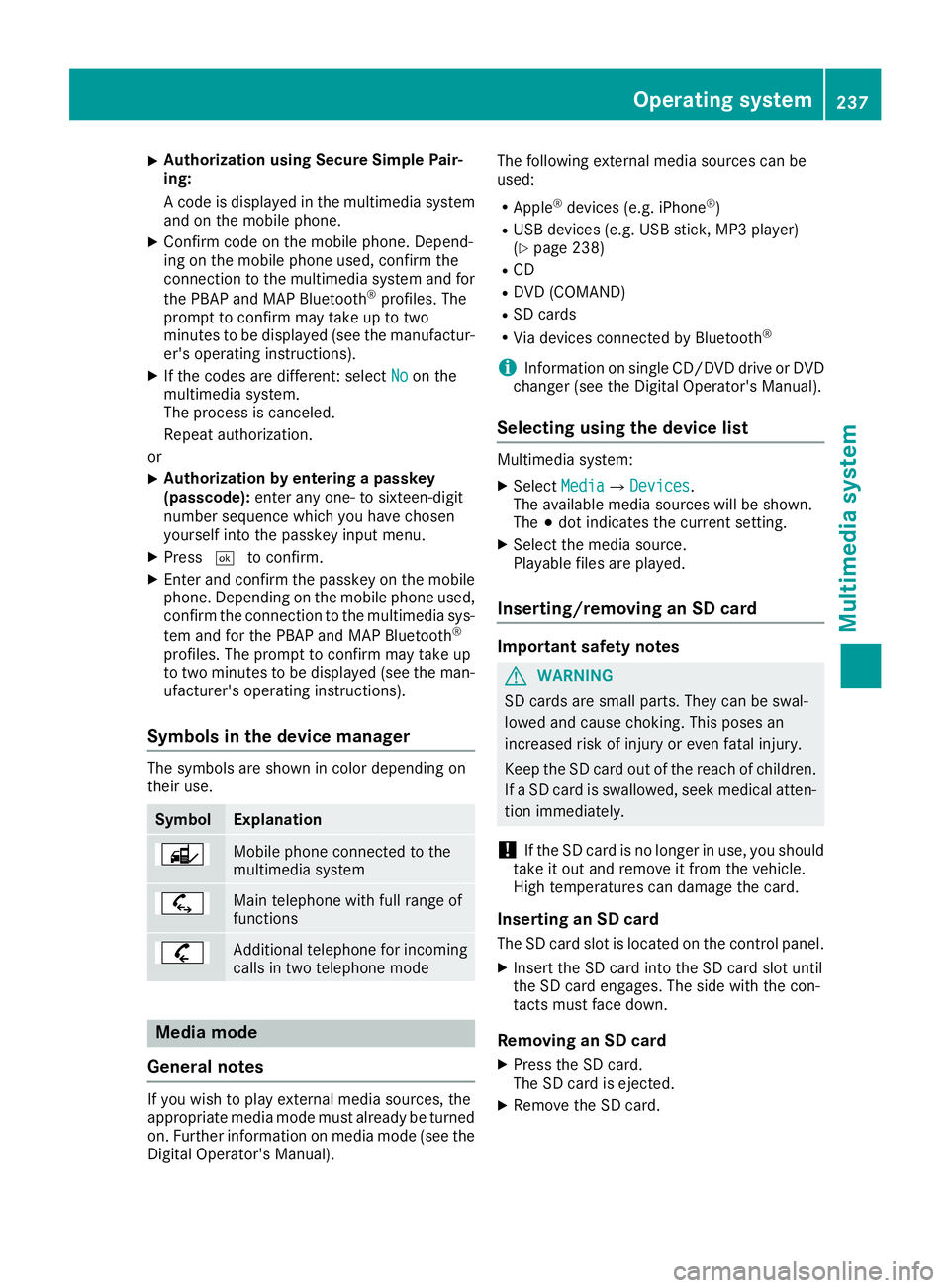
XAuthorization using Secure Simple Pair-ing:
A code is displayed in the multimedia systemand on the mobile phone.
XConfirm code on the mobile phone. Depend-ing on the mobile phone used, confirm theconnection to the multimedia system and for
the PBAP and MAP Bluetooth®profiles. Theprompt to confirm may take up to twominutes to be displayed (see the manufactur-er's operating instructions).
XIf the codes are different: selectNoNoon themultimedia system.The process is canceled.
Repeat authorization.
or
XAuthorization by entering a passkey(passcode):enter any one- to sixteen-digitnumber sequence which you have chosenyourself into the passkey input menu.
XPressTto confirm.
XEnter and confirm the passkey on the mobilephone. Depending on the mobile phone used,confirm the connection to the multimedia sys-
tem and for the PBAP and MAP Bluetooth®
profiles. The prompt to confirm may take upto two minutes to be displayed (see the man-ufacturer's operating instructions).
Symbols in the device manager
The symbols are shown in color depending ontheir use.
SymbolExplanation
Mobile phone connected to themultimedia system
Main telephone with full range offunctions
Additional telephone for incomingcalls in two telephone mode
Media mode
General notes
If you wish to play external media sources, theappropriate media mode must already be turnedon. Further information on media mode (see theDigital Operator's Manual).
The following external media sources can beused:
RApple®devices (e.g. iPhone®)
RUSB devices (e.g. USB stick, MP3 player)(Ypage 238)
RCD
RDVD (COMAND)
RSD cards
RVia devices connected by Bluetooth®
iInformation on single CD/DVD drive or DVDchanger (see the Digital Operator's Manual).
Selecting using the device list
Multimedia system:
XSelectMediaMedia{DevicesDevices.The available media sources will be shown.The;dot indicates the current setting.
XSelect the media source.Playable files are played.
Inserting/removing an SD card
Important safety notes
GWARNING
SD cards are small parts. They can be swal-
lowed and cause choking. This poses an
increased risk of injury or even fatal injury.
Keep the SD card out of the reach of children.
If a SD card is swallowed, seek medical atten-
tion immediately.
!If the SD card is no longer in use, you shouldtake it out and remove it from the vehicle.High temperatures can damage the card.
Inserting an SD card
The SD card slot is located on the control panel.
XInsert the SD card into the SD card slot untilthe SD card engages. The side with the con-tacts must face down.
Removing an SD card
XPress the SD card.The SD card is ejected.
XRemove the SD card.
Operating system237
Multimedia system
Z
Page 251 of 330
Have the system checked at the nearestMercedes-Benz Service Center or contact thefollowing service hotlines:
Mercedes-Benz Customer Assistance Center at1-800-FOR-MERCedes (1-800-367-6372) or1-866-990-9007
Emergency call
Important safety notes
GWARNING
It can be dangerous to remain in the vehicle,
even if you have pressed the SOS button in an
emergency if:
Ryou see smoke inside or outside of the vehi-
cle, e.g. if there is a fire after an accident
Rthe vehicle is on a dangerous section of
road
Rthe vehicle is not visible or cannot easily be
seen by other road users, particularly when
dark or in poor visibility conditions
There is a risk of an accident and injury.
Leave the vehicle immediately in this or simi-
lar situations as soon as it is safe to do so.
Move to a safe location along with other vehi-
cle occupants. In such situations, secure the
vehicle in accordance with national regula-
tions, e. g. with a warning triangle.
General notes
Observe the notes on system activation(Ypage 248).
An emergency call is dialed automatically if anair bag or Emergency Tensioning Device is trig-gered. You cannot end an automatically trig-gered emergency call yourself.
An emergency call can also be initiated man-ually.
As soon as the emergency call has been initi-ated, the indicator lamp in the SOS buttonflashes. TheConnecting CallConnecting Callmessageappears in the multifunction display.
The audio output is muted.
Once the connection has been made, theCallCallConnectedConnectedmessage appears in the multifunc-tion display.
All important information on the emergency istransmitted, for example:
RCurrent location of the vehicle (as determinedby the GPS system)
RVehicle identification number
RInformation on the severity of the accident
Shortly after the emergency call has been initi-ated, a voice connection is automatically estab-lished between the Customer Assistance Centerand the vehicle occupants.
RIf the vehicle occupants are responsive, theMercedes-Benz Customer Assistance Centerattempts to get more information on theemergency.
RIf there is no response from the vehicle occu-pants, an ambulance is immediately sent tothe vehicle
If no voice connection can be established to theMercedes-Benz Customer Assistance Center,the system has been unable to initiate an emer-gency call.
This can occur, for example, if the relevantmobile phone network is not available. The indi-cator lamp in the SOS button flashes continu-ously.
TheCall FailedCall Failedmessage appears in the mul-tifunction display and must be confirmed.
In this case, summon assistance by othermeans.
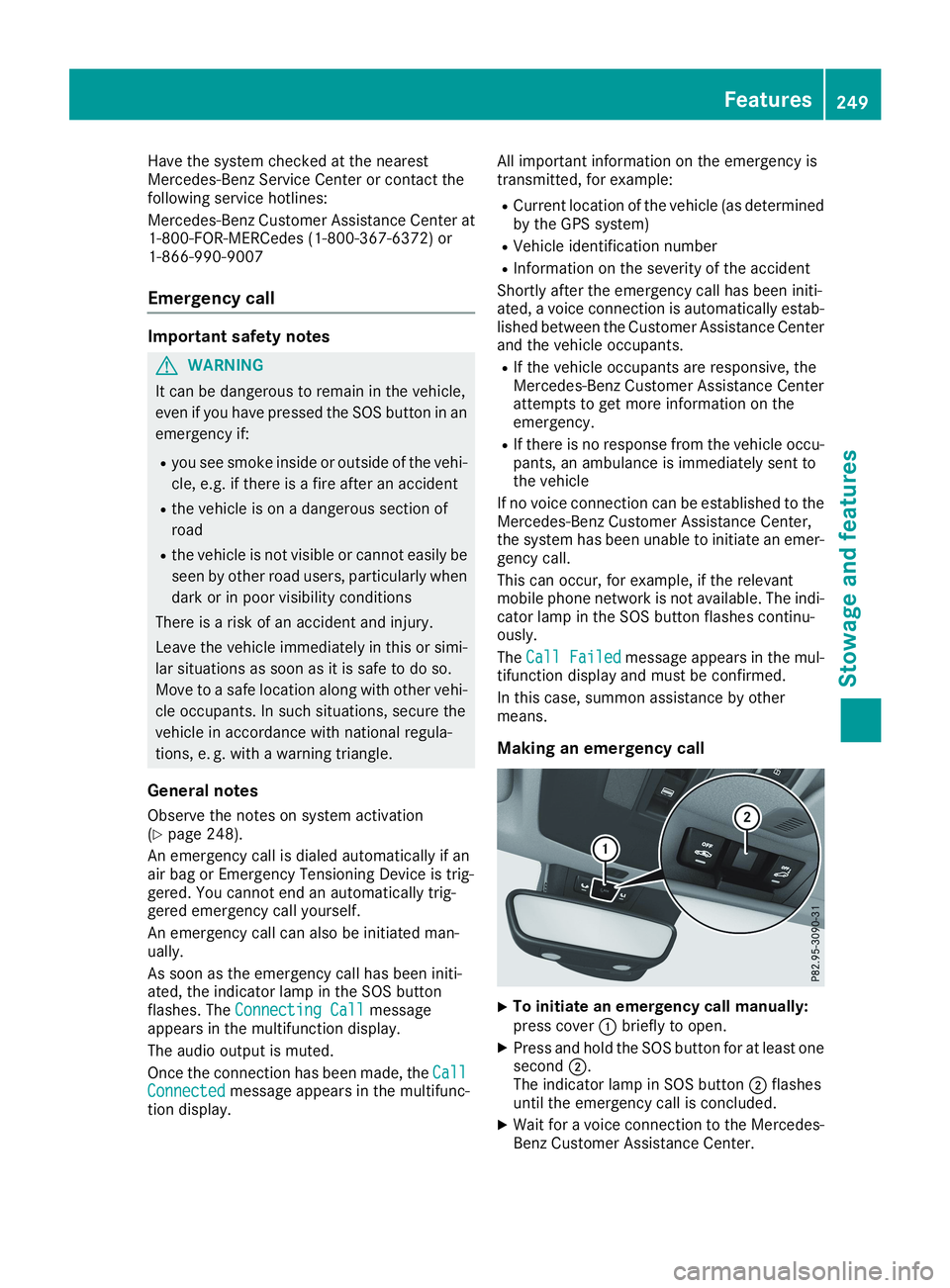
Making an emergency call
XTo initiate an emergency call manually:press coverCbriefly to open.
XPress and hold the SOS button for at least onesecondD.The indicator lamp in SOS buttonDflashesuntil the emergency call is concluded.
XWait for a voice connection to the Mercedes-Benz Customer Assistance Center.
Features249
Sto wage an d features
Z
Page 252 of 330
XTo end a call:press thevbutton on themultifunction steering wheel.
or
XPress the corresponding multimedia systembutton for ending a phone call.
XAfter the emergency call, close coverC.
If the mobile phone network is unavailable,Mercedes me connect is not able to make anemergency call. If you leave the vehicle imme-diately after pressing the SOS buttonD, you donot know if Mercedes me connect has success-fully made the emergency call. In this case,always summon assistance by other means.
Roadside Assistance button
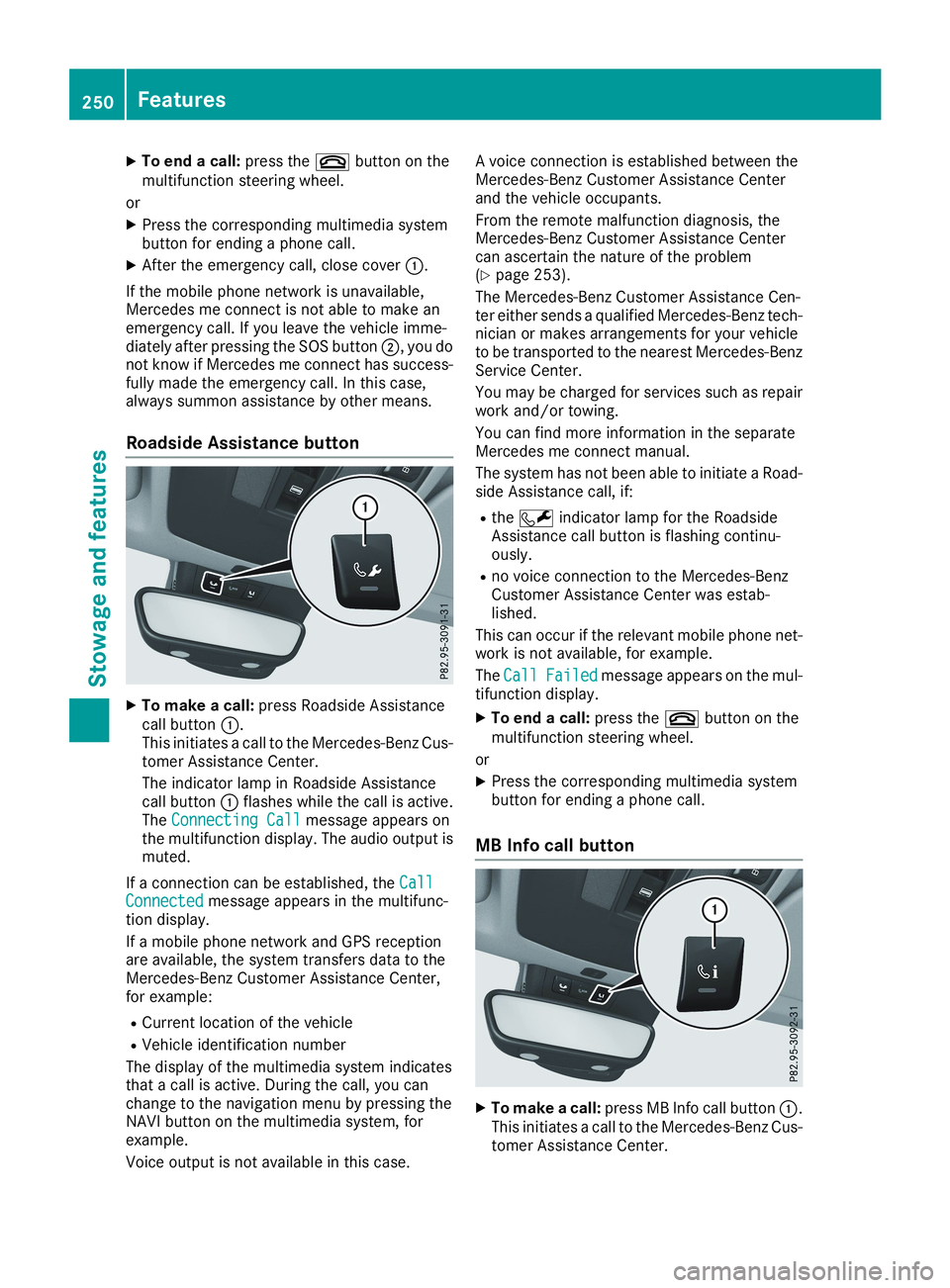
XTo make a call:press Roadside Assistancecall buttonC.This initiates a call to the Mercedes-Benz Cus-tomer Assistance Center.
The indicator lamp in Roadside Assistancecall buttonCflashes while the call is active.TheConnecting CallConnecting Callmessage appears onthe multifunction display. The audio output ismuted.
If a connection can be established, theCallCallConnectedConnectedmessage appears in the multifunc-tion display.
If a mobile phone network and GPS receptionare available, the system transfers data to theMercedes-Benz Customer Assistance Center,for example:
RCurrent location of the vehicle
RVehicle identification number
The display of the multimedia system indicatesthat a call is active. During the call, you canchange to the navigation menu by pressing theNAVI button on the multimedia system, forexample.
Voice output is not available in this case.
A voice connection is established between theMercedes-Benz Customer Assistance Centerand the vehicle occupants.
From the remote malfunction diagnosis, theMercedes-Benz Customer Assistance Centercan ascertain the nature of the problem(Ypage 253).
The Mercedes-Benz Customer Assistance Cen-ter either sends a qualified Mercedes-Benz tech-nician or makes arrangements for your vehicleto be transported to the nearest Mercedes-BenzService Center.
You may be charged for services such as repairwork and/or towing.
You can find more information in the separateMercedes me connect manual.
The system has not been able to initiate a Road-side Assistance call, if:
RtheRindicator lamp for the RoadsideAssistance call button is flashing continu-ously.
Rno voice connection to the Mercedes-BenzCustomer Assistance Center was estab-lished.
This can occur if the relevant mobile phone net-work is not available, for example.
TheCallCallFailedFailedmessage appears on the mul-tifunction display.
XTo end a call:press thevbutton on themultifunction steering wheel.
or
XPress the corresponding multimedia systembutton for ending a phone call.
MB Info call button
XTo make a call:press MB Info call buttonC.This initiates a call to the Mercedes-Benz Cus-tomer Assistance Center.
250Features
Sto wage an d features
Page 253 of 330
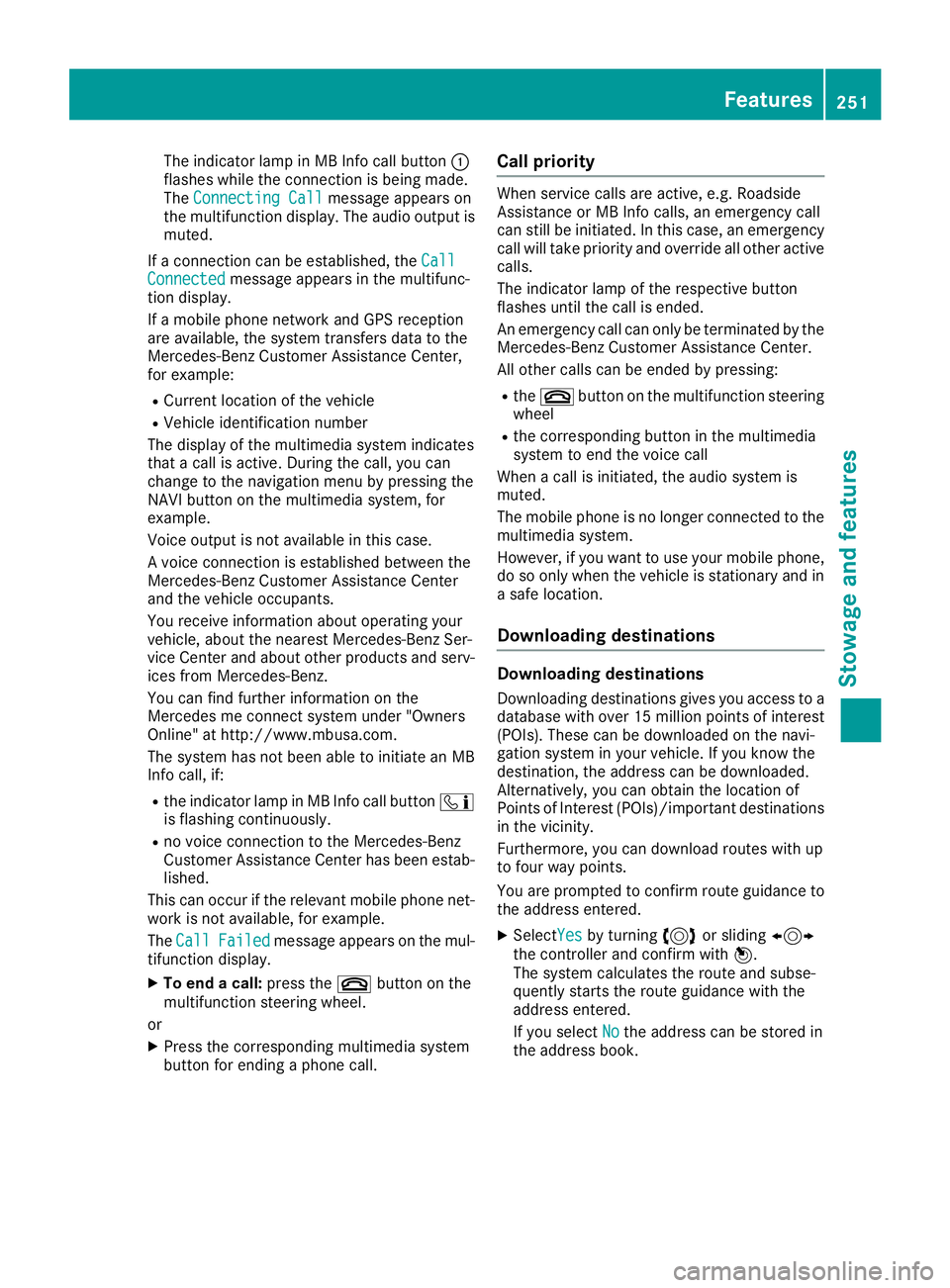
The indicator lamp in MB Info call buttonCflashes while the connection is being made.TheConnecting CallConnecting Callmessage appears onthe multifunction display. The audio output ismuted.
If a connection can be established, theCallCallConnectedConnectedmessage appears in the multifunc-tion display.
If a mobile phone network and GPS receptionare available, the system transfers data to theMercedes-Benz Customer Assistance Center,for example:
RCurrent location of the vehicle
RVehicle identification number
The display of the multimedia system indicatesthat a call is active. During the call, you canchange to the navigation menu by pressing theNAVI button on the multimedia system, forexample.
Voice output is not available in this case.
A voice connection is established between theMercedes-Benz Customer Assistance Centerand the vehicle occupants.
You receive information about operating yourvehicle, about the nearest Mercedes-Benz Ser-vice Center and about other products and serv-ices from Mercedes-Benz.
You can find further information on theMercedes me connect system under "OwnersOnline" at http://www.mbusa.com.
The system has not been able to initiate an MBInfo call, if:
Rthe indicator lamp in MB Info call button
Page 254 of 330
The destination download function is availableif:
Rthe vehicle is equipped with a navigation sys-tem.
Rthe relevant mobile phone network is availa-ble and data transfer is possible.
Route Assistance
This service is part of the Mercedes me connectPLUS Package and cannot be obtained sepa-rately.
You can use the Route Assistance function evenif the vehicle is not equipped with a navigationsystem.
Within the framework of this service, you receivea professional and reliable form of navigationsupport without having to leave your vehicle.
The customer service representative finds asuitable route depending on your vehicle's cur-rent position and the desired destination. Youwill then be guided live through the current routesection.
Search and Send
General notes
To use "Search & Send", your vehicle must beequipped with Mercedes me connect and a nav-igation system. Additionally, a Mercedes meconnect service subscription must be comple-ted.
"Search & Send" is a destination entry service. Adestination address found on Google Maps™can be transferred via Mercedes me connectdirectly to your vehicle's navigation system.
Specifying and sending the destination
address
XGo to the website http://maps.google.comand enter a destination address into the entryfield.
XTo send the destination address to the e-mail address of your Mercedes me con-nect account:click the corresponding but-ton on the website.
Example:
If you select 'Send to vehicle' and then'Mercedes-Benz', the destination address willbe sent to your vehicle.
XWhen the "Send" dialog window appears:
Enter the e-mail address you specified whensetting up your Mercedes me connectaccount into the corresponding field.
XClick "Send".
Information on specific commands such as"Address entry" or "Send" can be found on thewebsite.
Calling up a transmitted destination
address
XTurn the SmartKey to positionHin the igni-tion lock (Ypage 123).The transmitted destination address is loadedinto the vehicle's navigation system.
A display message appears, asking whethernavigation should be started.
XSelectYesYesby turning3or sliding1the controller and confirm with7.The system calculates the route and subse-quently starts the route guidance with theaddress entered.
If you selectNoNothe address can be stored inthe address book.
If you have sent more than one destinationaddress, each individual destination must beconfirmed separately.
Destination addresses are loaded in the sameorder as the order in which they were sent.
If you have multiple Mercedes-Benz vehicleswith Mercedes me connect and activeMercedes me connect accounts:
If multiple vehicles are registered under thesame e-mail address, the destination will besent to all the vehicles.
Vehicle remote opening
You can use the vehicle remote opening if youhave unintentionally locked your vehicle and areplacement SmartKey is not available.
The vehicle can be unlocked by the Mercedes-Benz Customer Assistance Center.
The vehicle can be immediately unlockedremotely within four days of the ignition beingturned off. After this time, remote unlockingmay be delayed by 15 to 60 minutes. After30 days, the vehicle can no longer be unlockedremotely.
The vehicle remote opening feature is availableif the relevant mobile phone network is availableand a data connection is possible.
XContact the following service hotlines:
252Features
Stowage and features
Page 255 of 330
Mercedes-Benz Customer Assistance Centerat 1-800-FOR-MERCedes (1-800-367-6372)or 1-866-990-9007
XYou will be asked for your password.
XReturn to your vehicle at the time agreed uponwith the Mercedes-Benz Customer Assis-tance Center.
Alternatively, the vehicle can be opened via:
Rthe Internet, under the "Owners Online" sec-tion
Rtelephone applications (e.g. for iPhone®,Android™)
To do this, you will need your identification num-ber and password.
Vehicle remote closing
The valet locking feature can be used when youhave forgotten to lock the vehicle and you are nolonger nearby.
The vehicle can then be locked by the Mercedes-Benz Customer Assistance Center.
The vehicle can be immediately locked remotelyup to four days after the ignition was lastswitched off. After this time, the valet lockingmay be delayed by 15 to 60 minutes. After30 days the vehicle can no longer be lockedremotely.
The valet locking feature is available if the rele-vant mobile phone network is available and adata connection is possible.
XContact the following service hotlines:
Mercedes-Benz Customer Assistance Centerat 1-800-FOR-MERCedes (1-800-367-6372)or 1-866-990-9007You will be asked for your password.
The next time you are inside the vehicle and youswitch on the ignition, theDoors LockedDoors LockedRemotelyRemotelymessage appears in the multifunctiondisplay.
Alternatively, the vehicle can be locked via:
Rthe Internet, under the "Owners Online" sec-tion
Rtelephone applications (e.g. for iPhone®,Android™)
To do this, you will need your identification num-ber and password.
Stolen vehicle recovery service
If your vehicle has been stolen:
XNotify the police.The police will issue a numbered incidentreport.
XThis number will be forwarded to theMercedes-Benz Customer Assistance Centertogether with your PIN.The Mercedes-Benz Customer AssistanceCenter then tries to locate the system. TheMercedes-Benz Customer Assistance Centercontacts you and the local law enforcementagency if the vehicle is located.
However, only the law enforcement agency isinformed of the location of the vehicle.
If the anti-theft alarm system is activated forlonger than 30 seconds, Mercedes me connectautomatically notifies the Mercedes-Benz Cus-tomer Assistance Center.
Vehicle Health Check
With the Vehicle Health Check, the CustomerAssistance Center can provide improved sup-port for problems with your vehicle. During anexisting call, vehicle data is transferred to theCustomer Assistance Center.
The customer service representative can usethe received data to decide what kind of assis-tance is required. You are then, for example,guided to the nearest Mercedes-Benz ServiceCenter or a recovery vehicle is called.
If vehicle data needs to be transferred during anMB Info call or a Roadside Assistance call, this isinitiated by the Customer Assistance Center.
TheRoadside Assistance ConnectedRoadside Assistance Connectedmes-sage appears in the display. If the Vehicle HealthCheck can be started, theRequestRequestforforVehi‐Vehi‐cle Diagnostics Received Start vehi‐cle Diagnostics Received Start vehi‐cle diagnostics?cle diagnostics?message appears in thedisplay.
XPress theYesYesbutton to confirm the message.
XIf theVehicle Diagnostics PleaseVehicle Diagnostics PleaseStart IgnitionStart Ignitionmessage appears: turn theSmartKey to positionHin the ignition lock(Ypage 123).
XIf thePlease follow the instructionsPlease follow the instructionsreceivedreceivedbybyphonephoneandandmovemoveyouryourvehi‐vehi‐cle to a safe position.cle to a safe position.messageappears: please follow the instructions
Features253
Stowage and features
Z
Page 256 of 330
received by phone and move your vehicle to asafe position.The message in the display disappears.
The vehicle operating state check begins.During this procedure, you will see theVehi‐Vehi‐cle Diagnostics Activecle Diagnostics Activemessage.
If you selectCancelCancel, the Vehicle HealthCheck is canceled completely.
When the check is complete, theSendingSendingvehicle diagnostics data. (Voice con‐vehicle diagnostics data. (Voice con‐nection may be interrupted duringnection may be interrupted duringdatadatatransfer)transfer)message appears. The vehicledata can now be sent.
XPress theOKOKbutton to confirm the message.The voice connection with the CustomerAssistance Center is terminated.
TheVehicle Diagnostics: Transfer‐Vehicle Diagnostics: Transfer‐ring Data...ring Data...message appears.
The vehicle data is sent to the CustomerAssistance Center.
Depending on what the customer service rep-resentative agreed with you, the voice connec-tion is re-established after the transfer is com-plete. If necessary, you will be contacted at alater time by another means, e.g. by e-mail orphone.
Another function of the Vehicle Health Check isthe transfer of service data to the CustomerAssistance Center. If a service is due, the displayshows a message to this effect together withinformation about any special offers at yourworkshop.
This information can also be called up under"Owners Online" at http://www.mbusa.com.
Information on the data stored in the vehicle(Ypage 29).
Information on Roadside Assistance(Ypage 26).
Downloading routes
Downloading routes allows you to transfer andsave predefined routes in the navigation sys-tem.
A route can be prepared and sent by either acustomer service representative or under "Own-ers Online" at http://www.mbusa.com.
Each route can include up to four intermediatedestinations.
Once a route has been received by the naviga-tion system, you will see theDoDoyouyouwantwanttotostart route guidance? Destinationstart route guidance? Destination
Received destination has been savedReceived destination has been savedin "Previous destinations".in "Previous destinations".message onthe multimedia system display.
The route is saved.
XTo start route guidance:selectYesYes.An overview of the route is shown in the dis-play.
If you selectNoNo, the saved route can be calledup later in the navigation menu.
XSelectStartStart.Route guidance starts.
Downloaded and saved routes can be called upagain.
Speed alert
You can define the upper speed limit, whichmust not be exceeded by the vehicle.
If this selected speed is exceeded by the vehicle,a message will be sent to the Customer Assis-tance Center. The Customer Assistance Centerthen forwards this information to you.
You can select the way in which you receive thisinformation beforehand. Possible optionsinclude text message, e-mail or an automatedcall.
The data you receive contains the followinginformation:
Rthe location where the speed limit was excee-ded
Rthe time at which the speed limit was excee-ded
Rthe selected speed limit which was exceeded
Geo fencing
Geo fencing allows you to select areas which thevehicle should not enter or leave. You will beinformed if the vehicle crosses the boundariesof the selected areas. You can select the way inwhich you receive this information beforehand.Possible options include text message, e-mail oran automated call.
The area can be determined as either a circle ora polygon with a maximum of ten corners. Youcan specify up to ten areas simultaneously. Dif-ferent settings are possible for each area.
These settings can be called up under "OwnersOnline" at http://www.mbusa.com.
Alternatively, you can trigger an MB Info call andinform the customer service representative thatyou wish to activate geo fencing.
254Features
Stowage and features
Page 260 of 330
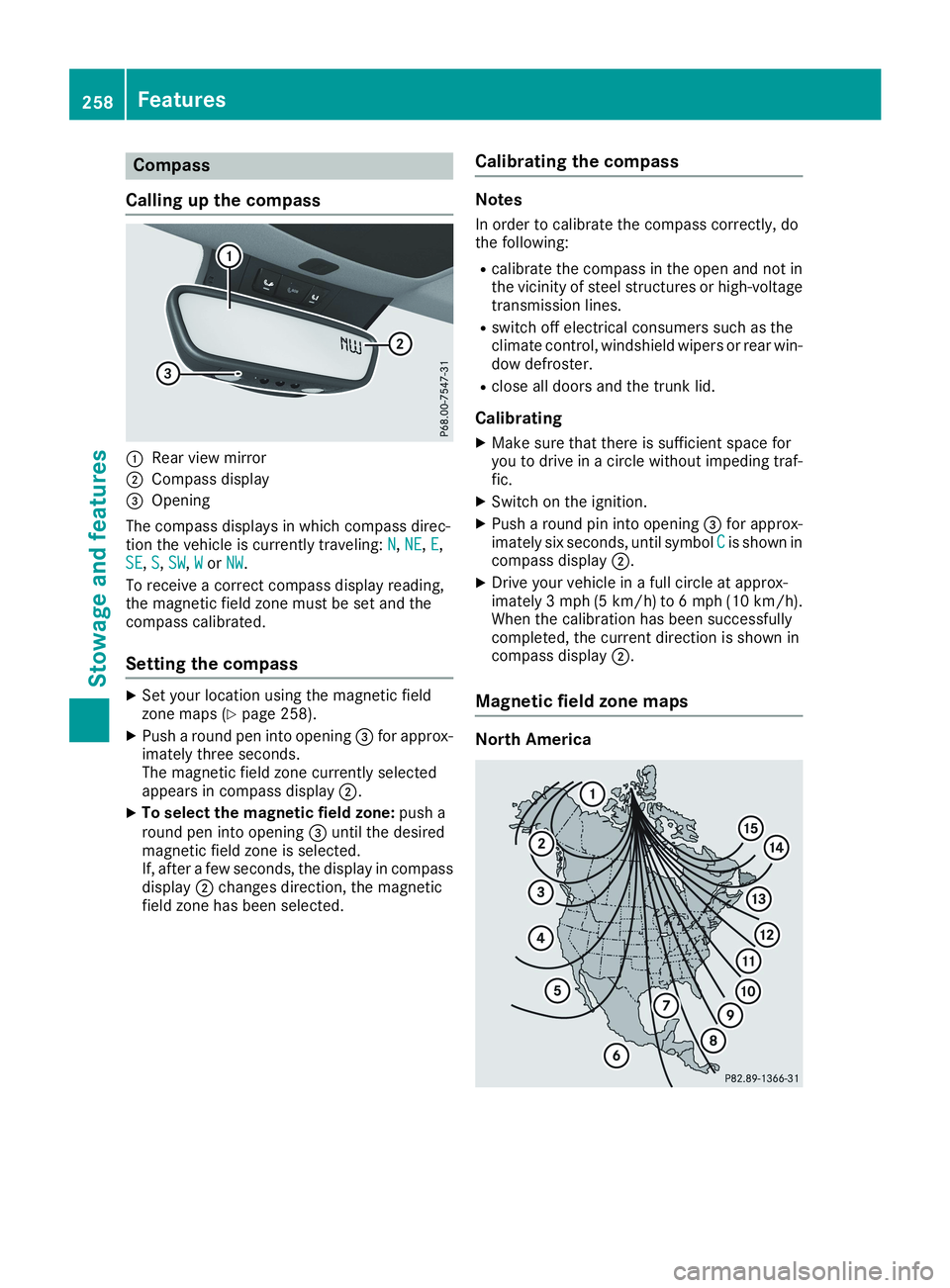
Compass
Calling up the compass
CRear view mirror
DCompass display