service MERCEDES-BENZ CLA-CLASS 2013 Owner's Manual
[x] Cancel search | Manufacturer: MERCEDES-BENZ, Model Year: 2013, Model line: CLA-CLASS, Model: MERCEDES-BENZ CLA-CLASS 2013Pages: 352, PDF Size: 5.64 MB
Page 210 of 352
Useful information
i This Owner's Manual describes all mod-
els, series and optional equipment for your
vehicle that were available at the time of
going to press. National variations are pos-
sible. Note that your vehicle may not be
equipped with all of the functions descri-
bed. This is also the case for systems and
functions relevant to safety.
i Read the information on qualified special-
ist workshops: ( Y page 24).
Important safety notes
GWARNING
Operating the integrated information systems
and communications equipment in the vehicle
while driving will distract you from traffic con-
ditions. You could then lose control of the
vehicle. There is a risk of an accident.
Only operate these devices if road traffic con-
ditions permit. If you are unsure about the
surrounding conditions, pull over to a safe
location and make entries only while the vehi-
cle is stationary.
GWARNING
If the instrument cluster has failed or mal-
functioned, you may not recognise function
restrictions relevant to safety. The operating
safety of your vehicle may be impaired. There
is a risk of an accident.
Drive on carefully. Have the vehicle checked
at a qualified specialist workshop immedi-
ately.
You must observe the legal requirements for
the country in which you are currently driving
when operating the on-board computer.
The on-board computer only shows messages
or warnings from certain systems in the mul-
tifunction display. You should therefore make
sure your vehicle is operating safely at all
times. Otherwise, a vehicle that is not oper-
ating safely may cause an accident.
For an overview, see the instrument panel
illustration ( Y page 30).
Displays and operation
Instrument cluster lighting
The lighting in the instrument cluster, in the
displays and the controls in the vehicle inte-
rior can be adjusted using the brightness con-
trol knob.
The brightness control knob is on the bottom
left of the instrument cluster ( Y page 30).
XTurn the brightness control knob clockwise
or anti-clockwise.
If the light switch is set to Ã, T or
L , the brightness is dependant upon
the brightness of the ambient light.
i The light sensor in the instrument cluster
automatically controls the brightness of
the multifunction display.
In daylight, the displays in the instrument
cluster are not illuminated.
Coolant temperature gauge
GWARNING
If you open the bonnet while the engine is
overheating or while there is a fire in the
engine compartment, you could come into
contact with hot gases or other leaking
service products. There is a danger of injury.
Allow an overheating engine to cool down
before opening the bonnet. If there is a fire in
the engine compartment, leave the bonnet
closed and notify the fire brigade.
The coolant temperature gauge is in the
instrument cluster on the right-hand side.
Under normal operating conditions and with
the specified coolant level, the coolant tem-
perature may rise to 120 †.
208Displays and operationOn-board computer and displays
ProCarManuals.com
Page 213 of 352
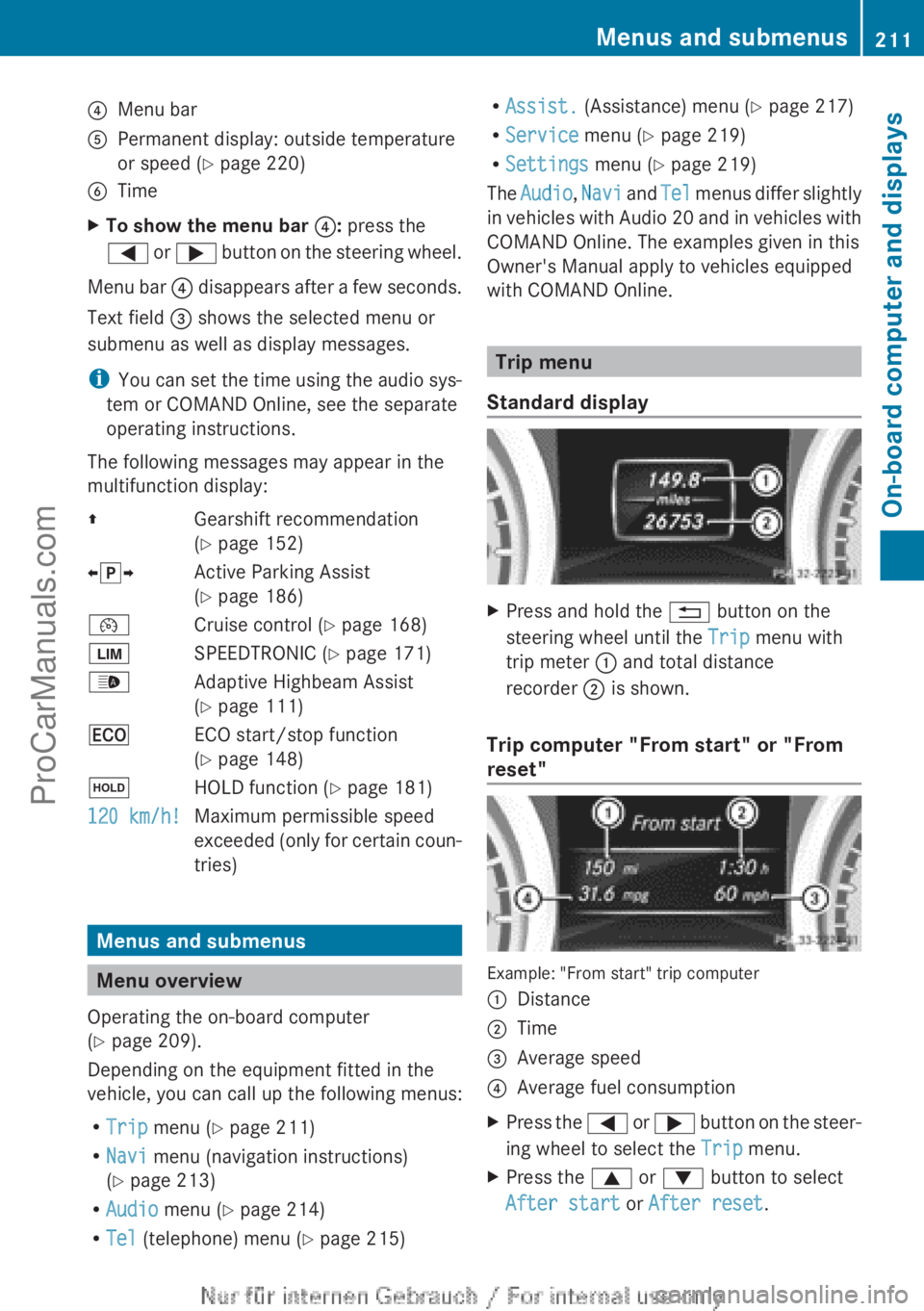
?Menu barAPermanent display: outside temperature
or speed ( Y page 220)BTimeXTo show the menu bar ?: press the
= or ; button on the steering wheel.
Menu bar ? disappears after a few seconds.
Text field = shows the selected menu or
submenu as well as display messages.
i You can set the time using the audio sys-
tem or COMAND Online, see the separate
operating instructions.
The following messages may appear in the
multifunction display:
ZGearshift recommendation
( Y page 152)Xj YActive Parking Assist
( Y page 186)¯Cruise control ( Y page 168)ÈSPEEDTRONIC ( Y page 171)_Adaptive Highbeam Assist
( Y page 111)¤ECO start/stop function
( Y page 148)ëHOLD function ( Y page 181)120 km/h!Maximum permissible speed
exceeded (only for certain coun-
tries)
Menus and submenus
Menu overview
Operating the on-board computer
( Y page 209).
Depending on the equipment fitted in the
vehicle, you can call up the following menus:
R Trip menu ( Y page 211)
R Navi menu (navigation instructions)
( Y page 213)
R Audio menu ( Y page 214)
R Tel (telephone) menu ( Y page 215)
R
Assist. (Assistance) menu ( Y page 217)
R Service menu (Y page 219)
R Settings menu (Y page 219)
The Audio , Navi and Tel menus differ slightly
in vehicles with Audio 20 and in vehicles with
COMAND Online. The examples given in this
Owner's Manual apply to vehicles equipped
with COMAND Online.
Trip menu
Standard display
XPress and hold the % button on the
steering wheel until the Trip menu with
trip meter : and total distance
recorder ; is shown.
Trip computer "From start" or "From
reset"
Example: "From start" trip computer
:Distance;Time=Average speed?Average fuel consumptionXPress the = or ; button on the steer-
ing wheel to select the Trip menu.XPress the 9 or : button to select
After start or After reset .Menus and submenus211On-board computer and displaysZProCarManuals.com
Page 218 of 352
XSwitch on your mobile phone and audio
system or COMAND Online, see the sepa-
rate operating instructions.XPlace a mobile phone in the mobile phone
bracket ( Y page 278), or establish a Blue-
tooth ®
connection with the audio system
or COMAND Online (see the separate oper-
ating instructions).XPress the = or ; button on the steer-
ing wheel to select the Tel menu.
You will see one of the following display mes-
sages in the multifunction display:
R Please enter PIN: the mobile phone has
been placed in the mobile phone bracket
and the PIN has not been entered.
When you enter your PIN via the mobile
phone, LINGUATRONIC, the audio system
or COMAND Online, the mobile phone
searches for a network.
R Telephone ready or the name of the net-
work provider: the mobile phone has found
a network and is ready to receive.
R Telephone No service : there is no net-
work available or the mobile phone is
searching for a network.
i You can obtain further information about
suitable mobile phones and connecting
mobile phones via Bluetooth ®
:
R from any Mercedes Benz Service Centre
R on the Internet at: http://
www.mercedes-benz.com/connect
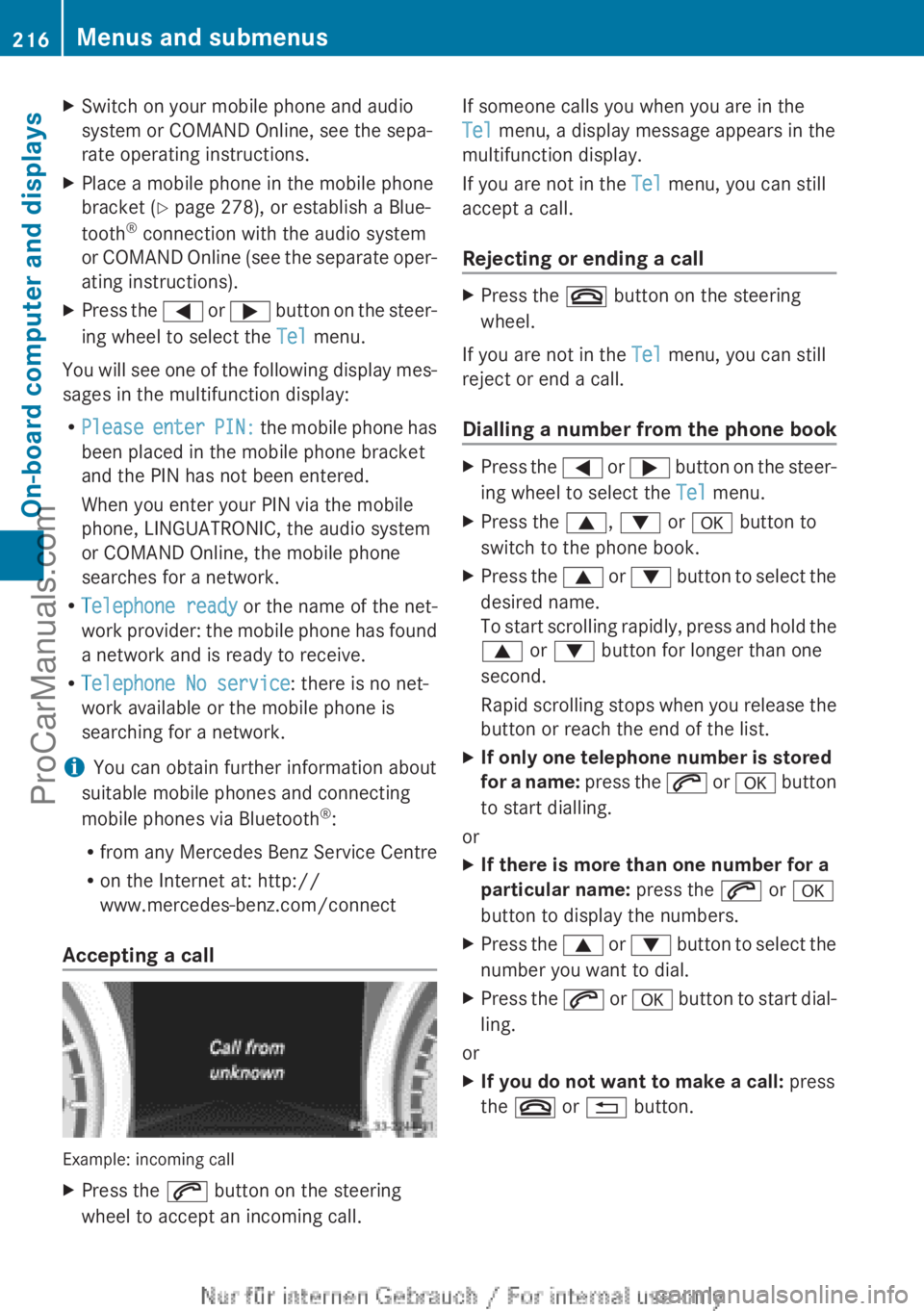
Accepting a call
Example: incoming call
XPress the 6 button on the steering
wheel to accept an incoming call.If someone calls you when you are in the
Tel menu, a display message appears in the
multifunction display.
If you are not in the Tel menu, you can still
accept a call.
Rejecting or ending a callXPress the ~ button on the steering
wheel.
If you are not in the Tel menu, you can still
reject or end a call.
Dialling a number from the phone book
XPress the = or ; button on the steer-
ing wheel to select the Tel menu.XPress the 9, : or a button to
switch to the phone book.XPress the 9 or : button to select the
desired name.
To start scrolling rapidly, press and hold the
9 or : button for longer than one
second.
Rapid scrolling stops when you release the
button or reach the end of the list.XIf only one telephone number is stored
for a name: press the 6 or a button
to start dialling.
or
XIf there is more than one number for a
particular name: press the 6 or a
button to display the numbers.XPress the 9 or : button to select the
number you want to dial.XPress the 6 or a button to start dial-
ling.
or
XIf you do not want to make a call: press
the ~ or % button.216Menus and submenusOn-board computer and displays
ProCarManuals.com
Page 221 of 352
XPress the a button.
The current selection is displayed.XTo activate/deactivate: press the a
button again.
When ATTENTION ASSIST ( Y page 195) is
deactivated, the é symbol appears in
the multifunction display in the assistance
graphics display.
Activating/deactivating Blind Spot
Assist
XPress the = or ; button on the steer-
ing wheel to select the Assist menu.XPress 9 or : to select Blind Spot
Asst. .XPress the a button.
The current selection is displayed.XTo activate/deactivate: press the a
button again.
For further information about Blind Spot
Assist, see ( Y page 197).
When the Blind Spot Assist: Sensors
deactivated message is shown, the radar
sensors are deactivated.
XSwitch on the radar sensor system
( Y page 223).
Activating/deactivating Lane Keeping
Assist
XPress the = or ; button on the steer-
ing wheel to select the Assist menu.XPress 9 or : on the steering wheel
to select Lane Keeping Assist .XPress the a button.
The current selection is displayed.XPress a to confirm.XPress the : or 9 button to set Off,
Standard or Adaptive .XPress the a button to save the setting.
When Lane Keeping Assist ( Y page 199) is
activated, the multifunction display in theassistance graphic shows the lane mark-
ings in green.
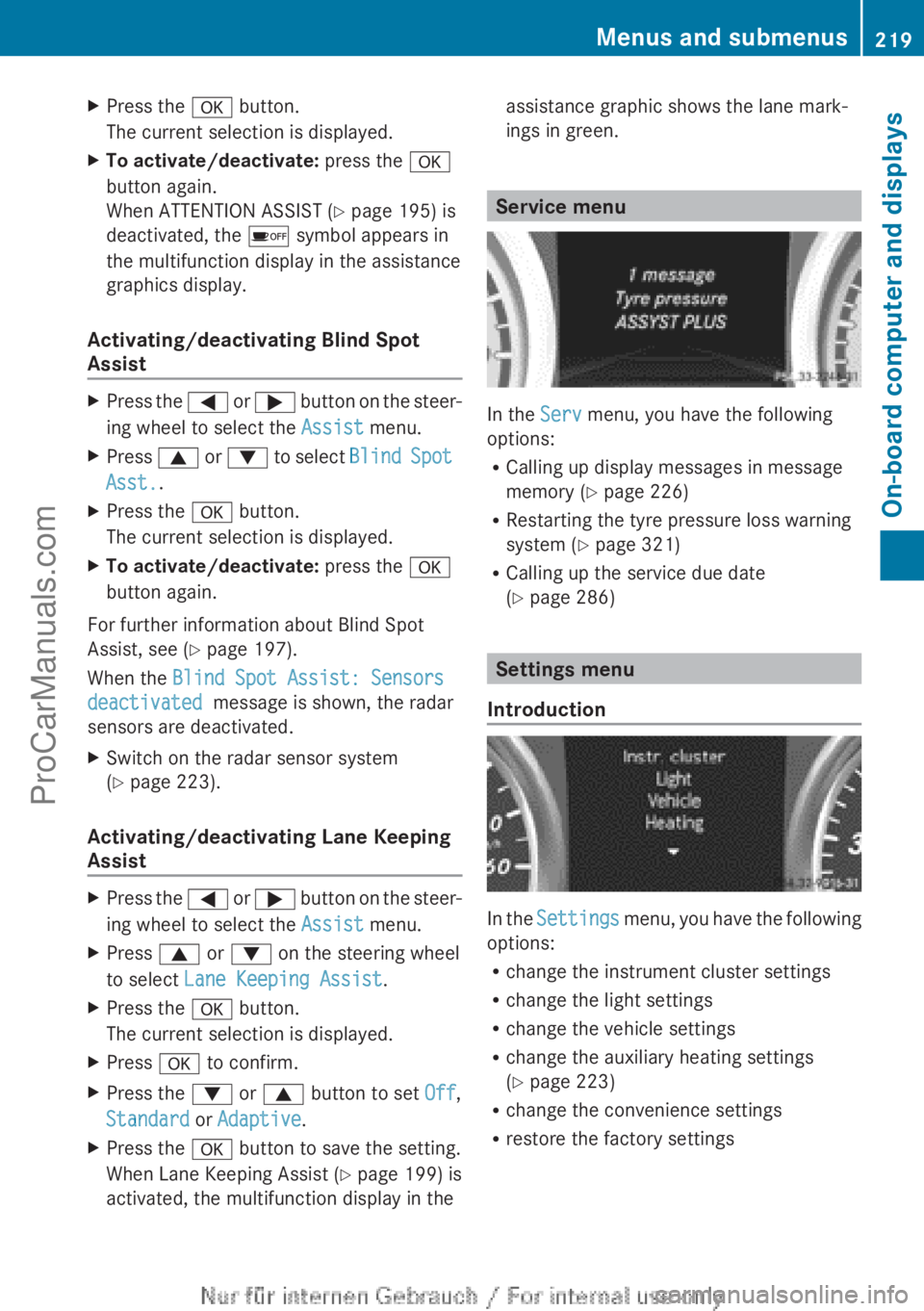
Service menu
In the Serv menu, you have the following
options:
R Calling up display messages in message
memory ( Y page 226)
R Restarting the tyre pressure loss warning
system ( Y page 321)
R Calling up the service due date
( Y page 286)
Settings menu
Introduction
In the Settings menu, you have the following
options:
R change the instrument cluster settings
R change the light settings
R change the vehicle settings
R change the auxiliary heating settings
( Y page 223)
R change the convenience settings
R restore the factory settings
Menus and submenus219On-board computer and displaysZProCarManuals.com
Page 222 of 352
Instrument cluster
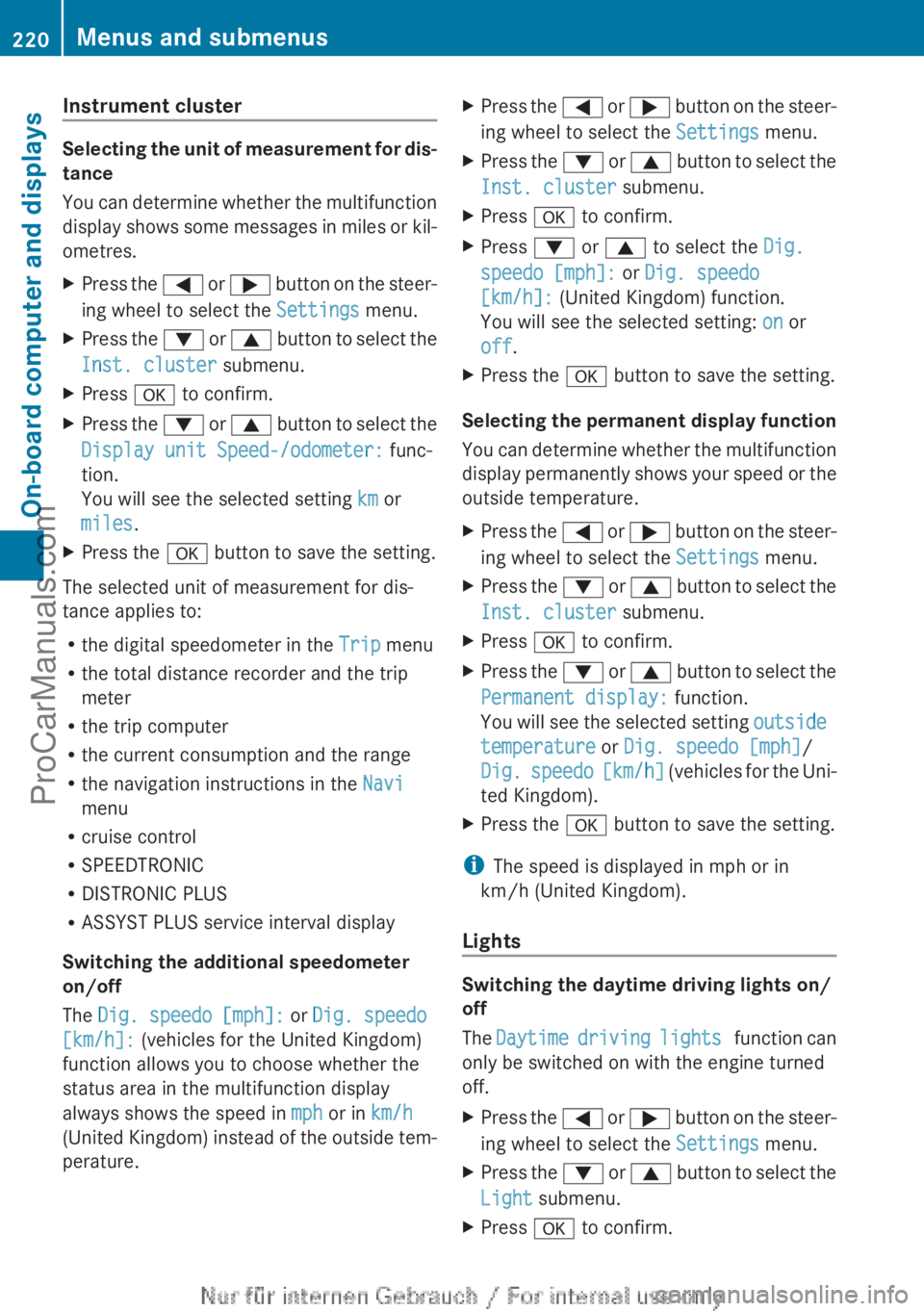
Selecting the unit of measurement for dis-
tance
You can determine whether the multifunction
display shows some messages in miles or kil-
ometres.
XPress the = or ; button on the steer-
ing wheel to select the Settings menu.XPress the : or 9 button to select the
Inst. cluster submenu.XPress a to confirm.XPress the : or 9 button to select the
Display unit Speed-/odometer: func-
tion.
You will see the selected setting km or
miles .XPress the a button to save the setting.
The selected unit of measurement for dis-
tance applies to:
R the digital speedometer in the Trip menu
R the total distance recorder and the trip
meter
R the trip computer
R the current consumption and the range
R the navigation instructions in the Navi
menu
R cruise control
R SPEEDTRONIC
R DISTRONIC PLUS
R ASSYST PLUS service interval display
Switching the additional speedometer
on/off
The Dig. speedo [mph]: or Dig. speedo
[km/h]: (vehicles for the United Kingdom)
function allows you to choose whether the
status area in the multifunction display
always shows the speed in mph or in km/h
(United Kingdom) instead of the outside tem-
perature.
XPress the = or ; button on the steer-
ing wheel to select the Settings menu.XPress the : or 9 button to select the
Inst. cluster submenu.XPress a to confirm.XPress : or 9 to select the Dig.
speedo [mph]: or Dig. speedo
[km/h]: (United Kingdom) function.
You will see the selected setting: on or
off .XPress the a button to save the setting.
Selecting the permanent display function
You can determine whether the multifunction
display permanently shows your speed or the
outside temperature.
XPress the = or ; button on the steer-
ing wheel to select the Settings menu.XPress the : or 9 button to select the
Inst. cluster submenu.XPress a to confirm.XPress the : or 9 button to select the
Permanent display: function.
You will see the selected setting outside
temperature or Dig. speedo [mph] /
Dig. speedo [km/h] (vehicles for the Uni-
ted Kingdom).XPress the a button to save the setting.
i
The speed is displayed in mph or in
km/h (United Kingdom).
Lights
Switching the daytime driving lights on/
off
The Daytime driving lights function can
only be switched on with the engine turned
off.
XPress the = or ; button on the steer-
ing wheel to select the Settings menu.XPress the : or 9 button to select the
Light submenu.XPress a to confirm.220Menus and submenusOn-board computer and displays
ProCarManuals.com
Page 223 of 352
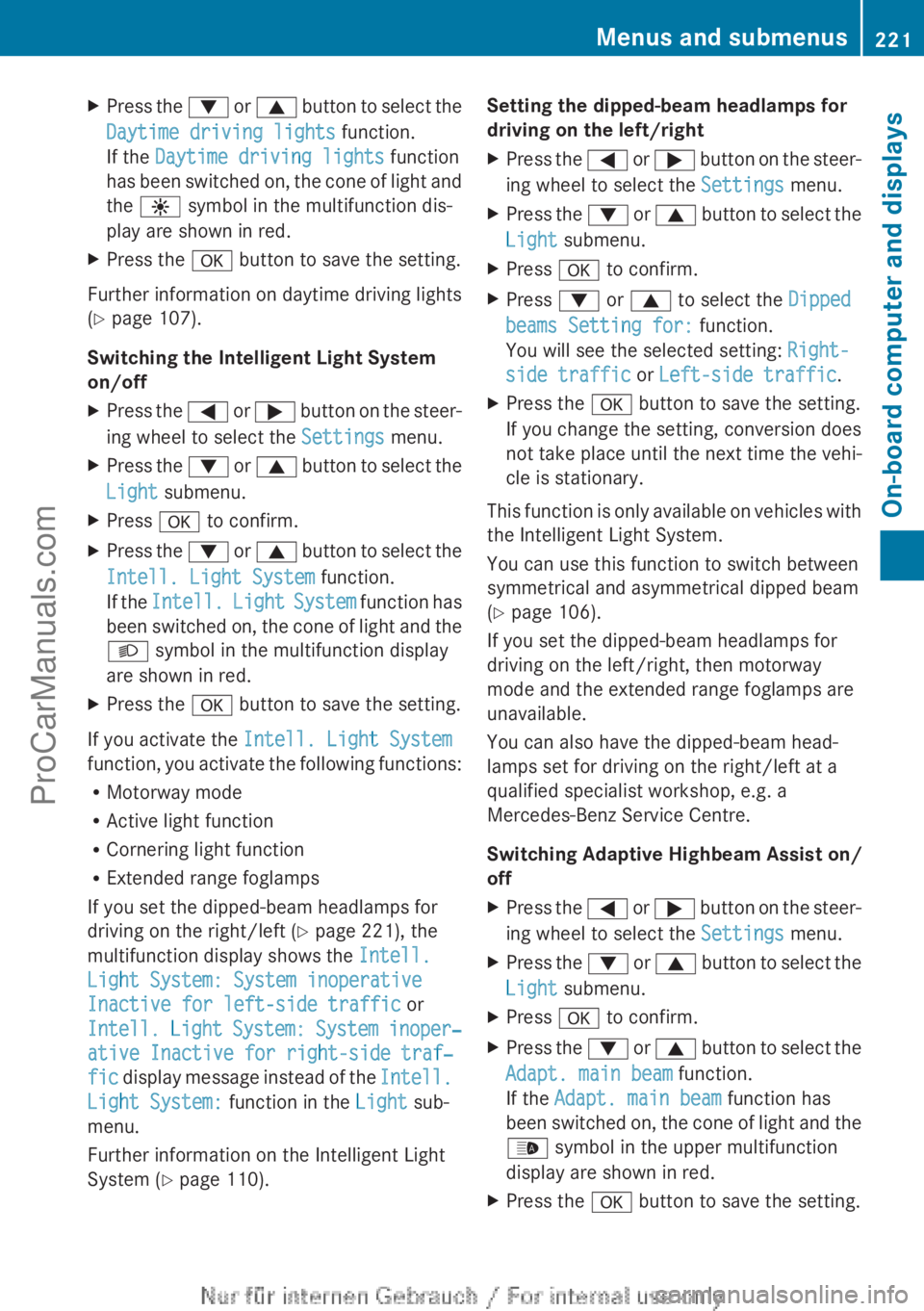
XPress the : or 9 button to select the
Daytime driving lights function.
If the Daytime driving lights function
has been switched on, the cone of light and
the W symbol in the multifunction dis-
play are shown in red.XPress the a button to save the setting.
Further information on daytime driving lights
( Y page 107).
Switching the Intelligent Light System
on/off
XPress the = or ; button on the steer-
ing wheel to select the Settings menu.XPress the : or 9 button to select the
Light submenu.XPress a to confirm.XPress the : or 9 button to select the
Intell. Light System function.
If the Intell. Light System function has
been switched on, the cone of light and the
L symbol in the multifunction display
are shown in red.XPress the a button to save the setting.
If you activate the Intell. Light System
function, you activate the following functions:
R Motorway mode
R Active light function
R Cornering light function
R Extended range foglamps
If you set the dipped-beam headlamps for
driving on the right/left ( Y page 221), the
multifunction display shows the Intell.
Light System: System inoperative
Inactive for left-side traffic or
Intell. Light System: System inoper‐
ative Inactive for right-side traf‐
fic display message instead of the Intell.
Light System: function in the Light sub-
menu.
Further information on the Intelligent Light
System ( Y page 110).
Setting the dipped-beam headlamps for
driving on the left/rightXPress the = or ; button on the steer-
ing wheel to select the Settings menu.XPress the : or 9 button to select the
Light submenu.XPress a to confirm.XPress : or 9 to select the Dipped
beams Setting for: function.
You will see the selected setting: Right-
side traffic or Left-side traffic .XPress the a button to save the setting.
If you change the setting, conversion does
not take place until the next time the vehi-
cle is stationary.
This function is only available on vehicles with
the Intelligent Light System.
You can use this function to switch between
symmetrical and asymmetrical dipped beam
( Y page 106).
If you set the dipped-beam headlamps for
driving on the left/right, then motorway
mode and the extended range foglamps are
unavailable.
You can also have the dipped-beam head-
lamps set for driving on the right/left at a
qualified specialist workshop, e.g. a
Mercedes-Benz Service Centre.
Switching Adaptive Highbeam Assist on/
off
XPress the = or ; button on the steer-
ing wheel to select the Settings menu.XPress the : or 9 button to select the
Light submenu.XPress a to confirm.XPress the : or 9 button to select the
Adapt. main beam function.
If the Adapt. main beam function has
been switched on, the cone of light and the
_ symbol in the upper multifunction
display are shown in red.XPress the a button to save the setting.Menus and submenus221On-board computer and displaysZProCarManuals.com
Page 228 of 352
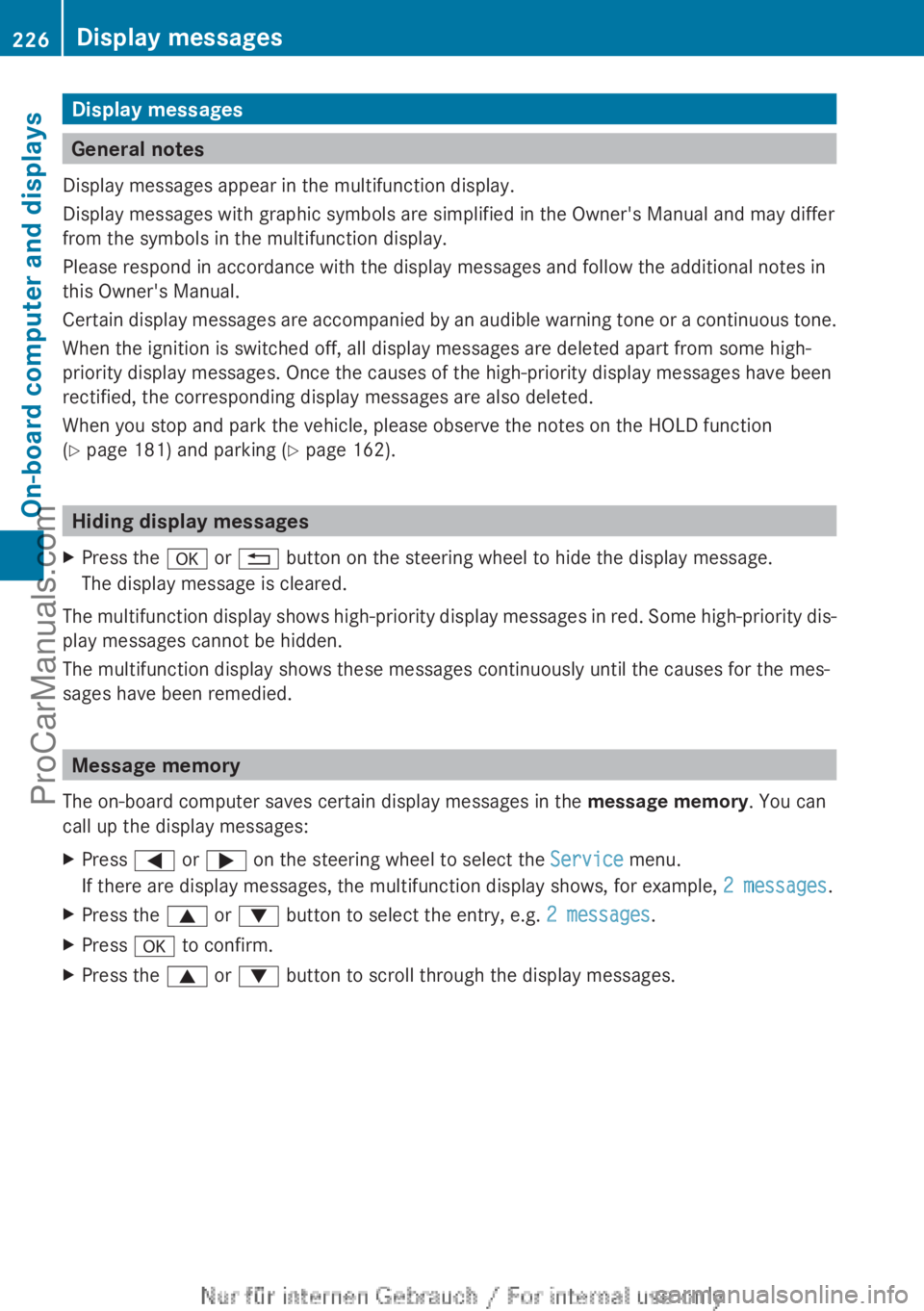
Display messages
General notes
Display messages appear in the multifunction display.
Display messages with graphic symbols are simplified in the Owner's Manual and may differ
from the symbols in the multifunction display.
Please respond in accordance with the display messages and follow the additional notes in
this Owner's Manual.
Certain display messages are accompanied by an audible warning tone or a continuous tone.
When the ignition is switched off, all display messages are deleted apart from some high-
priority display messages. Once the causes of the high-priority display messages have been
rectified, the corresponding display messages are also deleted.
When you stop and park the vehicle, please observe the notes on the HOLD function
( Y page 181) and parking ( Y page 162).
Hiding display messages
XPress the a or % button on the steering wheel to hide the display message.
The display message is cleared.
The multifunction display shows high-priority display messages in red. Some high-priority dis-
play messages cannot be hidden.
The multifunction display shows these messages continuously until the causes for the mes-
sages have been remedied.
Message memory
The on-board computer saves certain display messages in the message memory. You can
call up the display messages:
XPress = or ; on the steering wheel to select the Service menu.
If there are display messages, the multifunction display shows, for example, 2 messages.XPress the 9 or : button to select the entry, e.g. 2 messages.XPress a to confirm.XPress the 9 or : button to scroll through the display messages.226Display messagesOn-board computer and displays
ProCarManuals.com
Page 256 of 352
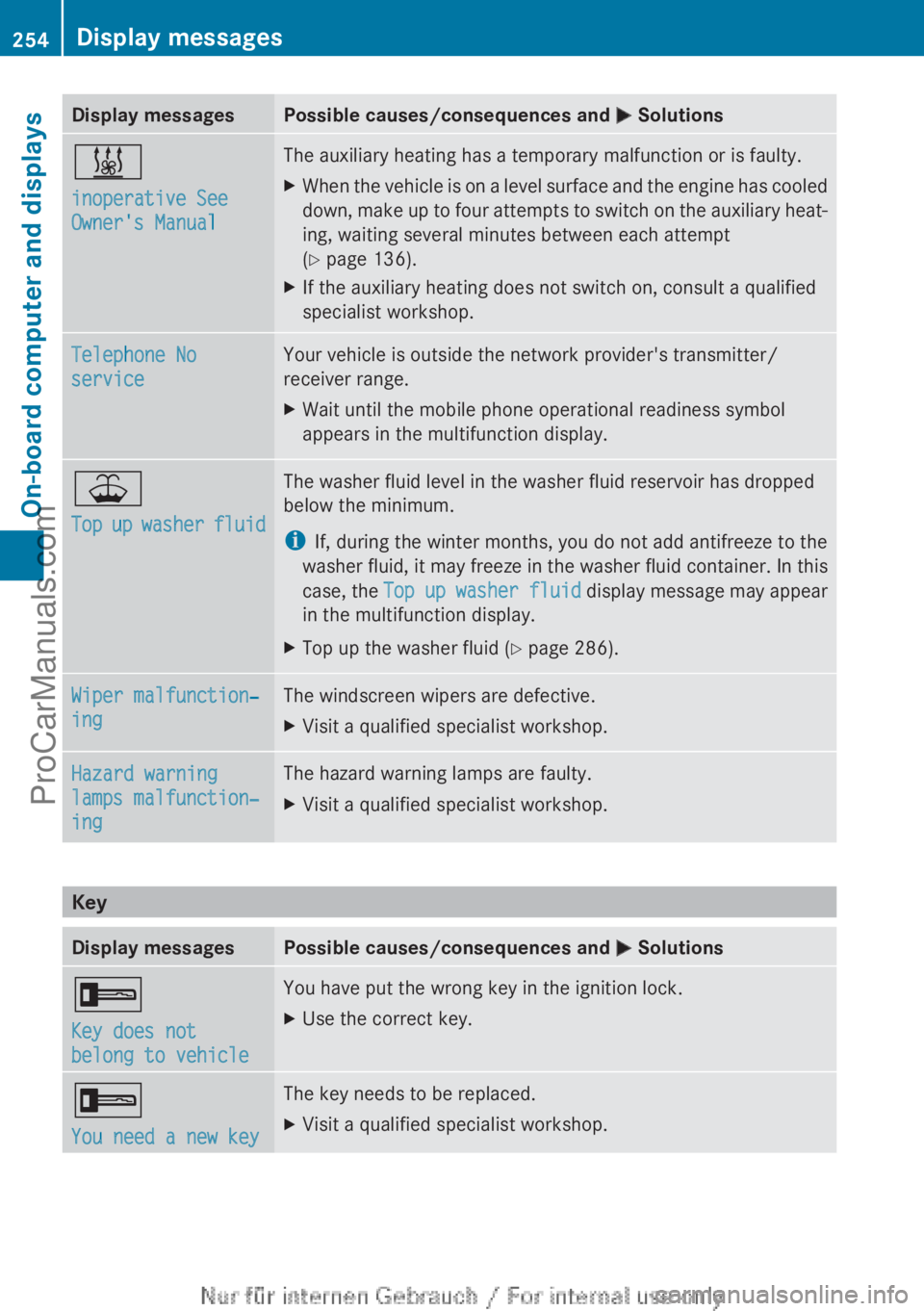
Display messagesPossible causes/consequences and M Solutions&
inoperative See
Owner's ManualThe auxiliary heating has a temporary malfunction or is faulty.XWhen the vehicle is on a level surface and the engine has cooled
down, make up to four attempts to switch on the auxiliary heat-
ing, waiting several minutes between each attempt
( Y page 136).XIf the auxiliary heating does not switch on, consult a qualified
specialist workshop.Telephone No
serviceYour vehicle is outside the network provider's transmitter/
receiver range.XWait until the mobile phone operational readiness symbol
appears in the multifunction display.¥
Top up washer fluidThe washer fluid level in the washer fluid reservoir has dropped
below the minimum.
i If, during the winter months, you do not add antifreeze to the
washer fluid, it may freeze in the washer fluid container. In this
case, the Top up washer fluid display message may appear
in the multifunction display.XTop up the washer fluid ( Y page 286).Wiper malfunction‐
ingThe windscreen wipers are defective.XVisit a qualified specialist workshop.Hazard warning
lamps malfunction‐
ingThe hazard warning lamps are faulty.XVisit a qualified specialist workshop.
Key
Display messagesPossible causes/consequences and M Solutions+
Key does not
belong to vehicleYou have put the wrong key in the ignition lock.XUse the correct key.+
You need a new keyThe key needs to be replaced.XVisit a qualified specialist workshop.254Display messagesOn-board computer and displays
ProCarManuals.com
Page 280 of 352
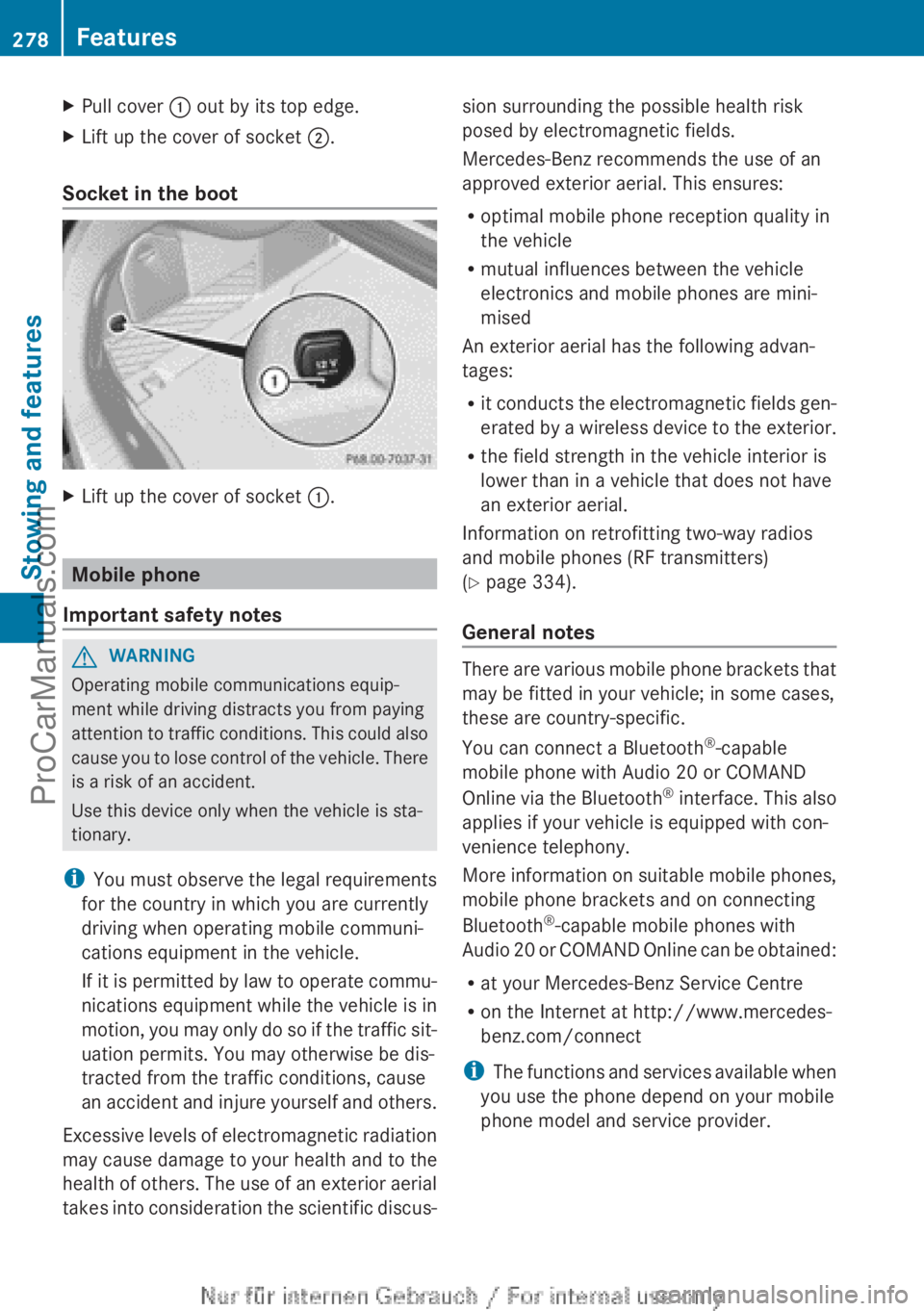
XPull cover : out by its top edge.XLift up the cover of socket ;.
Socket in the boot
XLift up the cover of socket :.
Mobile phone
Important safety notes
GWARNING
Operating mobile communications equip-
ment while driving distracts you from paying
attention to traffic conditions. This could also
cause you to lose control of the vehicle. There
is a risk of an accident.
Use this device only when the vehicle is sta-
tionary.
i You must observe the legal requirements
for the country in which you are currently
driving when operating mobile communi-
cations equipment in the vehicle.
If it is permitted by law to operate commu-
nications equipment while the vehicle is in
motion, you may only do so if the traffic sit-
uation permits. You may otherwise be dis-
tracted from the traffic conditions, cause
an accident and injure yourself and others.
Excessive levels of electromagnetic radiation
may cause damage to your health and to the
health of others. The use of an exterior aerial
takes into consideration the scientific discus-
sion surrounding the possible health risk
posed by electromagnetic fields.
Mercedes-Benz recommends the use of an
approved exterior aerial. This ensures:
R optimal mobile phone reception quality in
the vehicle
R mutual influences between the vehicle
electronics and mobile phones are mini-
mised
An exterior aerial has the following advan-
tages:
R it conducts the electromagnetic fields gen-
erated by a wireless device to the exterior.
R the field strength in the vehicle interior is
lower than in a vehicle that does not have
an exterior aerial.
Information on retrofitting two-way radios
and mobile phones (RF transmitters)
( Y page 334).
General notes
There are various mobile phone brackets that
may be fitted in your vehicle; in some cases,
these are country-specific.
You can connect a Bluetooth ®
-capable
mobile phone with Audio 20 or COMAND
Online via the Bluetooth ®
interface. This also
applies if your vehicle is equipped with con-
venience telephony.
More information on suitable mobile phones,
mobile phone brackets and on connecting
Bluetooth ®
-capable mobile phones with
Audio 20 or COMAND Online can be obtained:
R at your Mercedes-Benz Service Centre
R on the Internet at http://www.mercedes-
benz.com/connect
i The functions and services available when
you use the phone depend on your mobile
phone model and service provider.
278FeaturesStowing and features
ProCarManuals.com
Page 283 of 352
Useful information ............................282
Engine compartment ........................282
Service ............................................... 286
Care .................................................... 288281Maintenance and careProCarManuals.com