key MERCEDES-BENZ CLA-Class 2014 C117 Audio Manual
[x] Cancel search | Manufacturer: MERCEDES-BENZ, Model Year: 2014, Model line: CLA-Class, Model: MERCEDES-BENZ CLA-Class 2014 C117Pages: 106, PDF Size: 1.46 MB
Page 78 of 106
The duration of the search depends on the
number of Bluetooth ®
audio devices within
range and their characteristics.
X To authorize: select a Bluetooth ®
audio
device that has not yet been authorized
from the list by turning 00790052007Athe controller.
X Select the symbol to the right of the Blue-
tooth ®
audio device by sliding 00520096the con-
troller and press 0098to confirm.
X Select Authorize
Authorize and press0098to confirm.
Depending on the Bluetooth ®
audio device
used, you now have two options for con-
tinuing with authorization.
X Option 1: enter the passkey (Y page 45).
After successful authorization, the Blue-
tooth ®
audio device is connected and
starts playing.
X Option 2 (Secure Simple Pairing): if the
digit codes displayed on Audio 20 and on
the Bluetooth ®
audio device are the same,
confirm Yes Yesby pressing 0098.
If you select Yes
Yes, authorization continues
and the Bluetooth ®
audio device is con-
nected. Playback starts.
If you select No
No, authorization will be can-
celed.
i The Bluetooth ®
audio device must sup-
port Bluetooth ®
version 2.1 for connection
via Secure Simple Pairing. Audio 20 creates
a six-digit code, which is displayed on both
devices that are to be connected.
External authorization If Audio 20 does not find your Bluetooth
®
audio device, this may be due to particular
security settings on your Bluetooth ®
audio
device. In this case, check whether your Blue-
tooth ®
audio device can locate Audio 20. The
Bluetooth ®
device name of Audio 20 is MB MB
Bluetooth
Bluetooth . X
Switch on Bluetooth ®
audio mode
(Y page 77).
X Select BT
BTAudio
Audio by sliding 00520064and turning
00790052007A the controller and press 0098to con-
firm.
X Confirm Bluetooth Device List
Bluetooth Device List by
pressing 0098the controller.
X To start the search: confirmConnect
Connect
via
via BT
BTAudio
Audio Device
Device by pressing 0098the
controller.
X To authorize: start the authorization on
the Bluetooth ®
audio device, see the oper-
ating instructions of the Bluetooth ®
audio
device.
After successful authorization, the Blue-
tooth ®
audio device is connected and
starts playing.
i With some Bluetooth ®
audio devices,
playback must be initially started on the
device itself so that Audio 20 can play the
audio data.
Reconnecting a Bluetooth ®
audio
device The Bluetooth
®
audio profiles are connected
automatically under the following circum-
stances:
R one of the last two mobile phones to have
been connected has also been used as a
Bluetooth ®
audio player (if this function is
supported by the mobile phone).
R the mobile phone takes over the automatic
connection itself.
A Bluetooth ®
audio player without telephone
functions is not automatically reconnected,
even if it was the last device connected.
If the No Bluetooth Audio Device Con‐
No Bluetooth Audio Device Con‐
nected nected message appears, you have the fol-
lowing options to connect a Bluetooth ®
audio
device: 76
Bluetooth AudioAudio
Page 83 of 106
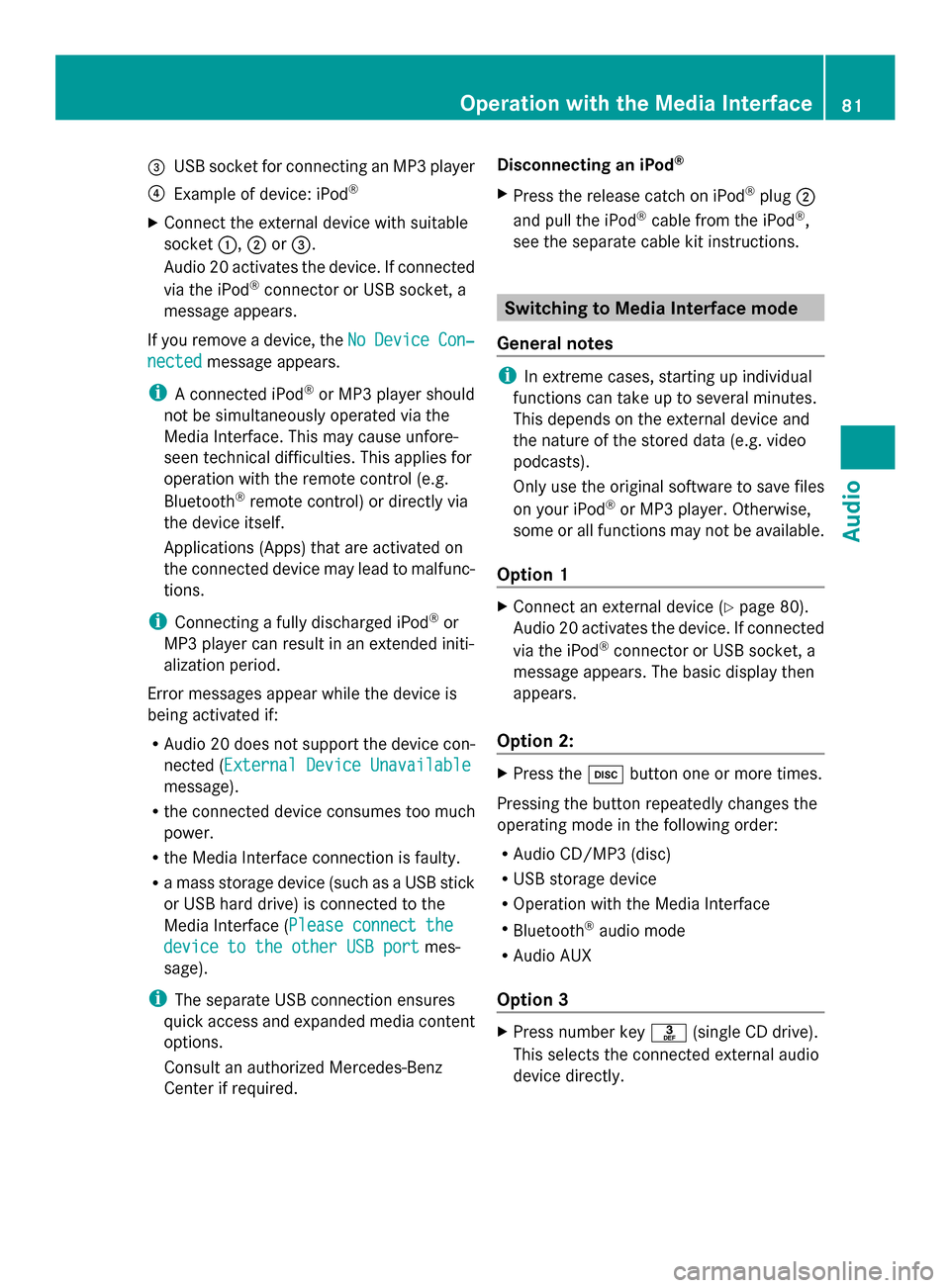
0087
USB socket for connecting an MP3 player
0085 Example of device: iPod ®
X Connect the external device with suitable
socket 0043,0044or0087.
Audio 20 activates the device. If connected
via the iPod ®
connector or USB socket, a
message appears.
If you remove a device, the No
No Device Device Con‐
Con‐
nected
nected message appears.
i A connected iPod ®
or MP3 player should
not be simultaneously operated via the
Media Interface. This may cause unfore-
seen technical difficulties. This applies for
operation with the remote control (e.g.
Bluetooth ®
remote control) or directly via
the device itself.
Applications (Apps) that are activated on
the connected device may lead to malfunc-
tions.
i Connecting a fully discharged iPod ®
or
MP3 player can result in an extended initi-
alization period.
Error messages appear while the device is
being activated if:
R Audio 20 does not support the device con-
nected (External Device Unavailable External Device Unavailable
message).
R the connected device consumes too much
power.
R the Media Interface connection is faulty.
R a mass storage device (such as a USB stick
or USB hard drive) is connected to the
Media Interface (Please connect the Please connect the
device to the other USB port
device to the other USB port mes-
sage).
i The separate USB connection ensures
quick access and expanded media content
options.
Consult an authorized Mercedes-Benz
Center if required. Disconnecting an iPod
®
X Press the release catch on iPod ®
plug 0044
and pull the iPod ®
cable from the iPod ®
,
see the separate cable kit instructions. Switching to Media Interface mode
General notes i
In extreme cases, starting up individual
functions can take up to several minutes.
This depends on the external device and
the nature of the stored data (e.g. video
podcasts).
Only use the original software to save files
on your iPod ®
or MP3 player. Otherwise,
some or all functions may not be available.
Option 1 X
Connect an external device (Y page 80).
Audio 20 activates the device. If connected
via the iPod ®
connector or USB socket, a
message appears. The basic display then
appears.
Option 2: X
Press the 003Abutton one or more times.
Pressing the button repeatedly changes the
operating mode in the following order:
R Audio CD/MP3 (disc)
R USB storage device
R Operation with the Media Interface
R Bluetooth ®
audio mode
R Audio AUX
Option 3 X
Press number key 0083(single CD drive).
This selects the connected external audio
device directly. Operation with the Media Interface
81Audio Z
Page 84 of 106

Option 4
X
In the media list, turn 00790052007Athe controller
to select the entry under position 3 (single
CD drive) and press 0098to confirm.
Audio 20 activates the connected device.
You will see a message to this effect. The
basic display then appears.
If no device is connected, you will see the
Media Interface Media Interface entry instead of a
device name. Example iPod
®
display
0043 Track time
0044 Track number
0087 Track name
0085 Current playback option
0083 Sound settings
0084 Media list
006B Album name (if available)
006C Categories, playlists and/or folders
006D Playback options
006E Type of data medium
006F Cover (if available)
The type of data medium connected 006Eis
indicated by the corresponding iPod ®
or MP3
player symbol.
Symbol 0085displays the current playback
option (not displayed in Normal Track
Normal Track
Sequence Sequence mode).
i If the device connected does not contain
any playable tracks, a message appears to
this effect. Selecting music files
Note i
Audio 20 displays the files stored on the
iPod ®
, iPhone ®
or MP3 player according to
the file structure on the respective
medium.
Selecting by skipping to a track X
To skip forward or back to a track: slide
009500520096or turn 00790052007Athe controller when
the display/selection window is active.
or
X Press the 0049or0048 button.
The skip forward function skips to the next
track. The skip back function skips to the
beginning of the current track if the track
has been playing for more than eight sec-
onds. If the track has been playing for less
than eight seconds, it skips to the start of
the previous track. If a playback option
other than Normal Track Sequence
Normal Track Sequence is
selected, the track sequence is random.
X On the multifunction steering wheel:
switch on Media Interface mode on the
Audio 20 system (Y page 81).
X Press the 0059or0065 button on the mul-
tifunction steering wheel to select the
Audio Audio menu.
X Press the 0063or0064 button briefly. If
you hold down the 0063or0064 button,
the system scrolls through the list more
quickly. Not all media players support this
function.
If track information is available on the
media player, the multifunction display
shows the number and name of the track.
Selecting using the number keypad X
To make an entry: press the007Ebutton.
An input menu appears. The number of
characters available for input depends on
the number of stored tracks. 82
Operation
withthe Media InterfaceAudio
Page 85 of 106

X
To enter a track number: press a number
key, e.g. 0087.
The digit is entered in the first position in
the input line.
i Audio 20 will ignore and not display an
invalid digit.
X Enter more numbers if desired. The track
plays after the last possible number is
entered.
i Pressing and holding a number key for
more than two seconds completes the
entry, and the corresponding track is
played.
Fast forwarding/rewinding X
While the display/selection window is
active: slide 009500520096and hold the controller
until the desired position is reached.
or
X Press and hold the 0048or0049 button
until the desired position is reached.
i On an iPod ®
or iPhone ®
, fast rewind only
functions within the current track. Selecting a category/playlist/folder
iPod ®
and certain MP3 players For an iPod
®
, iPhone ®
or MP3 player, you can
select tracks using categories or folders.
Depending on the device connected, the fol-
lowing categories may be available, for exam-
ple:
R Current Tracklist
Current Tracklist
R Playlists
Playlists (e.g.All Allor "My Top 25")
R Artists
Artists
R Albums
Albums
R Tracks
Tracks
R Podcasts
Podcasts
R Genres
Genres
R Composers
Composers
R Audiobooks
Audiobooks i
Some playback categories contain the
entry All
All . If this entry has been selected,
the entire content of the category selected
will be played.
Calling up a category list
X To open a category list/folder: press0098
the controller when the display/selection
window is active.
or
X Select Music
Music from the basic display using
the controller (slide 00C50052or turn00790052007A)
and press 0098to confirm.
The category list appears.
i The Music Music menu item is not available until
the device has been activated. Example: category list
X
Select Current Tracklist Current Tracklist by turning
00790052007Athe controller and press 0098to con-
firm.
The content of the current track list
appears. Operation
withthe Media Interface
83Audio Z
Page 86 of 106

Example display: current tracklist
0043
Symbol for next folder up
0044 Current category
0087 Track symbol
0085 Current title
X Select the desired track by turning 00790052007A
the controller and press 0098to confirm.
The track is played.
X To switch to the next higher folder:
select the 0051symbol and press 0098to
confirm.
i The 0051symbol always appears at the
top of the track list.
Playing back the content of a category or
folder
X Select a category or folder by turning
00790052007Athe controller.
X Press 0098the controller for longer than two
seconds.
The content of the category or folder
selected is played in accordance with the
playback option selected (Y page 84).
Alphabetical track selection (iPod ®
,
iPhone ®
and MP3 player)
i This function is available for alphabetical
categories and folders. It is not available
within albums or playlists. X
Turn 00790052007Athe controller to select a cate-
gory, such as Artists
Artists, and press 0098to
confirm.
The available artists are displayed.
X Press the corresponding number key once
or repeatedly to select the initial letter of
the desired artist. For example, to select an
artist whose name begins with C, press
number key 0082three times.
The available letters are listed at the lower
edge of the display.
After a message, the first entry in the list
which matches the letter entered is high-
lighted.
i If there is no entry which matches the let-
ter entered, the last entry which matches a
previous letter appears at the top of the list.
i For an iPod ®
, iPhone ®
and MP3 player,
the quality of the search results is highly
dependent on the media program with
which the data was loaded to the device.
Of particular significance is the version and
language variant of the software.
If differing sorting rules are defined (such
as in iTunes ®
), the search will be canceled
without providing any results.
Special feature in iPod ®
/iPhone ®
mode i
If the connected iPod ®
/iPhone ®
is not
functioning or paused, you can search for
tracks but cannot select them. After con-
firming a new track, the Function
Function
Unavailable Unavailable message appears. Playback options
The following options are available:
R Normal Track Sequence Normal Track Sequence
Normal track sequence: you hear the
tracks in their normal order (e.g. numerical
or alphabetical).
R Random Medium Random Medium 84
Operation
withthe Media InterfaceAudio
Page 96 of 106

X
Select Track List
Track List (audio CD/audio DVD
mode) or Folder
Folder (MP3 mode).
or
X Press the 008Bbutton when the display/
selection window is active.
The track list appears. The 0036dot indicates
the current track.
X To select a track: press the0063
or 0064 button.
X Press the 008Bbutton.
Making a selection by entering the track
number directly X
Press the 007Ebutton.
The track entry display appears.
Example: track 2
X Press the 0082number key.
Example: track 12
X Press the corresponding number keys in
rapid succession.
i It is not possible to enter numbers that
exceed the number of tracks on the CD or
in the currently active folder.
X Wait for approximately three seconds after
making an entry.
You will hear the track which has been
entered. The corresponding basic menu
then reappears. Fast forwarding/rewinding
X With the display/selection window active,
press the 0059or0065 button repeatedly
until you reach the desired position.
or
X Press and hold the 0048or0049 button
until the desired position is reached. Selecting a folder
i This function is only available in MP3
mode. X
In MP3 mode, select Folder
Folder and confirm
with 008B.
or
X Press the 008Bbutton when the display/
selection window is active.
The folder content appears. 0043
Folder selection symbol
0044 Current folder name
0087 Track symbol
X To switch to the next folder up: select
icon 0043.
The display shows the next folder up. 0043
Folder selection symbol
0044 Folder symbol
X Select a folder using the 0063or0064 but-
ton and press the 008Bbutton to confirm.
You will see the tracks in the folder.
X Select a track using the 0063or0064 but-
ton and press the 008Bbutton to confirm.
The track is played and the corresponding
folder is now the active folder. 94
CD/audio DVD and MP3 modeRear Seat Entertainment
Page 100 of 106

Fast forwarding/rewinding
X Press and hold the 0048or0049 button
until the desired position is reached.
You see the control menu. Pause function
X Display the menu system (Y page 97).
X To pause playback: select«and press
the 008Bbutton to confirm.
The «display changes to 0050.
X To continue playback: select0050and press
the 008Bbutton to confirm.
The menu system is hidden. Stop function
X Display the menu system (Y page 97).
X To interrupt playback: select±and
press the 008Bbutton to confirm.
The display «switches to 0050. The video
image is hidden.
X To continue playback: select0050and press
the 008Bbutton to confirm.
Playback continues from the point where it
was interrupted. The menu system is hid-
den.
X To stop playback: while playback is inter-
rupted, select ±again and press the 008B
button to confirm.
Playback stops and returns to the begin-
ning of the DVD. 0050is highlighted.
X To restart playback: select0050and press
the 008Bbutton to confirm.
Playback starts from the beginning of the
DVD. Selecting a scene/chapter
Introduction If the film is divided into scenes or chapters,
you can select them directly while the film is running, or skip forwards step-by-step. Some
DVDs do not permit this at certain points (e.g.
during the opening credits).
X
To skip forwards or backwards: press
the 0059 or0065 button.
or
X Press the 0048or0049 button.
The navigation menu (Y page 97) appears
for approximately eight seconds.
Selecting a scene/chapter directly Example: scene/chapter 5
X
Press the 007Ebutton while the film is
playing.
X Press the corresponding number key, such
as 0085.
or
X Display the menu system (Y page 97).
X Select DVD-V DVD-Vusing the 0059or0065 but-
ton and confirm with the 008Bbutton.
X Select DVD Functions
DVD Functions using the0063
or 0064 button and confirm with the 008B
button.
X Select Scene Selection
Scene Selection from the menu
and press the 008Bbutton to confirm.
X Select number 5
5 and confirm with the 008B
button.
In both cases, playback will begin from the
fifth scene/chapter after a brief pause.
i It may also be possible to select the
scene/chapter from within the menu
stored on the DVD. Selecting a film/title
Introduction If the DVD contains several films, these can
be selected directly. A film can be selected
either when the DVD is being played back or
when it is stopped.98
Video DVD modeRea
r Seat Entertainment