light MERCEDES-BENZ CLA-Class 2017 C117 Manual Online
[x] Cancel search | Manufacturer: MERCEDES-BENZ, Model Year: 2017, Model line: CLA-Class, Model: MERCEDES-BENZ CLA-Class 2017 C117Pages: 318, PDF Size: 8.02 MB
Page 161 of 318
The firmer setting of the suspension tuning in
Sport mode ensures even better contact with
the road. Select this mode when employing a
sporty driving style, e.g. on winding country
roads.
XPress button:.
Indicator lamp ;lights up. You have selected
Sport mode.
The AMG Suspension System SPORT
mes-
sage appears in the multifunction display.
Comfort mode
In Comfort mode, the driving characteristics of
your vehicle are more comfortable. Select this
mode if you favor a more comfortable driving
style, but also when driving fast on straight
roads, e.g. highways.
XPress button :again so that indicator
lamp ;goes out.
You have selected Comfort mode.
The AMG
SuspensionSystemCOMFORTmes-
sage appears in the multifunction display.
4MATIC
!
Never tow the vehicle with one axle raised.
This may damage the differential. Damage of
this sort is not covered by the Mercedes-Benz
Limited Warranty. All wheels must remain
either on the ground or be fully raised.
Observe the instructions for towing the vehi-
cle with all wheels in full contact with the
ground.
4MATIC, together with ESP
®, improves the trac-
tion of your vehicle whenever a drive wheel
spins due to insufficient grip.
If you fail to adapt your driving style, 4MATIC can neither reduce the risk of accident nor override
the laws of physics. 4MATIC cannot take
account of road, weather and traffic conditions.
4MATIC is only an aid. You are responsible for
the distance to the vehicle in front, for vehicle
speed, for braking in good time and for staying in
your lane.
If a drive wheel spins due to insufficient grip:
ROnly depress the accelerator pedal as far as
necessary when pulling away.
RAccelerate less when driving.
iIn wintry driving conditions, the maximum
effect of 4MATIC can only be achieved if you
use winter tires (M+S tires), with snow chains
if necessary.
Suspension with Adaptive Damping
System
General notes
A suspension with the Adaptive Damping Sys-
tem provides improved driving comfort and con-
tinuously controls the calibration of the damp-
ers. The damping characteristics adapt to the
current operating and driving situation.
The damping is tuned individually to each wheel
and depends on:
Ryour driving style, e.g. sporty
Rthe road surface conditions
Rthe drive program selected
The drive program can be set using the
DYNAMIC SELECT button (
Ypage 127).
Selecting Comfort mode
In the Comfort drive program, the driving char-
acteristics of your vehicle are more comforta-
ble. Therefore, select this drive program if you
prefer a more comfortable driving style. Also
select the Comfortdrive program when driving
fast on straight roads, e.g. on straight stretches of highway.
XPress DYNAMIC SELECT button (Ypage 127)
as many times as necessary until the Com-
fort drive program is selected.
Selecting Sport mode
The firmer setting of the suspension tuning in
theSport drive program ensures even better
contact with the road. Select this drive program
when employing a sporty driving style, e.g. on
winding country roads.
XPress DYNAMIC SELECT button (Ypage 127)
as many times as necessary until the Sport
drive program is selected.
Driving systems159
Driving and parking
Z
Page 163 of 318
Front sensors
CenterApprox. 40 in (approx.
100 cm)
CornersApprox. 24 in (approx.
60 cm)
Rear sensors
CenterApprox. 48 in (approx.
120 cm)
CornersApprox. 32 in (approx.
80 cm)
Minimum distance
CenterApprox. 8 in (approx. 20 cm)
CornersApprox. 6 in (approx. 15 cm)
If there is an obstacle within this range, the rel-
evant warning displays light up and a warning
tone sounds. If the distance falls below the min-
imum, the distance may no longer be shown.
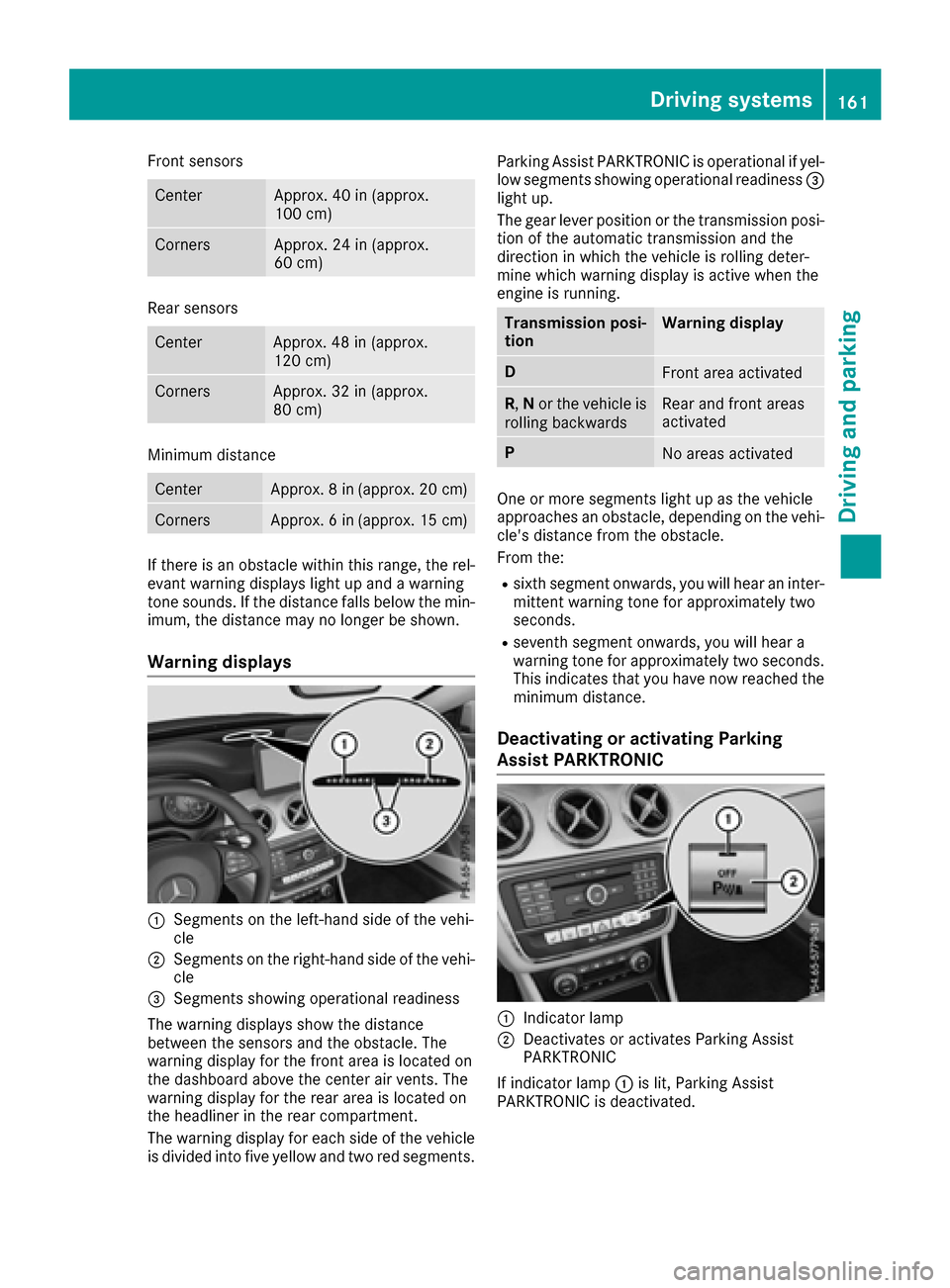
Warning displays
:Segments on the left-hand side of the vehi-
cle
;Segments on the right-hand side of the vehi-
cle
=Segments showing operational readiness
The warning displays show the distance
between the sensors and the obstacle. The
warning display for the front area is located on
the dashboard above the center air vents. The
warning display for the rear area is located on
the headliner in the rear compartment.
The warning display for each side of the vehicle
is divided into five yellow and two red segments. Parking Assist PARKTRONIC is operational if yel-
low segments showing operational readiness
=
light up.
The gear lever position or the transmission posi-
tion of the automatic transmission and the
direction in which the vehicle is rolling deter-
mine which warning display is active when the
engine is running.
Transmission posi-
tionWarning display
DFront area activated
R, Nor the vehicle is
rolling backwardsRear and front areas
activated
PNo areas activated
One or more segments light up as the vehicle
approaches an obstacle, depending on the vehi-
cle's distance from the obstacle.
From the:
Rsixth segment onwards, you will hear an inter-
mittent warning tone for approximately two
seconds.
Rseventh segment onwards, you will hear a
warning tone for approximately two seconds.
This indicates that you have now reached the minimum distance.
Deactivating or activating Parking
Assist PARKTRONIC
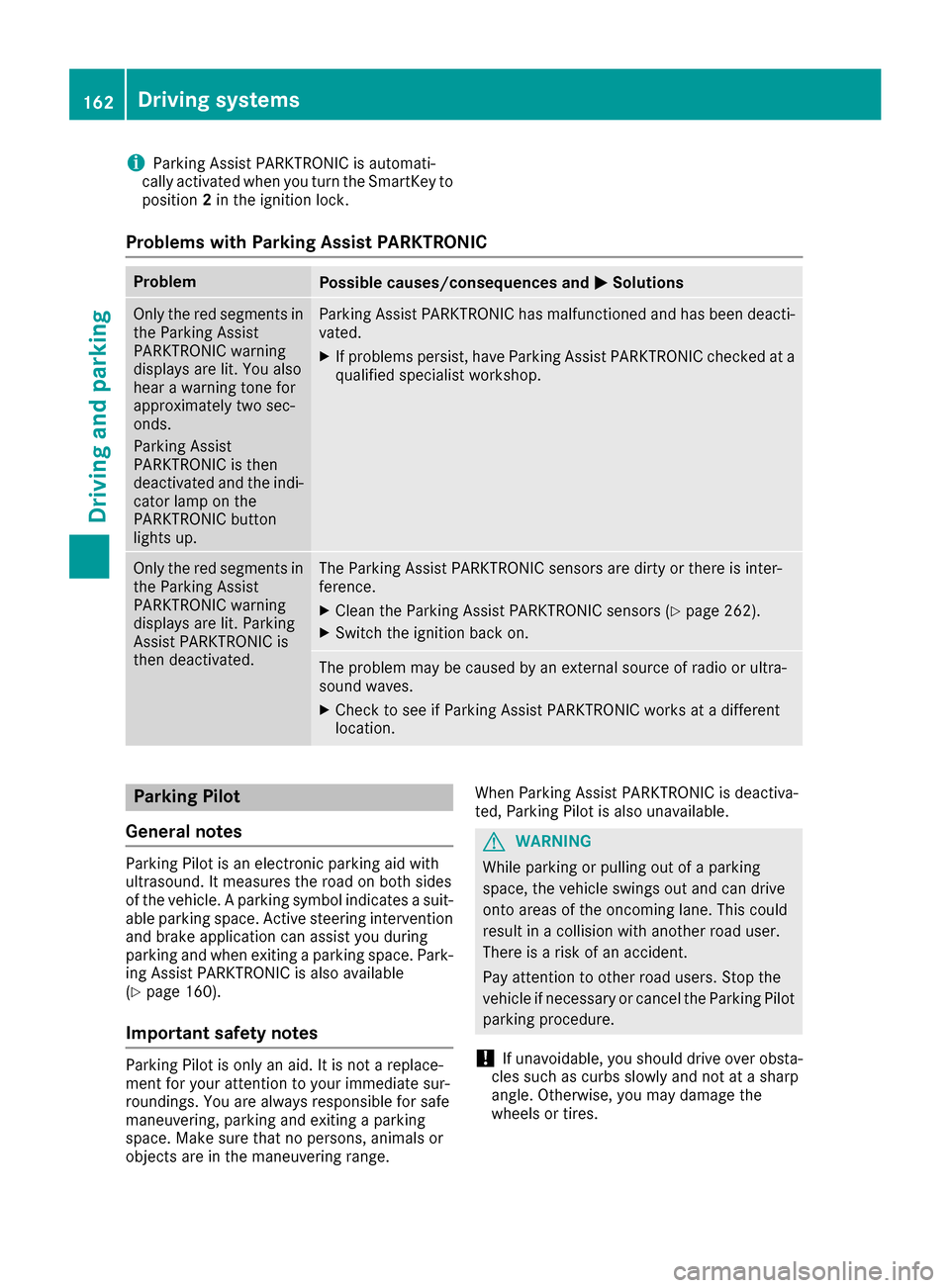
:Indicator lamp
;Deactivates or activates Parking Assist
PARKTRONIC
If indicator lamp :is lit, Parking Assist
PARKTRONIC is deactivated.
Driving systems161
Driving and parking
Z
Page 164 of 318
iParking Assist PARKTRONIC is automati-
cally activated when you turn the SmartKey to
position 2in the ignition lock.
Problems with Parking Assist PARKTRONIC
ProblemPossible causes/consequences and MSolutions
Only the red segments in
the Parking Assist
PARKTRONIC warning
displays are lit. You also
hear a warning tone for
approximately two sec-
onds.
Parking Assist
PARKTRONIC is then
deactivated and the indi-
cator lamp on the
PARKTRONIC button
lights up.Parking Assist PARKTRONIC has malfunctioned and has been deacti-
vated.
XIf problems persist, have Parking Assist PARKTRONIC checked at a
qualified specialist workshop.
Only the red segments in
the Parking Assist
PARKTRONIC warning
displays are lit. Parking
Assist PARKTRONIC is
then deactivated.The Parking Assist PARKTRONIC sensors are dirty or there is inter-
ference.
XClean the Parking Assist PARKTRONIC sensors (Ypage 262).
XSwitch the ignition back on.
The problem may be caused by an external source of radio or ultra-
sound waves.
XCheck to see if Parking Assist PARKTRONIC works at a different
location.
Parking Pilot
General notes
Parking Pilot is an electronic parking aid with
ultrasound. It measures the road on both sides
of the vehicle. A parking symbol indicates a suit-
able parking space. Active steering intervention
and brake application can assist you during
parking and when exiting a parking space. Park-
ing Assist PARKTRONIC is also available
(
Ypage 160).
Important safety notes
Parking Pilot is only an aid. It is not a replace-
ment for your attention to your immediate sur-
roundings. You are always responsible for safe
maneuvering, parking and exiting a parking
space. Make sure that no persons, animals or
objects are in the maneuvering range. When Parking Assist PARKTRONIC is deactiva-
ted, Parking Pilot is also unavailable.
GWARNING
While parking or pulling out of a parking
space, the vehicle swings out and can drive
onto areas of the oncoming lane. This could
result in a collision with another road user.
There is a risk of an accident.
Pay attention to other road users. Stop the
vehicle if necessary or cancel the Parking Pilot
parking procedure.
!If unavoidable, you should drive over obsta-
cles such as curbs slowly and not at a sharp
angle. Otherwise, you may damage the
wheels or tires.
162Driving systems
Driving and parking
Page 168 of 318
take over the steering before the vehicle has
exited the parking space completely. This is
useful, for example when you recognize that it is
already possible to pull out of the parking space.
Canceling Parking Pilot
XStop the movement of the multifunction
steering wheel or steer yourself.
Parking Pilot is canceled immediately. The
Parking
PilotCanceledmessage appears
in the multifunction display.
or
XPress the PARKTRONIC button (Ypage 161).
Parking Assist PARKTRONIC is switched off
and Parking Pilot is immediately canceled.
The Parking Pilot Canceled
message
appears in the multifunction display.
Parking Pilot is canceled automatically when:
Rthe electric parking brake is engaged
Rtransmission position Pis selected
Rparking using Parking Pilot is no longer pos-
sible
Ryou are driving faster than 6 mph (10 km/h)
Ra wheel spins, ESP®intervenes or fails. In
such cases the ÷warning lamp lights up in
the instrument cluster
A warning tone sounds. The parking symbol dis-
appears and the multifunction display shows the
Parking Pilot Canceled
message.
When Parking Pilot is canceled, you must steer
and brake again yourself.
If a system malfunction occurs, the vehicle is
braked to a standstill. To drive on, depress the
accelerator again.
Rear view camera
General notes
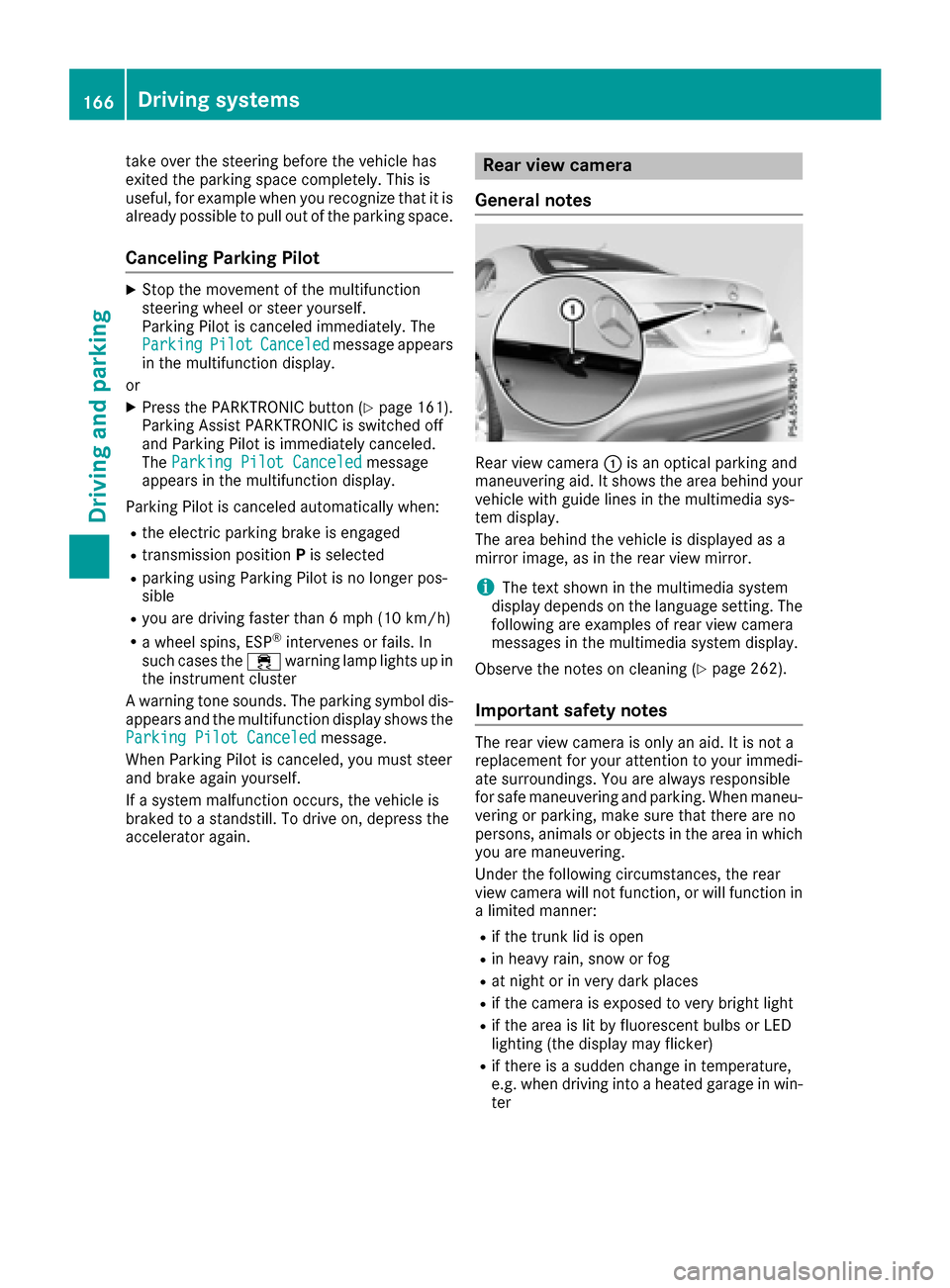
Rear view camera :is an optical parking and
maneuvering aid. It shows the area behind your
vehicle with guide lines in the multimedia sys-
tem display.
The area behind the vehicle is displayed as a
mirror image, as in the rear view mirror.
iThe text shown in the multimedia system
display depends on the language setting. The
following are examples of rear view camera
messages in the multimedia system display.
Observe the notes on cleaning (
Ypage 262).
Important safety notes
The rear view camera is only an aid. It is not a
replacement for your attention to your immedi-
ate surroundings. You are always responsible
for safe maneuvering and parking. When maneu-
vering or parking, make sure that there are no
persons, animals or objects in the area in which you are maneuvering.
Under the following circumstances, the rear
view camera will not function, or will function in
a limited manner:
Rif the trunk lid is open
Rin heavy rain, snow or fog
Rat night or in very dark places
Rif the camera is exposed to very bright light
Rif the area is lit by fluorescent bulbs or LED
lighting (the display may flicker)
Rif there is a sudden change in temperature,
e.g. when driving into a heated garage in win- ter
166Driving system s
Driving an d parking
Page 170 of 318
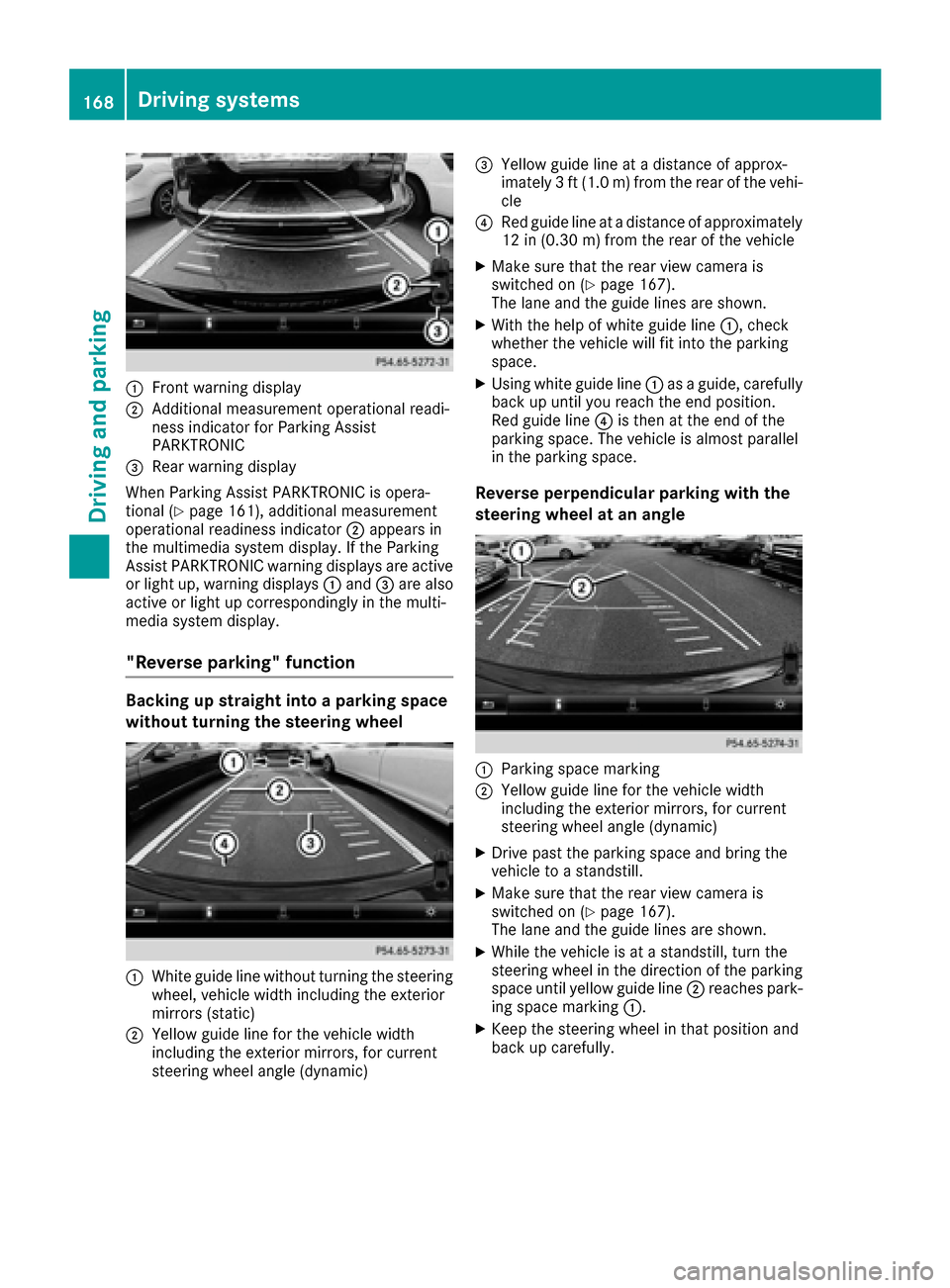
:Front warning display
;Additional measurement operational readi-
ness indicator for Parking Assist
PARKTRONIC
=Rear warning display
When Parking Assist PARKTRONIC is opera-
tional (
Ypage 161), additional measurement
operational readiness indicator ;appears in
the multimedia system display. If the Parking
Assist PARKTRONIC warning displays are active
or light up, warning displays :and =are also
active or light up correspondingly in the multi-
media system display.
"Reverse parking" function
Backing up straight into a parking space
without turning the steering wheel
:White guide line without turning the steering
wheel, vehicle width including the exterior
mirrors (static)
;Yellow guide line for the vehicle width
including the exterior mirrors, for current
steering wheel angle (dynamic)
=Yellow guide line at a distance of approx-
imately 3 ft (1.0 m) from the rear of the vehi-
cle
?Red guide line at a distance of approximately
12 in (0.30 m) fromthe rear of the vehicle
XMake sure that the rear view camera is
switched on (Ypage 167).
The lane and the guide lines are shown.
XWith the help of white guide line :, check
whether the vehicle will fit into the parking
space.
XUsing white guide line :as a guide, carefully
back up until you reach the end position.
Red guide line ?is then at the end of the
parking space. The vehicle is almost parallel
in the parking space.
Reverse perpendicular parking with the
steering wheel at an angle
:Parking space marking
;Yellow guide line for the vehicle width
including the exterior mirrors, for current
steering wheel angle (dynamic)
XDrive past the parking space and bring the
vehicle to a standstill.
XMake sure that the rear view camera is
switched on (Ypage 167).
The lane and the guide lines are shown.
XWhile the vehicle is at a standstill, turn the
steering wheel in the direction of the parking
space until yellow guide line ;reaches park-
ing space marking :.
XKeep the steering wheel in that position and
back up carefully.
168Driving systems
Driving an d parking
Page 174 of 318
Blind Spot Assist monitors the area up to 10 ft
(3 m) behind your vehicle and directly next to it.
If the lanes are narrow, vehicles driving in the
lane beyond the lane next to your vehicle may be
indicated, especially if the vehicles are not driv-
ing in the middle of their lane. This may be the
case if the vehicles are driving on the inner side
of their lane.
Due to the nature of the system:
Rwarnings may be issued in error when driving
close to crash barriers or similar solid lane
borders.
Rwarnings may be interrupted when driving
alongside particularly long vehicles, e.g.
trucks, for a prolonged time.
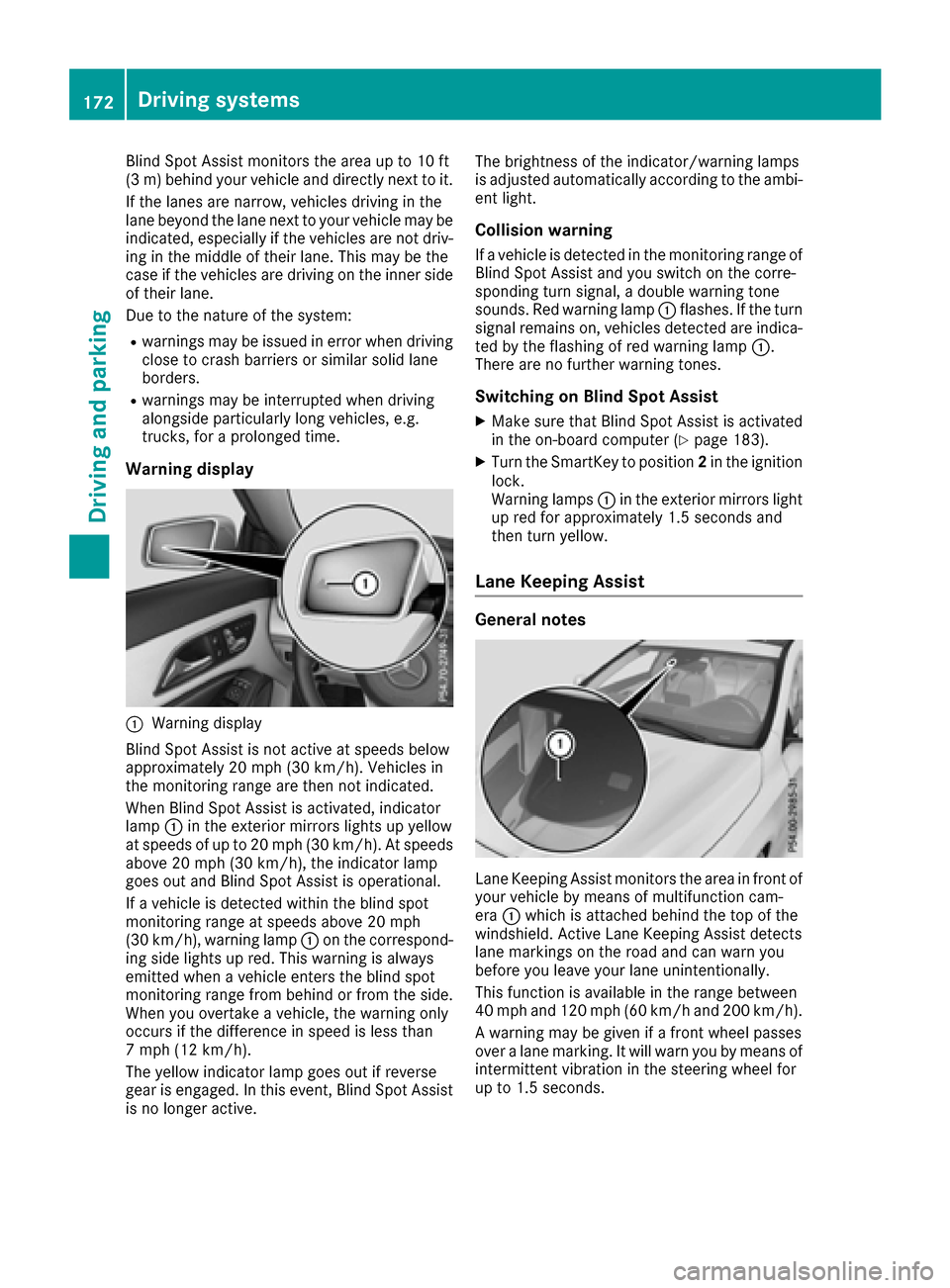
Warning display
:Warning display
Blind Spot Assist is not active at speeds below
approximately 20 mph (30 km/h). Vehicles in
the monitoring range are then not indicated.
When Blind Spot Assist is activated, indicator
lamp :in the exterior mirrors lights up yellow
at speeds of up to 20 mph (30 km/h). At speeds
above 20 mph (30 km/h), the indicator lamp
goes out and Blind Spot Assist is operational.
If a vehicle is detected within the blind spot
monitoring range at speeds above 20 mph
(30 km/h), warning lamp :on the correspond-
ing side lights up red. This warning is always
emitted when a vehicle enters the blind spot
monitoring range from behind or from the side.
When you overtake a vehicle, the warning only
occurs if the difference in speed is less than
7 mph (12 km/h).
The yellow indicator lamp goes out if reverse
gear is engaged. In this event, Blind Spot Assist
is no longer active. The brightness of the indicator/warning lamps
is adjusted automatically according to the ambi-
ent light.
Collision warning
If a vehicle is detected in the monitoring range of
Blind Spot Assist and you switch on the corre-
sponding turn signal, a double warning tone
sounds. Red warning lamp
:flashes. If the turn
signal remains on, vehicles detected are indica-
ted by the flashing of red warning lamp :.
There are no further warning tones.
Switching on Blind Spot Assist
XMake sure that Blind Spot Assist is activated
in the on-board computer (Ypage 183).
XTurn the SmartKey to position 2in the ignition
lock.
Warning lamps :in the exterior mirrors light
up red for approximately 1.5 seconds and
then turn yellow.
Lane Keeping Assist
General notes
Lane Keeping Assist monitors the area in front of
your vehicle by means of multifunction cam-
era :which is attached behind the top of the
windshield. Active Lane Keeping Assist detects
lane markings on the road and can warn you
before you leave your lane unintentionally.
This function is available in the range between
40 mph and 120 mph (60 km/h and 200 km/h).
A warning may be given if a front wheel passes
over a lane marking. It will warn you by means of
intermittent vibration in the steering wheel for
up to 1.5 seconds.
172Driving systems
Driving and parking
Page 176 of 318
Important safety notes
GWARNING
If you operate information systems and com-
munication equipmen tintegrate din th evehi-
cle while driving ,you will be distracte dfrom
traffic conditions. You could also lose control
of th evehicle. Ther eis aris kof an accident.
Only operate th eequipmen twhen th etraffic
situation permits. If you are no tsur ethat this
is possible ,park th evehicl epayin gattention
to traffic condition sand operate th eequip-
men twhen th evehicl eis stationary.
You must observ eth elegal requirements for th e
country in whic hyou are currentl ydriving when
operating th eon-board computer.
GWARNIN G
If th einstrumen tcluste rhas faile dor mal-
functioned, you may no trecognize function
restriction sin systems relevan tto safety. The
operating safet yof your vehicl emay be
impaired .Ther eis aris kof an accident.
Drive on carefully. Hav eth evehicl echecke d
at aqualified specialist workshop immedi-
ately.
The on-board computer only shows message sor
warning sfrom certain systems in th emultifunc-
tion display. You should therefor emak esur e
your vehicl eis operating safely at all times .
If th eoperating safet yof your vehicl eis
impaired ,pull ove ras soo nas it is saf eto do so.
Contac t aqualified specialist workshop.
Fo ran overview, see th einstrumen tpanel illus-
tration (
Ypage 32).
Displays and operation
Instrument cluster lighting
The ligh tsensor in th einstrumen tcluste rauto -
matically control sth ebrightness of th emulti-
function display. In daylight, th edisplays in th e
instrumen tcluste rare no tilluminated.
The lighting in th einstrumen tcluster, in th edis-
plays and th econtrol sin th evehicl einterior can
be adjusted usin gth ebrightness control knob. The brightness control knob is locate
don th e
botto mleftof th einstrumen tcluste r
(
Ypage 32).
XTurn th ebrightness control knob clockwise or
counter-clockwise.
If th eligh tswitch is set to th eÃ, Tor
L position ,th ebrightness is dependen t
upon th ebrightness of th eambien tlight.
Speedometer with segments
The speedometer is divided int osegments on
vehicles wit hDistanc ePilot DISTRONIC.
The segments in th espeedometer indicat e
whic hspee drange is available.
RDistanc ePilot DISTRONI Cis activated
(Ypage 150):
On eor two segments in th eset spee drange
ligh tup.
RDistanc ePilot DISTRONI Cdetects avehicl ein
fron tmoving mor eslowly than th estore d
speed:
The segments between th espee dof th evehi-
cle in fron tand th estore dspee dligh tup.
Tachometer
!
Do no tdriv ein th eoverrevving range, as this
could damag eth eengine.
The red ban din th etachometer indicates th e
engine's overrevving range.
The engin eis limite dwithin arange to protect
th eengin ewhen th ered ban dis reached.
Outside temperature display
You should pay special attention to road condi-
tion swhen temperatures are aroun dfreezing
point.
Bea rin min dthat th eoutside temperature dis-
play indicates th etemperature measured and
does no trecord th eroad temperature.
The outside temperature display is in th emulti-
function display (
Ypage 176).
Ther eis ashort delay before achang ein outside
temperature appear sin th emultifunction dis-
play.
174Displays and operation
On-board computer and displays
Page 179 of 318
RCRUISECruise control (Ypage 148)
R_Adaptive Highbeam Assist
(Ypage 101)
Rè ECO start/stop function (Ypage 125)
RëHOLD function (Ypage 156)
Menus and submenus
Menu overview
Using the =or; button on the steering
wheel, open the menu bar.
Operating the on-board computer (
Ypage 175).
Depending on the equipment installed in the
vehicle, you can call up the following menus:
RTripmenu (Ypage 177)
RNavimenu (navigation instructions)
(Ypage 178)
RAudiomenu (Ypage 180)
RTelmenu (telephone) (Ypage 180)
RDriveAssistmenu (assistance)
(Ypage 182)
RServ.menu (Ypage 183)
RSett.menu (settings) (Ypage 183)
RAMGmenu (Mercedes-AMG vehicles)
(Ypage 185)
The displays for the Audio
,Naviand Telmenus
may differ slightly to those in your vehicle.
The examples given in this Operator's Manual
apply to vehicles equipped with COMAND.
Trip menu
Standard display
XPress and hold the %button on the steer-
ing wheel until the Tripmenu with trip odom-
eter :and odometer ;appears.
Trip computer "From Start" or "From
Reset"
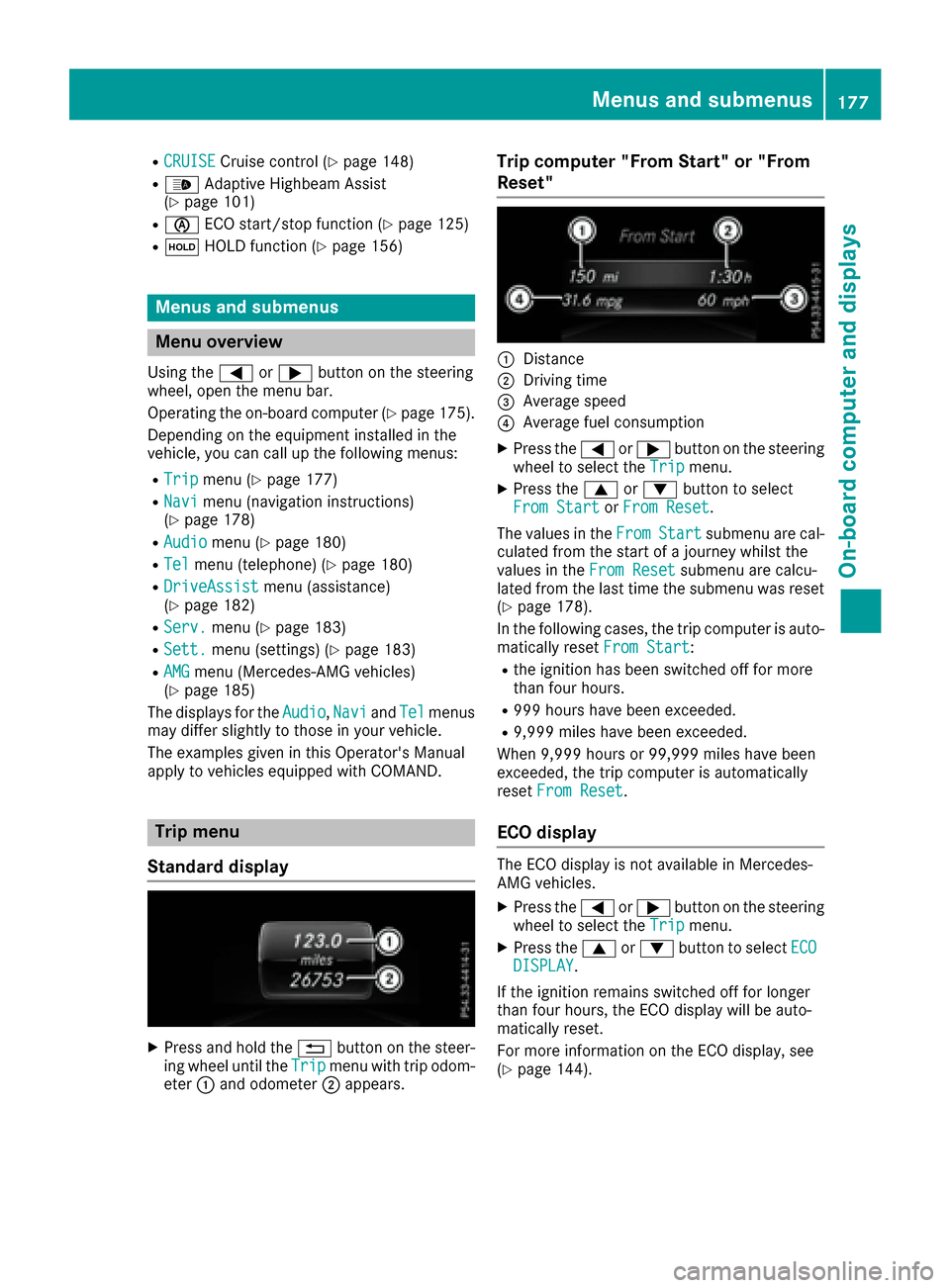
:Distance
;Driving time
=Average speed
?Average fuel consumption
XPress the =or; button on the steering
wheel to select the Tripmenu.
XPress the9or: button to select
From Startor From Reset.
The values in the From
Startsubmenu are cal-
culated from the start of a journey whilst the
values in the From Reset
submenu are calcu-
lated from the last time the submenu was reset
(
Ypage 178).
In the following cases, the trip computer is auto-
matically reset From Start
:
Rthe ignition has been switched off for more
than four hours.
R999 hours have been exceeded.
R9,999 miles have been exceeded.
When 9,999 hours or 99,999 miles have been
exceeded, the trip computer is automatically
reset From Reset
.
ECO display
The ECO display is not available in Mercedes-
AMG vehicles.
XPress the =or; button on the steering
wheel to select the Tripmenu.
XPress the9or: button to select ECODISPLAY.
If the ignition remains switched off for longer
than four hours, the ECO display will be auto-
matically reset.
For more information on the ECO display, see
(
Ypage 144).
Menus and submenus177
On-board computer and displays
Z
Page 184 of 318
Assistance menu
Introd uction
Dependin gon th eequipmen tinstalled in th e
vehicle, you hav eth efollowin goption sin th e
DriveAssist
menu:
RDisplaying th eassistanc egraphic
(Ypage 182)
RDeactivating/activating ES P®(except
Mercedes ‑AM Gvehicles) (Ypage 182)
RActivating/deactivating Active Brake Assis t
(Ypage 182)
RActivating/deactivating ATTENTION ASSIST
(Ypage 183)
RActivating/deactivating Blind Spot Assis t
(Ypage 183)
RActivating/deactivating Lan eKeepin gAssis t
(Ypage 183)
Displaying the assistance graphic
XPress th e= or; buttonon th esteering
whee lto select th eDriveAssistmenu.
XPress 9or: to select Assistanc eGraphic.
XPressato confirm .
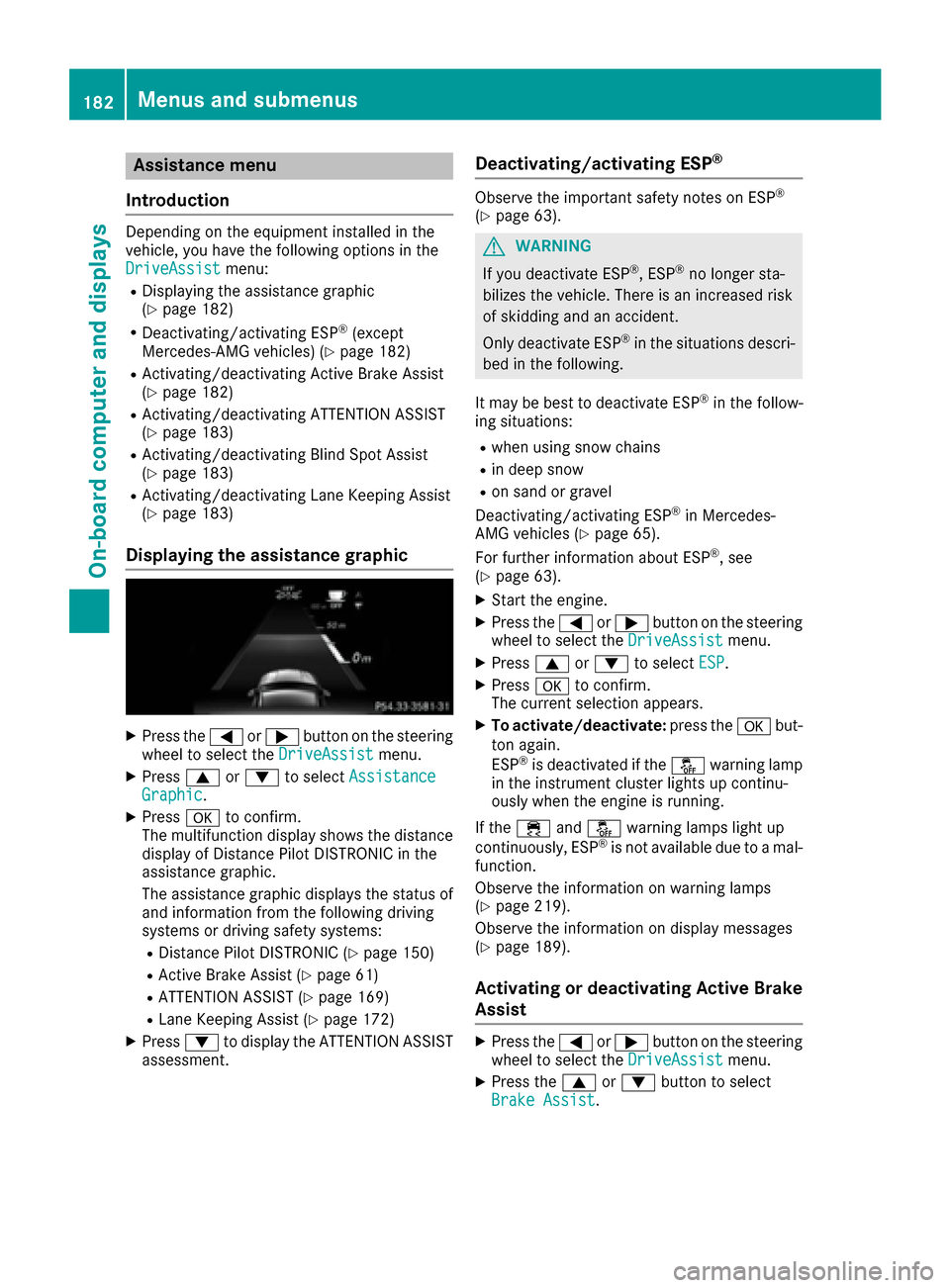
The multifunction display shows th edistanc e
display of Distanc ePilo tDISTRONI Cin th e
assistanc egraphic .
The assistanc egraphic displays th estatus of
and information from th efollowin gdrivin g
systems or drivin gsafet ysystems :
RDistancePilo tDISTRONI C (Ypage 150)
RActive Brake Assis t (Ypage 61)
RATTENTION ASSIST (Ypage 169)
RLaneKeepin gAssis t (Ypage 172)
XPress :to display th eATTENTION ASSIST
assessment.
Deactivating/activating ESP®
Observ eth eimportant safet ynote son ES P®
(Ypage 63).
GWARNIN G
If you deactivat eES P
®,ES P®no longer sta-
bilizes th evehicle. There is an increased ris k
of skiddin gand an accident.
Only deactivat eES P
®in th esituation sdescri-
bed in th efollowing.
It may be best to deactivat eES P
®in th efollow-
ing situations:
Rwhen usin gsnow chain s
Rin deep snow
Ron sandor gravel
Deactivating/activating ES P®in Mercedes-
AM Gvehicles (Ypage 65).
Fo rfurther information about ES P®,see
(Ypage 63).
XStart th eengine.
XPress th e= or; buttonon th esteering
whee lto select th eDriveAssistmenu.
XPress 9or: to select ESP.
XPressato confirm .
The curren tselection appears.
XTo activate/deactivate: press thea but-
to nagain .
ES P
®is deactivated if th eå warning lamp
in th einstrumen tcluste rlights up continu -
ously when th eengin eis running.
If th e÷ andå warning lamp sligh tup
continuously, ES P
®is notavailable due to amal-
function .
Observ eth einformation on warning lamp s
(
Ypage 219).
Observ eth einformation on display message s
(
Ypage 189).
Activating ordeactivating Active Brake
Assist
XPress th e= or; buttonon th esteering
whee lto select th eDriveAssistmenu.
XPress th e9 or: buttonto select
Brake Assist.
182Menus and submenus
On-board computer and displays
Page 185 of 318
XPressato confirm.
The current selection appears.
XTo activate/deactivate: press theabut-
ton again.
When Active Brake Assist is deactivated, the
æ symbol appears in the multifunction dis-
play in the assistance graphic display.
Further information on Active Brake Assist
(
Ypage 61).
Activating/deactivating ATTENTION
ASSIST
XPress the =or; button on the steering
wheel to select the DriveAssistmenu.
XPress the9or: button to select
Attention Assist.
XPress ato confirm.
The current selection appears.
XPress ato confirm.
XPress the :or9 button to set Off,
Standardor Sensitive.
XPress the abutton to save the setting.
When ATTENTION ASSIST is deactivated, the
é symbol appears in the multifunction dis-
play in the assistance graphics display.
For further information about ATTENTION
ASSIST, see (
Ypage 169).
Activating/deactivating Blind Spot
Assist
XPress the =or; button on the steering
wheel to select the DriveAssistmenu.
XPress the9or: button to select
Blind Spot Assist.
XPress ato confirm.
The current selection appears.
XTo activate/deactivate: press theabut-
ton again.
For further information about Blind Spot Assist,
see (
Ypage 171).
Activating/deactivating Lane Keeping
Assist
XPress the =or; button on the steering
wheel to select the DriveAssistmenu.
XPress the9or: button to select
Lane Keeping Assist.
XPress ato confirm.
The current selection appears.
XPress aagain to confirm.
XPress the :or9 button to set Off,
Standardor Adaptive.
XPress the abutton to save the setting.
When Lane Keeping Assist is activated, the
multifunction display shows the lane mark-
ings as bright lines in the assistance graphic.
For further information about Lane Keeping
Assist, see (
Ypage 172).
Service menu
Depending on the equipment installed in the
vehicle, you have the following options in the
Serv.
menu:
RCalling up display messages in message
memory (Ypage 188)
RRestarting the tire pressure loss warning sys- tem (Canada only) (Ypage 289)
RChecking the tire pressure electronically
(USA only) (Ypage 289)
RCalling up the service due date
(Ypage 258)
Settings menu
Introduction
Depending on the equipment installed in the
vehicle, you have the following options in the
Sett.
menu:
RChanging the instrument cluster settings
RChanging the light settings
RChanging the vehicle settings
RChanging the convenience settings
RRestoring the factory settings
Instrument cluster
Selecting the distance unit
The Display Unit Speed-/Odometer:func-
tion allows you to choose whether certain dis-
plays appear in kilometers or miles in the mul-
tifunction display.
Menus and submenus183
On-board computer and displays
Z