ESP MERCEDES-BENZ CLA COUPE 2019 Manual Online
[x] Cancel search | Manufacturer: MERCEDES-BENZ, Model Year: 2019, Model line: CLA COUPE, Model: MERCEDES-BENZ CLA COUPE 2019Pages: 645, PDF Size: 10.94 MB
Page 342 of 645
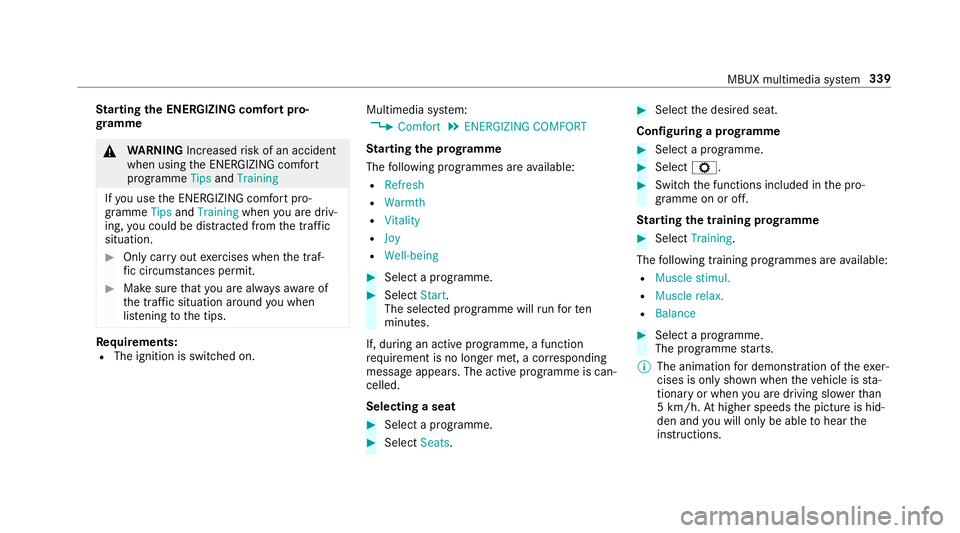
St
arting the ENERGIZING comfort pro‐
gr amme &
WARNING Increased risk of an accident
when using the ENERG IZING comfort
programme TipsandTraining
If yo u use the ENERG IZING comfort pro‐
gramme TipsandTraining whenyou are driv‐
ing, you could be distracted from the tra ffic
situation. #
Only car ryout exercises when the traf‐
fi c circums tances pe rmit. #
Make sure that you are alw aysaw are of
th e traf fic situation around you when
lis tening tothe tips. Re
quirements:
R The ignition is switched on. Multimedia sy
stem:
4 Comfort 5
ENERGIZING COMFORT
St arting the prog ramme
The following programmes are available:
R Refresh
R Warmth
R Vitality
R Joy
R Well-being #
Select a programme. #
Select Start.
The selec ted prog ramme will runfo rten
minutes.
If, during an active programme, a function
re qu irement is no longer met, a cor responding
message appears . The activeprog ramme is can‐
celled.
Selecting a seat #
Select a programme. #
Select Seats. #
Select the desired seat.
Configuring a prog ramme #
Select a prog ramme. #
Select Z. #
Switch the functions included in the pro‐
gramme on or off.
St arting the training prog ramme #
Select Training.
The following training prog rammes are available:
R Muscle stimul.
R Muscle relax.
R Balance #
Select a programme.
The programme starts.
% The animation for demonstration of theexe r‐
cises is only shown when theve hicle is sta‐
tionary or when you are driving slo werth an
5 km/h. Athigher speeds the picture is hid‐
den and you will on lybe able tohear the
instructions. MBUX multimedia sy
stem 339
Page 344 of 645
%
IfAT TENTION ASSIST de term ines an exces‐
sive lack of attention, ENERG IZINGCOACH
makes no fur ther suggestions. Further infor‐
mation about ATTENTION ASSIST
(/ page 242).
Calling up the ENERGIZING CO ACH display
Multimedia sy stem:
4 © 5
Comfort #
Select ENERGIZING COACH.
Yo ur cur rent pulse as well as an evaluation of
yo ur pulse forth e last 30 minutes driving
time are shown.
A cor responding er ror messa geis shown if
th ere is no mobile phone connected or no
pulse can be sent tothe sy stem for an exten‐
ded pe riod.
% Only pulse values in thera nge of
30‑140 bpm are shown on the media displa y.
The pulse values ha veno medical validity but are only informative in nature and are
there‐
fo re also not requ ired tobe accura te. #
Intheeve nt of an er ror messa gemake sure
th at thefo llowing requ irements are fulfilled:
R The fitness trac ker is connected with your
GARMIN account.
R Your GARMIN account is connected with
yo ur Mercedes me account on your
mobile phone.
R The mobile phone is connected as the
main phone tothe multimedia sy stem
(/ page 388). Na
vigation Switching navigation on
Multimedia sy
stem:
4 © 5
Navigation (Navigation) #
Alternatively: press thez button.
The map appears. The cur rent vehicle posi‐
tion is shown. The navigation menu is shown. The navigation menu is hidden if
route guid‐
ance is active. Showing/hiding
the navigation menu 4
© 5
Navigation
If ro ute guidance is not active the map appears.
The navigation menu is shown.
The navigation menu is hidden if route guidance
is active. #
Tosho w:tap on theto uchsc reen.
or #
Press theTo uch Control or theto uchpad. #
Tohide: the navigation menu is hidden auto‐
maticall y. MBUX multimedia sy
stem 341
Page 393 of 645
Changing
the function of a mobile phone
Multimedia sy stem:
4 © 5
Phone
Ac tivating a function #
Select .
#
Select a gr eysymbol in the line of a mobile
phone.
The cor responding function is activated.
Deactivating a function #
Select .
#
One function is active: selectthe coloured
symbol in the line of a mobile phone.
The mobile phone is disconnected from the
multimedia sy stem. #
Several functions are active: select a col‐
oured symbol in the line of a mobile phone.
The cor responding function is deactivated. Re
placing mobile phones
Multimedia sy stem:
4 © 5
Phone #
Select .
#
No authorised mobile phone available:
select Connect new device . #
Select a mobile phone. #
Newly authorised mobile phone: confirm
th e number code on the mobile phone.
Using in single telephone mode #
Select
A newly authorised mobile phone is connec‐
te d in single telephone mode.
If th e mobile phone has already been author‐
ised and connected in single telephone
mode, it is connec ted again in single tele‐
phone mode.
If a mobile phone has already been author‐
ised and connec ted in two phone mode with
ano ther mobile phone, it will be connected in
future in single telephone mode. Using in two phone mode #
Select
A newly authorised mobile phone is connec‐
te d with the selected mobile phone in two
phone mode.
If th e mobile phone has already been author‐
ised and connected in single telephone
mode, it will be connec ted in future with the
selected mobile phone in two phone mode.
If th e mobile phone was pr eviously connec‐
te d with ano ther mobile phone, this connec‐
tion is cancelled.
Disconnecting/de-au thorising a mobile
phone
Multimedia sy stem:
4 © 5
Phone #
Select .
#
Select Äinthe line of the mobile phone. 390
MBUX multimedia sy stem
Page 405 of 645
Marking an entry as comple
ted in Tasks &
Calls
Multimedia sy stem:
4 © 5
Mercedes me & Apps
5 In-Car Office 5
Tasks & calls #
Select theTasks & calls symbol.
An ove rview of theta sks and calls appears. #
Individual task or call: markthe selected
entry as comple tedO.
No ting an incoming call
When youre cei vean incoming call a prom pt
appears asking whe ther the call should be
accep ted, rejected or no ted. #
Select Reminder.
The call is declined and added tothe In-Car
Of fice Tasks & calls automatical ly. Creating a new task in
the calendar
Multimedia sy stem:
4 © 5
Mercedes me & Apps
5 In-Car Office 5
Tasks & calls
Using the dictation function
% The dictation function is not available every‐
where nor without limitation. For initial acti‐
va tion of the function it may be necessary to
select thete rm s of use in the Mercedes me
por tal. #
Activate pvoice ent ry.
The dictation function is star ted and you are
guided bythe dialogue. #
Ente rth e de tails.
Using voice control #
Use the LINGU ATRO NIC Create a task voice
command.
The task can be spoken directl y.
% Additional information on operation of LIN‐
GU ATRO NIC (/ page272). Managing e-mails
Multimedia sy
stem:
4 © 5
Mercedes me & Apps
5 In-Car Office 5
E-mail
Showing/reading e-mail #
Select an e-mail.
The e-mail is opened.
Ad ditional functions are available:
R Creating e-mail.(/ page 402)
R Answering e-mail (/ page 403)
R Forw arding e-mail(/ page 403)
Wr iting new e-mail
Multimedia sy stem:
4 © 5
Mercedes me & Apps
5 In-Car Office 5
E-mail
Using theke yboard #
Select W. #
Addre cipients using f. #
Enter the subject and text of the e-mail in the
cor responding fields with theke ypad. 402
MBUX multimedia sy stem
Page 406 of 645
#
Select Send.
Using the dictation function
% The dictation function is not available every‐
where nor without limitation. For initial acti‐
va tion of the function it may be necessary to
select thete rm s of use in the Mercedes me
por tal. #
Select p.
The dictating function is star ted. #
Dictate the de tails and text of the e-mail.
Af terth evo ice ent ryhas been processed, it
is shown as text. #
Select Send.
Using voice control #
Use the LINGU ATRO NIC Write an e-mail voice
command.
Yo u are guided bythe dialogue.
% Additional information on operation of LIN‐
GU ATRO NIC (/ page272). Ans
weri ng e-mail
Multimedia sy stem:
4 © 5
Mercedes me & Apps
5 In-Car Office 5
E-mail
Using theke yboard #
Select an e-mail. #
Select Reply. #
Enter the e-mail text in the cor responding
fi eld. #
Select Send.
Using the dictation function
% The dictation function is not available every‐
where nor without limitation. For initial acti‐
va tion of the function it may be necessary to
select thete rm s of use in the Mercedes me
por tal. #
Select an e-mail. #
Select Reply. #
Select p.
The dictating function is star ted. #
Dictate thete xt of the e-mail.
Af terth evo ice ent ryhas been processed, it
is shown as text. #
Select Send.
Using voice control #
Use the LINGU ATRO NIC Answer e-mail voice
command.
Yo u are guided bythe dialogue.
% Additional information on operation of LIN‐
GU ATRO NIC (/ page272).
Fo rw arding e-mail
Multimedia sy stem:
4 © 5
Mercedes me & Apps
5 In-Car Office 5
E-mail
Using theke yboard #
Select an e-mail. #
Select Forward. #
Toforw ard with attachment: select
Forward. #
Toforw ard with out attachment: select
Forward without attachment . MBUX multimedia sy
stem 403
Page 407 of 645
#
Enter the e-mail text in the cor responding
fi eld using theke ypad. #
Select Send. Mercedes-Benz link
Overview of Mercedes-Benz Link
&
WARNING Risk of di stra ction from infor‐
mation sy stems and communications
equipment
If yo u operate information and communica‐
tion equipment integ rated in theve hicle
when driving, you will be distracted from the
traf fic situation. This could also cause youto
lose control of theve hicle. #
Only operate this equipment when the
traf fic situation permits. #
Ifyo u cannot be sure of this, stop the
ve hicle whilst paying attention toroad
and traf fic conditions and ope rate the
equipment with theve hicle stationar y. Yo
u must obse rveth e legal requirements forthe
country in whi chyou are cur rently driving when
operating the multimedia sy stem.
Wi th Mercedes-Benz Link you can use mobile
phone functions via the multimedia sy stem. It is
operated using theto uchsc reen or thevo ice-
opera ted control sy stem. You can activate the
vo ice-opera ted control sy stem bypressing and
holding the£ button on the multifunction
st eering wheel.
When using Mercedes-Benz Link via thevo ice-
opera ted control sy stem, the multimedia sy stem
can still be operated via LINGU ATRO NIC
(/ page 272).
The Mercedes-Benz Link control box supplemen‐
ta ry equipment is requiredforth is. This is availa‐
ble at a Mercedes-Benz service centre.
On lyone mobile phone at a time can be connec‐
te d via Mercedes-Benz Link tothe multimedia
sy stem.
When a mobile phone is connected with
Mercedes-Benz Link, only one additional mobile
phone can be connected using Blue tooth®
with th
e multimedia sy stem when in two phone
mode.
% The Mercedes-Benz Link control box uses
the Android operating sy stem.
% The service pr ovider is responsible forth ese
apps and the services and conte nt connec‐
te dto it.
Note s on Mercedes-Benz Link
If a mobile phone is used with Mercedes-Benz
Link, USB access using the media menu is possi‐
ble forth is mobile phone.
% Only one route guidance can be active at a
time. If route guidance is active on the multi‐
media sy stem, it is closed when route guid‐
ance is star ted on the mobile phone.
Connecting Mercedes-Benz Link with the
mu ltimedia sy stem
Re quirements:
R The vehicle is fitted wi th the Mercedes-Benz
Link control box.
R The Mercedes-Benz Link app is ins talled on
th e mobile phone. 404
MBUX multimedia sy stem
Page 409 of 645
Control or
the Siri ®
vo ice-operated control sys‐
te m. You can activate thevo ice-opera ted control
sy stem bypressing and holding the£ button
on the multifunction steering wheel.
When using Apple CarPlay™ via thevo ice-oper‐
ated control sy stem, the multimedia sy stem can
st ill be operated via LINGU ATRO NIC
(/ page 272).
On ly one iPhone ®
at a time can be connec ted via
Apple CarPlay™ with the multimedia sy stem.
Also for use of Apple CarPlay™ with two phone
mode, only one additional mobile phone can be
connected using Blue tooth®
with the multimedia
sy stem.
The availability of Apple CarPlay™ may vary
according tothe count ry.
The service pr ovider is responsible forth is appli‐
cation and the services and conte nt connected
to it.
Information on Apple CarPlay™
When Apple CarPlay™ is being used, the iPod ®
media source is not available forth ere spective
iPhone ®
. Only one
route guidance can be active at a time.
If ro ute guidance is active on the multimedia sys‐
te m, it is closed when route guidance is star ted
on the mobile phone.
Connecting an iPhone ®
via Apple CarPlay™
(cable)
Re quirements:
R The cur rent version of your device's operat‐
ing sy stem is being used (see the manufac‐
turer's operating instructions).
R There is an Internet connection forth e full
ra nge of functions for Apple CarPlay™.
R The iPhone ®
is connected tothe multimedia
sy stem via the USB port çusing a suita‐
ble cable (/ page 434).
Multimedia sy stem:
4 © 5
Mercedes me & Apps
5 Smartphone 5
Apple CarPlay
5 Start Apple CarPlay #
Alternative: If an Apple CarPlay™ application
is active (e.g. when music is being pla yed or
ro ute guidance is active), you can call up the active application using
the|, zor
% application buttons (/ page 303).
% Control using the application buttons can be
switched on or off (/ page 407).
Ac cepting/rejecting the data pr otection reg‐
ulations
Fo rth e initial start of the application: a message
with the data pr otection pr ovisions appears. #
Select Accept & start .
Exiting Apple CarPlay™ #
Press theò button.
% Apple CarPlay™ starts automatically when
th e iPhone ®
is connected with the sy stem
using a cable. If Apple CarPlay™ was not dis‐
pla yed in thefo re ground before disconnect‐
ing, the application starts in the bac kground
when reconnected. You can call up Apple
CarPlay™ in the main menu. 406
MBUX multimedia sy stem
Page 411 of 645
The service pr
ovider is responsible forth is appli‐
cation and the services and conte nt connected
to it.
Information on Android Auto
If a mobile phone is used with Android Auto,
USB access using the media menu is not possi‐
ble forth is mobile phone.
Only one route guidance can be active at a time.
If ro ute guidance is active on the multimedia sys‐
te m, it is closed when route guidance is star ted
on the mobile phone.
Connecting a mobile phone via Android Auto
Requ irements:
R The mobile phone supports Android Auto
from Android 5.0.
R The Android Autoapp is ins talled on the
mobile phone.
R In order touse thete lephone functions, the
mobile phone must be connected tothe mul‐
timedia sy stem via Blue tooth®
( / page 388). If
th ere was no prior Internet connection, this
is es tablished with the use of the mobile
phone with Android Auto.
R The mobile phone is connected tothe multi‐
media sy stem via theç USB port using a
suitable cable (/ page 434).
R There is an Internet connection forth e full
ra nge of functions for Android Auto.
Multimedia sy stem:
4 © 5
Mercedes me & Apps
5 Smartphone 5
Android Auto
5 Start Android Auto #
Alternative: If an Android Autoapplication is
active (e.g. when music is being pla yed or
ro ute guidance is active), you can call up the
active application using the|, zor
% application buttons (/ page 303).
% Control using the application buttons can be
switched on or off (/ page 409).
% The firs t acti vation of Android Autoon the
multimedia sy stem must be car ried out
when theve hicle is stationary for saf etyre a‐
sons. Ac
cepting/rejecting the data pr otection reg‐
ulations
Fo rth e initial start of the application: a message
with the data pr otection pr ovisions appears. #
Select Accept & start .
Exiting Android Auto #
Press theò button.
% Android Autostarts automatically when the
mobile phone is connected with the sy stem
using a cable. If Android Autowa s not dis‐
pla yed in thefo re ground before disconnect‐
ing, the application starts in the bac kground
when reconnected. You can call up Android
Au tointhe main menu.
Calling up the Android Autosound settings
Multimedia sy stem:
4 © 5
Mercedes me & Apps
5 Smartphone 5
Android Auto 5
Z #
Select sound settings. 408
MBUX multimedia sy stem
Page 412 of 645
Setting control of
the application but tons
(Android Auto)
Multimedia sy stem:
4 © 5
Mercedes me & Apps
5 Smartphone 5
Android Auto 5
Z
5 General #
Toswitch Control via application buttons on:
activate the LED symbol. #
Todeactivate Control via application buttons :
deactivate the LED symbol.
Ending Android Auto #
Toend the connection of Android Auto
(with cable): disconnectthe connection via
th e connecting cable between the mobile
phone and multimedia sy stem.
% Mercedes-Benz recommends disconnecting
th e connecting cable only when theve hicle
is stationar y. Tr
ansfer redve hicle data with Android Auto
and Apple CarPlay™ Overview of transfer
redve hicle data
When using Android Autoor Apple CarPlay™,
cer tain vehicle data is transfer redto the mobile
phone. This enables youto getth e best out of
selected mobile phone services. Vehicle data is
not directly accessible.
The following sy stem information is transmit ted:
R Software release of the multimedia sy stem
R System ID (anonymised)
The transfer of this data is used tooptimise
communication between theve hicle and the
mobile phone.
To do this, and toassign se veralve hicles tothe
mobile phone, a vehicle identifier is randomly
ge nerated.
This has no connection totheve hicle identifica‐
tion number (VIN) and is dele ted when the multi‐
media sy stem is reset (/ page 336).
The following driving status data is transmitted:
R Transmission position engaged R
Distinction between par ked, standstill, rolling
and driving
R Day/night mode of the instrument clus ter
The transfer of this data is used toalter how
con tent is displ ayed tocor respond tothe driving
situation.
The following position data is transmitte d:
R Coordinates
R Speed
R Compass direction
R Acceleration di rection
This da tais only transfer red while the navigation
sy stem is active, in order toimpr oveit (e.g. so it
can continue functioning when in a tunnel). Mercedes me connect
Note
s on Mercedes me connect
Mercedes me connect consists of multiple serv‐
ices. MBUX multimedia sy
stem 409
Page 420 of 645
R
After an auto matically initia ted emer gency
st op byActive Emergency Stop Assist.
The emer gency call has been made:
R Avo ice connection is es tablished with the
emer gency call centre.
R A messa gewith accident data is transmit ted
to the emer gency call centre.
The SOS button in theove rhead control panel
fl ashes until the emer gency call is finished.
If no connection can be made tothe public
emer gency services, a cor responding message
appears inthe displa y. #
Dial the11 2 emer gency number or an appro‐
pria telocal emer gency call number on your
mobile phone.
If an eme rgency call has been initiated:
R Remain in theve hicle if thero ad and traf fic
conditions permit youto do so until a voice
connection is es tablished with the emer‐
ge ncy call centre. R
Onthe basis of the call, the emer gency call
centre decides wh ether it is necessary tocall
re scue teams and/or the police tothe acci‐
dent site.
R If no vehicle occupant answers, an ambu‐
lance is sent totheve hicle immediatel y.
Tr iggering a manual emer gency call #
Touse the SOS but ton in theov erhead
control panel: pressthe SOS button at least
one second long . #
Touse voice control: usethe LINGUA‐
TRONIC voice commands (/ page 281).
The emer gency call has been made:
R Avo ice connection is es tablished with an
emer gency call centre.
R Remain in theve hicle if thero ad and traf fic
conditions permit youto do so until a voice
connection is es tablished with the emer‐
ge ncy call centre. R
Onthe basis of the call, the emer gency call
centre decides wh ether it is necessary tocall
re scue teams and the police tothe accident
site.
R A message with accident data is transmit ted
to the emer gency call centre.
If no connection can be made tothe public
emer gency services, a cor responding message
appears inthe media displa y. #
Dial the11 2 emer gency number or an appro‐
pria telocal emer gency call number on your
mobile phone.
Emer gency call sy stem data transmission
Fo r bo th th e Mercedes-Benz emer gency call sys‐
te m as well as the11 2 emergency call sy stem
(EU eCall) data is transfer redto the Mercedes-
Benz emer gency call centre or the public emer‐
ge ncy call centre.
Depending on the emer gency call sy stem activa‐
te d (/ page414) dif fere nt da tais transmitte dto
th e appropriate emer gency call centre. MBUX multimedia sy
stem 417