change language MERCEDES-BENZ CLA COUPE 2019 Owners Manual
[x] Cancel search | Manufacturer: MERCEDES-BENZ, Model Year: 2019, Model line: CLA COUPE, Model: MERCEDES-BENZ CLA COUPE 2019Pages: 645, PDF Size: 10.94 MB
Page 1 of 645
Disclaimer
Das folgen de PDF -Doku ment für die ses Fahrze ugmodell be zieht sich in allen
Sprachver sionen nur auf die Fahrz euge, d ie fü r den deutsche n Markt best immt
sind und die den deutschen Vorschriften entsprechen. Bitte wenden Sie sich an
Ihr en autorisierten Mer cedes-Benz Services tützpunkt, um ein gedruckt es Exem plar
für andere Fahrzeugmodelle und Fahrzeugmodelljahre zu erhalten.
Dieses PDF -Dokume nt stellt die aktuelle Version dar . Mögliche Abweic hungen zu
Ihrem konkreten Fahrzeug könnten nicht berücksichtigt sein, da Mercedes-Benz
seine Fahrzeuge st ändig dem neuest en Stand d er Technik anp asst, so wie
Änderungen in Form und Ausstattung vornimmt. Bitte beachten Sie daher, dass
dieses PDF-Dokument in keinem Fall das gedruckte Exemplar ersetzt, das mit
dem Fahrzeug ausgeliefert wurde.
Internal use only
Disclaimer
All language versions of the following PD\f document for this vehicle model
relate solel\b to vehicles intended for sale on the German market and which
correspond to German regulations.
Please contact \bour authorised Mercedes-Benz Service Centre to obtain
a printed version for other vehicle models and vehicle model \bears. This PD\f
document is the latest version. Possible variations to \bour vehicle ma\b not
be taken into account as Mercedes-Benz constantl\b updates their vehicles to
the state of the art and introduces changes in design and e\Dquipment. Please
therefore note that this PD\f document in no wa\b replaces the printed version
which was delivered with \bour vehicle.
Internal use only
Disclaimer
The following version of the Owner‘s Manual describes all models, series and
special equipment of your vehicle. Country-specific language variations are
possible. Please note that your vehicle might not be equipped with all the
described functions. This also affects safety-relevant systems and functions.
Please contact your authorised Mercedes-Benz dealership if you would like
to receive a printed Owner‘s Manual for other vehicle models and vehicle
model years.
The online Owner‘s Manual is the current and valid version. It is possible that
deviations affecting your specific vehicle could not be taken into account
as Mercedes-Benz constantly adapts its vehicles according to the latest
technology and makes changes to the form and the equipment.
Please also read the printed Owner‘s Manual, supplementary documents and
the digital Owner‘s Manual in the vehicle.
Copyright
All rights reserved. All texts, images and graphics are subject to copyright
and other laws for the protection of intellectual property. They may not be
copied or changed for any commercial use or for the purpose of being passed
on nor used on other websites.
Page 277 of 645
#
Tointer rupt avo ice output: speak inthe
middle of a voice dialogue when the sy stem
is still answering.
The voice output is shor tened and the con‐
clusion is reached more quickl y.
% The Voice barge-in option must be switched
on in the multimedia sy stem forth is
(/ page 274). Overvi
ewof operable functions in LINGUA‐
TRONIC Yo
u can use the LINGU ATRO NIC voice control
sy stem tooperate thefo llowing functions
depending on theve hicle equipment:
R Telephone
R Text messa geand e-mail
R Navigation
R Address book
R Radio
R Media
R Vehicle functions
R Weather Fu
ll functionality is only available foryo u with
activation of online voice control (/ page274). Note
s onthe language setting Yo
u can change the language of LINGU ATRO NIC
via the sy stem language settings. If the set sys‐
te m language is not suppor tedby LINGUA‐
TRONIC, English will be selected.
LINGU ATRO NIC is available in thefo llowing lan‐
guages:
R German
R English
R French
R Italian
R Dutch
R Polish
R Portuguese
R Russian
R Swedish
R Spanish
R Czech R
Turkish Setting LINGU
ATRO NIC (multimedia sy stem) Re
quirements:
R For online voice control: your vehicle is
connected with your Mercedes me user
account (/ page413).
R There is an Internet connection
(/ page 421).
R For online use of contacts: onlinevoice
control is activated.
Multimedia sy stem:
4 © 5
Settings 5
System
5 LINGUATRONIC
Switching voice activation of LINGU ATRO NIC
on/o ff #
Select Voice activation "Hi Mercedes".
Depending on the pr evious status, the func‐
tion is activated or deactivated. 274
LINGU ATRO NIC
Page 322 of 645
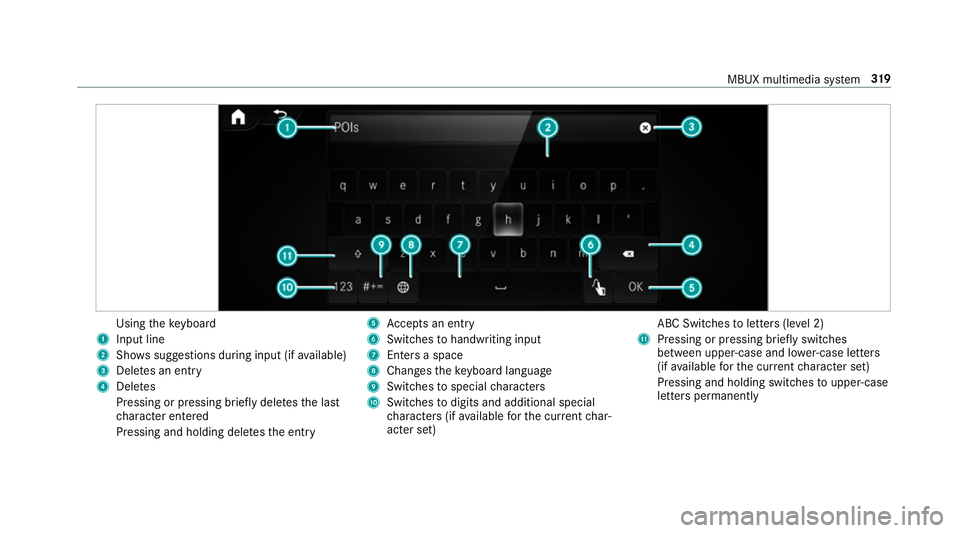
Using
theke yboard
1 Input line
2 Shows suggestions during input (if available)
3 Dele tes an entry
4 Dele tes
Pressing or pressing brief lydele testh e last
ch aracter entered
Pressing and holding dele testh e entry 5
Accepts an entry
6 Switches tohandwriting input
7 Enters a space
8 Changes theke yboard language
9 Switches tospecial characters
A Swit ches todigits and additional special
ch aracters (if available forth e cur rent char‐
acter set) ABC Swit
ches toletters (le vel 2)
B Pressing or pressing brief lyswitches
between upper-case and lo wer-case letters
(if available forth e cur rent character set)
Pressing and holding swit ches toupper-case
letters permanently MBUX multimedia sy
stem 319
Page 326 of 645
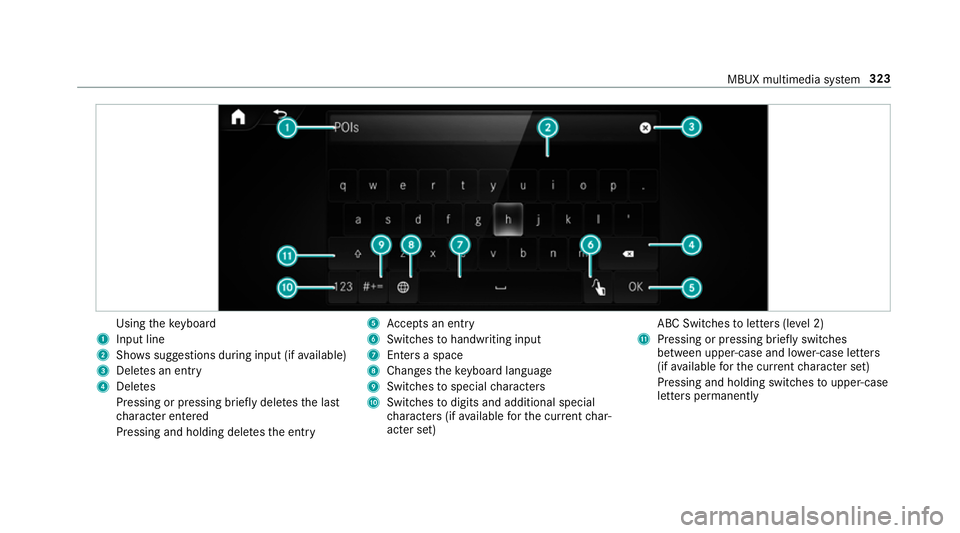
Using
theke yboard
1 Input line
2 Shows suggestions during input (if available)
3 Dele tes an entry
4 Dele tes
Pressing or pressing brief lydele testh e last
ch aracter entered
Pressing and holding dele testh e entry 5
Accepts an entry
6 Switches tohandwriting input
7 Enters a space
8 Changes theke yboard language
9 Switches tospecial characters
A Swit ches todigits and additional special
ch aracters (if available forth e cur rent char‐
acter set) ABC Swit
ches toletters (le vel 2)
B Pressing or pressing brief lyswitches
between upper-case and lo wer-case letters
(if available forth e cur rent character set)
Pressing and holding swit ches toupper-case
letters permanently MBUX multimedia sy
stem 323
Page 329 of 645
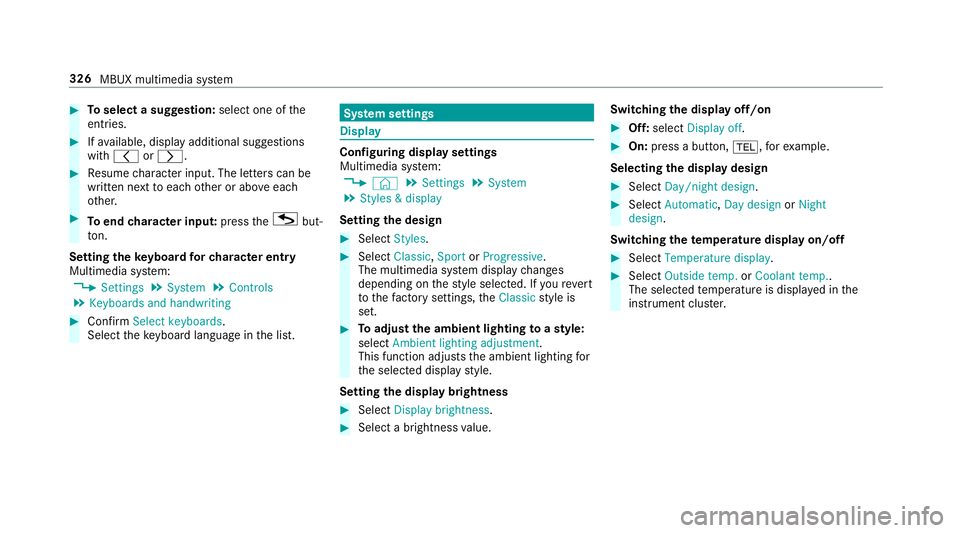
#
Toselect a suggestion: select one ofthe
entri es. #
Ifav ailable, display additional suggestions
with q orr. #
Resume character input. The letters can be
written next toeach other or abo veeach
ot her. #
Toend character input: presstheG but‐
to n.
Setting the keyboard forch aracter entry
Multimedia sy stem:
4 Settings 5
System 5
Controls
5 Keyboards and handwriting #
Confirm Select keyboards.
Select theke yboard language in the list. Sy
stem settings Display
Configuring display settings
Multimedia sy
stem:
4 © 5
Settings 5
System
5 Styles & display
Setting the design #
Select Styles. #
Select Classic ,Sport orProgressive .
The multimedia sy stem display changes
depending on thest yle selected. If youre ve rt
to thefa ctory settings, theClassic style is
set. #
Toadjust the ambient lighting toastyl e:
select Ambient lighting adjustment.
This function adjusts the ambient lighting for
th e selected display style.
Setting the display brightness #
Select Display brightness . #
Select a brightness value. Switching
the display off/on #
Off: select Display off . #
On: press a button, %,forex ample.
Selecting the display design #
Select Day/night design . #
Select Automatic, Day design orNight
design .
Switching thetemp erature display on/off #
Select Temperature display . #
Select Outside temp. orCoolant temp..
The selec tedte mp erature is displa yed in the
instrument clus ter. 326
MBUX multimedia sy stem
Page 348 of 645
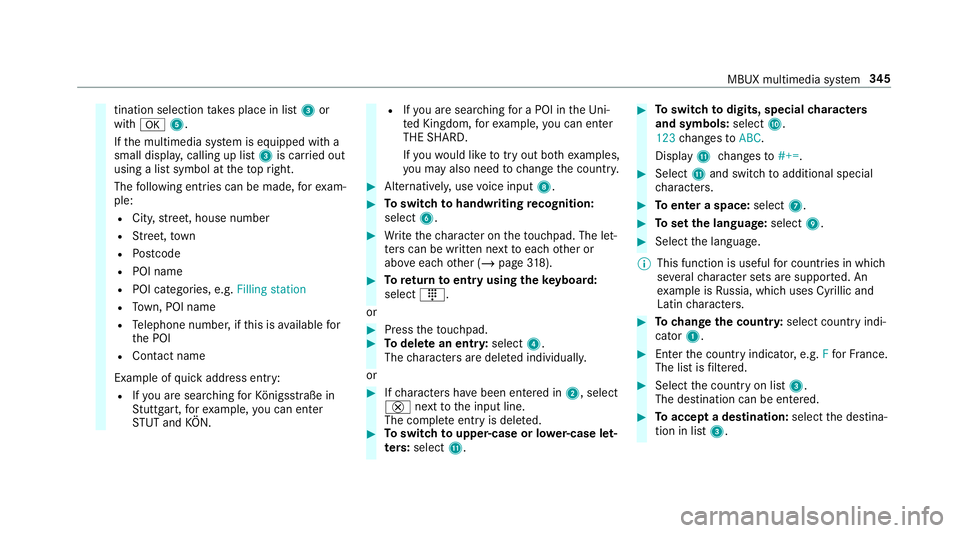
tination selection
take s place in list 3or
with a 5.
If th e multimedia sy stem is equipped with a
small displa y,calling up li st3 is car ried out
using a list symbol at theto pright.
The following ent ries can be made, forex am‐
ple:
R City, stre et, house number
R Street,to wn
R Postcode
R POI name
R POI catego ries, e.g. Filling station
R Town, POI name
R Telephone number, if this is available for
th e POI
R Contact name
Example of quick address ent ry:
R Ifyo u are sear ching forKö nigsstraße in
St utt gart,fo rex ample, you can en ter
ST UT and KÖN. R
Ifyo u are sear ching for a POI in theUni‐
te d Kingdom, forex ample, you can en ter
THE SHARD.
If yo uwo uld like totry out bo thexamples,
yo u may also need tochange the count ry. #
Alternati vely, use voice input 8. #
Toswitch tohandwriting recognition:
select 6. #
Write thech aracter on theto uchpad. The let‐
te rs can be written next toeach other or
abo veeach other (/ page318). #
Toreturn toentry using theke yboard:
select _.
or #
Press theto uchpad. #
Todel ete an entr y:select 4.
The characters are dele ted individually.
or #
Ifch aracters ha vebeen entered in 2, select
£ nexttothe input line.
The comple teentry is dele ted. #
Toswitch toupper-case or lo wer-case let‐
ters :select B. #
Toswitch todigits, special characters
and symbols: selectA.
123 changes toABC.
Displ ayB changes to#+=. #
Select Band switch toadditional special
ch aracters. #
Toenter a space: select7. #
Toset the language: select9. #
Select the language.
% This function is useful for countries in which
se veralch aracter sets are suppo rted. An
ex ample is Russia, which uses Cyrillic and
Latin characters. #
Tochange the count ry:select country indi‐
cator 1. #
Enter the count ryindicator, e.g. Ffo rFr ance.
The list is filtered. #
Select the count ryon list 3.
The destination can be entered. #
Toaccept a destination: selectthe destina‐
tion in list 3. MBUX multimedia sy
stem 345