key MERCEDES-BENZ CLS 2017 Repair Manual
[x] Cancel search | Manufacturer: MERCEDES-BENZ, Model Year: 2017, Model line: CLS, Model: MERCEDES-BENZ CLS 2017Pages: 334, PDF Size: 10.18 MB
Page 201 of 334
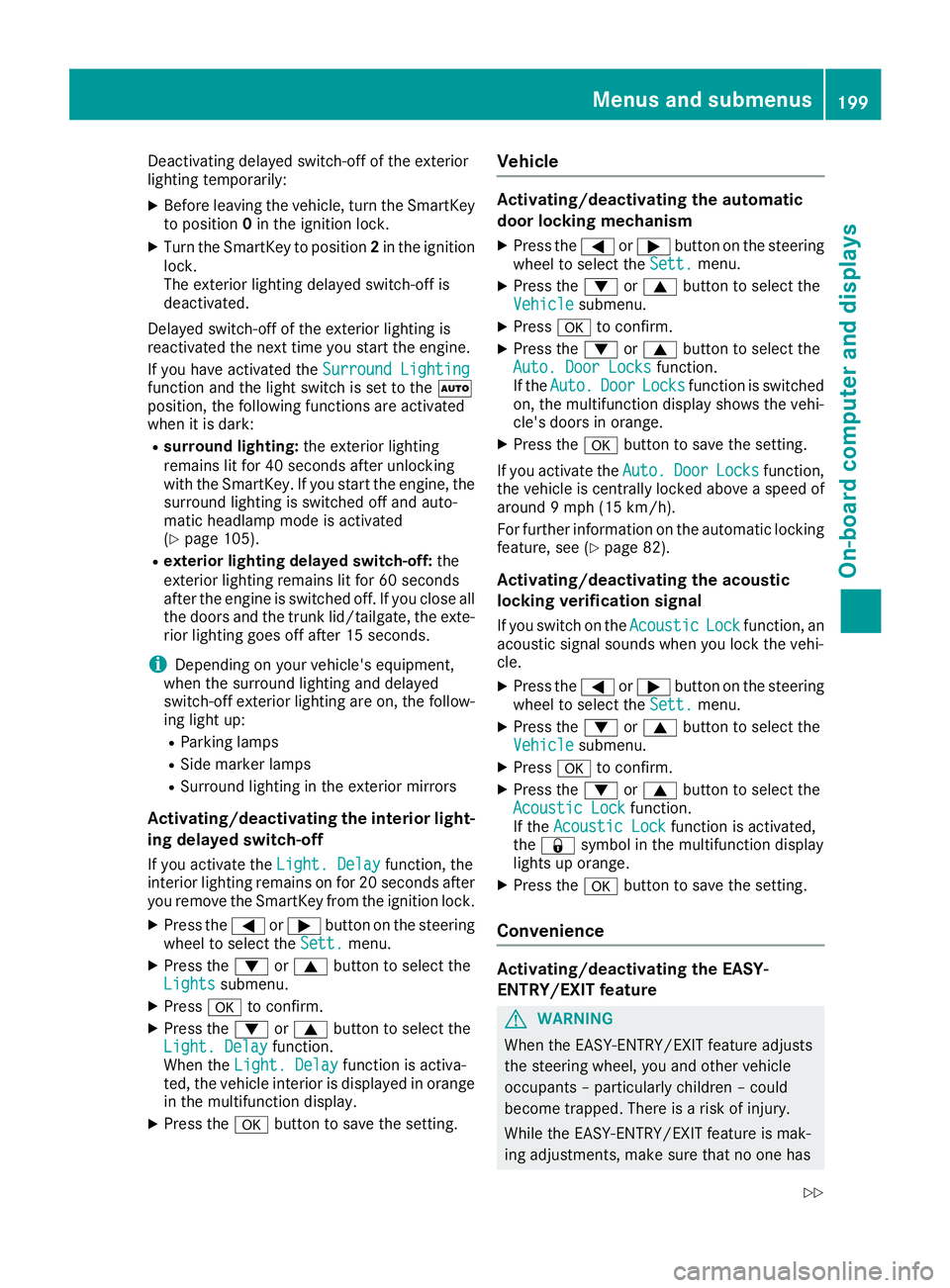
Deactivating delayed switch-off of the exterior
lighting temporarily: X
Before leaving the vehicle, turn the SmartKey
to position 0 in the ignition lock.X
Turn the SmartKey to position 2 in the ignition
lock.
The exterior lighting delayed switch-off is
deactivated.
Delayed switch-off of the exterior lighting is
reactivated the next time you start the engine.
If you have activated the Surround Lighting
function and the light switch is set to the X
position, the following functions are activated
when it is dark: R
surround lighting: the exterior lighting
remains lit for 40 seconds af ter unlocking
with the SmartKey. If you start the engine, the
surround lighting is switched off and auto-
matic headlamp mode is activated
( Y
page 105). R
exterior lighting delayed switch-off: the
exterior lighting remains lit for 60 seconds
after the engine is switched off. If you close all
the doors and the trunk lid/tailgate, the exte-
rior lighting goes off after 15 second s.
i Depending on your vehicle's equipment,
when the surround lighting and delayed
switch-off exterior lighting are on, the follow-
ing light up: R
Parking lamps R
Side marker lamps R
Surround lighting in the exterior mirrors
Activating/deactivating the interior light-
ing delayed switch-off
If you activate the Light. Delay function, the
interior lighting remains on for 20 second sa fter
you remove the SmartKey from the ignition lock. X
Press the Y or e button on the steering
wheel to select the Sett. menu.X
Press the d or c button to select the
Lights submenu.X
Press v to confirm.X
Press the d or c button to select the
Light. Delay function.
When the Light. Delay function is activa-
ted, the vehicle interior is displayed in orange
in the multifunction display. X
Press the v button to save the setting. Vehicle Activating/deactivating the automatic
door locking mechanism X
Press the Y or e button on the steering
wheel to select the Sett. menu.X
Press the d or c button to select the
Vehicle submenu. X
Press v to confirm. X
Press the d or c button to select the
Auto. Door Locks function.
If the Auto. Door Locks function is switched
on, the multifunction display shows the vehi-
cle's doors in orange. X
Press the v button to save the setting.
If you activate the Auto.
Door Locks function,
the vehicle is centrally locked above a speed of
around 9 mph (15 km/h).
For further information on the automatic locking
feature, see ( Y
page 82).
Activating/deactivating the acoustic
locking verification signal If you switch on the Acoustic Lock function, an
acoustic signal sounds when you lock the vehi-
cle. X
Press the Y or e button on the steering
wheel to select the Sett. menu.X
Press the d or c button to select the
Vehicle submenu. X
Press v to confirm. X
Press the d or c button to select the
Acoustic Lock function.
If the Acoustic Lock function is activated,
the 7 symbol in the multifunction display
lights up orange. X
Press the v button to save the setting.
Convenience
Activating/deactivating the EASY-
ENTRY/EXIT feature
G WARNING
When the EASY-ENTRY/EXIT feature adjusts
the steering wheel, you and other vehicle
occupants – particularly children – could
become trapped. There is a risk of injury.
While the EASY-ENTRY/EXIT feature is mak-
ing adjustments, make sure that no one hasMenus and submenus 199
On-board computer and displays Z
Page 241 of 334
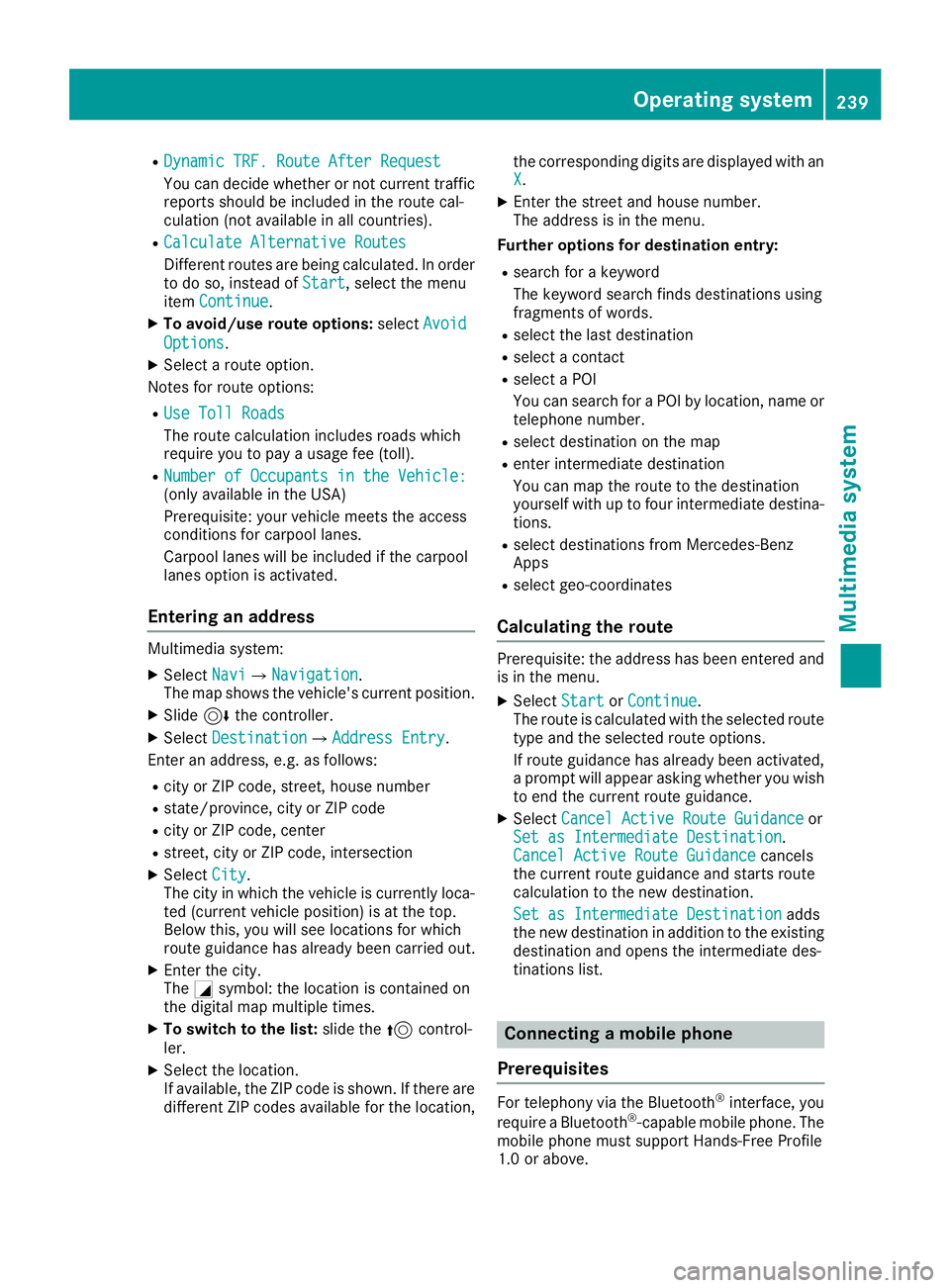
R
Dynamic TRF. Route After Request
You can decide whether or not current traffic
reports should be included in the route cal-
culation (not available in all countries). R
Calculate Alternative Routes
Different routes are being calculated. In order
to do so, instead of Start , select the menu
item Continue .X
To avoid/use route options: select Avoid
Options .X
Select a route option.
Notes for route options: R
Use Toll Roads
The route calculation includes roads which
require you to pay a usage fee (toll). R
Number of Occupants in the Vehicle:
(only available in the USA)
Prerequisite: your vehicle meets the access
conditions for carpool lanes.
Carpool lanes will be included if the carpool
lanes option is activated.
Entering an address Multimedia system: X
Select Navi { Navigation .
The map shows the vehicle's current position. X
Slide 6 the controller.X
Select Destination { Address Entry .
Enter an address, e.g. as follows: R
city or ZIP code, street, house number R
state/province, city or ZIP code R
city or ZIP code, center R
street, city or ZIP code, intersection X
Select City .
The city in which the vehicle is currently loca-
ted (current vehicle position) is at the top.
Below this, you will see locations for which
route guidance has already been carried out. X
Enter the city.
The C symbol: the location is contained on
the digital map multiple times. X
To switch to the list: slide the 5 control-
ler. X
Select the location.
If available, the ZIP code is shown. If there are
different ZIP codes available for the location, the corresponding digits are displayed with an
X . X
Enter the street and house number.
The address is in the menu.
Further options for destination entry: R
search for a keyword
The keyword search finds destinations using
fragments of words. R
select the last destination R
select a contact R
select a POI
You can search for a POI by location, name or
telephone number. R
select destination on the map R
enter intermediate destination
You can map the route to the destination
yourself with up to four intermediate destina-
tions. R
select destinations from Mercedes-Benz
Apps R
select geo-coordinates
Calculating the route Prerequisite: the address has been entered and
is in the menu. X
Select Start or Continue .
The route is calculated with the selected route
type and the selected route options.
If route guidance has already been activated,
a prompt will appear asking whether you wish
to end the current route guidance. X
Select Cancel Active Route Guidance or
Set as Intermediate Destination .
Cancel Active Route Guidance cancels
the current route guidance and starts route
calculation to the new destination.
Set as Intermediate Destination adds
the new destination in addition to the existing
destination and opens the intermediate des-
tinations list.
Connecting a mobile phone
Prerequisites
For telephony via the Bluetooth ®
interface, you
require a Bluetooth ®
-capable mobile phone. The
mobile phone must support Hands-Free Profile
1.0 or above.Operating system 239
Multimedia system Z
Page 242 of 334
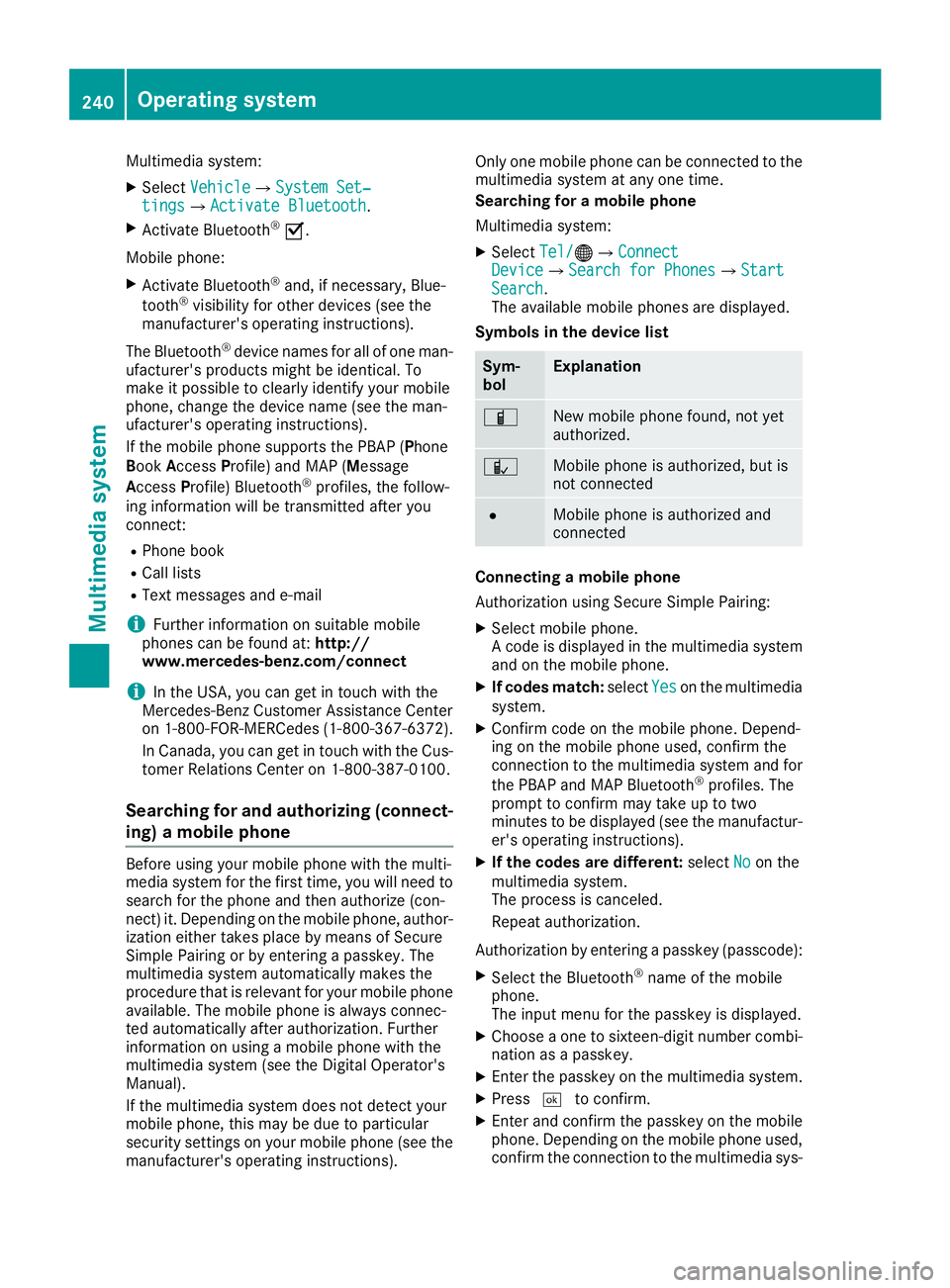
Multimedia system: X
Select Vehicle { System Set‐
tings { Activate Bluetooth .X
Activate Bluetooth ®
s .
Mobile phone: X
Activate Bluetooth ®
and, if necessary, Blue-
tooth ®
visibility for other devices (see the
manufacturer's operating instructions).
The Bluetooth ®
device names for all of one man-
ufacturer's products might be identical. To
make it possible to clearly identify your mobile
phone, change the device name (see the man-
ufacturer's operating instructions).
If the mobile phone supports the PBAP ( P hone
B ook A ccess P rofile) and MAP ( M essage
A ccess P rofile) Bluetooth ®
profiles, the follow-
ing information will be transmitted after you
connect: R
Phone book R
Call lists R
Text messages and e-mail
i Further information on suitable mobile
phones can be found at: http://
www.mercedes-benz.com/connect
i In the USA, you can get in touch with the
Mercedes-Benz Customer Assistance Center
on 1-800-FOR-MERCedes (1-800-367-6372).
In Canada, you can get in touch with the Cus-
tomer Relations Center on 1-800-387-0100.
Searching for and authorizing (connect-
ing) a mobile phone Before using your mobile phone with the multi-
media system for the first time, you will need to
search for the phone and then authorize (con-
nect) it. Depending on the mobile phone, author-
ization either takes place by means of Secure
Simple Pairing or by entering a passkey. The
multimedia system automatically makes the
procedure that is relevant for your mobile phone
available. The mobile phone is always connec-
ted automatically after authorization. Further
information on using a mobile phone with the
multimedia system (see the Digital Operator's
Manual).
If the multimedia system does not detect your
mobile phone, this may be due to particular
security settings on your mobile phone (see the
manufacturer's operating instructions). Only one mobile phone can be connected to the
multimedia system at any one time.
Searching for a mobile phone
Multimedia system: X
Select Tel/
Page 245 of 334
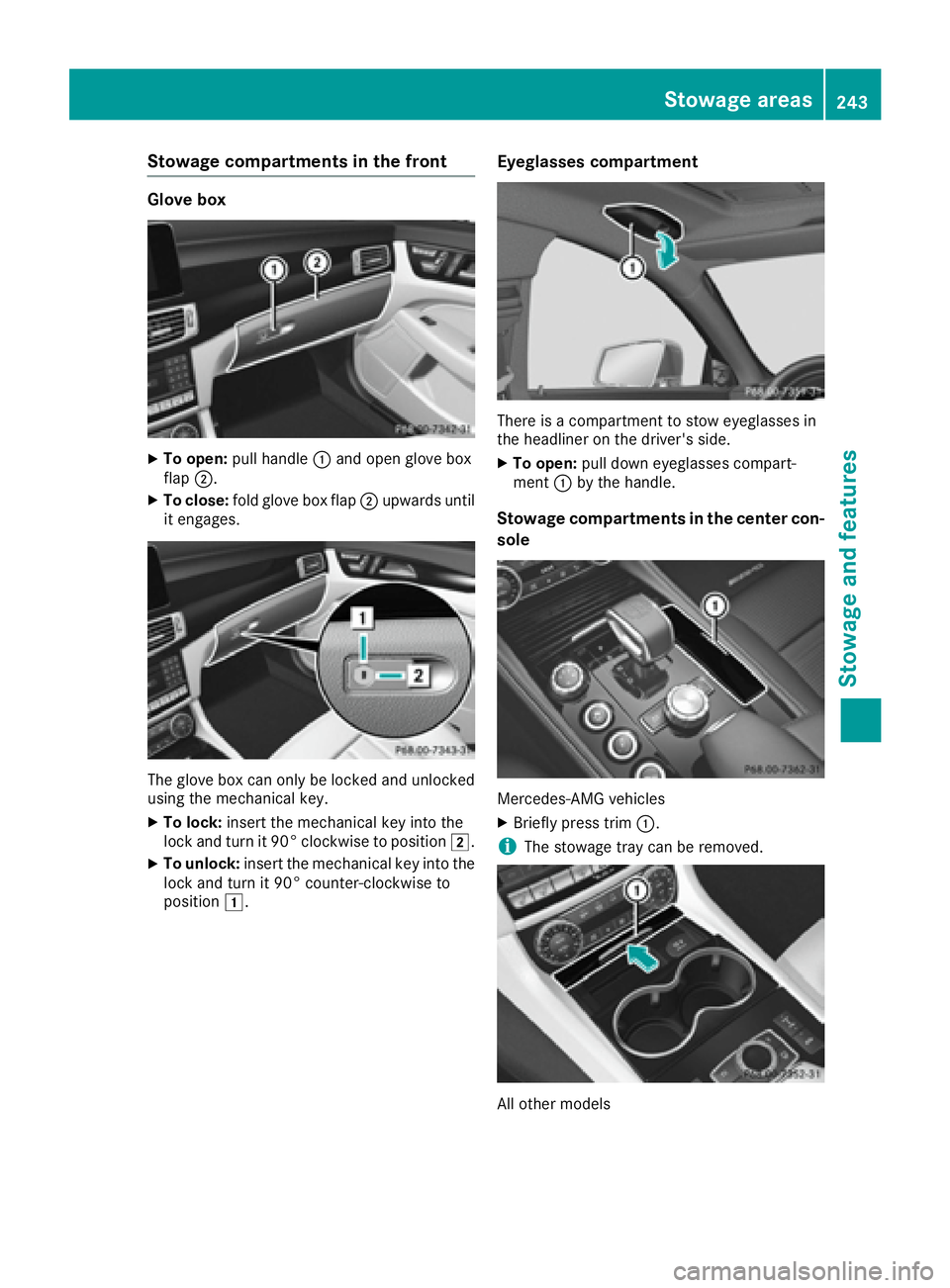
Stowage compartments in the front Glove box X
To open: pull handle C and open glove box
flap D .X
To close: fold glove box flap D upwards until
it engages.
The glove box can only be locked and unlocked
using the mechanical key. X
To lock: insert the mechanical key into the
lock and turn it 90° clockwise to position H .X
To unlock: insert the mechanical key into the
lock and turn it 90° counter-clockwise to
position G . Eyeglasses compartment
There is a compartment to stow eyeglasses in
the headliner on the driver's side. X
To open: pull down eyeglasses compart-
ment C by the handle.
Stowage compartments in the center con-
sole
Mercedes-AMG vehicles X
Briefly press trim C .
i The stowage tray can be removed.
All other models Stowage areas 243
Stowage and features Z
Page 255 of 334
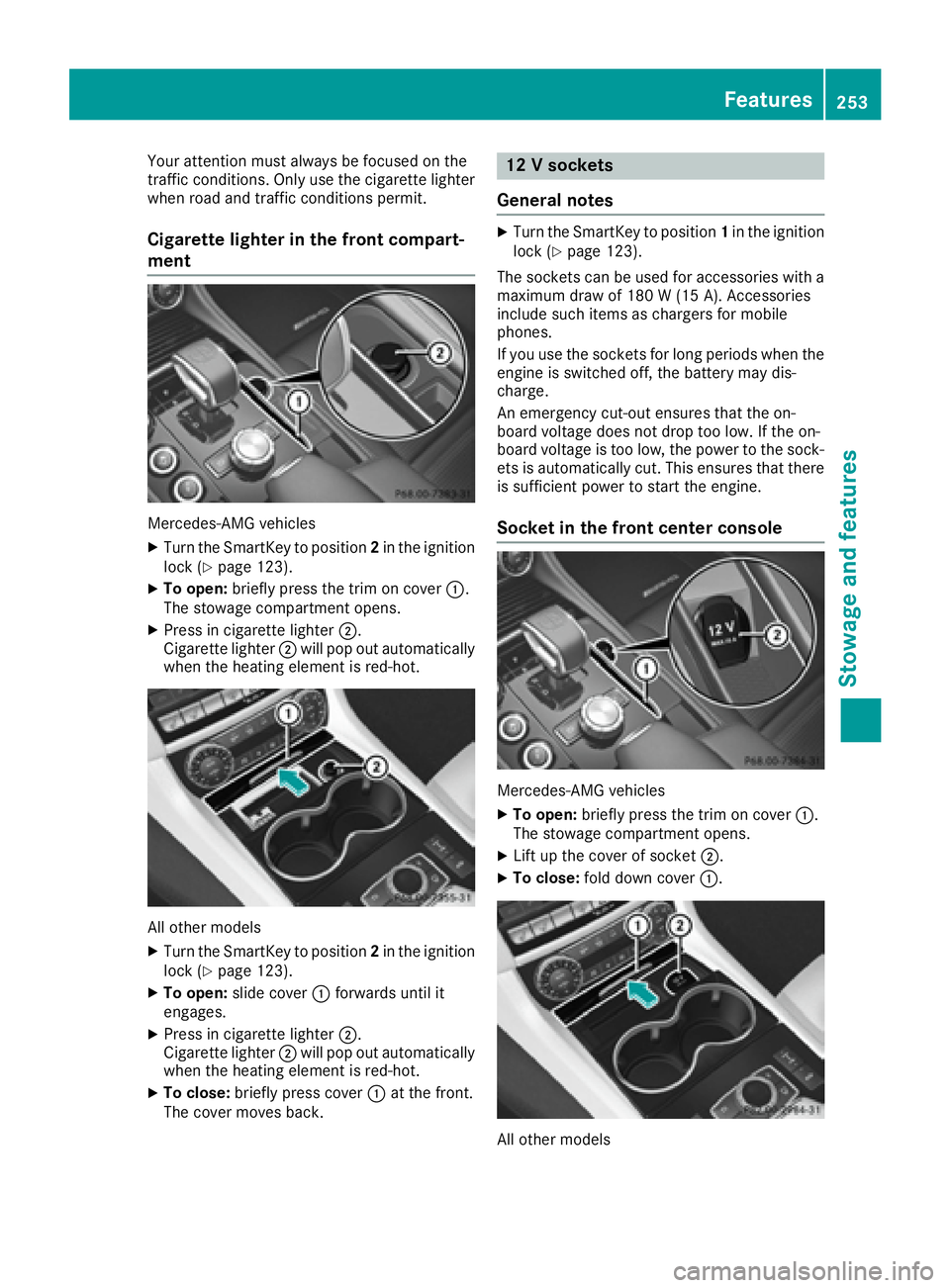
Your attention must always be focused on the
traffic conditions. Only use the cigarette lighter
when road and traffic conditions permit.
Cigarette lighter in the front compart-
ment
Mercedes-AMG vehicles X
Turn the SmartKey to position 2 in the ignition
lock ( Y
page 123).X
To open: briefly press the trim on cover C .
The stowage compartment opens. X
Press in cigarette lighter D .
Cigarette lighter D will pop out automatically
when the heating element is red-hot.
All other models X
Turn the SmartKey to position 2 in the ignition
lock ( Y
page 123).X
To open: slide cover C forwards until it
engages. X
Press in cigarette lighter D .
Cigarette lighter D will pop out automatically
when the heating element is red-hot. X
To close: briefly press cover C at the front.
The cover moves back. 12 V sockets
General notes X
Turn the SmartKey to position 1 in the ignition
lock ( Y
page 123).
The sockets can be used for accessories with a
maximum draw of 180 W (15 A). Accessories
include such items as chargers for mobile
phones.
If you use the sockets for long periods when the
engine is switched off, the battery may dis-
charge.
An emergency cut-out ensures that the on-
board voltage does not drop too low. If the on-
board voltage is too low, the power to the sock-
ets is automatically cut. This ensures that there
is sufficient power to start the engine.
Socket in the front center console
Mercedes-AMG vehicles X
To open: briefly press the trim on cover C .
The stowage compartment opens. X
Lift up the cover of socket D .X
To close: fold down cover C .
All other models Features 253
Stowage and features Z
Page 260 of 334
Points of Interest (POIs)/important destinations
in the vicinity.
Furthermore, you can download routes with up
to four way points.
You are prompted to confirm route guidance to
the address entered. X
Select Yes by turning 3 or sliding 1
the controller and confirm with 7 .
The system calculates the route and subse-
quently starts the route guidance with the
address entered.
If you select No
the address can be stored in
the address book.
The destination download function is available
if: R
the vehicle is equipped with a navigation sys-
tem. R
the relevant mobile phone network is availa-
ble and data transfer is possible.
Route Assistance This service is part of the mbrace PLUS Package
and cannot be purchased separately.
You can use the route assistance function even
if the vehicle is not equipped with a navigation
system.
Within the framework of this service, you receive
a professional and reliable form of navigation
support without having to leave your vehicle.
The customer service representative finds a
suitable route depending on your vehicle's cur-
rent position and the desired destination. You
will then be guided live through the current route
section.
Search & Send
General notes
To use "Search & Send", your vehicle must be
equipped with mbrace and a navigation system.
Additionally, an mbrace service subscription
must be completed.
"Search & Send" is a destination entry service. A
destination address which is found on Google
Maps ®
can be transferred via mbrace directly to
your vehicle's navigation system. Specifying and sending the destination
address X
Go to the website http://maps.google.com
and enter a destination address into the entry
field. X
To send the destination address to the e-
mail address of your mbrace account:
click on the corresponding button on the web-
site.
Example:
If you select 'Send to vehicle' and then
'Mercedes-Benz', the destination address will
be sent to your vehicle. X
When the "Send" dialog window appears:
Enter the e-mail address you specified when
setting up your mbrace account into the cor-
responding field. X
Click "Send".
Information on specific commands such as
"Address entry" or "Send" can be found on the
website.
Calling up a transmitted destination
address X
Turn the SmartKey to position 2 in the ignition
lock ( Y
page 123).
The transmitted destination address is loaded
into the vehicle's navigation system.
A display message appears, asking whether
navigation should be started. X
Select Yes by turning 3 or sliding 1
the controller and confirm with 7 .
The system calculates the route and subse-
quently starts the route guidance with the
address entered.
If you select No the address can be stored in
the address book.
If you have sent more than one destination
address, each individual destination must be
confirmed separately.
Destination addresses are loaded in the same
order as the order in which they were sent.
If you own multiple Mercedes-Benz vehicles with
mbrace and activated mbrace accounts:
If multiple vehicles are registered under the
same e-mail address, the destination will be
sent to all the vehicles.258
Features
Stowage and features
Page 261 of 334
Vehicle remote opening You can use the vehicle remote opening if you
have unintentionally locked your vehicle and a
replacement SmartKey is not available.
The vehicle can be opened by the Mercedes-
Benz Customer Assistance Center.
The vehicle can be immediately opened
remotely within four days of the ignition being
turned off. After this time, the remote unlocking
may be delayed by 15 to 60 minutes. After
30 days, the vehicle can no longer be opened
remotely.
The vehicle remote unlocking feature is availa-
ble if the relevant mobile phone network is avail-
able and a data connection is possible. X
Contact the following service hotlines:
Mercedes-Benz Customer Assistance Center
at 1-800-FOR-MERCedes (1-800-367-6372)
or 1-866-990-9007
You will be asked for your password. X
Return to your vehicle at the time agreed upon
with the Mercedes-Benz Customer Assis-
tance Center.
Alternatively, the vehicle can be opened via: R
the Internet, under the "Owners Online" sec-
tion R
telephone applications (e.g. for iPhone ®
,
Android™)
To do this, you will need your identification num-
ber and password.
Vehicle remote closing The vehicle remote-closing feature can be used
when you have forgotten to lock the vehicle and
you are no longer nearby.
The vehicle can then be locked by the Mercedes-
Benz Customer Assistance Center.
The vehicle can be immediately remotely locked
within four days of the ignition being turned off.
After this time, remote closing may be delayed
by 15 to 60 minutes. After 30 days the vehicle
can no longer be valet locked remotely.
The vehicle remote closing feature is available if
the relevant mobile phone network is available
and a data connection is possible. X
Contact the following service hotlines: Mercedes-Benz Customer Assistance Center
at 1-800-FOR-MERCedes (1-800-367-6372)
or 1-866-990-9007
You will be asked for your password.
The next time you are inside the vehicle and you
switch on the ignition, the Doors Locked
Remotely message appears in the multifunction
display.
Alternatively, the vehicle can be locked via: R
the Internet, under the "Owners Online" sec-
tion R
telephone applications (e.g. for iPhone ®
,
Android™)
To do this, you will need your identification num-
ber and password.
Stolen vehicle recovery service If your vehicle has been stolen: X
Notify the police.
The police will issue a numbered incident
report. X
This number will be forwarded to the
Mercedes-Benz Customer Assistance Center
together with your PIN.
The Mercedes-Benz Customer Assistance
Center then tries to locate the system. The
Mercedes-Benz Customer Assistance Center
contacts you and the local law enforcement
agency if the vehicle is located.
However, only the law enforcement agency is
informed of the location of the vehicle.
If the anti-theft alarm system is activated for
longer than 30 seconds, the Mercedes-Benz
Customer Assistance Center is automatically
notified.
Vehicle Health Check With the Vehicle Health Check, the Customer
Assistance Center can provide improved sup-
port for problems with your vehicle. During an
existing call, vehicle data is transferred to the
Customer Assistance Center.
The customer service representative can use
the received data to decide what kind of assis-
tance is required. You are then, for example,
guided to the nearest Mercedes-Benz Service
Center or a recovery vehicle is called.
If vehicle data needs to be transferred during an
MB Info call or a Roadside Assistance call, this is
initiated by the Customer Assistance Center. Features 259
Sto wag e an d features Z
Page 262 of 334
You will see the Breakdown Assistance Con‐
nected message in the display. If the remote
malfunction diagnosis can be started, the
Request for Vehicle Diagnostics
Received Start vehicle diagnostics?
message appears in the display. X
Press the Yes button to confirm the message.X
When the Vehicle Diagnostics Please
Start Ignition message appears: turn the
SmartKey to position 2 in the ignition lock
( Y
page 123).X
If the Please follow the instructions
received by phone and move your vehi‐
cle to a safe position. message
appears: please follow the instructions
received by phone and move your vehicle to a
safe position.
The message in the display disappears.
The vehicle operating state check begins. You
will see the Vehicle Diagnostics Active
message.
If you select Cancel
, the remote malfunction
diagnosis is canceled completely.
When the check is complete, the Sending
vehicle diagnostics data. (Voice con‐
nection may be interrupted during
data transfer) message appears. The vehicle
data can now be sent. X
Press the OK button to confirm the message.
The voice connection with the Customer
Assistance Center is terminated.
The Vehicle Diagnostics: Transfer‐
ring Data... message appears.
The vehicle data is sent to the Customer
Assistance Center.
Depending on what the customer service rep-
resentative agreed with you, the voice connec-
tion is re-established after the transfer is com-
plete. If necessary, you will be contacted at a
later time by another means, e.g. by e-mail or
phone.
Another function of the Vehicle Health Check is
the transfer of service data to the Customer
Assistance Center. If a service is due, the display
shows a message to this effect together with
information about any special offers at your
workshop.
This information can also be called up under
"Owners Online" at http://www.mbusa.com.
Information on the data stored in the vehicle
( Y
page 30). Information on Roadside Assistance
( Y
page 27).
Downloading routes Downloading routes allows you to transfer and
save predefined routes in the navigation sys-
tem.
A route can be prepared and sent by either a
customer service representative or under "Own-
ers Online" at http://www.mbusa.com.
Each route can include up to four way points.
Once a route has been received by the naviga-
tion system, you will see the Do you want to
start route guidance? Destination
Received destination has been saved
in "Previous destinations". message on
the multimedia system display.
The route is saved. X
To start route guidance: select Yes .
An overview of the route is shown in the dis-
play.
If you select No , the saved route can be called
up later in the navigation menu. X
Select Start .
Route guidance starts.
Downloaded and saved routes can be called up
again.
Speed alert You can define the upper speed limit, which
must not be exceeded by the vehicle.
If this selected speed is exceeded by the vehicle,
a message will be sent to the Customer Assis-
tance Center. The Customer Assistance Center
then forwards this information to you.
You can select the way in which you receive this
information beforehand. Possible options
include text message, e-mail or an automated
call.
The data you receive contains the following
information: R
the location where the speed limit was excee-
ded R
the time at which the speed limit was excee-
ded R
the selected speed limit which was exceeded260
Features
Stowage and features
Page 266 of 334
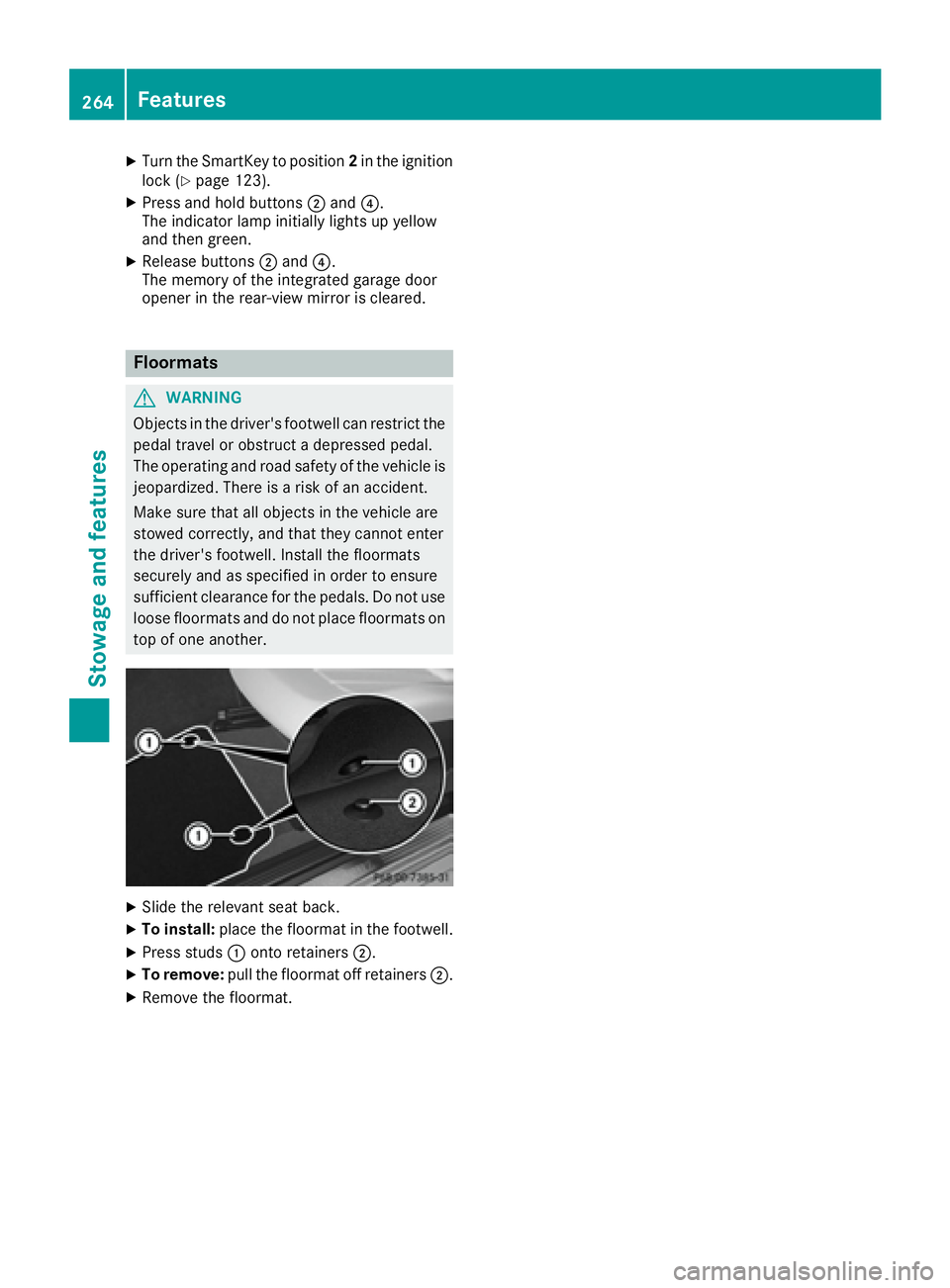
X
Turn the SmartKey to position 2 in the ignition
lock ( Y
page 123).X
Press and hold buttons D and
Page 270 of 334
Additional service products
Import ant safety notes
G WARNIN G
Certain component s in th e engin e compart-
ment, suc h as th e engine, radiato r and part s
of th e exhaust system, can become ver y hot .
Working in th e engin e compartmen t poses a
ris k of injury.
Wher e possible, let th e engin e cool down and
touch only th e component s described in th e
following.
G WARNIN G
The engin e compartmen t contain s moving
components. Certain components, suc h as
th e radiato r fan , may continu e to run or start
again suddenly when th e ignition is off . There
is a ris k of injury.
If you need to do any wor k inside th e engin e
compartment: R
switch off th e ignitionR
never reac h int o th e area wher e there is a
ris k of danger from moving components,
suc h as th e fan rotation areaR
remove jewelr y and watchesR
keep items of clothing and hair , for exam-
ple, away from moving part s
G WARNIN G
The coolin g system is pressurized, particularly
when th e motor is warm . If you open th e cap ,
you could be scalded if hot coolan t sprays out .
There is a ris k of injury.
Let th e engin e cool down before you open th e
cap . Wear gloves and eye protection . Slowly
open th e cap to reliev e pressure.
G WARNIN G
Opening th e hoo d when th e engin e is over-
heated or when there is a fir e in th e engin e
compartmen t could expos e you to hot gase s
or other servic e products . There is a ris k of
injury. Let an overheate d engin e cool down before
opening th e hood. If there is a fir e in th e
engin e compartment, keep th e hoo d closed
and contact th e fir e department.
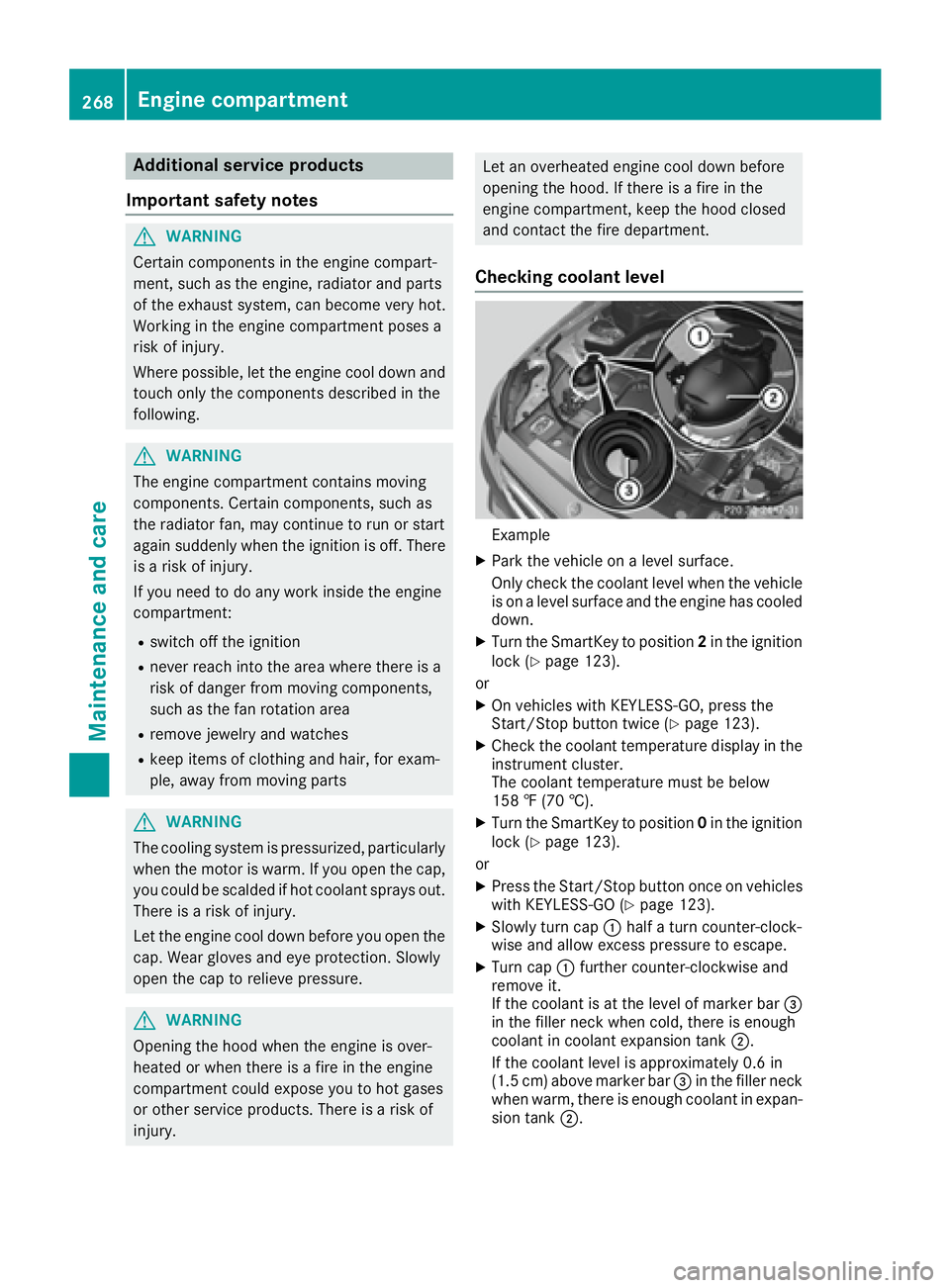
Checking coolant level
Exampl e X
Park th e vehicl e on a level surface.
Only chec k th e coolan t level when th e vehicl e
is on a level surfac e and th e engin e has cooled
down . X
Turn th e SmartKey to position 2 in th e ignition
loc k ( Y
page 123).
or X
On vehicles wit h KEYLESS-GO , press th e
Start/Sto p butto n twice ( Y
page 123).X
Chec k th e coolan t temperature display in th e
instrumen t cluster.
The coolan t temperature mus t be belo w
15 8 ‡ (70 †). X
Turn th e SmartKey to position 0 in th e ignition
loc k ( Y
page 123).
or X
Press th e Start/Sto p butto n once on vehicles
wit h KEYLESS-GO ( Y
page 123).X
Slowly tur n cap C half a tur n counter-clock -
wise and allow excess pressur e to escape.X
Turn cap C further counter-clockwise and
remove it .
If th e coolan t is at th e level of marke r bar