ECO mode MERCEDES-BENZ CLS-Class 2016 W218 Comand Manual
[x] Cancel search | Manufacturer: MERCEDES-BENZ, Model Year: 2016, Model line: CLS-Class, Model: MERCEDES-BENZ CLS-Class 2016 W218Pages: 246, PDF Size: 6.72 MB
Page 94 of 246
RUSA: view the vicinity of the destination if
street images are available and mbrace is
activated for Internet access
(
Ypage 148)
RCanada: view the vicinity of the destina-
tion if street images are available and a
mobile phone is connected to COMAND
via Bluetooth
®(Ypage 114) or USB
(
Ypage 196)
RUSA: download data from the Internet if
an Internet address is available and
mbrace is activated for Internet access
(
Ypage 114).
RCanada: download data from the Internet
if an Internet address is available and a
mobile phone is connected to COMAND
via Bluetooth
®(Ypage 114) or USB
(
Ypage 196).
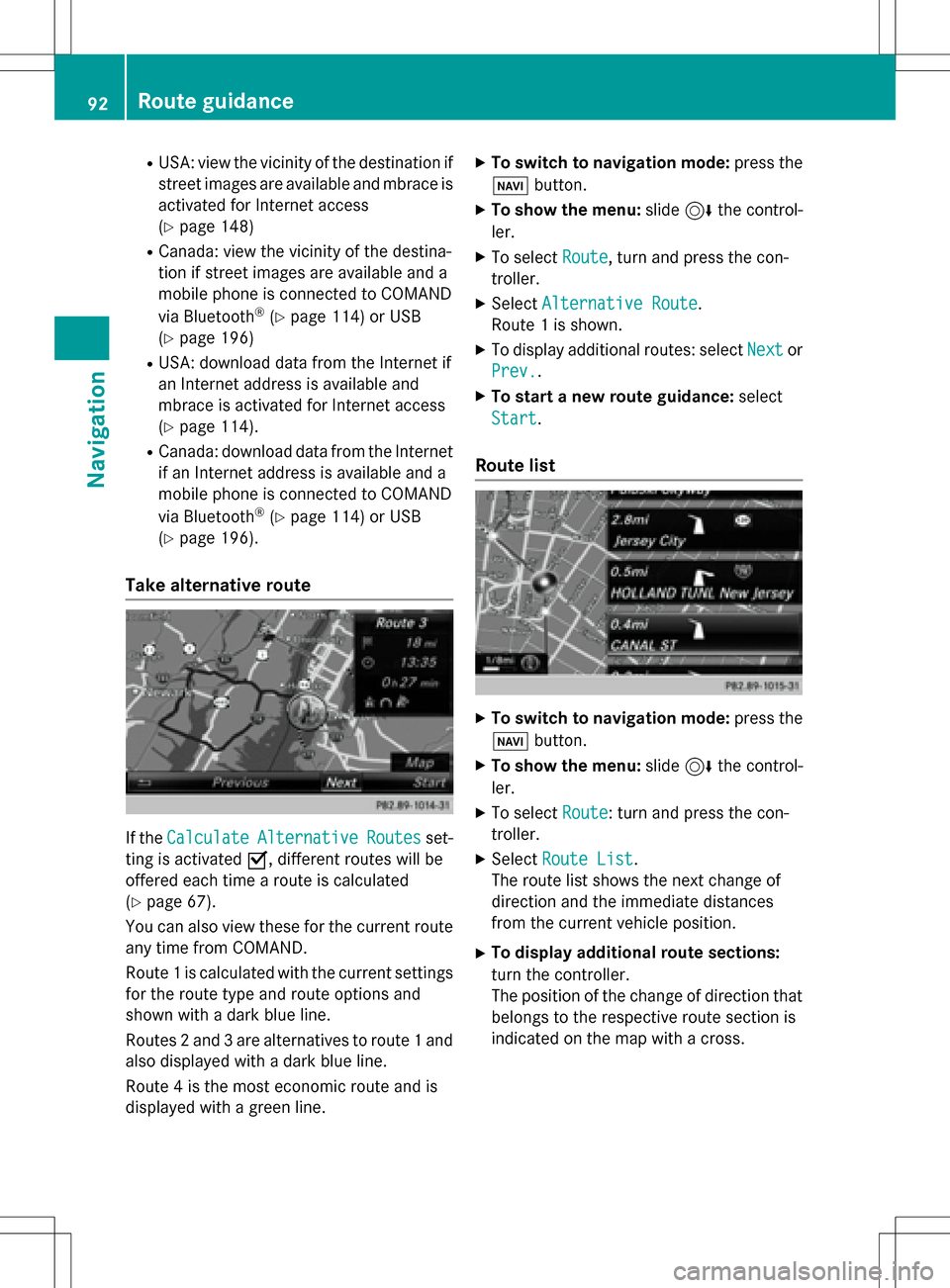
Take alternative route
If the CalculateAlternativeRoutesset-
ting is activated O, different routes will be
offered each time a route is calculated
(
Ypage 67).
You can also view these for the current route
any time from COMAND.
Route 1 is calculated with the current settings
for the route type and route options and
shown with a dark blue line.
Routes 2 and 3 are alternatives to route 1 and
also displayed with a dark blue line.
Route 4 is the most economic route and is
displayed with a green line.
XTo switch to navigation mode: press the
Ø button.
XTo show the menu: slide6the control-
ler.
XTo select Route, turn and press the con-
troller.
XSelect Alternative Route.
Route 1 is shown.
XTo display additional routes: select Nextor
Prev.
.
XTo start a new route guidance: select
Start
.
Route list
XTo switch to navigation mode: press the
Ø button.
XTo show the menu: slide6the control-
ler.
XTo select Route: turn and press the con-
troller.
XSelect Route List.
The route list shows the next change of
direction and the immediate distances
from the current vehicle position.
XTo display additional route sections:
turn the controller.
The position of the change of direction that
belongs to the respective route section is
indicated on the map with a cross.
92Route guidance
Navigation
Page 99 of 246

Activating/deactivating traffic informa-
ti on on themap
You can switch th efollowin gtraffic informa-
tion on th emap on/off :
RIncidents
RSpeed&Flo w
RFree Flo w
XTo switch to navigation mode: press th e
Ø button.
XTo sho wthemenu: slide 6thecontroller .
XTo selectTraffic:tur nand press th econ-
troller .
XTo select TrafficInformationOnMap:
tur nand press th econtroller .
XSelectIncidents,Speed&Flo worFre e
Flow.
The display is on Oor off ª.
Reading out traffic rep ortson the
rou te
Introd uction
The read-aloud function is only available while
routeguidance is active .It read sout traffic
report saffecting th ecurren troute.
You can select from th efollowin gte xt reader
properties:
RLanguage (Ypage 48)
RTextreader spee d (Ypage 44)
You can start th ete xt reader function man -
ually or set it to automatic.
Starting the text reader function man-
ually
XTo switch to navigation mode: press th e
Ø button.
XTo sho wthemenu: slide 6thecontroller .
XTo selectTraffic:tur nand pre ssthecon-
troller .
XSelectRea dOut All Messages on
Route.
COMAND read sout th ereport sin
sequence.
If there are no report sfor th eroute, th e
Rea d
OutAllMessagesonRoutemen u
item is gray and canno tbe selected.
XTo cance lth eread-aloud function :select
Cancel Read-Alou dFunction
.
COMAND read sout th ecurren treport and
then exit sth eread-aloud function .
Automa tic read-aloud function
XTo switch to navigation mode: pre ssthe
Ø button.
XTo sho wthemenu: slide 6thecontroller .
XTo selectTraffic:tur nand pre ssthecon-
troller .
XSelectRea dMessages Automaticall y.
Dependin gon th eprevious state,switch
th eoption on Oor off ª.
Recalculating the route dynamically
Rout etypes Dynami cTraffi cRouteand
Dynami c
TRF.RouteAfterReques ttake
int oaccoun tall of th etraffic report sthey
receiv efor th ecurren trout ewhen calculating
th erout e (
Ypage 66).
If you hav eselected DynamicTraffi c
Routeas therout etype, COMAND guide syou
to your destination alon gth eupdated route.
If you hav eselected th erout etyp eDynami c
TRF.Route After Reques t, aprompt will
first appear .
You can no wdecide whether to :
Raccept therout esuggested by COMAND
Rcontinu eyour original rout e
Real-time traffic reports97
Navigation
Z
Page 108 of 246
SIRIUS XM service
Displaying SIRIUS XM service informa-
tion
You can display the SIRIUS XM service infor-
mation.
XTo switch to navigation mode: press the
Ø button.
XTo show the menu: slide6the control-
ler.
XTo select Traffic: turn and press the con-
troller.
XSelect SIRIUS Service.
The provider's phone number (SIRIUS XM)
and the serial number of your service mod-
ule are displayed.
Registering the SIRIUS XM service
XCall the provider telephone number shown on the COMAND display.
iYou can also have the satellite service
activated online. To do so, visit the SIRIUS
XM Radio website at
http://www.sirius.com (USA).
Once the connection has been established:
XFollow the service employee's instructions.
The activation process may take up to
10 minutes.
If registration is not included when purchas-
ing the system, your credit card details will be
required to activate your account.
Updating the digital map
Introduction
The digital maps generated by the map soft-
ware become outdated in the same way as
conventional road maps. Optimal route guid-
ance can only be provided by the navigation
system in conjunction with the most up-to-
date map software.
Information about new versions of the digital
map can be obtained from an authorized Mercedes-Benz Center. You can have the dig-
ital map updated there using a data medium,
or you can update it yourself.
For North American countries, it is possible to
update the map data for COMAND free of
charge for a period of three years. Information
on the availability of this service for your vehi-
cle can be obtained from your authorized
Mercedes-Benz Center.
Entitlement to the free update
For the first three years after your vehicle is
registered, you are entitled to all available
updates to the map software for COMAND.
They are usually installed during a regular
vehicle service. After this period, you can pur-
chase further updates from your authorized
Mercedes-Benz Center.
The free updates relate to the vehicle and not
to an individual. If there is a change of own-
ership within the three years after first regis-
tration, the new owner is entitled to the map
software updates.
Updating at an authorized Mercedes-
Benz Center
If an update for your map software is availa-
ble, you will receive it free of charge at your
authorized Mercedes-Benz Center during
your vehicle's annual service. You can
arrange a separate appointment for this at
your authorized Mercedes-Benz Center on
request.
The update can only be performed:
Rat an authorized Mercedes-Benz Center
Rfor navigation data for North America
The map software is not provided on DVD.
Carrying out a manual update
After the free update of the map data has
expired or when buying map data, you can
update the data yourself.
The update process may take some time (up
to 45 minutes), depending on the size of the
106Map functions
Navigation
Page 114 of 246

Your COMANDequipment
i
These operatin ginstruction sdescribe all
th estandar dan doptional equipmen tof
your COMAN Dsystem, as available at th e
time of going to print .Country-specifi cdif -
ference sare possible. Bear in min dthat
your vehicle may no tfeature all function s
described here. Thi salso applies to safety-
relevant systems an dfunctions.
iRead th einformation on qualified special-
ist workshop sin th evehicle Operator's
Manual.
Important safet ynotes
GWARNING
If you operat emobile communication equip-
men twhil edriving, you will be distracted from
traffic conditions. You could also los econtro l
of th evehicle. There is aris kof an accident.
Only operat ethis equipment when th evehicle
is stationary.
If you mak e acallon your mobile phone whil e
driving, always use hands-free mode. Only
use th emobile phone when road, weather
an dtraffic condition spermit .Some jurisdic -
tion sprohibi tth edriver from usin g amobile
phone whil edrivin g avehicle.
Bear in min dthat at aspeed of 30 mph
(approximately 50 km/h), th evehicle cover s
a distanc eof 44 feet (approximately 14 m)
per second.
Excessive levels of electromagnetic radiation
may cause damage to your health an dth e
health of others.
There is scientific discussio nsurroundin gth e
possible health risks posed by electromag-
neti cfields .You can reduce this ris kby usin g
an exterio rantenna.
Therefore, connec tyour mobile communica-
tion sequipmen tto th evehicle' sexterio r
antenn awhereve rpossible.
General notes
Telephon y
The Bluetoot h®interface on COMAN Dis
available fo rtelephony.
If your mobile phone supports th eBluetoot h
®
profilePBAP (Phone Book Access Profile),th e
contact sare automatically displaye din
COMAND.
You can use th etext messag ean de-mail
function sif your mobile phone supports th e
MA PBluetoot h
®profile (Messag eAccess
P rofile). Observ eth eother requirements fo r
th ee-mail an dtext messag efunction s
(
Ypage 138).
Wit h a suitable mobile phone ,you can use th e
hands-free syste man dreceiv evCards via th e
Bluetoot h
®interface .
You can obtain more information about suit -
able mobile phone son th eInternet at
www.mercedes-benz-mobile.com .
You can also obtain more information by call-
ing.
In th eUSA, you can get in touch wit hth e
Mercedes-Ben zCustomer Assistanc eCente r
on 1-800-FOR-MERCede s(1-800-367-6372).
In Canada, you can get in touch with the Cus-
tomer Relations Center on 1-800-387-0100.
Call disconnection while the vehicle is
in motion
A call may be disconnected if:
Rthere is insufficient network coverage in
certain areas.
Ryou move from one transmitter/receiver
area (cell) into another and no channels are
free.
Ryou use a SIM card that is not compatible
with the network available.
112General notes
Telephone
Page 158 of 246

Displaying destinations in thevehicle
XTo cal lup th etelephon emenu: press th e
% button.
XTo switch to th emain function bar :slid e
5 thecontroller .
XTo selectTEL /®: press th econtroller .
XTo selectInternet:turn and press th e
controller .
The men uwit hth eInternet function sis dis -
played .
XTo selec tMercedes-Ben zApp s:turn and
press th econtroller .
XTo selectDownload POI:turn and press
th econtroller .
Availabl edestination sare shown in th elist .
XTo selec tand download adestination :turn
and press th econtroller .
XTo exit destination download :selec tClose.
Further information on how to use th edesti -
nation fo rrout eguidanc e (
Ypage 156).
Further information on importing th edesti -
nation (
Ypage 157).
Further information on deleting th edestina-
tion (
Ypage 157).
You can sav eup to 50 destination sfo ryour
vehicle on th eserver and display these in th e
list .If you sen dfurther destination sto th e
server ,th eoldest entries are delete dfrom th e
list .
Usin gdestinations
Displaying detail s
XDisplay thedestination in th evehicle
(
Ypage 156).
XTo highlight adestination :turn th econtrol-
ler .
XTo selec tG: slide9 thecontroller .
XTo selectDetail s:turn and press th econ-
troller.
The destination address is shown .
Using adestination for rout eguidance
XDisplay th edestination in th evehicle
(
Ypage 156).
XTo highlight adestination :turn th econtrol-
ler .
XTo selec tG: slide9 thecontroller .
XTo selectSet as Destination:turn and
press th econtroller .
You then switch to navigation mode and
can start rout ecalculation .
The destination is entered in th elist of last
destinations.
Calling up th edestination
You can use th efunction if:
Ramobile phone is connecte d
(
Ypage 114)
Rth edestination address contain s atele-
phone number
156Destination/route download
Online and Internet functions
Page 168 of 246
Your COMANDequipment
i
These operatin ginstruction sdescribe all
th estandar dan doptional equipmen tof
your COMAN Dsystem, as available at th e
time of going to print .Country-specifi cdif -
ference sare possible. Bear in min dthat
your vehicle may no tfeature all function s
described here. Thi salso applies to safety-
relevant systems an dfunctions.
iRead th einformation on qualified special-
ist workshop sin th evehicle Operator's
Manual.
Switchin gon th eradi o
XPress th e$ button.
The radio display appears .You will hear th e
last station playe don th elast waveban d
selected.
Switching HD Radi oon/of f
XIn radio mode: slid e6 thecontroller .
XSelectOption s.
XBy selecting Oorª befor eHDRadi o,you
determin ewhether HD radio is switched on
or off.
If HD radio is switched off, th esyste mdoe s
no tswitch to digita lradio an dit is no tpossible
to selec tan ysub-channels.
iHD Radio ™Technology Manufactured
Under License From iBiquit yDigital Corp.
U.S. an dForeign Patents .The HD an dHD
Radio logos are proprietary trademark sof
iBiquit yDigital Corp.
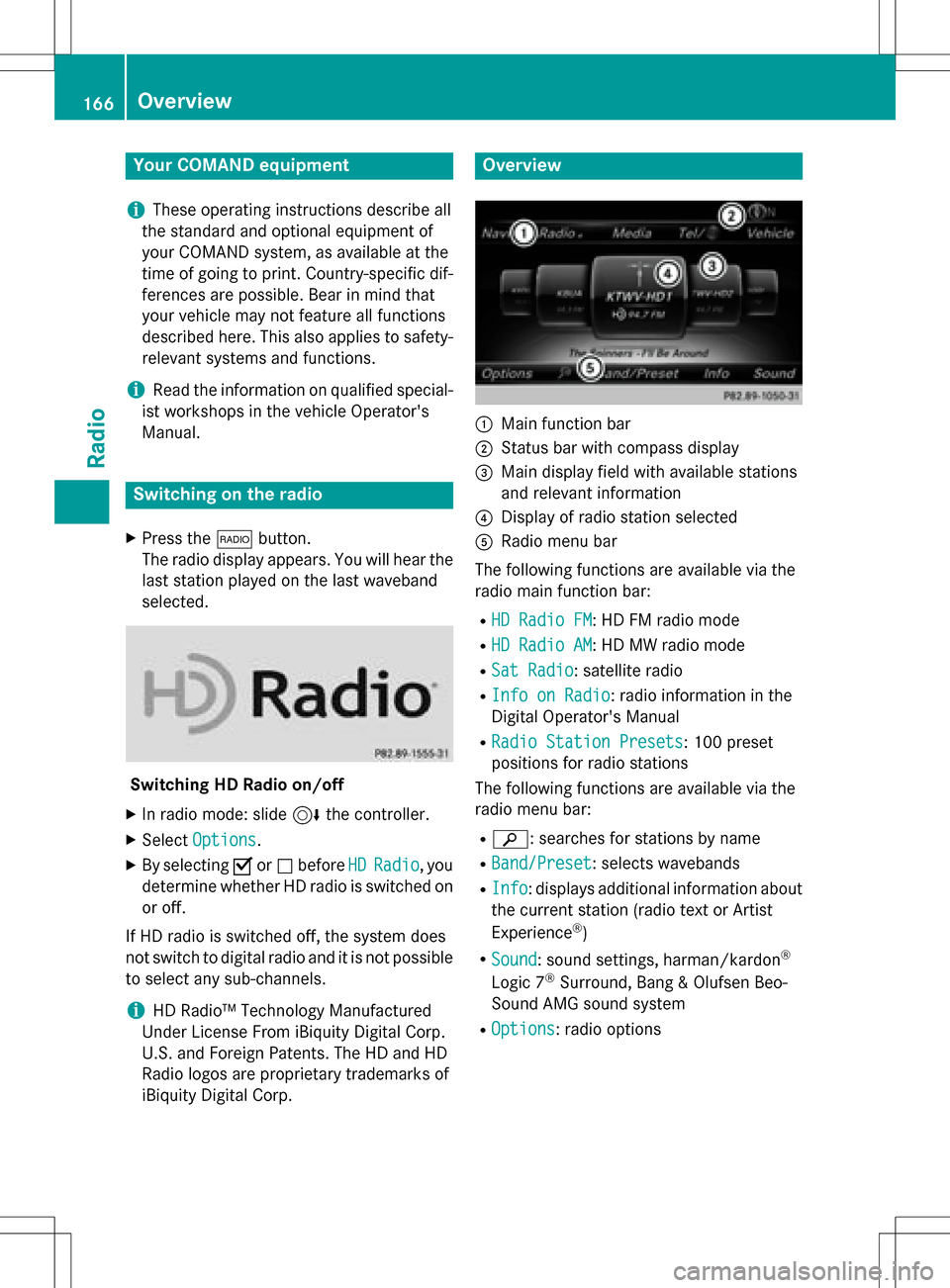
Overview
:Main function bar
;Status bar wit hcompass display
=Main display field wit havailable station s
an drelevant information
?Display of radio station selecte d
ARadio menubar
The followin gfunction sare available via th e
radio main function bar :
RHD RadioFM:HD FM radio mode
RHD Radi oAM:HD MW radio mode
RSa tRadi o:satellite radio
RInfo on Radi o:radio information in th e
Digital Operator's Manual
RRadi oStatio nPreset s:10 0preset
position sfo rradio station s
The followin gfunction sare available via th e
radio men ubar :
Rè: searches fo rstation sby name
RBand/Prese t:selects wavebands
RInfo:displays additional information about
th ecurren tstation (radio text or Artist
Experience
®)
RSoun d:soun dsettings, harman/kardon®
Logic 7®Surround ,Ban g & Olufsen Beo-
Sound AM Gsoun dsyste m
ROption s:radio option s
166Overview
Radio
Page 170 of 246
Saving/deleting a station
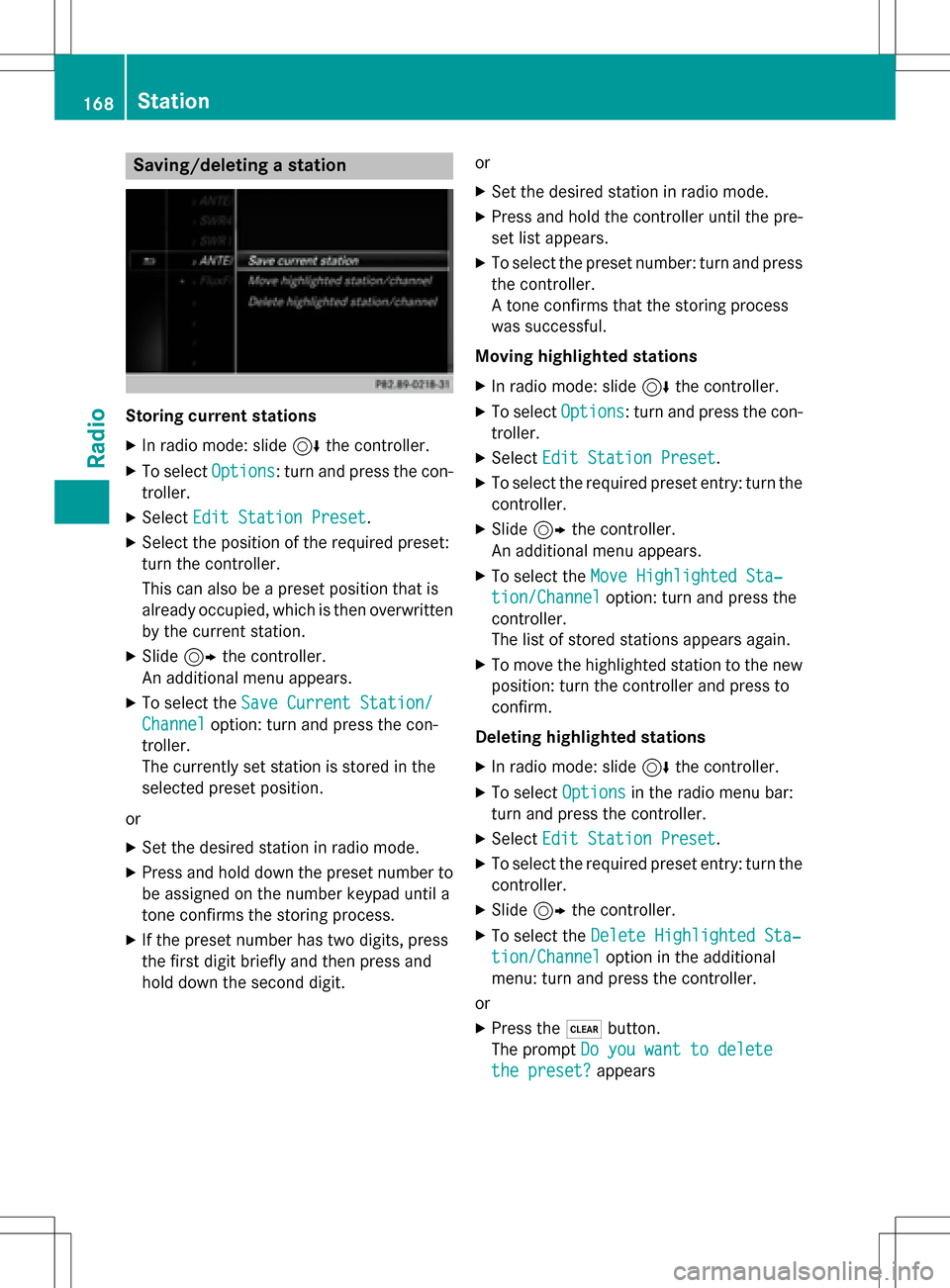
Storing current stations
XIn radio mode: slide6the controller.
XTo select Options: turn and press the con-
troller.
XSelect Edit Station Preset.
XSelect the position of the required preset:
turn the controller.
This can also be a preset position that is
already occupied, which is then overwritten
by the current station.
XSlide9the controller.
An additional menu appears.
XTo select the Save Current Station/
Channeloption: turn and press the con-
troller.
The currently set station is stored in the
selected preset position.
or
XSet the desired station in radio mode.
XPress and hold down the preset number to
be assigned on the number keypad until a
tone confirms the storing process.
XIf the preset number has two digits, press
the first digit briefly and then press and
hold down the second digit. or
XSet the desired station in radio mode.
XPress and hold the controller until the pre-
set list appears.
XTo select the preset number: turn and press
the controller.
A tone confirms that the storing process
was successful.
Moving highlighted stations
XIn radio mode: slide 6the controller.
XTo select Options: turn and press the con-
troller.
XSelect Edit Station Preset.
XTo select the required preset entry: turn the
controller.
XSlide9the controller.
An additional menu appears.
XTo select the Move Highlighted Sta‐
tion/Channeloption: turn and press the
controller.
The list of stored stations appears again.
XTo move the highlighted station to the new position: turn the controller and press to
confirm.
Deleting highlighted stations
XIn radio mode: slide 6the controller.
XTo select Optionsin the radio menu bar:
turn and press the controller.
XSelect Edit Station Preset.
XTo select the required preset entry: turn the
controller.
XSlide9the controller.
XTo select the Delete Highlighted Sta‐
tion/Channeloption in the additional
menu: turn and press the controller.
or
XPress the $button.
The prompt Do you want to delete
the preset?appears
168Station
Radio
Page 174 of 246

XFor the channel number, press the corre-
sponding number keys on the control panel
one after the other.
XPress thezkey on the number keypad.
COMAND sets the selected channel.
iYou can only select currently permitted
digits.
Selecting a channel via the satellite
radio station list
You can select the channel using the station
list displaying the artists and tracks that are
currently playing.
XTo select Optionsin the radio menu bar:
turn and press the controller.
XTo select Curr. Station List with
Artist & Title: turn and press the con-
troller.
The channel list appears.
or
XPress the controller in the main display
field.
XSelect the desired channel
Keyword search
XTo select the èkeyword search in the
menu bar: slide 6and turn the controller.
XTo enter the required search term: turn and
press the controller.
Direct and indirect results are shown.
XSelect the required result.
The relevant channel is played.
Memory functions
i
There are 100 presets available.
XTo store a channel using the edit func-
tion: select Options
in the radio menu bar
by turning and pressing the controller.
XTo select EditStationPreset: turn and
press the controller.
The list of saved channels appears.
XTo select the preset: turn the controller and
press for about 2 seconds.
The newly saved station overwrites the
existing preset.
or
XTo quick store: press and hold number key
2, for example.
The channel is saved to the second position
in the radio channel presets.
or
XSet the desired channel in satellite radio
mode.
XPress and hold the controller until the pre-
set list appears.
XTo select the preset number: turn and press
the controller.
A tone confirms that the storing process
was successful.
Deleting highlighted stations
XTo select Optionsin the radio menu bar:
turn and press the controller.
XSelect Edit Station Preset.
XTo select the required preset entry: turn the
controller.
172Satellite radio
Radio
Page 180 of 246
Your COMANDequipment
i
These operatin ginstruction sdescribe all
th estandar dan doptional equipmen tof
your COMAN Dsystem, as available at th e
time of going to print .Country-specifi cdif -
ference sare possible. Bear in min dthat
your vehicle may no tfeature all function s
described here. Thi salso applies to safety-
relevant systems an dfunctions.
iRead th einformation on qualified special-
ist workshop sin th evehicle Operator's
Manual.
Activating medi amode
General notes
There are severa lways to activat emedia
source susin gCOMAND.
The relevant section sof th eOperator's Man -
ual describe th esimples tway to activat e a
media source .
Thi ssection describes all option sfo ractivat -
in g media sources.
Button activation
XTo cal lup th emedia menu: press th eÕ
button.
The last media source you hav eset is dis -
played.
XPress th eÕ buttonagain .
The men uappears wit hth eavailable media
sources.
XTo selec tmedia sources: turn th econtroller
until th edesire dmedia source is in th ecen-
ter. Press th econtroller .
Dependin gon th evehicle equipment, th e
followin gmedia source swill be available :
RDisc
RMemory Car d
RMedia Interface 1
RMediaInterfac e 2
RBluetoothAudi o
If playable music files are found ,they will be
playe dby COMAND.
Switching on automatically
Whe nan external media source is connected,
CD an dSD memor ycar dfunction sare auto-
matically switched on by COMAND. Whe n
usin gUS Bdevices, switch to th eappropriat e
Media Interface 1or Media Interface 2basi c
display.
External media sources:
RApple®devices (e.g. iPhon e®)
RUSBdevices (e.g. US Bstick, MP3 player)
RCD
RDV D
RSD cards
Rvia devices connecte dby Bluetoot h®
If playable music files are found ,they will be
playe dby COMAND.
iIfamedia function is already switched on
in COMAND, this will be interrupted an dth e
basi cdisplay of th enewly connecte d
devic ewill appear (except when usin gwit h
USB/iPo d
®).
If another function ,suc has navigation ,is
operating, th ebasi cdisplay will no tchange.
Only th emusic from th enewly connecte d
media source will play (except when usin g
wit hUSB/iPo d
®).
178Activating media mode
Media
Page 184 of 246

CRemaining playingtime of th ecurren t
track
DElapse dplaybac ktime for th ecurren t
track
EGraphic time display
FAlbum cover (if available)
Inserting and removing adis c fr om
th esingle CD/DVD dr ive
XTo insert:press theþ buttonon th e
single drive.
If there is adisc already inserted, it will be
ejected.
XInser t adisc into th edisc slot wit hth eprin-
te dside facin gupwards.
The drive closes and th edisc is played .
If th eCD/DV Dis operate din Medi amode,
th ecorrespondin gbasic men uwill be
shown. If th eCD/DV Dis started usin g
another application (e.g. navigation), th e
display will no tchange.
iThe drive may no tbe able to play disc s
wit hcopy protection .
XTo remove:press theþ button.
The drive ejects th edisc .
XRemove th eejecte ddisc from th eslot .
If you do no ttak eth edisc out of th eslot ,it
is draw nin again automatically after ashort
while .
Inserting discs int oth eDVD changer
The DV Dchanger has amagazine wit hsix
trays.
XTo inser tth eCD/DVD int oth emaga-
zin etray :press th eV button.
The magazine men uappears.
XTo select th emagazine tray to be filled:
tur nand press th econtroller or press th e
number buttons (1-6) on COMAND .
The DV Dchanger switches to th eselected
magazine tray.
The Please Wait.. .
message appears.
You will then see th ePlease insert
dis c1.message .
XInsert adisc into th edisc slot wit hth eprin-
te dside facin gupwards.
XTo load all empt ymagazine trays: press
th eV button
The magazine men uappears.
XTo select LoadEmpty Slots:slid e6,
tur nand press th econtroller .
COMAND switches to th enext empty mag -
azine tray.
The Please Wait.. .
message appears.
You will then see th ePlease insert
dis c1.message .
182Audio/video mode
Media