radio MERCEDES-BENZ CLS-Class 2016 W218 Comand Manual
[x] Cancel search | Manufacturer: MERCEDES-BENZ, Model Year: 2016, Model line: CLS-Class, Model: MERCEDES-BENZ CLS-Class 2016 W218Pages: 246, PDF Size: 6.72 MB
Page 5 of 246
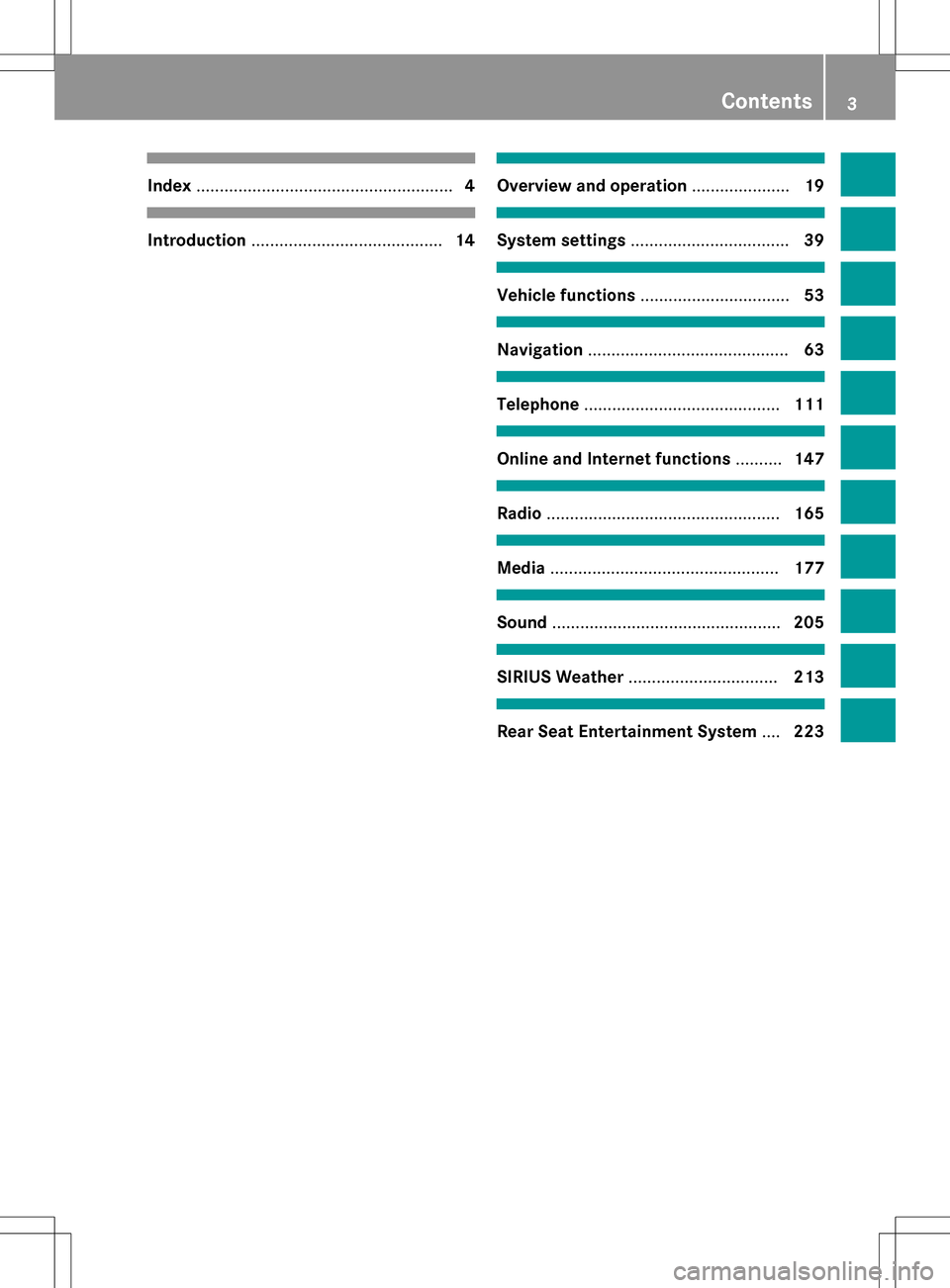
Index....................................................... 4
Introduction......................................... 14
Overview and operation.....................19
System settings .................................. 39
Vehicle functions................................ 53
Navigation........................................... 63
Telephone.......................................... 111
Online and Internet functions ..........147
Radio.................................................. 165
Media................................................. 177
Sound................................................. 205
SIRIUS Weather................................ 213
Rear Seat Entertainment System ....223
Contents3
Page 11 of 246
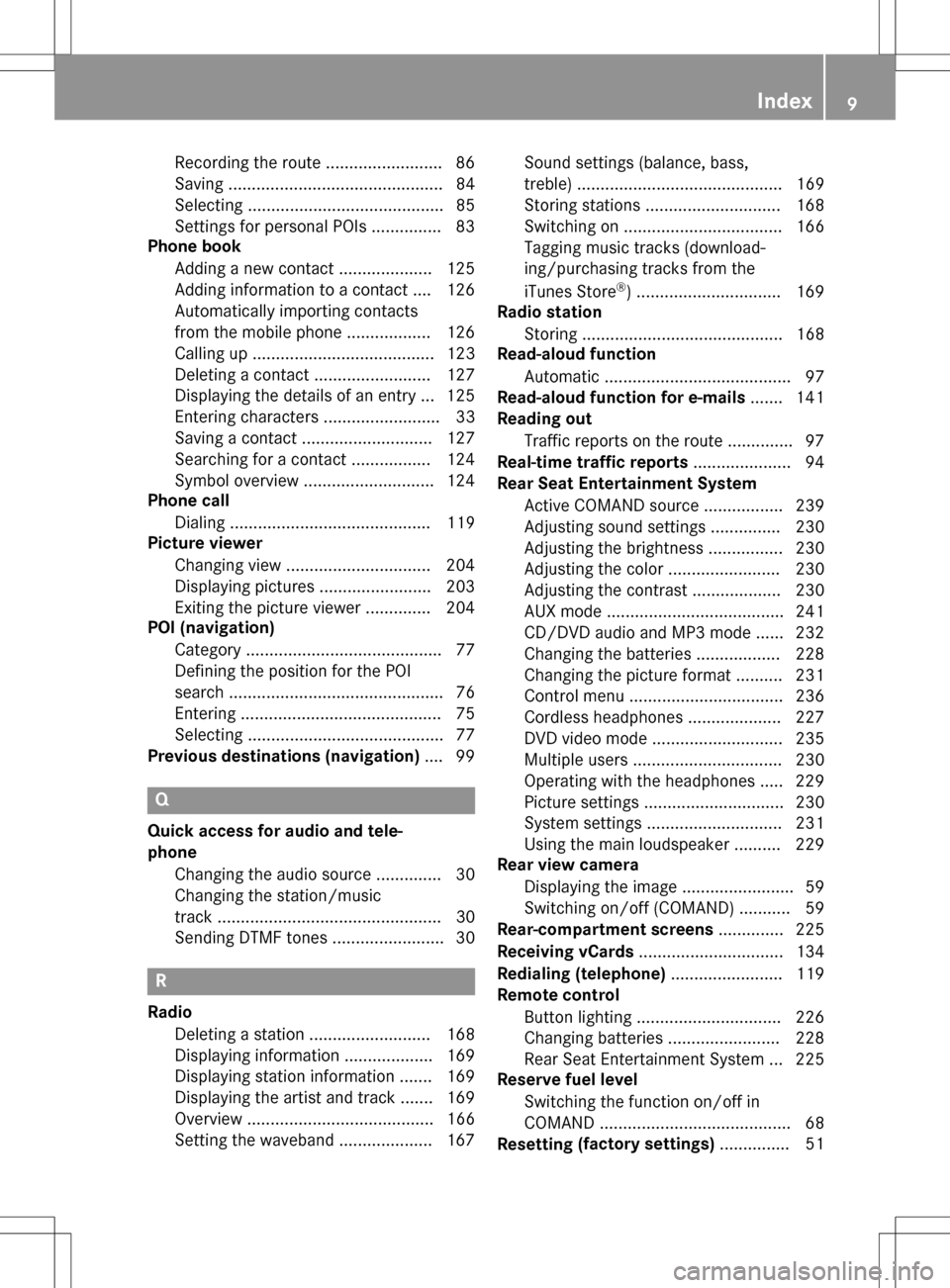
Recordingth erout e........................ .86
Saving .............................................. 84
Selecting .......................................... 85
Settings for personal POIs ............... 83
Phone book
Adding a new contact .................... 125
Adding information to a contact .... 126
Automatically importing contacts
from the mobile phone .................. 126
Calling up ....................................... 123
Deleting a contact ......................... 127
Displaying the details of an entry ... 125
Entering characters ......................... 33
Saving a contact ............................ 127
Searching for a contact ................. 124
Symbol overview ............................ 124
Phone call
Dialing ........................................... 119
Picture viewer
Changing view ............................... 204
Displaying pictures ........................ 203
Exiting the picture viewer .............. 204
POI (navigation)
Category .......................................... 77
Defining the position for the POI
search .............................................. 76
Entering ........................................... 75
Selecting .......................................... 77
Previous destinations (navigation) .... 99
Q
Quick access for audio and tele-
phone
Changing the audio source .............. 30
Changing the station/music
track ................................................ 30
Sending DTMF tones ........................ 30
R
RadioDeleting a station .......................... 168
Displaying information ................... 169
Displaying station information ....... 169
Displaying the artist and track ....... 169
Overview ........................................ 166
Setting the waveband .................... 167 Sound settings (balance, bass,
treble) ............................................ 169
Storing stations ............................. 168
Switching on .................................. 166
Tagging music tracks (download-
ing/purchasing tracks from the
iTunes Store
®) ............................... 169
Radio station
Storing ........................................... 168
Read-aloud function
Automatic ........................................ 97
Read-aloud function for e-mails ....... 141
Reading out
Traffic reports on the route .............. 97
Real-time traffic reports ..................... 94
Rear Seat Entertainment System
Active COMAND source ................. 239
Adjusting sound settings ............... 230
Adjusting the brightness ................ 230
Adjusting the color ........................ 230
Adjusting the contrast ................... 230
AUX mode ...................................... 241
CD/DVD audio and MP3 mode ...... 232
Changing the batteries .................. 228
Changing the picture format .......... 231
Control menu ................................. 236
Cordless headphones .................... 227
DVD video mode ............................ 235
Multiple users ................................ 230
Operating with the headphones ..... 229
Picture settings .............................. 230
System settings ............................. 231
Using the main loudspeaker .......... 229
Rear view camera
Displaying the image ........................ 59
Switching on/off (COMAND) ........... 59
Rear-compartment screens .............. 225
Receiving vCards ............................... 134
Redialing (telephone) ........................ 119
Remote control
Button lighting ............................... 226
Changing batteries ........................ 228
Rear Seat Entertainment System ... 225
Reserve fuel level
Switching the function on/off in
COMAND ......................................... 68
Resetting (fac
tory settings)
............... 51
Index9
Page 12 of 246
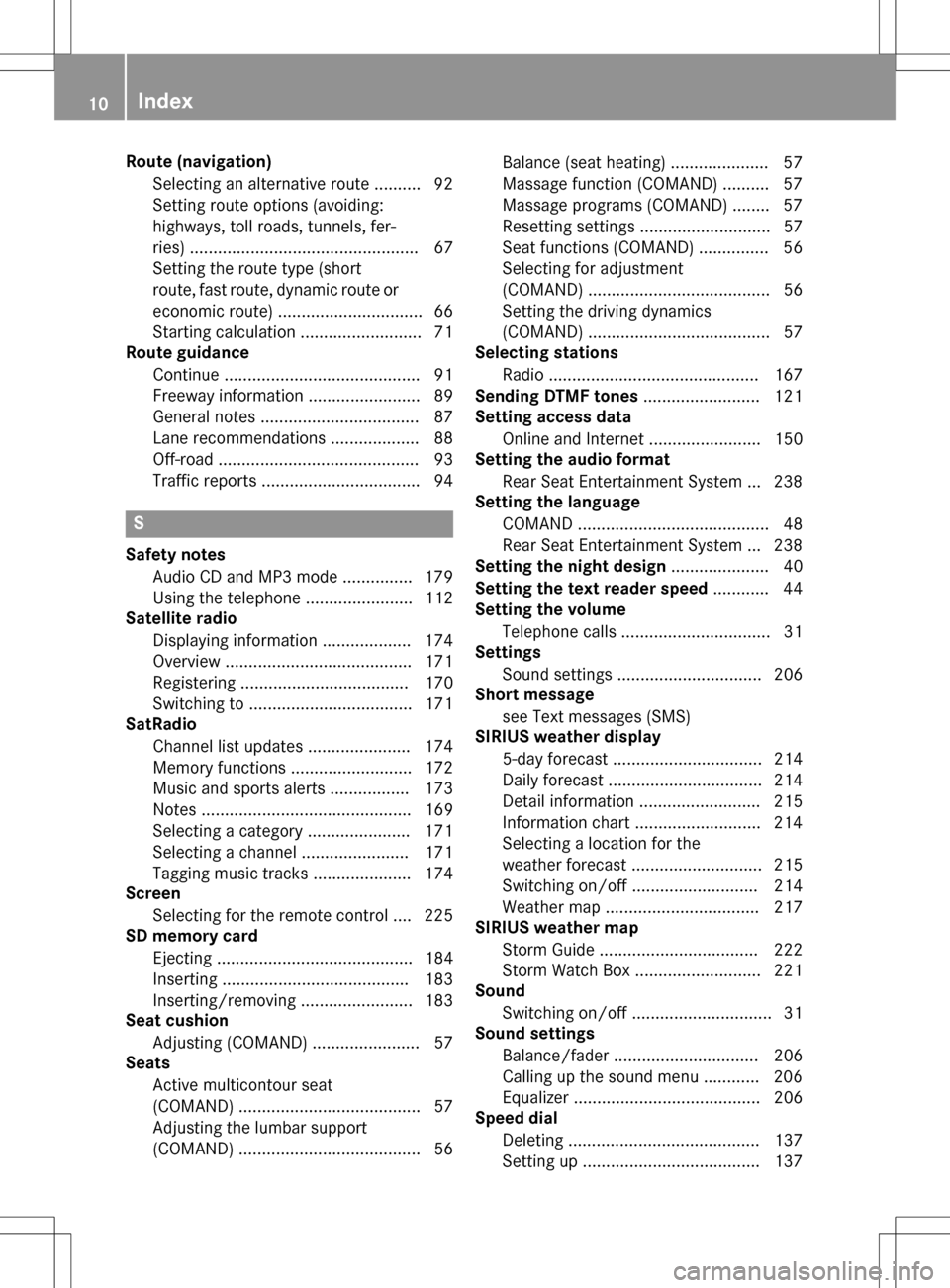
Route (navigation)Selecting an alternative route .......... 92
Setting route options (avoiding:
highways, toll roads, tunnels, fer-
ries) ................................................. 67
Setting the route type (short
route, fast route, dynamic route or
economic route) ............................... 66
Starting calculation .......................... 71
Route guidance
Continue .......................................... 91
Freeway information ........................ 89
General notes .................................. 87
Lane recommendations ................... 88
Off-road ........................................... 93
Traffic reports .................................. 94
S
Safety notesAudio CD and MP3 mode ............... 179
Using the telephone ....................... 112
Satellite radio
Displaying information ................... 174
Overview ........................................ 171
Registering .................................... 170
Switching to ................................... 171
SatRadio
Channel list updates ...................... 174
Memory functions .......................... 172
Music and sports alerts ................. 173
Notes ............................................. 169
Selecting a category ...................... 171
Selecting a channel ....................... 171
Tagging music tracks ..................... 174
Screen
Selecting for the remote control .... 225
SD memory card
Ejecting .......................................... 184
Inserting ........................................ 183
Inserting/removing ........................ 183
Seat cushion
Adjusting (COMAND) ....................... 57
Seats
Active multicontour seat
(COMAND) ....................................... 57
Adjusting the lumbar support
(COMAND) ....................................... 56 Balance (seat heating) ..................... 57
Massage function (COMAND) .......... 57
Massage programs (COMAND) ........ 57
Resetting settings ............................ 57
Seat functions (COMAND) ............... 56
Selecting for adjustment
(COMAND) ....................................... 56
Setting the driving dynamics
(COMAND) ....................................... 57
Selecting stations
Radio ............................................. 167
Sending DTMF tones ......................... 121
Setting access data
Online and Internet ........................ 150
Setting the audio format
Rear Seat Entertainment System ... 238
Setting the language
COMAND ......................................... 48
Rear Seat Entertainment System ... 238
Setting the night design ..................... 40
Setting the text reader speed ............ 44
Setting the volume
Telephone calls ................................ 31
Settings
Sound settings ............................... 206
Short message
see Text messages (SMS)
SIRIUS weather display
5-day forecast ................................ 214
Daily forecast ................................. 214
Detail information .......................... 215
Information chart ........................... 214
Se
lecting a location for the
weather forecast ............................ 215
Switching on/off ........................... 214
Weather map ................................. 217
SIRIUS weather map
Storm Guide .................................. 222
Storm Watch Box ........................... 221
Sound
Switching on/off .............................. 31
Sound settings
Balance/fader ............................... 206
Calling up the sound menu ............ 206
Equalizer ........................................ 206
Speed dial
Deleting ......................................... 137
Setting up ...................................... 137
10Index
Page 13 of 246
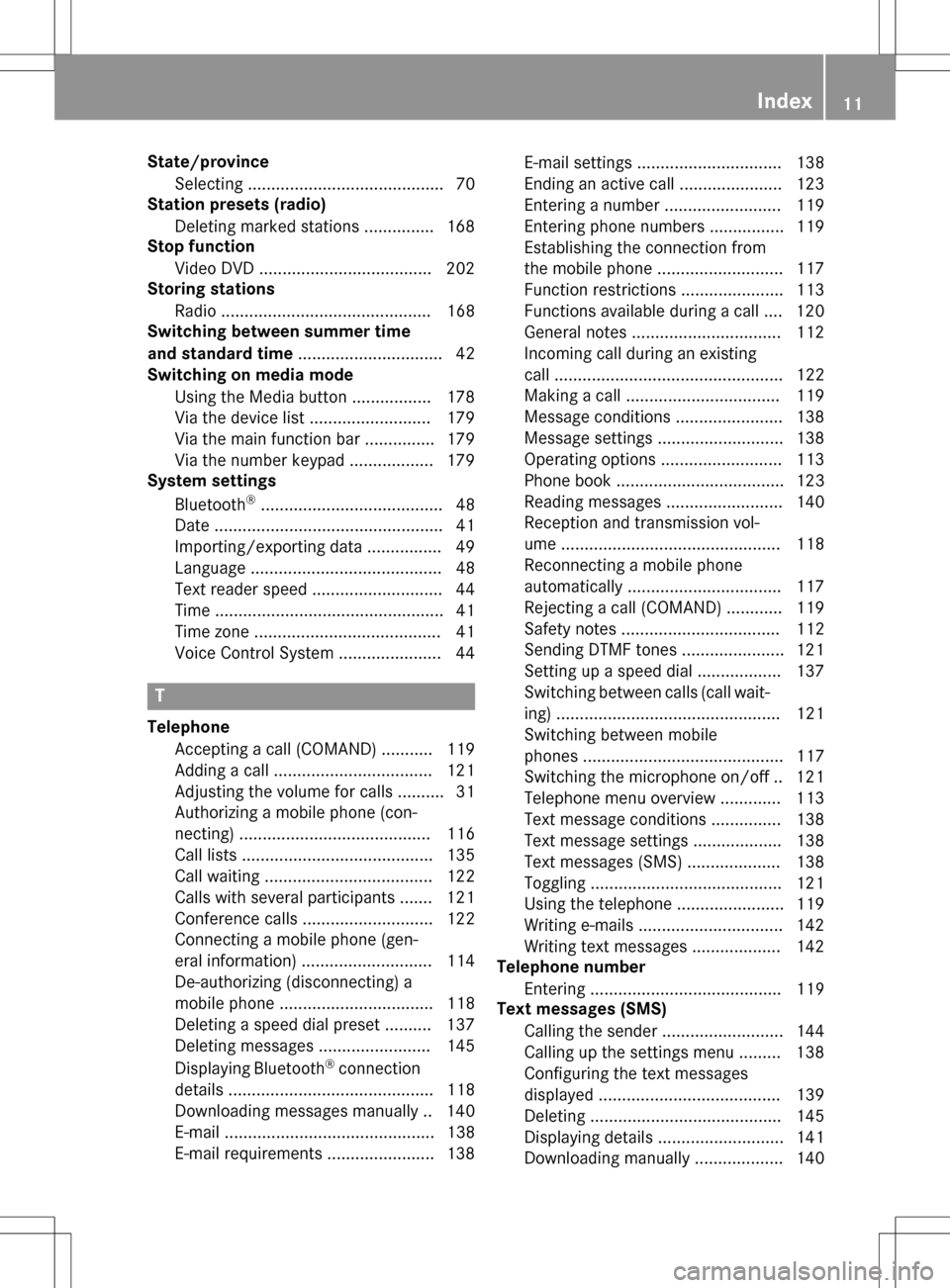
State/provinceSelecting .......................................... 70
Station presets (radio)
Deleting marked stations ............... 168
Stop function
Video DVD .....................................2 02
Storing stations
Radio ............................................. 168
Switching between summer time
and standard time ............................... 42
Switching on media mode
Using the Media button ................. 178
Via the device list .......................... 179
Via the main function bar ............... 179
Via the number keypad .................. 179
System settings
Bluetooth
®....................................... 48
Date ................................................. 41
Importing/exporting data ................ 49
Language ......................................... 48
Text reader speed ............................ 44
Time ................................................. 41
Time zone ........................................ 41
Voice Control System ...................... 44
T
Telephone
Accepting a call (COMAND) ........... 119
Adding a call .................................. 121
Adjusting the volume for calls .......... 31
Authorizing a mobile phone (con-
necting) ......................................... 116
Call lists ......................................... 135
Call waiting .................................... 122
Calls with several participants ....... 121
Conference calls ............................ 122
Connecting a mobile phone (gen-
eral information) ............................ 114
De-authorizing (disconnecting) a
mobile phone ................................. 118
Deleting a speed dial preset .......... 137
Deleting messages ........................ 145
Displaying Bluetooth
®connection
details ............................................ 118
Downloading messages manually .. 140
E-mail ............................................. 138
E-mail requirements ....................... 138 E-mail settings ............................... 138
Ending an active call ...................... 123
Entering a number ......................... 119
Entering phone numbers ................ 119
Establishing the connection from
the mobile phone ........................... 117
Function restrictions ...................... 113
Functions available during a call .... 120
General notes ................................ 112
Incoming call during an existing
call ................................................. 122
Making a call ................................. 119
Message conditions ....................... 138
Message settings ........................... 138
Operating options .......................... 113
Phone book .................................... 123
Reading messages ......................... 140
Reception and transmission vol-
ume ............................................... 118
Reconnecting a mobile phone
automatically ................................. 117
Rejecting a call (COMAND) ............ 119
Safety notes .................................. 112
Sending DTMF tones ...................... 121
Setting up a speed dial .................. 137
Switching between calls (call wait-
ing) ................................................ 121
Switching between mobile
phones ........................................... 117
Switching the microphone on/of
f..1 21
Telephone menu overview ....... ...... 113
Text message condi
tions ...............1 38
Text message settings ................... 138
Text messages (SMS) .................... 138
Toggling ......................................... 121
Using the telephone ....................... 119
Writing e-mails ............................... 142
Writing text messages ................... 142
Telephone number
Entering ......................................... 119
Text messages (SMS)
Calling the sender .......................... 144
Calling up the settings menu ......... 138
Configuring the text messages
displayed ....................................... 139
Deleting ......................................... 145
Displaying details ........................... 141
Downloading manually ................... 140
Index11
Page 16 of 246
Operating safety
Important safety notes
GWARNING
Modifications to electronic components, their software as well as wiring can impair their
function and/or the function of other net-
worked components. In particular, systems
relevant to safety could also be affected. As a
result, these may no longer function as inten-
ded and/or jeopardize the operating safety of
the vehicle. There is an increased risk of an
accident and injury.
Never tamper with the wiring as well as elec-
tronic components or their software. You
should have all work to electrical and elec-
tronic equipment carried out at a qualified
specialist workshop.
If you make any changes to the vehicle elec-
tronics, the general operating permit is ren-
dered invalid.
GWARNING
If you operate information systems and com-
munication equipment integrated in the vehi-
cle while driving, you will be distracted from
traffic conditions. You could also lose control
of the vehicle. There is a risk of an accident.
Only operate the equipment when the traffic
situation permits. If you are not sure that this
is possible, park the vehicle paying attention
to traffic conditions and operate the equip-
ment when the vehicle is stationary.
You must observe the legal requirements for
the country in which you are currently driving
when operating COMAND.
COMAND calculates the route to the destina-
tion without taking account of the following,
for example:
Rtraffic lights
Rstop and yield signs
Rmerging lanes
Rparking or stopping in a no parking/no
stopping zone
Rother road and traffic rules and regulations
Rnarrow bridges
COMAND can give incorrect navigation com-
mands if the actual street/traffic situation
does not correspond with the digital map's
data. Digital maps do not cover all areas nor
all routes in an area. For example, a route may
have been diverted or the direction of a one-
way street may have changed.
For this reason, you must always observe
road and traffic rules and regulations during
your journey. Road and traffic rules and reg-
ulations always have priority over the sys-
tem's driving recommendations.
Navigation announcements are intended to
direct you while driving without diverting your
attention from the road and driving.
Please always use this feature instead of con-
sulting the map display for directions. Look-
ing at the icons or map display can distract
you from traffic conditions and driving, and
increase the risk of an accident.
Bear in mind that at a speed of only 30 mph
(approximately 50 km/h) your vehicle covers
a distance of 44 feet (approximately 14 m)
per second.
This equipment complies with FCC radiation
exposure limits set forth for uncontrolled
equipment and meets the FCC radio fre-
quency (RF) Exposure Guidelines in Supple-
men
t C to OET65.
This equipment has very low levels of RF
energy that is deemed to comply without
maximum permissive exposure evaluation
(MPE). But it is desirable that it should be
installed and operated with at least 8inches
(20 cm) and more between the radiator and a
person's body (excluding extremities: hands,
wrists, feet and legs.)
14Introduction
Page 17 of 246

Declarations of conformity
Vehicl ecomponent swhich receive
and/o rtransmit radi owaves
USA only :The wireles sdevices of this vehicle
compl ywit hPar t15 of th eFCC Rules .Oper-
ation is subjec tto th efollowing tw ocondi-
tions:
1) These devices may no tcaus einterference,
and
2) These devices mus taccept any interfer-
ence ,includin ginterferenc ethat may caus e
undesired operation of th edevice.
Changes or modification sno texpressl y
approved by th eparty responsible fo rcom-
pliance could void th euser's authorit yto
operat eth eequipment.
Canad aonly :The wireles sdevices of this
vehicle compl ywit hIndustry Canada license-
exemp tRSS standard(s) .Operation is subjec t
to th efollowing tw oconditions:
1) These devices may no tcaus einterference,
and
2) These devices mus taccept any interfer-
ence ,includin ginterferenc ethat may caus e
undesired operation of th edevice.
Correct us e
GWARNING
Modification sto electronic components, their
software as well as wirin gcan impair their
function and/o rth efunction of other net-
worke dcomponents. In particular, systems
relevant to safet ycould also be affected. As a
result ,these may no longer function as inten-
ded and/o rjeopardiz eth eoperatin gsafet yof
th evehicle. There is an increase dris kof an
acciden tand injury.
Never tampe rwit hth ewirin gas well as elec -
tronic component sor their software .You
should hav eall wor kto electrical and elec -
tronic equipmen tcarrie dout at aqualified
specialis tworkshop .
Observeth efollowing information when usin g
COMAND:
Rth esafet ynote sin this manual
Rtraffic rule sand regulation s
Rlaws and safet ystandard spertainin gto
moto rvehicles
Roof antenna functionalit y(telephone, satel-
lit eradio, GPS )can be affecte dby th euse of
roof carrie rsystems .
Attachin gmetalized retrofit fil mto th ewind-
shield may affec tradio reception and hav e a
negative impact on all other antennas (e.g.
emergency antenna) in th evehicle interior.
Protection against theft :this devic eis
equipped wit htechnica
l provision sto protect
it against theft. Further information on pro -
tection against thef tcan be obtained from an
authorized Mercedes-Ben zCenter.
Qualified specialist workshop
Read th einformation on qualified specialist
workshop sin th evehicle Operator's Manual.
Function restrictions
Fo rsafet yreasons, som efunction sare
restricte dor unavailable whil eth evehicle is in
motion .You will notice this, fo rexample,
because either you will no tbe able to selec t
certain men uitems or amessage will appear
to this effect .
Datastored in th evehicle
Dat arecording
Thi svehicle is capable of recordin gdiagnostic
information relatin gto vehicle operation ,mal-
functions, and user settings. Thi smay include
information about th eperformanc eor status
of various systems ,includin gbut no tlimited
to ,engine, throttle, steerin gor brake sys-
tems ,that is stored and can be rea dout wit h
suitable devices, particularly when th evehi-
Introduction15
Z
Page 22 of 246
Overview
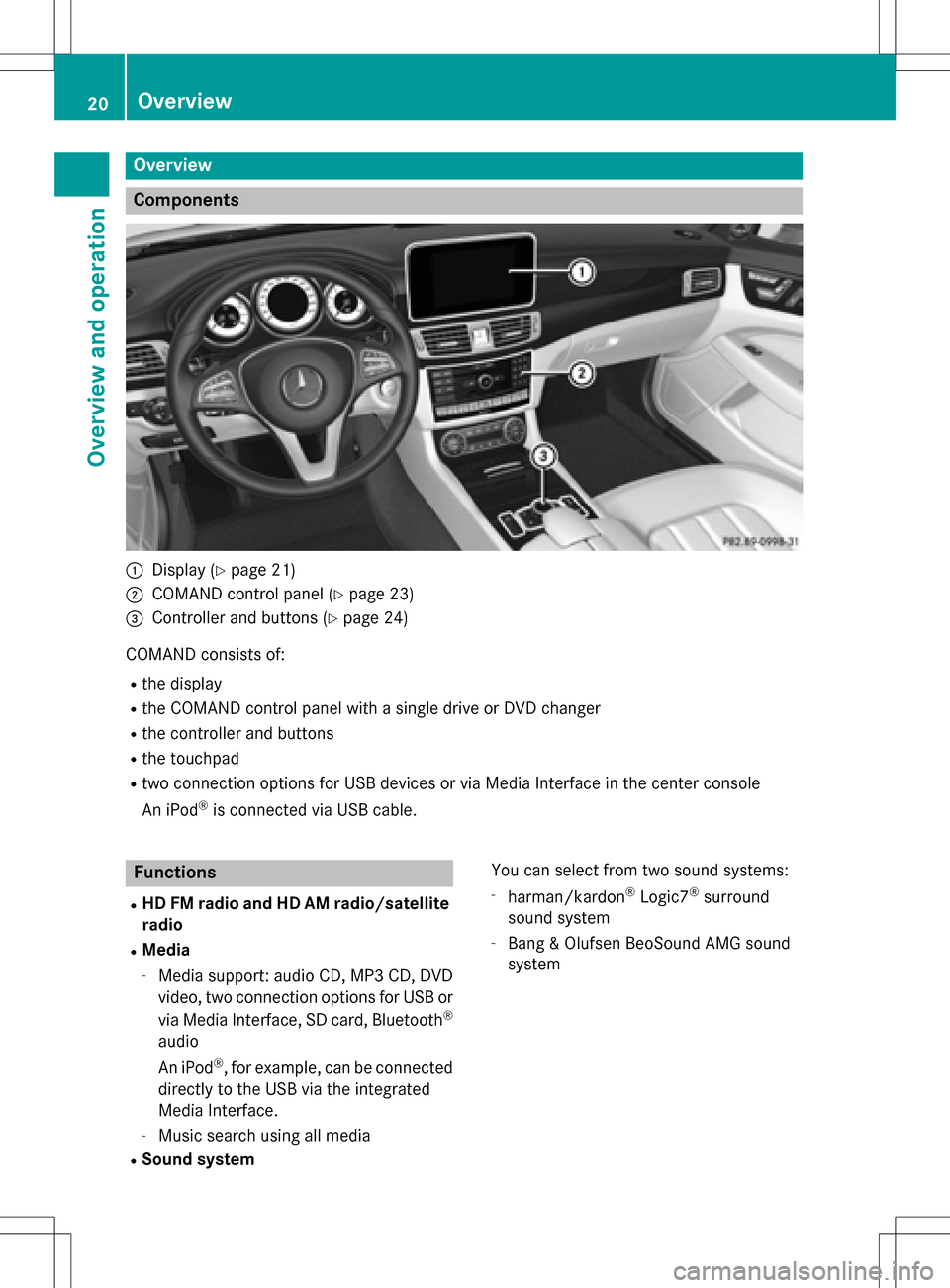
Components
:Display (Ypage 21)
;COMAND control panel (Ypage 23)
=Controller and buttons (Ypage 24)
COMAND consists of:
Rthe display
Rthe COMAND control panel with a single drive or DVD changer
Rthe controller and buttons
Rthe touchpad
Rtwo connection options for USB devices or via Media Interface in the center console
An iPod
®is connected via USB cable.
Functions
RHD FM radio and HD AM radio/satellite
radio
RMedia
-Media support: audio CD, MP3 CD, DVD
video, two connection options for USB or
via Media Interface, SD card, Bluetooth
®
audio
An iPod
®, for example, can be connected
directly to the USB via the integrated
Media Interface.
-Music search using all media
RSound system You can select from two sound systems:
-harman/kardon®Logic7®surround
sound system
-Bang & Olufsen BeoSound AMG sound
system
20Overview
Overview and operation
Page 23 of 246
RNavigation system
-Navigation via the hard drive
-Destination entry, for example using key-
word search
-Realistic 3D map with textured city mod-
els
-Personal POIs and routes using SD mem-
ory card
-Navigation functions, e.g. compass dis-
play
-Dynamic route guidance with traffic
reports via SIRIUS satellite radio
RCommunication
-Messaging functions (text messages, e-
mail)
-Address book
-Internet browser
-Mercedes-Benz Apps with Google™
Local Search, destination and route
download, Facebook, Google Street
View™, stock prices, news and much
more
-Mercedes-Benz Mobile Website
-WiFi interface for the connection of a
smartphone to COMAND
-WiFi hotspot functionality to connect a
tablet PC or laptop in order to enable
access to the Internet using the custom- er's mobile phone
RSIRIUS Weather
-Weather data as an information chart
(current forecast, 5-day preview,
detailed information)
-Weather data on the weather map, e.g.
rain radar data, storm characteristics
and the track of tropical cyclones (hurri-
canes, tornadoes)
RVehicle functions
-Vehicle settings, e.g. fuel consumption
-360° camera
-Rear view camera
-Ionization
-Seat functions, for example adjustment
of driving dynamics
-Driving dynamic display in COMAND dis-
play for vehicles with the Off-Road Engi-
neering package (see the vehicle Opera-
tor's Manual)
RFavorites button
Fast access to favorites functions using the
favorites button on the controller
Display
General notes
!Do not use the space in front of the dis-
play for storage. Objects placed here could
damage the display or impair its function.
Avoid any direct contact with the display
surface. Pressure on the display surface
may result in impairments to the display,
which could be irreversible.
Wearing polarized sunglasses may impair
your ability to read the display.
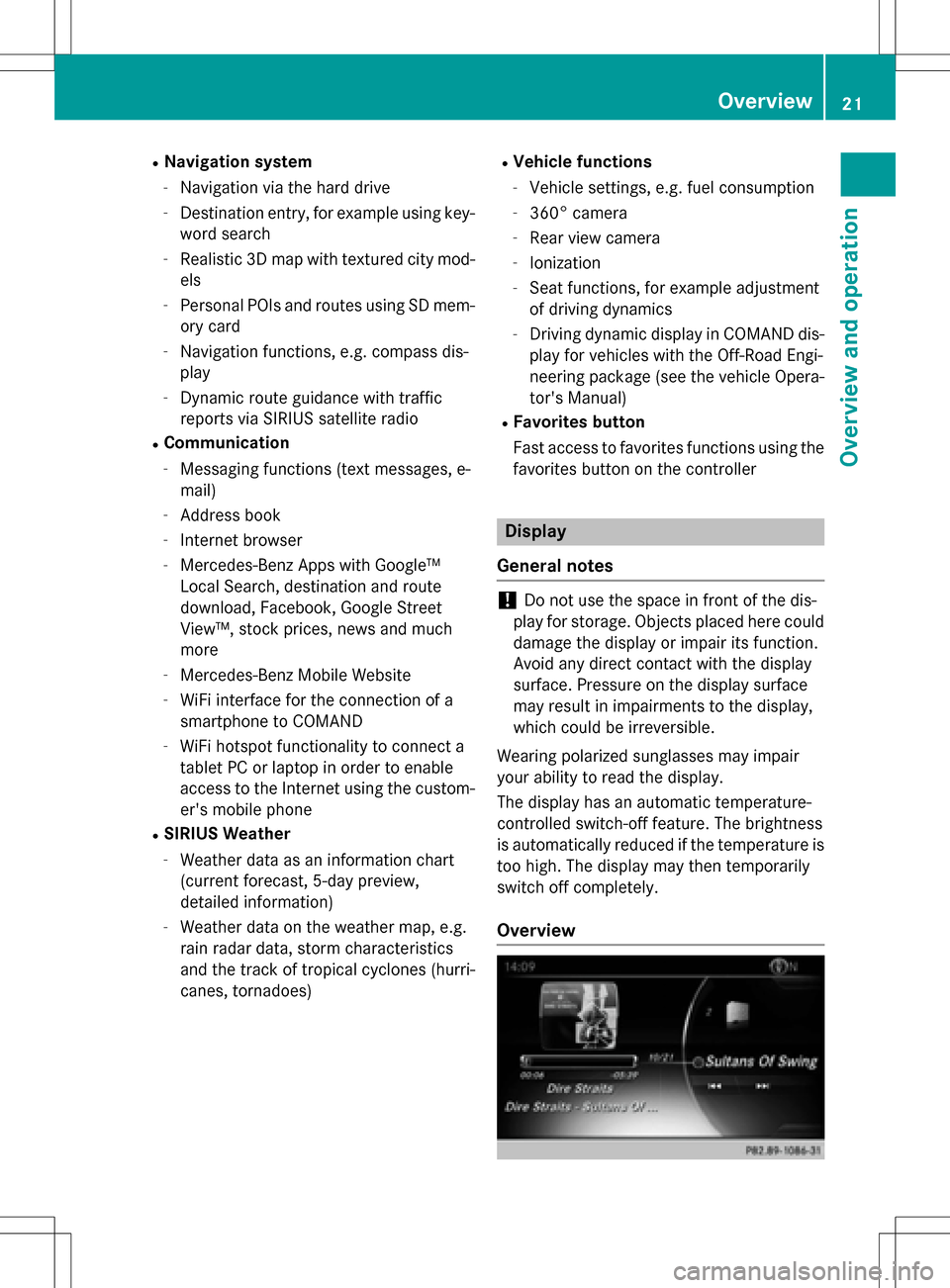
The display has an automatic temperature-
controlled switch-off feature. The brightness
is automatically reduced if the temperature is
too high. The display may then temporarily
switch off completely.
Overview
Overview21
Overview and operation
Page 25 of 246
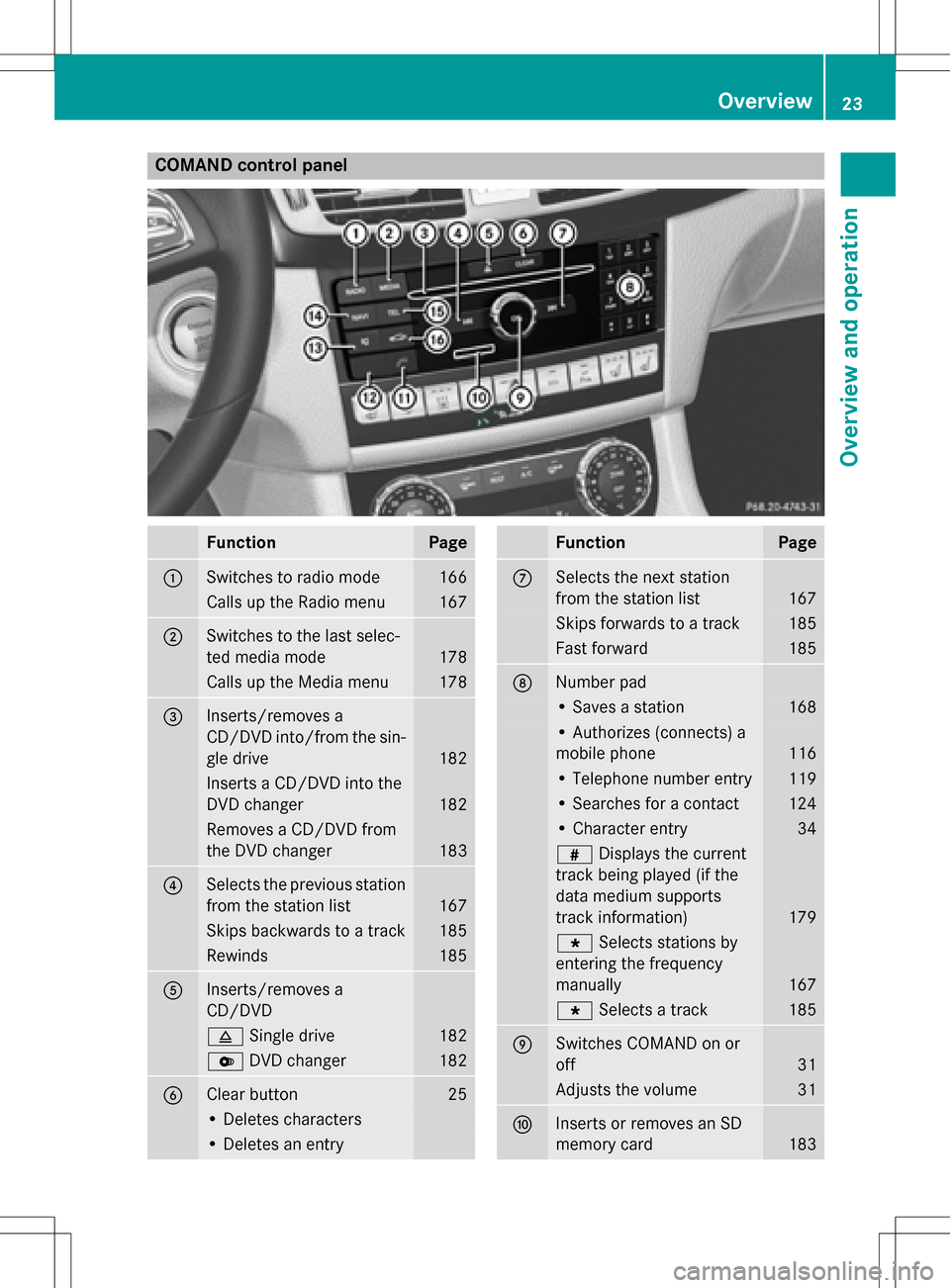
COMAND control panel
FunctionPage
:Switches to radio mode166
Calls up the Radio menu167
;Switches to the last selec-
ted media mode
178
Calls up the Media menu178
=Inserts/removes a
CD/DVD into/from the sin-
gle drive
182
Inserts a CD/DVD into the
DVD changer
182
Removes a CD/DVD from
the DVD changer
183
?Selects the previous station
from the station list
167
Skips backwards to a track185
Rewinds185
AInserts/removes a
CD/DVD
8Single drive182
VDVD changer182
BClear button25
• Deletes characters
• Deletes an entry
FunctionPage
CSelects the next station
from the station list
167
Skips forwards to a track185
Fast forward185
DNumber pad
• Saves a station168
• Authorizes (connects) a
mobile phone
116
• Telephone number entry119
• Searches for a contact124
• Character entry34
zDisplays the current
track being played (if the
data medium supports
track information)
179
g Selects stations by
entering the frequency
manually
167
g Selects a track185
ESwitches COMAND on or
off
31
Adjusts the volume31
FInserts or removes an SD
memory card
183
Overview23
Overview and operation
Page 34 of 246
or
XSelect+: while route guidance is active,
show the menu and press the controller
(
Ypage 90).
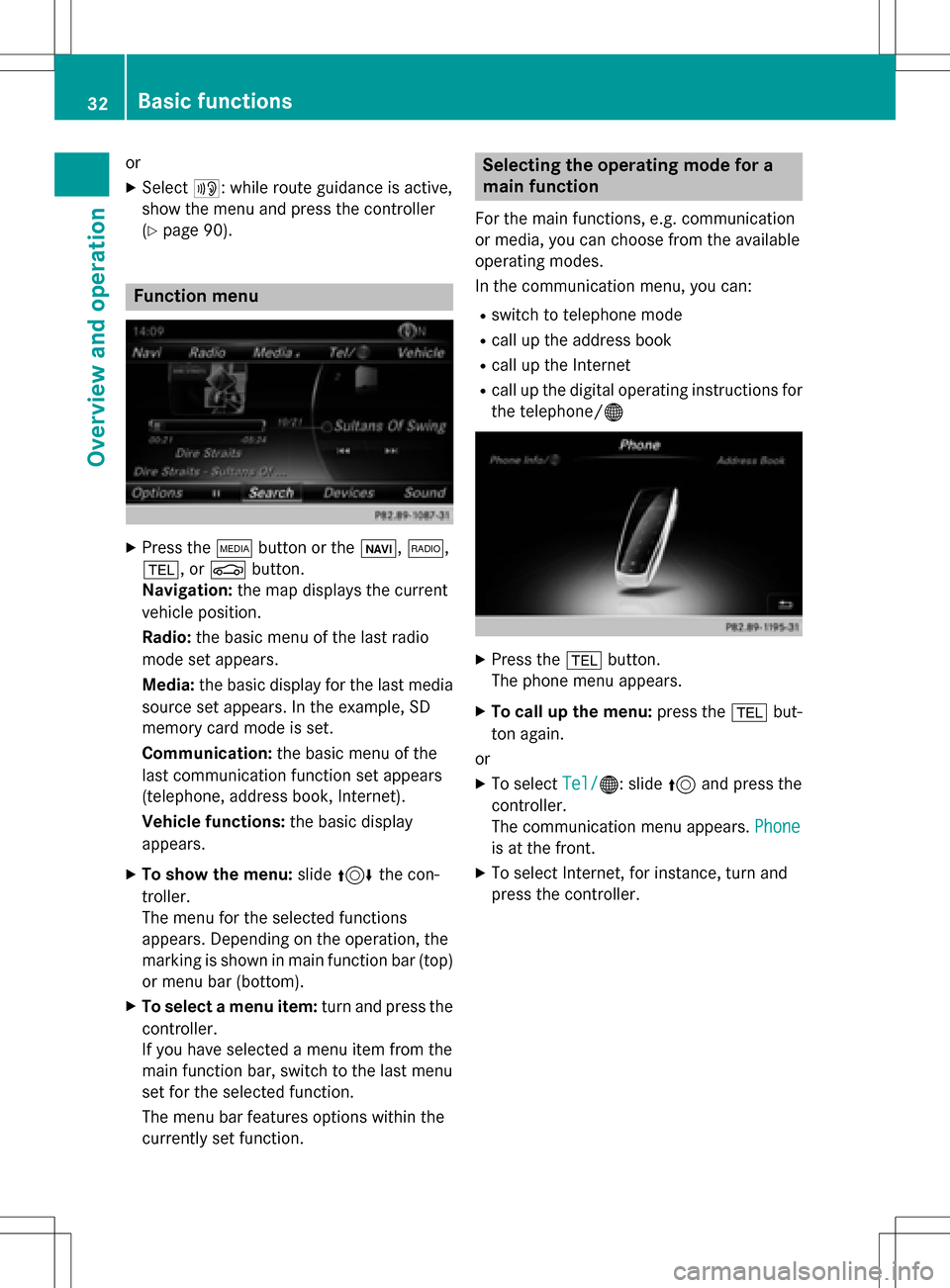
Function menu
XPress the Õbutton or the ß,$,
%, or Øbutton.
Navigation: the map displays the current
vehicle position.
Radio: the basic menu of the last radio
mode set appears.
Media: the basic display for the last media
source set appears. In the example, SD
memory card mode is set.
Communication: the basic menu of the
last communication function set appears
(telephone, address book, Internet).
Vehicle functions: the basic display
appears.
XTo show the menu: slide4 the con-
troller.
The menu for the selected functions
appears. Depending on the operation, the
marking is shown in main function bar (top) or menu bar (bottom).
XTo select a menu item: turn and press the
controller.
If you have selected a menu item from the
main function bar, switch to the last menu
set for the selected function.
The menu bar features options within the
currently set function.
Selecting the operating mode for a
main function
For the main functions, e.g. communication
or media, you can choose from the available
operating modes.
In the communication menu, you can:
Rswitch to telephone mode
Rcall up the address book
Rcall up the Internet
Rcall up the digital operating instructions for
the telephone/®
XPress the %button.
The phone menu appears.
XTo call up the menu: press the%but-
ton again.
or
XTo select Tel/®: slide5and press the
controller.
The communication menu appears. Phone
is at the front.
XTo select Internet, for instance, turn and
press the controller.
32Basic functions
Overview and operation