USB MERCEDES-BENZ CLS COUPE 2018 Owners Manual
[x] Cancel search | Manufacturer: MERCEDES-BENZ, Model Year: 2018, Model line: CLS COUPE, Model: MERCEDES-BENZ CLS COUPE 2018Pages: 589, PDF Size: 10.95 MB
Page 32 of 589
te
ch nical information about theve hicle's operat‐
ing state, component loads, main tenance
re qu irements and tech nical events or faults.
In general, this information documents thest ate
of a component part, a module, a sy stem or the
sur roundings such as:
R operating states of sy stem components (e.g.
fl uid le vels, battery status, tyre pressure)
R status messages concerning theve hicle or
its individual components (e.g. number of
wheel revo lutions/speed, longitudinal accel‐
eration, lateral acceleration, display of fas‐
te ned seat belts)
R malfunctions or de fects in impor tant sy stem
components (e.g. lights, brakes)
R information on events leading tovehicle
damage
R system reactions in special driving situations
(e.g. airbag deployment, inter vention of sta‐
bility control sy stems)
R ambient conditions (e.g. temp erature, rain
sensor) In addition
toprov iding the actual control unit
function, this data assists the manufacturer in
de tecting and rectifying faults and optimising
ve hicle functions. The majority of this data is
te mp orary and is only processed in theve hicle
itself. Only a small portion of the data is stored
in theev ent or fault memor y.
When your vehicle is serviced, tech nical da ta
from theve hicle can be read out byservice net‐
wo rkemplo yees (e.g. workshops, manufactur‐
ers) or third parties (e.g. breakdown services).
Services include repair services, maintenance
processes, warranty claims and quality assur‐
ance measures, forex ample. The read out is per‐
fo rm ed via the legally prescribed port forthe
diagnostics connection in theve hicle. The
re spective service network locations or third
parties collect, process and use the data. They
document tech nical statuses of theve hicle,
assist in finding faults and impr oving quality and
are transmit tedto the manufacturer, if neces‐
sar y.Fu rthermore, the manufacturer is subject
to product liability. Forth is, the manufacturer
re qu ires tech nical da tafrom vehicles. Fa
ult memories in theve hicle can be reset by a
service outlet as part of repair or maintenance
wo rk.
Depending on the selected equipment, you can
import data into vehicle con venience and info‐
ta inment functions yourself.
This includes, forex ample:
R multimedia data such as music, films or pho‐
to sfo r playback in an integrated multimedia
sy stem
R address book data for use in connection with
an integrated hands-free sy stem or an inte‐
grated navigation sy stem
R entered navigation destinations
R data about the use of Internet services
This data can be sa ved locally in theve hicle or it
is located on a device which you ha veconnected
to theve hicle (e.g. smartphone, USB flash drive
or MP3 pla yer). If this data is stored in theve hi‐
cle, you can dele teit at any time. This data is
sent tothird parties only at your requ est, partic‐
ular lywhen you use online services in accord‐
ance with the settings that you ha veselected. General no
tes29
Page 110 of 589
St
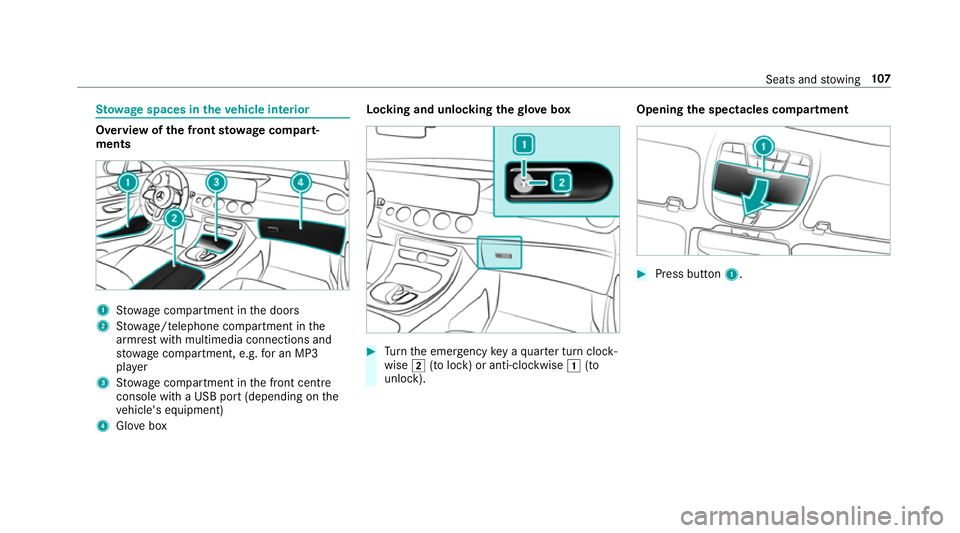
ow age spaces in theve hicle interior Overview of
the front stowage compa rt‐
ments 1
Stow age compartment in the doors
2 Stow age/telephone compartment in the
armrest with multimedia connections and
stow age compartment, e.g. for an MP3
pla yer
3 Stow age compartment in the front cent re
console wi tha USB port (depending on the
ve hicle's equipment)
4 Glovebox Locking and unlocking
thegl ove box #
Turn the emer gency key a quarter turn clock‐
wise 2(to lock) or anti-clockwise 1(to
unlock). Opening
the spectacles compa rtment #
Press button 1. Seats and
stowing 107
Page 122 of 589
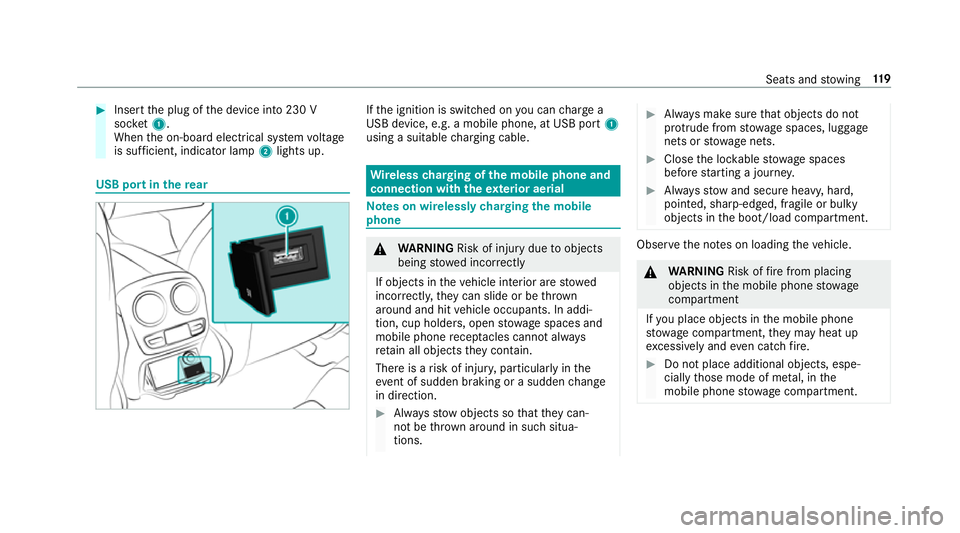
#
Insert the plug of the device into 230 V
soc ket1.
When the on-board electrical sy stem voltage
is suf ficient, indicator la mp2lights up. USB port in
there ar If
th e ignition is switched on you can charge a
USB device, e.g. a mobile phone, at USB port 1
using a suitable charging cable. Wire
lesscharging of the mobile phone and
connection with theex terior aerial Note
s on wirelessly charging the mobile
phone &
WARNING Risk of inju rydue toobjects
being stowed incor rectly
If objects in theve hicle interior are stowed
incor rectly, they can slide or be thrown
around and hit vehicle occupants. In addi‐
tion, cup holders, open stowage spaces and
mobile phone recep tacles cannot al ways
re tain all objects they contain.
The reis a risk of injur y,particularly in the
ev ent of sudden braking or a sudden change
in direction. #
Alw aysstow objects so that they can‐
not be throw n around in su chsitua‐
tions. #
Alw ays make sure that objects do not
pr otru de from stowage spaces, luggage
nets or stowage nets. #
Close the loc kable stow age spaces
before starting a journe y. #
Alw aysstow and secure heavy, hard,
poin ted, sharp-edged, fragile or bulky
objects in the boot/load compartment. Obser
vethe no tes on loading theve hicle. &
WARNING Risk offire from placing
objects in the mobile phone stowage
compartment
If yo u place objects in the mobile phone
stow age compartment, they may heat up
exc essively and even catch fire. #
Do not place additional objects, espe‐
cially those mode of me tal, in the
mobile phone stowage compartment. Seats and
stowing 11 9
Page 271 of 589
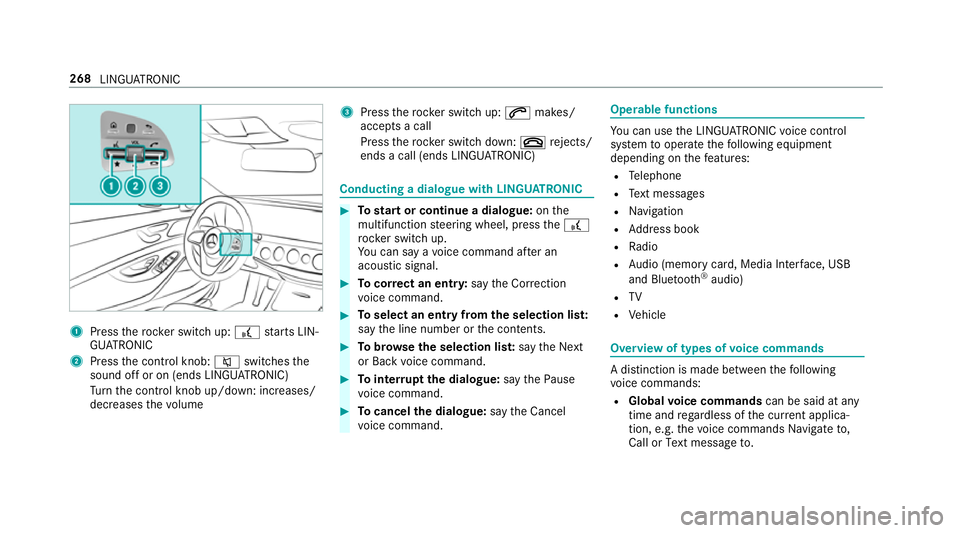
1
Press therock er switch up: £starts LIN‐
GU ATRO NIC
2 Press the control knob: 8switches the
sound off or on (ends LINGU ATRO NIC)
Tu rn the control knob up/down: increases/
decreases thevo lume 3
Press therock er switch up: 6makes/
accepts a call
Press therock er switch down: ~rejects/
ends a call (ends LINGU ATRO NIC) Conducting a dialogue with LINGU
ATRO NIC #
Tostart or continue a dialogue: onthe
multifunction steering wheel, press the£
rock er switch up.
Yo u can say a voice command af ter an
acou stic signal. #
Tocor rect an ent ry:say theCorrection
vo ice command. #
Toselect an entry from the selection lis t:
say the line number or the conte nts. #
Tobrows eth e selection lis t:say theNext
or Back voice command. #
Tointer rupt the dialogue: saythePause
vo ice command. #
Tocancel the dialogue: saytheCancel
vo ice command. Operable functions
Yo
u can use the LINGU ATRO NIC voice control
sy stem tooperate thefo llowing equipment
depending on thefe atures:
R Telephone
R Text messa ges
R Navigation
R Address book
R Radio
R Audio (memory card, Media Inter face, USB
and Blu etoo th®
audio)
R TV
R Vehicle Overview of types of
voice commands A distinction is made between
thefo llowing
vo ice commands:
R Global voice commands can be said at any
time and rega rdless of the cur rent applica‐
tion, e.g. thevo ice commands Navigate to,
Call orText message to. 268
LINGU ATRO NIC
Page 273 of 589
Essential
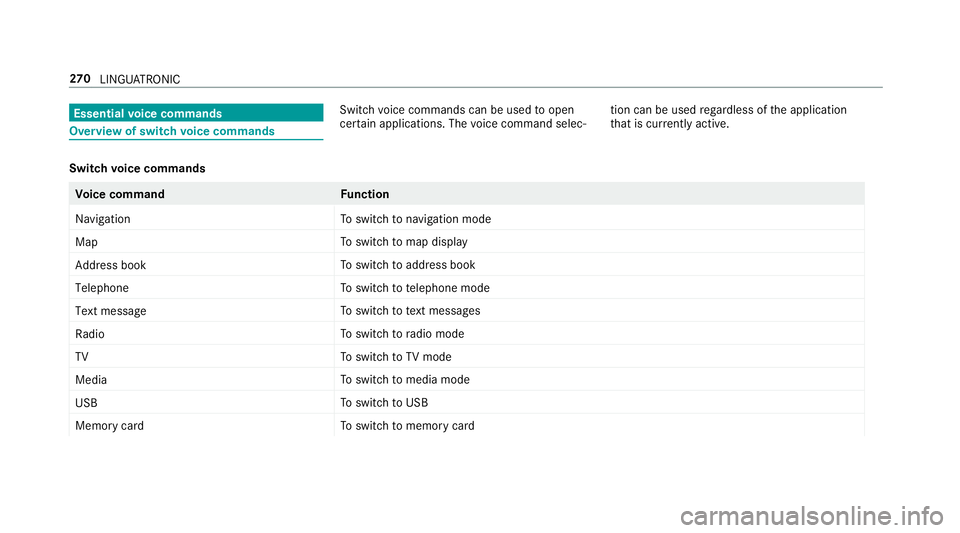
voice commands Overview of switch
voice commands Swit
chvoice commands can be used toopen
cer tain applications. The voice command selec‐ tion can be used
rega rdless of the application
th at is cur rently acti ve.
Switch voice commands Vo
ice command Function
Navigation To
switch tonavigation mode
Map To
switch tomap display
Address book To
switch toaddress book
Telephone To
switch totelephone mode
Text message To
switch totext messa ges
Radio To
switch toradio mode
TV To
switch toTV mode
Media To
switch tomedia mode
USB To
switch toUSB
Memory card To
switch tomemory card 270
LINGU ATRO NIC
Page 301 of 589
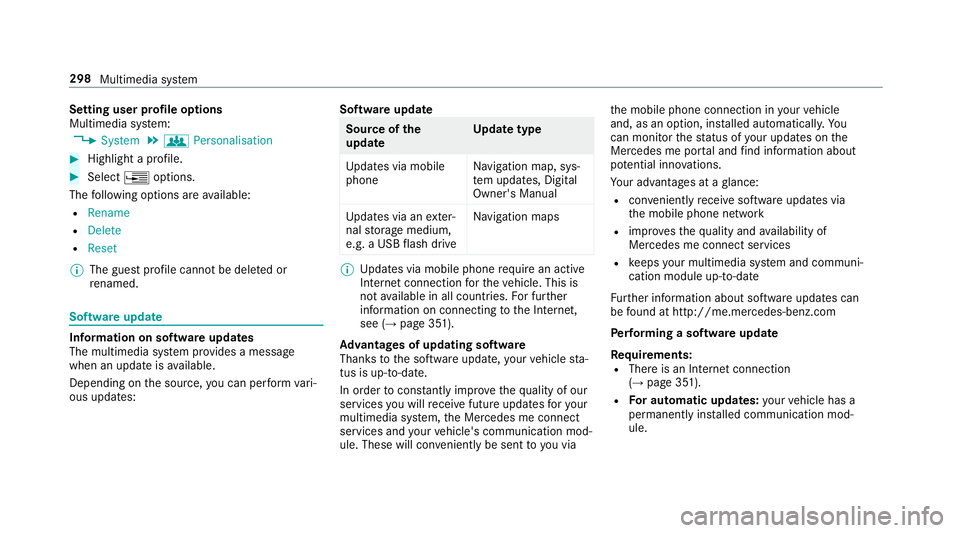
Setting user profile options
Multimedia sy
stem:
, System .
g Personalisation #
Highlight a profile. #
Select ¥options.
The following options are available:
R Rename
R Delete
R Reset
% The guest profile cannot be dele ted or
re named. So
ftwa reupdate Information on software updates
The multimedia sy
stem pr ovides a message
when an update is available.
Depending on the source, you can per form vari‐
ous updates: Software update Source of
the
update Up
date type
Up dates via mobile
phone Na
vigation map, sys‐
te m updates, Digital
Owner's Manual
Up dates via an exter‐
nal storage medium,
e.g. a USB flash drive Na
vigation maps %
Updates via mobile phone requ ire an active
Internet connection forth eve hicle. This is
not available in all countries. For fur ther
information on connecting tothe Internet,
see (→ page 351).
Ad vantages of updating software
Thanks tothe software update, your vehicle sta‐
tus is up-to-date.
In order tocons tantly impr ovethequ ality of our
services you will recei vefuture updates foryo ur
multimedia sy stem, the Mercedes me connect
services and your vehicle's communication mod‐
ule. These will con veniently be sent to you via th
e mobile phone connection in your vehicle
and, as an option, ins talled automaticall y.Yo u
can moni torth est atus of your updates on the
Mercedes me por tal and find information about
po tential inno vations.
Yo ur advantages at a glance:
R con veniently recei vesoftware update s via
th e mobile phone network
R impr ovesth equ ality and availability of
Mercedes me connect services
R keeps your multimedia sy stem and communi‐
cation module up-to-date
Fu rther information about software updates can
be found at http://me.mercedes-benz.com
Pe rforming a software upda te
Requ irements:
R There is an Internet connection
(→ page 351).
R For automatic updates: your vehicle has a
permanently ins talled communication mod‐
ule. 298
Multimedia sy stem
Page 339 of 589
#
Select Synchronise contacts .
Calling up contacts
Multimedia sy stem:
, Telephone .
ª Contacts
Depending on thech aracter set, thefo llowing
options can be used tosear chfor contacts:
R sear ching byinitials
R sear ching byname
R searching byphone number #
Ente rch aracters into the sear chfield.
A selection of possible conta cts appears.
Entering more characters into the sear ch
fi eld nar rows down the number of possible
selections. #
Select the conta ct.
A contact can contain thefo llowing de tails:
R phone numbers
R navigation addresses
R geo-coordinates
R Internet address Editing
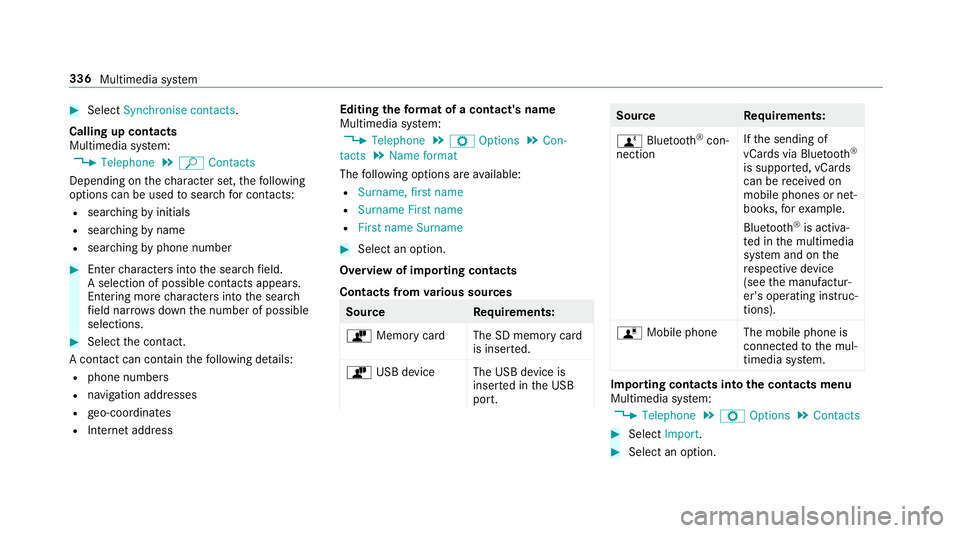
thefo rm at of a contact's name
Multimedia sy stem:
, Telephone .
Z Options .
Con-
tacts .
Name format
The following options are available:
R Surname, first name
R Surname First name
R First name Surname #
Select an option.
Overview of importing contacts
Contacts from various sources Source
Requirements:
ò Memory car dThe SD memory card
is inser ted.
ò USB device The USB device is
inserted in the USB
port. Source
Requirements:
ñ Bluetooth ®
con‐
nection If
th e sending of
vCards via Blue tooth®
is suppor ted, vCards
can be recei ved on
mobile phones or net‐
books, forex ample.
Blue tooth ®
is activa‐
te d in the multimedia
sy stem and on the
re spective device
(see the manufactur‐
er's operating instruc‐
tions).
ó Mobile phone The mobile phone is
connectedtothe mul‐
timedia sy stem. Importing contacts into
the contacts menu
Multimedia sy stem:
, Telephone .
Z Options .
Contacts #
Select Import. #
Select an option. 336
Multimedia sy stem
Page 344 of 589
Mercedes-Benz link
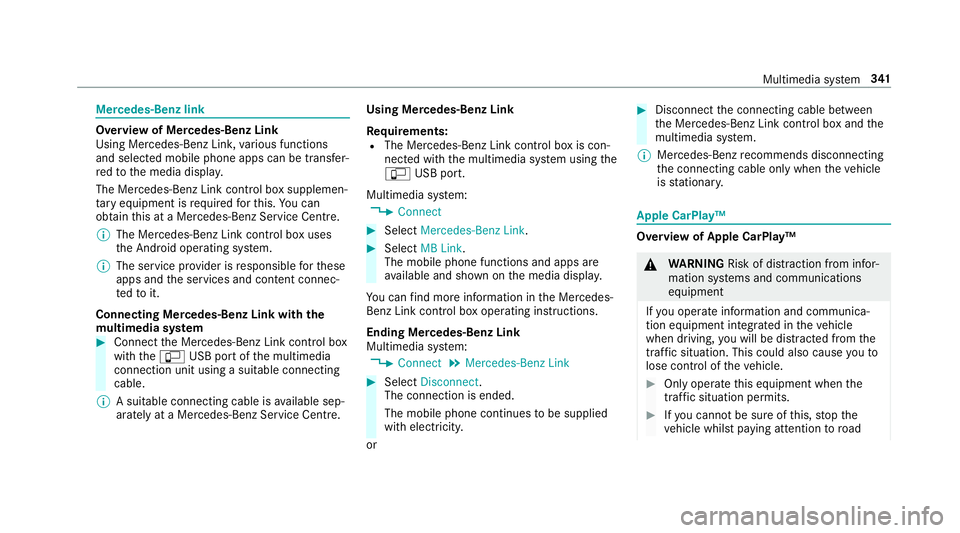
Overview of Mercedes-Benz Link
Using Mercedes-Benz Link,
various functions
and selected mobile phone apps can be transfer‐
re dto the media displa y.
The Mercedes-Benz Link contro l box supplemen‐
ta ry equipment is requiredforth is. You can
obtain this at a Mercedes-Benz Service Cent re.
% The Mercedes-Benz Link contro l box uses
th e Android operating sy stem.
% The service pr ovider is responsible forth ese
apps and the services and conte nt connec‐
te dto it.
Connecting Mercedes-Benz Link with the
mu ltimedia sy stem #
Connect the Mercedes-Benz Link control box
with theç USB port of the multimedia
connection unit using a suitable connecting
cable.
% A suitable connecting cable is available sep‐
arately at a Mercedes-Benz Service Cent re.Using Mercedes-Benz Link
Re
quirements:
R The Mercedes-Benz Link control box is con‐
nec ted with the multimedia sy stem using the
ç USB port.
Multimedia sy stem:
, Connect #
Select Mercedes-Benz Link. #
Select MB Link.
The mobile phone functions and apps are
av ailable and shown on the media displa y.
Yo u can find more information in the Mercedes-
Benz Link control box operating instructions.
Ending Mercedes-Benz Link
Multimedia sy stem:
, Connect .
Mercedes-Benz Link #
Select Disconnect.
The connection is ended.
The mobile phone continues tobe supplied
with elect ricity.
or #
Disconnect the connecting cable between
th e Mercedes-Benz Link control box and the
multimedia sy stem.
% Mercedes-Benz recommends disconnecting
th e connecting cable only when theve hicle
is stationar y. Apple CarPlay™
Overview of Apple CarPlay™
&
WARNING Risk of di stra ction from infor‐
mation sy stems and communications
equipment
If yo u operate information and communica‐
tion equipment integ rated in theve hicle
when driving, you will be distracted from the
traf fic situation. This could also cause youto
lose control of theve hicle. #
Only operate this equipment when the
traf fic situation permits. #
Ifyo u cannot be sure of this, stop the
ve hicle whilst paying attention toroad Multimedia sy
stem 341
Page 345 of 589
and traf
fic conditions and ope rate the
equipment with theve hicle stationar y. Yo
u must obse rveth e legal requirements forthe
country in whi chyou are cur rently driving when
operating the multimedia sy stem.
iPhone ®
functions can be used via the multime‐
dia sy stem using Apple CarPlay™. They are oper‐
ated using the cent ral control element or the
Siri ®
vo ice-operated control sy stem. You can
activate thevo ice-opera ted control sy stem by
pressing and holding theó button on the
multifunction steering wheel.
When using Apple CarPlay™ via thevo ice-oper‐
ated control sy stem, the multimedia sy stem can
st ill be operated via LINGU ATRO NIC
(→ page 267).
Only one mobile phone at a time can be connec‐
te d via Apple CarPlay™ tothe multimedia sys‐
te m.
The availability of Apple CarPlay™ may vary
according tothe count ry. The service pr
ovider is responsible forth is appli‐
cation and the services and conte nt connected
to it.
Information on Apple CarPlay™
While using Apple CarPlay™ various functions of
th e multimedia sy stem, e.g. telephony or the
media sources Blue tooth®
audio and iPod ®
, are
una vailable.
Only one route guidance can be active at a time.
If ro ute guidance is active on the multimedia sys‐
te m, it is closed when route guidance is star ted
on the mobile phone.
Connecting an iPhone ®
via Apple CarPlay™
Re quirements:
R Apple ®
operating sy stem version iOS 8.3 or
abo veis ins talled on the iPhone ®
.
R There is an Internet connection forth e full
ra nge of functions for Apple CarPlay™.
R The iPhone ®
is connected tothe multimedia
sy stem via the USB port çusing a suita‐
ble cable (→ page 363). Multimedia sy
stem:
, Connect .
Apple CarPlay
Setting automatic or manual start
A messa geappears when connec tedfo rth efirst
time. #
Automatic star t:select Automatically.
Start automatically is activatedO.
Apple CarPlay™ will now start immediately
af te rth e iPhone ®
is connected tothe multi‐
media sy stem using a USB cable. #
Manual star t:select Manually . #
Select the iPhone ®
in the device list.
Ac cepting/rejecting the data pr otection reg‐
ulations
A message with the data pr otection regulations
appears. #
Select Accept & Start .
or #
Select Decline & End.
If yo u selected automatic start, you will ha ve
to start Apple CarPlay™ manually the next
time youwa nttouse it. 342
Multimedia sy stem
Page 347 of 589
Only one
route guidance can be active at a time.
If ro ute guidance is active on the multimedia sys‐
te m, it is closed when route guidance is star ted
on the mobile phone.
Connecting a mobile phone via Android Auto
Requ irements:
R The firs t acti vation of Android Autoon the
multimedia sy stem must be car ried out when
th eve hicle is stationary for saf etyre asons.
R The mobile phone suppo rts Android Auto
from Android 5.0.
R The Android Autoapp is ins talled on the
mobile phone.
R In order touse thete lephone functions, the
mobile phone must be connected tothe mul‐
timedia sy stem via Blue tooth®
(→ page 330).
If th ere was no prior Internet connection, this
is es tablished with the use of the mobile
phone with Android Auto.
R The mobile phone is connected tothe multi‐
media sy stem via the USB port çusing a
suitable cable (→ page 363). R
There is an Internet connection forth e full
ra nge of functions for Android Auto.
Multimedia sy stem:
, Connect .
Android Auto #
Select the mobile phone from the device list.
Ac cepting/rejecting the data pr otection reg‐
ulations
A message with the data pr otection regulations
appears. #
Select Accept & Start .
or #
Select Decline & End.
Ac tivating automatic start #
Select Start automatically O.
St arting manually #
Select the mobile phone from the device list.
Exiting Android Auto #
Press theò button on the multifunction
st eering wheel, forex ample. %
If Android Autowa s not displa yed in thefo re‐
ground before disconnecting, the application
st arts in the bac kground when reconnected.
Yo u can call up Android Autointhe main
menu.
Calling up the Android Autosound settings
Multimedia sy stem:
, Connect .
Android Auto .
Sound #
Select theto ne menu (→ page 384).
Ending Android Auto
Multimedia sy stem:
, Connect .
Android Auto #
Select Disconnect.
The connection is ended.
The mobile phone continues tobe supplied
with elect ricity.
or #
Disconnect the connecting cable between
th e mobile phone and multimedia sy stem.
Mercedes-Benz recommends disconnecting
th e connecting cable only when theve hicle is
st ationar y. 344
Multimedia sy stem