navigation MERCEDES-BENZ CLS COUPE 2020 User Guide
[x] Cancel search | Manufacturer: MERCEDES-BENZ, Model Year: 2020, Model line: CLS COUPE, Model: MERCEDES-BENZ CLS COUPE 2020Pages: 469, PDF Size: 8.47 MB
Page 251 of 469
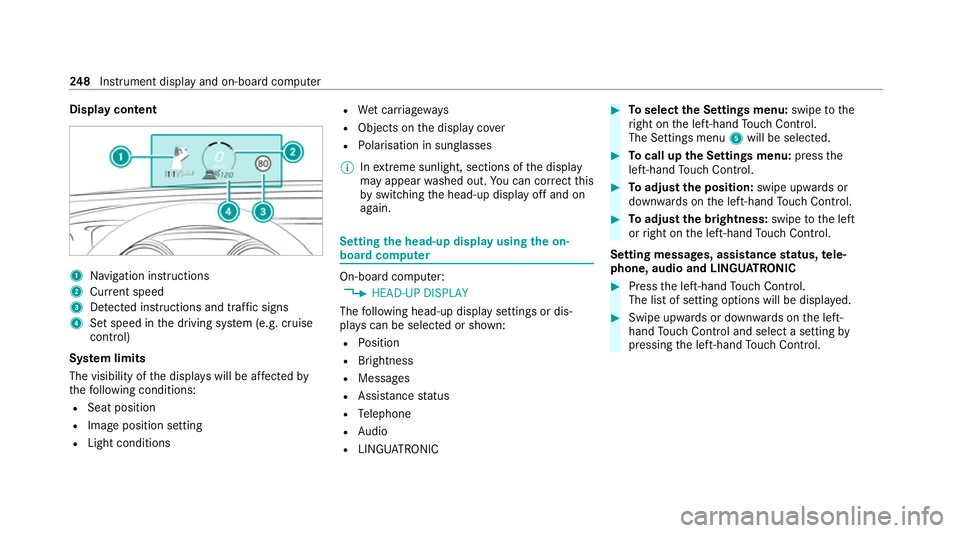
Display content
1
Navigation instructions
2 Curr ent speed
3 Detected instructions and traf fic signs
4 Set speed in the driving sy stem (e.g. cruise
control)
Sy stem limits
The visibility of the displa yswill be af fected by
th efo llowing conditions:
R Seat position
R Image position setting
R Light conditions R
Wet car riag ew ays
R Objects on the display co ver
R Polarisation in sunglasses
% Inextreme sunlight, sections of the display
may appear washed out. You can co rrect this
by switching the head-up display off and on
again. Setting
the head-up display using the on-
board compu ter On-board computer:
4 HEAD-UP DISPLAY
The following head-up display settings or dis‐
pla yscan be selected or shown:
R Position
R Brightness
R Messages
R Assis tance status
R Telephone
R Audio
R LINGU ATRO NIC #
Toselect the Settings menu: swipetothe
ri ght on the left-hand Touch Control.
The Settings menu 5will be selected. #
Tocall up the Settings menu: pressthe
left-hand Touch Control. #
Toadjust the position: swipe upwards or
down wards on the left-hand Touch Control. #
Toadjust the brightness: swipetothe left
or right on the left-hand Touch Control.
Setting messages, assistance status, tele‐
phone, audio and LINGU ATRO NIC #
Press the left-hand Touch Control.
The list of setting options will be displ ayed. #
Swipe upwards or down wards on the left-
hand Touch Control and select a setting by
pressing the left-hand Touch Control. 248
Instrument display and on-board computer
Page 252 of 469
Selecting what
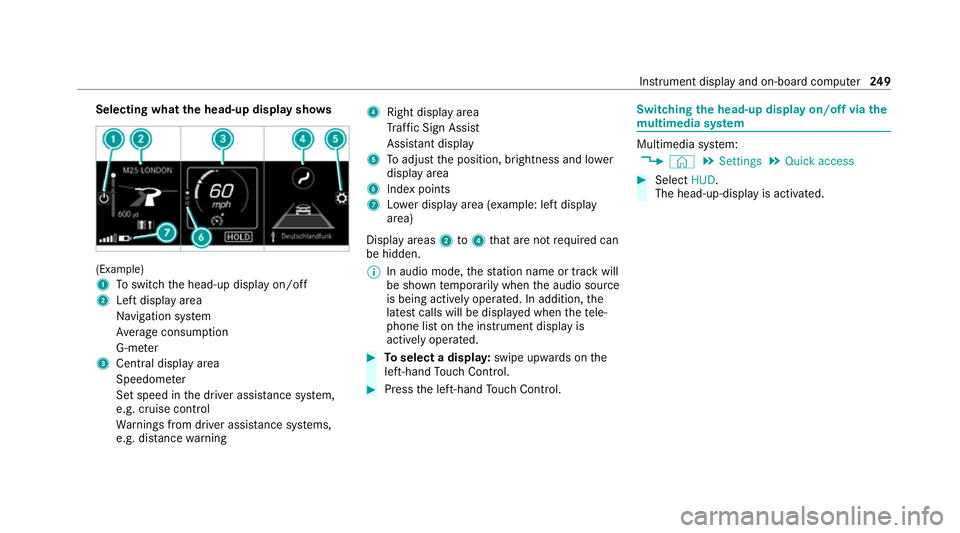
the head-up display sho ws(Example)
1
Toswitch the head-up display on/off
2 Left display area
Navigation sy stem
Av erage consum ption
G-me ter
3 Central displ ayarea
Speedom eter
Set speed in the driver assis tance sy stem,
e.g. cruise control
Wa rnings from driver assis tance sy stems,
e.g. dis tance warning 4
Right display area
Traf fic Sign Assi st
Assi stant display
5 Toadjust the position, brightness and lo wer
display area
6 Index points
7 Lowe r display area (e xamp le: left display
area)
Display areas 2to4 that are not requ ired can
be hidden.
% In audio mode, thest ation name or track will
be shown temp orarily when the audio source
is being actively operated. In addition, the
latest calls will be displa yed when thete le‐
phone list on the instrument display is
actively operated. #
Toselect a displa y:swipe upwards on the
left-hand Touch Control. #
Press the left-hand Touch Control. Swit
ching the head-up display on/off via the
mu ltimedia sy stem Multimedia sy
stem:
4 © 5
Settings 5
Quick access #
Select HUD.
The head-up-display is activated. Instrument display and on-board computer
249
Page 253 of 469
Overview and operation
Note
s onthe MBUX multimedia sy stem &
WARNING Risk of di stra ction from infor‐
mation sy stems and communications
equipment
If yo u operate information and communica‐
tion equipment integ rated in theve hicle
when driving, you will be distracted from the
traf fic situation. This could also cause youto
lose control of theve hicle. #
Only operate this equipment when the
traf fic situation permits. #
Ifyo u cannot be sure of this, stop the
ve hicle whilst paying attention toroad
and traf fic conditions and ope rate the
equipment with theve hicle stationar y. Yo
u must obse rveth e legal requirements forthe
country in whi chyou are cur rently driving when
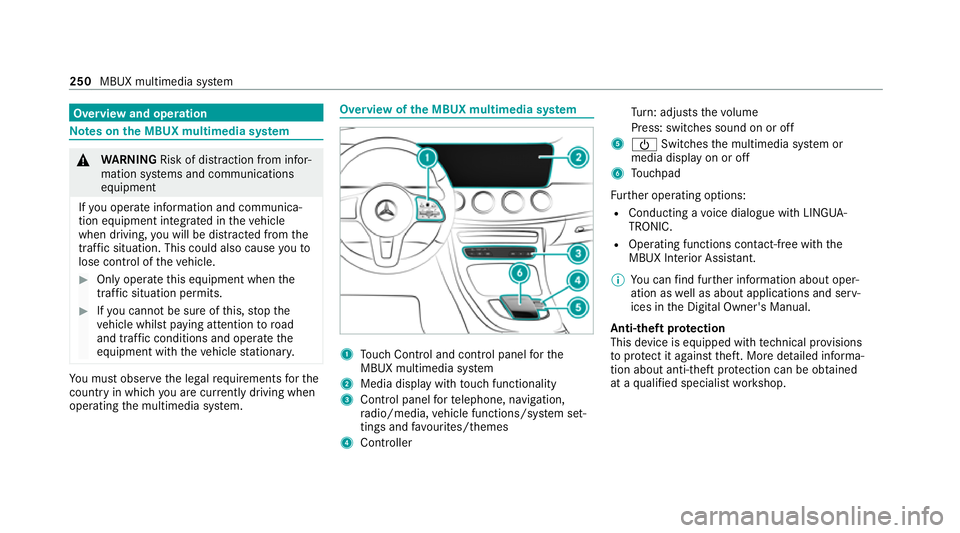
operating the multimedia sy stem. Overview of
the MBUX multimedia sy stem 1
Touch Control and cont rol panel forthe
MBUX multimedia sy stem
2 Media display with touch functionality
3 Control panel forte lephone, navigation,
ra dio/media, vehicle functions/sy stem set‐
tings and favo urites/ themes
4 Controller Tu
rn: adjusts thevo lume
Press: switches sound on or off
5 Ü Switches the multimedia sy stem or
media display on or off
6 Touchpad
Fu rther operating options:
R Conducting a voice dialogue with LINGUA‐
TRONIC.
R Operating functions con tact-free wi th the
MBUX Interior Assis tant.
% You can find fur ther information about oper‐
ation as well as about applications and serv‐
ices in the Digital Owner's Manual.
Anti-theft pr otection
This device is equipped with tech nical pr ovisions
to protect it against theft. More de tailed informa‐
tion about anti-theft pr otection can be obtained
at a qualified specialist workshop. 250
MBUX multimedia sy stem
Page 256 of 469

Using
theto uchpad 1
G Returns tothe pr evious display
2 ~ Calls up the audio control menu
3 © Calls up the home screen
4 Touchpad #
Toselect a menu option: swipe and press. #
Touse handwriting recognition: write a
ch aracter on theto uchpad. #
Toopen or close theNo tifications
Centre: swipe down or up wi thtwo fingers. #
Tozoom in and out of the map: movetwo
fi ngers toget her or apart.
Calling up applications using buttons 1
% button calls up thete lephone
2 z button calls up navigation
3 | button calls up radio or media
4 y button calls up vehicle functions
5 ß button Press brief
ly: calls up favo urites
Press and hold: adds a favo urite or creates a
new theme #
Alternatively, tap© ontheto uchsc reen. #
Call up the application (/ page 251). Fu
nctions of LINGU ATRO NIC Wi
th LINGU ATRO NIC, various applications in the
MBUX multimedia sy stem are operable using
vo ice input. LINGU ATRO NIC is operational
appr oximately thirty seconds af terth e ignition is
switched on and is available forth e driver's seat
and front passenger seat.
The following multimedia sy stem applications
can be operated:
R Navigation
R Telephone
R Radio and TV
R Media pla yer
R Messages
R Vehicle functions MBUX multimedia sy
stem 253
Page 260 of 469
&
WARNING Risk of becoming trapped
du ring adjustment of the driver's seat
af te r calling up a driver profile
Selecting a user profile may trigger an
adju stment of the driver's seat tothe posi‐
tion sa ved under the user profile. You or
ot her vehicle occupants could be injured in
th e process. #
Make sure that when the position of
driver's seat is being adjus ted using the
multimedia sy stem, no people or body
parts are in the seat's range of mo ve‐
ment.
If th ere is a risk of someone becoming trap‐
ped, stop the adjustment process immedi‐
ately: #
a)Tapth ewa rning message on the
media displa y.
or #
b) Press a memory position button or a
seat adjustment switch on the driver's
door.
The adjustment process will be stop‐
ped. The driver's seat is equipped with an access pre‐
ve nter.
If th e driver's door is open, the driver's seat will
not be set af ter calling up the driver's profile.
Profiles store your vehicle settings and settings
fo rth e multimedia sy stem. If theve hicle is used
by several drivers, the driver can select their
ow n profile wi thout changing thestored profile
settings of other drivers.
% Information on profiles from Mercedes me
connect can be found in the Digital Opera‐
to r's Manual.
Ve hicle settings are, forex ample, driver's seat,
st eering wheel and mir ror settings, clima tecon‐
trol and ambient lighting. Forth e settings of the
multimedia sy stem, you can select, forex ample,
ra dio stations, pr evious destinations as well as
th emes, suggestions and favo urites. Fo
rre cur ring driving situations, su chas long
drives on the mo torw ay,yo u can sa veyour pre‐
fe rred settings in a theme in theve hicle. In a
th eme you can sa vethe display of the digital
map, your prefer redra dio station and prefer red
drive prog ram, forex ample.
The vehicle can learn the habits of the driver. It
th en of fers suggestions forth e most probable
navigation destinations, media sources, radio
st ations or con tacts. The pre-requirements for
th at are the selection of a profile, your consent
to there cording of da taand suf ficient collected
da ta.
Fa vourites pr ovide quick access toapplications
th at are used of ten. You can select favo urites
from categories or add them directly toan appli‐
cation. MBUX multimedia sy
stem 257
Page 261 of 469
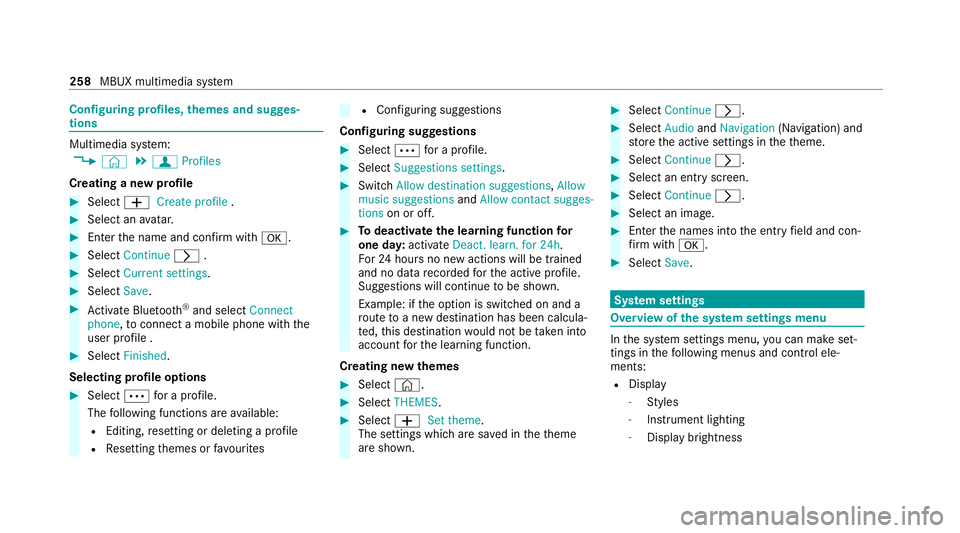
Configuring profiles,
themes and sugges‐
tions Multimedia sy
stem:
4 © 5
f Profiles
Creating a new profile #
Select WCreate profile .#
Select an avatar. #
Enterth e name and confi rmwith a. #
Select Continue r. #
Select Current settings. #
Select Save. #
Activate Blu etoo th®
and select Connect
phone, toconnect a mobile phone wi th the
user profile . #
Select Finished.
Selecting profile options #
Select Äfor a profile.
The following functions are available:
R Editing, resetting or deleting a profile
R Resetting themes or favo urites R
Con figuring suggestions
Configuring suggestions #
Select Äfor a profile. #
Select Suggestions settings . #
Switch Allow destination suggestions, Allow
music suggestions andAllow contact sugges-
tions on or off. #
Todeactivate the learning function for
one da y:activate Deact. learn. for 24h .
Fo r24 hours no new actions will be trained
and no data recorded forth e active profile.
Suggestions will continue tobe shown.
Example: if the option is switched on and a
ro ute toa new destination has been calcula‐
te d, this destination would not be take n into
account forth e learning function.
Creating new themes #
Select ©. #
Select THEMES . #
Select WSet theme.
The settings which are sa ved in theth eme
are shown. #
Select Continue r. #
Select AudioandNavigation (Navigation) and
st ore the active settings in theth eme. #
Select Continue r. #
Select an entry screen. #
Select Continue r. #
Select an image. #
Enter the names into the entry field and con‐
fi rm with a. #
Select Save. Sy
stem settings Overview of
the sy stem settings menu In
the sy stem settings menu, you can make set‐
tings in thefo llowing menus and control ele‐
ments:
R Display
- Styles
- Instrument lighting
- Display brightness 258
MBUX multimedia sy stem
Page 262 of 469
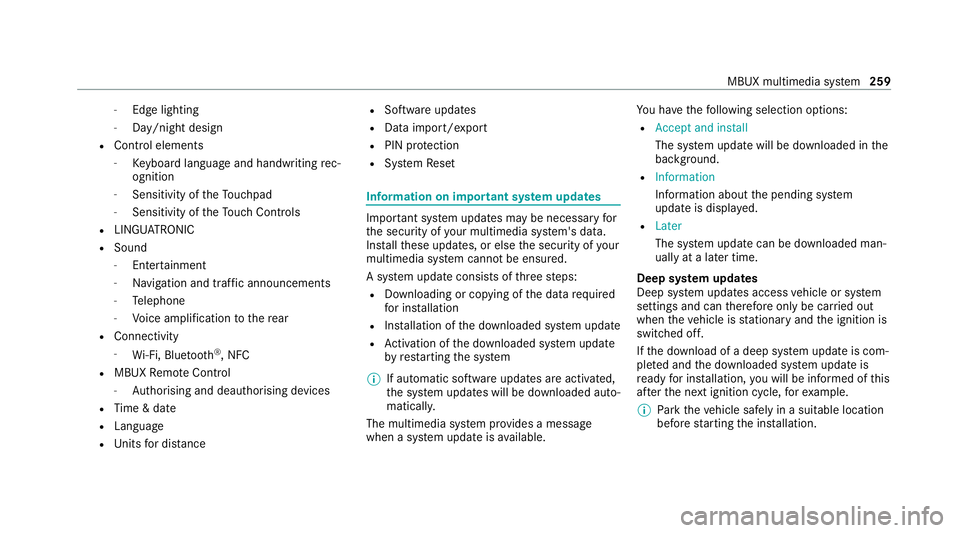
-
Edge lighting
- Day/night design
R Control elements
- Keyboard language and handwriting rec‐
ognition
- Sensitivity of theTo uchpad
- Sensitivity of theTo uch Controls
R LINGU ATRO NIC
R Sound
- Enter tainment
- Navigation and traf fic announcements
- Telephone
- Voice amplification tothere ar
R Connectivity
- Wi-Fi, Blu etoo th®
, NFC
R MBUX Remo teControl
- Auth orising and deauthorising devices
R Time & date
R Language
R Units for dis tance R
Software upda tes
R Data import/expo rt
R PIN pr otection
R System Reset Information on important sy
stem upda tes Impor
tant sy stem updates may be necessary for
th e security of your multimedia sy stem's data.
Ins tallth ese updates, or else the security of your
multimedia sy stem cann otbe ensured.
A sy stem update consists of thre esteps:
R Downloading or copying of the data requ ired
fo r ins tallation
R Installation of the downloaded sy stem update
R Activation of the downloaded sy stem update
by restarting the sy stem
% If automatic software updates are activated,
th e sy stem updates will be downloaded auto‐
maticall y.
The multimedia sy stem pr ovides a message
when a sy stem update is available. Yo
u ha vethefo llowing selection options:
R Accept and install
The sy stem update will be downloaded in the
bac kground.
R Information
Info rm ation about the pending sy stem
update is displa yed.
R Later
The sy stem update can be downloaded man‐
ually at a later time.
Deep sy stem upda tes
Deep sy stem updates access vehicle or sy stem
settings and can therefore only be car ried out
when theve hicle is stationary and the ignition is
switched off.
If th e download of a deep sy stem update is com‐
ple ted and the downloaded sy stem update is
re ady for ins tallation, you will be informed of this
af te rth e next ignition cycle, forex ample.
% Park theve hicle safely in a suitable location
before starting the ins tallation. MBUX multimedia sy
stem 259
Page 265 of 469
#
Select Generate security key .
A connection will be es tablished with the
newly crea ted security key. #
Tosave a security key:select Save.
When a new security key is sa ved, all existing
Wi -Fi connections are then disconnected. If
th eWi -Fi connections are being re-es tab‐
lished, the new security key must be en tere d. Na
vigation Note
s on navigation Ro
ute guidance with augmented reality &
WARNING Risk of accident and inju ryas
a re sult of distraction, incor rect depic‐
tion or wrong interpr etation of the dis‐
play
The camera image of the augmented reality
display is not suitable as a guide for driving. #
Alw ayske ep an eye on the actual traf fic
situation. #
Avoid extended obser vation of the cam‐
era image. &
WARNING Risk of accident and inju ry
due toimprecise positioning of addi‐
tional information
The additional information from the augmen‐
te dre ality display is not a substitute for
observing the actual driving situation. #
Alw ayske ep an eye on the actual traf fic
situation when car rying out all driving
manoeuvres. Switching navigation on
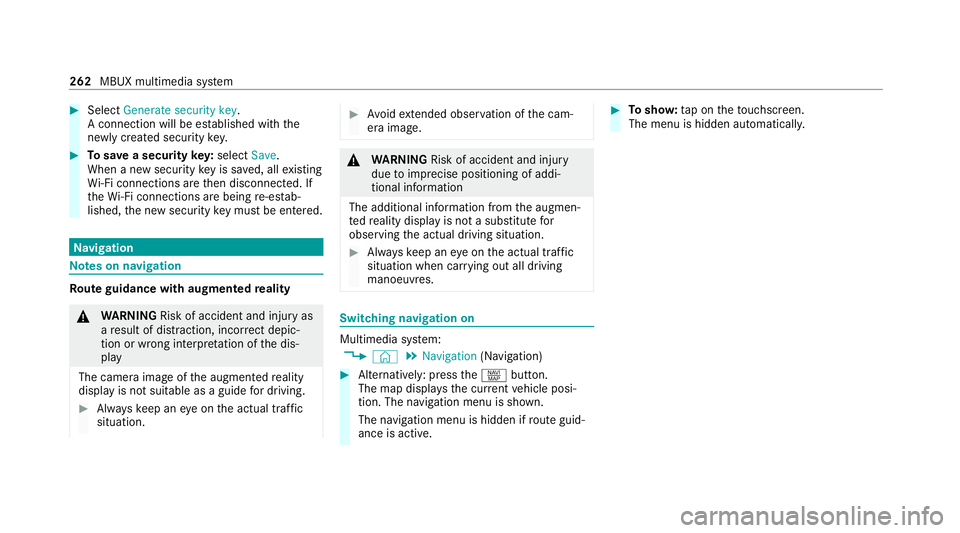
Multimedia sy
stem:
4 © 5
Navigation (Navigation) #
Alternatively: press thez button.
The map displa ys the cur rent vehicle posi‐
tion. The navigation menu is shown.
The navigation menu is hidden if route guid‐
ance is active. #
Tosho w:tap on theto uchsc reen.
The menu is hidden automaticall y.262
MBUX multimedia sy stem
Page 266 of 469
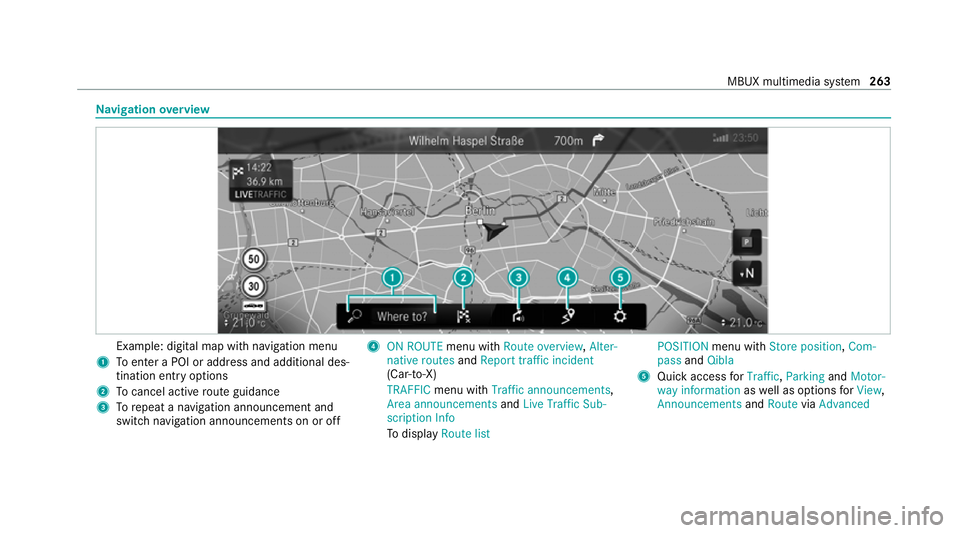
Na
vigation overview Example: digital map with navigation menu
1 Toenter a POI or address and additional des‐
tination entry options
2 Tocancel acti veroute guidance
3 Torepeat a navigation announcement and
switch navigation announcements on or off 4
ON ROUTE menu withRoute overview, Alter-
native routes andReport traffic incident
(Car-to-X)
TRAFFIC menu with Traffic announcements,
Area announcements andLive Traffic Sub-
scription Info
To display Route list POSITION
menu with Store position, Com-
pass andQibla
5 Quick access forTraffic, Parking andMotor-
way information aswell as options forView,
Announcements andRoute viaAdvanced MBUX multimedia sy
stem 263
Page 267 of 469
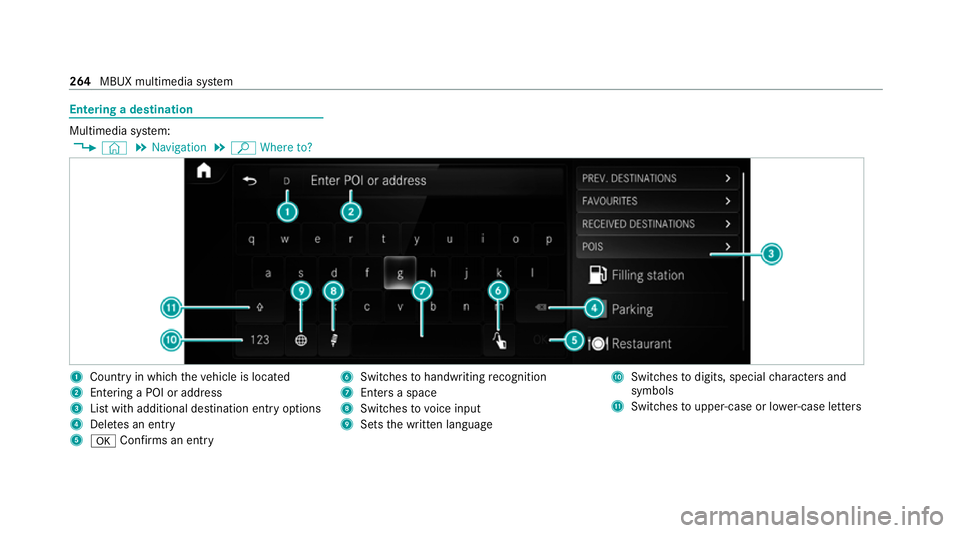
Entering a destination
Multimedia sy
stem:
4 © 5
Navigation 5
ª Where to? 1
Country in which theve hicle is located
2 Entering a POI or address
3 List with additional destination entry options
4 Dele tes an entry
5 a Confirms an entry 6
Switches tohandwriting recognition
7 Enters a space
8 Switches tovoice input
9 Sets the written language A
Switches todigits, special characters and
symbols
B Swit ches toupper-case or lo wer-case letters 264
MBUX multimedia sy stem