Online MERCEDES-BENZ E-Class 2014 W212 Comand Manual
[x] Cancel search | Manufacturer: MERCEDES-BENZ, Model Year: 2014, Model line: E-Class, Model: MERCEDES-BENZ E-Class 2014 W212Pages: 270, PDF Size: 5.82 MB
Page 120 of 270
Country-specific information
You can call up information on the traffic con-
ditions in the country you are currently driving
in via the COMAND Internet and online func-
tion.
The availability of information is country-
dependent. Information can include maxi-
mum speeds, driving with low-beam head-
lamps or legal alcohol limits, for example.
X To switch to navigation mode: press the
00BE button.
X To show the menu: press0098the COMAND
controller.
X Select Position Position in the navigation system
menu bar by sliding 00520064and turning 00790052007A
the COMAND controller and press 0098to
confirm.
X Select Country Information
Country Information and press
0098 to confirm.
When the connection has been made, the
available country information appears.
X To return to navigation: press the0038
button. Displaying the map data version
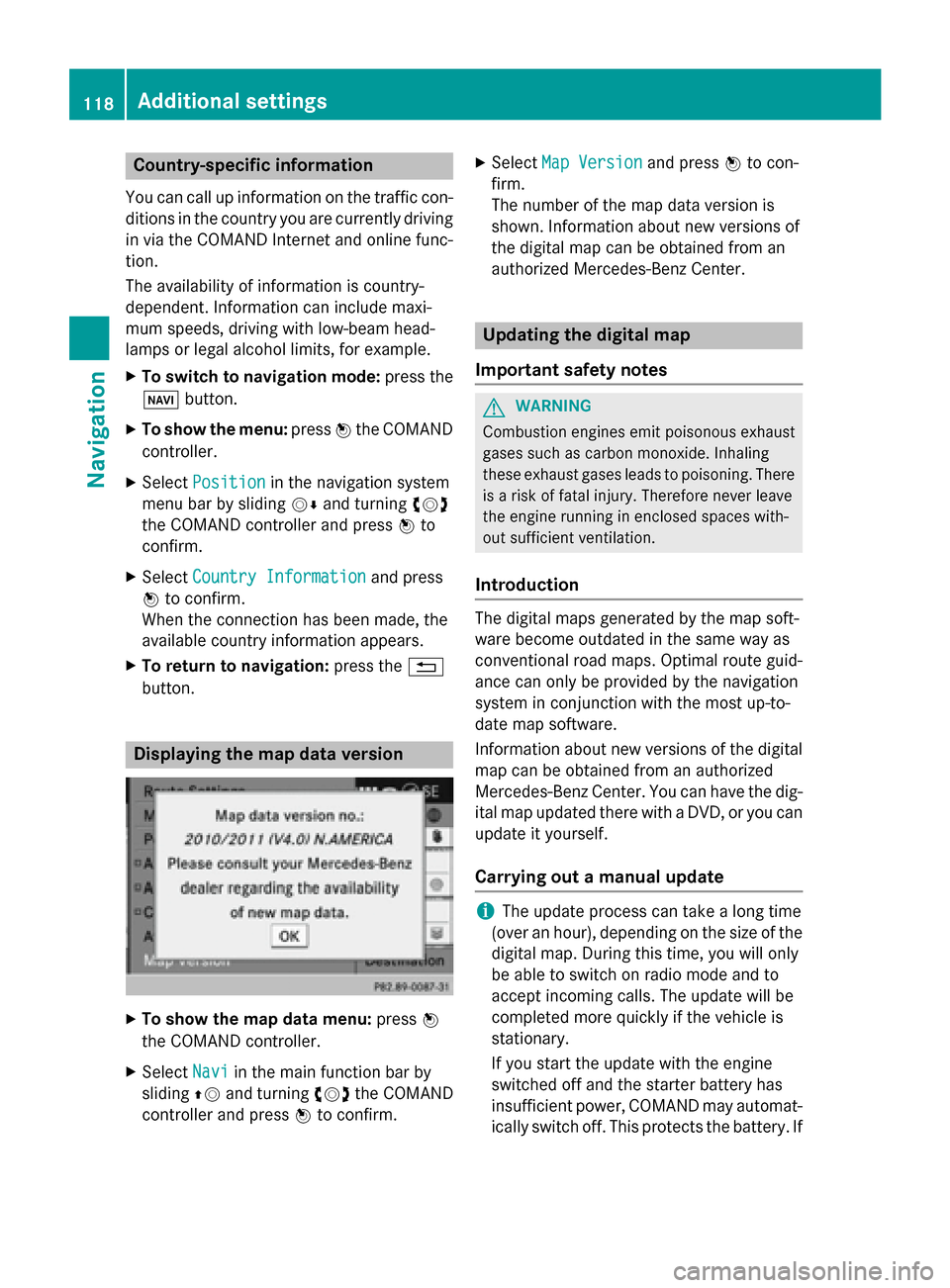
X
To show the map data menu: press0098
the COMAND controller.
X Select Navi
Navi in the main function bar by
sliding 00970052and turning 00790052007Athe COMAND
controller and press 0098to confirm. X
Select Map Version Map Version and press0098to con-
firm.
The number of the map data version is
shown. Information about new versions of
the digital map can be obtained from an
authorized Mercedes-Benz Center. Updating the digital map
Important safety notes G
WARNING
Combustion engines emit poisonous exhaust
gases such as carbon monoxide. Inhaling
these exhaust gases leads to poisoning. There is a risk of fatal injury. Therefore never leave
the engine running in enclosed spaces with-
out sufficient ventilation.
Introduction The digital maps generated by the map soft-
ware become outdated in the same way as
conventional road maps. Optimal route guid-
ance can only be provided by the navigation
system in conjunction with the most up-to-
date map software.
Information about new versions of the digital
map can be obtained from an authorized
Mercedes-Benz Center. You can have the dig-
ital map updated there with a DVD, or you can update it yourself.
Carrying out a manual update i
The update process can take a long time
(over an hour), depending on the size of the digital map. During this time, you will only
be able to switch on radio mode and to
accept incoming calls. The update will be
completed more quickly if the vehicle is
stationary.
If you start the update with the engine
switched off and the starter battery has
insufficient power, COMAND may automat-
ically switch off. This protects the battery. If 118
Additional settingsNavigation
Page 133 of 270
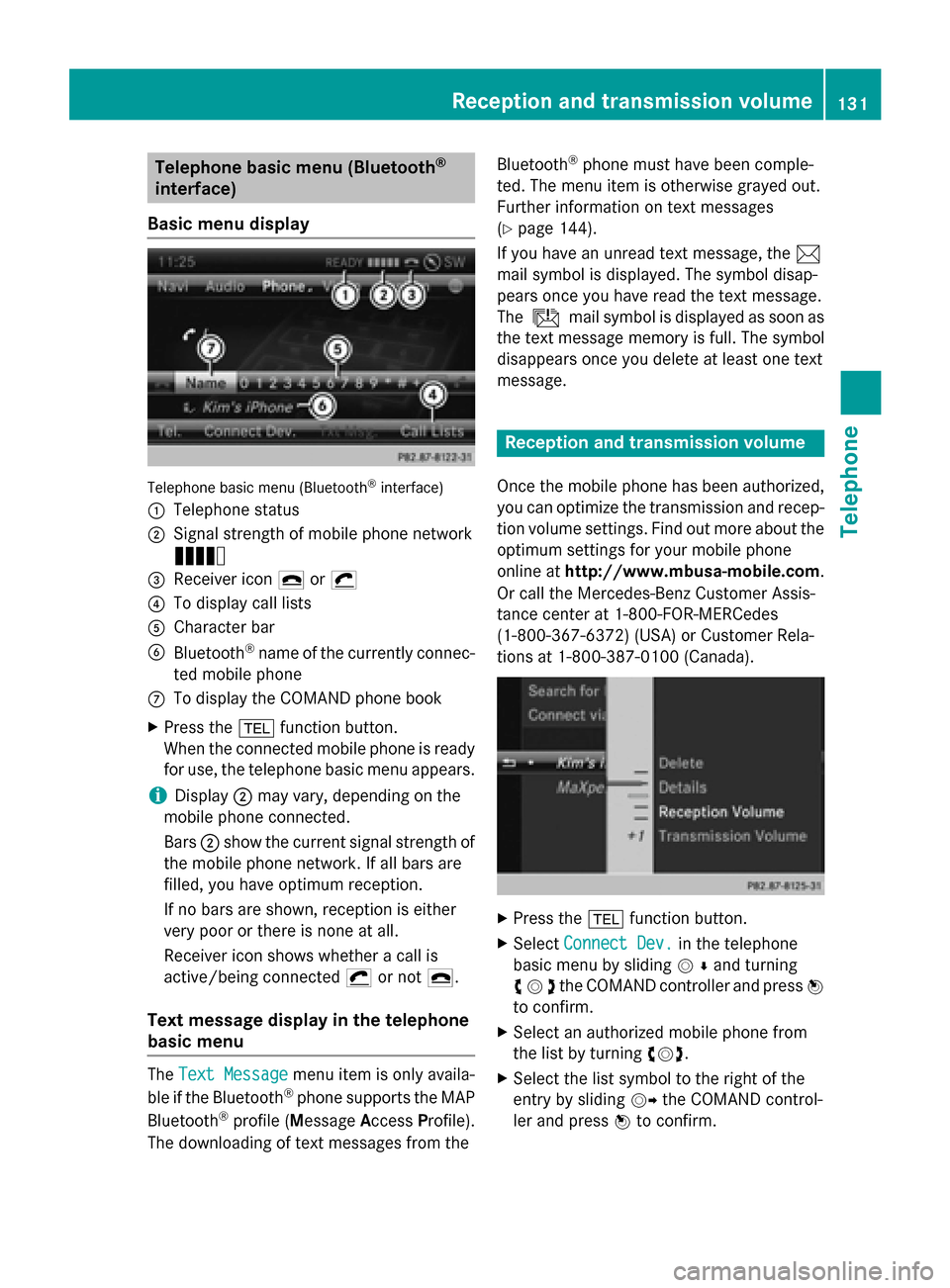
Telephone basic menu (Bluetooth
®
interface)
Basic menu display Telephone basic menu (Bluetooth
®
interface)
0043 Telephone status
0044 Signal strength of mobile phone network
Ä
0087 Receiver icon 0071or0075
0085 To display call lists
0083 Character bar
0084 Bluetooth ®
name of the currently connec-
ted mobile phone
006B To display the COMAND phone book
X Press the 002Bfunction button.
When the connected mobile phone is ready
for use, the telephone basic menu appears.
i Display
0044may vary, depending on the
mobile phone connected.
Bars 0044show the current signal strength of
the mobile phone network. If all bars are
filled, you have optimum reception.
If no bars are shown, reception is either
very poor or there is none at all.
Receiver icon shows whether a call is
active/being connected 0075or not 0071.
Text message display in the telephone
basic menu The
Text Message Text Message menu item is only availa-
ble if the Bluetooth ®
phone supports the MAP
Bluetooth ®
profile ( Message AccessProfile).
The downloading of text messages from the Bluetooth
®
phone must have been comple-
ted. The menu item is otherwise grayed out.
Further information on text messages
(Y page 144).
If you have an unread text message, the 0083
mail symbol is displayed. The symbol disap-
pears once you have read the text message.
The ú mail symbol is displayed as soon as
the text message memory is full. The symbol
disappears once you delete at least one text
message. Reception and transmission volume
Once the mobile phone has been authorized,
you can optimize the transmission and recep-
tion volume settings. Find out more about the optimum settings for your mobile phone
online at http://www.mbusa-mobile.com.
Or call the Mercedes-Benz Customer Assis-
tance center at 1-800-FOR-MERCedes
(1-800-367-6372) (USA) or Customer Rela-
tions at 1-800-387-010 0(Canada). X
Press the 002Bfunction button.
X Select Connect Dev. Connect Dev. in the telephone
basic menu by sliding 00520064and turning
00790052007Athe COMAND controller and press 0098
to confirm.
X Select an authorized mobile phone from
the list by turning 00790052007A.
X Select the list symbol to the right of the
entry by sliding 00520096the COMAND control-
ler and press 0098to confirm. Reception and transmission volume
131Telephone Z
Page 159 of 270

Your COMAND equipment
................158
General notes .................................... 158
Setting access data (Canada only) ..159
Establishing/ending the connec-
tion ..................................................... 166
Google™ local search .......................167
Destination/route download ...........170
Options .............................................. 172
Other services ................................... 174
Internet radio .................................... 175
Internet .............................................. 176 157Online and Internet functions
Page 160 of 270
Your COMAND equipment
These operating instructions describe all the
standard and optional equipment for your
COMAND system, as available at the time of
going to print. Country-specific differences
are possible. Please note that your
COMAND system may not be equipped with
all the features described. General notes
Conditions for access
G
WARNING
If you operate information systems and com-
munication equipment integrated in the vehi- cle while driving, you will be distracted from
traffic conditions. You could also lose control of the vehicle. There is a risk of an accident.
Only operate the equipment when the traffic
situation permits. If you are not sure that this
is possible, park the vehicle paying attention
to traffic conditions and operate the equip-
ment when the vehicle is stationary.
You must observe the legal requirements for
the country in which you are currently driving when operating COMAND.
USA only:
To use COMAND Mercedes-Benz Apps and
Internet access, the following conditions
must be fulfilled:
R mbrace is activated and operational
R mbrace is activated for COMAND
Mercedes-Benz Apps and Internet access
Priority of connections: an emergency call
has the highest priority. When a service call,
e.g. a breakdown service call or the MB Info
Call, is active, an emergency call can still be
initiated.
A service call, on the other hand, has priority over a current Internet connection. Therefore,you cannot establish an Internet connection
during a service call. i
The availability of individual COMAND
Mercedes-Benz Apps may vary depending
on the country.
i The terms of use are shown when
COMAND is used for the first time and then
once a year thereafter. Only read and
accept the terms of use when the vehicle is
stationary.
i Internet pages cannot be shown on the
driver's side while the vehicle is in motion.
Canada only:
The COMAND Mercedes-Benz Apps and the
Internet access are available via the Blue-
tooth ®
interface.
In order to use the functions, the following
conditions are necessary:
R The mobile phone supports the DUN Blue-
tooth ®
profile ( Dial-Up Networking) and is
connected to COMAND via the Bluetooth ®
interface (Y page 126). The DUN Blue-
tooth ®
profile enables the mobile phone to
establish a dial-up connection to the Inter-
net.
R You need a valid mobile service contract
with a data option, which is used to calcu-
late the associated connection costs.
R The access data of the mobile phone net-
work provider must be set on COMAND for the connected mobile phone (Y page 160).
i If the connected mobile phone supports
the PAN Bluetooth profile (Personal Area
Network), you can use the automatic con-
figuration function (Y page 160).
i You can obtain more detailed information
about suitable mobile phones on the Inter-
net at http://www.mercedes-
benz.com/connect or from your author-
ized Mercedes-Benz Center.
i If you use incorrect access data, addi-
tional costs may be incurred. This can hap-
pen when you use details that are different
from the contract or details from another
contract/data package. 158
General notesOnline and Internet functions
Page 161 of 270
i
The availability of individual Mercedes-
Benz Apps may vary depending on the
country.
i The terms of use are shown when
COMAND is used for the first time and then
once a year thereafter. Only read and
accept the terms of use when the vehicle is stationary.
i Internet pages cannot be shown on the
driver's side while the vehicle is in motion. Connection difficulties while the vehi-
cle is in motion (Canada only)
The following could be the cause of call dis-
connection:
R insufficient GSM/UMTS network coverage
R the vehicle has moved into a GSM cell with
no free channels
R the SIM card used is not compatible with
the network available
R you are using a mobile phone with "Twin-
card" and the mobile phone with the sec-
ond SIM card is logged into the network at
the same time Function restrictions (Canada only)
You will not be able to use the mobile phone,
will no longer be able to use the mobile phone, or you may have to wait before using it, in the
following situations:
R when the mobile phone is switched off
R if the Bluetooth ®
function is switched off in
COMAND
R if the Bluetooth ®
function is switched off on
the mobile phone while you are using Blue-
tooth ®
interface telephony
R if the mobile phone has not logged on to a
mobile phone network
R if neither the mobile phone network nor the
mobile phone allow simultaneous use of a
phone and an Internet connection i
It is possible that you may not be able to
receive calls when an Internet connection
is active. This depends on the mobile phone
and the mobile phone network used. Roaming (Canada only)
When you are driving your vehicle in a differ-
ent country and using COMAND and Internet
functions, additional costs may be incurred
(roaming fees). When you are in a different
country, your SIM card must be enabled for
data roaming. If your mobile phone network
provider does not have a data roaming agree-
ment with the roaming partner, it may not be possible to establish an Internet connection.
Deactivate this function on your mobile
phone if you want to avoid data roaming when you are in a different country. Setting access data (Canada only)
Introduction
To use online and Internet functions, you
need Internet access data for the connected
mobile phone. You can obtain this from your
mobile phone network provider.
A selected/manually set mobile phone net-
work provider is only valid for the mobile
phone connected when the selection/setting
is made. The mobile phone network provider
is set automatically upon reconnection.
i When you are driving your vehicle in a dif-
ferent country and using the online and
Internet functions on COMAND, you may
incur additional costs (roaming fees).
i While initializing the mobile phone for the
Internet connection, access data which is
already on the mobile phone may be over-
written. You should therefore check the
settings on the mobile phone (see the
mobile phone operating instructions).
i Adjust the access data settings when the
vehicle is stationary. You may otherwise be Setting access data (Canada only)
159Online and Internet functions Z
Page 162 of 270
distracted from the traffic conditions,
cause an accident and injure yourself and
others. Selecting/setting Internet access
data
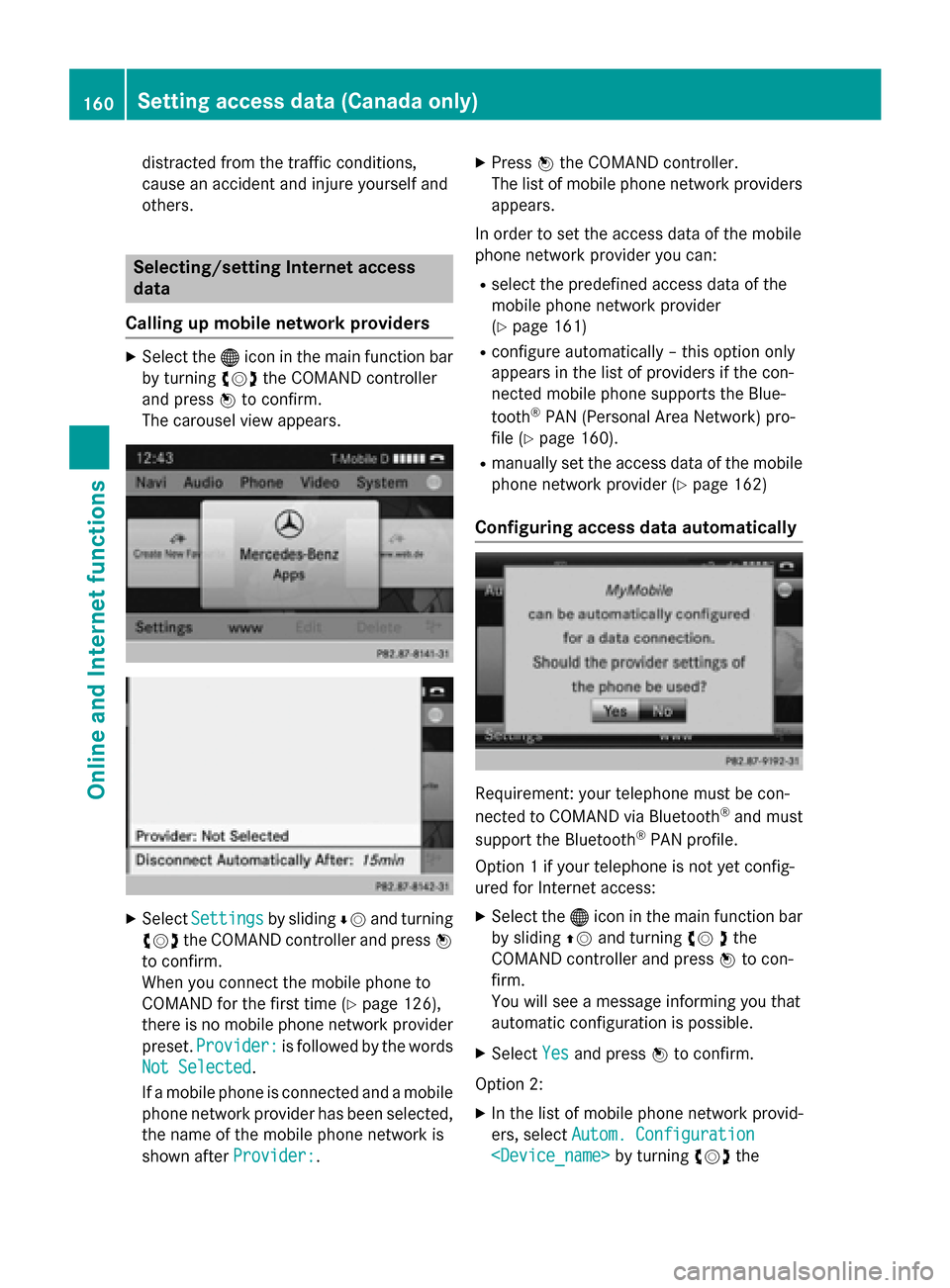
Calling up mobile network providers X
Select the 00A7icon in the main function bar
by turning 00790052007Athe COMAND controller
and press 0098to confirm.
The carousel view appears. X
Select Settings Settings by sliding00640052and turning
00790052007A the COMAND controller and press 0098
to confirm.
When you connect the mobile phone to
COMAND for the first time (Y page 126),
there is no mobile phone network provider
preset. Provider:
Provider: is followed by the words
Not Selected Not Selected.
If a mobile phone is connected and a mobile phone network provider has been selected,
the name of the mobile phone network is
shown after Provider:
Provider:. X
Press 0098the COMAND controller.
The list of mobile phone network providers
appears.
In order to set the access data of the mobile
phone network provider you can: R select the predefined access data of the
mobile phone network provider
(Y page 161)
R configure automatically – this option only
appears in the list of providers if the con-
nected mobile phone supports the Blue-
tooth ®
PAN (Personal Area Network) pro-
file (Y page 160).
R manually set the access data of the mobile
phone network provider (Y page 162)
Configuring access data automatically Requirement: your telephone must be con-
nected to COMAND via Bluetooth
®
and must
support the Bluetooth ®
PAN profile.
Option 1 if your telephone is not yet config-
ured for Internet access:
X Select the 00A7icon in the main function bar
by sliding 00970052and turning 00790052the
COMAND controller and press 0098to con-
firm.
You will see a message informing you that
automatic configuration is possible.
X Select Yes Yesand press 0098to confirm.
Option 2: X In the list of mobile phone network provid-
ers, select Autom. Configuration Autom. Configuration
Setting access data (Canada only)Online and Internet functions
Page 163 of 270
COMAND controller and press
0098to con-
firm (Y page 160).
The configuration data is transferred from
the mobile phone. If the configuration is
successful, a 0036dot appears in front of
Autom. configuration
Autom. configuration
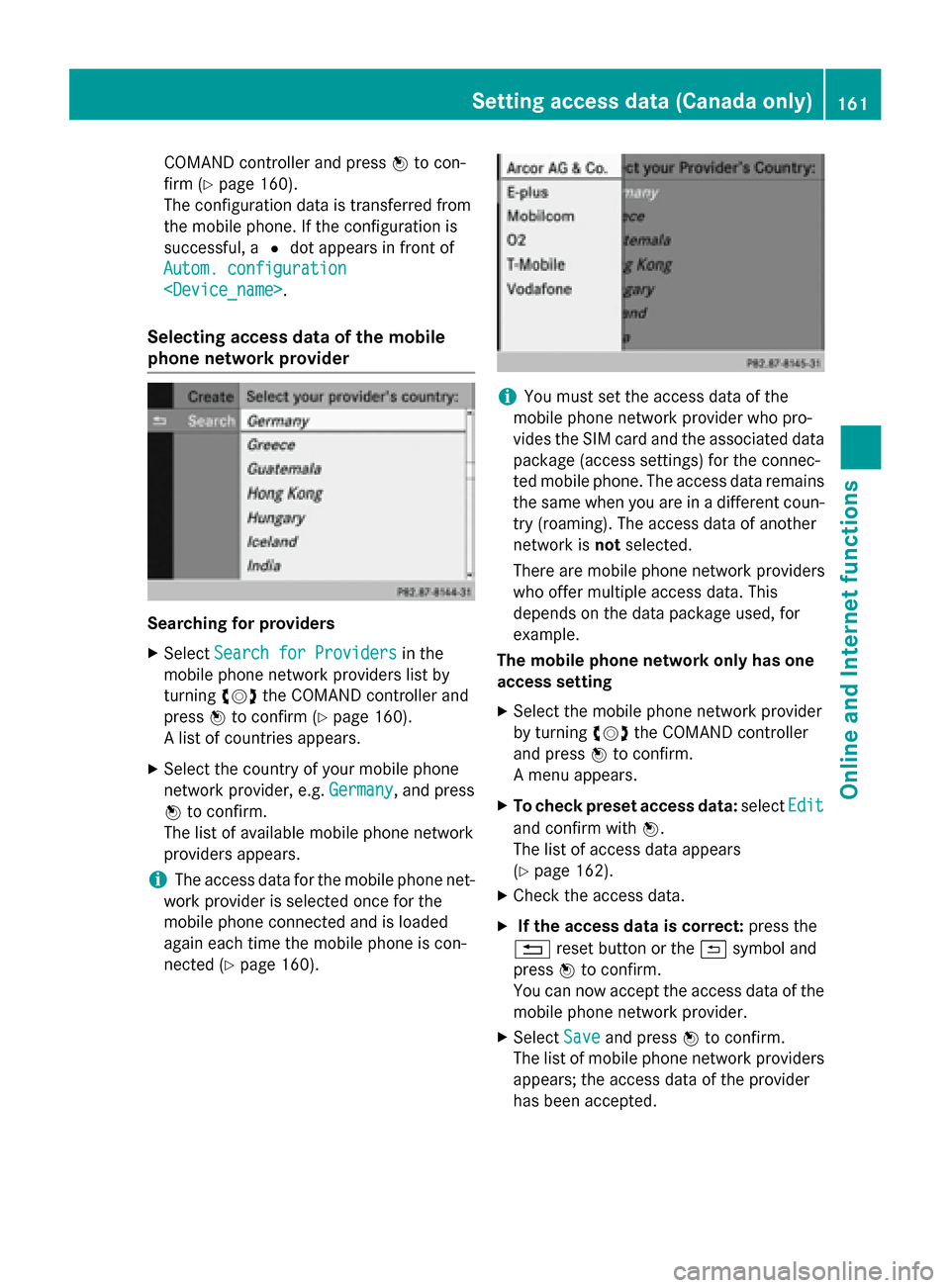
Selecting access data of the mobile
phone network provider Searching for providers
X Select Search for Providers
Search for Providers in the
mobile phone network providers list by
turning 00790052007Athe COMAND controller and
press 0098to confirm (Y page 160).
A list of countries appears.
X Select the country of your mobile phone
network provider, e.g. Germany
Germany, and press
0098 to confirm.
The list of available mobile phone network
providers appears.
i The access data for the mobile phone net-
work provider is selected once for the
mobile phone connected and is loaded
again each time the mobile phone is con-
nected (Y page 160). i
You must set the access data of the
mobile phone network provider who pro-
vides the SIM card and the associated data package (access settings) for the connec-
ted mobile phone. The access data remains the same when you are in a different coun-
try (roaming). The access data of another
network is notselected.
There are mobile phone network providers
who offer multiple access data. This
depends on the data package used, for
example.
The mobile phone network only has one
access setting
X Select the mobile phone network provider
by turning 00790052007Athe COMAND controller
and press 0098to confirm.
A menu appears.
X To check preset access data: selectEdit Edit
and confirm with 0098.
The list of access data appears
(Y page 162).
X Check the access data.
X If the access data is correct: press the
0038 reset button or the 0039symbol and
press 0098to confirm.
You can now accept the access data of the
mobile phone network provider.
X Select Save
Save and press 0098to confirm.
The list of mobile phone network providers
appears; the access data of the provider
has been accepted. Setting access data (Canada only)
161Online and Internet functions Z
Page 164 of 270
X
To edit the access data: proceed as
described for manually entering the access data (Y page 162).
When you confirm the edited access data,
the list of mobile phone network providers
appears and displays the selected provider.
If, after selecting a mobile phone network provider, several access settings are dis-
played:
X Select the appropriate access setting by
turning 00790052007Athe COMAND controller and
press 0098to confirm.
A menu appears. X
To check access settings: selectEdit Edit
and press 0098to confirm.
The list of access data appears
(Y page 162).
X Check the access data.
X If the access data is correct: press the
0038 reset button or the 0039symbol and
press 0098to confirm.
You can now accept the access data of the
mobile phone network provider.
X Select Save
Save and press 0098to confirm.
The list of mobile phone network providers
appears; the access data of the provider
has been accepted.
X To edit the access data: proceed as
described in "Manually setting the access
data of the mobile phone network provider" (Y page 162).
When you confirm the edited access data,
the list of mobile phone network providers
appears and displays the selected provider. The currently selected access settings (003B
dot
in front of the entry) are used for the connec- ted mobile phone.
X To return to the carousel view: press the
0038 back button twice.
or
X Press 0098the COMAND controller and then
the 0038 back button.
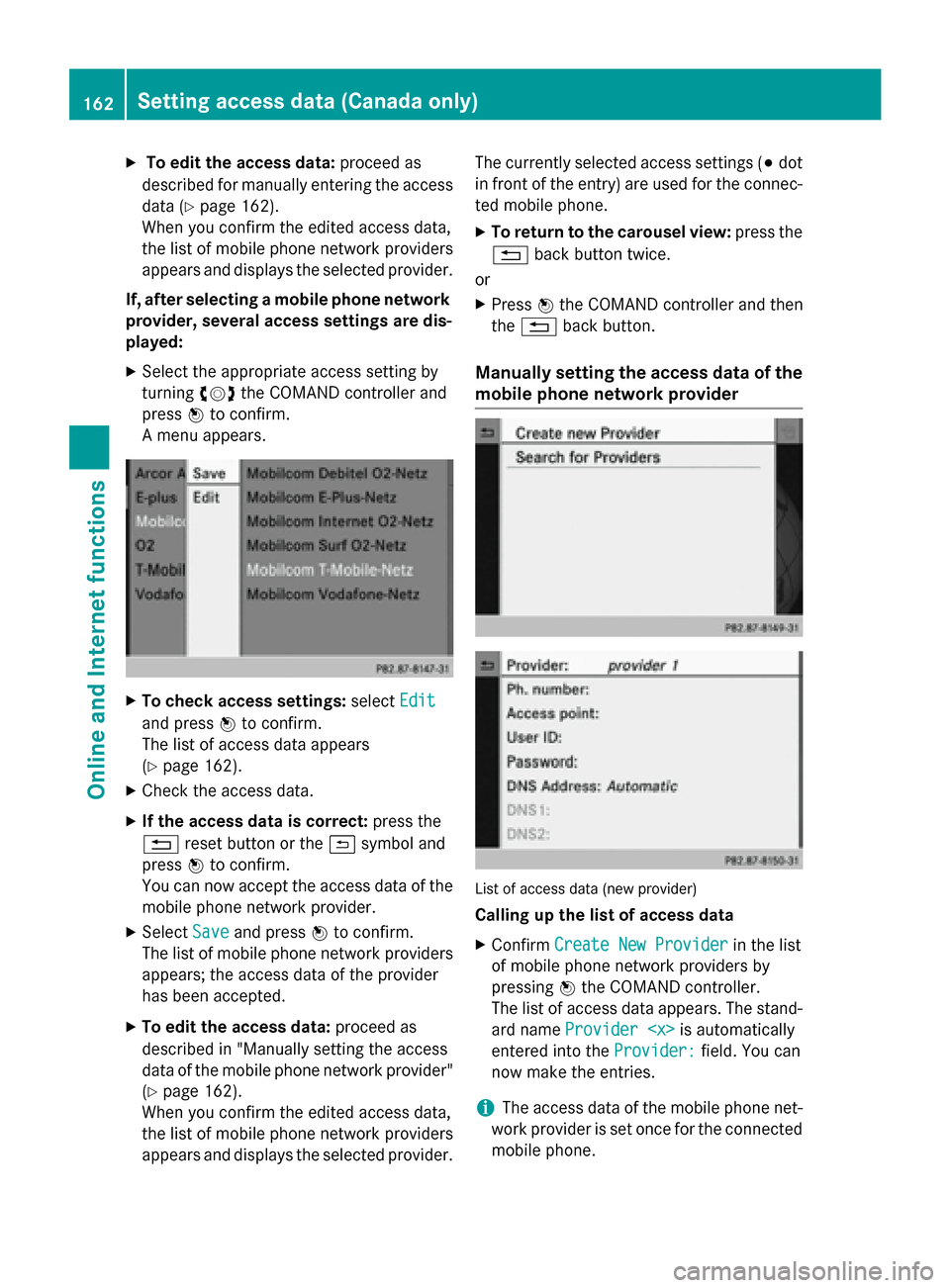
Manually setting the access data of the
mobile phone network provider List of access data (new provider)
Calling up the list of access data
X Confirm Create New Provider Create New Provider in the list
of mobile phone network providers by
pressing 0098the COMAND controller.
The list of access data appears. The stand-
ard name Provider
entered into the Provider:
Provider:field. You can
now make the entries.
i The access data of the mobile phone net-
work provider is set once for the connected
mobile phone. 162
Setting access data (Canada only)Online and Internet functions
Page 165 of 270

Explanation of the access data
Input field Meaning
Provider:
Provider: Name of the provider to
be displayed in the list of
mobile phone network
providers. The name can
be freely selected.
The standard entry is
Provider
Tel.
Number:
Number: Access number for estab-
lishing the connection
i The access number
depends on the mobile
phone used. For GSM/
UMTS mobile phones,
*99***1# *99***1# is used as a
standard. Access
Access
Point: Point: APN network access point
( Access PointName)
You can obtain this infor-
mation from your mobile
phone network provider.
i Entry is not necessary
for all mobile phone
network providers and
mobile phones. User ID: User ID: The user identification
can be obtained from your
mobile phone network
provider.
i Entry is not necessary
for all mobile phone
network providers. Password: Password: The password can be
obtained from your
mobile phone network
provider.
i Entry is not necessary
for all mobile phone
network providers. Input field Meaning
DNS DNS
Address:
Address: The DNS addresses
(Domain
NameService)
can be negotiated auto-
matically or entered man-
ually. The required infor-
mation can be obtained
from your mobile phone
network provider.
i Most mobile phone
network providers sup-
port the Automatic Automatic
function. If you selected
the Manual
Manual option, you
are usually required to
enter a DNS address. DNS1: DNS1:
DNS2: DNS2: Fields for entering the
DNS server addresses
manually. The address
can be obtained from your
mobile phone network
provider. Entering access data
X In the list of access data, confirm the Pro‐ Pro‐
vider
vider input field by pressing 0098
(Y page 162).
An input menu appears. X
Enter the provider (Y page 33).
X To enter the phone number: in the list of
access data, select the Tel. Number:
Tel. Number:
input field by sliding 00640052or turning 00790052007A Setting access data (Canada only)
163Online and Internet functions Z
Page 166 of 270

the COMAND controller and press
0098to
confirm.
The input menu for the phone number
appears. X
Enter the telephone number.
X To enter the access data: in the list of
access data, select the Access Point: Access Point:
input field and confirm by pressing 0098.
X Enter the access data.
X To enter the user ID: in the list of access
data, select the User ID:
User ID: input field and
confirm by pressing 0098.
X Enter the user ID.
X To enter the password: in the list of
access data, select the Password:
Password: input
field and confirm by pressing 0098.
X Enter the password. X
To set the DNS address: selectAuto‐
Auto‐
matic
matic orManual
Manual with the COMAND con-
troller and press 0098to confirm.
Automatic
Automatic : the DNS address is set auto-
matically. Manual
Manual : uses the entries in DNS 1 and DNS
2. Entering the DNS1
Entering the example DNS
X After selecting Manual
Manual, select the DNS1
DNS1
input field with the COMAND controller and
press 0098to confirm.
X Enter 172.28.4.81
172.28.4.81, for example. Internet access data for other mobile
phones
If the access data is already available in the
list of mobile phone network providers, you
can use it for additional mobile phones.
The following prerequisites are required for
this:
R the additional mobile phone must be con-
nected.
R the access data must apply to the mobile
phone contract of the currently connected
mobile phone.
X Select a provider from the list of mobile
phone network providers by turning 00790052007A
the COMAND controller and press 0098to
confirm (Y page 161).
After you select the provider, the list of
mobile phone network providers is closed.
The selected provider is entered. 164
Setting access data (Canada only)Online and
Internet functions