Soft MERCEDES-BENZ E-Class 2014 W212 Comand Manual
[x] Cancel search | Manufacturer: MERCEDES-BENZ, Model Year: 2014, Model line: E-Class, Model: MERCEDES-BENZ E-Class 2014 W212Pages: 270, PDF Size: 5.82 MB
Page 2 of 270
Publication details
Internet
Further information about Mercedes-Benz
vehicles and about Daimler AG can be found
on the following websites:
http://www.mbusa.com (USA only)
http://www.mercedes-benz.ca (Canada
only) Editorial office
You are welcome to forward any queries or
suggestions you may have regarding this
Operator's Manual to the technical documen-
tation team at the following address:
Daimler AG, HPC: CAC, Customer Service,
70546 Stuttgart, Germany © Daimler AG: Not to be reprinted, translated
or otherwise reproduced, in whole or in part,
without written permission from Daimler AG. Vehicle manufacturer
Daimler AG
Mercedesstraße 137
70327 Stuttgart
Germany
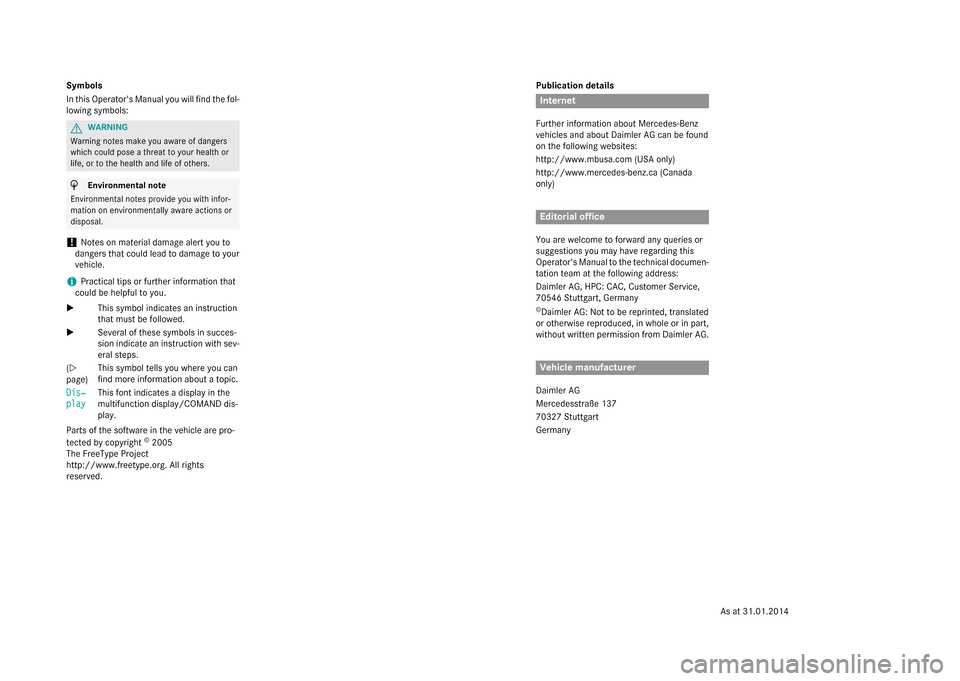
Symbols
In this Operator's Manual you will find the fol-
lowing symbols: G
WARNING
Warning notes make you aware of dangers
which could pose a threat to your health or
life, or to the health and life of others. H
Environmental note
Environmental notes provide you with infor-
mation on environmentally aware actions or
disposal.
! Notes on material damage alert you to
dangers that could lead to damage to your
vehicle.
i Practical tips or further information that
could be helpful to you.
X This symbol indicates an instruction
that must be followed.
X Several of these symbols in succes-
sion indicate an instruction with sev-
eral steps.
(Y
page) This symbol tells you where you can
find more information about a topic.
Dis‐ Dis‐
play play This font indicates a display in the
multifunction display/COMAND dis-
play.
Parts of the software in the vehicle are pro-
tected by copyright ©
2005
The FreeType Project
http://www.freetype.org. All rights
reserved.
As at 31.01.2014
Page 16 of 270
Important safety notes
G
WARNING
Modifications to electronic components, their software as well as wiring can impair their
function and/or the function of other net-
worked components. In particular, systems
relevant to safety could also be affected. As a
result, these may no longer function as inten-
ded and/or jeopardize the operating safety of
the vehicle. There is an increased risk of an
accident and injury.
Never tamper with the wiring as well as elec-
tronic components or their software. You
should have all work to electrical and elec-
tronic equipment carried out at a qualified
specialist workshop.
If you make any changes to the vehicle elec-
tronics, the general operating permit is ren-
dered invalid. G
WARNING
If you operate information systems and com-
munication equipment integrated in the vehi- cle while driving, you will be distracted from
traffic conditions. You could also lose control of the vehicle. There is a risk of an accident.
Only operate the equipment when the traffic
situation permits. If you are not sure that this
is possible, park the vehicle paying attention
to traffic conditions and operate the equip-
ment when the vehicle is stationary.
You must observe the legal requirements for
the country in which you are currently driving when operating COMAND.
COMAND calculates the route to the destina-
tion without taking account of the following,
for example:
R traffic lights
R stop and yield signs
R merging lanes
R parking or stopping in a no parking/no
stopping zone R
other road and traffic rules and regulations
R narrow bridges
COMAND can give incorrect navigation com-
mands if the actual street/traffic situation
does not correspond with the digital map's
data. Digital maps do not cover all areas nor
all routes in an area. For example, a route may have been diverted or the direction of a one-
way street may have changed.
For this reason, you must always observe
road and traffic rules and regulations during
your journey. Road and traffic rules and reg-
ulations always have priority over the sys-
tem's driving recommendations.
Navigation announcements are intended to
direct you while driving without diverting your attention from the road and driving.
Please always use this feature instead of con-sulting the map display for directions. Look-
ing at the icons or map display can distract
you from traffic conditions and driving, and
increase the risk of an accident.
Bear in mind that at a speed of only 30 mph
(approximately 50 km/h) your vehicle covers
a distance of 44 feet (approximately 14 m)
per second.
This equipment complies with FCC radiation
exposure limits set forth for uncontrolled
equipment and meets the FCC radio fre-
quency (RF) Exposure Guidelines in Supple-
ment C to OET65.
This equipment has very low levels of RF
energy that is deemed to comply without
maximum permissive exposure evaluation
(MPE). But it is desirable that it should be
installed and operated with at least 8inches
(20 cm) and more between the radiator and a
person's body (excluding extremities: hands,
wrists, feet and legs.) 14
Operating safety
Page 17 of 270
Declarations of conformity
Vehicle components which receive
and/or transmit radio waves
i USA only:
The wireless devices of this
vehicle comply with Part 15 of the FCC
Rules. Operation is subject to the following two conditions:
1) These devices may not cause interfer-
ence, and
2) These devices must accept any interfer- ence, including interference that may
cause undesired operation of the device.
Changes or modifications not expressly
approved by the party responsible for com-
pliance could void the user's authority to
operate the equipment.
i Canada only:
The wireless devices of this
vehicle comply with Industry Canada
license-exempt RSS standard(s). Operation
is subject to the following two conditions:
1) These devices may not cause interfer-
ence, and
2) These devices must accept any interfer- ence, including interference that may
cause undesired operation of the device. Correct use
Observe the following information when using
COMAND:
R the safety notes in this manual
R traffic rules and regulations
R laws and safety standards pertaining to
motor vehicles
i Work improperly carried out on electronic
components or systems (e.g. radio, DVD
changer) and associated software could
cause them to cease functioning. Even sys-
tems that have not been modified could be affected because the electronic systems
are connected. Electronic malfunctions
can seriously jeopardize the operational
safety of your vehicle. i
Roof antenna functionality (telephone,
satellite radio, GPS) can be affected by the use of roof carrier systems.
Attaching metalized retrofit film to the
windshield may affect radio reception and
have a negative impact on all other anten-
nas (e.g. emergency antenna) in the vehicleinterior.
i Therefore, have all work on or modifica-
tions to electronic components carried out
at a qualified specialist workshop. This
workshop should have the necessary spe-
cialist knowledge and tools to carry out the
work required. Mercedes-Benz recom-
mends that you use an authorized
Mercedes-Benz Center for this purpose. In
particular, work relevant to safety or on
safety-related systems must be carried out at a qualified specialist workshop.
i Protection against theft:
this device is
equipped with technical provisions to pro-
tect it against theft. Further information on
protection against theft can be obtained
from an authorized Mercedes-Benz Center. Data stored in the vehicle
A wide range of electronic components in
your vehicle contain data memories.
These data memories temporarily or perma-
nently store technical information about: R The vehicle's operating state
R Incidents
R Malfunctions
In general, this technical information docu-
ments the state of a component, a module, a system or the surroundings.
These include, for example:
R operating conditions of system compo-
nents, e.g. fluid levels
R the vehicle's status messages and those of
its individual components, e.g. number of
wheel revolutions/speed, deceleration in Operating safety
15 Z
Page 18 of 270
movement, lateral acceleration, accelera-
tor pedal position
R malfunctions and defects in important sys-
tem components, e.g. lights, brakes
R vehicle reactions and operating conditions
in special driving situations, e.g. air bag
deployment, intervention of stability con-
trol systems
R ambient conditions, e.g. outside tempera-
ture
This data is of an exclusively technical nature and can be used to:
R assist in recognizing and rectifying mal-
functions and defects
R analyze vehicle functions, e.g. after an acci-
dent
R optimize vehicle function
The data cannot be used to trace the vehicle's
movements.
When your vehicle is serviced, technical infor-
mation can be read from the event data mem- ory and malfunction data memory.
Services include, for example:
R repair services
R service processes
R warranties
R quality assurance
It is read by employees of the service network (including manufacturers) using special diag-
nostic devices. More detailed information is
obtained from it, if required.
After a malfunction has been rectified, the
information is deleted from the malfunction
memory or is continually overwritten.
When operating the vehicle, situations are
conceivable in which this technical data, in
connection with other information (if neces-
sary, under consultation with an authorized
expert), could be traced to a person.
Examples include:
R accident reports
R damage to the vehicle
R witness statements Further additional functions that have been
contractually agreed upon with the customer
allow certain vehicle data to be conveyed by
the vehicle as well. The additional functions
include, for example, vehicle location in case of an emergency. Qualified specialist workshop
Read the information on qualified specialist
workshops in the vehicle Operator's Manual. Information on copyright
General information
Information on licenses for free and Open
Source software used in your vehicle and in
the electronic components can be found on
this website: http://www.mercedes-
benz.com/opensource . Registered trademarks
Registered trademarks: R Bluetooth ®
is a registered trademark of
Bluetooth ®
SIG Inc.
R DTS is a registered trademark of DTS, Inc.
R Dolby and MLP are registered trademarks
of DOLBY Laboratories.
R BabySmart™, ESP ®
and PRE-SAFE ®
are
registered trademarks of Daimler AG.
R HomeLink ®
is a registered trademark of
Prince.
R iPod ®
and iTunes ®
are registered trade-
marks of Apple Inc.
R Logic7 ®
is a registered trademark of Har-
man International Industries.
R Microsoft ®
and Windows media ®
are reg-
istered trademarks of Microsoft Corpora-
tion.
R SIRIUS is a registered trademark of Sirius
XM Radio Inc. 16
Operating safety
Page 26 of 270
Switching the COMAND display on/off
X
Press the 0066button.
or X Select System
System in the main function bar by
sliding 00970052and turning 00790052007Athe COMAND
controller and press 0098to confirm.
In both cases, the system menu appears.
X To switch off: selectDisplay Off Display Off and
press 0098to confirm.
X To switch on: press one of the buttons,
e.g. 0066, 00BEor the 0038back button.
Cleaning instructions !
Do not touch the display. The display has
a very sensitive high-gloss surface; there is a risk of scratching. If you have to clean the
screen, however, use a mild cleaning agent
and a soft, lint-free cloth.
The display must be switched off and have
cooled down before you start cleaning. Clean
the display screen, when necessary, with a
commercially available microfiber cloth and
cleaning agent for TFT/LCD displays. Do not
apply pressure to the display surface when
cleaning it, as this could cause irreversible
damage. Then, dry the surface with a dry
microfiber cloth.
Avoid using alcoholic thinners, gasoline or
abrasive cleaning agents. These could dam-
age the display surface. 24
COMAND operating systemAt a glance
Page 120 of 270
Country-specific information
You can call up information on the traffic con-
ditions in the country you are currently driving
in via the COMAND Internet and online func-
tion.
The availability of information is country-
dependent. Information can include maxi-
mum speeds, driving with low-beam head-
lamps or legal alcohol limits, for example.
X To switch to navigation mode: press the
00BE button.
X To show the menu: press0098the COMAND
controller.
X Select Position Position in the navigation system
menu bar by sliding 00520064and turning 00790052007A
the COMAND controller and press 0098to
confirm.
X Select Country Information
Country Information and press
0098 to confirm.
When the connection has been made, the
available country information appears.
X To return to navigation: press the0038
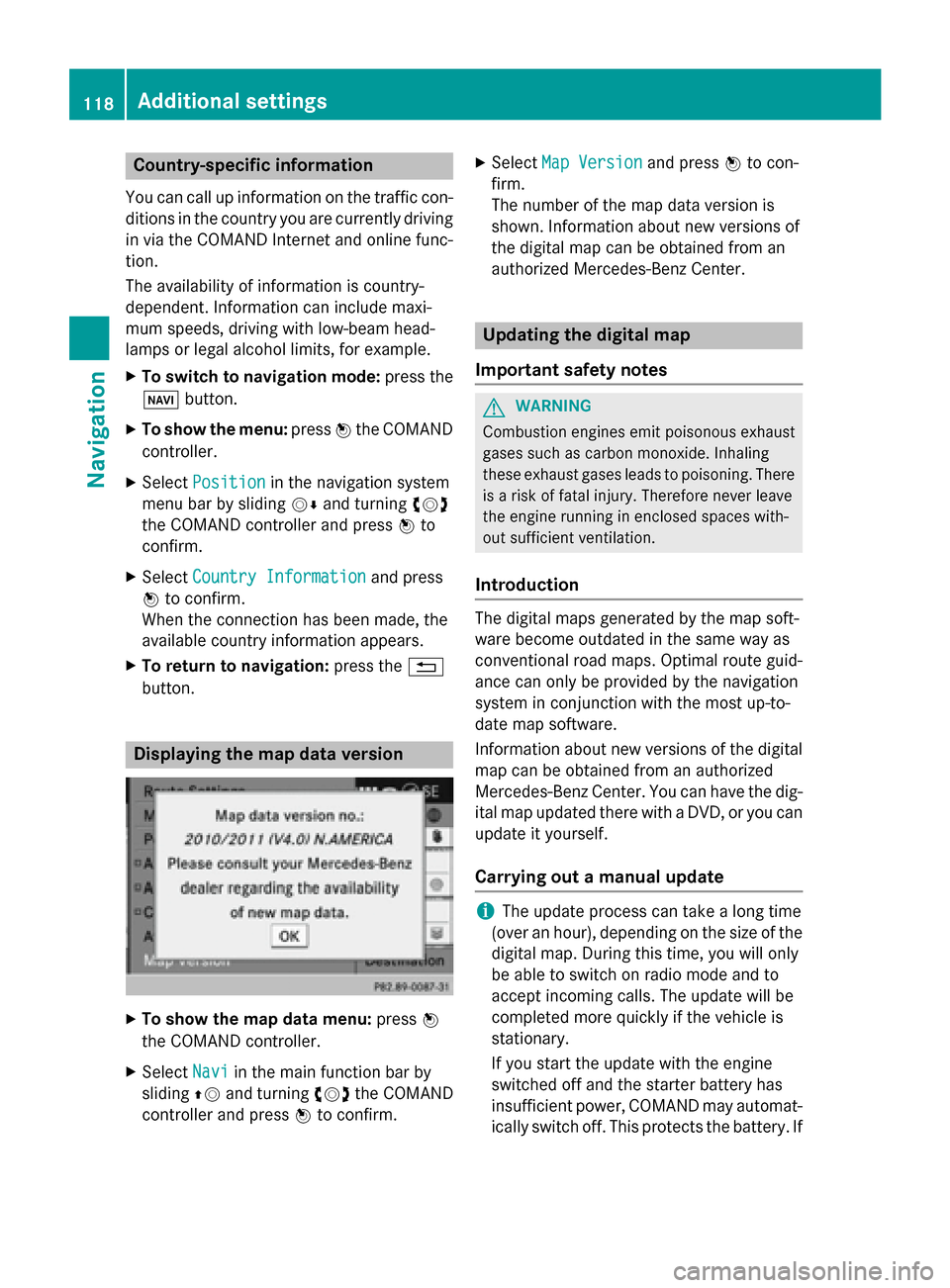
button. Displaying the map data version
X
To show the map data menu: press0098
the COMAND controller.
X Select Navi
Navi in the main function bar by
sliding 00970052and turning 00790052007Athe COMAND
controller and press 0098to confirm. X
Select Map Version Map Version and press0098to con-
firm.
The number of the map data version is
shown. Information about new versions of
the digital map can be obtained from an
authorized Mercedes-Benz Center. Updating the digital map
Important safety notes G
WARNING
Combustion engines emit poisonous exhaust
gases such as carbon monoxide. Inhaling
these exhaust gases leads to poisoning. There is a risk of fatal injury. Therefore never leave
the engine running in enclosed spaces with-
out sufficient ventilation.
Introduction The digital maps generated by the map soft-
ware become outdated in the same way as
conventional road maps. Optimal route guid-
ance can only be provided by the navigation
system in conjunction with the most up-to-
date map software.
Information about new versions of the digital
map can be obtained from an authorized
Mercedes-Benz Center. You can have the dig-
ital map updated there with a DVD, or you can update it yourself.
Carrying out a manual update i
The update process can take a long time
(over an hour), depending on the size of the digital map. During this time, you will only
be able to switch on radio mode and to
accept incoming calls. The update will be
completed more quickly if the vehicle is
stationary.
If you start the update with the engine
switched off and the starter battery has
insufficient power, COMAND may automat-
ically switch off. This protects the battery. If 118
Additional settingsNavigation
Page 121 of 270
this occurs, restart the update with the
engine running.
X Insert the DVD (Y page 196).
COMAND checks whether the digital map
on the DVD is compatible with the naviga-
tion system and system software.
A prompt then appears asking if you want
to install the database. Versions of the
database currently installed and the data-
base that is to be installed are displayed.
X Select Yes YesorNo
No and press 0098to confirm.
After selecting Yes
Yes, an activation code
must be entered when installing a database
for the first time. You will receive the acti-
vation code when you buy the navigation
DVD.
If you select No No, the process will be can-
celed.
X Enter the activation code.
After entering the activation code cor-
rectly, COMAND starts updating the digital
map. Once the update is finished, you will
see a message.
X To confirm the message: press0098the
COMAND controller.
X Take the DVD out of the slot.
While the update is running, you will see a
message to this effect and a progress bar.
The navigation system is not operational
until the update is complete.
i You cannot eject the DVD during the
update. If you switch off COMAND during
the update, the update is interrupted. It
then continues from where it was interrup-
ted when the system is restarted.
COMAND may prompt you to change the DVD during the update.
X Press the 0062load/eject button.
X Take the DVD out of the slot.
X Insert the requested DVD.
Once the update has been successfully
completed, you will see a message to this
effect. X
To confirm the message: press0098the
COMAND controller.
X Take the DVD out of the slot.
The update is complete.
If the update is not successfully completed, you will see a message that the map updateis not possible.
X To confirm the message: press0098the
COMAND controller.
X Take the DVD out of the slot. Additional settings
119Navigation Z
Page 123 of 270
Problem
Possible causes/consequences and
0050
0050Solutions The
Navigation
Navigation
Unavailable
Unavailable message
appears. COMAND has an integrated hard drive on which the digital map is
stored.
To protect the integrated hard drive against damage, COMAND
deactivates it at very high and low temperatures. The navigation
system will then be temporarily unavailable.
X Let the vehicle and COMAND cool down.
X To hide the message: switch COMAND off and then on again. If an area of the hard disk has a malfunction, COMAND can no
longer access the map data in this area. This may occur when
calculating a route, for example.
X To hide the message: switch COMAND off and then on again.
The navigation system will be operational again until it has to
access the faulty area of the hard drive once more. The message
will then reappear.
X Consult an authorized Mercedes-Benz Center. Problem
Possible causes/consequences and
0050 0050Solutions You see a message
informing you that the
DVD containing the dig-
ital map is incompatible
with the system soft-
ware. The DVD containing the digital map cannot be used for the update.
X To confirm the message: press0098the COMAND controller.
X Eject the DVD.
X Have the system database checked at an authorized Mercedes-
Benz Center. Problem
Possible causes/consequences and
0050 0050Solutions The map software
update has failed. The DVD is dirty.
X Clean the DVD.
X Restart the update. The DVD is scratched.
X Consult an authorized Mercedes-Benz Center. There is overheating due to excessive temperatures in the vehicle
interior.
X Wait until the vehicle interior has cooled down.
X Restart the update. COMAND's integrated hard disk is defective.
X Consult an authorized Mercedes-Benz Center. Problems with the navigation system
121Navigation Z
Page 203 of 270
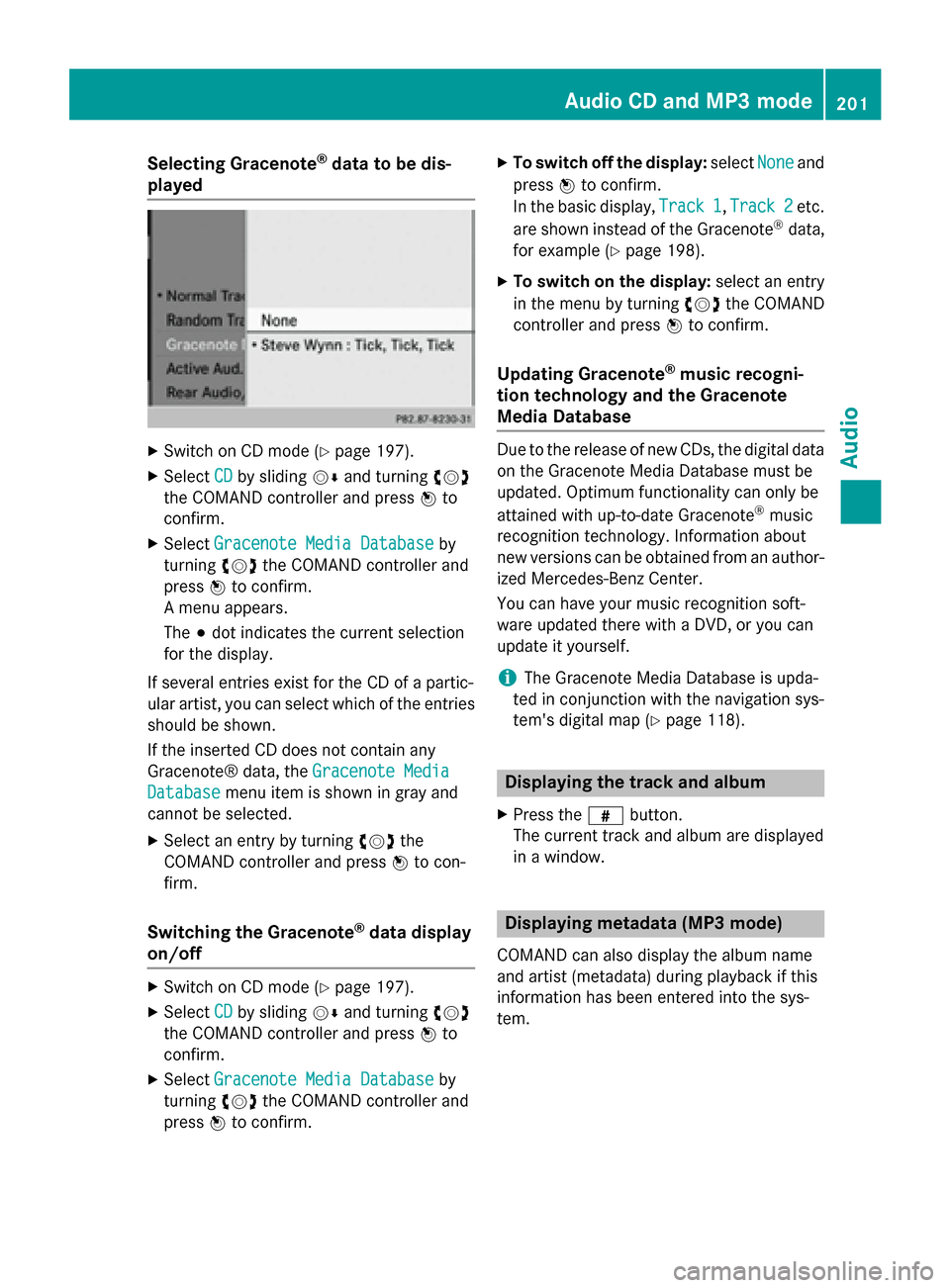
Selecting Gracenote
®
data to be dis-
played X
Switch on CD mode (Y page 197).
X Select CD
CDby sliding 00520064and turning 00790052007A
the COMAND controller and press 0098to
confirm.
X Select Gracenote Media Database
Gracenote Media Database by
turning 00790052007Athe COMAND controller and
press 0098to confirm.
A menu appears.
The 003Bdot indicates the current selection
for the display.
If several entries exist for the CD of a partic-
ular artist, you can select which of the entries
should be shown.
If the inserted CD does not contain any
Gracenote® data, the Gracenote Media
Gracenote Media
Database
Database menu item is shown in gray and
cannot be selected.
X Select an entry by turning 00790052007Athe
COMAND controller and press 0098to con-
firm.
Switching the Gracenote ®
data display
on/off X
Switch on CD mode (Y page 197).
X Select CD CDby sliding 00520064and turning 00790052007A
the COMAND controller and press 0098to
confirm.
X Select Gracenote Media Database
Gracenote Media Database by
turning 00790052007Athe COMAND controller and
press 0098to confirm. X
To switch off the display: selectNone Noneand
press 0098to confirm.
In the basic display, Track 1 Track 1,Track 2
Track 2etc.
are shown instead of the Gracenote ®
data,
for example (Y page 198).
X To switch on the display: select an entry
in the menu by turning 00790052007Athe COMAND
controller and press 0098to confirm.
Updating Gracenote ®
music recogni-
tion technology and the Gracenote
Media Database Due to the release of new CDs, the digital data
on the Gracenote Media Database must be
updated. Optimum functionality can only be
attained with up-to-date Gracenote ®
music
recognition technology. Information about
new versions can be obtained from an author-
ized Mercedes-Benz Center.
You can have your music recognition soft-
ware updated there with a DVD, or you can
update it yourself.
i The Gracenote Media Database is upda-
ted in conjunction with the navigation sys-
tem's digital map (Y page 118). Displaying the track and album
X Press the 0090button.
The current track and album are displayed
in a window. Displaying metadata (MP3 mode)
COMAND can also display the album name
and artist (metadata) during playback if this
information has been entered into the sys-
tem. Audio CD and MP3 mode
201Audio Z
Page 205 of 270
Multisession CDs
For multisession CDs, the content of the first
session determines how COMAND will proc-
ess the CD. COMAND plays only one session
and gives priority to the audio CD session.
If possible, use COMAND to play only CDs
that have been written in one session.
File structure of a data carrier When you create a disc with compressed
music files, the tracks can be organized in
folders. A folder may also contain subfolders. The disc may contain no more than eight
directory levels. Files beyond the eighth level will not be recognized by the system.
i COMAND loads up to 15,000 tracks from
an SD memory card or USB storage
medium.
Track and file names When you create a disc with compressed
music files, you can assign names to the
tracks and folders.
COMAND uses these names accordingly for
the display. Folders that contain data other
than MP3 or WMA tracks are not displayed by
COMAND.
If MP3 or WMA files are stored in the root
directory itself, the root directory will also be
treated as a folder. COMAND will then show
the name of the root directory as the folder
name.
You should observe the following when
assigning track names:
R track names must have at least one char-
acter.
R track names must have the extension
"mp3" or "wma".
R there must be a dot between the track
name and the extension.
Example of a correct track name:
"Track1.mp3". Permissible formats COMAND supports the following formats:
R MPEG1 Audio Layer 3 (MP3)
R Microsoft Windows Media Audio V8 and V9
(WMA) without copy protection
Microsoft Windows Media Audio V2, V7, V8 and V9 (WMA)
R additional music files in AAC format with
the file extensions .aac, .mp4, .m4a
and .m4b, but not copy-protected iTunes
music files with the extension .m4p.
i If, in addition to MP3 files, there are other
music files in these audio formats stored on
the disc, the loading process may require a
longer time before the first track is played.
i The MP3 audio encoding method is under
license from Fraunhofer IIS (Institut Integ-
rierte Schaltungen – Institute for Integrated Circuits) and Thomson.
Permissible bit and sampling rates COMAND supports
MP3files of the following
types:
R fixed and variable bit rates from 32 kbit/s
to 320 kbit/s
R sampling rates of 8 kHz to 48 kHz
COMAND supports WMAfiles of the follow-
ing types:
R fixed bit rates from 5 kbit/s to 384 kbit/s
R sampling rates of 8 kHz to 48 kHz
COMAND does notsupport WMAfiles of the
following types:
R DRM (Digital Rights Management) encryp-
ted files
R variable bit rate
R WMA Pro
R 5.1 surround sound
i Only use tracks with a bit rate of at least
128 kbit/s and a sampling rate of at least
44.1 kHz. Lower rates can cause a notice-
able deterioration in quality. This is espe- Audio CD and MP3 mode
203Audio Z