scan MERCEDES-BENZ E-Class 2014 W212 Comand Manual
[x] Cancel search | Manufacturer: MERCEDES-BENZ, Model Year: 2014, Model line: E-Class, Model: MERCEDES-BENZ E-Class 2014 W212Pages: 270, PDF Size: 5.82 MB
Page 99 of 270
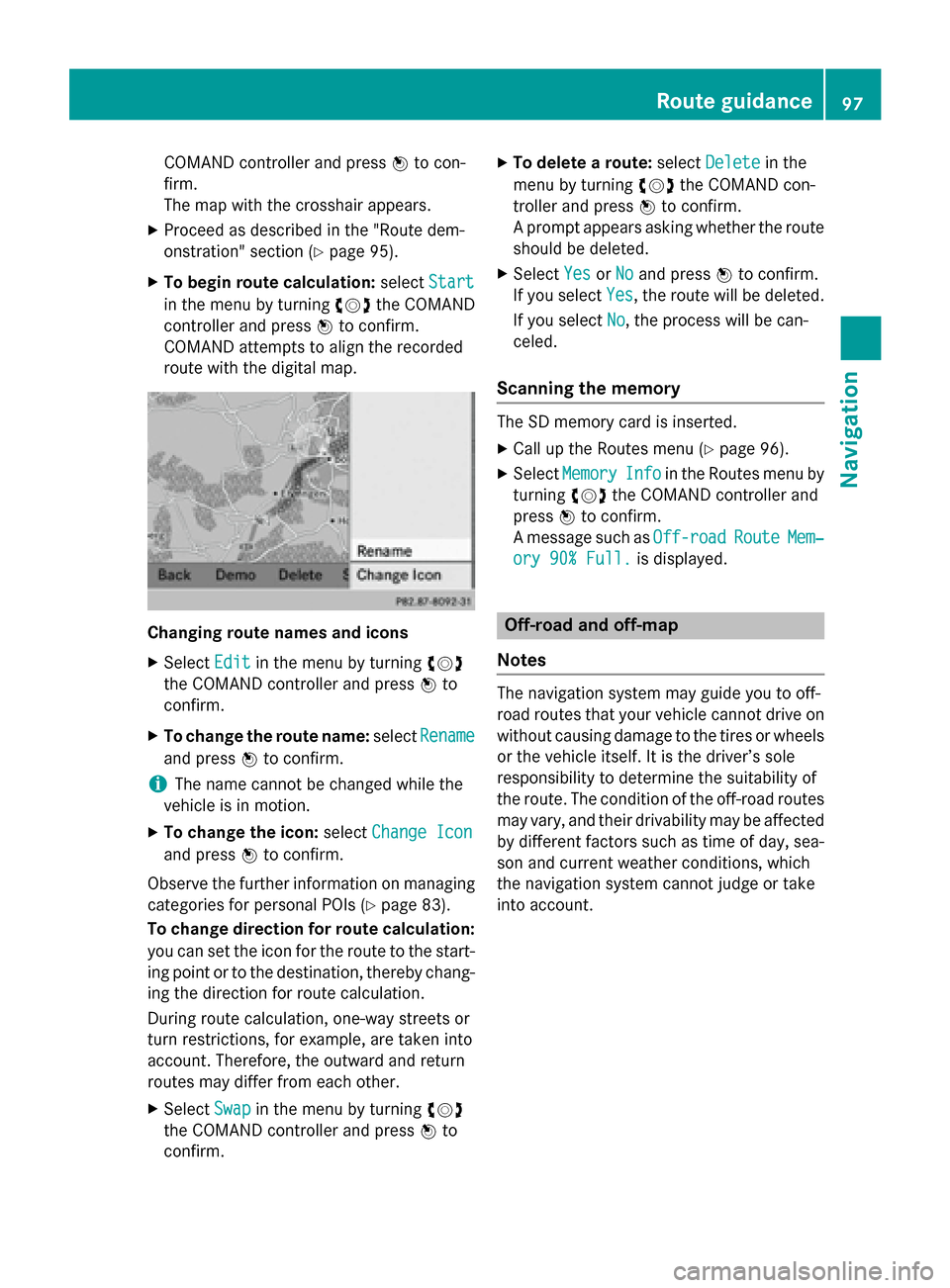
COMAND controller and press
0098to con-
firm.
The map with the crosshair appears.
X Proceed as described in the "Route dem-
onstration" section (Y page 95).
X To begin route calculation: selectStart
Start
in the menu by turning 00790052007Athe COMAND
controller and press 0098to confirm.
COMAND attempts to align the recorded
route with the digital map. Changing route names and icons
X
Select Edit Editin the menu by turning 00790052007A
the COMAND controller and press 0098to
confirm.
X To change the route name: selectRename
Rename
and press 0098to confirm.
i The name cannot be changed while the
vehicle is in motion.
X To change the icon: selectChange Icon
Change Icon
and press 0098to confirm.
Observe the further information on managing categories for personal POIs (Y page 83).
To change direction for route calculation: you can set the icon for the route to the start-
ing point or to the destination, thereby chang- ing the direction for route calculation.
During route calculation, one-way streets or
turn restrictions, for example, are taken into
account. Therefore, the outward and return
routes may differ from each other.
X Select Swap
Swap in the menu by turning 00790052007A
the COMAND controller and press 0098to
confirm. X
To delete a route: selectDelete Delete in the
menu by turning 00790052007Athe COMAND con-
troller and press 0098to confirm.
A prompt appears asking whether the route should be deleted.
X Select Yes YesorNo
No and press 0098to confirm.
If you select Yes
Yes, the route will be deleted.
If you select No
No, the process will be can-
celed.
Scanning the memory The SD memory card is inserted.
X Call up the Routes menu (Y page 96).
X Select Memory
Memory Info
Infoin the Routes menu by
turning 00790052007Athe COMAND controller and
press 0098to confirm.
A message such as Off-road Off-roadRoute RouteMem‐
Mem‐
ory 90% Full.
ory 90% Full. is displayed. Off-road and off-map
Notes The navigation system may guide you to off-
road routes that your vehicle cannot drive on
without causing damage to the tires or wheelsor the vehicle itself. It is the driver’s sole
responsibility to determine the suitability of
the route. The condition of the off-road routes
may vary, and their drivability may be affected by different factors such as time of day, sea-
son and current weather conditions, which
the navigation system cannot judge or take
into account. Route guidance
97Navigation Z
Page 190 of 270

Selecting a station
Selects stations via the station search
function X
Press the 0048or0049 button.
or
X Turn 00790052007A or slide 009500520096the COMAND con-
troller while the display/selection window
in the radio display is active.
Station search scans up or down and stops at the next station found.
Selecting station via the station presets X
Quick setting: press a number key, e.g.
0082.
X Directly in the station presets: select
Presets
Presets by sliding 00520064and turning 00790052007A
the COMAND controller and press 0098to
confirm.
or
X When the display/selection window is
active, press 0098the COMAND controller.
The station preset memory appears. The
0036 dot indicates under which preset the
currently selected station is stored.
X Select a station by turning 00790052007Aand press-
ing 0098to confirm or press a number key,
e.g. 0082.
Selecting stations by entering the fre-
quency manually X
Option 1: press the003Ebutton.
X Option 2: selectRadio Radio in the radio display
by sliding 00520064and turning 00790052007Athe
COMAND controller and press 0098to con-
firm.
X Select Enter Frequency
Enter Frequency and press0098to
confirm.
Irrespective of the option chosen, an input
menu will appear.
X Enter a frequency using the number keys.
COMAND sets the frequency entered. Waveband Frequency
AM (MF) 530 - 1700 kHz
FM (VHF) 87.7 - 107.9 MHz
WB (Weather Band) Weather report
channels
i
You can only enter currently permitted
numbers.
i If you enter a frequency in the FM or AM
wavebands which is outside the frequency
range, COMAND sets the next lower fre-
quency. Storing station
Storing station manually There are ten presets available for the FM and
AM wavebands. Example: station presets
X Quick save: press and hold a number key,
e.g. 0082, until you hear a tone.
The station is stored. 188
Radio modeAudio
Page 191 of 270
X
Directly in the station presets: press0098
the COMAND controller when the display/
selection window is active.
or X Select Presets
Presets by sliding 00520064and turning
00790052007A the COMAND controller and press 0098
to confirm.
In both cases, the station presets appear.
The 0036dot indicates under which preset
the currently selected station is stored.
X Select a preset by turning 00790052007Athe
COMAND controller and press and hold 0098
until you hear a tone.
The station is stored under the preset.
Storing station automatically This function automatically stores stations
with adequate reception under the presets.
The search starts at the lowest frequency.
COMAND stores any stations found, begin-
ning with preset 1. When the highest fre-
quency is reached or 10 stations have been
found, the storing process ends. Any stations stored manually under the presets will be lost.
COMAND may not occupy all memory slots
when storing.
X Option 1: press0098the COMAND controller
when the display/selection window is
active.
The channel preset memory appears.
X Option 2: selectPresets
Presets by sliding 00520064
and turning 00790052007Athe COMAND controller
and press 0098to confirm.
The channel preset memory appears.
X Irrespective of the option, select Autos‐
Autos‐
tore
tore and press 0098to confirm.
In both cases, COMAND searches for sta-
tions that can be received. You will see a
message to this effect. The available sta-
tions are automatically stored in the preset
positions.
X To cancel storing: selectCancel
Cancel and
press 0098to confirm. Weather Band
Activating X
Press the 002Afunction button repeatedly
until the Weather Band is switched on.
or
X Select the currently set waveband FM
FM orAM AM
by sliding 00520064and turning 00790052007Athe
COMAND controller and press 0098to con-
firm.
X Select WB WBfrom the menu and press 0098to
confirm.
Searching for a channel X
Quick select: turn00790052007A or slide 009500520096the
COMAND controller while the display/
selection window is active.
or X Press the 0048or0049 button.
Channel search scans up or down and
stops at the next channel found.
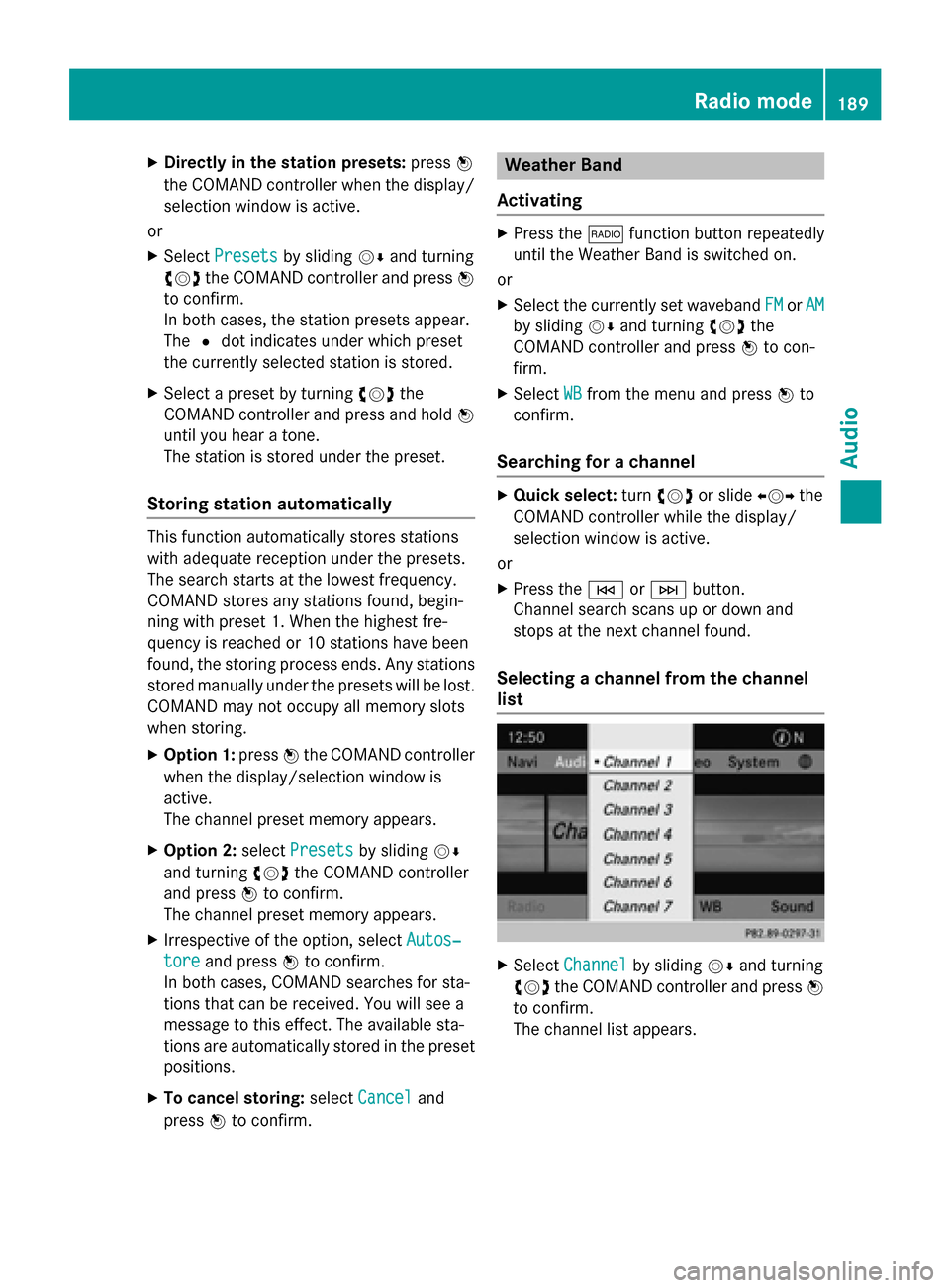
Selecting a channel from the channel
list X
Select Channel Channel by sliding 00520064and turning
00790052007A the COMAND controller and press 0098
to confirm.
The channel list appears. Radio
mode
189Audio
Page 193 of 270
i
SIRIUS XM Radio offers more than 130
radio stations in digital quality, for example 100% commercial-free music, sports, news
and entertainment.
SIRIUS XM Radio employs a fleet of high-
performance satellites to broadcast around
the clock in the contiguous USA and Can-
ada.
The satellite radio program is available for a
monthly fee. Details are available from the
SIRIUS XM Service Center and at
http://www.sirius.com (USA) or
http://www.siriuscanada.com (Can-
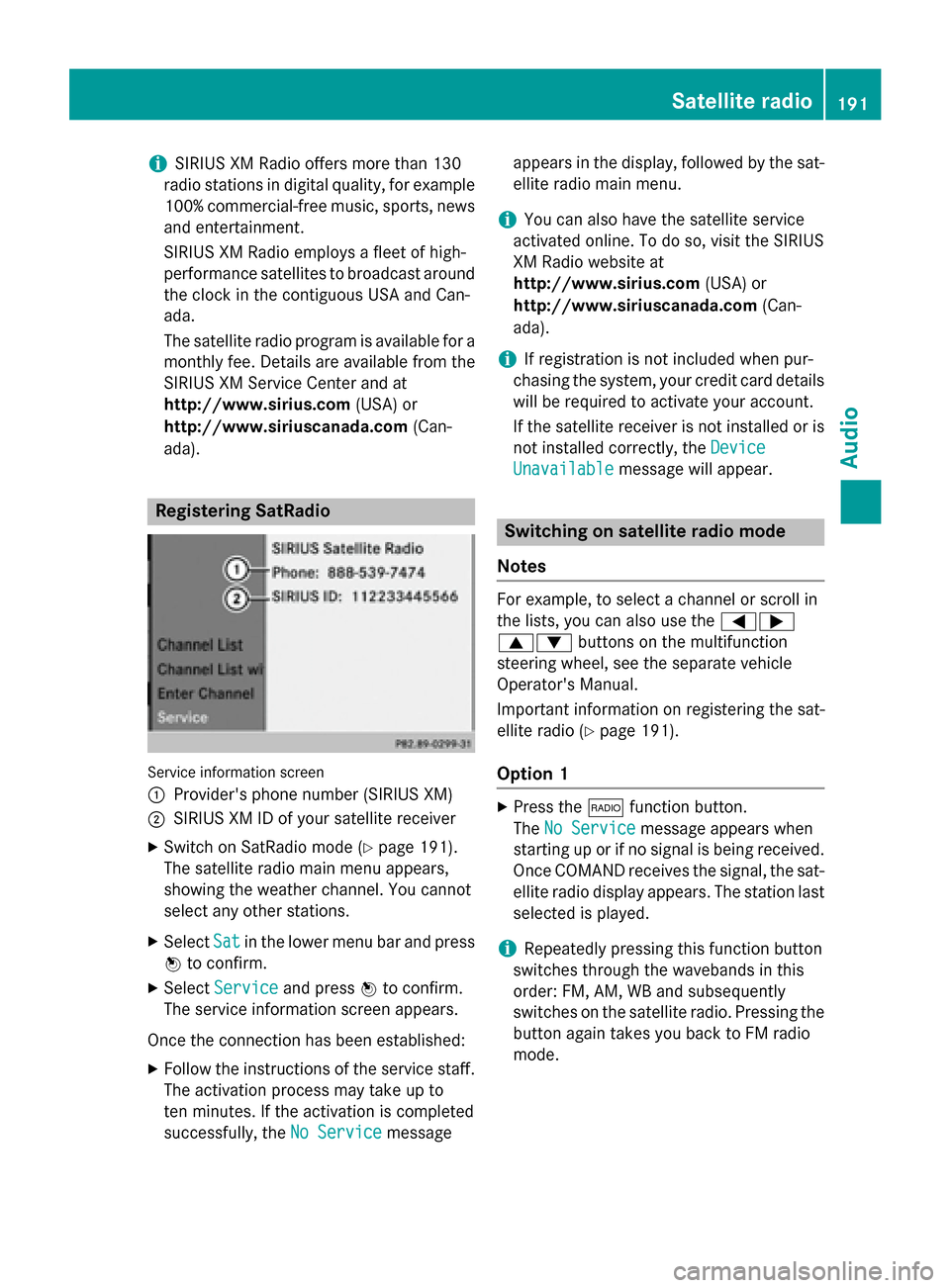
ada). Registering SatRadio
Service information screen
0043
Provider's phone number (SIRIUS XM)
0044 SIRIUS XM ID of your satellite receiver
X Switch on SatRadio mode (Y page 191).
The satellite radio main menu appears,
showing the weather channel. You cannot
select any other stations.
X Select Sat Satin the lower menu bar and press
0098 to confirm.
X Select Service
Service and press 0098to confirm.
The service information screen appears.
Once the connection has been established: X Follow the instructions of the service staff.
The activation process may take up to
ten minutes. If the activation is completed
successfully, the No Service
No Service message appears in the display, followed by the sat-
ellite radio main menu.
i You can also have the satellite service
activated online. To do so, visit the SIRIUS
XM Radio website at
http://www.sirius.com (USA) or
http://www.siriuscanada.com (Can-
ada).
i If registration is not included when pur-
chasing the system, your credit card details
will be required to activate your account.
If the satellite receiver is not installed or is
not installed correctly, the Device Device
Unavailable
Unavailable message will appear. Switching on satellite radio mode
Notes For example, to select a channel or scroll in
the lists, you can also use the
00590065
00630064 buttons on the multifunction
steering wheel, see the separate vehicle
Operator's Manual.
Important information on registering the sat-
ellite radio (Y page 191).
Option 1 X
Press the 002Afunction button.
The No Service No Service message appears when
starting up or if no signal is being received.
Once COMAND receives the signal, the sat-
ellite radio display appears. The station last selected is played.
i Repeatedly pressing this function button
switches through the wavebands in this
order: FM, AM, WB and subsequently
switches on the satellite radio. Pressing the button again takes you back to FM radio
mode. Satellite radio
191Audio