AUX MERCEDES-BENZ E-Class 2014 W212 Comand Manual
[x] Cancel search | Manufacturer: MERCEDES-BENZ, Model Year: 2014, Model line: E-Class, Model: MERCEDES-BENZ E-Class 2014 W212Pages: 270, PDF Size: 5.76 MB
Page 233 of 270
Increasing the volume on COMAND
X Show the video AUX menu (Y page 230).
X Select Volume
Volume by turning 00790052007Athe
COMAND controller and press 0098to con-
firm.
A menu appears. The 003Bdot indicates the
current setting.
X Select Standard Standard orBoost
Boost and press 0098to
confirm.
Standard Standard: the volume of the external video
source is adjusted to a standard value.
Boost
Boost: the volume of the external video
source is raised by approximately 10 dB. Picture viewer
Introduction
If there are pictures on the active data
medium, you can look at them. You can dis-
play pictures with a resolution of up to 20
megapixels. Data medium Supported picture
formats
CD/DVD with pic-
ture files bmp, jpeg, jpg, png
USB devices (sticks,
hard drives)
SD memory card bmp, jpeg, jpg, png
Calling up a category list
X Select a data medium with pictures (e.g. a
memory card):
R
in the Audio menu (Y page 178)
R in the media list ( Ypage 193)
X Select Search Search in the basic display by slid-
ing 00520064 and turning 00790052007Athe COMAND
controller and press 0098to confirm.
The category list appears ( Ypage 200). Displaying pictures
X Select (Y page 200) Photos
Photosin the category
list by turning 00790052007Athe COMAND controller
and press 0098to confirm.
A folder directory appears.
X Select a folder with photos and press 0098to
confirm.
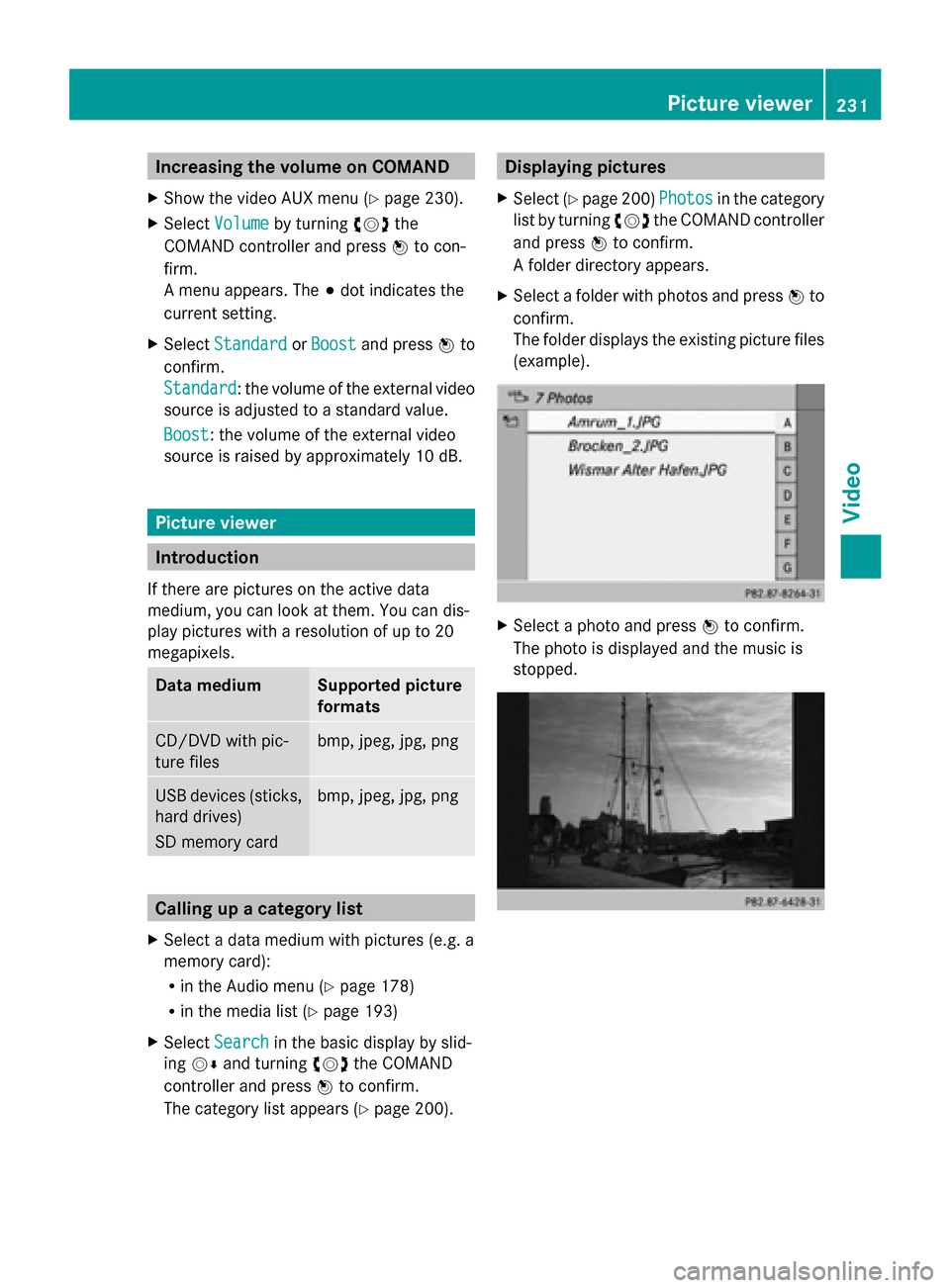
The folder displays the existing picture files
(example). X
Select a photo and press 0098to confirm.
The photo is displayed and the music is
stopped. Picture viewer
231Video Z
Page 235 of 270
Your COMAND equipment
................234
Overview ............................................ 234
Basic functions ................................. 240
System settings ................................ 241
CD/audio DVD and MP3 mode ........242
Video DVD mode ............................... 246
Operation with an active COMAND
source ................................................ 250
AUX mode .......................................... 252 233Rear Seat Entertainment System
Page 236 of 270
Your COMAND equipment
These operating instructions describe all the
standard and optional equipment for your
COMAND system, as available at the time of
going to print. Country-specific differences
are possible. Please note that your
COMAND system may not be equipped with
all the features described. Overview
Important safety notes
G
WARNING
The CD/DVD drive is a class 1 laser product.
If you open the CD/DVD drive housing, you
could be exposed to invisible laser radiation.
This laser radiation could damage your retina.
There is a risk of injury.
Never open the housing. Always have main-
tenance and repair work carried out at a quali-
fied specialist workshop. G
WARNING
If objects such as headphones/headsets or
external audio/video sources are not secured
in the passenger compartment, they can be
flung around and hit vehicle occupants. There
is a risk of injury, for example in the event of
sudden braking or a sudden change in direc-
tion.
Always stow these items or similar objects
carefully so that they cannot be flung around,
for example in a lockable vehicle stowage
compartment. Components
The Rear Seat Entertainment System
includes:
R two screens for the rear behind the front-
seat head restraints
R two remote controls
R a CD/DVD drive R
AUX jacks on both screens (AUX display)
and on the CD/DVD drive (AUX drive)
R two sets of cordless headphones 234
OverviewRea
r Seat Entertainment System
Page 237 of 270
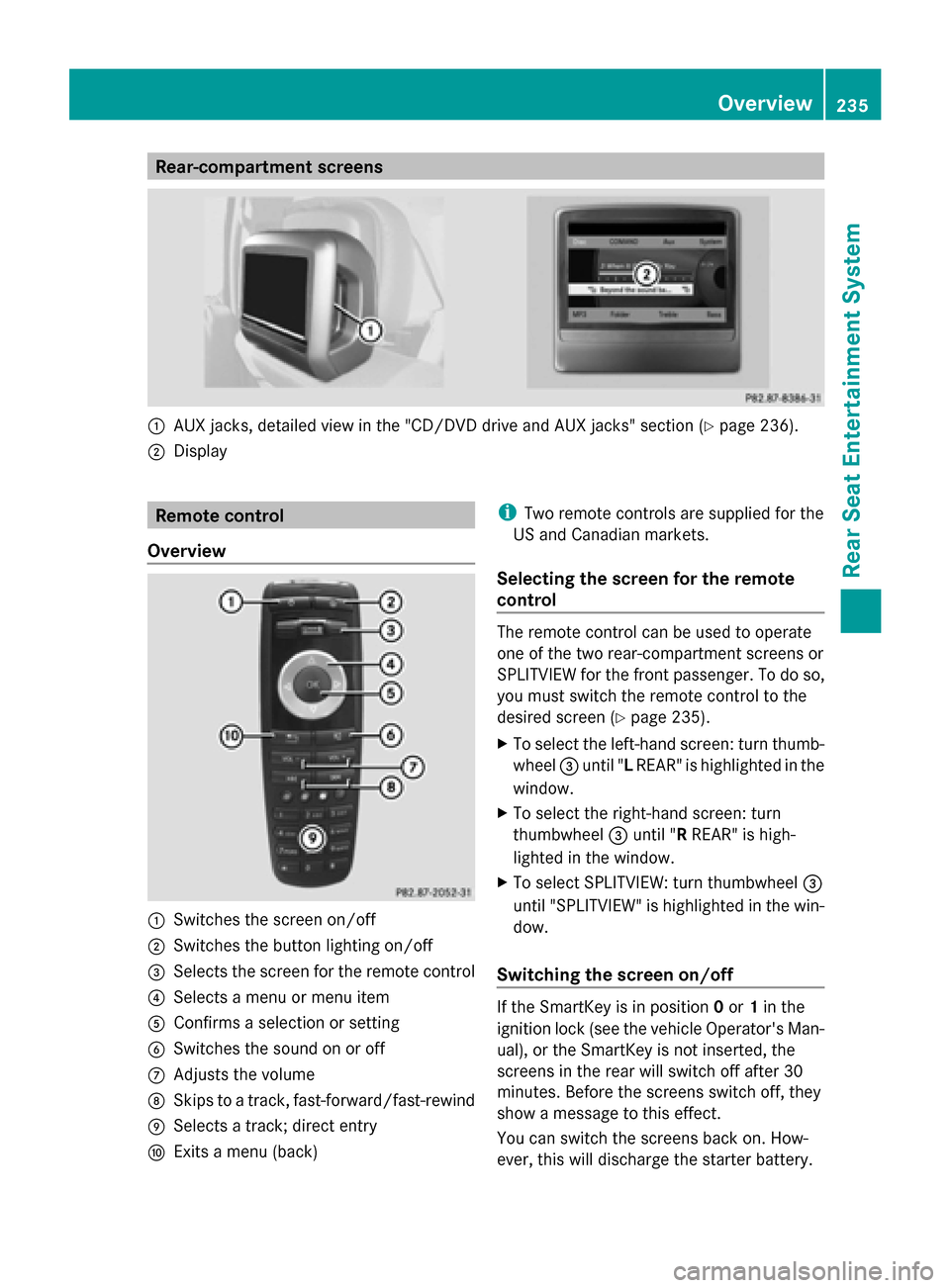
Rear-compartment screens
0043
AUX jacks, detailed view in the "CD/DVD drive and AUX jacks" section (Y page 236).
0044 Display Remote control
Overview 0043
Switches the screen on/off
0044 Switches the button lighting on/off
0087 Selects the screen for the remote control
0085 Selects a menu or menu item
0083 Confirms a selection or setting
0084 Switches the sound on or off
006B Adjusts the volume
006C Skips to a track, fast-forward/fast-rewind
006D Selects a track; direct entry
006E Exits a menu (back) i
Two remote controls are supplied for the
US and Canadian markets.
Selecting the screen for the remote
control The remote control can be used to operate
one of the two rear-compartment screens or
SPLITVIEW for the front passenger. To do so,
you must switch the remote control to the
desired screen (Y
page 235).
X To select the left-hand screen: turn thumb-
wheel 0087until " LREAR" is highlighted in the
window.
X To select the right-hand screen: turn
thumbwheel 0087until "R REAR" is high-
lighted in the window.
X To select SPLITVIEW: turn thumbwheel 0087
until "SPLITVIEW" is highlighted in the win-
dow.
Switching the screen on/off If the SmartKey is in position
0or 1in the
ignition lock (see the vehicle Operator's Man-
ual), or the SmartKey is not inserted, the
screens in the rear will switch off after 30
minutes. Before the screens switch off, they
show a message to this effect.
You can switch the screens back on. How-
ever, this will discharge the starter battery. Overview
235Rear Seat Entertainment System Z
Page 238 of 270
X
Point the remote control at the rear-com-
partment screen which has been selected
for remote operation.
X Press button 0043on the remote control
(Y page 235).
The respective rear-compartment screen
switches on or off.
i You can only switch the screens on using
the remote control if the ignition is
switched on.
Switching the button lighting on/off X
Press button 0044on the remote control
(Y page 235).
Depending on the previous status, the but-
ton lighting is switched on or off.
i If you do not use the remote control for
about 15 seconds, the button lighting
switches off automatically.
Switching the sound on or off X
Press button 0084on the remote control
(Y page 235).
The sound is switched on/off.
Selecting a menu/menu item and con-
firming your selection X
Select a menu/menu item using the
0059006500630064 buttons on the
remote control and press the 008Bbutton to
confirm. CD/DVD drive and AUX jacks
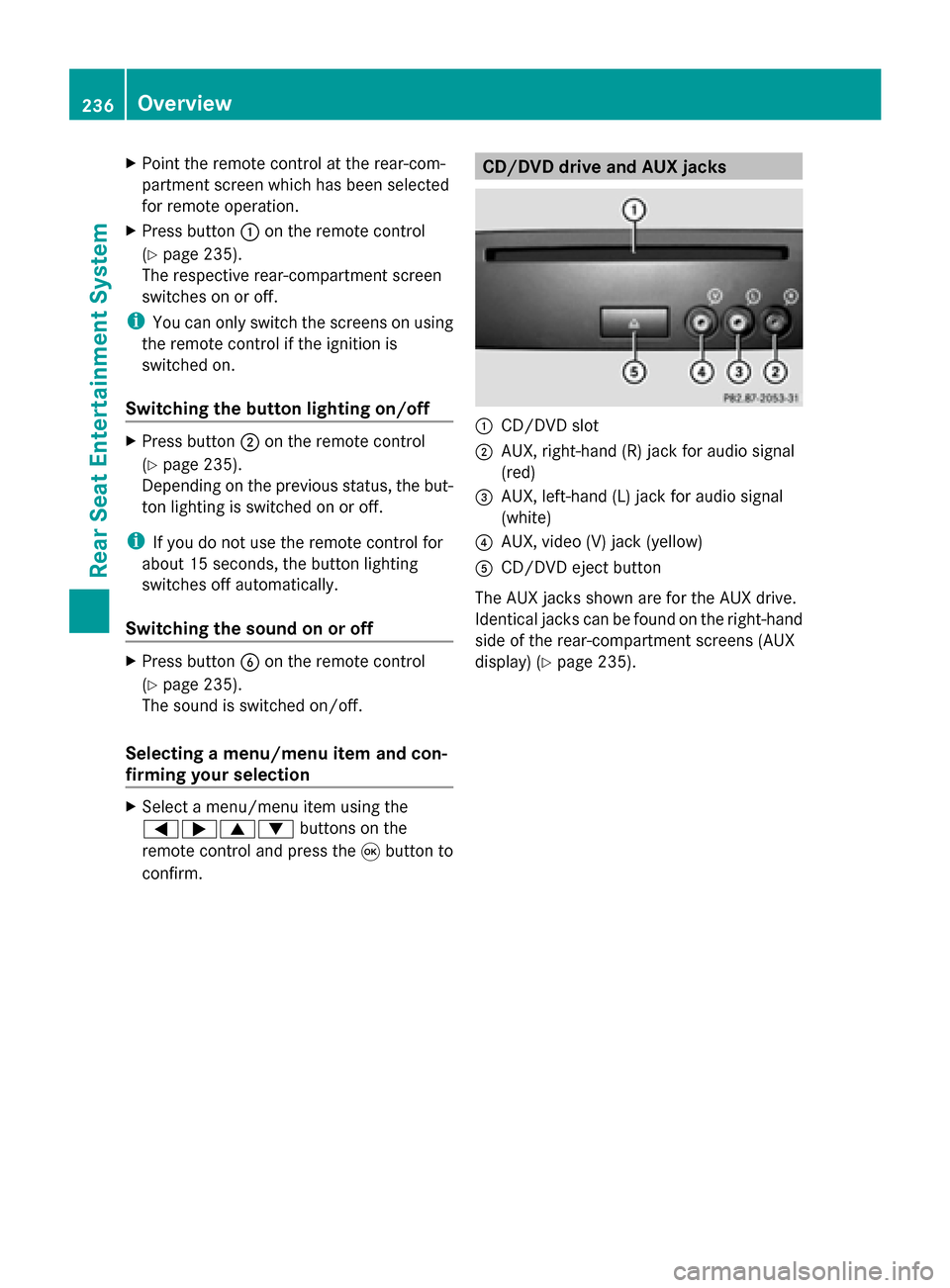
0043
CD/DVD slot
0044 AUX, right-hand (R) jack for audio signal
(red)
0087 AUX, left-hand (L) jack for audio signal
(white)
0085 AUX, video (V) jack (yellow)
0083 CD/DVD eject button
The AUX jacks shown are for the AUX drive.
Identical jacks can be found on the right-hand
side of the rear-compartment screens (AUX
display) (Y page 235).236
OverviewRear Seat Entertainment System
Page 242 of 270
Basic functions
Using headphones
You can use the cordless headphones sup-
plied and/or up to two sets of corded head-
phones connected to the corresponding jack
of the rear-compartment screens
(Y page 235).
Information on the cordless headphones
(Y page 237). Using the main loudspeakers
This function is available in conjunction with
COMAND.
You can use the vehicle loudspeakers to lis-
ten to a disc inserted in the rear-compartment
drive. To do so, at least one of the rear-com-
partment screens must be set to disc mode.
X To set on COMAND: press the002Afunc-
tion button to switch on an audio mode.
X Select Audio
Audio by sliding 00970052the COMAND
controller and press 0098to confirm.
The Audio menu appears.
X Select Rear
Rear by turning 00790052007Athe COMAND
controller and press 0098to confirm.
i The headphones' volume setting does not
affect the main loudspeakers. Selecting sound settings
You can select the sound settings in the CD/
audio DVD/MP3, video DVD and AUX modes.
X Switch on an operating mode (e.g. audio
CD mode) (Y page 242).
X Select Treble
Treble orBass Bass using
the 006400590065 buttons on the remote
control and press the 008Bbutton to confirm.
An adjustment scale appears.
X Select a setting using the 00630064but-
tons and press the 008Bbutton to confirm. Multiple users
Simultaneous use of the rear-compart-
ment disc drive The two rear-compartment screens can be
operated almost entirely independently from
one another. However, there can be a conflict
in some menus if the two screens are used
simultaneously.
If the rear-compartment disc drive is being
used for both screens simultaneously, select-
ing certain menus or settings on one of the
screens also affects the other screen.
The following functions affect both screens:
R changing playback options
R selecting a track (from a track list or folder)
R using the play, pause and stop functions
R fast forwarding/rewinding or scrolling
R calling up the DVD menu and navigating
within it
R setting the language, subtitles and camera
angle
R calling up interactive DVD content
The following functions affect only one
screen:
R audio and video functions as well as picture
settings
R switching between full screen and the
menu
Switching between operating modes When you exit an operating mode (e.g. audio
CD mode), the current setting is saved. If you
call up this operating mode again later, there
are two possibilities:
R the operating mode has been changed on
the other screen.
R the operating mode has not been changed.
In the first case, the operating mode appears
as it is on the other screen.
In the second case, the setting appears on the
screen as it was when you last exited the
operating mode. 240
Basic functionsRear Seat Entertainment System
Page 243 of 270
Picture settings
Overview You can select picture settings in video DVD
and AUX mode (Y page 252).
Adjusting the brightness, contrast and
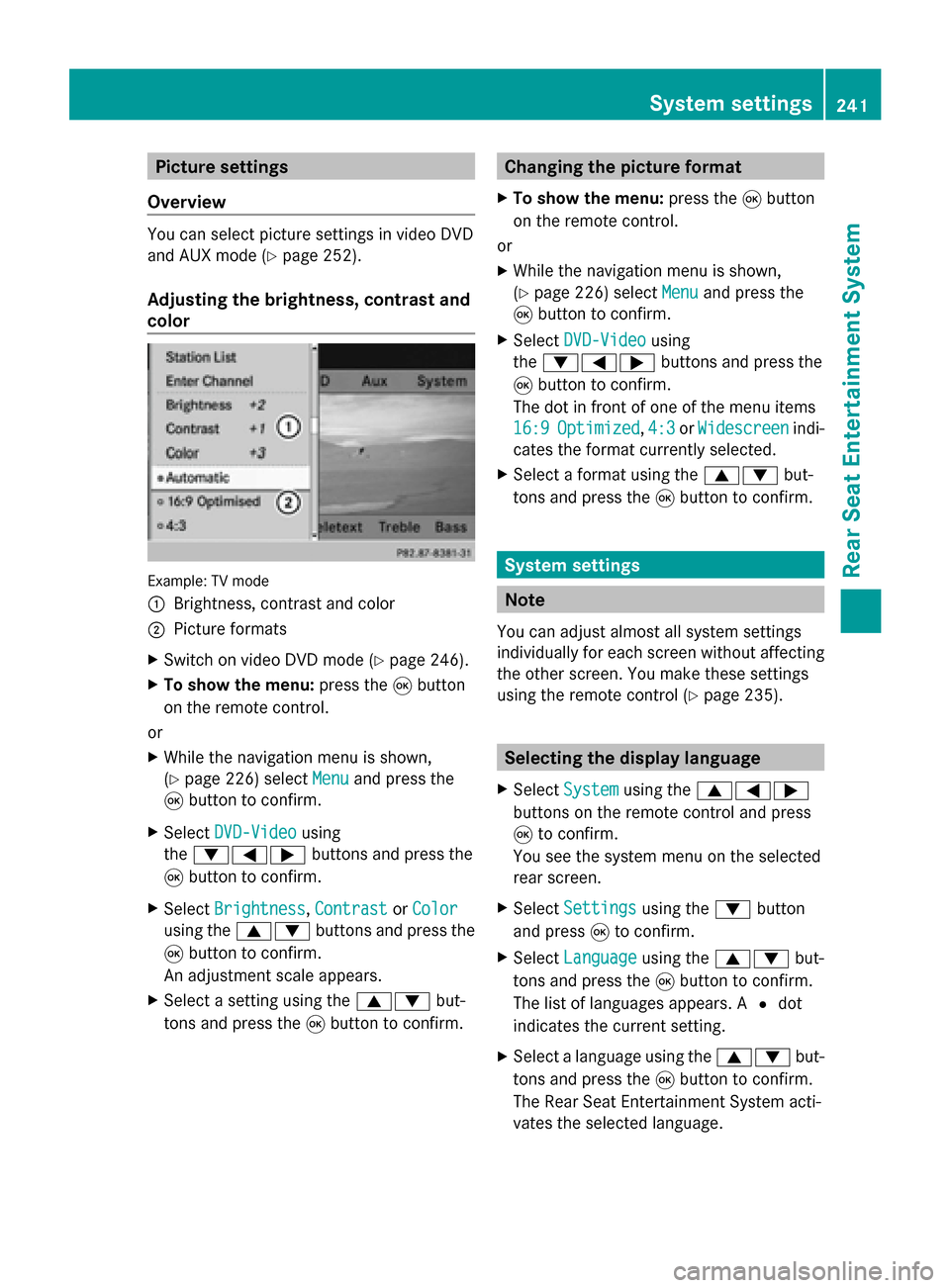
color Example: TV mode
0043
Brightness, contrast and color
0044 Picture formats
X Switch on video DVD mode (Y page 246).
X To show the menu: press the008Bbutton
on the remote control.
or
X While the navigation menu is shown,
(Y page 226) select Menu Menuand press the
008B button to confirm.
X Select DVD-Video
DVD-Video using
the 006400590065 buttons and press the
008B button to confirm.
X Select Brightness
Brightness, Contrast
ContrastorColor
Color
using the 00630064 buttons and press the
008B button to confirm.
An adjustment scale appears.
X Select a setting using the 00630064but-
tons and press the 008Bbutton to confirm. Changing the picture format
X To show the menu: press the008Bbutton
on the remote control.
or
X While the navigation menu is shown,
(Y page 226) select Menu Menuand press the
008B button to confirm.
X Select DVD-Video
DVD-Video using
the 006400590065 buttons and press the
008B button to confirm.
The dot in front of one of the menu items
16:9
16:9 Optimized Optimized ,4:3
4:3 orWidescreen
Widescreen indi-
cates the format currently selected.
X Select a format using the 00630064but-
tons and press the 008Bbutton to confirm. System settings
Note
You can adjust almost all system settings
individually for each screen without affecting
the other screen. You make these settings
using the remote control (Y page 235). Selecting the display language
X Select System System using the 006300590065
buttons on the remote control and press
008B to confirm.
You see the system menu on the selected
rear screen.
X Select Settings Settings using the0064button
and press 008Bto confirm.
X Select Language
Language using the00630064 but-
tons and press the 008Bbutton to confirm.
The list of languages appears. A 0036dot
indicates the current setting.
X Select a language using the 00630064but-
tons and press the 008Bbutton to confirm.
The Rear Seat Entertainment System acti-
vates the selected language. System settings
241Rear Seat Entertainment System Z
Page 254 of 270
X
To select a folder: press the0064button
on the remote control.
X Highlight one of the two folder symbols
with the 0059or0065 button and press
008B to confirm.
Depending on your selection, the previous
or next folder is selected and the first track
is played.
Additional setting option:
R Adjusting the sound settings (Y page 240)
Video DVD mode X
To hide a menu: confirmMenu Menuwith the
008B button.
The video image is played in full screen
mode.
Additional setting options:
R Adjusting the brightness, contrast and
color (Y page 241)
R Changing the picture format (Y page 241)
R Adjusting the sound settings (Y page 240)AUX mode
Introduction
You can connect one external video source to
each of the displays of the Rear Seat Enter-
tainment System (AUX display) and also one
external video source to the rear-compart-
ment CD/DVD drive (AUX drive) with a sound
and video signal.
Please see the corresponding operating
instructions for information on how to oper-
ate the external video source.
For further details about external video sour-
ces, please consult an authorized Mercedes-
Benz Center. Connecting AUX equipment
AUX drive The AUX drive jacks are located on the CD/
DVD drive next to the CD/DVD eject button
(Y
page 236).
Displaying AUX The AUX display jacks are on the side of the
screen (Y
page 235).
Audio and video connection X
Insert the audio plugs for the left and right
signals into the corresponding Land R
jacks.
X Insert the video plug into the Vjack. Activating AUX mode
AUX drive X
Select Aux Auxin the menu using the
006300590065 buttons on the remote
control and press the 008Bbutton to confirm.
The AUX menu appears.
X Select Source
Source from the AUX menu and
press the 008Bbutton to confirm.
X Select Disc Drive Aux
Disc Drive Aux and press the008B
button to confirm.
You will hear and see the content of the
external video source if it is connected to
the CD/DVD drive and switched to play-
back. If no video image is available from the
AUX source connected, you will see an
audio menu.
Displaying AUX X
Select the screen by turning the scroll
wheel on the remote control ( Ypage 235) 252
AUX modeRear Seat Entertainment System
Page 255 of 270
until "L
REAR " (left screen) or "REAR R"
(right screen) is highlighted in the window.
X Select Aux
Auxin the menu using the
006300590065 buttons on the remote
control and press the 008Bbutton to confirm.
X Select Source
Source from the AUX menu and
press the 008Bbutton to confirm.
X Select Display Aux Display Aux and press the008Bbut-
ton to confirm.
You will see and hear the content of the
video source if it is switched to playback. If
no video image is available from the AUX
source connected, you will see an audio
menu. Adjusting treble and bass
X Select Treble Treble orBass
Bass in the AUX menu
and press the 008Bbutton on the remote
control to confirm.
An adjustment scale appears.
X Select a setting using the 0063or0064
button and press the 008Bbutton to confirm. Adjusting the brightness, contrast or
color
X Select Display Aux Display Aux orDisc Drive Aux
Disc Drive Aux
in the AUX menu and press the 008Bbutton
to confirm.
X Select Brightness
Brightness, Contrast
ContrastorColor
Color
and press the 008Bbutton to confirm.
An adjustment scale appears.
X Select a setting using the 0063or0064
button and press the 008Bbutton to confirm. Changing the picture format
X Select Display Aux
Display Aux orDisc Drive Aux
Disc Drive Aux
in the AUX menu and press the 008Bbutton
to confirm.
X Select 16:9 Optimized
16:9 Optimized ,4:3
4:3 orWide‐
Wide‐
screen screen using the 00630064 buttons and
press the 008Bbutton to confirm.
The dot in front of a menu item indicates
the current setting. AUX mode
253Rear Seat Entertainment System Z