ad blue MERCEDES-BENZ E-Class 2014 W212 Comand Manual
[x] Cancel search | Manufacturer: MERCEDES-BENZ, Model Year: 2014, Model line: E-Class, Model: MERCEDES-BENZ E-Class 2014 W212Pages: 270, PDF Size: 5.76 MB
Page 222 of 270
Audio AUX mode
Notes on audio AUX mode
External audio sources may have different
volumes, which can mean that system mes-
sages such as traffic announcements and
navigation system announcements are much
louder. If necessary, deactivate the system
messages or adjust their volume manually.
You can connect an external audio source
(AUX) to COMAND.
Depending on the vehicle model series the
connection is made via a jack in the storage
compartment in the center console or via the
USB port (Y page 191).
If COMAND is equipped with the Media Inter-
face, external audio sources are connected
using the cable set provided. An AUX socket
is not provided. The connections for the
Media Interface are located in the stowage
compartment in the center console.
i You will find further information online at
http://www.mbusa-mobile.com. Or call
the Mercedes-Benz Customer Assistance
Center at 1-800-FOR-MERCedes
(1-800-367-6372 )(for the USA) or Cus-
tomer Relations at 1-800-387-010 0(for
Canada). Switching to audio AUX mode
Switching modes using the function
button The external device is connected to the audio
AUX in.
X Press the 003Afunction button one or more
times.
By pressing the function button repeatedly,
you can change the operating mode in the
following order:
R CD/audio DVD/MP3 (disc)
R Memory card mode
R MUSIC REGISTER
R USB storage device R
Media Interface or audio AUX mode
R Bluetooth ®
audio mode
Switching modes via the audio menu When you connect an external audio source,
audio AUX is not selected automatically.
X
Select Audio
Audio in the main function bar by
sliding 00970052and turning 00790052007Athe COMAND
controller and press 0098to confirm.
If AUX mode was the last mode selected, it
will now be active.
If another audio source is switched on, you
can now switch to audio AUX mode in the
audio menu.
X Select Audio Audiousing00970052and press 0098to
confirm.
The audio menu appears.
X Select Aux Auxby turning 00790052007Aand press 0098to
confirm.
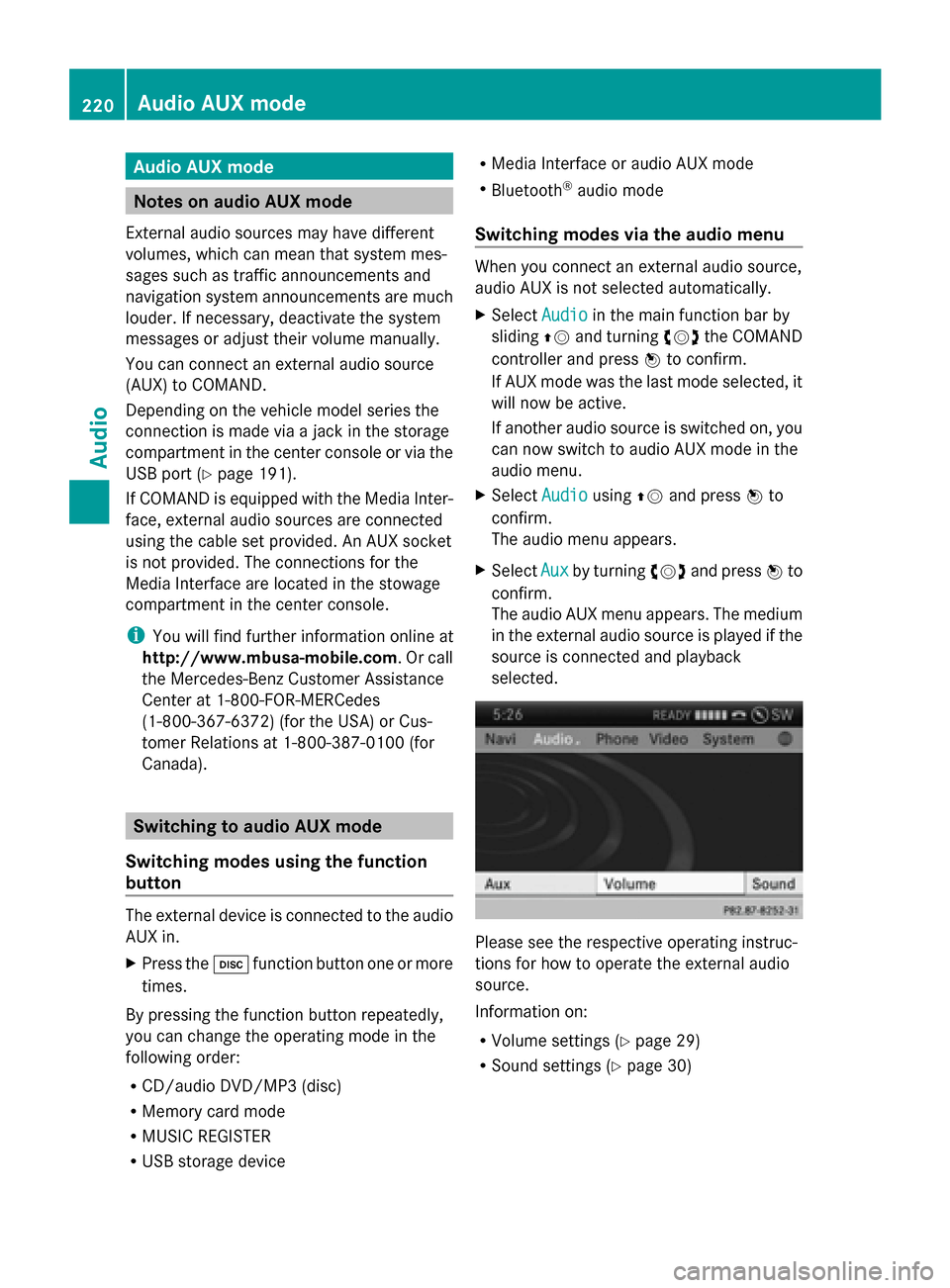
The audio AUX menu appears. The medium
in the external audio source is played if the
source is connected and playback
selected. Please see the respective operating instruc-
tions for how to operate the external audio
source.
Information on:
R
Volume settings (Y page 29)
R Sound settings (Y page 30)220
Audio AUX modeAudio
Page 228 of 270
Switching modes using the function
button
X
Press the 003Afunction button.
COMAND switches to the previous disc
operating mode.
By pressing the function button repeatedly,
you can change the operating mode in the
following order:
R Video DVD/CD/audio DVD/MP3 in the
DVD changer or DVD single drive (disc
mode)
R Memory card mode
R MUSIC REGISTER
R USB storage device
R Media Interface or audio AUX mode
R Bluetooth ®
audio mode
X DVD changer: selectMedia
Media by sliding
00520064 and turning 00790052007Athe COMAND con-
troller and press 0098to confirm.
Single DVD drive: selectMedia Media by sliding
00520064 and turning 00790052007Athe COMAND con-
troller and press 0098to confirm.
X Select a ývideo DVD from the media list
(Y page 228).
Switching on with the video menu X
Select Video
Videoin the main function bar by
sliding 00970052and turning 00790052007Athe COMAND
controller and press 0098to confirm.
Video DVD mode is switched on. Showing/hiding the control menu
X To show: in DVD video mode, slide 009700520064
the COMAND controller.
X To hide: slide009700520064 the COMAND control-
ler.
or
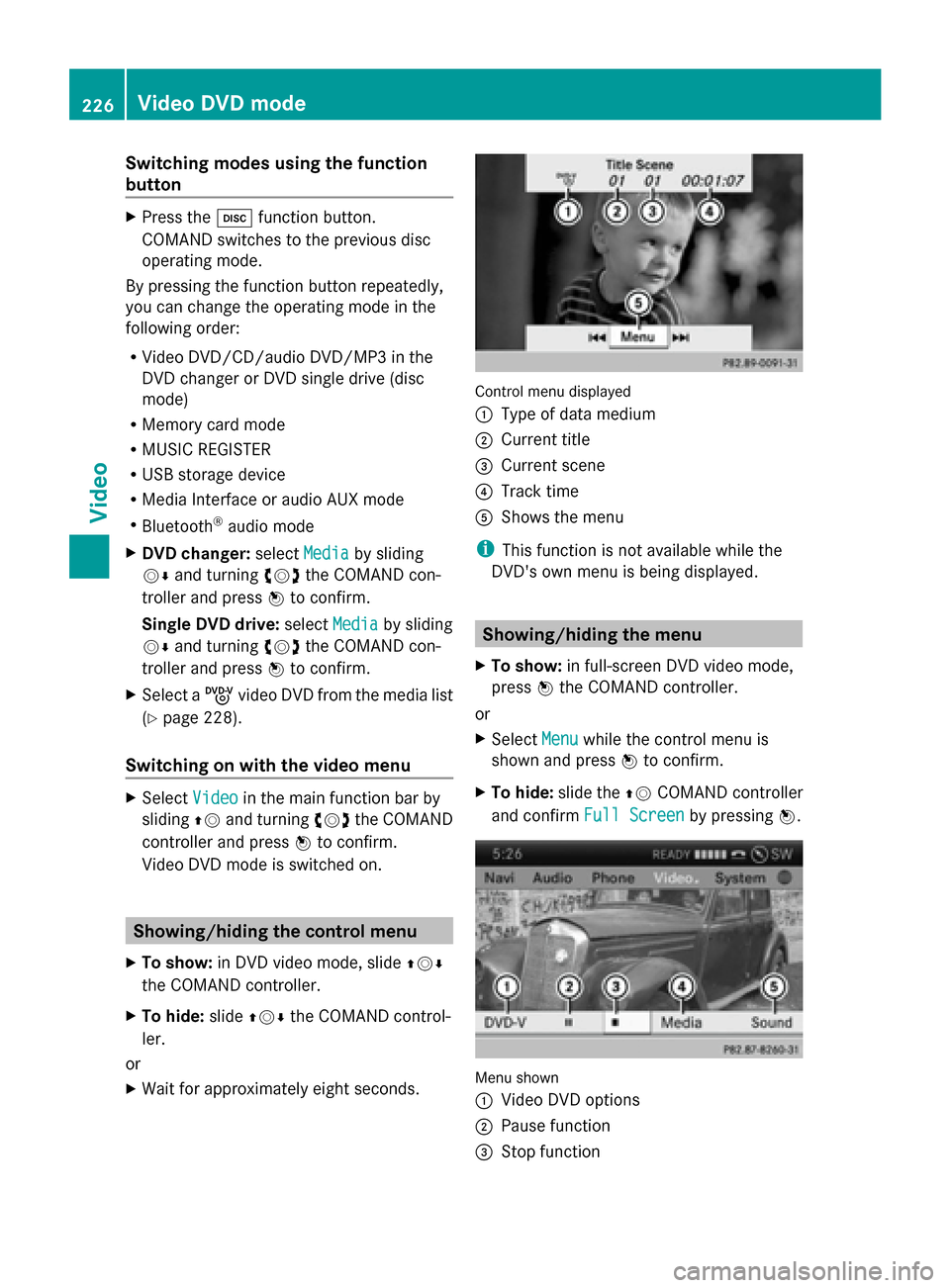
X Wait for approximately eight seconds. Control menu displayed
0043
Type of data medium
0044 Current title
0087 Current scene
0085 Track time
0083 Shows the menu
i This function is not available while the
DVD's own menu is being displayed. Showing/hiding the menu
X To show: in full-screen DVD video mode,
press 0098the COMAND controller.
or
X Select Menu Menuwhile the control menu is
shown and press 0098to confirm.
X To hide: slide the 00970052COMAND controller
and confirm Full Screen
Full Screen by pressing0098. Menu shown
0043
Video DVD options
0044 Pause function
0087 Stop function 226
Video DVD modeVideo
Page 265 of 270
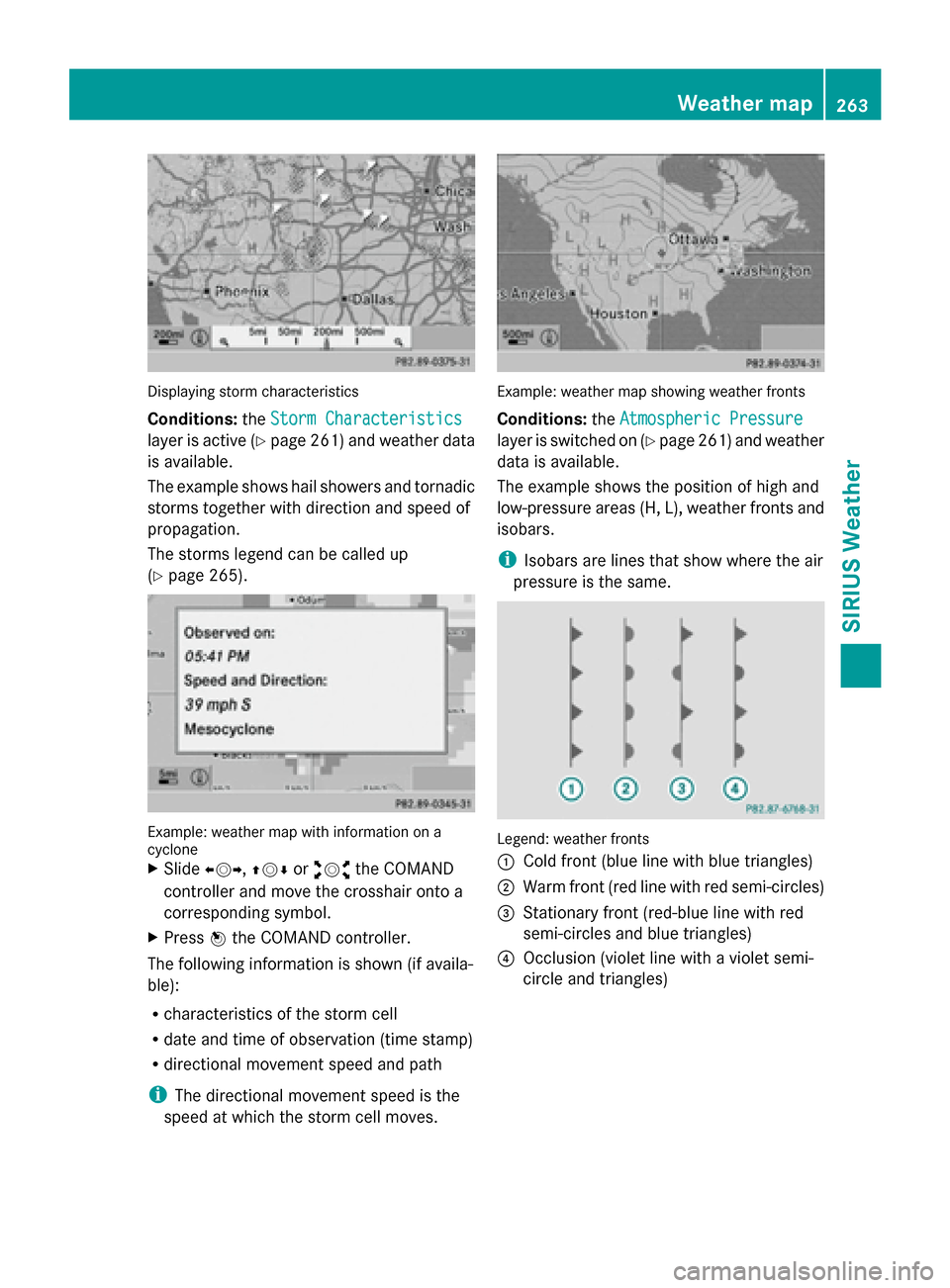
Displaying storm characteristics
Conditions:
theStorm Characteristics Storm Characteristics
layer is active (Y page 261) and weather data
is available.
The example shows hail showers and tornadic
storms together with direction and speed of
propagation.
The storms legend can be called up
(Y page 265). Example: weather map with information on a
cyclone
X Slide 009500520096,009700520064 or009100520078 the COMAND
controller and move the crosshair onto a
corresponding symbol.
X Press 0098the COMAND controller.
The following information is shown (if availa-
ble):
R characteristics of the storm cell
R date and time of observation (time stamp)
R directional movement speed and path
i The directional movement speed is the
speed at which the storm cell moves. Example: weather map showing weather fronts
Conditions:
theAtmospheric Pressure Atmospheric Pressure
layer is switched on (Y page 261) and weather
data is available.
The example shows the position of high and
low-pressure areas (H, L), weather fronts and
isobars.
i Isobars are lines that show where the air
pressure is the same. Legend: weather fronts
0043
Cold front (blue line with blue triangles)
0044 Warm front (red line with red semi-circles)
0087 Stationary front (red-blue line with red
semi-circles and blue triangles)
0085 Occlusion (violet line with a violet semi-
circle and triangles) Weather map
263SIRIUS Weather