change wheel MERCEDES-BENZ E-CLASS CABRIOLET 2011 User Guide
[x] Cancel search | Manufacturer: MERCEDES-BENZ, Model Year: 2011, Model line: E-CLASS CABRIOLET, Model: MERCEDES-BENZ E-CLASS CABRIOLET 2011Pages: 353, PDF Size: 8.42 MB
Page 184 of 353
G
WARNING
Do not change downf or additional engine
braking on aslippery road surface. This could
cause the drive wheels to lose their grip and
the vehicle could skid.
You can set avariable or permanent limit
speed:
R variable for speed limits, e.g. in built-up
areas
R permanent for long-term speed restric-
tions, e.g. when driving with winter tyres
fitted (Y page 183) G
WARNING
Speedtronic is only an aid designed to assist
driving. You are responsible for the vehicle's
speed and for braking in good time.
i The speed indicated in the speedometer
may differ slightly from the limit speed
stored.
Variable SPEEDTRONIC General notes
With the cruise control lever, you can operate
cruise control or DISTRONIC PLUS and vari-
able SPEEDTRONIC.
The LIM indicator lamp on the cruise control
lever indicates which system you have selec-
ted:
R LIM indicator lamp off: cruise control or
DISTRONIC PLUS is selected.
R LIM indicator lamp on: variable SPEED-
TRONIC is selected.
You can use the cruise control lever to limit
the speed to any speed above 30 km/hw hile
the engine is running. :
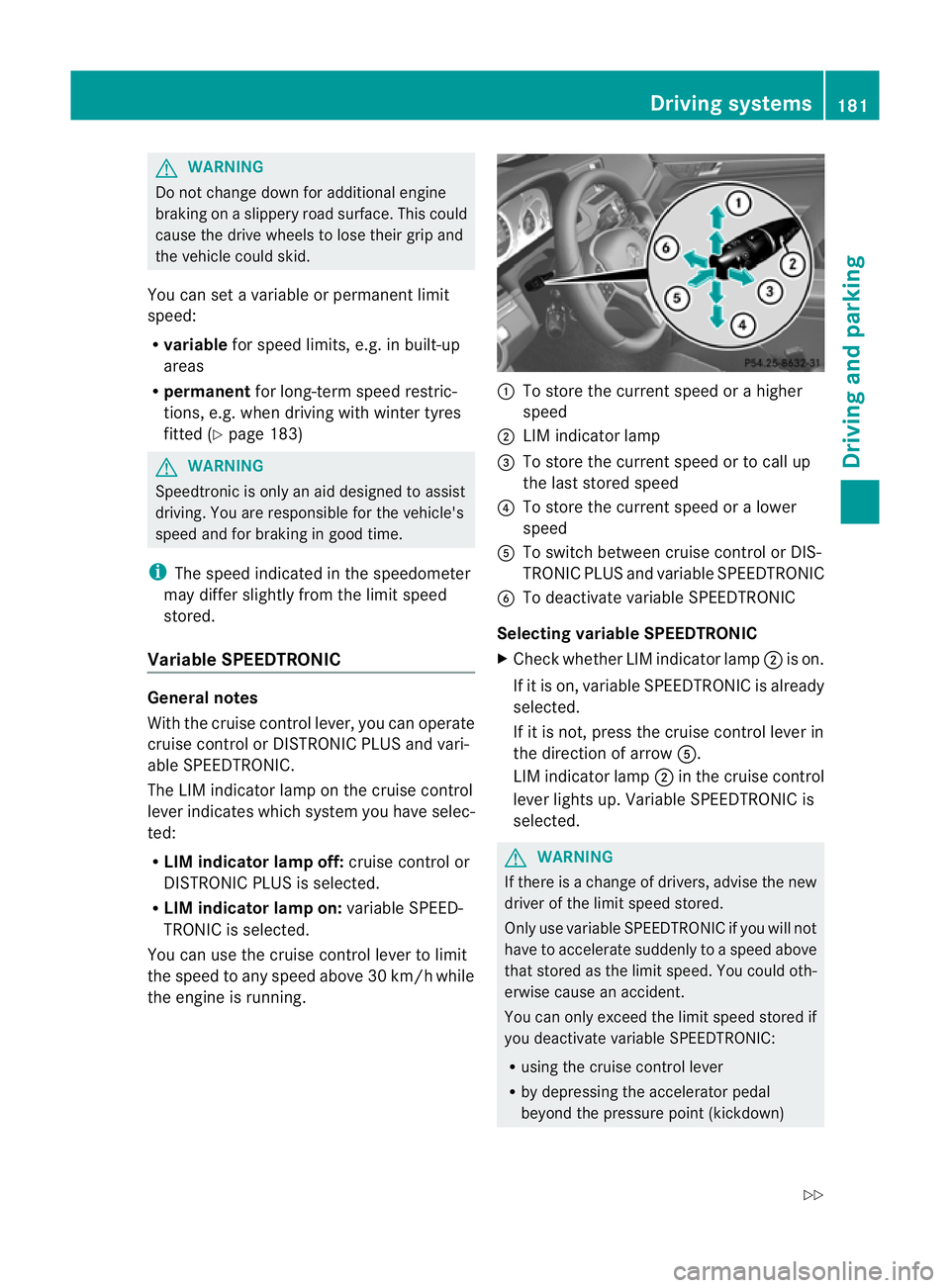
To store the current speed or ahigher
speed
; LIM indicator lamp
= To store the current speed or to call up
the last stored speed
? To store the current speed or alower
speed
A To switch between cruise control or DIS-
TRONIC PLUS and variable SPEEDTRONIC
B To deactivate variable SPEEDTRONIC
Selecting variable SPEEDTRONIC
X Check whether LIM indicator lamp ;is on.
If it is on, variable SPEEDTRONIC is already
selected.
If it is not, press the cruise control lever in
the direction of arrow A.
LIM indicator lamp ;in the cruise control
lever lights up. VariableS PEEDTRONIC is
selected. G
WARNING
If there is achange of drivers, advise the new
driver of the limit speed stored.
Only use variable SPEEDTRONIC if you will not
have to accelerate suddenly to aspeed above
that stored as the limit speed. You could oth-
erwise cause an accident.
You can only exceed the limit speed stored if
you deactivate variable SPEEDTRONIC:
R using the cruise control lever
R by depressing the accelerator pedal
beyond the pressure point (kickdown) Driving systems
181Driving and parking
Z
Page 195 of 353
X
To revers eintot he parking space: main-
tai nt he steering wheel angle and reverse
carefully.
X Stop as soon as you hear awarning tone,
at the latest when PARKTRONIC sounds the
continuous warning tone.
The Parking Guidance finished mes-
sage appears in the multifunction display
and awarning tone sounds. You may be
asked to steer in adifferen tdirection and
the nchange gear. In this case, further dis-
playsint he multifunction displayw ill direct
you to the final position.
X Manoeuvre if necessary.
X Always observe the warning messages dis-
played by PARKTRONIC (Y page 187).
Cancelling Parking Guidance X
Press the PARKTRONIC button on the
centre console (Y page 188).
Parking Guidance is cancelled immediately
and PARKTRONIC is deactivated.
Parking Guidance is cancelled automatically
if it is no longer possible to guide you into the
parking space, or if amalfunction occurs.
The parking space symbol goes out and a
warning tone sounds. The Parking Guid‐ance cancelled message appears in the
multifunction display.
Trailer towing For vehicles with
atrailer tow hitch, the min-
imum length for parking spaces is slightly
increased.
If you have attached atrailer to your vehicle,
you should not use Parking Guidance. When
the electrical connection is established
between your vehicle and the trailer, Parking
Guidance ceases to be available. PARK-
TRONIC is deactivated for the rear area. Reversing camera
Important safety notes The reversing camera is an optical parking
aid. It shows the area behind your vehicle in
the COMAND APS display.
G
WARNING
Make sure that no persons or animals are in
the manoeuvring range. Otherwise, they
could be injured.
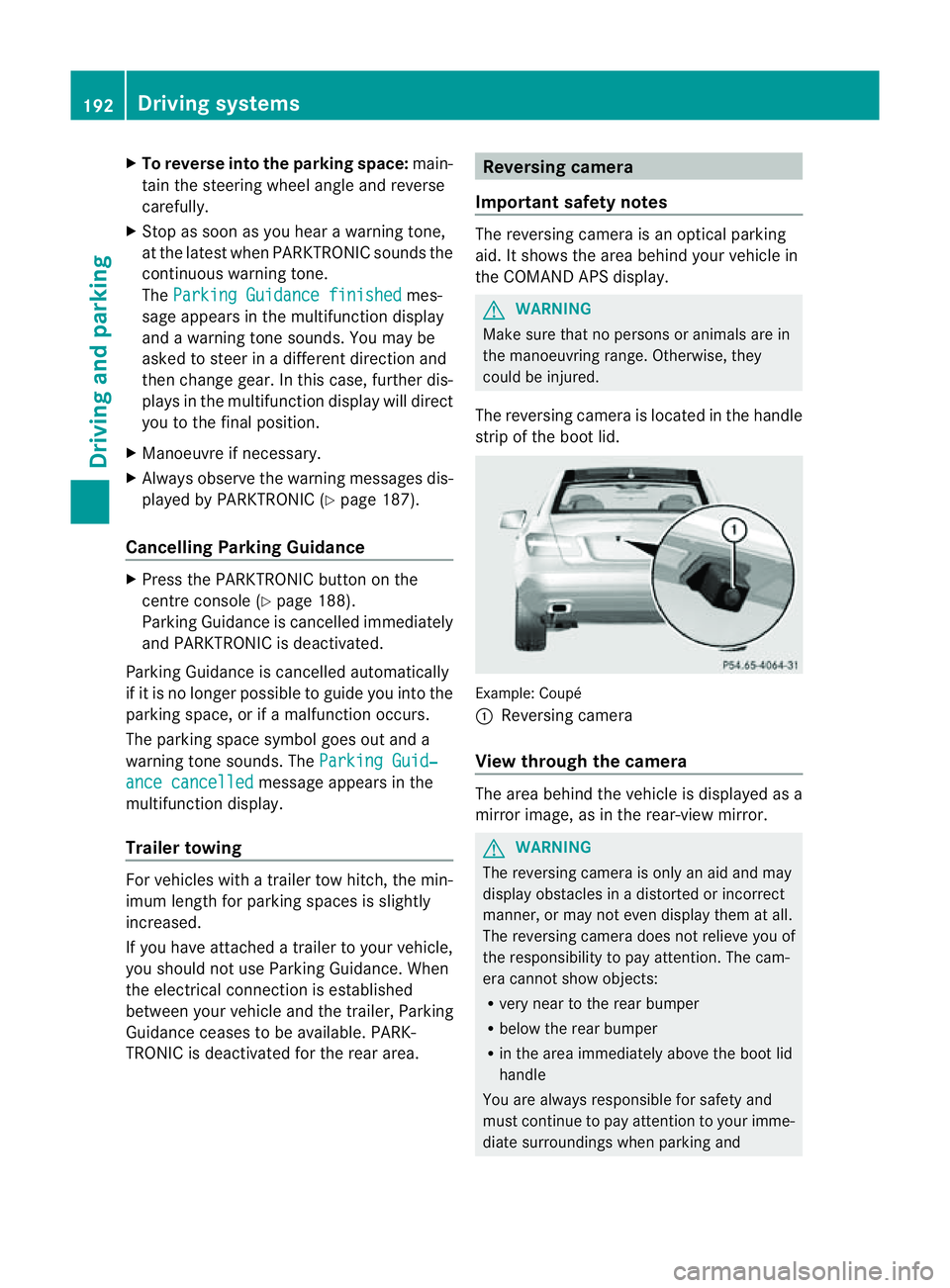
The reversing camera is located in the handle
strip of the boot lid. Example: Coupé
:
Reversing camera
View through the camera The area behind the vehicle is displayed as a
mirror image, as in the rear-view mirror.
G
WARNING
The reversing camera is only an aid and may
display obstacles in adistorted or incorrect
manner, or may not even display them at all.
The reversing camera does not relieve you of
the responsibility to pay attention. The cam-
era cannot show objects:
R very near to the rear bumper
R below the rear bumper
R in the area immediately above the boot lid
handle
You are always responsible for safety and
must continue to pay attention to your imme-
diate surroundings when parking and 192
Driving systemsDriving and parking
Page 202 of 353
R
the lane markings ar eworna way, dark or
covered up ,e.g.byd irtors now.
R the distance to the vehicl einfront is too
small and the lane marking sthu sc anno tbe
detected.
R the lane markings on the road are unclear,
e.g. near roadworks.
R the lane markings chang equickly, e.g.
lanes branc hoff, cros sone another or
merge.
R the road is narro wand winding.
Lane Keeping Assist cannot detec troad and
traffic conditions. It is not asubstitute for
attentive driving .You are responsible for the
vehicle's speed, braking in good time, and
steering correctly. Always adapt your driving
style to suit the prevailing road and weather
conditions. Always pay attention to traffic
conditions and your surroundings. Otherwise,
you may fail to recognise dangers in time,
cause an accident and injure yourself and oth-
ers.
Aw arning may be given if afront wheel
passes over alane marking. It will warn you
by means of intermittentv ibration in the
steering wheel for up to 1.5 seconds.
Activating Lane Keeping Assist
X Symbol :appears in the multifunction
display. Active Driving Assistance package
General notes The Active Drivin
gAssistance package con-
sists of DISTRONIC PLUS (Y page 171), Active
Blind Spot Assist (Y page 199) and Active
Lane Keeping Assist (Y page 202).
Active Blind Spot Assist Important safety notes
Active Blind Spot Assist uses
aradar sensor
system to monitor the side areas of your vehi- cle that are behind the driver.
Awarning dis-
play in th eexteri or mirror sdraws your atten-
tio ntod etected vehicles in the monitored
area. If you then switch on the corresponding
turn signal to change lane, you will also
receive avisual and acoustic collision warn-
ing. If arisk of lateral collision is detected,
corrective braking may help you avoid acol-
lision. To support the course-correcting brake
application, Active Blind Spot Assist also uses
the forward-facin gradar sensor system.
Active Blind Spot Assist provides assistance
at speeds higher than about 30 km/h. G
WARNING
Active Blind Spot Assist is only an aid and may
detect vehicles/obstacles incorrectly or not
at all.
The system may be impaired or may not func-
tion if:
R there is poor visibility, e.g. due to snow,
rain, fog or spray.
R the rear and/or front sensors are dirty.
Active Blind Spot Assist may not detect nar-
row vehicles, such as motorcycles or bicycles,
or only detect them too late. It cannot detect
vehicles which are overtaken at asmall dis-
tancea nd then enter the blind spot area.
Active Blind Spot Assist cannot detect road
and traffic conditions. It is not asubstitute for
attentive driving. You are responsible for the
vehicle's speed, braking in good time, and
steering correctly. Always adapt your driving
style to suit the prevailing road and weather
conditions. Always pay attention to traffic
conditions and your surroundings. Otherwise,
you may fail to recognise dangers in time,
cause an accident and injure yourself and oth-
ers.
The radar sensor system is automatically
deactivated near radio telescope facilities
(Y page 345).
For Active Blind Spot Assist to assist you
when driving, the radar sensor system must
be activated (Y page 229) and operational. Driving systems
199Driving and parking Z
Page 206 of 353
R
the lane markings change quickly, e.g.
lanes branch off ,cros sone anothe ror
merge.
R the road is narrow and winding.
Active Lane Keeping Assist cannot detect
road and traffic conditions. It is not asubsti-
tute for attentive driving. You are responsible
for the vehicle's speed ,braking in good time,
and steering correctly. Always adapt your
driving style to suitt he prevailing road and
weather conditions.A lways pay attention to
traffic condition sand your surroundings. Oth-
erwise, you may fail to recognise danger sin
time, cause an accident and injure yourself
and others.
Warning vibration in th esteering wheel
Aw arnin gmay be given if afront wheel
passes over alane marking. You will be
warned by way of intermitten tvibrations in
the steerin gwheel for up to 1. 5seconds.
In order that you are warned only when nec-
essary and in good time if you cross the lane
marking, the system recognises certain con-
ditions and warns you accordingly.
The warning vibration occur searlier if:
R you approach the outer lane markin gona
bend.
R the road has very wide lanes, e.g. amotor-
way.
R the system recognises solid lane markings.
The warning vibration occur slater if:
R the road has narrow lanes.
R you cut the corner on abend.
No warning vibration occur sif:
R you clearly and actively steer ,brake, or
accelerate.
R you cut the corner on asharp bend.
R ad riving safety system intervenes, such as
ABS, BASorE SP®
.
R you have switched on the turn signals. In
this event ,the warnings are suppressed for
ac ertain period of time. Lane-correcting brak
eapplication
If you leave your lane under certain circum-
stances, the vehicle will brake briefly on one
side. This is designed to help you bring the
vehicle back intot he original lane.
This function is available in the range between
60 km/ha nd 200 km/h.
Al ane-correctingb rake application can only
be made after driving over asolid, recognis-
able lane marking. Befor ethis, awarning
must be emitted by means of intermittent
vibration in the steering wheel. In addition, a
lane with lane markings on both sides must
be recognised. The brake application also
slightly reduces driving speed.
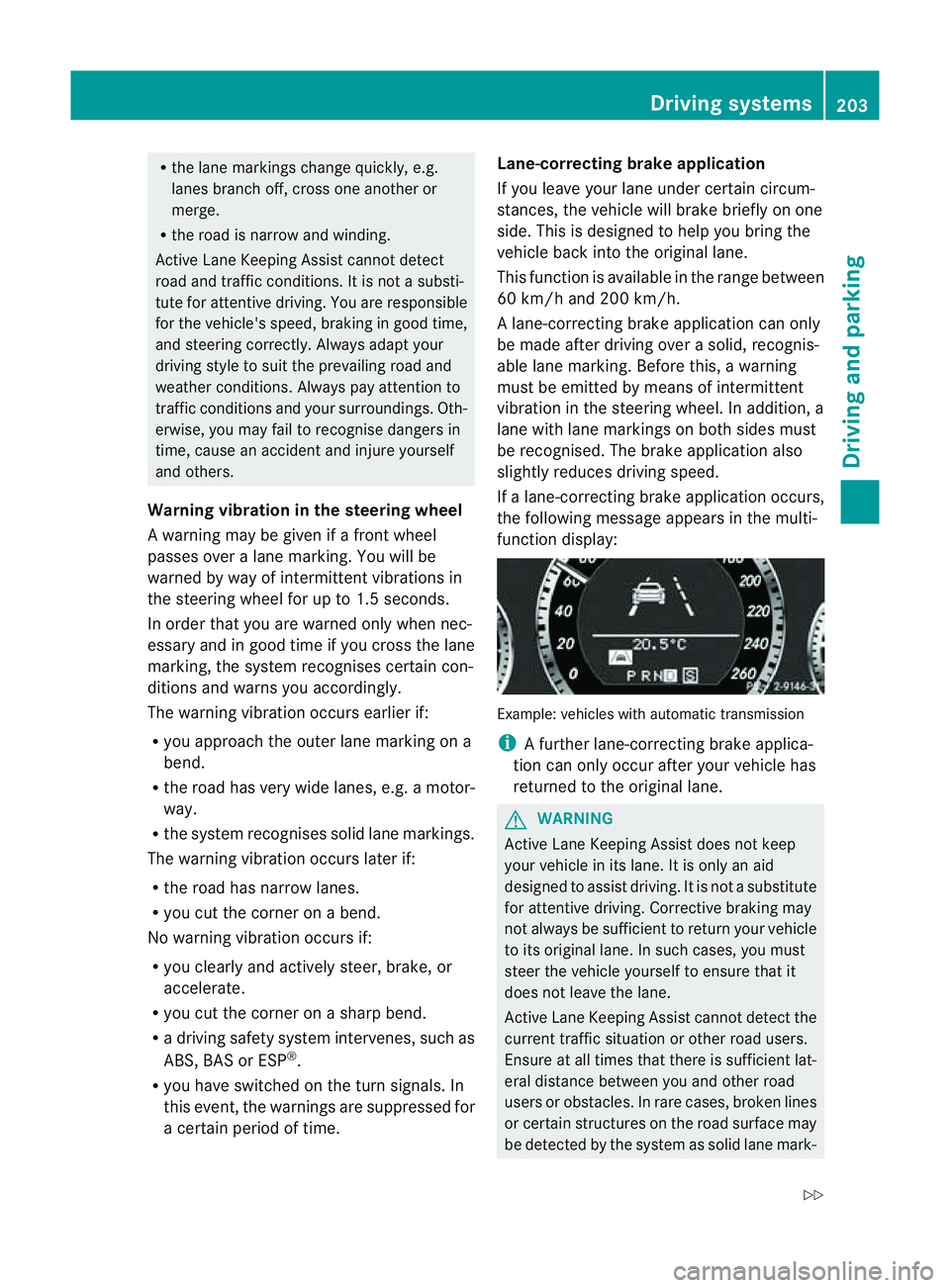
If al ane-correcting brake application occurs,
the following message appears in the multi-
function display: Example: vehicles with automatic transmission
i
Afurther lane-correcting brake applica-
tion can only occur after your vehicle has
returned to the original lane. G
WARNING
Active Lane Keeping Assist does not keep
your vehicle in its lane. It is only an aid
designed to assist driving. It is not asubstitute
for attentive driving. Corrective braking may
not always be sufficient to return your vehicle
to its original lane. In such cases, you must
steer the vehicle yourself to ensure that it
does not leave the lane.
Active Lane Keeping Assist cannot detect the
current traffic situation or other road users.
Ensure at all times that there is sufficient lat-
eral distance between you and other road
users or obstacles. In rare cases, broken lines
or certain structures on the road surface may
be detected by the system as solid lane mark- Driving systems
203Driving and parking
Z
Page 216 of 353
!
Do not drive in the overrevving range.
Doing so will damage the engine.
The fuel supplyisi nterrupted to protect the
engine when the red band is reached. Outside temperatured
isplay
The outside temperature displayisint he mul-
tifunction display( Ypage 214). G
WARNING
At temperatures just above freezing point, the
street may be icy, especiallyinw ooded areas
or on bridges. If you do not adapty our driving
style to the conditions, the vehicle could skid.
For this reason, adapt your driving style and
speed to the weather conditions.
Changes in the outside temperature are dis-
playeda fterashort delay. Speedometer with segments
The segment sinthe speedometer indicate
which speed range is available.
Cruise control (Y page 169) activated:
The segment slight up from the stored speed
to the maximum speed.
Variable SPEEDTRONIC (Y page 180) activa-
ted:
The segment slight up from the start of the
scale to the selected limit speed.
DISTRONIC PLUS (Y page 171) activated:
One or two segment sinthe set speed range
light up.
DISTRONIC PLUS detect savehicle in front:
The segment sbetween the speed of the vehi-
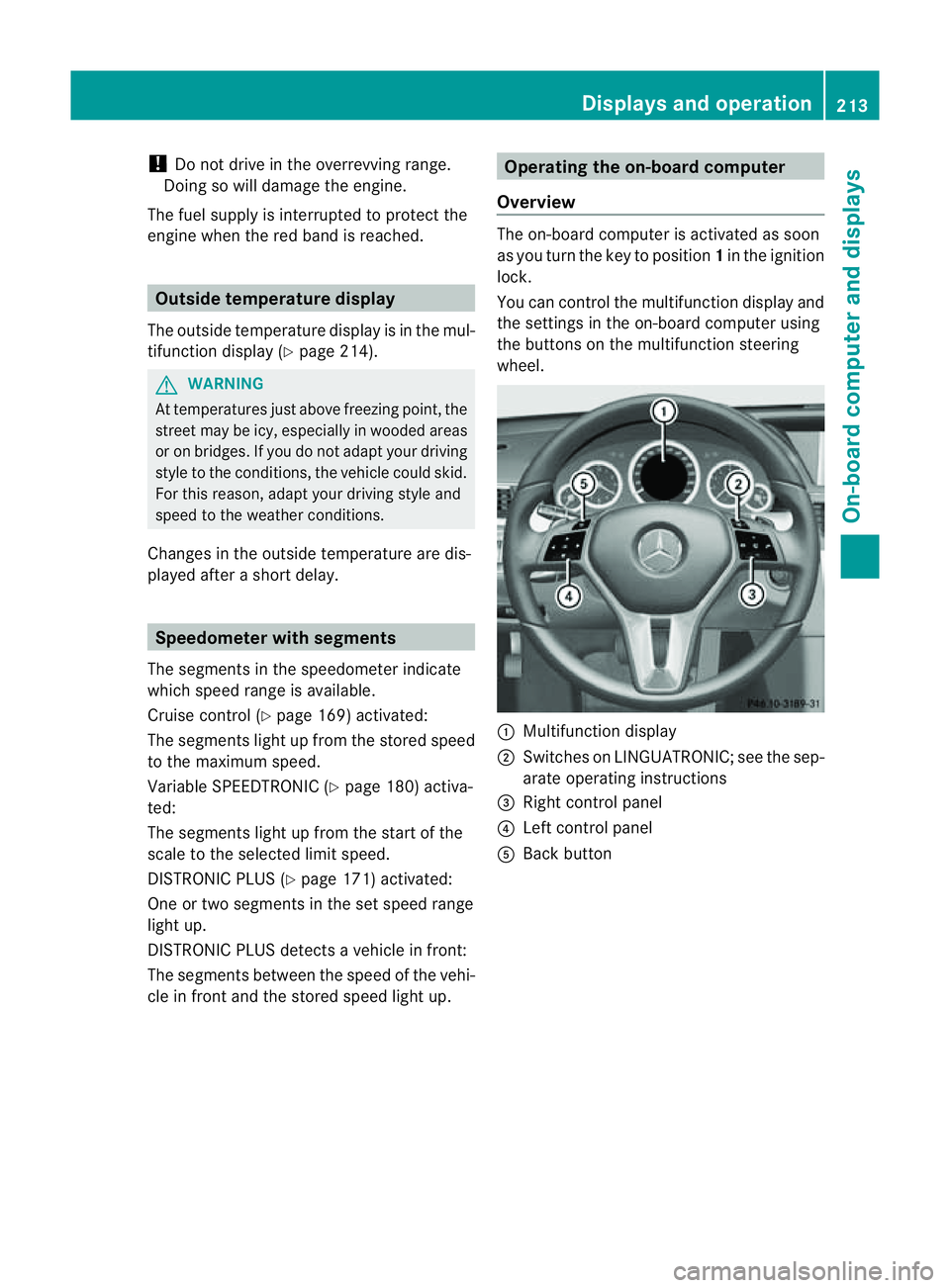
cle in front and the stored speed light up. Operating the on-board computer
Overview The on-board computer is activated as soon
as you turn the key to position
1in the ignition
lock.
You can control the multifunction display and
the settings in the on-board computer using
the button sonthe multifunction steering
wheel. :
Multifunction display
; Switches on LINGUATRONIC; see the sep-
arate operating instructions
= Right control panel
? Left control panel
A Back button Displays and operation
213On-board computer and displays Z
Page 221 of 353
i
If the gearshift recommendation is shown
in the multifunction display,itisn ot shown
in the status bar.
For further information on gearshift recom-
mendations, see (Y page 154).
Resetting values You can reset the values of the following func-
tions:
R
trip meter
R trip computer "From start"
R trip computer "From reset"
X Press the =or; button on the steer-
ing wheeltos elect theTrip menu.
X Press the 9or: button to select the
function that you wish to reset.
X Press a. Resetting the trip computer "From start" (example)
X Press :to select Yes and press
a
to confirm. Navigation menu
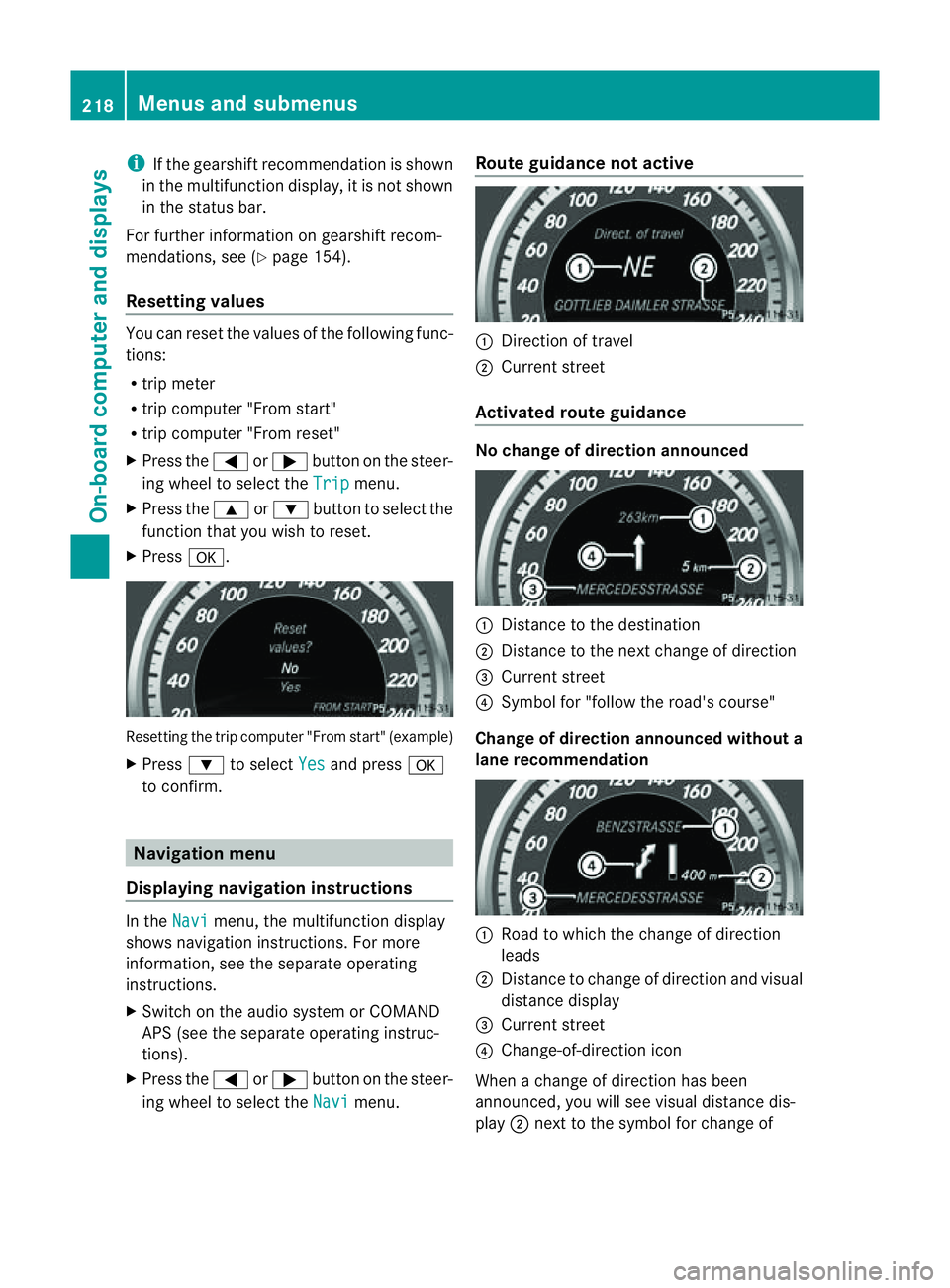
Displaying navigatio ninstructions In the
Navi menu, the multifunction display
shows navigation instructions. For more
information, see the separate operating
instructions.
X Switch on the audio system or COMAND
APS (see the separate operating instruc-
tions).
X Press the =or; button on the steer-
ing wheeltos elect theNavi menu.Route guidance not active :
Direction of travel
; Current street
Activated route guidance No change of directio
nannounced :
Distance to the destination
; Distance to the next change of direction
= Current street
? Symbol for "follow the road's course"
Change of directio nannounced without a
lane recommendation :
Roadtow hich the change of direction
leads
; Distance to change of direction and visual
distance display
= Current street
? Change-of-direction icon
When achange of direction has been
announced, you wills ee visualdistancedis-
play ;nex ttot he symbol for change of 218
Menus and submenusOn-board computer and displays
Page 222 of 353
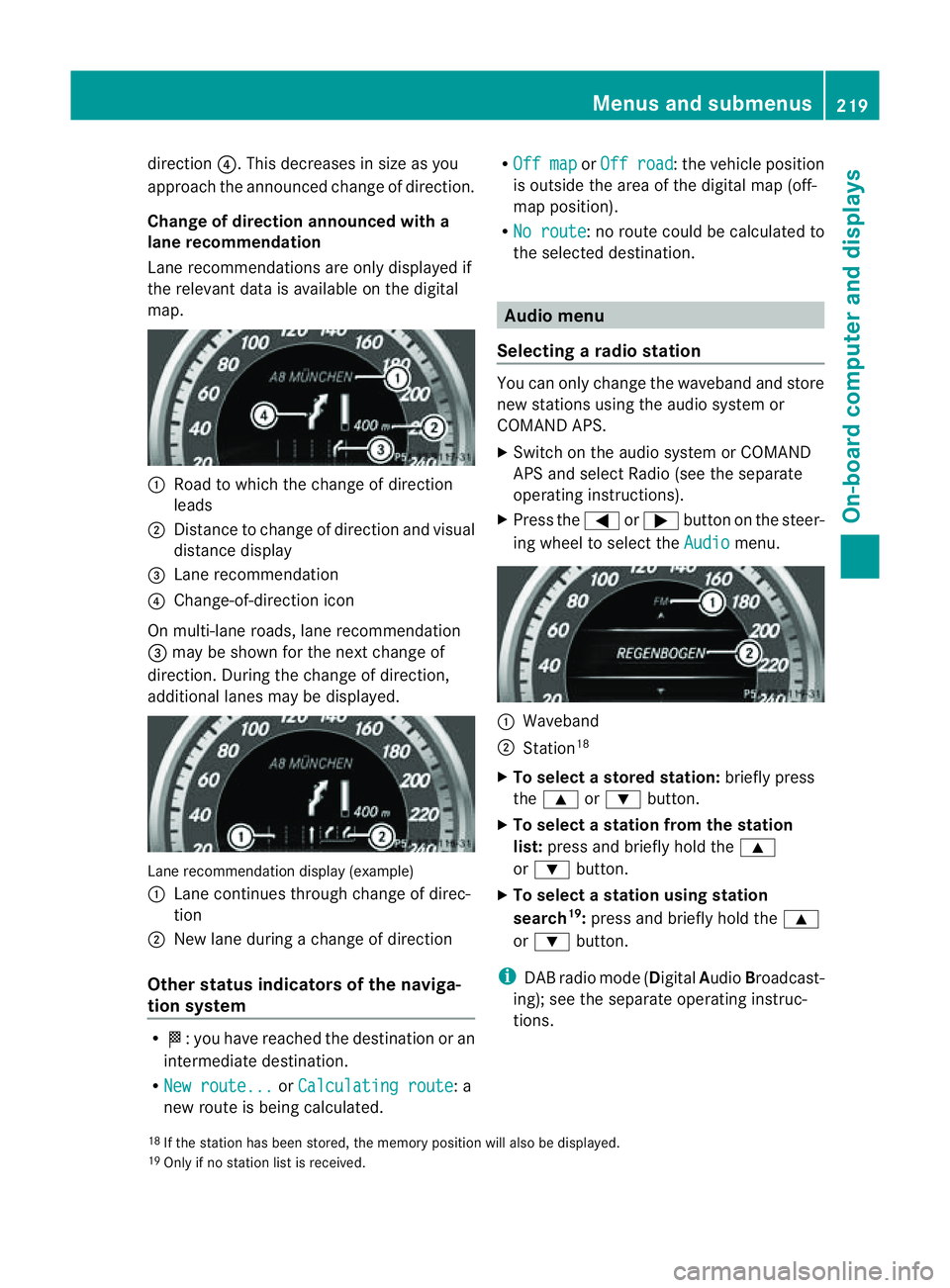
direction
?.This decreases in size as you
approach the announced change of direction.
Change of direction announced with a
lane recommendation
Lane recommendations are only displayed if
the relevant data is available on the digital
map. :
Road to which the change of direction
leads
; Distancetoc hange of direction and visual
distance display
= Lane recommendation
? Change-of-direction icon
On multi-lane roads, lane recommendation
= may be shown for the next change of
direction. During the change of direction,
additional lanes may be displayed. Lane recommendation display (example)
:
Lane continues through change of direc-
tion
; New lane during achange of direction
Other status indicators of the naviga-
tion system R
O:y ou have reached the destination or an
intermediate destination.
R New route... or
Calculating route :a
new route is being calculated. R
Off map or
Off road :t
he vehicle position
is outside the area of the digital map (off-
map position).
R No route :nor
oute could be calculated to
the selected destination. Audio menu
Selecting aradio station You can only change the waveband and store
new stations using the audio system or
COMAND APS.
X Switch on the audio system or COMAND
APS and select Radio (see the separate
operating instructions).
X Press the =or; button on the steer-
ing wheel to select the Audio menu.
:
Waveband
; Station 18
X To selectas toredstation: brieflypress
the 9 or: button.
X To select astation from the station
list: press and briefl yholdt he 9
or : button.
X To select astatio nusing station
search 19
:press and briefl yholdt he 9
or : button.
i DAB radi omode(Digit alAudio Broadcast-
ing); see the separate operating instruc-
tions.
18 If the statio nhas been stored ,the memory position will also be displayed.
19 Onl yifnos tatio nlist is received. Menus and submenus
219On-boardcomputer and displays Z
Page 223 of 353
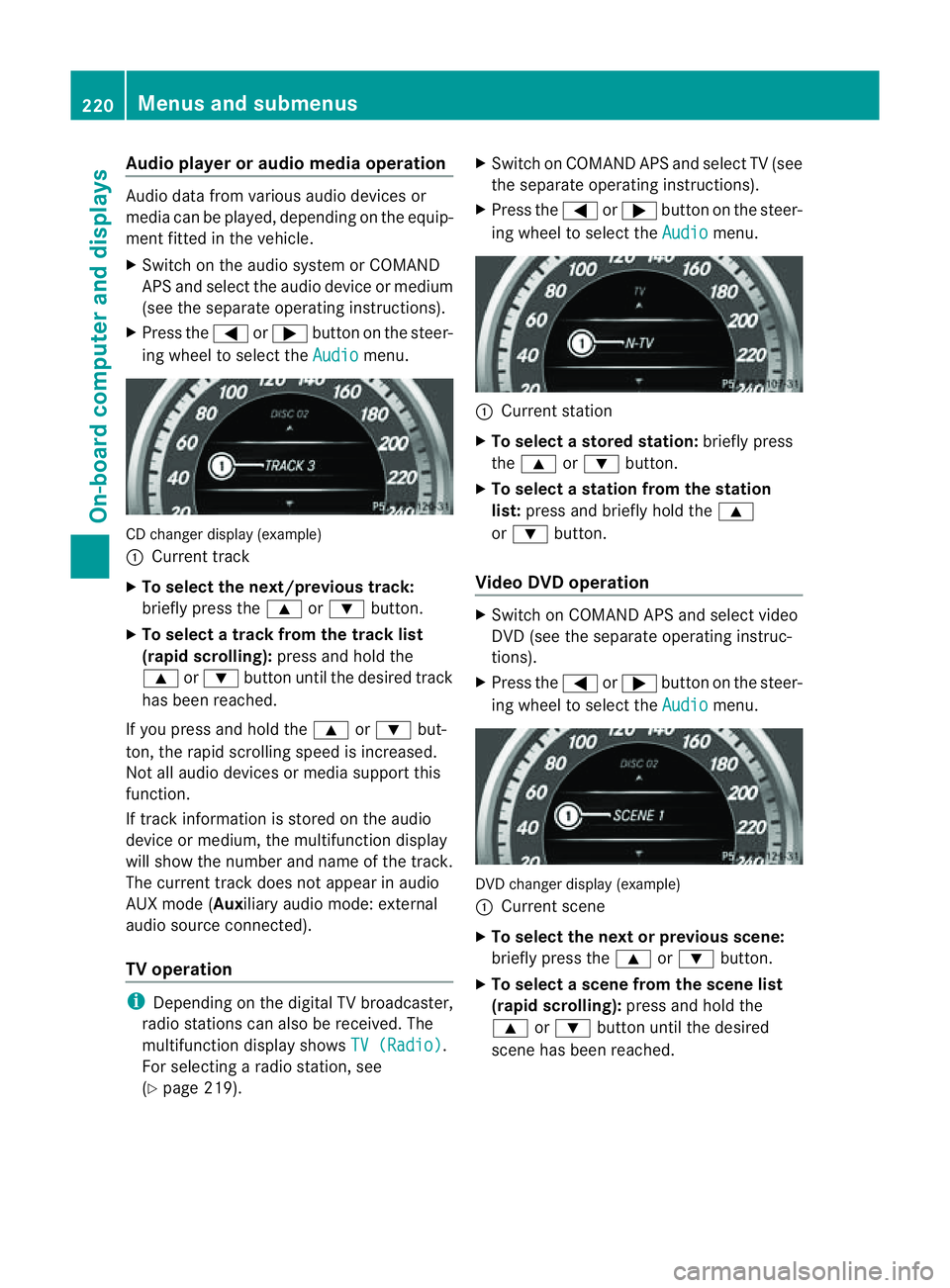
Audio player or audio media operation
Audio dat
afromv arious audio device sor
media can be played, depending on th eequip-
men tfitte dint hevehicle.
X Switc hont heaudio system or COMAND
AP Sa nd select the audi odeviceorm edium
(see the separate operating instructions).
X Press the =or; button on the steer-
ing whee ltoselect the Audio menu.
CD change
rdisplay (example)
: Curren ttrack
X To select th enext/previou strack:
briefl ypress the 9or: button.
X To select atrac kfromt he trac klist
(rapid scrolling): press and hold the
9 or: button unti lthe desired track
ha sb eenr eached.
If yo upress and hold the 9or: but-
ton, the rapi dscrolling spee disincreased.
Not al laudio devices or media support this
function.
If track information is stored on the audio
device or medium, the multifunctio ndisplay
will show the number and name of the track.
The current track does not appear in audio
AUX mode (Aux iliary audio mode: external
audio sourc econnected).
TV operation i
Dependin gonthe digital TV broadcaster,
radio station scan also be received. The
multifunction display shows TV (Radio) .
For selectin garadio station ,see
(Y page 219). X
Switch on COMAND APS and selec tTV(see
the separate operating instructions).
X Press the =or; button on the steer-
ing wheel to select the Audio menu.
:
Current station
X To select astore dstation: brieflypress
the 9 or: button.
X To select astation from the station
list: press and briefl yholdt he 9
or : button.
Vide oDVD operation X
Switch on COMAND APS and select video
DVD (see the separate operating instruc-
tions).
X Press the =or; button on the steer-
ing whee ltoselect the Audio menu.
DVD change
rdisplay (example)
: Curren tscene
X To select th enext or previous scene:
briefly press the 9or: button.
X To select ascene from th escene list
(rapid scrolling): press and hold the
9 or: buttonuntil the desired
scene ha sbeenr eached. 220
Menus and submenusOn-board computer and displays
Page 229 of 353
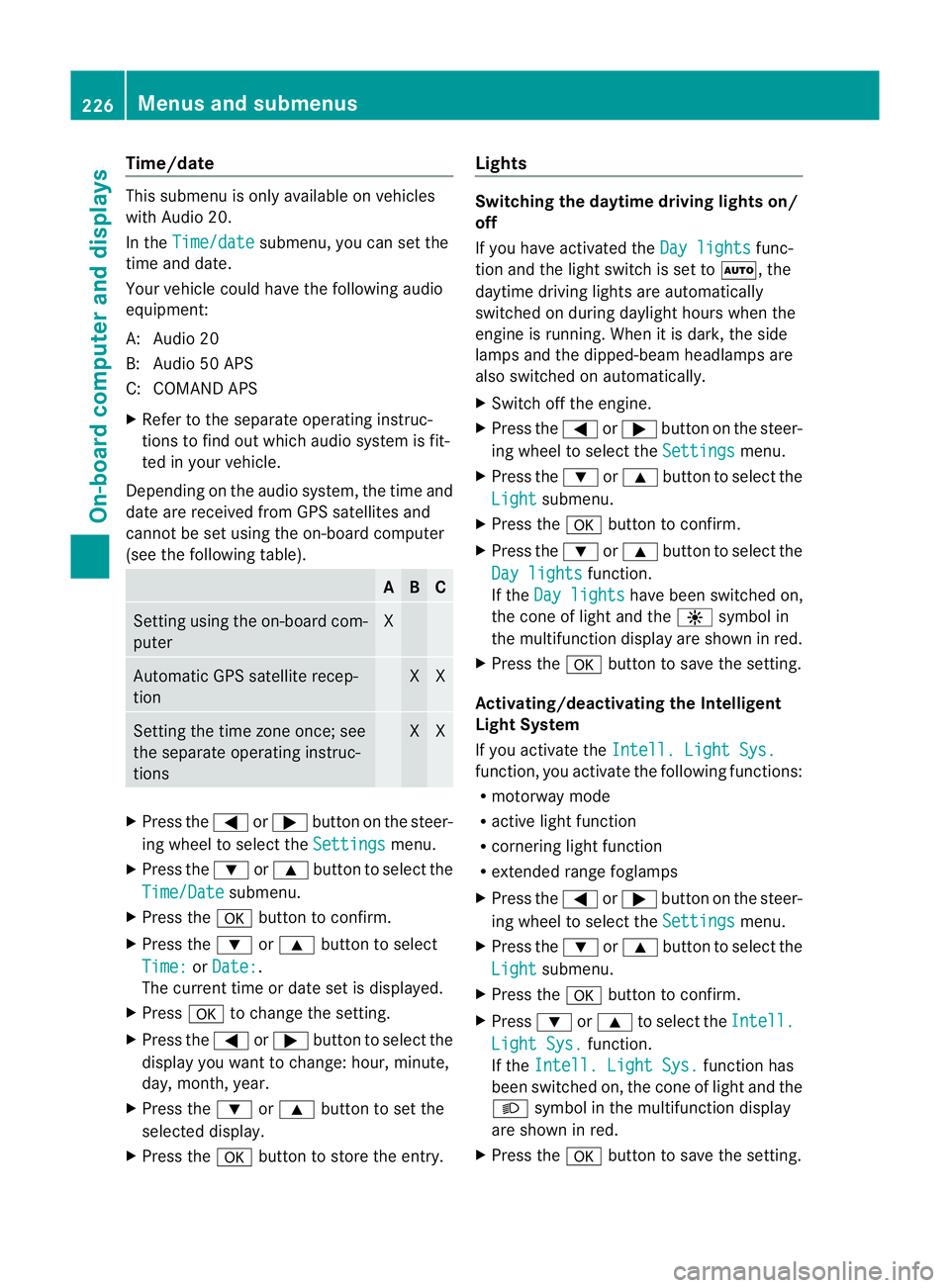
Time/date
Thi
ssubmenu is onl yavailable on vehicles
with Audio 20.
In the Time/date submenu, yo
ucan se tthe
time and date.
Your vehicle could have the following audio
equipment:
A: Audio 20
B: Audio 50 APS
C: COMAND APS
X Refer to the separate operating instruc-
tions to find out which audios ystem is fit-
ted in your vehicle.
Depending on the audios ystem, the time and
date are received from GPS satellites and
cannot be set using the on-board computer
(see the following table). A B C
Setting using the on-board com-
puter X
Automatic GPS satellite recep-
tion X X
Setting the time zone once; see
the separate operating instruc-
tions X X
X
Press the =or; button on the steer-
ing wheel to select the Settings menu.
X Press the :or9 button to select the
Time/Date submenu.
X Press the abutton to confirm.
X Press the :or9 button to select
Time: or
Date: .
The current time or date set is displayed.
X Press ato change the setting.
X Press the =or; button to select the
displayy ou want to change: hour, minute,
day, month, year.
X Press the :or9 button to set the
selected display.
X Press the abutton to store the entry. Lights Switching the daytime driving lights on/
off
If you have activated the
Day lights func-
tion and the light switch is set to Ã,the
daytime driving lights are automatically
switched on during daylight hours when the
engine is running. When it is dark, the side
lamps and the dipped-beamh eadlamps are
also switched on automatically.
X Switc hoff the engine.
X Press the =or; button on the steer-
ing wheel to select the Settings menu.
X Press the :or9 button to select the
Light submenu.
X Press the abutton to confirm.
X Press the :or9 button to select the
Day lights function.
If the Day lights have been switched on,
the coneofl ight and the Wsymbol in
the multifunction display are shown in red.
X Press the abutton to save the setting.
Activating/deactivating the Intelligent
Light System
If you activat ethe Intell. Light Sys. function
,you activat ethe following functions:
R motorway mode
R activ elight function
R cornering light function
R extended range foglamps
X Press the =or; button on the steer-
ing wheel to select the Settings menu.
X Press the :or9 button to select the
Light submenu.
X Press the abutton to confirm.
X Press :or9 to select the Intell. Light Sys. function.
If the Intell. Light Sys. function has
been switched on, the coneofl ight and the
L symbol in the multifunction display
are shown in red.
X Press the abutton to save the setting. 226
Menus and submenusOn-boar
dcomputer and displays
Page 230 of 353
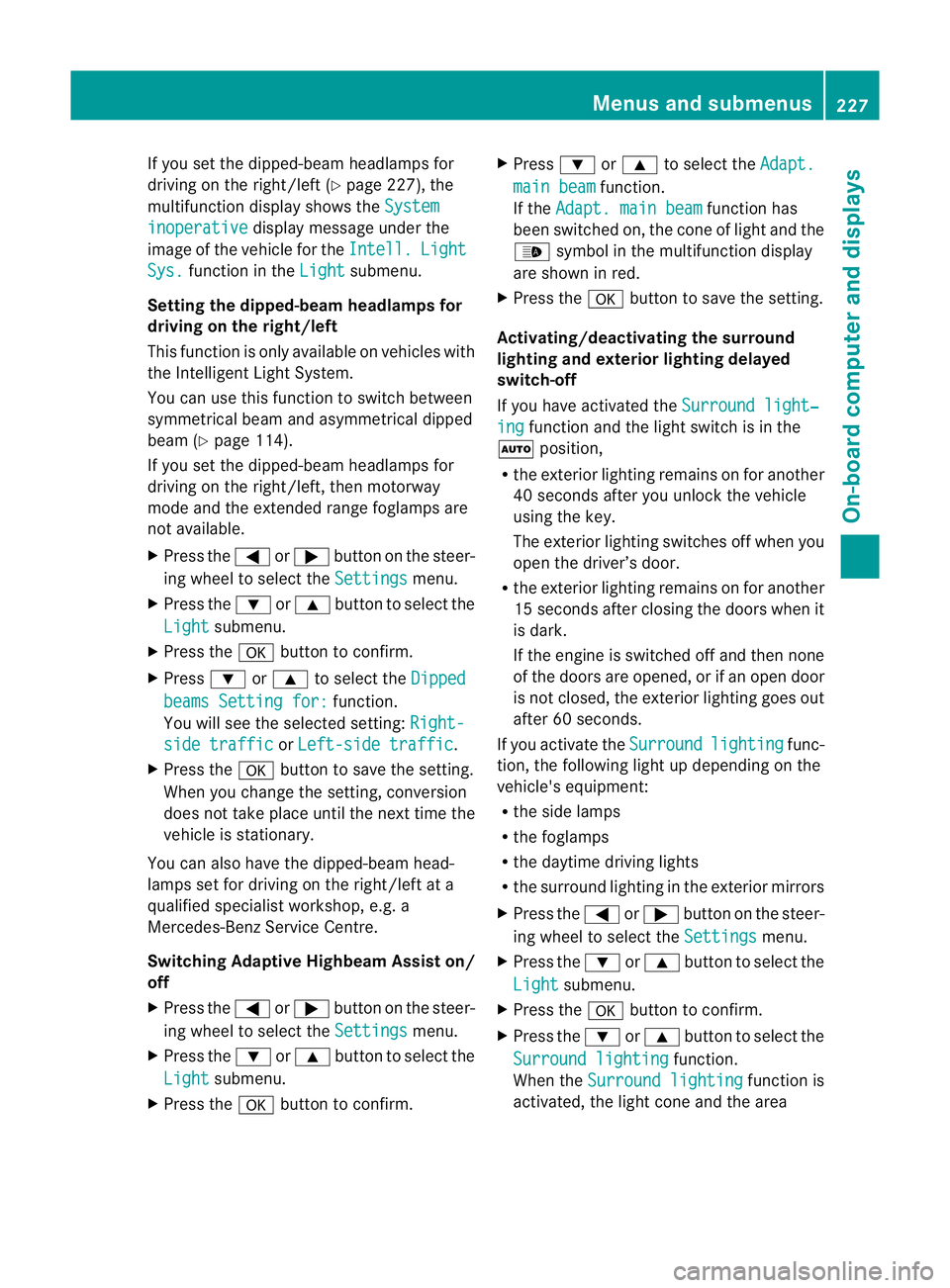
If you set the dipped-bea
mheadlamps for
driving on the right/left (Y page 227), the
multifunction display shows the Systeminoperative display message under the
image of the vehicle for the Intell. Light
Sys. function in the
Light submenu.
Setting the dipped-beam headlampsf or
driving on the right/left
This function is only available on vehicles with
the Intelligent Light System.
You can use this function to switch between
symmetrical beam and asymmetrical dipped
beam (Y page 114).
If you set the dipped-beam headlamps for
driving on the right/left, then motorway
mode and the extended range foglamps are
not available.
X Press the =or; button on the steer-
ing wheel to select the Settings menu.
X Press the :or9 button to select the
Light submenu.
X Press the abutton to confirm.
X Press :or9 to select the Dipped beams Setting for: function.
You will see the selected setting: Right-side traffic or
Left-side traffic .
X Press the abutton to save the setting.
When you change the setting, conversion
does not take place until the nextt ime the
vehicle is stationary.
You can also have the dipped-beam head-
lamps set for drivin gonthe right/lef tata
qualified specialist workshop, e.g. a
Mercedes-Ben zServic eCentre.
Switching Adaptive Highbeam Assist on/
off
X Press the =or; button on the steer-
ing wheel to selec tthe Settings menu.
X Press the :or9 button to select the
Light submenu.
X Press the abutton to confirm. X
Press :or9 to select the Adapt. main beam function.
If the Adapt. main beam function has
been switched on, the cone of light and the
_ symbol in the multifunction display
are shown in red.
X Press the abutton to save the setting.
Activating/deactivating the surround
lighting and exterior lighting delayed
switch-off
If you have activated the Surround light‐ ing function and the light switch is in the
à position,
R the exterior lighting remains on for another
40 seconds after you unlock the vehicle
using the key.
The exterior lighting switches off when you
open the driver’s door.
R the exterior lighting remains on for another
15 seconds after closing the doors when it
is dark.
If the engine is switched off and then none
of the doors are opened, or if an open door
is not closed, the exterior lighting goes out
after 60 seconds.
If you activate the Surround lighting func-
tion, the following light up depending on the
vehicle's equipment:
R the side lamps
R the foglamps
R the daytime driving lights
R the surround lighting in the exterior mirrors
X Press the =or; button on the steer-
ing wheel to select the Settings menu.
X Press the :or9 button to select the
Light submenu.
X Press the abutton to confirm.
X Press the :or9 button to select the
Surround lighting function.
When the Surround lighting function is
activated, the light cone and the area Menus and submenus
227On-board computer and displays Z