ad blue MERCEDES-BENZ E-CLASS CABRIOLET 2017 Owner's Manual
[x] Cancel search | Manufacturer: MERCEDES-BENZ, Model Year: 2017, Model line: E-CLASS CABRIOLET, Model: MERCEDES-BENZ E-CLASS CABRIOLET 2017Pages: 521, PDF Size: 10.64 MB
Page 315 of 521
Online and Internet functions
Internet connection
Internet connection
restrictions &
WARNING Risk of di stra ction from infor‐
mation sy stems and communications
equipment
If yo u operate information and communica‐
tion equipment integ rated in theve hicle
when driving, you will be distracted from the
traf fic situation. This could also cause youto
lose control of theve hicle. #
Only operate this equipment when the
traf fic situation permits. #
Ifyo u cannot be sure of this, stop the
ve hicle whilst paying attention toroad
and traf fic conditions and ope rate the
equipment with theve hicle stationar y. Yo
u must obse rveth e legal requirements forthe
country in whi chyou are cur rently driving when
operating the multimedia sy stem. Depending on
theve hicle's equipment, you can
es tablish an Internet connection in thefo llowing
wa ys:
R Vehicles with a communication module:
Internet use including Mercedes me connect
services and data roaming (→ page312).
R Vehicles without a communication mod‐
ule:
- via Blue tooth®
with a data-enabled
mobile phone (→ page313)
- viaWi-Fi wi tha data-enabled mobile
phone (→ page312)
- viathete lephone module with SAP
The Internet functions can only be used toa limi‐
te d degree whilst driving.
Internet connection via communication mod‐
ule
On vehicles with a built-in communication mod‐
ule, the Internet connection is es tablished via an
integrated SIM card.
If th e data volume limit is reached, theav ailabil‐
ity of Mercedes me connect services is limited. The data
volume must be pur chased on
Mercedes me connect.
Setting up an Internet connection via Wi-Fi
Requ irements:
R Activate theWi -Fi function on the multimedia
sy stem (→ page 260).
R Activate theWi -Fi function on theex tern al
device (see the manufacturer's operating
instructions).
R Activate Internet access via Wi-Fi (see the
manufacturer's operating instructions).
The Internet connection via Wi-Fi may be restric‐
te d or not function if:
R the mobile phone is switched off
R mobile data use is deactivated on the mobile
phone
R theWi -Fi function is deacti vated on the multi‐
media sy stem
R theWi -Fi function is deacti vated on theex ter‐
nal device
R Internet access via Wi-Fi is deacti vated on
th eex tern al device 312
Multimedia sy stem
Page 316 of 521
Multimedia sy
stem:
, System .
ö Connectivity .
Inter-
net settings .
Search for Wi-Fi networks #
Select networ k. #
Logging in toWi-Fi network (→ page 260).
Setting up an Internet connection via Blue‐
to oth ®
Re quirements:
R Connect a mobile phone tothe multimedia
sy stem via Blue tooth®
(→ page 290).
R Ifyo u use thete lephone module for Internet
functions, yourequ ire a SIM card in thete le‐
phone module or a Blue tooth®
-capable SAP
mobile phone.
To connect via Blu etoo th®
,th e mobile phone
must support one of thefo llowing Blue tooth®
profiles: R DUN (Dial-Up Networking)
R PAN (Personal Area Network) The Internet connection via Blue
tooth ®
may be
re stricted or not function if:
R the mobile phone is switched off
R the mobile phone network co verage is insuf‐
fi cient
R mobile da tause is deactivated on the mobile
phone
R the Blue tooth®
function is switched off on
th e multimedia sy stem and the desired
phone is tobe connec ted via Blue tooth®
R the Blue tooth®
function is switched off on
th e mobile phone and the phone is tobe con‐
nec ted via Blue tooth®
R neither the mobile phone network nor the
mobile phone allow simultaneous use of a
phone and an Internet connection
R the mobile phone has not been enabled for
Internet access via Blue tooth®
If a mobile phone is connected tothe multimedia
sy stem forth efirs t time via Blu etoo th®
,yo u will
be assis tedth ro ugh the process of setting up an
Internet connection. The Internet connection can also be confi
gured
manuall y.
Fu rther information can be obtained at http://
www.mercedes-benz.com/connect or from a
Mercedes-Benz service centre.
Multimedia sy stem:
, System .
ö Connectivity .
Inter-
net settings
Blue tooth ®
connection via PAN #
Select the mobile phone.
The Internet connection is es tablished.
Blue tooth ®
connection via DUN #
Select the mobile phone. #
Toselect the predefined access data of
th e mobile phone network pr ovider: select
Predefined settings.
A list of countries appears. #
Select the count ryofyour mobile phone net‐
wo rkprov ider.
The list of available pr oviders appears. Multimedia sy
stem 313
Page 317 of 521
#
Select your mobile phone network pr ovider.
When an overview of the pr ovider settings
appears, make the necessary settings. #
Select Confirm settings. #
Tomanually set the access data of the
mobile phone network pr ovider: select
Manual settings.
An ove rview of the pr ovider settings appears. #
Set access data. #
Select Confirm settings.
% Set the access data in accordance with your
data pac kage . Otherwise, additional costs
may occu r.Yo u can contact your mobile
phone network pr ovider toobtain the precise
access data.
Switching the Blu etoo th®
pr ofile
Re quirement:
The mobile phone supports the DUN and PAN
Blu etoo th®
profiles. Multimedia sy
stem:
, System .
ö Connectivity .
Inter-
net settings #
Toswitch from DUN toPAN: select mobile
phone. #
Select ¥. #
Select Change configuration. #
Activate OAutomatic configuration.
The Internet connection is au tomatical lycon‐
fi gured using thePA N Blue tooth®
profile. #
Toswitch from PANto DUN: select mobile
phone. #
Select ¥. #
Select Change configuration . #
Deactivate ªAutomatic configuration. #
Select Configure settings using COMAND. #
Con figure the Internet connection using pre‐
set or manual access data (→ page313) Editing
the access data
Re quirement:
The mobile phone supports the Blue tooth®
DUN
profile.
Multimedia sy stem:
, System .
ö Connectivity .
Inter-
net settings #
Highlight a mobile phone. #
Select ¥. #
Select Change configuration . #
For mobile phones with PAN and DUN:
select Configure settings using COMAND. #
Configure the Internet connection using pre‐
set or manual access data (→ page313)
Cancelling Interne t access permission for a
mobile phone
Multimedia sy stem:
, System .
ö Connectivity .
Inter-
net settings #
Highlight a mobile phone. #
Select ¥. 314
Multimedia sy stem
Page 318 of 521
#
Select Delete configuration .#
Select Yes.
Displ aying mobile phone details
Multimedia sy stem:
, System .
ö Connectivity .
Inter-
net settings #
Highlight a mobile phone. #
Select ¥. #
Select Details.
Establishing an Internet connection
Multimedia sy stem:
, Connect #
Forex ample, select zBrowser .
% The multimedia sy stem usually es tablishes
th e Internet connection automaticall y.Ifthe
multimedia sy stem is not connected tothe
Internet, the Internet connection is es tab‐
lished when an Internet application is used. Connection
status Overview of connection
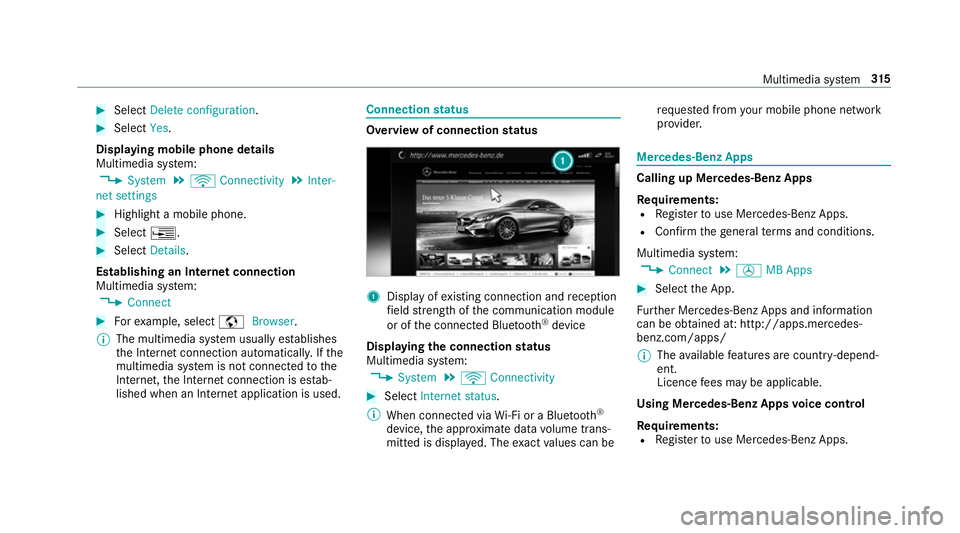
status 1
Displ ayofexisting connection and reception
fi eld stre ngth of the communication module
or of the connected Blue tooth®
device
Displaying the connection status
Multimedia sy stem:
, System .
ö Connectivity #
Select Internet status .
% When connected via Wi-Fi or a Blu etoo th®
device, the appr oximate data volume trans‐
mit ted is displa yed. The exact values can be re
qu ested from your mobile phone network
pr ov ider. Mercedes-Benz Apps
Calling up Mercedes-Benz Apps
Re
quirements:
R Regis terto use Mercedes-Benz Apps.
R Con firm thege neral term s and conditions.
Multimedia sy stem:
, Connect .
Ú MB Apps #
Select the App.
Fu rther Mercedes-Benz Apps and information
can be obtained at: http://apps.mercedes-
benz.com/apps/
% The available features are countr y-depend‐
ent.
Licence fees may be applicable.
Using Mercedes-Benz Apps voice control
Re quirements:
R Regis terto use Mercedes-Benz Apps. Multimedia sy
stem 315
Page 322 of 521
#
Press and hold theto uchpad or cont roller
until an audible signal sounds.
The ß symbol appears bythest ation
name. #
Select ßFavourites.
The list of sa vedfavo urite stations appears.
or #
Create an account forth e online pr ovider
(TuneIn radio) and then log in on the multi‐
media sy stem.
Yo ur favo urites are impor tedto the multime‐
dia sy stem.
Deleting favo urites #
Select ßFavourites. #
Select a station. #
Press and hold theto uchpad or cont roller
until an audible signal sounds.
The ß symbol bythest ation name disap‐
pears. Setting
the Internet radio options
Multimedia sy stem:
, Radio .
Ý Internet radio .
TuneIn
radio .
Z Options
The following options are available:
R Select stream: select thest re am qualit y.
R Login to TuneIn account : loginto yourTuneIn
user account.
R Log out of account: log out of your TuneIn
user account. #
Select an option. Media
Au
dio mode In
fo rm ation on audio mode &
WARNING Risk of di stra ction when han‐
dling da tastorage medium
If yo u handle a data storage medium while
driving, your attention is diver ted from the traf
fic conditions. This could also cause you
to lose control of theve hicle. #
Only handle a data storage medium
when theve hicle is stationar y. Pe
rm issible file sy stems:
R FAT32
R exFAT
R NTFS
Pe rm issible data storage medium:
R SD card
R USB storage device
R iPod/iPhone
R MTP devices
R Blue tooth ®
audio equipment
% The multimedia sy stem supports a total of
up to50,000 files.
Suppor tedfo rm ats:
R MP3
R WMA Multimedia sy
stem 319
Page 331 of 521
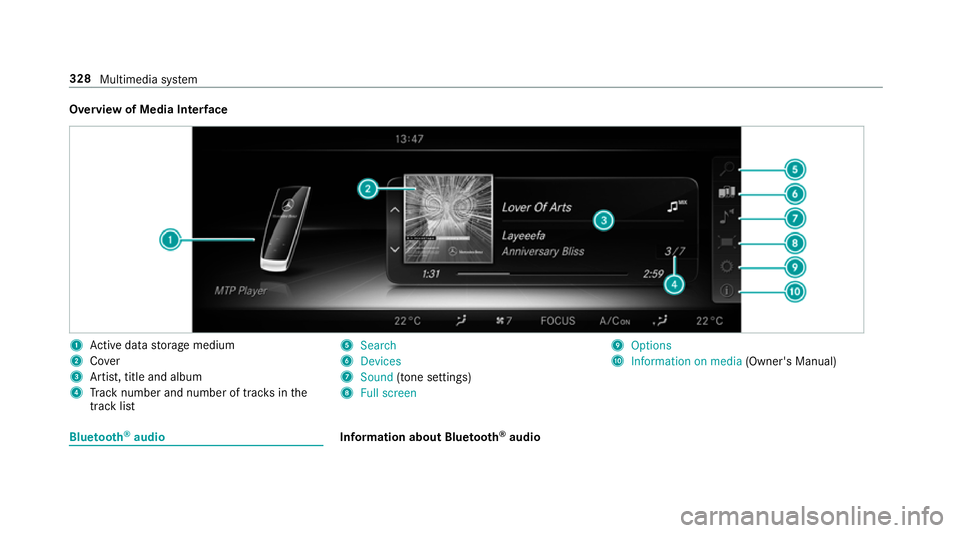
Overview of Media Inter
face 1
Active da tastorage medium
2 Cover
3 Artist, title and album
4 Track number and number of trac ksinthe
track li st 5
Search
6 Devices
7 Sound (tone settings)
8 Full screen 9
Options
A Information on media (Owner's Manual)Blue
tooth ®
audio Information about Blue
tooth ®
audio 328
Multimedia sy stem
Page 332 of 521
Before using
your Blue tooth®
audio equipment
with the multimedia sy stem forth efirs t time,
yo u will need toauthorise it (→ page 330).
Blu etoo th®
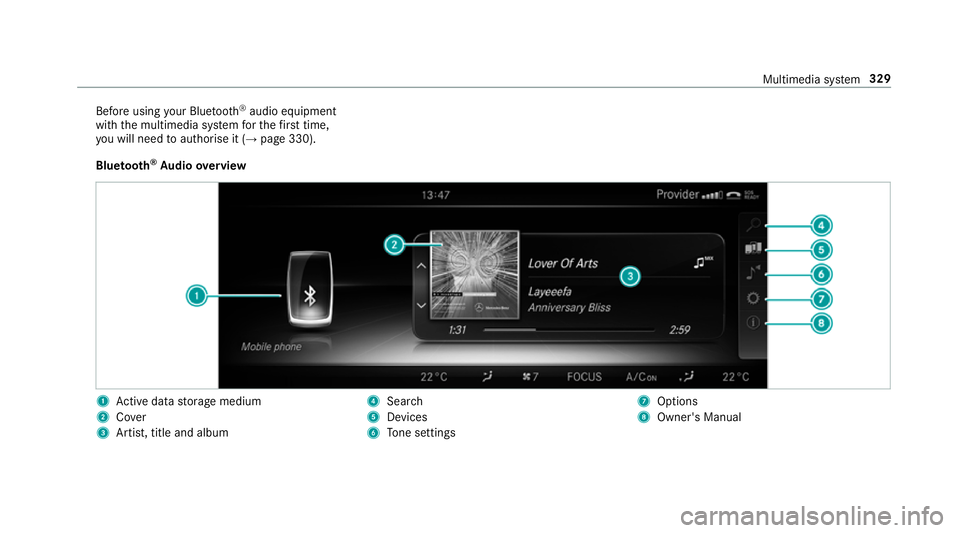
Au dio overview 1
Active da tastorage medium
2 Cover
3 Artist, title and album 4
Search
5 Devices
6 Tone settings 7
Options
8 Owner's Manual Multimedia sy
stem 329
Page 333 of 521
Sear
ching for and authorising the Blue tooth ®
audio equipment
Requ irements:
Blue tooth ®
is activated on the multimedia sys‐
te m (→ page 259).
Check your Blue tooth®
audio equipment forthe
fo llowing (see the manufacturer's operating
instructions):
R the Blue tooth®
audio equipment must sup‐
port the A2DP and AVRC P Blue tooth®
audio
profiles
R the Blue tooth®
function must be activated
R the Blue tooth®
audio equipment must be
"visible" forot her devices
Multimedia sy stem:
, Media .
à Devices .
á Blue-
tooth audio
Au thorising new Blu etoo th®
audio equipment #
Select ¥. #
Select Add new Bluetooth audio device. #
Select Start search .
The multimedia sy stem sear ches for Blue‐
tooth ®
audio equipment within range and
adds them tothe Blue tooth ®
device list. #
Select Blue tooth®
audio equipment.
Auth orisation starts.
A code is displa yed on the multimedia sys‐
te m and on the mobile phone. #
Confirm on the Blue tooth®
audio equipment
if th e codes are identical.
Af ter successful auth orisation,the Blue‐
tooth ®
audio equipment is connec ted and
st arts playing.
Selecting Blu etoo th®
audio equipment that
has already been authorised #
Select ¥. #
Select Blue tooth®
audio equipment.
Establishing a connection from the Blue‐
to oth ®
audio equipment
The Blue tooth®
device name of the multimedia
sy stem is MB BLUETOOTH XXXXX. #
Select Search from device. #
Start the authorisation on your Blue tooth®
audio equipment (see the manufacturer's
operating instructions).
A code is displa yed on the multimedia sys‐
te m and on the mobile phone. #
Ifth e codes are identical, confi rmon bo th
devices bypressing Yes.
Af ter successful auth orisation,the Blue‐
tooth ®
audio equipment is connec ted and
st arts playing.
Wi th some Blue tooth ®
audio equipment, play‐
back must be initially star ted on the device itself
so that the multimedia sy stem can play the
audio files.
% Device-specific information on authorising
and connecting Blue tooth®
-capable mobile
phones can be obtained at http://
ww w.mercedes-benz.com/connect or from a
Mercedes-Benz service centre. 330
Multimedia sy stem
Page 334 of 521
Ac
tivating Blue tooth ®
audio
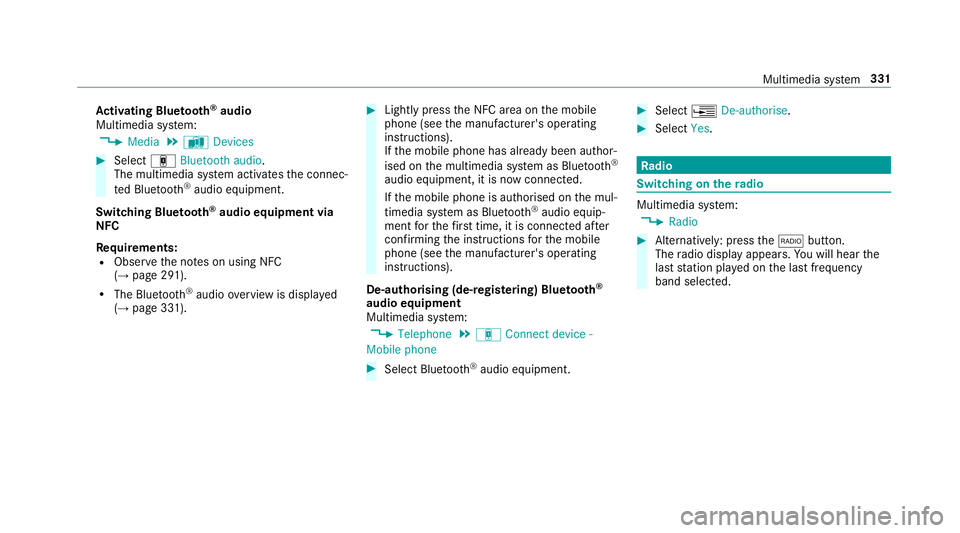
Multimedia sy stem:
, Media .
à Devices #
Select áBluetooth audio.
The multimedia sy stem activates the connec‐
te d Blue tooth®
audio equipment.
Swit ching Blue tooth ®
audio equipment via
NFC
Requ irements:
R Obser vethe no tes on using NFC
(→ page 291).
R The Blue tooth®
audio overview is displa yed
( → page 331). #
Lightly press the NFC area on the mobile
phone (see the manufacturer's operating
instructions).
If th e mobile phone has already been author‐
ised on the multimedia sy stem as Blue tooth®
audio equipment, it is now connec ted.
If th e mobile phone is authorised on the mul‐
timedia sy stem as Blue tooth ®
audio equip‐
ment forth efirs t time, it is connected af ter
confirming the instructions forth e mobile
phone (see the manufacturer's operating
instructions).
De-authorising (de-regis tering) Blue tooth ®
audio equipment
Multimedia sy stem:
, Telephone .
á Connect device -
Mobile phone #
Select Blue tooth®
audio equipment. #
Select ¥De-authorise. #
Select Yes. Ra
dio Switching on the
radio Multimedia sy
stem:
, Radio #
Alternatively: press the$ button.
The radio display appears. You will hear the
last station pla yed on the last frequency
band selected. Multimedia sy
stem 331
Page 344 of 521
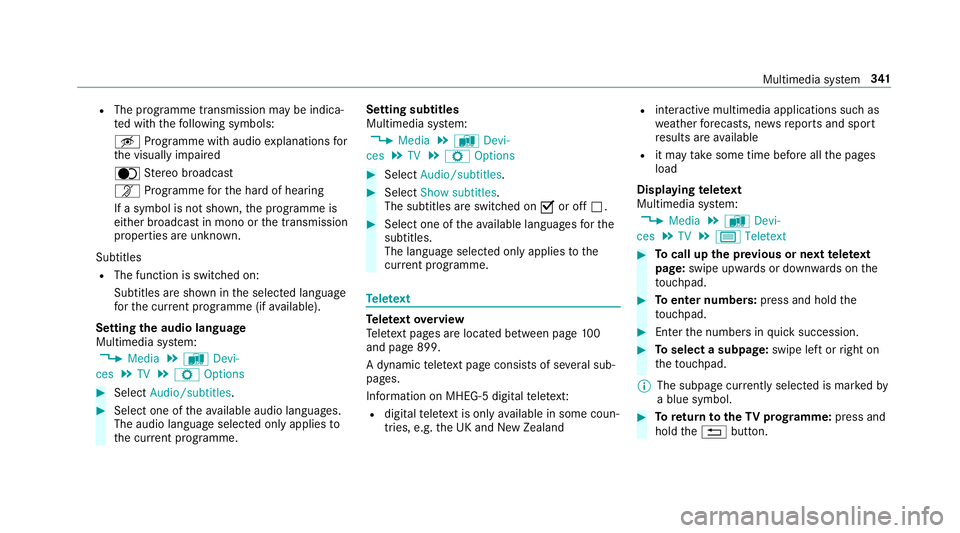
R
The programme transmission may be indica‐
te d with thefo llowing symbols:
m Programme with audio explanations for
th e visually impaired
o Stereo broadcast
n Programme forth e hard of hearing
If a symbol is not shown, the prog ramme is
either broadca stin mono or the transmission
properties are unkn own.
Subtitles R The function is switched on:
Subtitles are shown in the selected language
fo rth e cur rent programme (if available).
Setting the audio language
Multimedia sy stem:
, Media .
à Devi-
ces .
TV .
Z Options #
Select Audio/subtitles. #
Select one of theav ailable audio languages.
The audio language selec ted only applies to
th e cur rent programme. Setting subtitles
Multimedia sy
stem:
, Media .
à Devi-
ces .
TV .
Z Options #
Select Audio/subtitles. #
Select Show subtitles.
The subtitles are switched on Oor off ª. #
Select one of theav ailable languages forthe
subtitles.
The language selected only applies tothe
cur rent programme. Te
lete xt Te
lete xt ove rview
Te lete xt pa ges are located between page 100
and page 899.
A dynamic telete xt pa geconsi sts of se veral sub‐
pages.
Information on MHEG-5 digital telete xt:
R digi taltelete xt is only available in some coun‐
tries, e.g. the UK and New Zealand R
interactive multimedia applications such as
weather fore casts, ne wsreports and sport
re sults are available
R it may take some time before all the pages
load
Displaying telete xt
Multimedia sy stem:
, Media .
à Devi-
ces .
TV .
p Teletext #
Tocall up the pr evious or next telete xt
page: swipe upwards or down wards on the
to uchpad. #
Toenter numbers: press and holdthe
to uchpad. #
Enterth e numbers in quick succession. #
Toselect a subpage: swipe left orright on
th eto uchpad.
% The subpage cur rently selected is ma rked by
a blue symbol. #
Toreturn totheTV prog ramme: press and
hold the% button. Multimedia sy
stem 341