ad blue MERCEDES-BENZ E-CLASS CABRIOLET 2018 Owner's Manual
[x] Cancel search | Manufacturer: MERCEDES-BENZ, Model Year: 2018, Model line: E-CLASS CABRIOLET, Model: MERCEDES-BENZ E-CLASS CABRIOLET 2018Pages: 589, PDF Size: 10.56 MB
Page 360 of 589
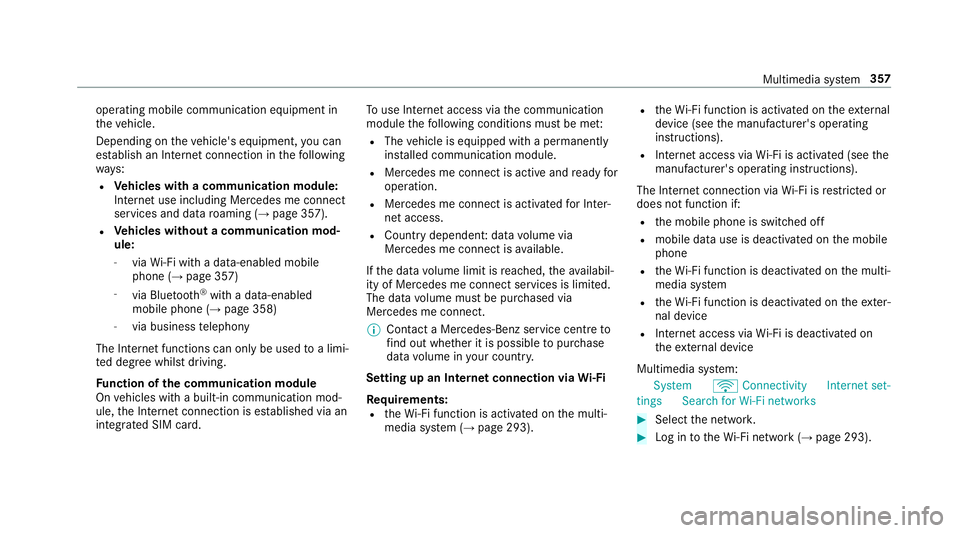
operating mobile communication equipment in
th eve hicle.
Depending on theve hicle's equipment, you can
es tablish an Internet connection in thefo llowing
wa ys:
R Vehicles with a communication module:
Internet use including Mercedes me connect
services and data roaming (→ page 357).
R Vehicles without a communication mod‐
ule:
- viaWi-Fi wi tha data-enabled mobile
phone (→ page 357)
- via Blue tooth®
with a data-enabled
mobile phone (→ page 358)
- via business telephony
The Internet functions can only be used toa limi‐
te d degree whilst driving.
Fu nction of the communication module
On vehicles with a built-in communication mod‐
ule, the Internet connection is es tablished via an
integrated SIM card. To
use In tern et access via the communication
module thefo llowing conditions must be me t:
R The vehicle is equipped with a permanently
ins talled communication module.
R Mercedes me connect is active and ready for
operation.
R Mercedes me connect is activated for Inter‐
net access.
R Country dependent: data volume via
Mercedes me connect is available.
If th e data volume limit is reached, theav ailabil‐
ity of Mercedes me connect services is limited.
The data volume must be pur chased via
Mercedes me connect.
% Con tact a Mercedes-Benz service centre to
fi nd out wh ether it is possible topur chase
data volume in your count ry.
Setting up an Internet connection via Wi-Fi
Re quirements:
R theWi -Fi function is acti vated on the multi‐
media sy stem (→ page 293). R
theWi -Fi function is acti vated on theex tern al
device (see the manufacturer's operating
instructions).
R Internet access via Wi-Fi is acti vated (see the
manufacturer's operating instructions).
The Internet connection via Wi-Fi is restricted or
does not function if:
R the mobile phone is switched off
R mobile data use is deactivated on the mobile
phone
R theWi -Fi function is deacti vated on the multi‐
media sy stem
R theWi -Fi function is deacti vated on theex ter‐
nal device
R Internet access via Wi-Fi is deacti vated on
th eex tern al device
Multimedia sy stem:
System öConnectivit yInternet set-
ting sS earch for Wi-Fi networks #
Select the networ k. #
Log in totheWi -Fi network (→ page 293). Multimedia sy
stem 357
Page 361 of 589
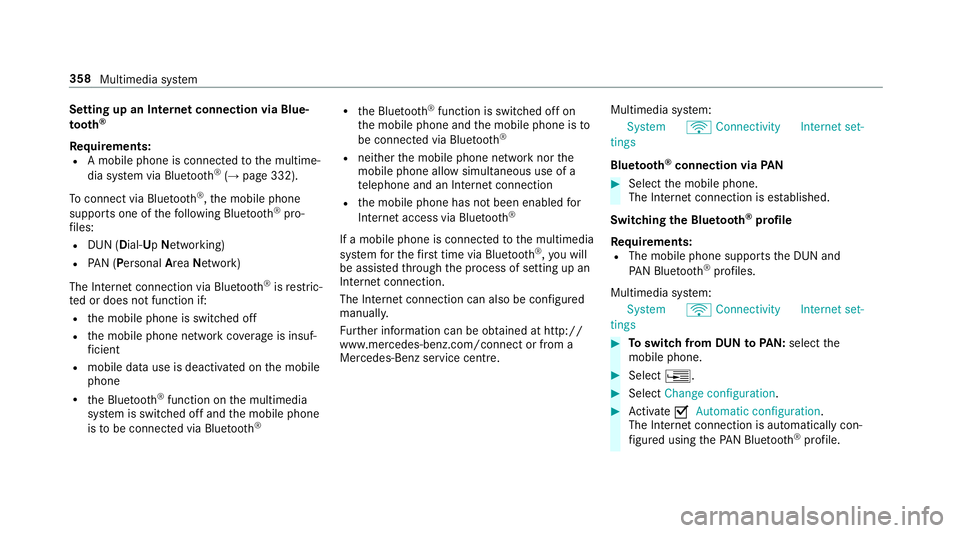
Setting up an Internet connection via Blue‐
to
oth ®
Re quirements:
R A mobile phone is connec tedto the multime‐
dia sy stem via Blue tooth®
(→ page 332).
To connect via Blu etoo th®
,th e mobile phone
supports one of thefo llowing Blue tooth®
pro‐
fi les:
R DUN (Dial- UpNet working)
R PAN (Personal AreaNet work)
The Internet connection via Blue tooth®
is restric‐
te d or does not function if:
R the mobile phone is switched off
R the mobile phone network co verage is insuf‐
fi cient
R mobile da tause is deactivated on the mobile
phone
R the Blue tooth®
function on the multimedia
sy stem is switched off and the mobile phone
is to be connec ted via Blue tooth® R
the Blue tooth®
function is switched off on
th e mobile phone and the mobile phone is to
be connec ted via Blue tooth®
R neither the mobile phone network nor the
mobile phone allow simultaneous use of a
te lephone and an Internet connection
R the mobile phone has not been enabled for
Internet access via Blue tooth®
If a mobile phone is connected tothe multimedia
sy stem forth efirs t time via Blu etoo th®
,yo u will
be assis tedth ro ugh the process of setting up an
Internet connection.
The Internet connection can also be confi gured
manually.
Fu rther information can be obtained at http://
www.mercedes-benz.com/connect or from a
Mercedes-Benz service centre. Multimedia sy
stem:
System öConnectivit yInternet set-
tings
Blue tooth ®
connection via PAN #
Select the mobile phone.
The Internet connection is es tablished.
Switching the Blu etoo th®
pr ofile
Re quirements:
R The mobile phone supports the DUN and
PA N Blue tooth®
profiles.
Multimedia sy stem:
System öConnectivit yInternet set-
tings #
Toswitch from DUN toPAN: select the
mobile phone. #
Select ¥. #
Select Change configuration. #
Activate OAutomatic configuration.
The Internet connection is au tomatical lycon‐
fi gured using thePA N Blue tooth®
profile. 358
Multimedia sy stem
Page 362 of 589
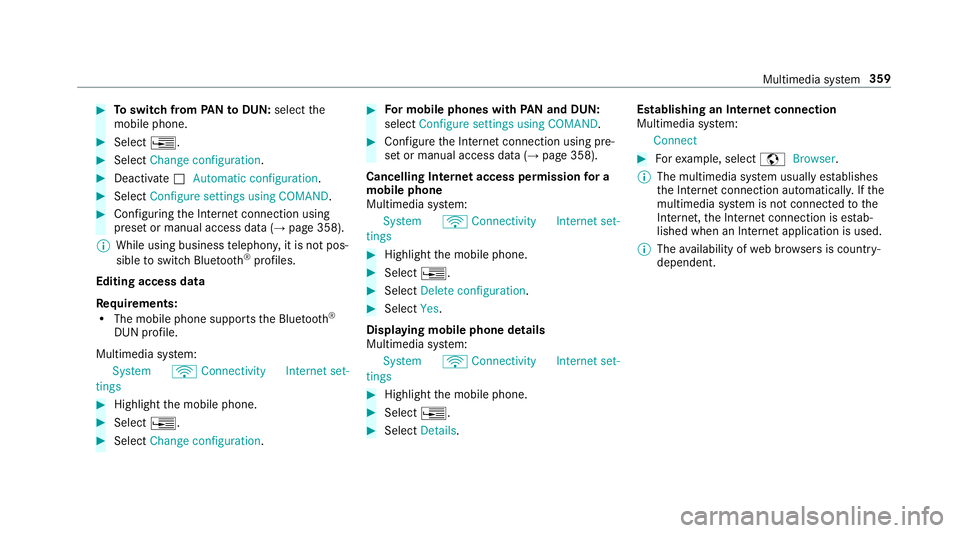
#
Toswitch from PANto DUN: select the
mobile phone. #
Select ¥. #
Select Change configuration. #
Deactivate ªAutomatic configuration. #
Select Configure settings using COMAND .#
Configuri ngthe Internet connection using
preset or manual access data (→ page 358).
% While using business telephon y,it is not pos‐
sible toswitch Blue tooth ®
profiles.
Editing access data
Requ irements:
R The mobile phone supports the Blue tooth®
DUN profile.
Multimedia sy stem:
System öConnectivit yInternet set-
tings #
Highlight the mobile phone. #
Select ¥. #
Select Change configuration . #
For mobile phones with PAN and DUN:
select Configure settings using COMAND. #
Configure the Internet connection using pre‐
set or manual access data (→ page 358).
Cancelling Internet access permission for a
mobile phone
Multimedia sy stem:
System öConnectivit yInternet set-
tings #
Highlight the mobile phone. #
Select ¥. #
Select Delete configuration. #
Select Yes.
Displaying mobile phone details
Multimedia sy stem:
System öConnectivit yInternet set-
tings #
Highlight the mobile phone. #
Select ¥. #
Select Details. Establishing an Internet connection
Multimedia sy
stem:
Connect #
Forex ample, select zBrowser .
% The multimedia sy stem usually es tablishes
th e Internet connection automaticall y.Ifthe
multimedia sy stem is not connected tothe
Internet, the Internet connection is es tab‐
lished when an Internet application is used.
% The availability of web br ows ers is count ry-
dependent. Multimedia sy
stem 359
Page 363 of 589
Connection
status Connection
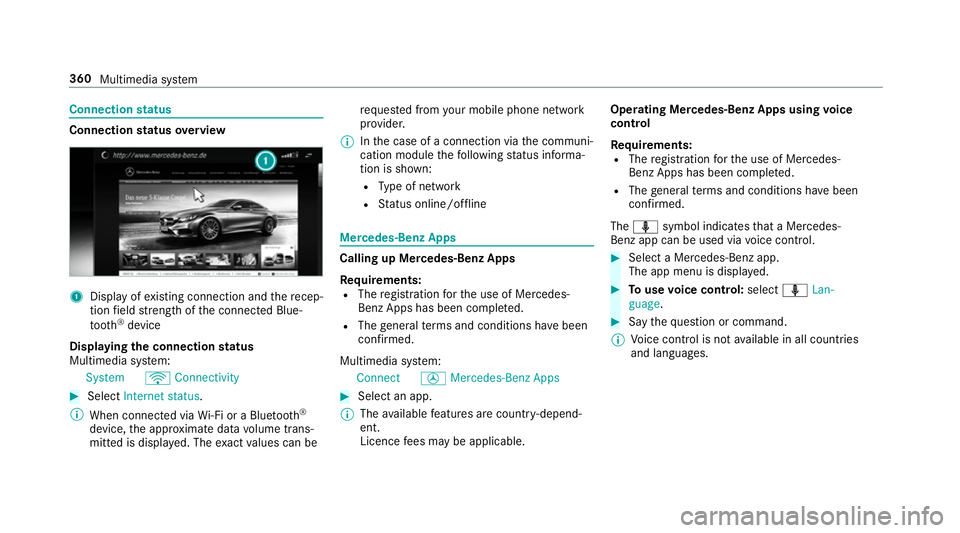
status overview 1
Display of existing connection and there cep‐
tion field stre ngth of the connected Blue‐
tooth ®
device
Displaying the connection status
Multimedia sy stem:
System öConnectivity #
Select Internet status .
% When connected via Wi-Fi or a Blu etoo th®
device, the appr oximate data volume trans‐
mit ted is displa yed. The exact values can be re
qu ested from your mobile phone network
pr ov ider.
% Inthe case of a connection via the communi‐
cation module thefo llowing status informa‐
tion is shown:
R Type of network
R Status online/of fline Mercedes-Benz Apps
Calling up Mercedes-Benz Apps
Re
quirements:
R The registration forth e use of Mercedes-
Benz Apps has been comple ted.
R The general term s and conditions ha vebeen
con firm ed.
Multimedia sy stem:
Connect ÚMercedes-Benz Apps #
Select an app.
% The available features are countr y-depend‐
ent.
Licence fees may be applicable. Operating Mercedes-Benz Apps using
voice
control
Re quirements:
R The registration forth e use of Mercedes-
Benz Apps has been comple ted.
R The general term s and conditions ha vebeen
con firm ed.
The o symbol indicates that a Mercedes-
Benz app can be used via voice control. #
Select a Mercedes-Benz app.
The app menu is displa yed. #
Touse voice control: selectoLan-
guage. #
Say thequ estion or command.
% Voice control is not available in all countries
and languages. 360
Multimedia sy stem
Page 367 of 589
#
Select ßFavourites.
The li stof sa vedfavo urite stations appears.
or #
Create an account forth e online pr ovider
(TuneIn radio) and then log in on the multi‐
media sy stem.
Yo ur favo urites are impor tedto the multime‐
dia sy stem.
Deleting favo urites #
Select ßFavourites. #
Select a station. #
Press and hold the cent ral control element
until an audible signal sounds.
The ß symbol bythest ation name disap‐
pears.
Setting Internet radio options
Multimedia sy stem:
Radio ÞRadio source TuneIn
radio ZOptions
The following options are available:
R Select stream: select thest re am qualit y. R
Login to TuneIn account: log in toyour
Tu neIn user account.
R Log out of account: log out of your TuneIn
user account. #
Select an option. Media
Au
dio mode In
fo rm ation on the audio mode &
WARNING Risk of di stra ction when han‐
dling da tastorage media
If yo u handle a data storage medium while
driving, your attention is diver ted from the
traf fic conditions. This could also cause you
to lose control of theve hicle. #
Only handle a data storage medium
when theve hicle is stationar y. Pe
rm issible file sy stems:
R FAT32
R exFAT R
NTFS
Pe rm issible data storage medium:
R SD card
R USB storage device
R iPod ®
/iPhone ®
R MTP devices
R Blue tooth ®
audio equipment
% Obse rveth efo llowing no tes:
R The multimedia sy stem supports a total
of up to50,000 files.
R Data storage media up to2 TB are sup‐
por ted (32‑bit address space).
Suppor tedfo rm ats:
R MP3
R WMA
R AAC
R WAV
R FLAC
R ALAC 364
Multimedia sy stem
Page 377 of 589
Blue
tooth ®
audio Information about Blue
tooth ®
audio Before using
your Blue tooth®
audio equipment
with the multimedia sy stem forth efirs t time,
yo u will need toauthorise it (→ page375).
Blue tooth ®
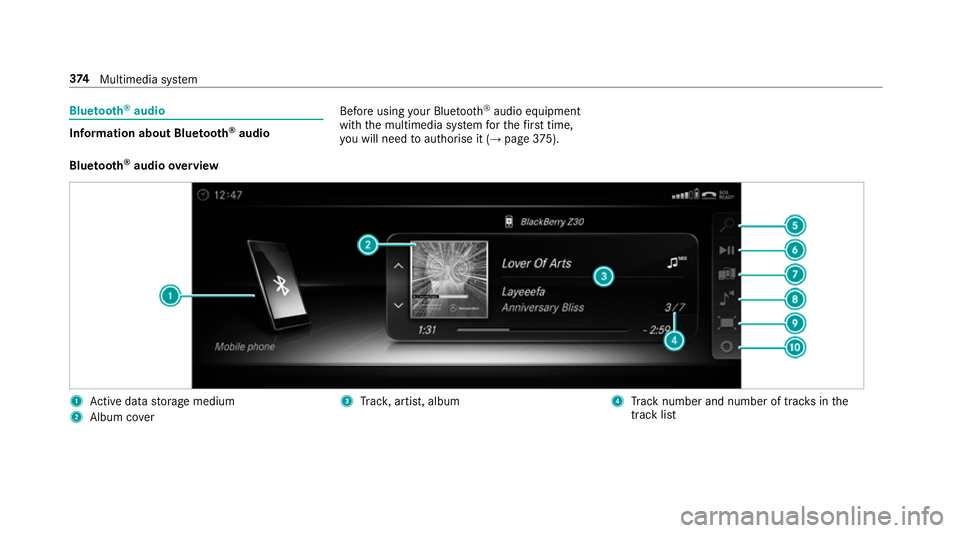
audio overview 1
Active da tastorage medium
2 Album co ver 3
Trac k, artist, album 4
Track number and number of trac ksinthe
track li st 374
Multimedia sy stem
Page 378 of 589
5
Search
6 Playback control 7
Media sources
8 Sound 9
Full screen (video playback only)
A Options
Sear ching for and authorising a Blue tooth ®
audio device
Requ irements:
R Blue tooth ®
is activated on the multimedia
sy stem and audio equipment (→ page 292).
R The audio equipment supports the Blue‐
tooth ®
audio profiles A2DP and AVRC P.
R The audio equipment is "visible" forot her
devices.
Multimedia sy stem:
Media àMedia sources áBlue-
tooth audio
Au thorising a new Blu etoo th®
audio device #
Select ¥. #
Select Add new Bluetooth audio device. #
Select Start search on the system .
De tected audio equipment is displ ayed in the
device list. #
Select a Blue tooth®
audio device.
Auth orisation starts. A code is displa yed on
th e multimedia sy stem and on the mobile
phone. #
Ifth e codes are identical, confi rmonthe
audio equipment.
The audio equipment is connec ted and play‐
back starts.
Selecting pr eviously authorised Blue tooth ®
audio equipment #
Select ¥. #
Select a Blue tooth®
audio device.
Establishing a connection from the Blue‐
to oth ®
audio equipment
The Blue tooth®
device name of the multimedia
sy stem is MB BLUETOOTH XXXXX. #
Select Search from device. #
Start the authorisation on the audio equip‐
ment (see manufacturer's operating instruc‐
tions).
A code is displa yed on the multimedia sys‐
te m and on the audio device. #
Confirm on bo thdevices if the codes are
identical.
The audio equipment is connected and play‐
back starts.
Wi th some audio equipment, playback must be
initially star ted on the device itself so that the
multimedia sy stem can play the audio files.
% Device-specific information on authorising
and connecting Blue tooth®
-capable mobile
phones can be ob tained at http://
www.me rcedes-benz.com/connect or from a
Mercedes-Benz service cent re. Multimedia sy
stem 375
Page 379 of 589
Ac
tivating Blue tooth ®
audio
Multimedia sy stem:
Media àMedia sources #
Select áBluetooth audio.
The multimedia sy stem activates the connec‐
te d Blue tooth®
audio equipment.
Selecting the media pla yer on the Blue tooth ®
audio device
Multimedia sy stem:
Media ª #
Select theBluetooth audio players category.
If multiple media pla yers are present on the
Blu etoo th®
audio equipment a list appears. #
Select a media pla yer.
Playback starts.
% The function is not suppo rted byeve ry
mobile phone. Sear
ching for a music track on the Blue‐
to oth ®
audio device
Multimedia sy stem:
Media àMedia sources áBlue-
tooth audio #
Select ª. #
Select a categor y.
A track li stappears. #
Select a trac k.
% The function is only available when the
mobile phone and the media pla yer selected
on the mobile phone support this function.
Switching Blu etoo th®
audio equipment via
NFC
Requ irements:
R Obser vethe no tes on using NFC
(→ page 337).
R The Blue tooth®
audio overview is displa yed
( → page 374). #
Ligh tly press the NFC area on the mobile
phone (see the manufacturer's operating
instructions).
If th e mobile phone has already been author‐
ised on the multimedia sy stem as Blue tooth®
audio equipment, it is now connec ted.
If th e mobile phone is authorised on the mul‐
timedia sy stem as Blue tooth ®
audio equip‐
ment forth efirs t time, it is connected af ter
confirming the instructions forth e mobile
phone (see the manufacturer's operating
instructions).
Disconnecting Blue tooth ®
audio equipment
Multimedia sy stem:
Telephone áMedia sources #
Select thei symbol in the line of the
mobile phone.
The disconnection of the mobile phone takes
place without a con firm ation prom pt. The
mobile phone remains auth orised inthe sys‐
te m. 376
Multimedia sy stem
Page 390 of 589
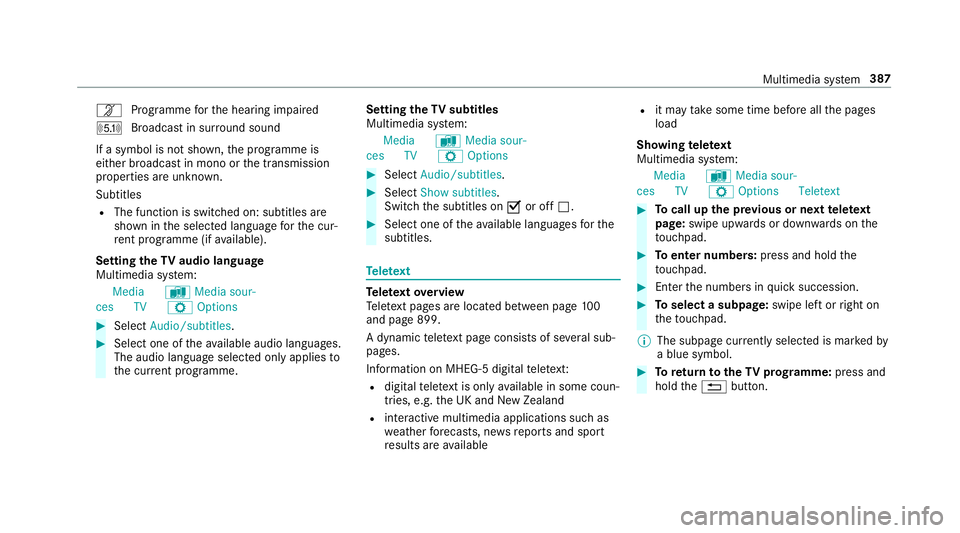
n
Programme forth e hearing impaired
O Broadcast in sur round sound
If a symbol is not shown, the prog ramme is
either broadca stin mono or the transmission
properties are unkn own.
Subtitles
R The function is switched on: subtitles are
shown in the selected language forth e cur‐
re nt programme (if available).
Setting theTV audio language
Multimedia sy stem:
Media àMedia sour-
ces TV ZOptions #
Select Audio/subtitles. #
Select one of theav ailable audio languages.
The audio language selec ted only applies to
th e cur rent programme. Setting the
TVsubtitles
Multimedia sy stem:
Media àMedia sour-
ces TV ZOptions #
Select Audio/subtitles. #
Select Show subtitles.
Switch the subtitles on Oor off ª. #
Select one of theav ailable languages forthe
subtitles. Te
lete xt Te
lete xt ove rview
Te lete xt pa ges are located between page 100
and page 899.
A dynamic telete xt pa geconsi sts of se veral sub‐
pages.
Information on MHEG-5 digital telete xt:
R digi taltelete xt is only available in some coun‐
tries, e.g. the UK and New Zealand
R interactive multimedia applications such as
weather fore casts, ne wsreports and sport
re sults are available R
it may take some time before all the pages
load
Showing telete xt
Multimedia sy stem:
Media àMedia sour-
ces TV ZOption sTeletext #
Tocall up the pr evious or next telete xt
page: swipe upwards or down wards on the
to uchpad. #
Toenter numbers: press and holdthe
to uchpad. #
Enterth e numbers in quick succession. #
Toselect a subpage: swipe left orright on
th eto uchpad.
% The subpage cur rently selected is ma rked by
a blue symbol. #
Toreturn totheTV prog ramme: press and
hold the% button. Multimedia sy
stem 387
Page 463 of 589
+
ENVIRONMENTAL
NOTEEnvironmental
pollution caused byenvironmen tally ir re‐
sponsible disposal #
Dispose of operating fluids in an envi‐
ro nmentally responsible manner. Operating
fluids include thefo llowing:
R fuels
R DeNOx agent AdBlue ®
forex haust gas af ter‐
treatment
R lubri cants
R coolant
R brake fluid
R windsc reen washer fluid
R climate cont rol sy stem refrigerant
Only use products app rove dby Mercedes-Benz.
Damage caused bythe use of products that ha ve
not been appr oved is not co veredby the
Mercedes-Benz warranty or goodwill gestures.
Yo u can identify operating fluids appr ovedby
Mercedes-Benz bythefo llowing insc ript ions on
th e conta iner: R
MB- Freigabe (e.g. MB-Fr eigabe 229.51 )
R MB-Appr oval (e.g. MB-App rova l 229.51)
Fu rther information on appr oved operating fluids
is available at thefo llowing locations:
R inthe Mercedes-Benz Specifications for
Operating Fluids byentering the designation
- at http://be vo.mercedes-benz.com
- inthe Mercedes-Benz BeVo App
R at a qualified specialist workshop &
WARNING Risk offire or explosion from
fuel
Fu els are highly flammable. #
Fire, naked flames, smoking and crea‐
tion of spar ksmust be avoided. #
Swit choff the ignition and, if available,
th est ationary heater, before and while
re fuelling theve hicle. &
WARNING Risk of inju ryfrom fuels
Fu els are poisonous and hazardous to your
health. #
Do not swallow fuel or let it come into
contact with skin, eyes or clo thing. #
Do not inhale fuel vapour. #
Keep children away from fuel. #
Keep doors and windo wsclosed du ring
th ere fuelling process.
If yo u or other people come into contact with
fuel, obser vethefo llowing: #
Immediately rinse fuel off your skin with
soap and water. #
If fuel comes into contact with your
ey es, immediately rinse them thor‐
oughly with clean water.Seek medical
attention immediately. #
Ifyo u swallow fuel, seek medical atten‐
tion immediatel y.Do not induce vomit‐
ing. 460
Tech nical da ta