change time MERCEDES-BENZ E-Class COUPE 2010 C212 Comand Manual
[x] Cancel search | Manufacturer: MERCEDES-BENZ, Model Year: 2010, Model line: E-Class COUPE, Model: MERCEDES-BENZ E-Class COUPE 2010 C212Pages: 224, PDF Size: 7.4 MB
Page 115 of 224
Entering Data into a FieldXSelect all the characters one after the other
in the input speller 2.
i
The input speller provides the characters
corresponding to the selected data field.
XTo switch input speller to upper or
lower case characters: Select ( or
& .XTo switch input speller character set:
Select k.
Every time this is selected it switches the
character set.XTo change the input speller language:
Select !.XRotate ym z or slide qm r until the desired
language is highlighted and then press n.XTo move the cursor in the data field:
Select Y or Z.
Deleting
XTo delete an individual character: Select
õ and briefly press n.
or
XPress the 2 button next to the
COMAND controller.
The character to the left of the cursor is
deleted.XTo delete an entire entry: Select õ
and press n until the entire entry has been
deleted.
or
XPress the 2 button next to the
COMAND controller and hold it until the
entire entry is deleted.Canceling an EntryXSelect á.
If one of the data fields contains new data,
a prompt will appear asking whether you
wish to store the entry.XSelect Yes or No.
The entry will either be stored or not,
depending on your selection.
Saving an Entry
XSelect d.
The address book displays the entry.
Searching for an Address Book Entry
XOpen the address book ( Y page 112) and
select Search .
If there are more than eight entries, the
search menu with the predictive speller
appears.
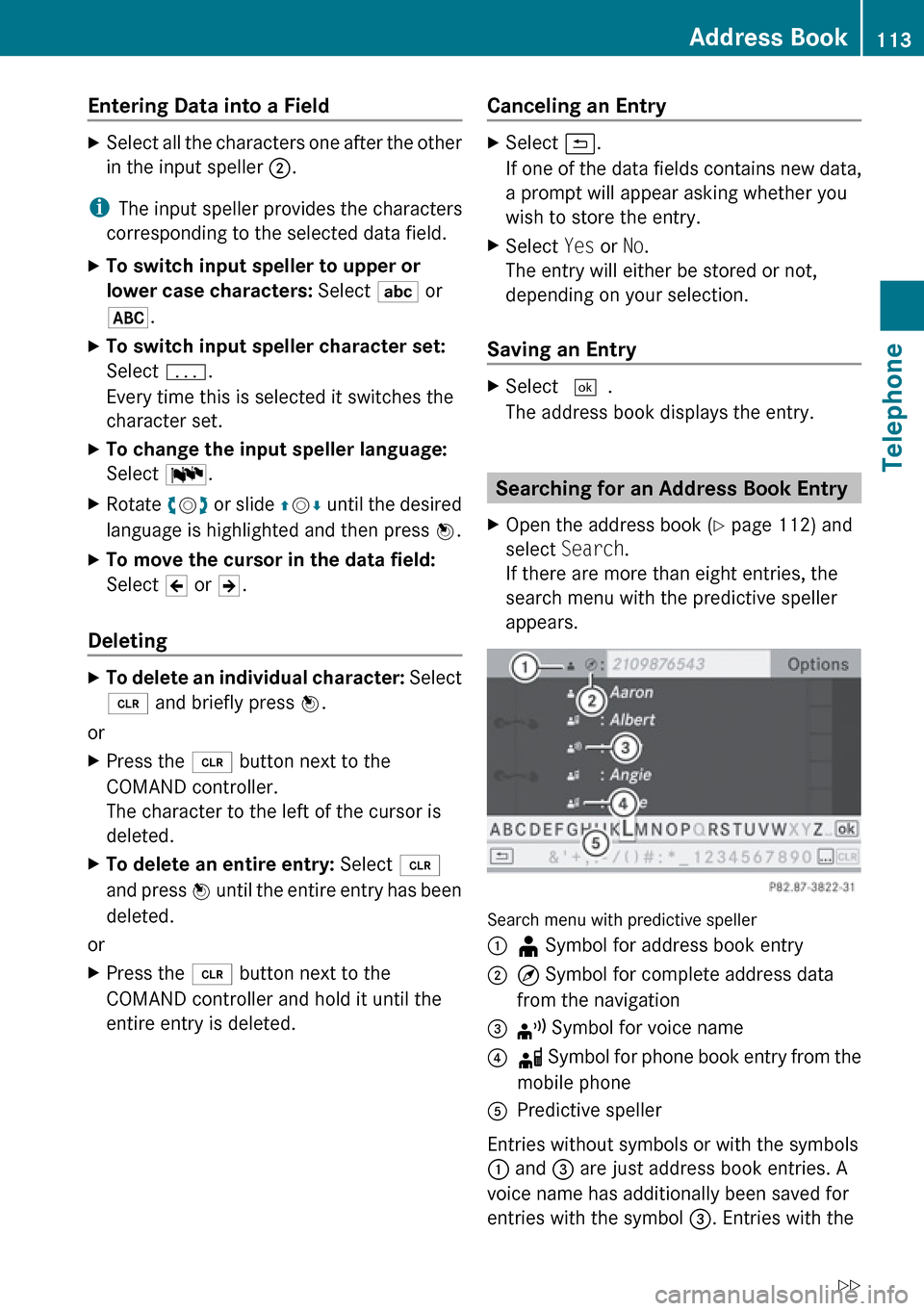
Search menu with predictive speller
1¥ Symbol for address book entry2¤ Symbol for complete address data
from the navigation3¦ Symbol for voice name4å Symbol for phone book entry from the
mobile phone5Predictive speller
Entries without symbols or with the symbols
1 and 3 are just address book entries. A
voice name has additionally been saved for
entries with the symbol 3. Entries with the
Address Book113TelephoneZ
Page 116 of 224

symbol 2 contain complete address data
from the navigation system, which support
navigation and are covered by the digital map
data. You can quickly start route guidance to
this kind of entry ( Y page 116).
Switching from the Predictive Speller
to the ListXSlide mq or press n and hold it until the
predictive speller is hidden.
or
XSelect d.
Switching from the List to the
Predictive Speller
XSelect Back from the list.
or
XPress the k button next to the
COMAND controller.
Searching
Searching via Predictive Speller
XSwitch from the list to the predictive speller
if necessary.XTo change the language of the
predictive speller: Select !.XTo switch the character set of the
predictive speller : Select k.
Depending on the previous setting, you will
change to letters with special characters or
to numbers with special characters.XTo enter characters: Select the
characters for the required entry one after
another.XTo delete individual characters: Select
õ and briefly press n.
or
XPress the 2 button next to the
COMAND controller.
Each time you enter or delete a character,
the closest match will be displayed at the
top of the list.XTo delete an entire entry: Select õ
and press n until the entire entry has been
deleted.
or
XPress the 2 button next to the
COMAND controller and hold it until the
entire entry is deleted.XTo end search: Switch from the predictive
speller to the list.
The top list entry is highlighted
automatically.XBack to the address book: If necessary,
switch from the list to the predictive speller
and select á in the predictive speller.
or
XPress the k button next to the
COMAND controller.
Searching via the List
XIf necessary, switch from the predictive
speller to the list ( Y page 113).XTurn ym z or slide qm r until the desired
entry is highlighted in the list.
Deleting Entry
XSearch for the required entry
( Y page 113).XSelect Options £Delete .
or
XSelect Delete from the address book
( Y page 112).
A deletion prompt appears.XSelect Yes or No.
The entry will be deleted or retained on the
basis of the selection.
i Deleting an entry in the phone book on
the mobile phone does not delete the entry
in the address book.
114Address BookTelephone
Page 129 of 224
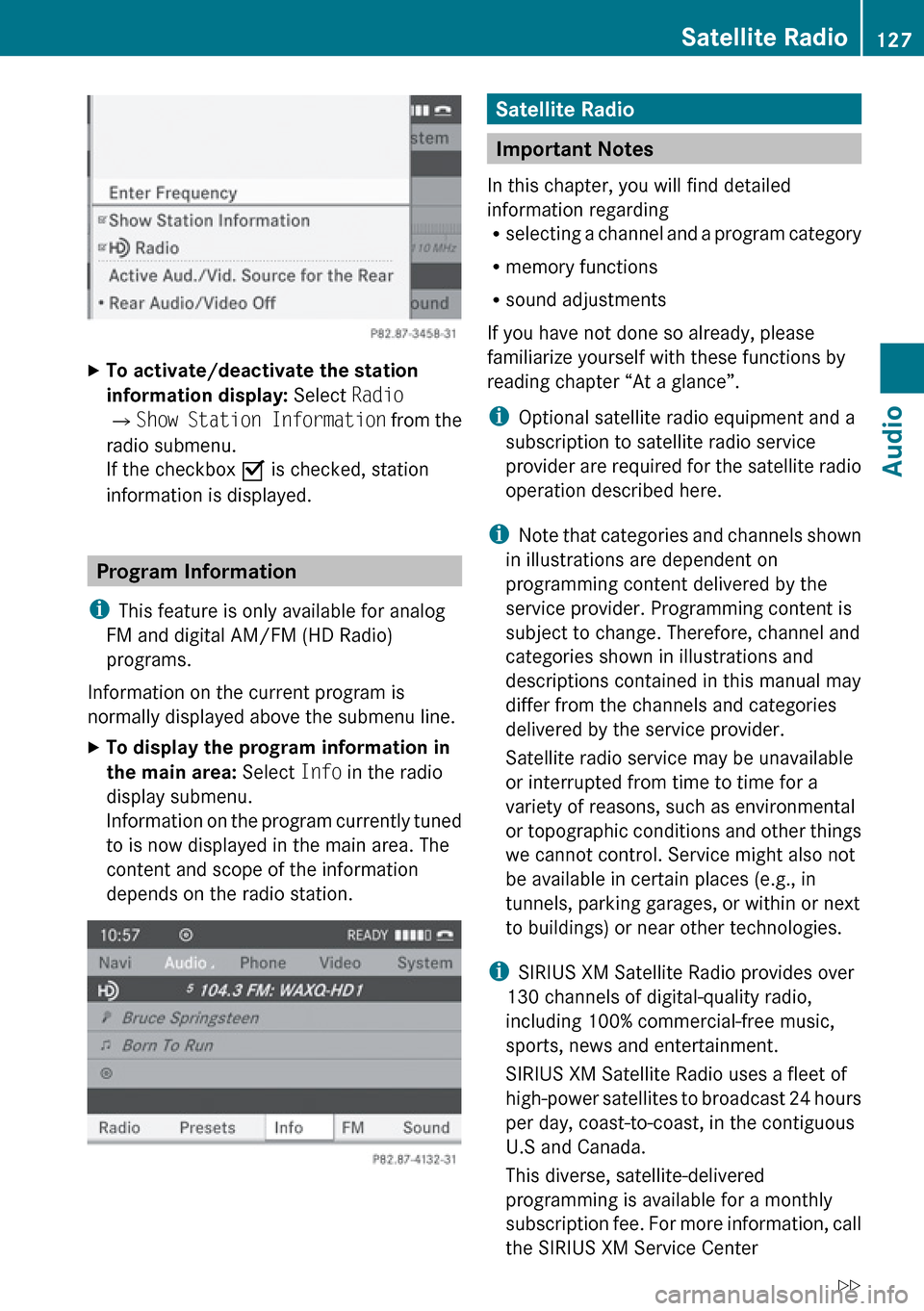
XTo activate/deactivate the station
information display: Select Radio
£ Show Station Information from the
radio submenu.
If the checkbox O is checked, station
information is displayed.
Program Information
i This feature is only available for analog
FM and digital AM/FM (HD Radio)
programs.
Information on the current program is
normally displayed above the submenu line.
XTo display the program information in
the main area: Select Info in the radio
display submenu.
Information on the program currently tuned
to is now displayed in the main area. The
content and scope of the information
depends on the radio station.Satellite Radio
Important Notes
In this chapter, you will find detailed
information regarding
R selecting a channel and a program category
R memory functions
R sound adjustments
If you have not done so already, please
familiarize yourself with these functions by
reading chapter “At a glance”.
i Optional satellite radio equipment and a
subscription to satellite radio service
provider are required for the satellite radio
operation described here.
i Note that categories and channels shown
in illustrations are dependent on
programming content delivered by the
service provider. Programming content is
subject to change. Therefore, channel and
categories shown in illustrations and
descriptions contained in this manual may
differ from the channels and categories
delivered by the service provider.
Satellite radio service may be unavailable
or interrupted from time to time for a
variety of reasons, such as environmental
or topographic conditions and other things
we cannot control. Service might also not
be available in certain places (e.g., in
tunnels, parking garages, or within or next
to buildings) or near other technologies.
i SIRIUS XM Satellite Radio provides over
130 channels of digital-quality radio,
including 100% commercial-free music,
sports, news and entertainment.
SIRIUS XM Satellite Radio uses a fleet of
high-power satellites to broadcast 24 hours
per day, coast-to-coast, in the contiguous
U.S and Canada.
This diverse, satellite-delivered
programming is available for a monthly
subscription fee. For more information, call
the SIRIUS XM Service Center
Satellite Radio127AudioZ
Page 141 of 224
Switching to CD Audio, DVD Audio or
MP3 Mode
From the Control PanelXInsert a CD/DVD (Y page 134) or a PCMCIA
memory card ( Y page 136).
COMAND loads the medium inserted and
begins playback.
or
XPress the h function button.
i
Pressing the function button switches
directly to the disc mode selected last
(CD Audio, DVD Audio, MP3-CD or DVD
Video). COMAND then accesses all discs in
the DVD changer, the memory card or the
Music Register.
XIf necessary, select CD/DVD Audio/ MP3
media ( Y page 141).
or
XWhen playing a video DVD: Open the
media list as described in "Selecting DVD
media" ( Y page 141).XSelect an audio storage medium.
This switches to the required disc mode.
Via the COMAND Controller
From Another Main Function
XSelect Audio£Audio £Disc or
Memory Card or Music Register in the
audio menu display.
i If the desired mode is also the last active
mode, you only need to select Audio.
Within the Audio Function
XSelect Audio£Disc or Memory card in
the audio menu display.
i Disc accesses audio discs in the DVD
changer. Memory Card selects the slot for
the PCMCIA memory card.
XSelect CD/DVD Audio/MP3 as required
( Y page 141).
The desired disc mode is activated.
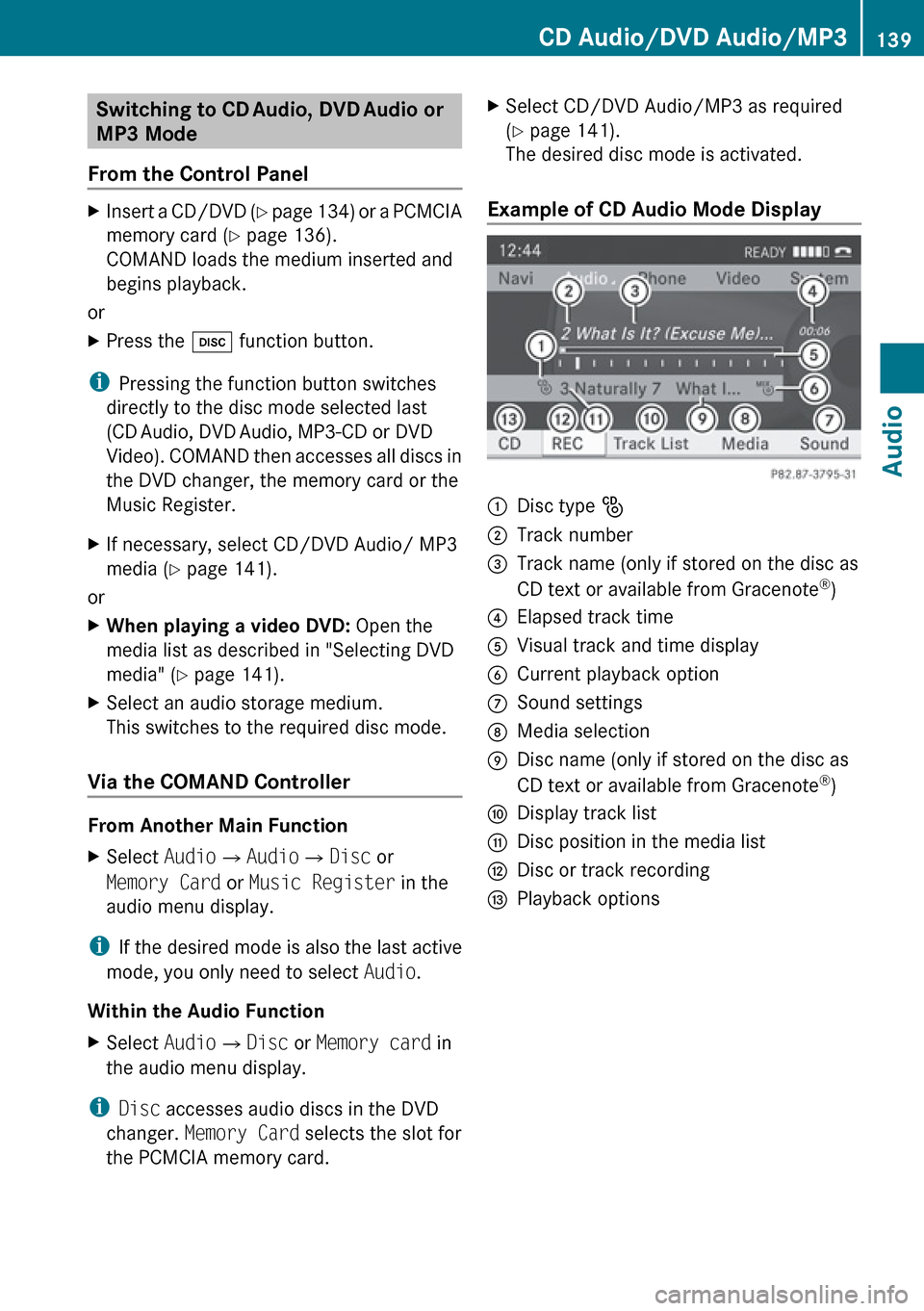
Example of CD Audio Mode Display
1Disc type _2Track number3Track name (only if stored on the disc as
CD text or available from Gracenote ®
)4Elapsed track time5Visual track and time display6Current playback option7Sound settings8Media selection9Disc name (only if stored on the disc as
CD text or available from Gracenote ®
)aDisplay track listbDisc position in the media listcDisc or track recordingdPlayback optionsCD Audio/DVD Audio/MP3139AudioZ
Page 142 of 224
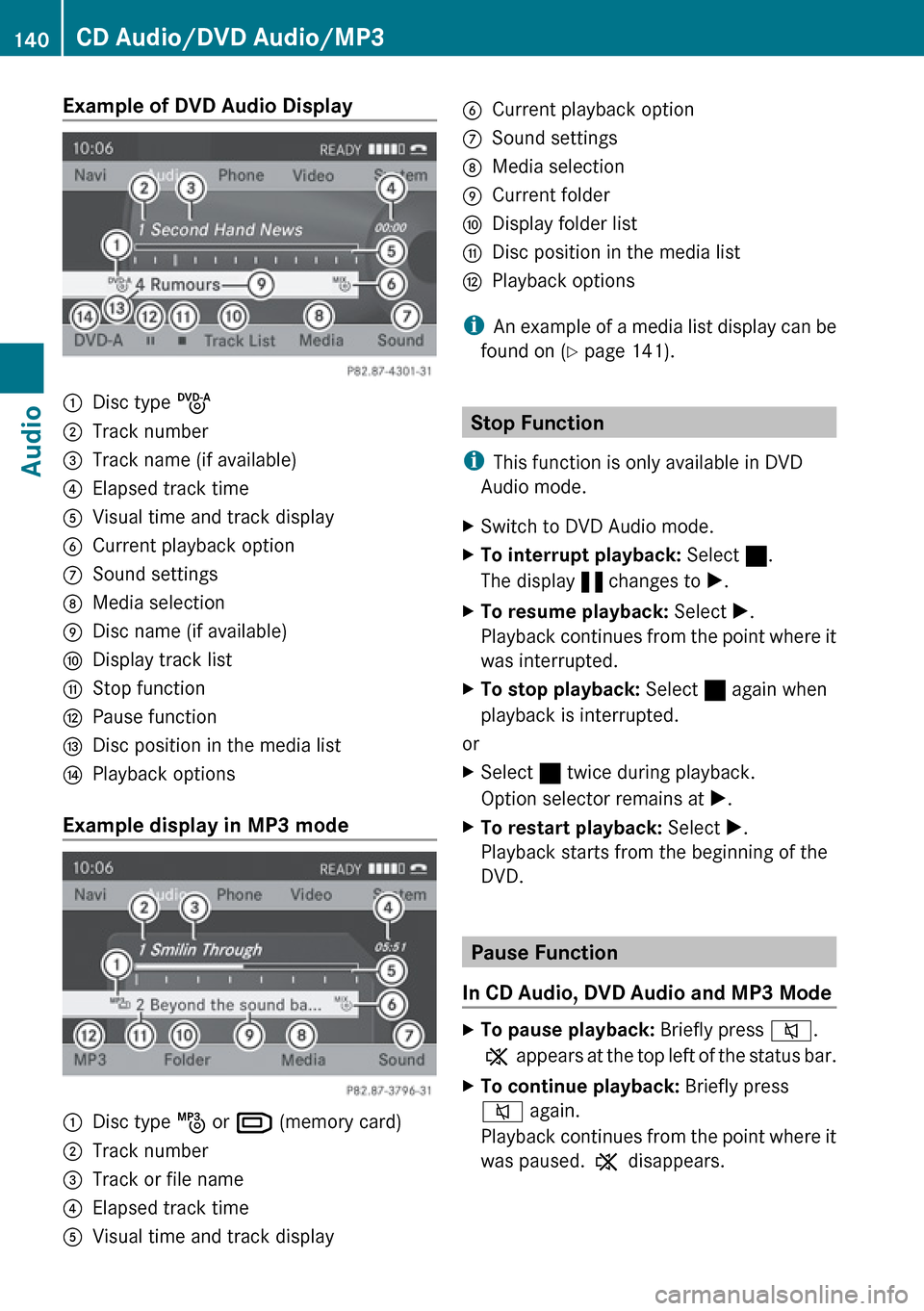
Example of DVD Audio Display1Disc type ü2Track number3Track name (if available)4Elapsed track time5Visual time and track display6Current playback option7Sound settings8Media selection9Disc name (if available)aDisplay track listbStop functioncPause functiondDisc position in the media listePlayback options
Example display in MP3 mode
1Disc type þ or º (memory card)2Track number3Track or file name4Elapsed track time5Visual time and track display6Current playback option7Sound settings8Media selection9Current folderaDisplay folder listbDisc position in the media listcPlayback options
i
An example of a media list display can be
found on ( Y page 141).
Stop Function
i This function is only available in DVD
Audio mode.
XSwitch to DVD Audio mode.XTo interrupt playback: Select ±.
The display « changes to X.XTo resume playback: Select X.
Playback continues from the point where it
was interrupted.XTo stop playback: Select ± again when
playback is interrupted.
or
XSelect ± twice during playback.
Option selector remains at X.XTo restart playback: Select X.
Playback starts from the beginning of the
DVD.
Pause Function
In CD Audio, DVD Audio and MP3 Mode
XTo pause playback: Briefly press 8.
X appears at the top left of the status bar.XTo continue playback: Briefly press
8 again.
Playback continues from the point where it
was paused. X disappears.140CD Audio/DVD Audio/MP3Audio
Page 149 of 224
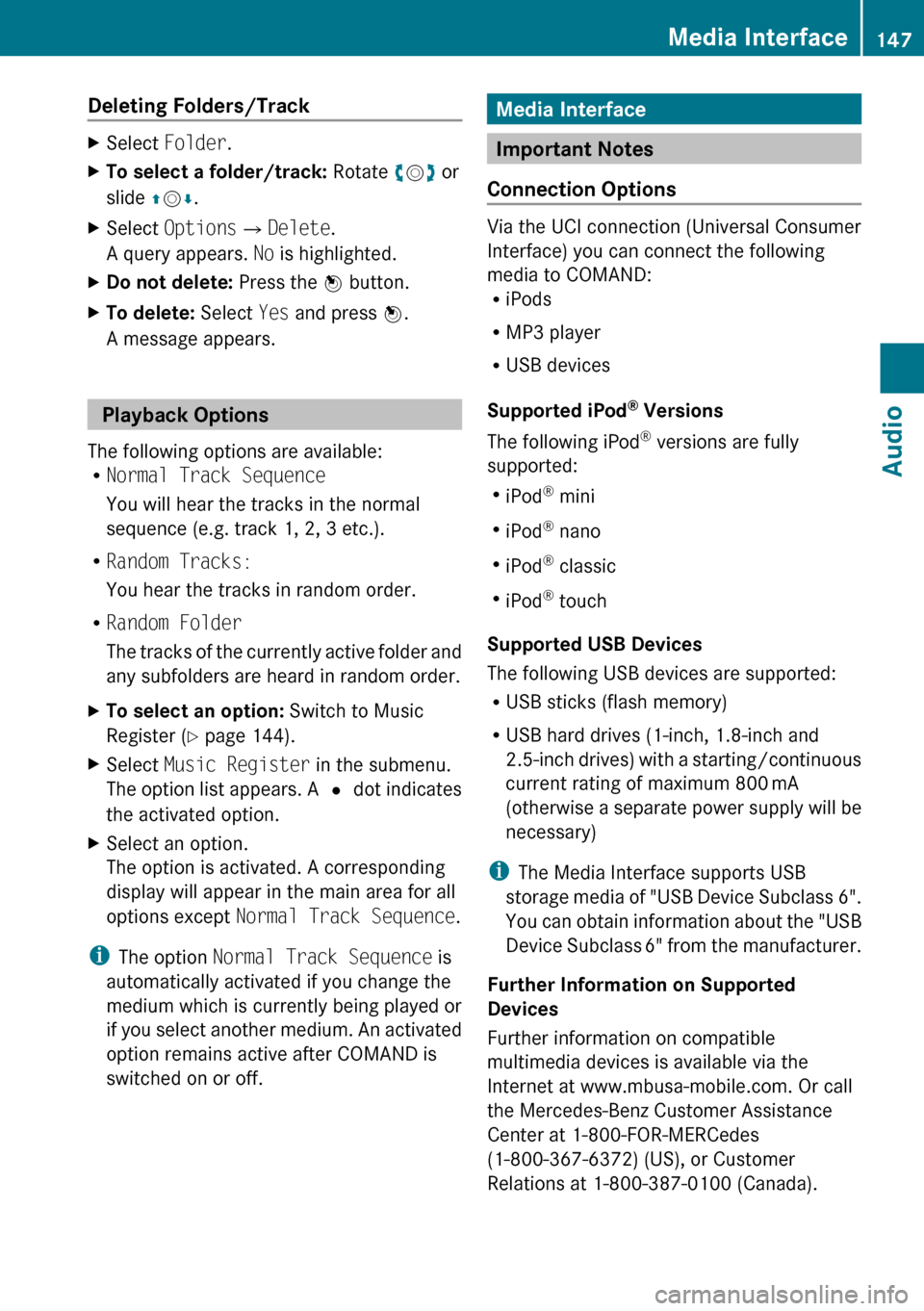
Deleting Folders/TrackXSelect Folder .XTo select a folder/track: Rotate ym z or
slide qm r.XSelect Options £Delete .
A query appears. No is highlighted.XDo not delete: Press the n button.XTo delete: Select Yes and press n.
A message appears.
Playback Options
The following options are available:
R Normal Track Sequence
You will hear the tracks in the normal
sequence (e.g. track 1, 2, 3 etc.).
R Random Tracks:
You hear the tracks in random order.
R Random Folder
The tracks of the currently active folder and
any subfolders are heard in random order.
XTo select an option: Switch to Music
Register ( Y page 144).XSelect Music Register in the submenu.
The option list appears. A R dot indicates
the activated option.XSelect an option.
The option is activated. A corresponding
display will appear in the main area for all
options except Normal Track Sequence .
i
The option Normal Track Sequence is
automatically activated if you change the
medium which is currently being played or
if you select another medium. An activated
option remains active after COMAND is
switched on or off.
Media Interface
Important Notes
Connection Options
Via the UCI connection (Universal Consumer
Interface) you can connect the following
media to COMAND:
R iPods
R MP3 player
R USB devices
Supported iPod ®
Versions
The following iPod ®
versions are fully
supported:
R iPod ®
mini
R iPod ®
nano
R iPod ®
classic
R iPod ®
touch
Supported USB Devices
The following USB devices are supported:
R USB sticks (flash memory)
R USB hard drives (1-inch, 1.8-inch and
2.5-inch drives) with a starting/continuous
current rating of maximum 800 mA
(otherwise a separate power supply will be
necessary)
i The Media Interface supports USB
storage media of "USB Device Subclass 6".
You can obtain information about the "USB
Device Subclass 6" from the manufacturer.
Further Information on Supported
Devices
Further information on compatible
multimedia devices is available via the
Internet at www.mbusa-mobile.com. Or call
the Mercedes-Benz Customer Assistance
Center at 1-800-FOR-MERCedes
(1-800-367-6372) (US), or Customer
Relations at 1-800-387-0100 (Canada).
Media Interface147AudioZ
Page 159 of 224
RThe discs must only be labelled using pens
specially designed for this purpose.
R After use, replace the discs into the sleeve.
R Protect the discs from heat and direct
sunlight.
DVD Playback Conditions
Some DVDs may not comply with the NTSC
or PAL TV playback standards. Sound, picture
and other playback problems may occur
when you play such DVDs.
As standard, COMAND can play video DVDs
which meet the following criteria:
R Region code 1 or region code 0 (all regions)
i With a video DVD having another region
code, a corresponding message will be
displayed.
R PAL or NTSC TV standard
Information on this can usually be found
either on the DVD itself or on the DVD sleeve.
i The factory setting for COMAND is region
code 1. An authorized Mercedes-Benz
Center can change this setting up to five
times. This will enable you to play video
DVDs with other region codes, provided
that they have been made to the PAL or
NTSC TV standard.
Functional Restrictions
It may be the case that some functions or
actions may not be possible at certain times,
or may not be possible in general, depending
on the DVD.
When you activate such functions or actions,
this is indicated by the 7 in the display.
Loading a DVD
XProceed as described in the “Loading CDs
and DVDs” section ( Y page 134).
Ejecting a DVD
XProceed as described in the “Ejecting CDs
and DVDs” section ( Y page 136).
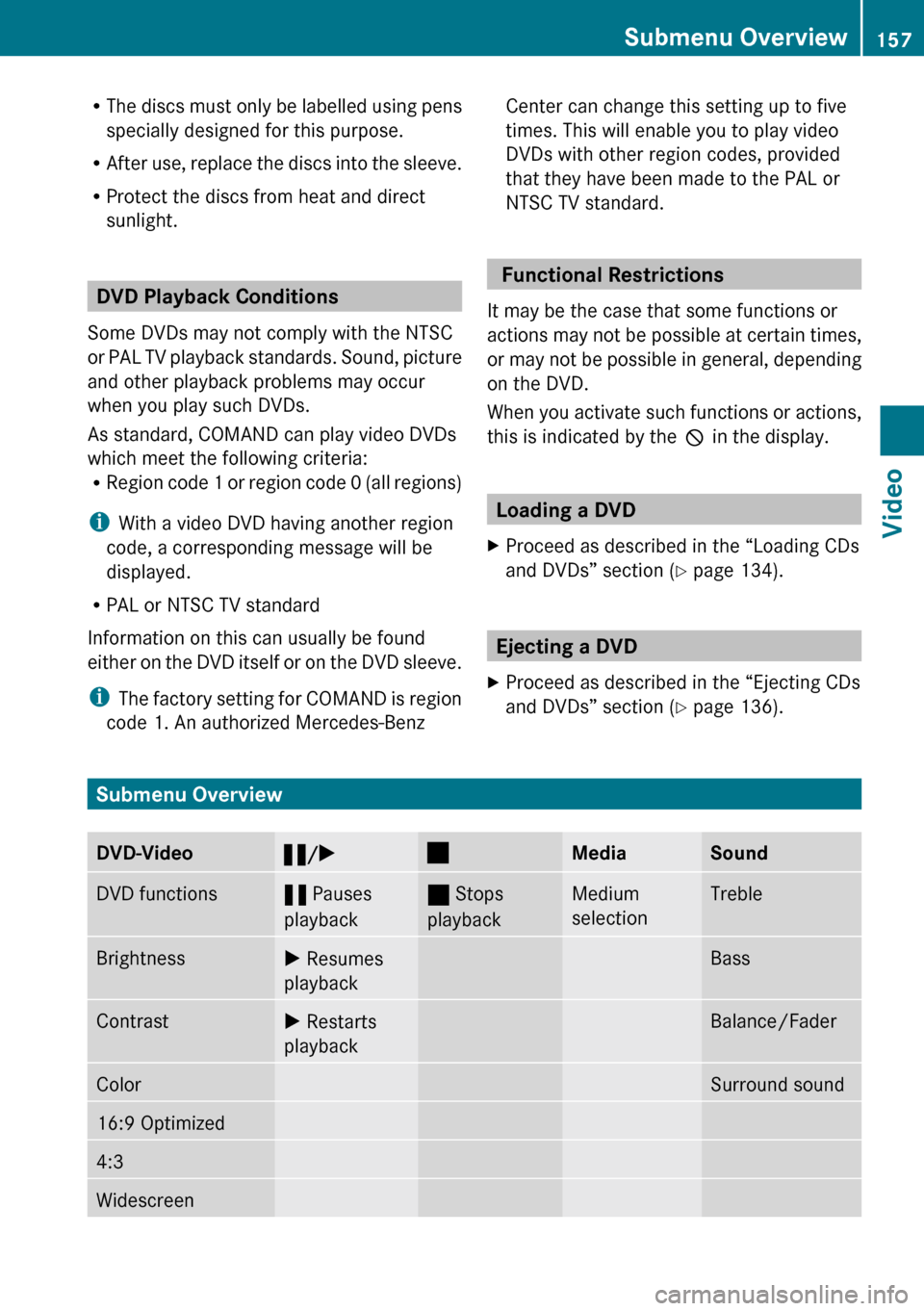
Submenu Overview
DVD-Video« /X±MediaSoundDVD functions« Pauses
playback± Stops
playbackMedium
selectionTrebleBrightnessX Resumes
playbackBassContrastX Restarts
playbackBalance/FaderColorSurround sound16:9 Optimized4:3WidescreenSubmenu Overview157VideoZ
Page 160 of 224
DVD-Video«/X±MediaSoundActive Aud./Vid.
Source for the RearRear Audio/Video
OffDVD Video
Switching to DVD Video
From the Control Panel
XInsert a DVD Video ( Y page 134).
COMAND loads the medium inserted and
starts playing it.
or
XFrom another main function: Press the
h function button.
The function button takes you directly to
the last active disc mode (CD Audio , DVD
Audio , MP3 CD, Media Interface or DVD
Video). COMAND accesses all discs in the
DVD changer.
If you previously selected DVD Video mode,
it will now be switched on.
If you have another disc mode activated:XSelect Media.
The media list appears.XSelect a DVD Video ( Y page 159).
Via COMAND Controller
XSelect Video from the main function line.
Displaying/Hiding Control Menu
XTo show: Slide qm r.XTo hide: Slide qm r.
or
XWait approximately eight seconds.
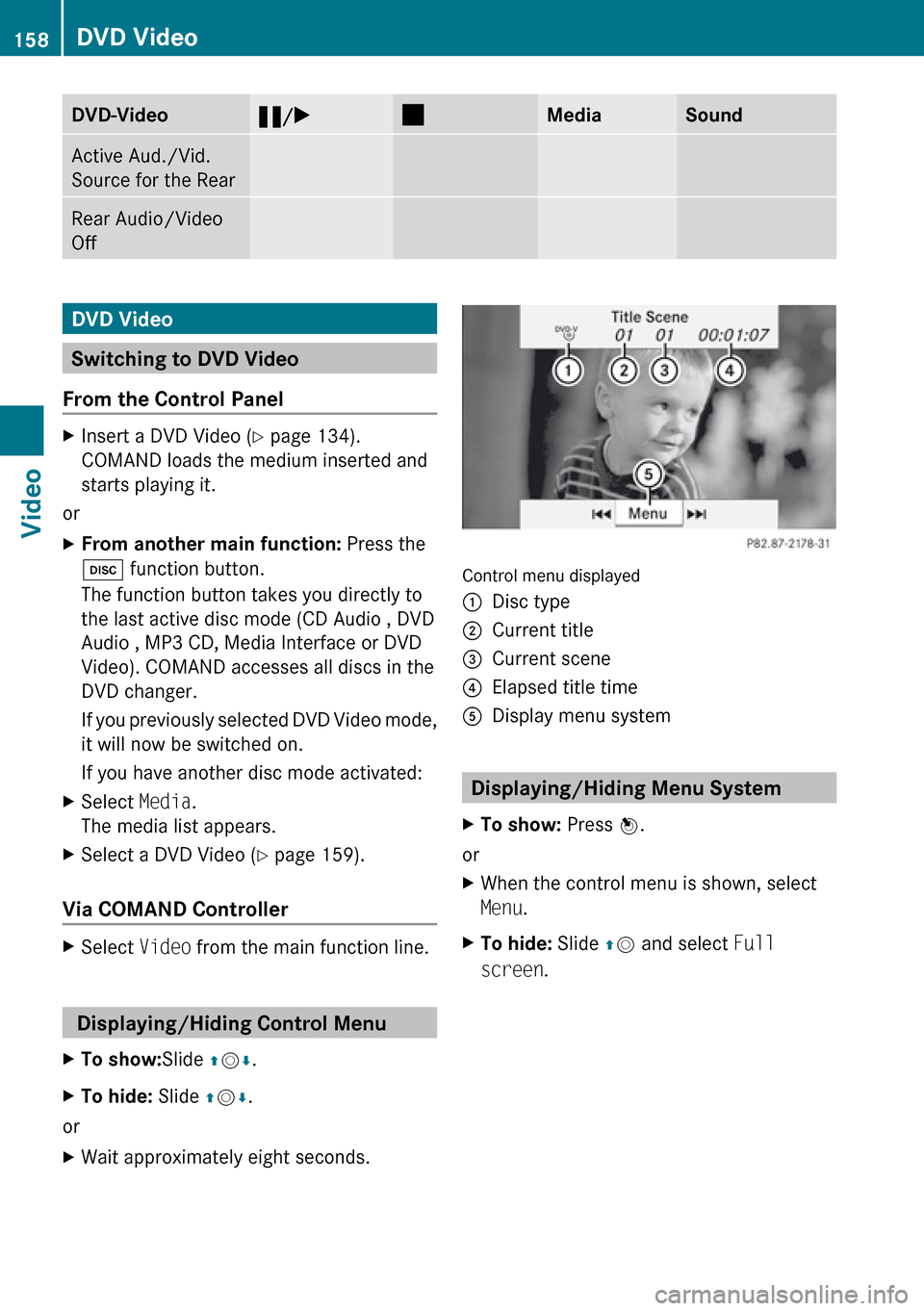
Control menu displayed
1Disc type2Current title3Current scene4Elapsed title time5Display menu system
Displaying/Hiding Menu System
XTo show: Press n.
or
XWhen the control menu is shown, select
Menu .XTo hide: Slide qm and select Full
screen .158DVD VideoVideo
Page 180 of 224
Hiding or Showing the Control Menu XTo display: Press n or ý on the
remote control.XTo hide: Press n or ý on the remote
control.
or
XWait for approximately 8 seconds.
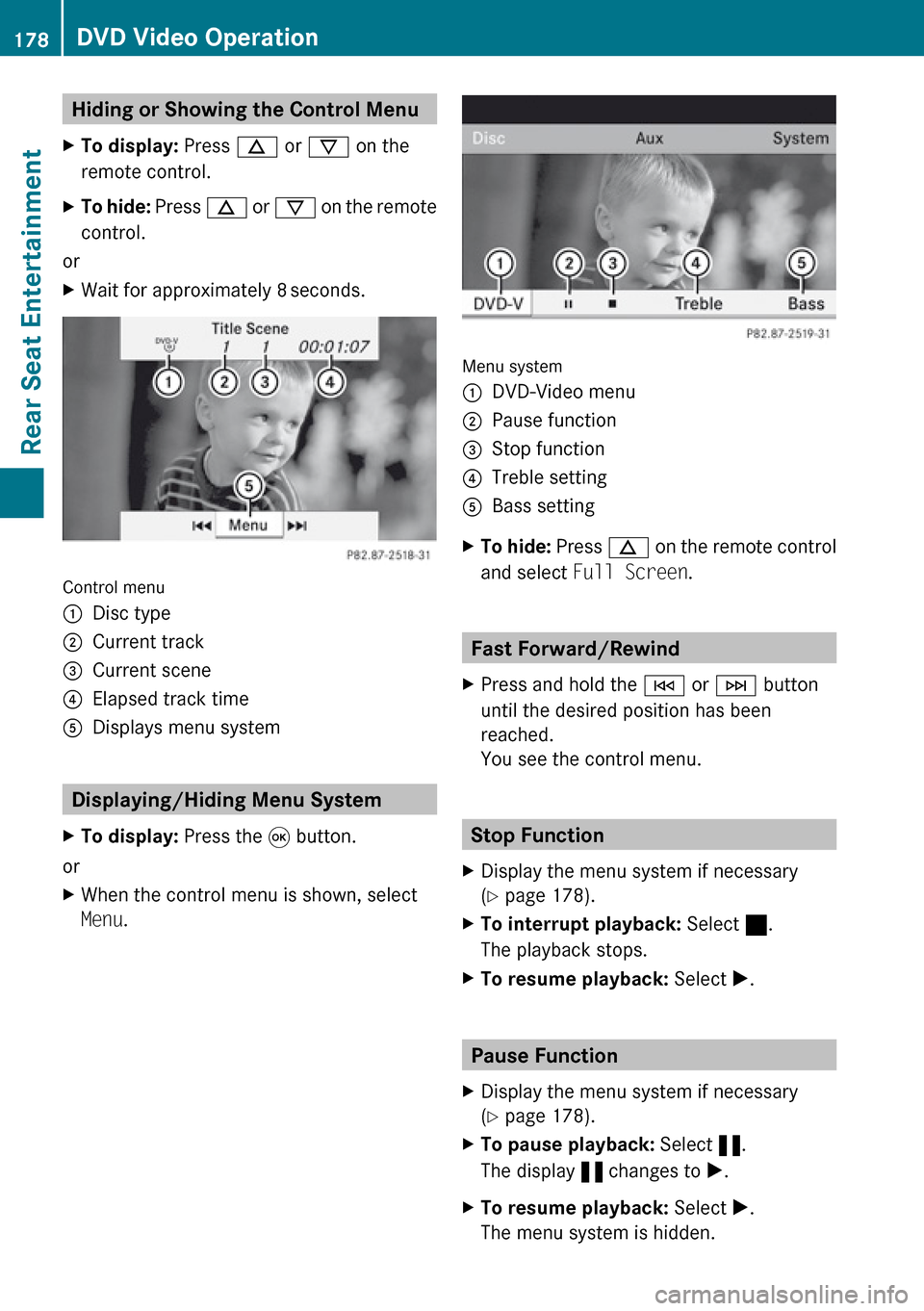
Control menu
1Disc type2Current track3Current scene4Elapsed track time5Displays menu system
Displaying/Hiding Menu System
XTo display: Press the 9 button.
or
XWhen the control menu is shown, select
Menu .
Menu system
1DVD-Video menu2Pause function3Stop function4Treble setting5Bass settingXTo hide: Press n on the remote control
and select Full Screen .
Fast Forward/Rewind
XPress and hold the E or F button
until the desired position has been
reached.
You see the control menu.
Stop Function
XDisplay the menu system if necessary
( Y page 178).XTo interrupt playback: Select ±.
The playback stops.XTo resume playback: Select X.
Pause Function
XDisplay the menu system if necessary
( Y page 178).XTo pause playback: Select «.
The display « changes to X.XTo resume playback: Select X.
The menu system is hidden.178DVD Video OperationRear Seat Entertainment
Page 188 of 224
Overview
Operating Safety
GWarning!
Please devote your attention first and
foremost to the traffic situation you are in.
While the system permits hands-free phone
operation, attention to traffic may be diverted
not only by physical operation of a phone, but
also by the distraction of a phone
conversation while driving. As such, for safety
reasons, we encourage the driver to stop the
vehicle in a safe place before answering or
placing a phone call.
For safety reasons, you should only select a
destination when the vehicle is stationary.
While the navigation system provides
directional assistance, the driver must remain
focused on safe driving behavior, especially
pay attention to traffic and street signs, and
should utilize the system’s audio cues while
driving.
The navigation system does not supply any
information on stop signs, yield signs, traffic
regulations or traffic safety rules. Their
observance always remains in the driver’s
personal responsibility. DVD maps do not
cover all areas nor all routes within an area.
Traffic regulations always have priority over
any route recommendations given.
Bear in mind that at a speed of just 30 mph
(approximately 50 km/h), your vehicle is
covering a distance of 44 feet (approximately
14 m) every second.
GWarning
Navigation announcements are intended to
direct you while driving without diverting your
attention from the road and driving.
Please always use this feature instead of
consulting the map display for directions.
Consulting the symbols or map display for
directions may cause you to divert your
attention from driving and increase your risk
of an accident.
GWarning!
Please do not use the Voice Control System
in an emergency, as the tone of your voice
may change in a stressful situation. This could
cause a delay in completing your phone call
in a timely manner. This could distract you in
an emergency situation and cause you to be
involved in an accident.
Vehicle Equipment
i This Operator’s Manual describes all
features, standard or optional, potentially
available for your vehicle at the time of
purchase. Please be aware that your
vehicle might not be equipped with all
features described in this manual.
Symbols Only Used in this Chapter
The following symbols indicate:
sthat you have to say somethingtthat there is a voice output from the
voice controluthat the system shows information on
the display.
Usage
You can use the voice control system to
operate the following systems depending on
the equipment in your vehicle:
R Phone
R Navigation
R Address book
R Audio (radio, satellite radio, DVD changer,
memory card, music register, media
interface)
Say the commands without pausing between
individual words. If you enter a command that
does not exist or is incorrect, the voice
control system asks you for a new command
with Please repeat or Please repeat
186OverviewVoice Control