sat nav MERCEDES-BENZ E-Class COUPE 2010 C212 Comand Manual
[x] Cancel search | Manufacturer: MERCEDES-BENZ, Model Year: 2010, Model line: E-Class COUPE, Model: MERCEDES-BENZ E-Class COUPE 2010 C212Pages: 224, PDF Size: 7.4 MB
Page 89 of 224
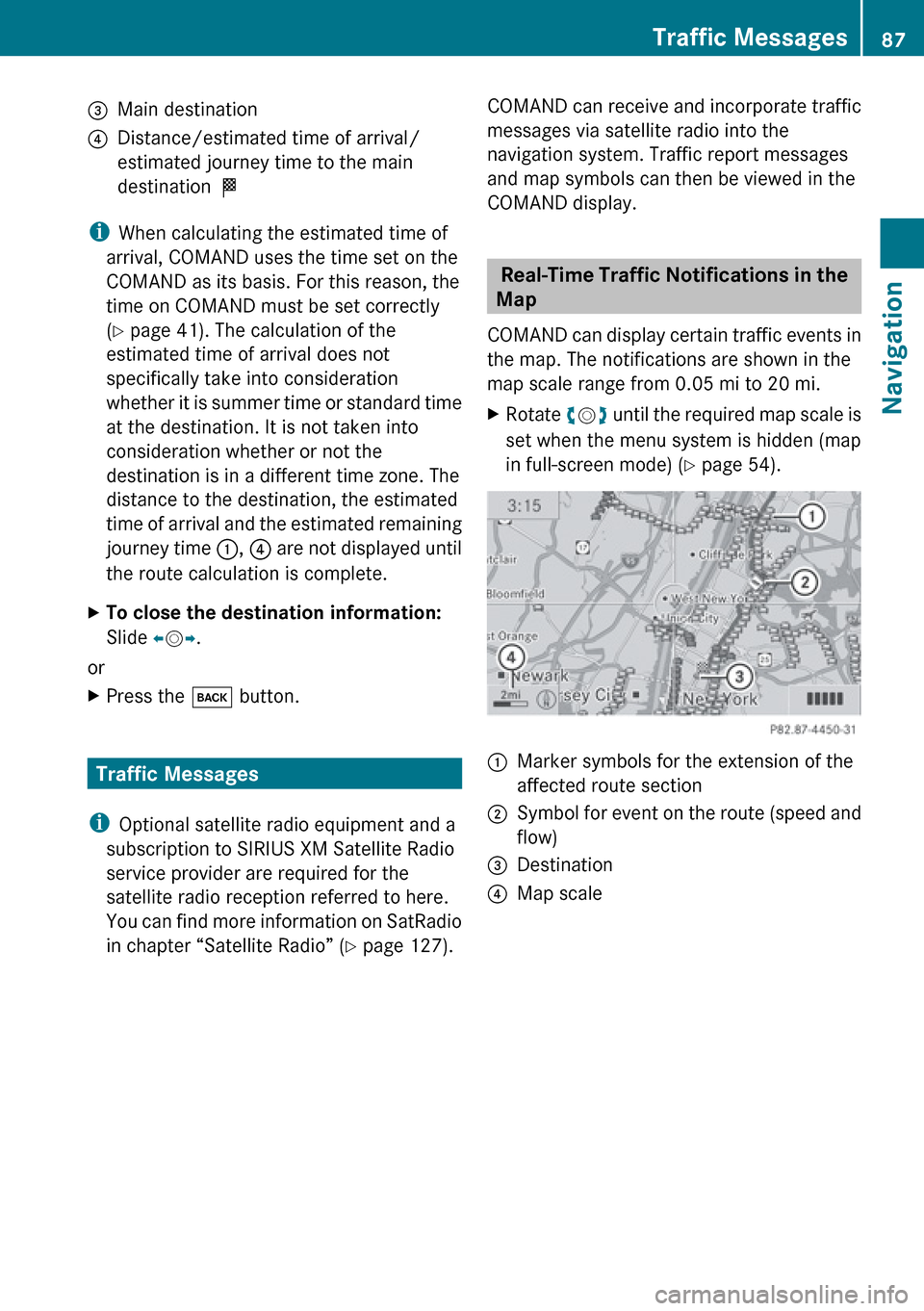
3Main destination4Distance/estimated time of arrival/
estimated journey time to the main
destination <
i
When calculating the estimated time of
arrival, COMAND uses the time set on the
COMAND as its basis. For this reason, the
time on COMAND must be set correctly
( Y page 41). The calculation of the
estimated time of arrival does not
specifically take into consideration
whether it is summer time or standard time
at the destination. It is not taken into
consideration whether or not the
destination is in a different time zone. The
distance to the destination, the estimated
time of arrival and the estimated remaining
journey time 1, 4 are not displayed until
the route calculation is complete.
XTo close the destination information:
Slide om p.
or
XPress the k button.
Traffic Messages
i Optional satellite radio equipment and a
subscription to SIRIUS XM Satellite Radio
service provider are required for the
satellite radio reception referred to here.
You can find more information on SatRadio
in chapter “Satellite Radio” ( Y page 127).
COMAND can receive and incorporate traffic
messages via satellite radio into the
navigation system. Traffic report messages
and map symbols can then be viewed in the
COMAND display.
Real-Time Traffic Notifications in the
Map
COMAND can display certain traffic events in
the map. The notifications are shown in the
map scale range from 0.05 mi to 20 mi.
XRotate ym z until the required map scale is
set when the menu system is hidden (map
in full-screen mode) ( Y page 54).1Marker symbols for the extension of the
affected route section2Symbol for event on the route (speed and
flow)3Destination4Map scaleTraffic Messages87NavigationZ
Page 129 of 224
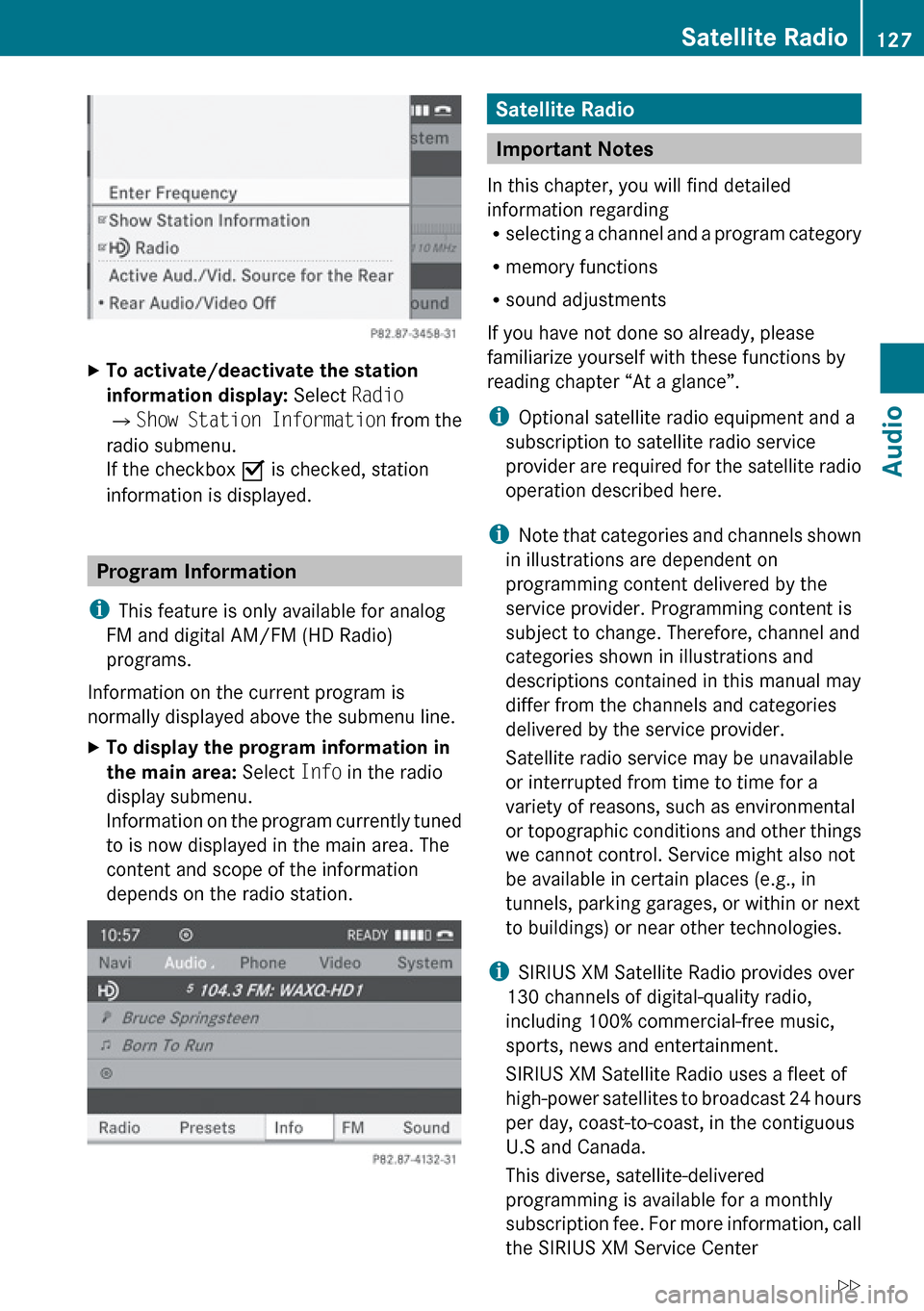
XTo activate/deactivate the station
information display: Select Radio
£ Show Station Information from the
radio submenu.
If the checkbox O is checked, station
information is displayed.
Program Information
i This feature is only available for analog
FM and digital AM/FM (HD Radio)
programs.
Information on the current program is
normally displayed above the submenu line.
XTo display the program information in
the main area: Select Info in the radio
display submenu.
Information on the program currently tuned
to is now displayed in the main area. The
content and scope of the information
depends on the radio station.Satellite Radio
Important Notes
In this chapter, you will find detailed
information regarding
R selecting a channel and a program category
R memory functions
R sound adjustments
If you have not done so already, please
familiarize yourself with these functions by
reading chapter “At a glance”.
i Optional satellite radio equipment and a
subscription to satellite radio service
provider are required for the satellite radio
operation described here.
i Note that categories and channels shown
in illustrations are dependent on
programming content delivered by the
service provider. Programming content is
subject to change. Therefore, channel and
categories shown in illustrations and
descriptions contained in this manual may
differ from the channels and categories
delivered by the service provider.
Satellite radio service may be unavailable
or interrupted from time to time for a
variety of reasons, such as environmental
or topographic conditions and other things
we cannot control. Service might also not
be available in certain places (e.g., in
tunnels, parking garages, or within or next
to buildings) or near other technologies.
i SIRIUS XM Satellite Radio provides over
130 channels of digital-quality radio,
including 100% commercial-free music,
sports, news and entertainment.
SIRIUS XM Satellite Radio uses a fleet of
high-power satellites to broadcast 24 hours
per day, coast-to-coast, in the contiguous
U.S and Canada.
This diverse, satellite-delivered
programming is available for a monthly
subscription fee. For more information, call
the SIRIUS XM Service Center
Satellite Radio127AudioZ
Page 130 of 224
(Y page 131) or contact www.sirius.com
(USA) or www.siriuscanada.com (Canada).
Subscribing
Subscribing to Satellite Radio
To switch to satellite radio operation:
XFrom another main function: Select
Audio £Audio £SatRadio .
i
If radio mode was active last, you only
need to select Audio.
XWithin the audio function: Select Audio
£ SatRadio .
If the satellite radio service is not activated,
the Satellite radio main menu appears and
displays the Weather channel. You cannot
select any other station.XSelect SatRadio (from the submenu)
£ Service .
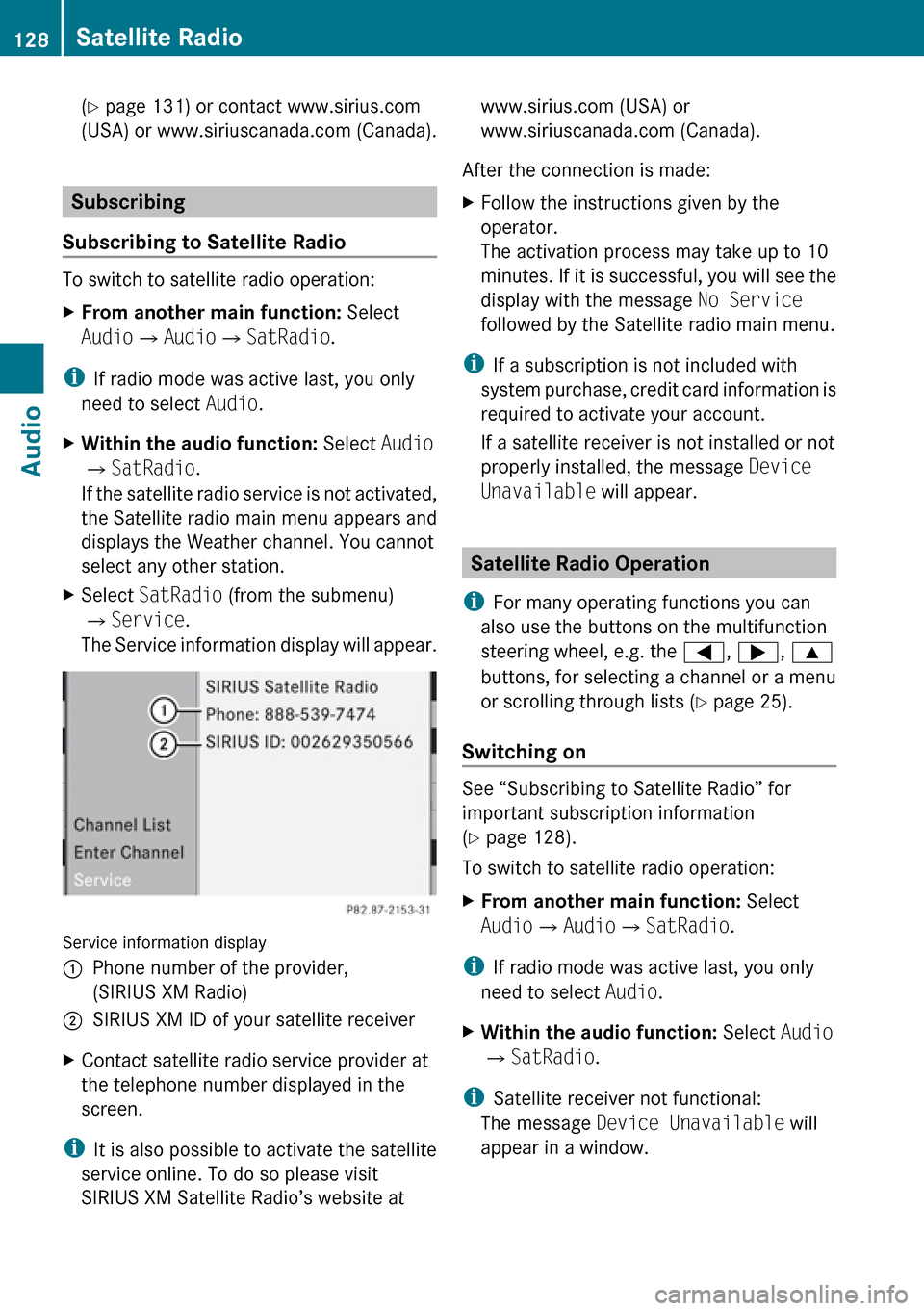
The Service information display will appear.
Service information display
1Phone number of the provider,
(SIRIUS XM Radio)2SIRIUS XM ID of your satellite receiverXContact satellite radio service provider at
the telephone number displayed in the
screen.
i It is also possible to activate the satellite
service online. To do so please visit
SIRIUS XM Satellite Radio’s website at
www.sirius.com (USA) or
www.siriuscanada.com (Canada).
After the connection is made:XFollow the instructions given by the
operator.
The activation process may take up to 10
minutes. If it is successful, you will see the
display with the message No Service
followed by the Satellite radio main menu.
i If a subscription is not included with
system purchase, credit card information is
required to activate your account.
If a satellite receiver is not installed or not
properly installed, the message Device
Unavailable will appear.
Satellite Radio Operation
i For many operating functions you can
also use the buttons on the multifunction
steering wheel, e.g. the =, ; , 9
buttons, for selecting a channel or a menu
or scrolling through lists ( Y page 25).
Switching on
See “Subscribing to Satellite Radio” for
important subscription information
( Y page 128).
To switch to satellite radio operation:
XFrom another main function: Select
Audio £Audio £SatRadio .
i
If radio mode was active last, you only
need to select Audio.
XWithin the audio function: Select Audio
£ SatRadio .
i
Satellite receiver not functional:
The message Device Unavailable will
appear in a window.
128Satellite RadioAudio
Page 187 of 224
Overview ............................................ 186
Phone ................................................. 188
Navigation ......................................... 191
Address Book .................................... 197
Radio and Satellite Radio .................201
DVD Changer ..................................... 203
External Equipment (Aux) ................205
Command List ................................... 205
Troubleshooting ................................ 211185Voice Control
Page 188 of 224
Overview
Operating Safety
GWarning!
Please devote your attention first and
foremost to the traffic situation you are in.
While the system permits hands-free phone
operation, attention to traffic may be diverted
not only by physical operation of a phone, but
also by the distraction of a phone
conversation while driving. As such, for safety
reasons, we encourage the driver to stop the
vehicle in a safe place before answering or
placing a phone call.
For safety reasons, you should only select a
destination when the vehicle is stationary.
While the navigation system provides
directional assistance, the driver must remain
focused on safe driving behavior, especially
pay attention to traffic and street signs, and
should utilize the system’s audio cues while
driving.
The navigation system does not supply any
information on stop signs, yield signs, traffic
regulations or traffic safety rules. Their
observance always remains in the driver’s
personal responsibility. DVD maps do not
cover all areas nor all routes within an area.
Traffic regulations always have priority over
any route recommendations given.
Bear in mind that at a speed of just 30 mph
(approximately 50 km/h), your vehicle is
covering a distance of 44 feet (approximately
14 m) every second.
GWarning
Navigation announcements are intended to
direct you while driving without diverting your
attention from the road and driving.
Please always use this feature instead of
consulting the map display for directions.
Consulting the symbols or map display for
directions may cause you to divert your
attention from driving and increase your risk
of an accident.
GWarning!
Please do not use the Voice Control System
in an emergency, as the tone of your voice
may change in a stressful situation. This could
cause a delay in completing your phone call
in a timely manner. This could distract you in
an emergency situation and cause you to be
involved in an accident.
Vehicle Equipment
i This Operator’s Manual describes all
features, standard or optional, potentially
available for your vehicle at the time of
purchase. Please be aware that your
vehicle might not be equipped with all
features described in this manual.
Symbols Only Used in this Chapter
The following symbols indicate:
sthat you have to say somethingtthat there is a voice output from the
voice controluthat the system shows information on
the display.
Usage
You can use the voice control system to
operate the following systems depending on
the equipment in your vehicle:
R Phone
R Navigation
R Address book
R Audio (radio, satellite radio, DVD changer,
memory card, music register, media
interface)
Say the commands without pausing between
individual words. If you enter a command that
does not exist or is incorrect, the voice
control system asks you for a new command
with Please repeat or Please repeat
186OverviewVoice Control
Page 207 of 224
External Equipment (Aux)
“Audio Aux”
You can use the “Audio Aux” command to
activate the Aux input.
Command List
In the Command list section, you will find all
the main commands for operating voice
control. The commands available to you
depend on the vehicle’s equipment.
i Some functions have several voice
commands to facilitate operation. These
are grouped together between the
separator lines in the list and can be used
interchangeably.
General Commands
R Yes
R Correct
R OkayRCancelRNoRPauseRAddress bookRMP3RCD changerRCDRNavigation
R Route guidance
R NavRDVD videoRDVD audioRRadioRSatellite radio / SiriusRPhoneRMessagesRVideoRCorrection
R Wrong
R IncorrectRHelpRHelp functions
R Help devicesRHelp voice control [system]
R Help voice control/voice control help
R General helpR0 – 9 (Numbers)R
a – z (Letters of the alphabet)R
Continue
R Go forward
R Next pageRPrevious page
R Go back
R BackRHelp radioRHelp phone/help telephoneRHelp address bookRHelp CD changerRHelp DVD
R Help DVD changerCommand List205Voice ControlZ