ESP MERCEDES-BENZ E-Class COUPE 2010 C212 Comand Manual
[x] Cancel search | Manufacturer: MERCEDES-BENZ, Model Year: 2010, Model line: E-Class COUPE, Model: MERCEDES-BENZ E-Class COUPE 2010 C212Pages: 224, PDF Size: 7.4 MB
Page 110 of 224
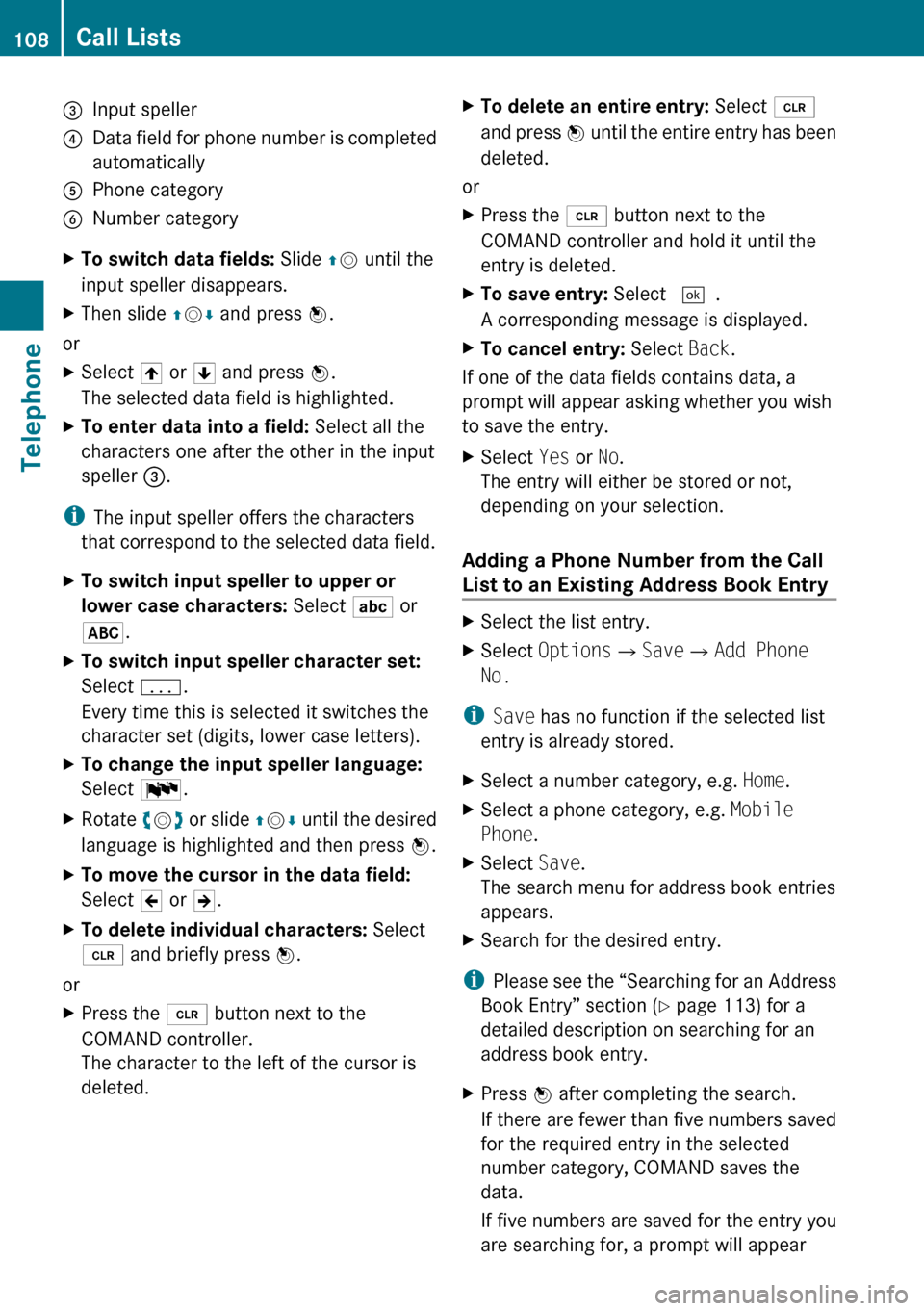
3Input speller4Data field for phone number is completed
automatically5Phone category6Number categoryXTo switch data fields: Slide qm until the
input speller disappears.XThen slide qm r and press n.
or
XSelect [ or ] and press n.
The selected data field is highlighted.XTo enter data into a field: Select all the
characters one after the other in the input
speller 3.
i
The input speller offers the characters
that correspond to the selected data field.
XTo switch input speller to upper or
lower case characters: Select ( or
& .XTo switch input speller character set:
Select k.
Every time this is selected it switches the
character set (digits, lower case letters).XTo change the input speller language:
Select !.XRotate ym z or slide qm r until the desired
language is highlighted and then press n.XTo move the cursor in the data field:
Select Y or Z.XTo delete individual characters: Select
õ and briefly press n.
or
XPress the 2 button next to the
COMAND controller.
The character to the left of the cursor is
deleted.XTo delete an entire entry: Select õ
and press n until the entire entry has been
deleted.
or
XPress the 2 button next to the
COMAND controller and hold it until the
entry is deleted.XTo save entry: Select d.
A corresponding message is displayed.XTo cancel entry: Select Back.
If one of the data fields contains data, a
prompt will appear asking whether you wish
to save the entry.
XSelect Yes or No.
The entry will either be stored or not,
depending on your selection.
Adding a Phone Number from the Call
List to an Existing Address Book Entry
XSelect the list entry.XSelect Options £Save £Add Phone
No.
i Save has no function if the selected list
entry is already stored.
XSelect a number category, e.g. Home.XSelect a phone category, e.g. Mobile
Phone .XSelect Save.
The search menu for address book entries
appears.XSearch for the desired entry.
i Please see the “Searching for an Address
Book Entry” section ( Y page 113) for a
detailed description on searching for an
address book entry.
XPress n after completing the search.
If there are fewer than five numbers saved
for the required entry in the selected
number category, COMAND saves the
data.
If five numbers are saved for the entry you
are searching for, a prompt will appear108Call ListsTelephone
Page 113 of 224
5Device name of the connected mobile
phone6Terminates call
Switching Hands-Free Microphone On
or Off
XOpen the phone main menu ( Y page 102).XTo switch off: Select Mic Off .
If the microphone is switched off, the >
icon appears in the main area.XTo switch on: Select Mic On.
The > symbol disappears.
DTMF Tone Transmission
i
This function is not possible with all
mobile phones.
Answering machines or other devices can be
controlled by DTMF tones, e.g. for remote
query functions.
XTo send individual characters: During a
call select the required characters using
the COMAND controller.
or
XPress the corresponding button on the
COMAND control unit keypad.
Every character selected will be
transmitted immediately.XTransmitting phone book entry as a
sequence of characters: Select Name.XSelect the desired phone book entry.
The entry is transmitted immediately as a
sequence of characters.XTo switch back to the call display: Select
Back . Ending an Active Call XIf necessary, open the phone main menu
( Y page 102).XTo terminate call: Select 4.
or
XPress the ~ button on the COMAND
control panel or the ~ button on the
multifunction steering wheel.
Call Waiting
i The call waiting function must be
supported and activated by the phone
provider.
If you are conducting a single call and you
receive another, the second call number is
entered into the received calls list and a signal
tone will sound.
Address Book
GWarning!
Please devote your attention first and
foremost to the traffic situation you are in.
Before your journey, please familiarize
yourself with the address book functions.
Only use the COMAND when road and traffic
conditions permit you to do so. Otherwise you
could be involved in an accident in which you
or others could be injured.
General Information
The entries of the address book can be used
for making phone calls and for setting
navigation destinations.
i You should delete your personal data
before selling your vehicle, using the Reset
function ( Y page 45).
Address Book111TelephoneZ
Page 115 of 224
Entering Data into a FieldXSelect all the characters one after the other
in the input speller 2.
i
The input speller provides the characters
corresponding to the selected data field.
XTo switch input speller to upper or
lower case characters: Select ( or
& .XTo switch input speller character set:
Select k.
Every time this is selected it switches the
character set.XTo change the input speller language:
Select !.XRotate ym z or slide qm r until the desired
language is highlighted and then press n.XTo move the cursor in the data field:
Select Y or Z.
Deleting
XTo delete an individual character: Select
õ and briefly press n.
or
XPress the 2 button next to the
COMAND controller.
The character to the left of the cursor is
deleted.XTo delete an entire entry: Select õ
and press n until the entire entry has been
deleted.
or
XPress the 2 button next to the
COMAND controller and hold it until the
entire entry is deleted.Canceling an EntryXSelect á.
If one of the data fields contains new data,
a prompt will appear asking whether you
wish to store the entry.XSelect Yes or No.
The entry will either be stored or not,
depending on your selection.
Saving an Entry
XSelect d.
The address book displays the entry.
Searching for an Address Book Entry
XOpen the address book ( Y page 112) and
select Search .
If there are more than eight entries, the
search menu with the predictive speller
appears.
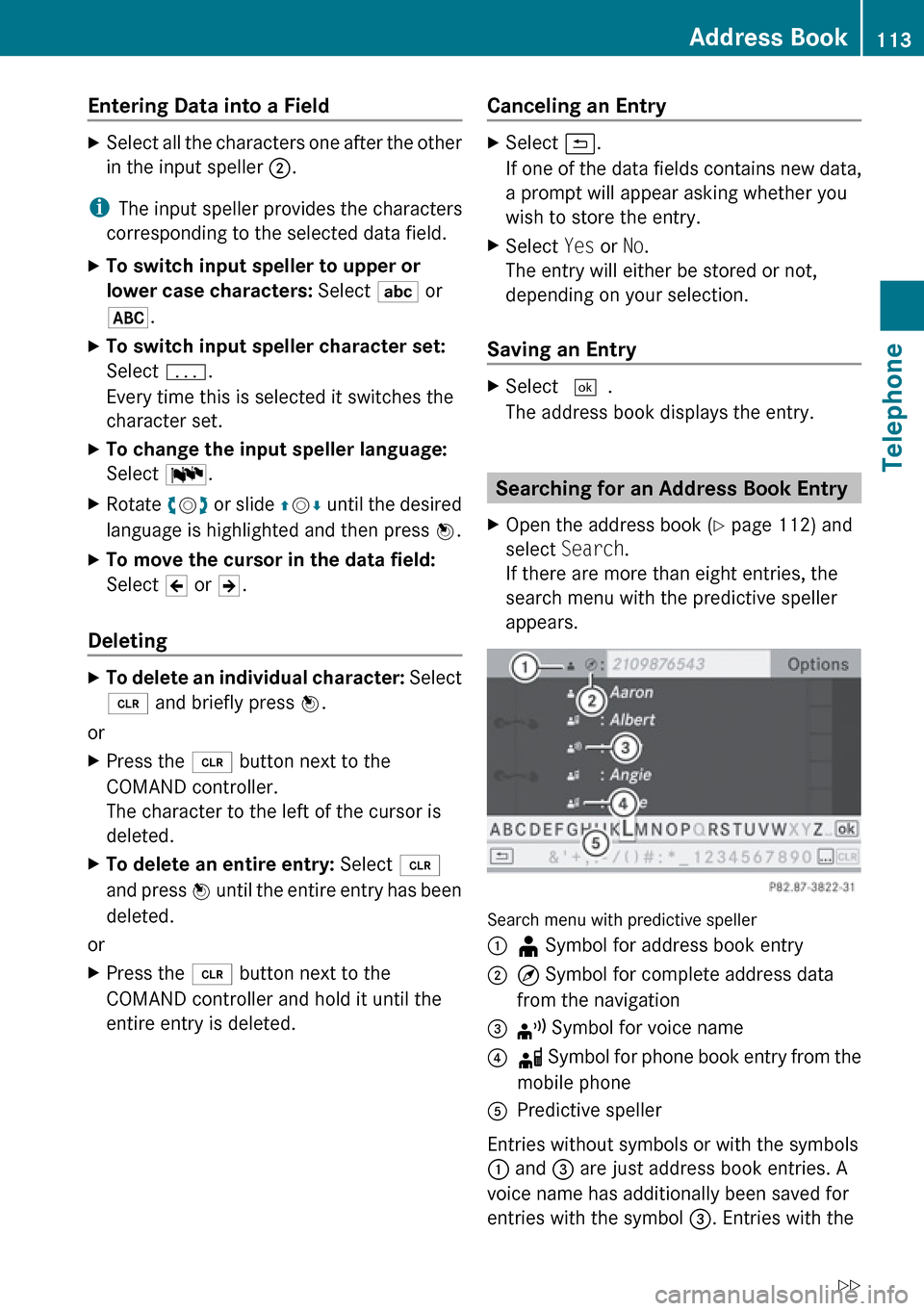
Search menu with predictive speller
1¥ Symbol for address book entry2¤ Symbol for complete address data
from the navigation3¦ Symbol for voice name4å Symbol for phone book entry from the
mobile phone5Predictive speller
Entries without symbols or with the symbols
1 and 3 are just address book entries. A
voice name has additionally been saved for
entries with the symbol 3. Entries with the
Address Book113TelephoneZ
Page 120 of 224
previous phone book entries are then no
longer available.
After successfully downloading the contact
data you see a corresponding message.
The address book or the phone main menu
is displayed.
i You can select the Overwrite menu item
if the address book already contains such
entries. If the address book is full, you see
a corresponding message.
Downloading from the Memory Card
XSelect Address Book or, if the phone main
menu is displayed, Phone.XSelect Download Contacts .
A selection menu appears.XSelect From Memory Card .XSelect Add or Overwrite .
Selecting Add imports the entries from the
PCMCIA memory card into the address
book.
Selecting Overwrite imports the entries
from the PCMCIA memory card and
overwrites all entries in the address book
with the ¥Â icons. The previous entries
are then no longer available.
After successfully importing the contact
data you see a corresponding message.
The address book or the phone main menu
is displayed.
i You can select the Overwrite menu item
if the address book already contains such
entries. If the address book is full, you see
a corresponding message.
Downloading vCards via Bluetooth ®
You can receive vCards from devices (such as
a PC) which support the transmission of
vCards via Bluetooth ®
.
It is not necessary to authorize the device in
COMAND to do so.
Received vCards are imported into the
address book.
i If you switch to another main function,
e.g. navigation, while receiving vCards, the
reception of vCards will be terminated.XSelect Address Book or, if the phone main
menu is displayed, Phone.XSelect Download Contacts .
A selection menu appears.XSelect Receive Business Cards .
This interrupts the Bluetooth connection
between COMAND and your active mobile
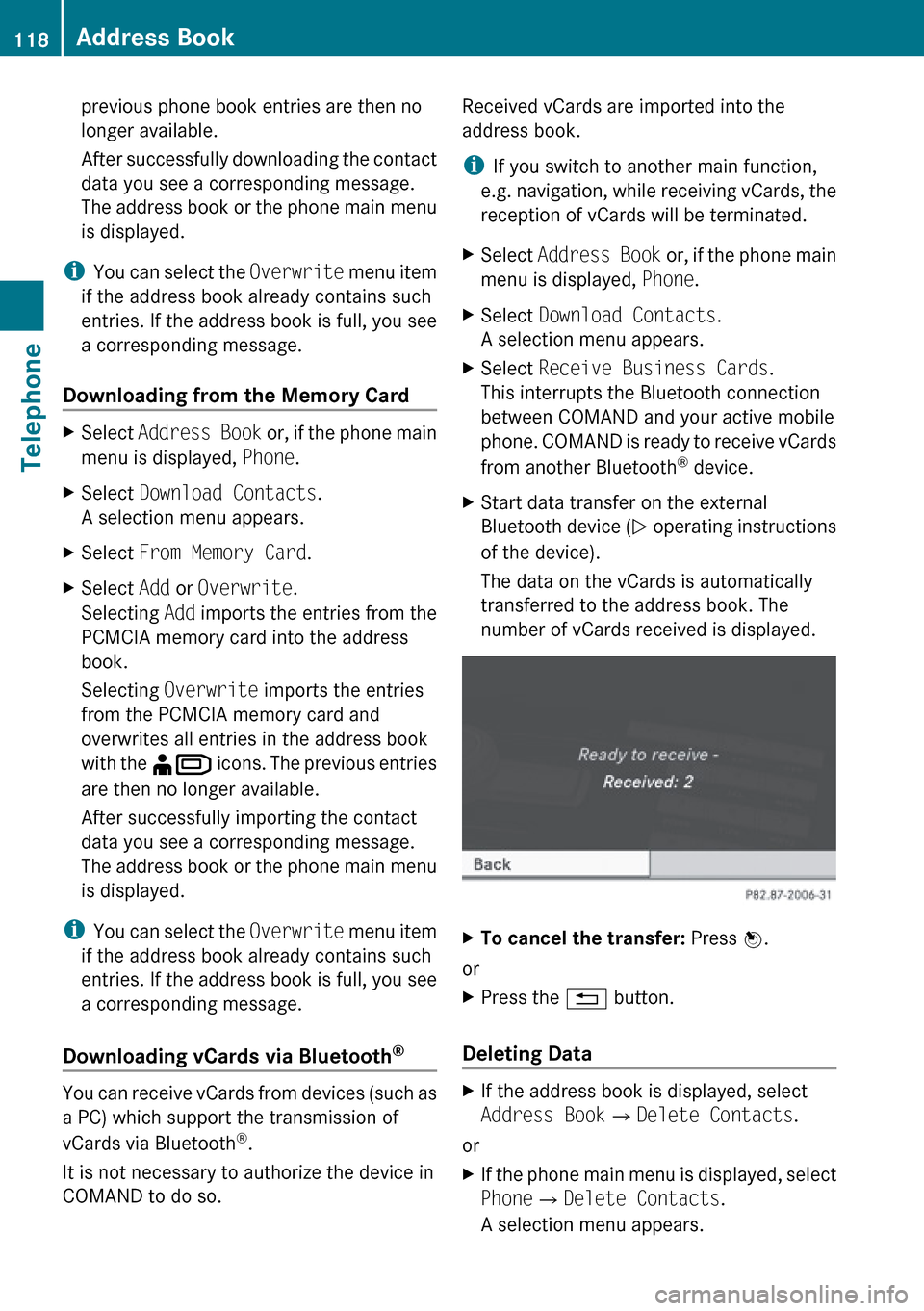
phone. COMAND is ready to receive vCards
from another Bluetooth ®
device.XStart data transfer on the external
Bluetooth device ( N operating instructions
of the device).
The data on the vCards is automatically
transferred to the address book. The
number of vCards received is displayed.XTo cancel the transfer: Press W.
or
XPress the % button.
Deleting Data
XIf the address book is displayed, select
Address Book QDelete Contacts .
or
XIf the phone main menu is displayed, select
Phone QDelete Contacts .
A selection menu appears.118Address BookTelephone
Page 121 of 224
XSelect Internal Contacts or From
Mobile Phone or From Memory Card or
Received Business Cards or Delete
All .
A prompt corresponding to your selection
appears.XSelect Yes or No.XPress the W button.
If you confirm by selecting Yes, the
contacts you have selected are deleted.Address Book119TelephoneZ
Page 128 of 224
XTo store a station to a selected preset:
Press and hold n until a signal tone
sounds.
or
XPress and hold a number key, e.g. 4, until
a signal tone sounds.
The station is stored.
Storing via Autostore
i The function automatically assigns
receivable stations to the presets, sorted
according to reception quality. The stations
which were stored in the station memory
manually are overwritten.
XPress n when the main area is active.XSelect Autostore .
or
XSelect Presets £Autostore in the radio
display.
COMAND searches for receivable stations.
A corresponding message is displayed. The
available stations are automatically stored
under the presets.
Canceling Autostore Procedure
XSelect Cancel .
Switching to Weather Band
XPress the $ function button on the
control unit repeatedly until the weather
band is selected.
or
XSlide mr to highlight the submenu.XTo select the weather band: Rotate
y m z or slide o until the currently set
waveband is highlighted ( FM or AM).XPress 9.
Waveband submeu is opened.XSelect WB.Searching a ChannelXRotate ym z or slide om p when the main
area is highlighted.
or
XPress E or F on the control unit.
The search proceeds upwards or
downwards and stops at the next
receivable channel.
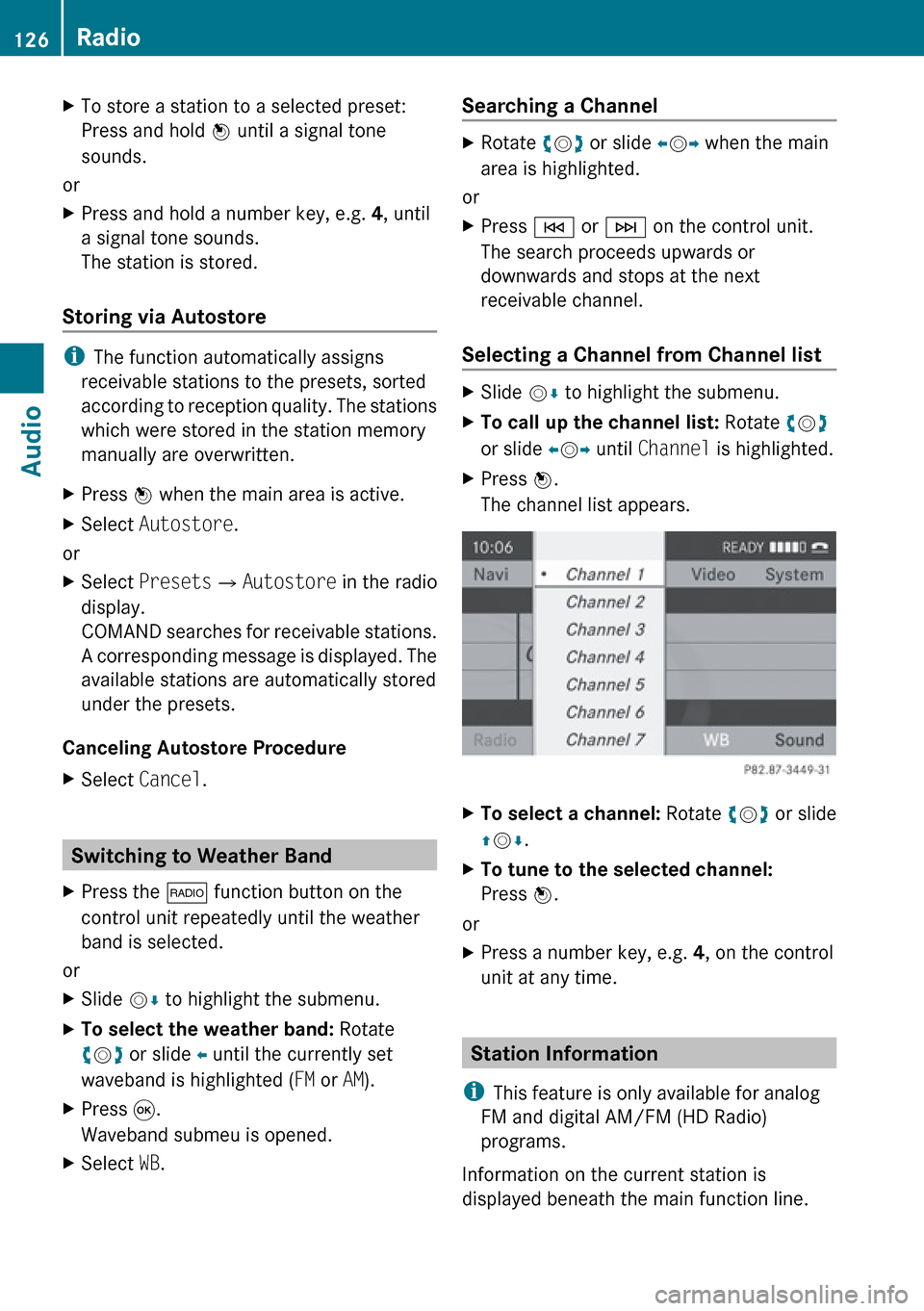
Selecting a Channel from Channel list
XSlide mr to highlight the submenu.XTo call up the channel list: Rotate ym z
or slide om p until Channel is highlighted.XPress n.
The channel list appears.XTo select a channel: Rotate ym z or slide
q m r.XTo tune to the selected channel:
Press n.
or
XPress a number key, e.g. 4, on the control
unit at any time.
Station Information
i This feature is only available for analog
FM and digital AM/FM (HD Radio)
programs.
Information on the current station is
displayed beneath the main function line.
126RadioAudio
Page 132 of 224
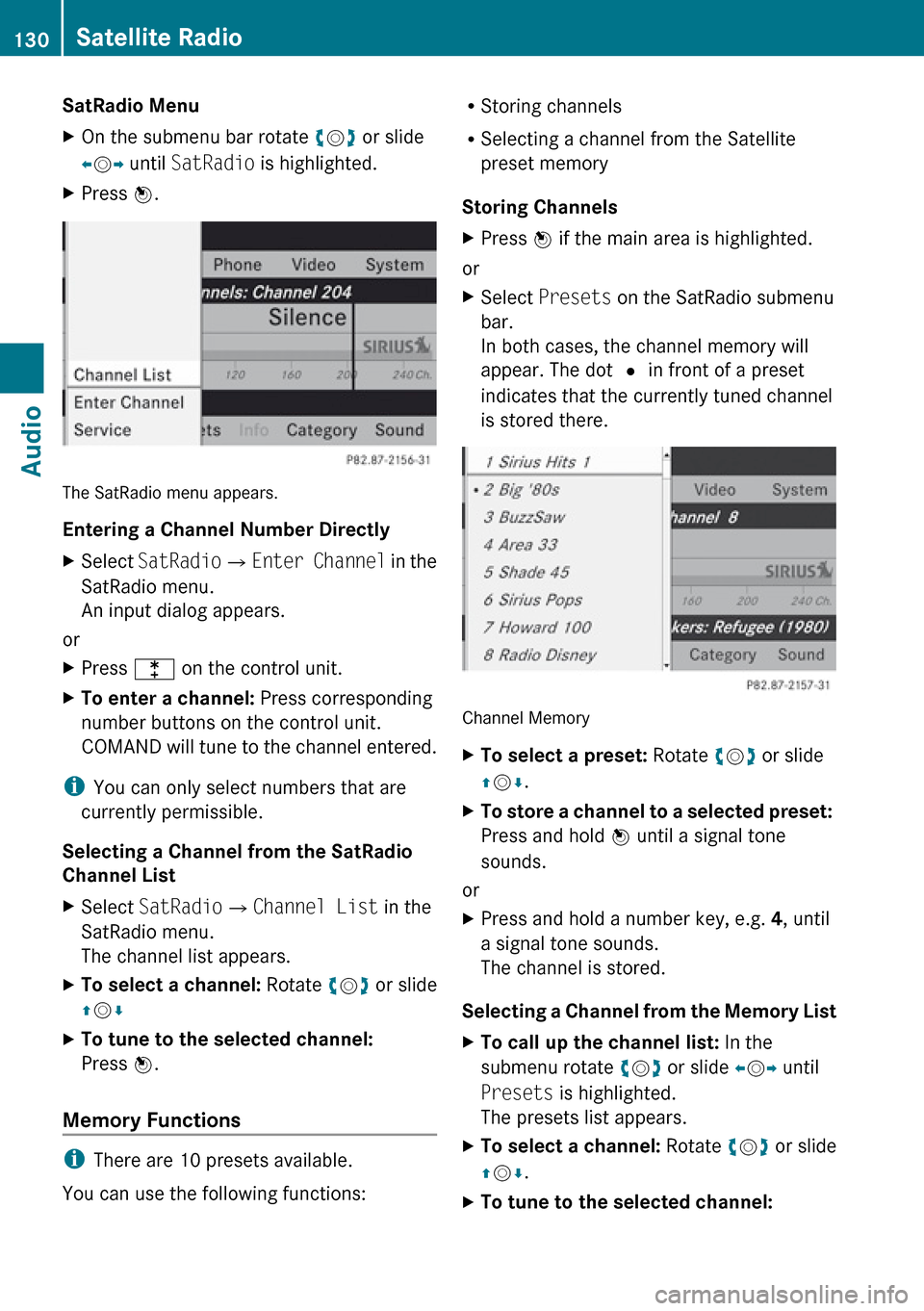
SatRadio MenuXOn the submenu bar rotate ym z or slide
o m p until SatRadio is highlighted.XPress n.
The SatRadio menu appears.
Entering a Channel Number Directly
XSelect SatRadio £Enter Channel in the
SatRadio menu.
An input dialog appears.
or
XPress l on the control unit.XTo enter a channel: Press corresponding
number buttons on the control unit.
COMAND will tune to the channel entered.
i You can only select numbers that are
currently permissible.
Selecting a Channel from the SatRadio
Channel List
XSelect SatRadio £Channel List in the
SatRadio menu.
The channel list appears.XTo select a channel: Rotate ym z or slide
q m rXTo tune to the selected channel:
Press n.
Memory Functions
i
There are 10 presets available.
You can use the following functions:
R Storing channels
R Selecting a channel from the Satellite
preset memory
Storing ChannelsXPress n if the main area is highlighted.
or
XSelect Presets on the SatRadio submenu
bar.
In both cases, the channel memory will
appear. The dot R in front of a preset
indicates that the currently tuned channel
is stored there.
Channel Memory
XTo select a preset: Rotate ym z or slide
q m r.XTo store a channel to a selected preset:
Press and hold n until a signal tone
sounds.
or
XPress and hold a number key, e.g. 4, until
a signal tone sounds.
The channel is stored.
Selecting a Channel from the Memory List
XTo call up the channel list: In the
submenu rotate ym z or slide om p until
Presets is highlighted.
The presets list appears.XTo select a channel: Rotate ym z or slide
q m r.XTo tune to the selected channel: 130Satellite RadioAudio
Page 134 of 224
is a risk of exposure to invisible laser radiation
if you open the casing, or if the casing is faulty
or damaged.
COMAND does not contain any parts that you
are able to maintain yourself. For safety
reasons, all maintenance work must be
exclusively carried out by qualified
technicians.GWarning
Only carry out the following when the vehicle
is stationary:
R Inserting a disc
R Ejecting a disc
There is a risk of accident by being distracted
from road and traffic conditions if you load a
CD/DVD while the vehicle is in motion.
Notes on MP3 Mode
Permissible Storage Media
R CD-R and CD-RW
R DVD+R and DVD+RW
R DVD-R and DVD-RW
R PCMCIA memory card
Permissible File Systems
R ISO9660/Joliet for CD storage media
R UDF for DVDs
R FAT16 or FAT32 for PCMCIA memory card
with storage medium
Multisession CDs
On multisession CDs, the content of the first
session determines how COMAND handles
the CD.
If the first session, for example, contains data
in CD Audio format and the second session
contains MP3 tracks, COMAND handles the
CD as a conventional Audio CD. This means
that the MP3 tracks cannot be accessed.
Similarly, if the first session contains MP3
tracks and the second session contains data
in CD Audio format, COMAND handles the CD
as an MP3 CD. Only the MP3 tracks can be
accessed.
File Structure of Storage Medium
When creating an MP3 storage medium, you
can organize MP3 tracks into folders. A folder
can also contain additional folders. A storage
medium may have a maximum of 255 folders
in total. A maximum of 255 tracks and 255
folders are permissible per folder. A
maximum of 4000 tracks in total are
permissible per storage medium.
Track Names and Folder Names
When creating an MP3 storage medium, you
can assign names to the MP3 tracks and to
the folders.
COMAND uses these names in MP3 mode for
the corresponding display. Empty folders or
folders containing data other than MP3 tracks
will not be displayed by COMAND.
If MP3 files are stored in the root directory
itself, the root directory also counts as a
folder. COMAND will then display the root
directory name as a folder name.
Please note the following when assigning
track names:
R Track names must contain at least one
character.
R Track names must have the extension
“mp3”.
R A period must appear between the track
name and the extension.
i COMAND does not support ID3 tags.
Permissible Formats
COMAND supports the following formats:
R MPEG1 audio layer 3 format
132CD Audio/DVD Audio/MP3Audio
Page 144 of 224
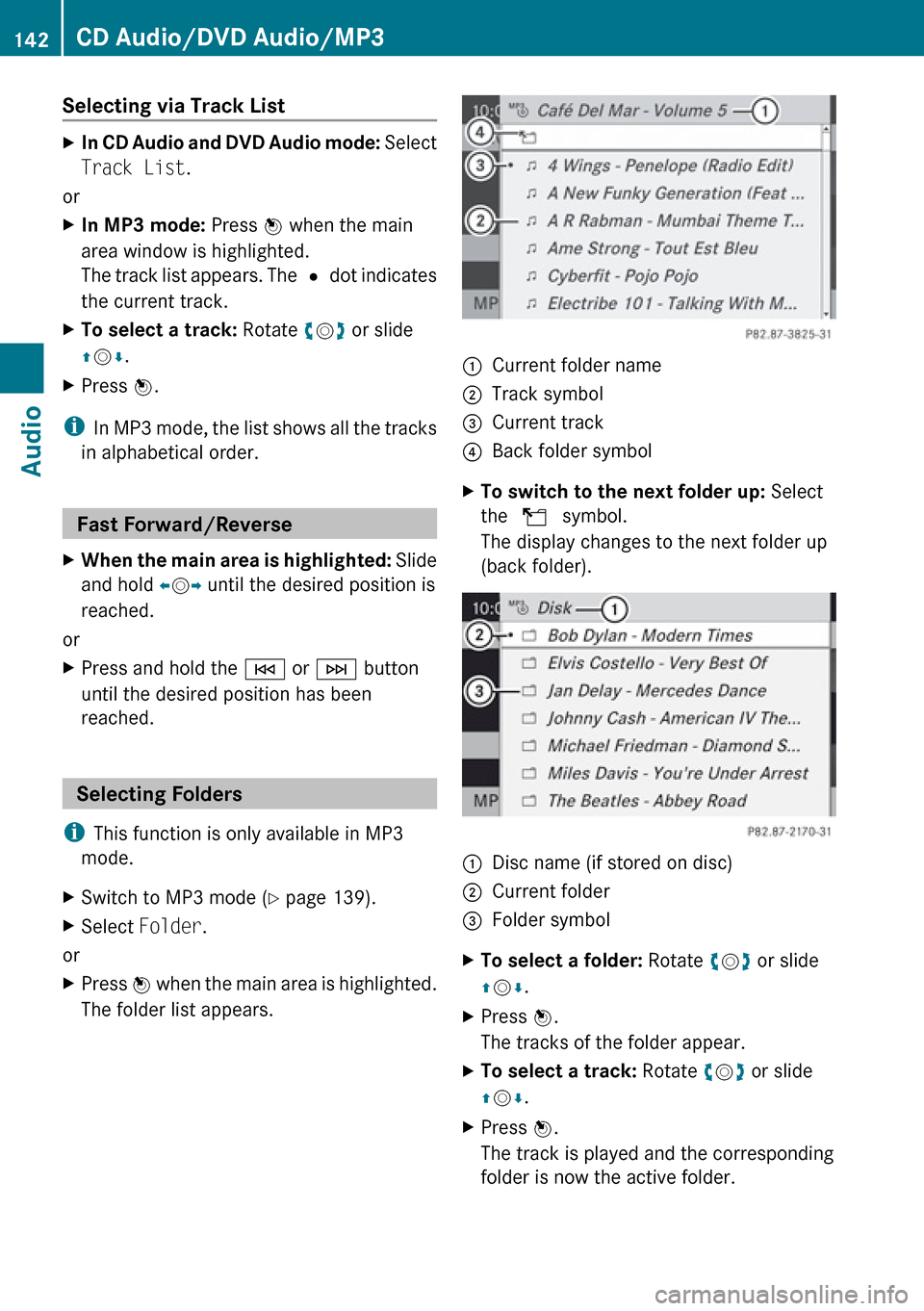
Selecting via Track ListXIn CD Audio and DVD Audio mode: Select
Track List .
or
XIn MP3 mode: Press n when the main
area window is highlighted.
The track list appears. The R dot indicates
the current track.XTo select a track: Rotate ym z or slide
q m r.XPress n.
i
In MP3 mode, the list shows all the tracks
in alphabetical order.
Fast Forward/Reverse
XWhen the main area is highlighted: Slide
and hold om p until the desired position is
reached.
or
XPress and hold the E or F button
until the desired position has been
reached.
Selecting Folders
i This function is only available in MP3
mode.
XSwitch to MP3 mode ( Y page 139).XSelect Folder .
or
XPress n when the main area is highlighted.
The folder list appears.1Current folder name2Track symbol3Current track4Back folder symbolXTo switch to the next folder up: Select
the Q symbol.
The display changes to the next folder up
(back folder).1Disc name (if stored on disc)2Current folder3Folder symbolXTo select a folder: Rotate ym z or slide
q m r.XPress n.
The tracks of the folder appear.XTo select a track: Rotate ym z or slide
q m r.XPress n.
The track is played and the corresponding
folder is now the active folder.142CD Audio/DVD Audio/MP3Audio
Page 145 of 224
Gracenote®
Media Database
i This function is only available in CD Audio
mode.
CD information including album title, artist
name and track name is obtained from the
Gracenote ®
Media Database. A version of the
Gracenote ®
Media Database is stored on the
COMAND’s hard drive. Access to this
database is indicated by the Gracenote logo
being displayed in the lower right of some
audio displays.
Many audio CDs contain CD text. COMAND
uses the information contained in this text for
displaying the name of the artist, album and
track.
If the audio CD does not contain any CD text,
COMAND can recognize unknown audio
tracks in CD Audio mode with the aid of the
Gracenote Media Database. For this to
happen, the corresponding information must
be stored in the Gracenote Media Database
and the “Read CD Database” function must
be switched on.
If this is the case, COMAND provides the
corresponding data, such as name of artist,
album and track, in the corresponding
displays and lists.
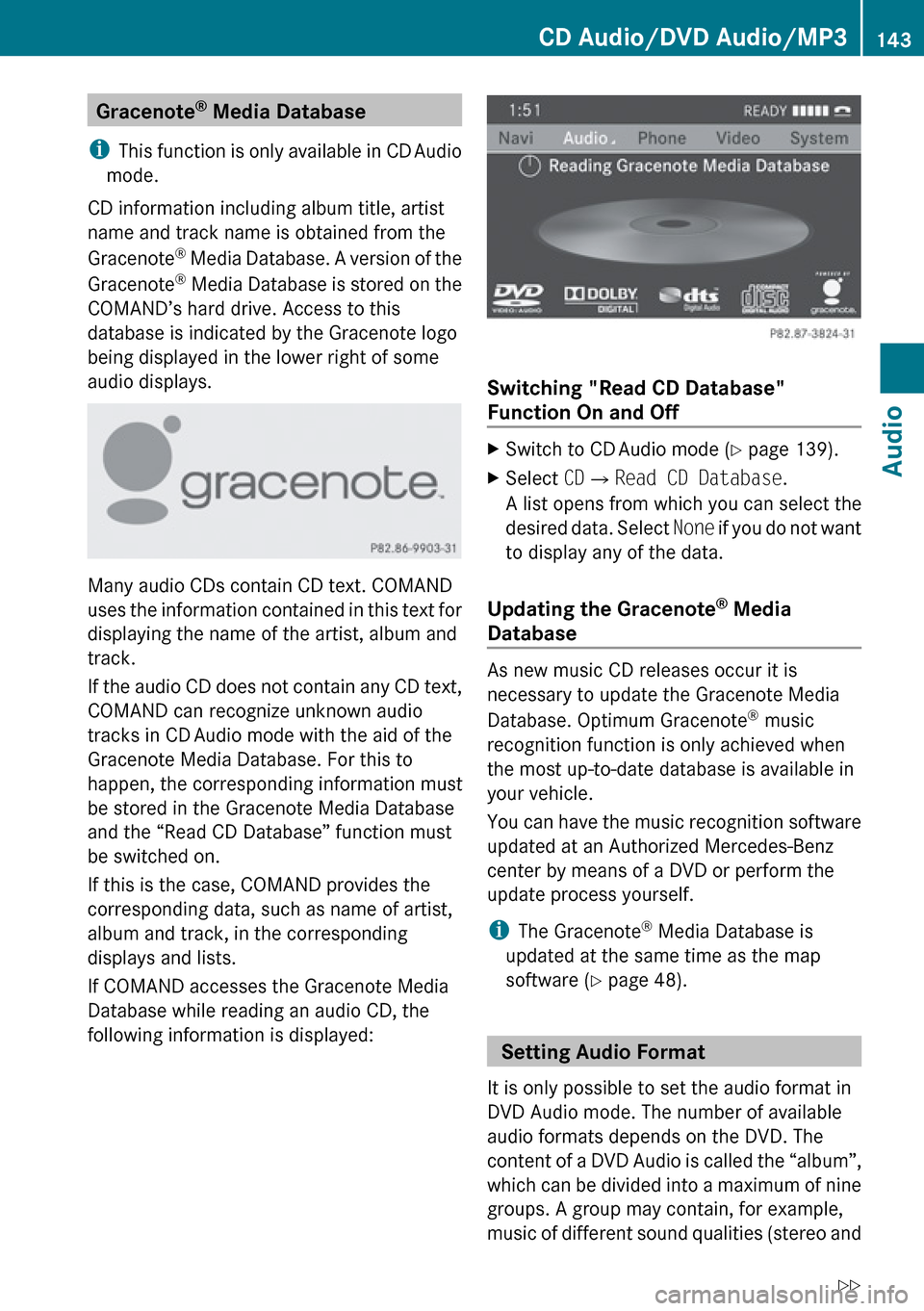
If COMAND accesses the Gracenote Media
Database while reading an audio CD, the
following information is displayed:
Switching "Read CD Database"
Function On and Off
XSwitch to CD Audio mode ( Y page 139).XSelect CD£ Read CD Database .
A list opens from which you can select the
desired data. Select None if you do not want
to display any of the data.
Updating the Gracenote ®
Media
Database
As new music CD releases occur it is
necessary to update the Gracenote Media
Database. Optimum Gracenote ®
music
recognition function is only achieved when
the most up-to-date database is available in
your vehicle.
You can have the music recognition software
updated at an Authorized Mercedes-Benz
center by means of a DVD or perform the
update process yourself.
i The Gracenote ®
Media Database is
updated at the same time as the map
software ( Y page 48).
Setting Audio Format
It is only possible to set the audio format in
DVD Audio mode. The number of available
audio formats depends on the DVD. The
content of a DVD Audio is called the “album”,
which can be divided into a maximum of nine
groups. A group may contain, for example,
music of different sound qualities (stereo and
CD Audio/DVD Audio/MP3143AudioZ