change wheel MERCEDES-BENZ E-Class COUPE 2013 C207 User Guide
[x] Cancel search | Manufacturer: MERCEDES-BENZ, Model Year: 2013, Model line: E-Class COUPE, Model: MERCEDES-BENZ E-Class COUPE 2013 C207Pages: 372, PDF Size: 12.69 MB
Page 176 of 372
a window on the side of the vehicle that is not
facing into the wind.
Have
your vehicle winterproofed at a qualified
specialist workshop at the onset of winter.
Driving with summer tires Observe the notes in the "Winter operation"
section (
Y page 324).
Slippery road surfaces G
WARNING
If you shift down on a slippery road surface in
an attempt to increase the engine's braking
effect, the drive wheels could lose their grip.
There is an increased danger of skidding and
accidents.
Do not shift down for additional engine
braking on a slippery road surface. G
WARNING
The outside temperature indicator is not
designed to serve as an ice-warning device
and is therefore unsuitable for that purpose.
Indicated temperatures just above the
freezing
point do not guarantee that the road
surface is free of ice. The road may still be icy,
especially in wooded areas or on bridges.
If the vehicle threatens to skid or cannot be
stopped when moving at low speed:
X Shift the transmission to position N.
Drive particularly carefully on slippery road
surfaces.
Avoid sudden acceleration, steering
and braking maneuvers. Do not use the cruise
control or DISTRONIC PLUS.
i For more information on driving with
snow chains, see ( Y page 325). Driving systems
Cruise control
Important safety notes G
WARNING
The cruise control is a convenience system
designed to assist the driver during vehicle
operation. The driver is and must always
remain responsible for the vehicle's speed
and for safe brake operation.
Only
use the cruise control if the road, traffic,
and weather conditions make it advisable to
travel at a constant speed.
R The use of the cruise control can be
dangerous on winding roads or in heavy
traffic because conditions do not allow safe
driving at a constant speed.
R The use of the cruise control can be
dangerous on slippery roads. Rapid
changes in tire traction can result in wheel
spin and loss of control.
R Deactivate the cruise control when driving
in fog.
The "Resume" function should only be
operated if the driver is fully aware of the
previously set speed and wishes to resume
this particular preset speed. G
WARNING
The cruise control brakes automatically so
that the set speed is not exceeded.
General notes Cruise control maintains a constant road
speed
for you. It brakes automatically in order
to avoid exceeding the set speed. On long and
steep downhill gradients, especially if the
vehicle is laden, you must select shift range
1, 2 or 3 in good time. By doing so, you will
make use of the braking effect of the engine,
which relieves the load on the brake system
and prevents the brakes from overheating
and wearing too quickly. 174
Driving systems
Driving and parking
Page 179 of 372
Cruise control is automatically deactivated if:
R
you depress the parking brake.
R you are driving at less than
20 mph
(30 km/h).
R ESP ®
intervenes or you deactivate ESP ®
.
R you shift the transmission to position N
while driving.
If cruise control is deactivated, you will hear
a warning tone. You will see the Cruise
Control Off message in the multifunction
display for approximately five seconds.
i When you switch off the engine, the last
speed stored is cleared. DISTRONIC PLUS
Important safety notes G
WARNING
The DISTRONIC PLUS requires familiarity with
its operational characteristics. We strongly
recommend that you review the following
information carefully before operating the
system. G
WARNING
The DISTRONIC PLUS is a convenience
system. Its speed adjustment reduction
capability is intended to make cruise control
more
effective and usable when traffic speeds
vary. It is not however, intended to, nor does
it, replace the need for extreme care.
The responsibility for the vehicle's speed,
distance to the preceding vehicle and, most
importantly, brake operation to ensure a safe
stopping distance, always remains with the
driver.
The DISTRONIC PLUS cannot take street and
traffic conditions into account.
Complex driving situations are not always
fully recognized by the DISTRONIC PLUS. This
could result in wrong or missing distance
warnings. G
WARNING
DISTRONIC PLUS distance is not a substitute
for
the active intervention of the driver. It does
not detect pedestrians or stationary objects,
nor can it detect, recognize or predict the
road's course or the movements of vehicles
in front. DISTRONIC PLUS can only brake the
vehicle using 40% of the vehicle's maximum
available brake force.
DISTRONIC PLUS may not detect narrow
vehicles driving in front, e.g. motorcycles, or
vehicles driving in the lane beyond the lane
next to your vehicle, especially if the vehicles
are not driving on the middle of their lane.
The driver must always pay careful attention
to the road, weather and traffic conditions.
The driver must drive, steer and brake in a
manner which will allow him to always have
control of the vehicle.
Sources of high-frequency radio waves, such
as toll stations, speed-measuring radar, etc.,
can cause DISTRONIC PLUS to fail
temporarily. G
WARNING
The DISTRONIC PLUS cannot take road and
traffic conditions into account. Only use the
DISTRONIC PLUS if the road, weather and
traffic conditions make it advisable to travel
at a constant speed. G
WARNING
Use of the DISTRONIC PLUS can be
dangerous on slippery roads. Rapid changes
in tire traction can result in wheel spin and
loss of control.
The DISTRONIC PLUS does not function in
adverse
sight and distance conditions. Do not
use the DISTRONIC PLUS during conditions of
fog, heavy rain, snow or sleet. Driving systems
177
Driving and parking Z
Page 199 of 372
The Please Steer Wheel to the Left
or Please Steer Wheel to the Right
message appears in the multifunction
display.
X Countersteering: while the vehicle is
stationary, turn the steering wheel in the
specified direction until the arrow is white
and a warning tone sounds.
X To reverse into the parking space:
maintain the steering wheel angle and
reverse carefully.
X Stop as soon as you hear a warning tone,
at
the latest when PARKTRONIC sounds the
continuous warning tone.
The Parking Guidance Finished
message appears in the multifunction
display and a tone sounds. You may be
asked to steer in a different direction and
then change gear. In this case, further
displays in the multifunction display will
direct you to the final position.
X Maneuver if necessary.
X Always observe the warning messages
displayed by PARKTRONIC
(Y page 193).
Canceling Parking Guidance X
Press the PARKTRONIC button on the
center console
(Y page 193).
Parking Guidance is canceled immediately
and PARKTRONIC is deactivated.
Parking Guidance is canceled automatically if
it is no longer possible to guide you into the
parking space, or if a malfunction occurs.
The parking space symbol goes out and a
warning tone sounds. The Parking
Guidance
Canceled message appears in the
multifunction display. Rear view camera
Important safety notes G
WARNING
Make sure that no persons or animals are in
the maneuvering range. Otherwise, they
could be injured.
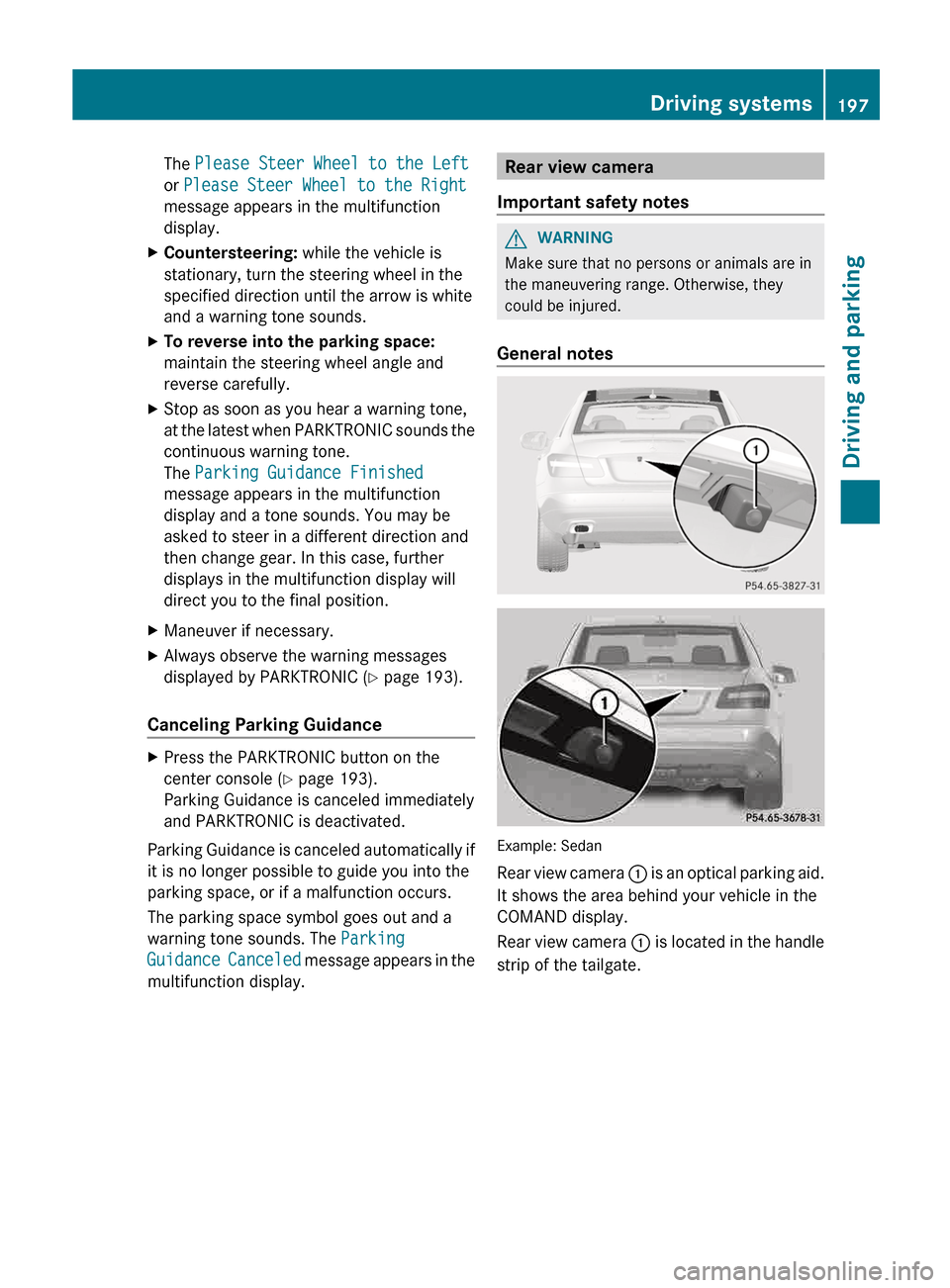
General notes Example: Sedan
Rear
view camera : is an optical parking aid.
It shows the area behind your vehicle in the
COMAND display.
Rear view camera : is located in the handle
strip of the tailgate. Driving systems
197
Driving and parking Z
Page 205 of 372
R
the lane markings on the road are unclear,
e.g. near roadworks.
R the lane markings change quickly, e.g.
lanes branch off, cross one another or
merge.
R the road is narrow and winding.
Lane Keeping Assist cannot detect road and
traffic conditions. It is not a substitute for
attentive driving. You are responsible for the
vehicle's speed, braking in good time, and
steering correctly. Always adapt your driving
style to suit the prevailing road and weather
conditions. Always pay attention to traffic
conditions
and your surroundings. Otherwise,
you may fail to recognize dangers in time,
cause an accident and injure yourself and
others.
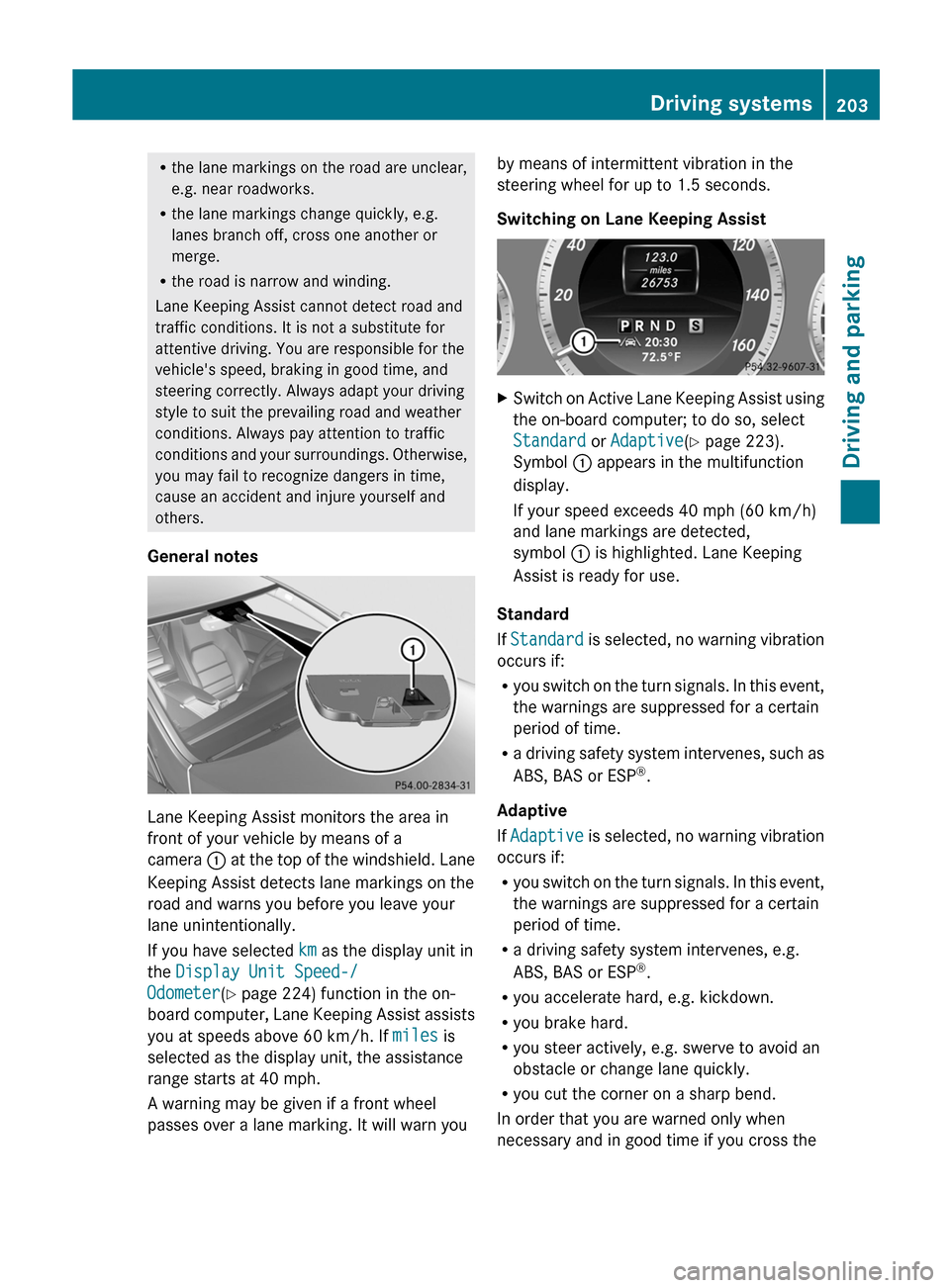
General notes Lane Keeping Assist monitors the area in
front of your vehicle by means of a
camera
:
at the top of the windshield. Lane
Keeping Assist detects lane markings on the
road and warns you before you leave your
lane unintentionally.
If you have selected km as the display unit in
the Display Unit Speed-/
Odometer(Y page 224) function in the on-
board computer, Lane Keeping Assist assists
you at speeds above 60 km/h. If miles is
selected as the display unit, the assistance
range starts at 40 mph.
A warning may be given if a front wheel
passes over a lane marking. It will warn you by means of intermittent vibration in the
steering wheel for up to 1.5 seconds.
Switching on Lane Keeping Assist
X
Switch on Active Lane Keeping Assist using
the on-board computer; to do so, select
Standard or Adaptive(Y page 223).
Symbol : appears in the multifunction
display.
If your speed exceeds
40 mph (60 km/h)
and lane markings are detected,
symbol : is highlighted. Lane Keeping
Assist is ready for use.
Standard
If Standard
is selected, no warning vibration
occurs if:
R you switch on the turn signals. In this event,
the warnings are suppressed for a certain
period of time.
R a driving safety system intervenes, such as
ABS, BAS or ESP ®
.
Adaptive
If Adaptive is selected, no warning vibration
occurs if:
R you switch on the turn signals. In this event,
the warnings are suppressed for a certain
period of time.
R a driving safety system intervenes, e.g.
ABS, BAS or ESP ®
.
R you accelerate hard, e.g. kickdown.
R you brake hard.
R you steer actively, e.g. swerve to avoid an
obstacle or change lane quickly.
R you cut the corner on a sharp bend.
In order that you are warned only when
necessary and in good time if you cross the Driving systems
203
Driving and parking Z
Page 210 of 372
R
the lane markings change quickly, e.g.
branch off, cross or merge.
R the road is narrow and winding.
Active Lane Keeping Assist cannot detect
road and traffic conditions. It is not a
substitute for attentive driving. You are
responsible
for the vehicle's speed, braking in
good time and steering correctly. Always
adapt your driving style to suit the prevailing
road and weather conditions. Always pay
attention to traffic conditions and your
surroundings. Otherwise, you may fail to
recognize dangers in time, cause an accident
and injure yourself and others.
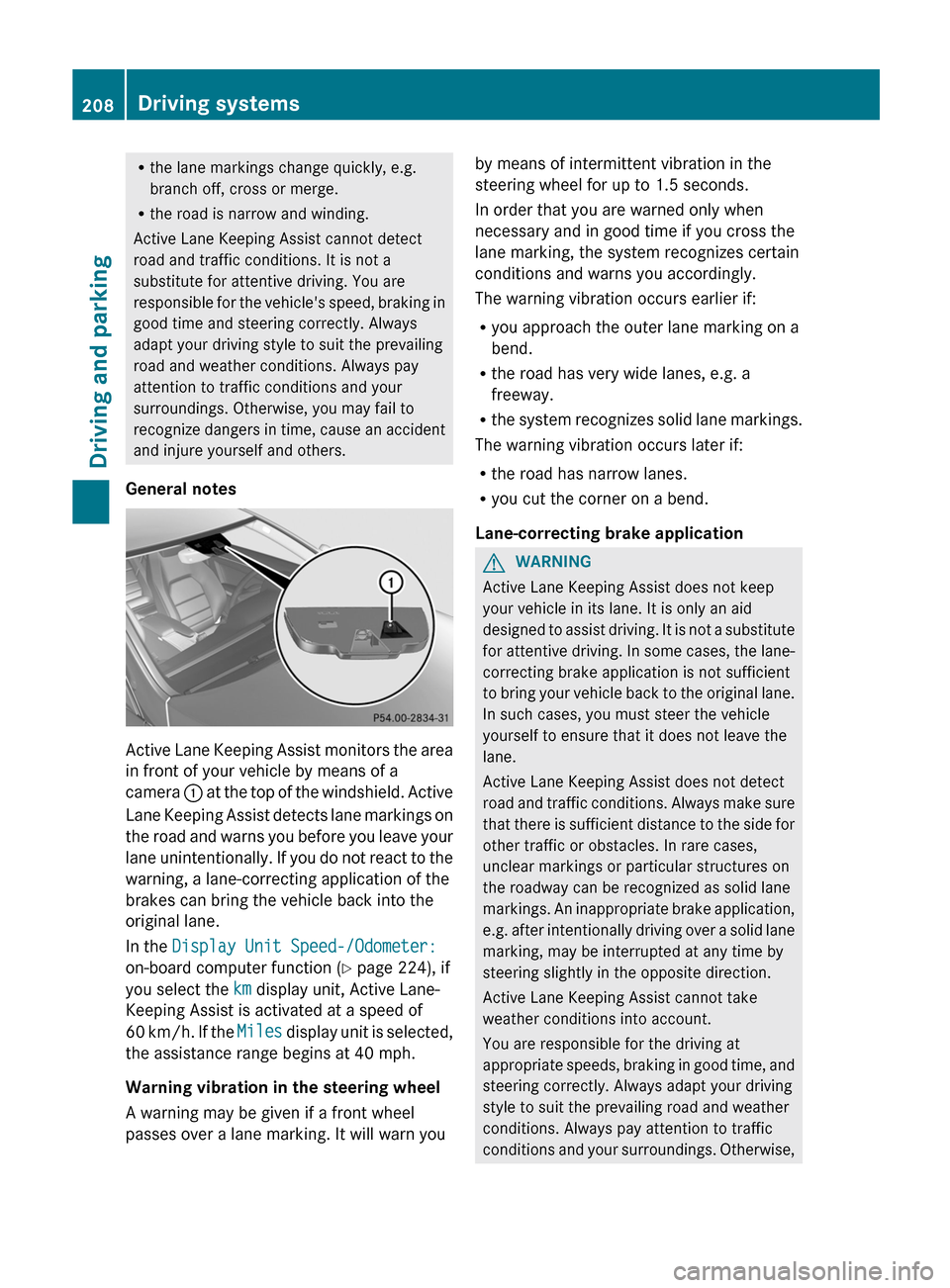
General notes Active Lane Keeping Assist monitors the area
in front of your vehicle by means of a
camera
:
at the top of the windshield. Active
Lane Keeping Assist detects lane markings on
the road and warns you before you leave your
lane unintentionally. If you do not react to the
warning, a lane-correcting application of the
brakes can bring the vehicle back into the
original lane.
In the Display Unit Speed-/Odometer:
on-board computer function (Y page 224), if
you select the km display unit, Active Lane-
Keeping Assist is activated at a speed of
60 km/h. If the Miles display unit is selected,
the assistance range begins at 40 mph.
Warning vibration in the steering wheel
A warning may be given if a front wheel
passes over a lane marking. It will warn you by means of intermittent vibration in the
steering wheel for up to 1.5 seconds.
In order that you are warned only when
necessary and in good time if you cross the
lane marking, the system recognizes certain
conditions and warns you accordingly.
The warning vibration occurs earlier if:
R
you approach the outer lane marking on a
bend.
R the road has very wide lanes, e.g. a
freeway.
R the
system recognizes solid lane markings.
The warning vibration occurs later if:
R the road has narrow lanes.
R you cut the corner on a bend.
Lane-correcting brake application G
WARNING
Active Lane Keeping Assist does not keep
your vehicle in its lane. It is only an aid
designed
to assist driving. It is not a substitute
for attentive driving. In some cases, the lane-
correcting brake application is not sufficient
to bring your vehicle back to the original lane.
In such cases, you must steer the vehicle
yourself to ensure that it does not leave the
lane.
Active Lane Keeping Assist does not detect
road and traffic conditions. Always make sure
that there is sufficient distance to the side for
other traffic or obstacles. In rare cases,
unclear markings or particular structures on
the roadway can be recognized as solid lane
markings. An inappropriate brake application,
e.g. after intentionally driving over a solid lane
marking, may be interrupted at any time by
steering slightly in the opposite direction.
Active Lane Keeping Assist cannot take
weather conditions into account.
You are responsible for the driving at
appropriate speeds, braking in good time, and
steering correctly. Always adapt your driving
style to suit the prevailing road and weather
conditions. Always pay attention to traffic
conditions and your surroundings. Otherwise, 208
Driving systems
Driving and parking
Page 220 of 372
start", the values in the "ECO display"are
likewise reset.
Navigation system menu
Displaying navigation instructions In the
Navi menu, the multifunction display
shows navigation instructions. For more
information on navigation, see the separate
operating instructions.
X Switch on COMAND (see the separate
operating instructions).
X Press the = or ; button on the
steering wheel to select the Navi menu.
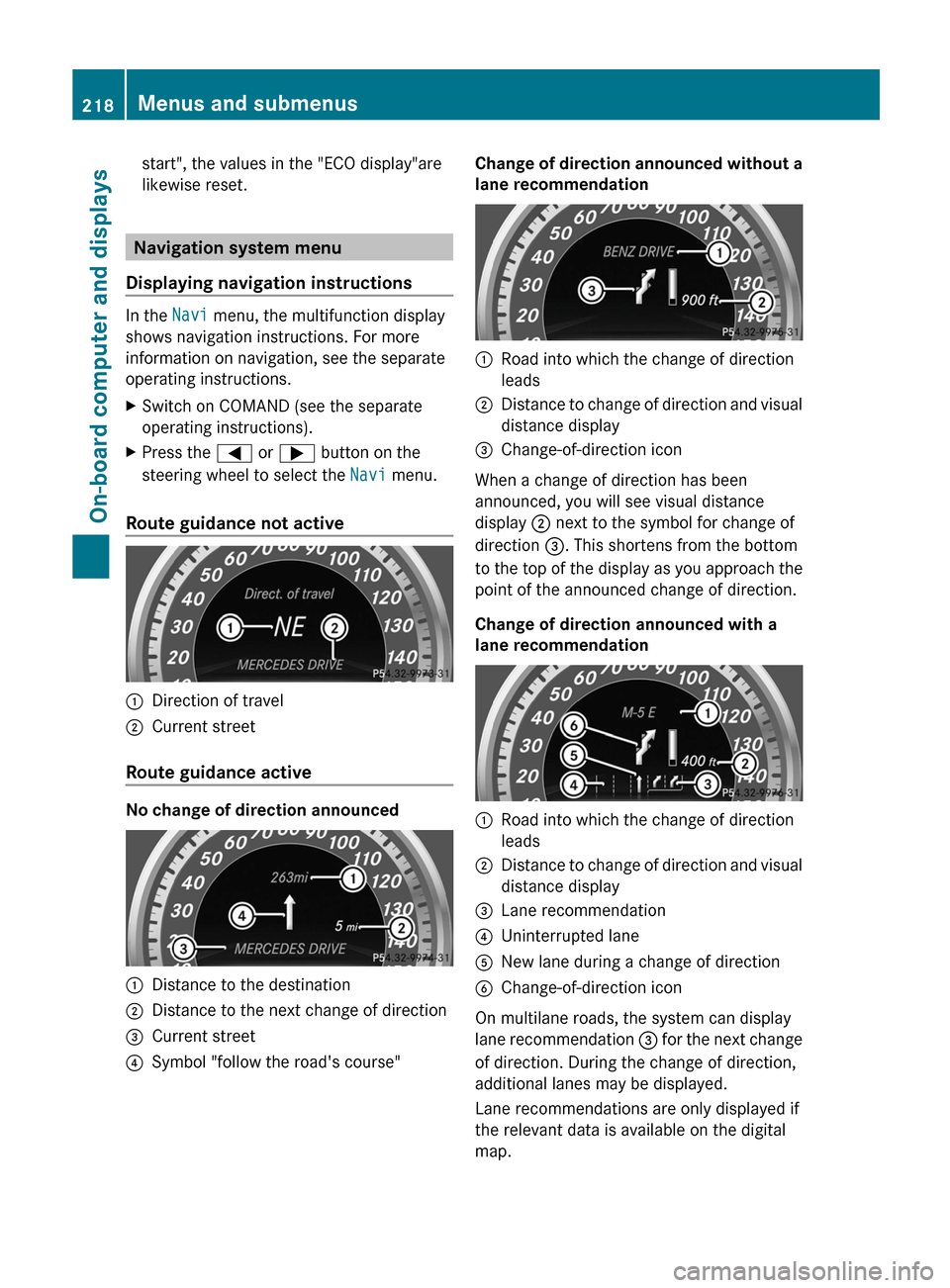
Route guidance not active :
Direction of travel
; Current street
Route guidance active No change of direction announced
:
Distance to the destination
; Distance to the next change of direction
= Current street
? Symbol "follow the road's course" Change of direction announced without a
lane recommendation
:
Road into which the change of direction
leads
; Distance to change of direction and visual
distance display
= Change-of-direction icon
When a change of direction has been
announced, you will see visual distance
display ; next to the symbol for change of
direction =. This shortens from the bottom
to
the top of the display as you approach the
point of the announced change of direction.
Change of direction announced with a
lane recommendation :
Road into which the change of direction
leads
; Distance to change of direction and visual
distance display
= Lane recommendation
? Uninterrupted lane
A New lane during a change of direction
B Change-of-direction icon
On multilane roads, the system can display
lane
recommendation = for the next change
of direction. During the change of direction,
additional lanes may be displayed.
Lane recommendations are only displayed if
the relevant data is available on the digital
map. 218
Menus and submenus
On-board computer and displays
Page 221 of 372
Other status indicators of the
navigation system
R
O: you have reached the destination or an
intermediate destination.
R New Route... or Calculating Route:
calculating a new route
R Off Map or Off Mapped Road : the vehicle
position is outside the area of the digital
map (off-map position).
R No Route : no route could be calculated to
the selected destination. Audio menu
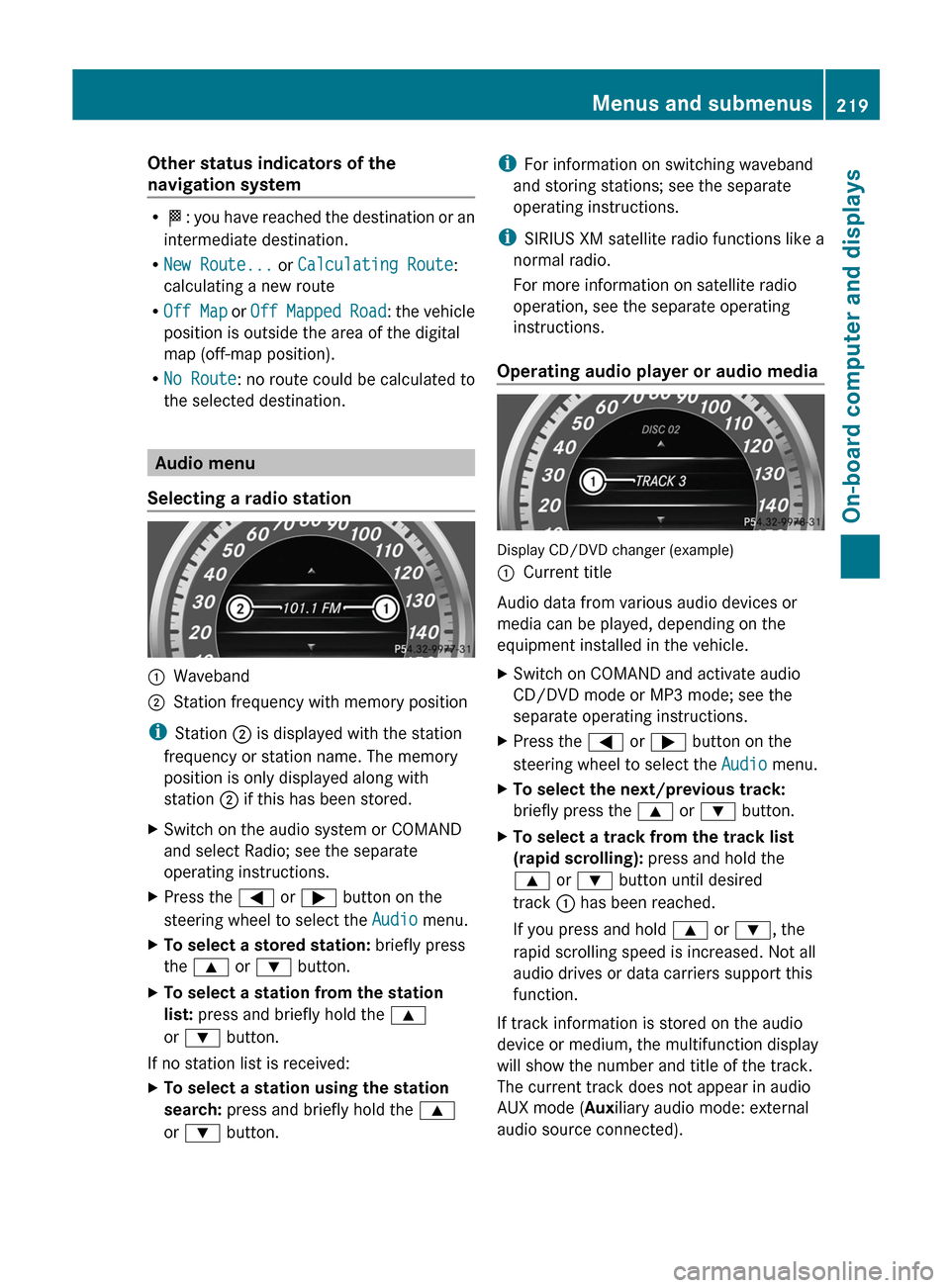
Selecting a radio station :
Waveband
; Station frequency with memory position
i Station ; is displayed with the station
frequency or station name. The memory
position is only displayed along with
station ; if this has been stored.
X Switch on the audio system or COMAND
and select Radio; see the separate
operating instructions.
X Press the = or ; button on the
steering wheel to select the Audio menu.
X To select a stored station: briefly press
the 9 or : button.
X To select a station from the station
list: press and briefly hold the 9
or : button.
If no station list is received:
X To select a station using the station
search: press and briefly hold the 9
or : button. i
For information on switching waveband
and storing stations; see the separate
operating instructions.
i SIRIUS XM satellite radio functions like a
normal radio.
For more information on satellite radio
operation, see the separate operating
instructions.
Operating audio player or audio media Display CD/DVD changer (example)
:
Current title
Audio data from various audio devices or
media can be played, depending on the
equipment installed in the vehicle.
X Switch on COMAND and activate audio
CD/DVD mode or MP3 mode; see the
separate operating instructions.
X Press the = or ; button on the
steering wheel to select the Audio menu.
X To select the next/previous track:
briefly press the 9 or : button.
X To select a track from the track list
(rapid scrolling): press and hold the
9 or : button until desired
track : has been reached.
If you press and hold 9 or :, the
rapid scrolling speed is increased. Not all
audio drives or data carriers support this
function.
If track information is stored on the audio
device or medium, the multifunction display
will show the number and title of the track.
The current track does not appear in audio
AUX mode (Auxiliary audio mode: external
audio source connected). Menus and submenus
219
On-board computer and displays Z
Page 222 of 372
Video DVD operation
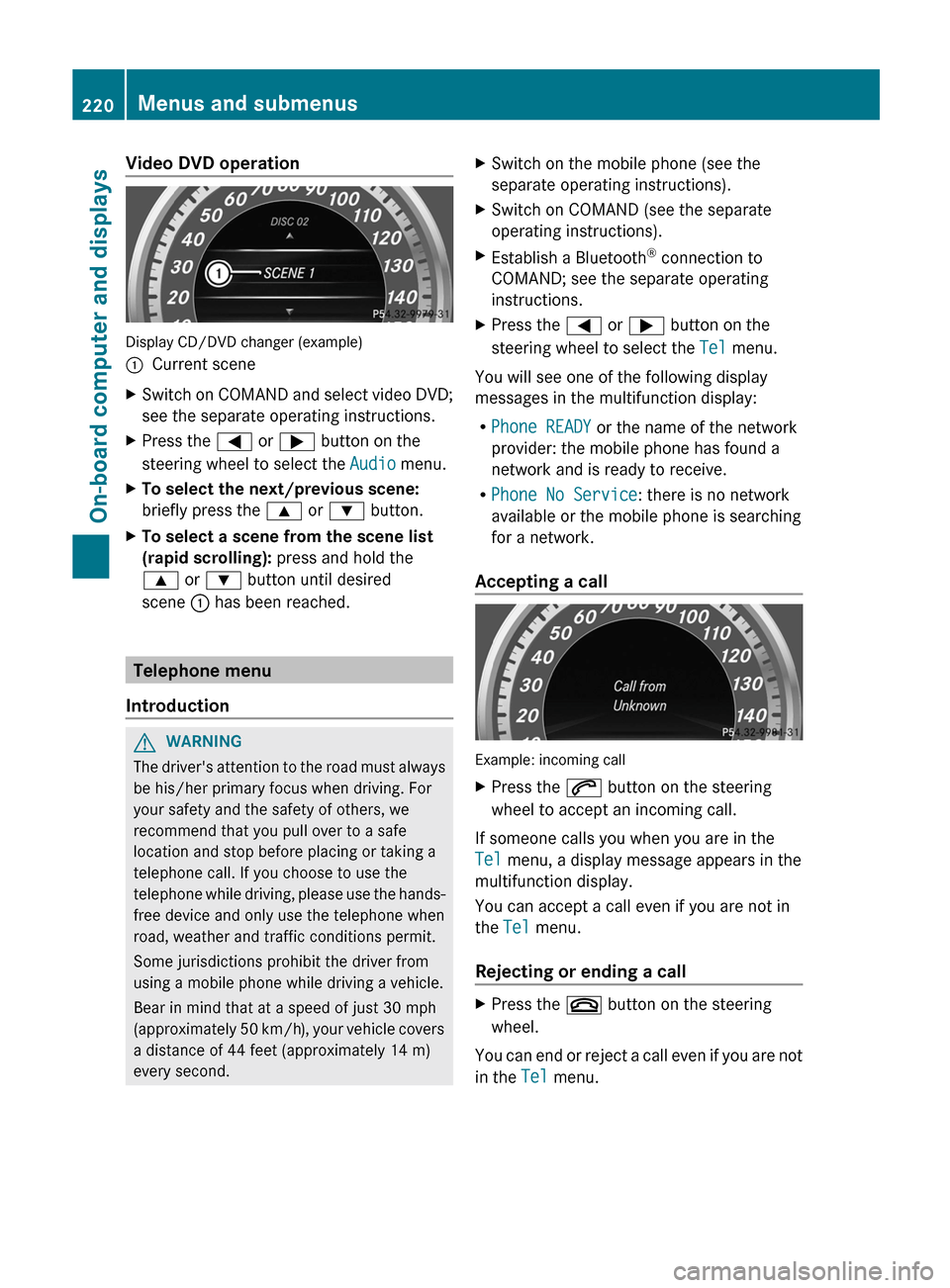
Display CD/DVD changer (example)
:
Current scene
X Switch on COMAND and select video DVD;
see the separate operating instructions.
X Press the = or ; button on the
steering wheel to select the Audio menu.
X To select the next/previous scene:
briefly press the 9 or : button.
X To select a scene from the scene list
(rapid scrolling): press and hold the
9 or : button until desired
scene : has been reached. Telephone menu
Introduction G
WARNING
The driver's attention to the road must always
be his/her primary focus when driving. For
your safety and the safety of others, we
recommend that you pull over to a safe
location and stop before placing or taking a
telephone call. If you choose to use the
telephone
while driving, please use the hands-
free device and only use the telephone when
road, weather and traffic conditions permit.
Some jurisdictions prohibit the driver from
using a mobile phone while driving a vehicle.
Bear in mind that at a speed of just 30 mph
(approximately 50 km/h), your vehicle covers
a distance of 44 feet (approximately 14 m)
every second. X
Switch on the mobile phone (see the
separate operating instructions).
X Switch on COMAND (see the separate
operating instructions).
X Establish a Bluetooth ®
connection to
COMAND; see the separate operating
instructions.
X Press the = or ; button on the
steering wheel to select the Tel menu.
You will see one of the following display
messages in the multifunction display:
R Phone READY or the name of the network
provider: the mobile phone has found a
network and is ready to receive.
R Phone No Service: there is no network
available or the mobile phone is searching
for a network.
Accepting a call Example: incoming call
X
Press the 6 button on the steering
wheel to accept an incoming call.
If someone calls you when you are in the
Tel menu, a display message appears in the
multifunction display.
You can accept a call even if you are not in
the Tel menu.
Rejecting or ending a call X
Press the ~ button on the steering
wheel.
You can end or reject a call even if you are not
in the Tel menu. 220
Menus and submenus
On-board computer and displays
Page 225 of 372
For further information about ATTENTION
ASSIST, see (
Y page 199).
Activating/deactivating Blind Spot
Assist X
Press = or ; on the steering wheel
to select the DriveAssist menu.
X Press the 9 or : button to select
Blind Spot Asst..
X Press the a button.
The current selection is displayed.
X To activate/deactivate: press the a
button again.
If the Blind Spot Assist Sensors
Deactivated or Act. Blind Spot Asst.
Sensors Deactivated message appears,
the radar sensor system is deactivated.
X Switch on the radar sensor system
(Y page 226).
For further information about Blind Spot
Assist, see (Y page 200).
For further information about Active Blind
Spot Assist, see (Y page 204).
Activating/deactivating Lane Keeping
Assist X
Press = or ; on the steering wheel
to select the DriveAssist menu.
X Press the 9 or : button to select
Lane Keep. Asst.
X Press the a button.
The current selection is displayed.
X Press a to confirm.
When Lane Keeping Assist or Active Lane
Keeping Assist is activated, the à symbol
appears in the multifunction display when the
ignition is on.
For further information about Active Lane
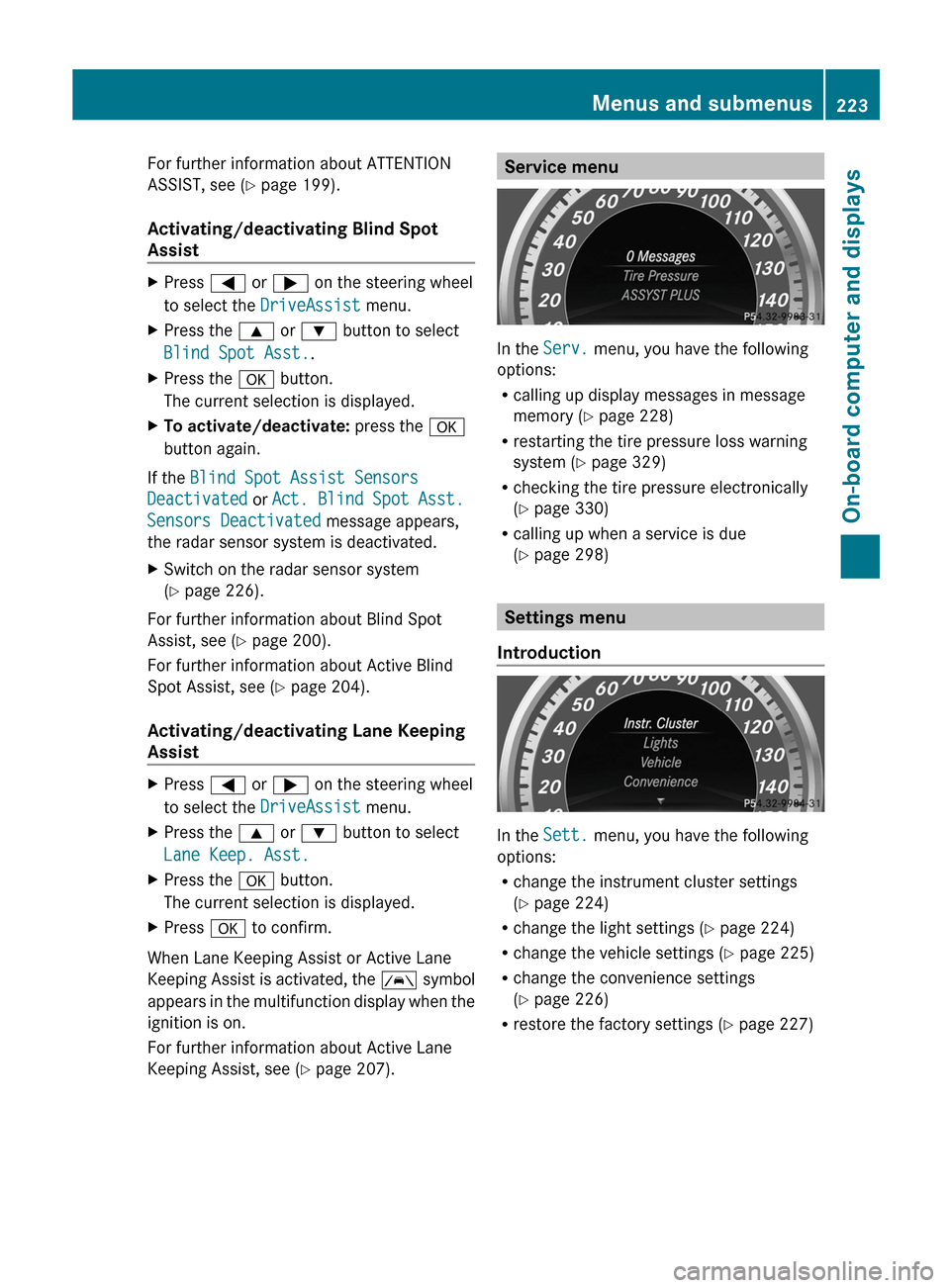
Keeping Assist, see ( Y page 207). Service menu
In the
Serv. menu, you have the following
options:
R calling up display messages in message
memory ( Y page 228)
R restarting the tire pressure loss warning
system (Y page 329)
R checking the tire pressure electronically
(Y page 330)
R calling up when a service is due
(Y page 298) Settings menu
Introduction In the
Sett. menu, you have the following
options:
R change the instrument cluster settings
(Y page 224)
R change the light settings ( Y page 224)
R change the vehicle settings ( Y page 225)
R change the convenience settings
(Y page 226)
R restore the factory settings
(Y page 227) Menus and submenus
223
On-board computer and displays Z
Page 277 of 372
Rear window roller sunblind (Coupe)
Important safety notes G
WARNING
When leaving the vehicle, always remove the
SmartKey from the ignition lock. Always take
the SmartKey with you and lock the vehicle.
Do not leave children unattended in the
vehicle, even if they are secured in a child
restraint system, or with access to an
unlocked vehicle. A child's unsupervised
access
to a vehicle could result in an accident
and/or serious personal injury. The children
could:
R injure themselves on parts of the vehicle
R be seriously or fatally injured through
excessive exposure to extreme heat or cold
R injure themselves or cause an accident with
vehicle equipment that can be operated
even if the SmartKey is removed from the
ignition lock or removed from the vehicle,
such as seat adjustment, steering wheel
adjustment, or the memory function
If children open a door, they could injure other
persons or get out of the vehicle and injure
themselves or be injured by following traffic.
Do not expose the child restraint system to
direct sunlight. The child restraint system's
metal parts, for example, could become very
hot, and the child could be burned on these
parts. G
WARNING
When adjusting a roller sunblind, the roller
blind moves up or down. You might become
trapped in the process.
In
the event of danger, briefly press the button
for the roller sunblind to change the roller
blind's direction of movement.
Extending/retracting the roller
sunblind !
Make sure that the roller sunblind can
move freely. Otherwise, the roller sunblind
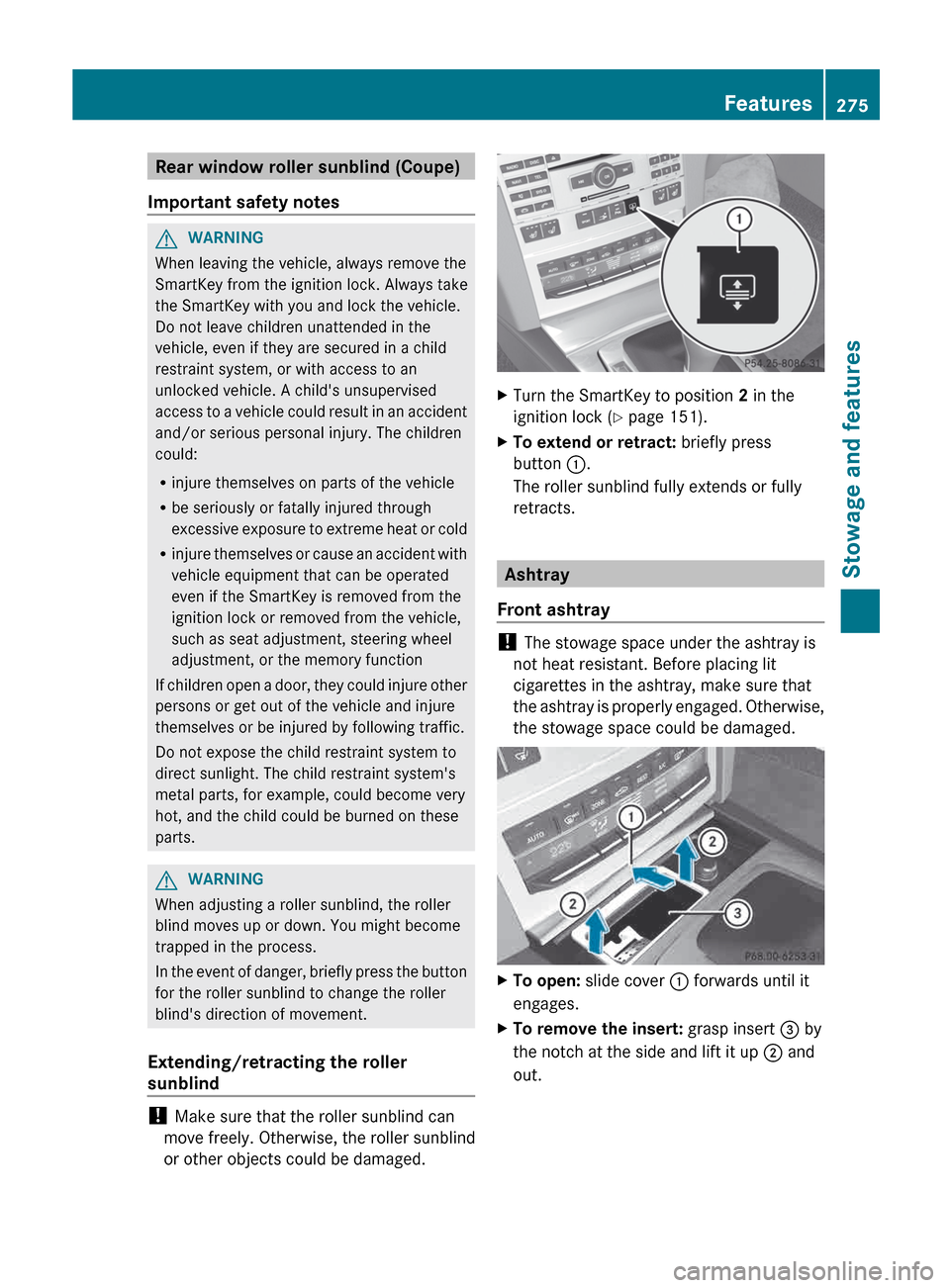
or other objects could be damaged. X
Turn the SmartKey to position 2 in the
ignition lock ( Y page 151).
X To extend or retract: briefly press
button :.
The roller sunblind fully extends or fully
retracts. Ashtray
Front ashtray !
The stowage space under the ashtray is
not heat resistant. Before placing lit
cigarettes in the ashtray, make sure that
the
ashtray is properly engaged. Otherwise,
the stowage space could be damaged. X
To open: slide cover : forwards until it
engages.
X To remove the insert: grasp insert = by
the notch at the side and lift it up ; and
out. Features
275
Stowage and features Z