steering MERCEDES-BENZ E-Class COUPE 2013 C207 Workshop Manual
[x] Cancel search | Manufacturer: MERCEDES-BENZ, Model Year: 2013, Model line: E-Class COUPE, Model: MERCEDES-BENZ E-Class COUPE 2013 C207Pages: 372, PDF Size: 12.69 MB
Page 206 of 372
lane marking, the system recognizes certain
conditions and warns you accordingly.
The warning vibration occurs earlier if:
R
you approach the outer lane marking on a
bend.
R the road has very wide lanes, e.g. a
freeway.
R the
system recognizes solid lane markings.
The warning vibration occurs later if:
R the road has narrow lanes.
R you cut the corner on a bend. Active Driving Assistance package
General notes The Active Driving Assistance package
consists of DISTRONIC PLUS
(Y page 177),
Active Blind Spot Assist (Y page 204) and
Active Lane Keeping Assist (Y page 208).
Active Blind Spot Assist Important safety notes
G
WARNING
Active Blind Spot Assist is only an aid, and
may detect vehicles/obstacles incorrectly or
not at all.
The system may be impaired or may not
function if:
R there is poor visibility, e.g. due to snow,
rain, fog or spray.
R the rear and/or front sensors are dirty.
Active Blind Spot Assist may not detect
narrow vehicles, such as motorcycles or
bicycles, or may only detect them too late. It
cannot detect vehicles that are overtaken at
a
small distance and then enter the blind spot
area.
Active Blind Spot Assist cannot detect road
and traffic conditions. It is not a substitute for
attentive driving. You are responsible for the
vehicle's speed, braking in good time, and
steering correctly. Always adapt your driving style to suit the prevailing road and weather
conditions. Always pay attention to traffic
conditions
and your surroundings. Otherwise,
you may fail to recognize dangers in time,
cause an accident and injure yourself and
others.
i USA only:
This device has been approved by the FCC
as a “Vehicular Radar System”. The radar
sensor is intended for use in an automotive
radar system only. Removal, tampering, or
altering of the device will void any
warranties, and is not permitted by the
FCC. Do not tamper with, alter, or use in
any non-approved way.
Any unauthorized modification to this
device could void the user’s authority to
operate the equipment.
i Canada only: This device complies with
RSS-210 of Industry Canada. Operation is
subject to the following two conditions:
1. This device may not cause interference,
and
2. this device must accept any interference
received, including interference that may
cause undesired operation of the device.
Removal, tampering, or altering of the
device will void any warranties and is not
permitted. Do not tamper with, alter, or use
the device in any non-approved way.
Any unauthorized modification to this
device could void the user's authority to
operate the equipment.
General notes
Active Blind Spot Assist uses a radar sensor
system to monitor the side areas of your
vehicle which are in back of the driver. A
warning display in the exterior mirrors draws
your attention to vehicles detected in the
monitored area. If you then switch on the
corresponding turn signal to change lane, you
will also receive an optical and audible
warning. If a risk of lateral collision is
detected, corrective braking may help you 204
Driving systems
Driving and parking
Page 208 of 372
specialist workshop. Active Blind Spot Assist
may otherwise no longer work properly.
Indicator and warning display
G
WARNING
Active Blind Spot Assist is not active at speeds
below 20 mph (30km/h). The indicator lamps
in the exterior mirrors are yellow. Vehicles in
the monitoring range are then not indicated.
Always pay attention to traffic conditions and
your surroundings. Otherwise, you may fail to
recognize dangers in time, cause an accident
and injure yourself and others. :
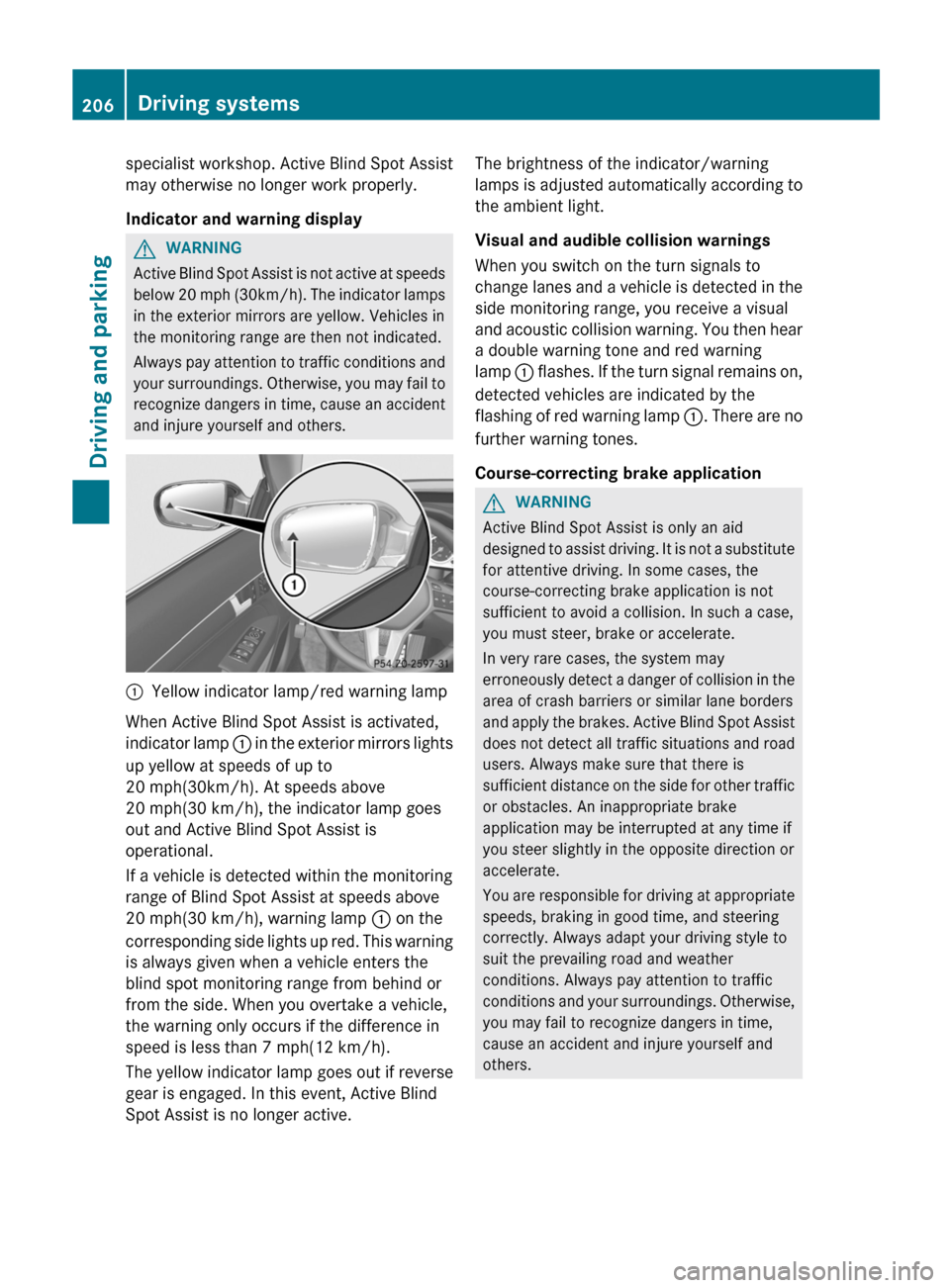
Yellow indicator lamp/red warning lamp
When Active Blind Spot Assist is activated,
indicator
lamp : in the exterior mirrors lights
up yellow at speeds of up to
20 mph(30km/h). At speeds above
20 mph(30 km/h), the indicator lamp goes
out and Active Blind Spot Assist is
operational.
If a vehicle is detected within the monitoring
range of Blind Spot Assist at speeds above
20 mph(30 km/h), warning lamp : on the
corresponding side lights up red. This warning
is always given when a vehicle enters the
blind spot monitoring range from behind or
from the side. When you overtake a vehicle,
the warning only occurs if the difference in
speed is less than 7 mph(12 km/h).
The yellow indicator lamp goes out if reverse
gear is engaged. In this event, Active Blind
Spot Assist is no longer active. The brightness of the indicator/warning
lamps
is adjusted automatically according to
the ambient light.
Visual and audible collision warnings
When you switch on the turn signals to
change lanes and a vehicle is detected in the
side monitoring range, you receive a visual
and acoustic collision warning. You then hear
a double warning tone and red warning
lamp : flashes. If the turn signal remains on,
detected vehicles are indicated by the
flashing of red warning lamp :. There are no
further warning tones.
Course-correcting brake application G
WARNING
Active Blind Spot Assist is only an aid
designed
to assist driving. It is not a substitute
for attentive driving. In some cases, the
course-correcting brake application is not
sufficient to avoid a collision. In such a case,
you must steer, brake or accelerate.
In very rare cases, the system may
erroneously detect a danger of collision in the
area of crash barriers or similar lane borders
and apply the brakes. Active Blind Spot Assist
does not detect all traffic situations and road
users. Always make sure that there is
sufficient distance on the side for other traffic
or obstacles. An inappropriate brake
application may be interrupted at any time if
you steer slightly in the opposite direction or
accelerate.
You are responsible for driving at appropriate
speeds, braking in good time, and steering
correctly. Always adapt your driving style to
suit the prevailing road and weather
conditions. Always pay attention to traffic
conditions and your surroundings. Otherwise,
you may fail to recognize dangers in time,
cause an accident and injure yourself and
others. 206
Driving systems
Driving and parking
Page 210 of 372
R
the lane markings change quickly, e.g.
branch off, cross or merge.
R the road is narrow and winding.
Active Lane Keeping Assist cannot detect
road and traffic conditions. It is not a
substitute for attentive driving. You are
responsible
for the vehicle's speed, braking in
good time and steering correctly. Always
adapt your driving style to suit the prevailing
road and weather conditions. Always pay
attention to traffic conditions and your
surroundings. Otherwise, you may fail to
recognize dangers in time, cause an accident
and injure yourself and others.
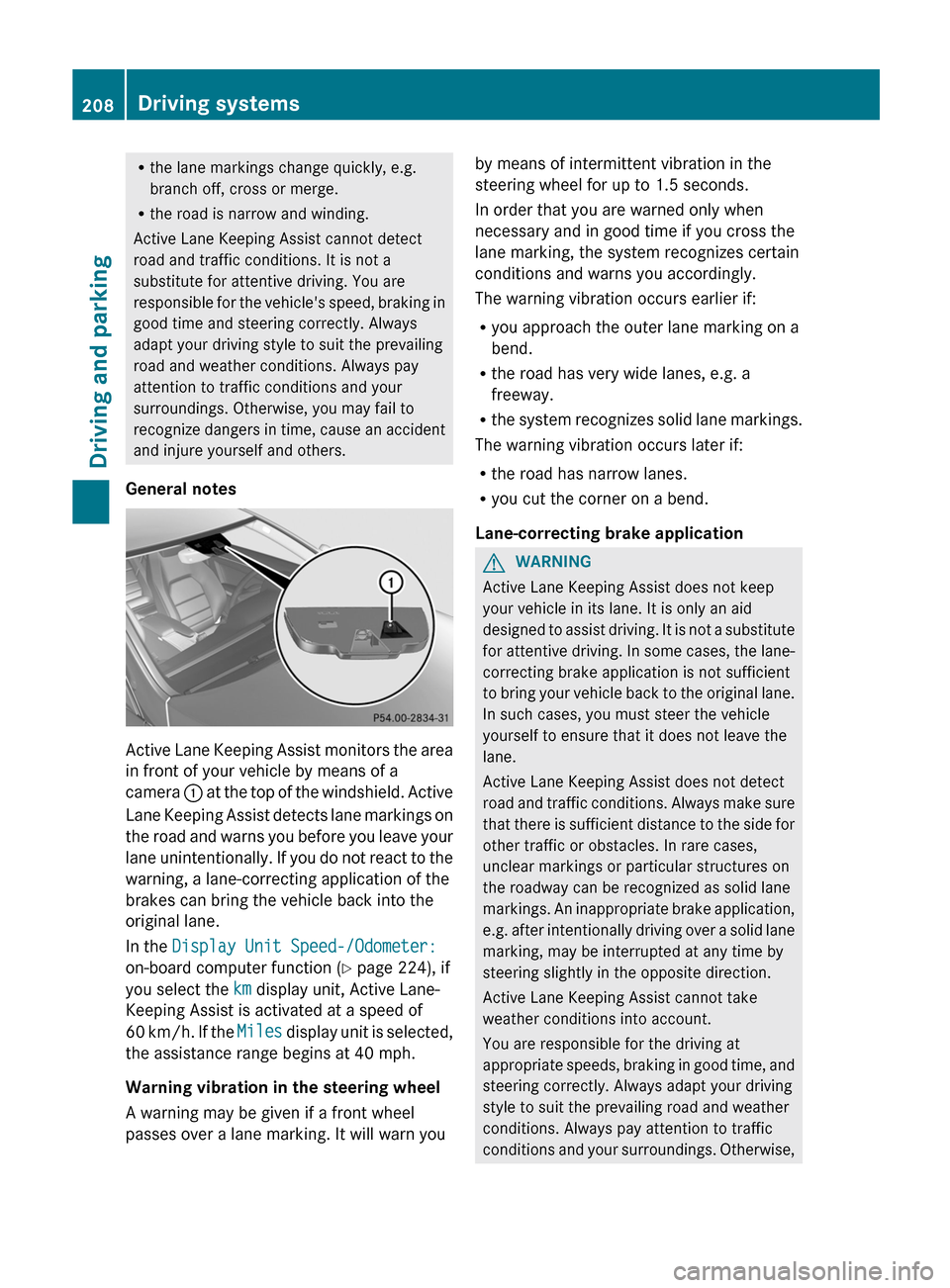
General notes Active Lane Keeping Assist monitors the area
in front of your vehicle by means of a
camera
:
at the top of the windshield. Active
Lane Keeping Assist detects lane markings on
the road and warns you before you leave your
lane unintentionally. If you do not react to the
warning, a lane-correcting application of the
brakes can bring the vehicle back into the
original lane.
In the Display Unit Speed-/Odometer:
on-board computer function (Y page 224), if
you select the km display unit, Active Lane-
Keeping Assist is activated at a speed of
60 km/h. If the Miles display unit is selected,
the assistance range begins at 40 mph.
Warning vibration in the steering wheel
A warning may be given if a front wheel
passes over a lane marking. It will warn you by means of intermittent vibration in the
steering wheel for up to 1.5 seconds.
In order that you are warned only when
necessary and in good time if you cross the
lane marking, the system recognizes certain
conditions and warns you accordingly.
The warning vibration occurs earlier if:
R
you approach the outer lane marking on a
bend.
R the road has very wide lanes, e.g. a
freeway.
R the
system recognizes solid lane markings.
The warning vibration occurs later if:
R the road has narrow lanes.
R you cut the corner on a bend.
Lane-correcting brake application G
WARNING
Active Lane Keeping Assist does not keep
your vehicle in its lane. It is only an aid
designed
to assist driving. It is not a substitute
for attentive driving. In some cases, the lane-
correcting brake application is not sufficient
to bring your vehicle back to the original lane.
In such cases, you must steer the vehicle
yourself to ensure that it does not leave the
lane.
Active Lane Keeping Assist does not detect
road and traffic conditions. Always make sure
that there is sufficient distance to the side for
other traffic or obstacles. In rare cases,
unclear markings or particular structures on
the roadway can be recognized as solid lane
markings. An inappropriate brake application,
e.g. after intentionally driving over a solid lane
marking, may be interrupted at any time by
steering slightly in the opposite direction.
Active Lane Keeping Assist cannot take
weather conditions into account.
You are responsible for the driving at
appropriate speeds, braking in good time, and
steering correctly. Always adapt your driving
style to suit the prevailing road and weather
conditions. Always pay attention to traffic
conditions and your surroundings. Otherwise, 208
Driving systems
Driving and parking
Page 211 of 372
you may fail to recognize dangers in time,
cause an accident and injure yourself and
others.
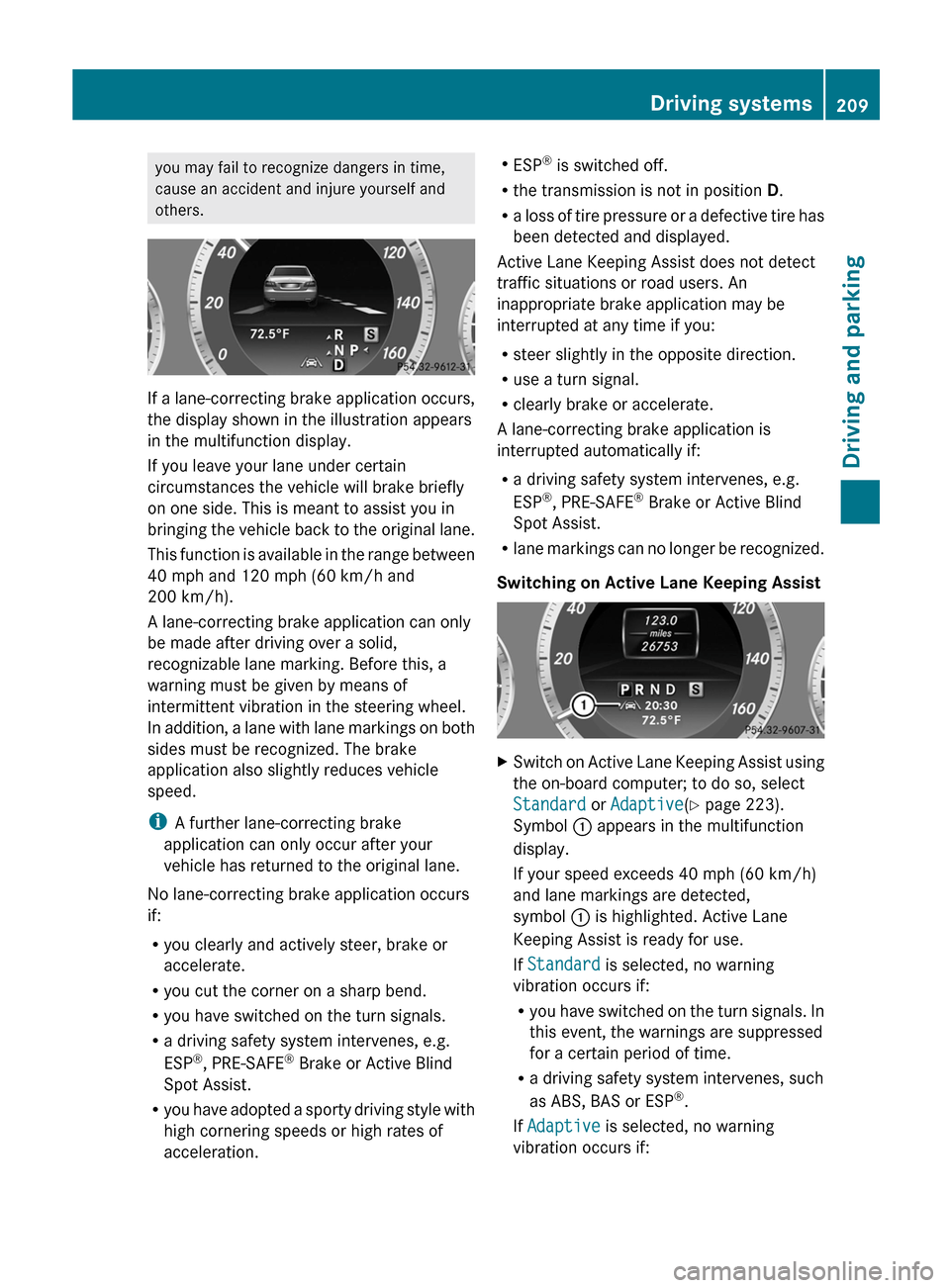
If a lane-correcting brake application occurs,
the display shown in the illustration appears
in the multifunction display.
If you leave your lane under certain
circumstances the vehicle will brake briefly
on one side. This is meant to assist you in
bringing
the vehicle back to the original lane.
This function is available in the range between
40 mph and 120 mph (60 km/h and
200 km/h).
A lane-correcting brake application can only
be made after driving over a solid,
recognizable lane marking. Before this, a
warning must be given by means of
intermittent vibration in the steering wheel.
In addition, a lane with lane markings on both
sides must be recognized. The brake
application also slightly reduces vehicle
speed.
i A further lane-correcting brake
application can only occur after your
vehicle has returned to the original lane.
No lane-correcting brake application occurs
if:
R you clearly and actively steer, brake or
accelerate.
R you cut the corner on a sharp bend.
R you have switched on the turn signals.
R a driving safety system intervenes, e.g.
ESP ®
, PRE-SAFE ®
Brake or Active Blind
Spot Assist.
R you have adopted a sporty driving style with
high cornering speeds or high rates of
acceleration. R
ESP ®
is switched off.
R the transmission is not in position D.
R a
loss of tire pressure or a defective tire has
been detected and displayed.
Active Lane Keeping Assist does not detect
traffic situations or road users. An
inappropriate brake application may be
interrupted at any time if you:
R steer slightly in the opposite direction.
R use a turn signal.
R clearly brake or accelerate.
A lane-correcting brake application is
interrupted automatically if:
R a driving safety system intervenes, e.g.
ESP ®
, PRE-SAFE ®
Brake or Active Blind
Spot Assist.
R lane markings can no longer be recognized.
Switching on Active Lane Keeping Assist X
Switch on Active Lane Keeping Assist using
the on-board computer; to do so, select
Standard or Adaptive(Y page 223).
Symbol : appears in the multifunction
display.
If your speed exceeds
40 mph (60 km/h)
and lane markings are detected,
symbol : is highlighted. Active Lane
Keeping Assist is ready for use.
If Standard is selected, no warning
vibration occurs if:
R you have switched on the turn signals. In
this event, the warnings are suppressed
for a certain period of time.
R a driving safety system intervenes, such
as ABS, BAS or ESP ®
.
If Adaptive is selected, no warning
vibration occurs if: Driving systems
209
Driving and parking Z
Page 214 of 372
Useful information
i This Operator's Manual describes all
models and all standard and optional
equipment of your vehicle available at the
time of publication of the Operator's
Manual. Country-specific differences are
possible.
Please note that your vehicle may
not be equipped with all features
described. This also applies to safety-
related systems and functions.
i Read the information on qualified
specialist workshops: ( Y page 24).Important safety notes
G
WARNING
The driver's concentration must always be
directed primarily at road traffic.
For your safety and the safety of others,
selecting features through the multifunction
steering wheel should only be done by the
driver
when traffic and road conditions permit
it to be done safely.
Bear in mind that at a speed of only 30 mph
(approximately 50 km/h), the vehicle covers
a distance of 44 feet (approximately 14 m) per
second. G
WARNING
No messages will be displayed if either the
instrument cluster or the multifunction
display is inoperative.
As a result, you will not be able to see
information about your driving conditions,
such as
R speed
R outside temperature
R warning/indicator lamps
R malfunction/warning messages
R failure of any systems
Driving characteristics may be impaired. If you must continue to drive, do so with added
caution. Contact an authorized Mercedes-
Benz Center as soon as possible.
G
WARNING
Malfunction and warning messages are only
displayed for certain systems and are
intentionally not very detailed. The
malfunction and warning messages are
simply a reminder with respect to the
operation of certain systems. They do not
replace the owner's and/or driver's
responsibility to maintain the vehicle's
operating safety. Have all required
maintenance services and safety checks
performed
on the vehicle. Bring the vehicle to
an authorized Mercedes-Benz Center to
address the malfunction and warning
messages. G
WARNING
All categories of messages contain important
information which should be taken note of
and, where a malfunction is indicated,
addressed as soon as possible at an
authorized Mercedes-Benz Center.
Failure to repair the condition noted may
cause
damage not covered by the Mercedes-
Benz Limited Warranty, or result in property
damage or personal injury.
For an illustration of the instrument cluster,
see ( Y page 29).212
Important safety notes
On-board computer and displays
Page 217 of 372
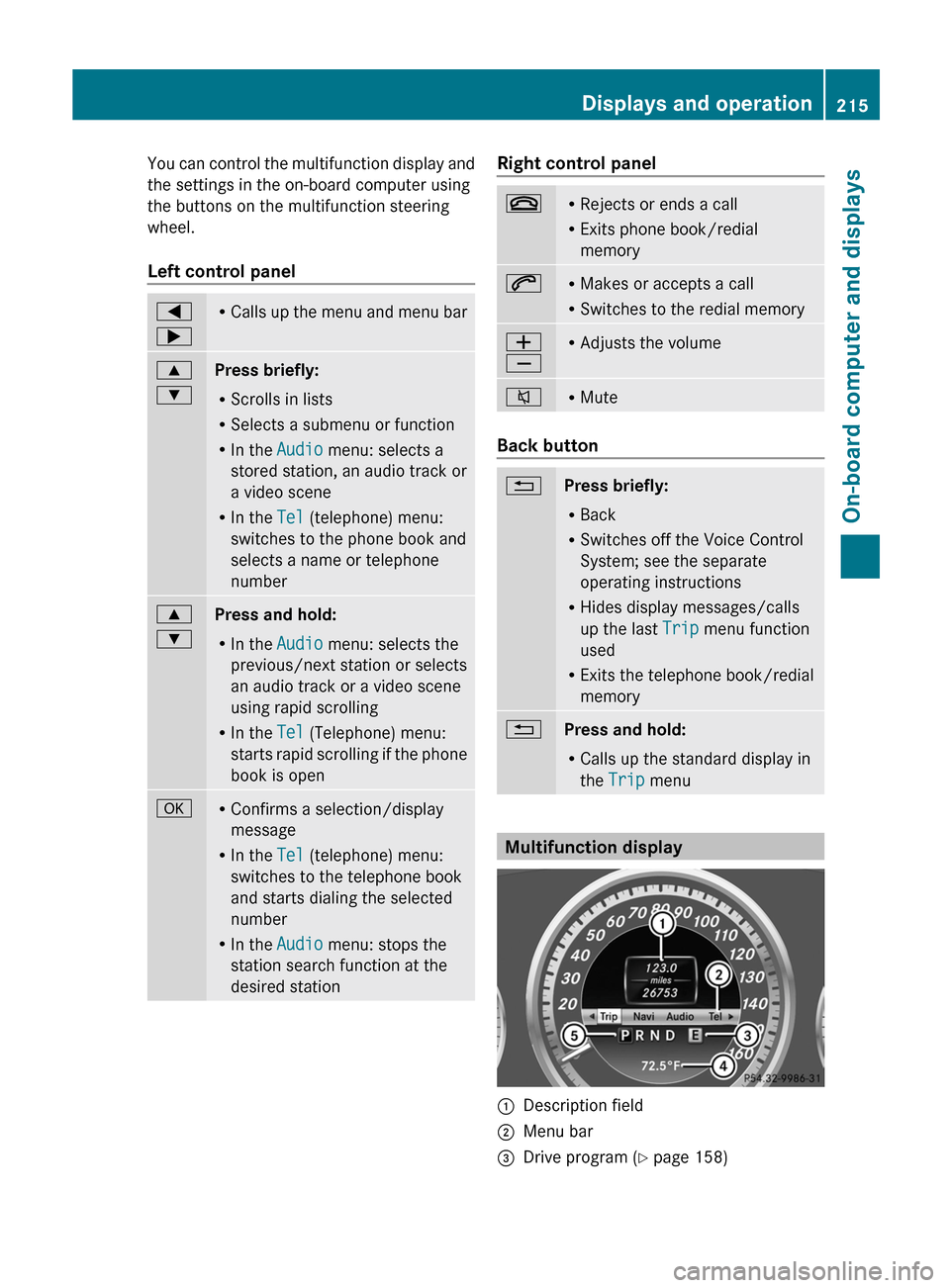
You can control the multifunction display and
the settings in the on-board computer using
the buttons on the multifunction steering
wheel.
Left control panel
=
; R
Calls up the menu and menu bar 9
:
Press briefly:
R
Scrolls in lists
R Selects a submenu or function
R In the Audio menu: selects a
stored station, an audio track or
a video scene
R In the Tel (telephone) menu:
switches to the phone book and
selects a name or telephone
number 9
:
Press and hold:
R
In the Audio menu: selects the
previous/next station or selects
an audio track or a video scene
using rapid scrolling
R In the Tel (Telephone) menu:
starts
rapid scrolling if the phone
book is open a R
Confirms a selection/display
message
R In the Tel (telephone) menu:
switches to the telephone book
and starts dialing the selected
number
R In the Audio menu: stops the
station search function at the
desired station Right control panel
~ R
Rejects or ends a call
R Exits phone book/redial
memory 6 R
Makes or accepts a call
R Switches to the redial memory W
X R
Adjusts the volume 8 R
Mute Back button
%
Press briefly:
R
Back
R Switches off the Voice Control
System; see the separate
operating instructions
R Hides display messages/calls
up the last Trip menu function
used
R Exits the telephone book/redial
memory %
Press and hold:
R
Calls up the standard display in
the Trip menu Multifunction display
:
Description field
; Menu bar
= Drive program (Y page 158) Displays and operation
215
On-board computer and displays Z
Page 218 of 372
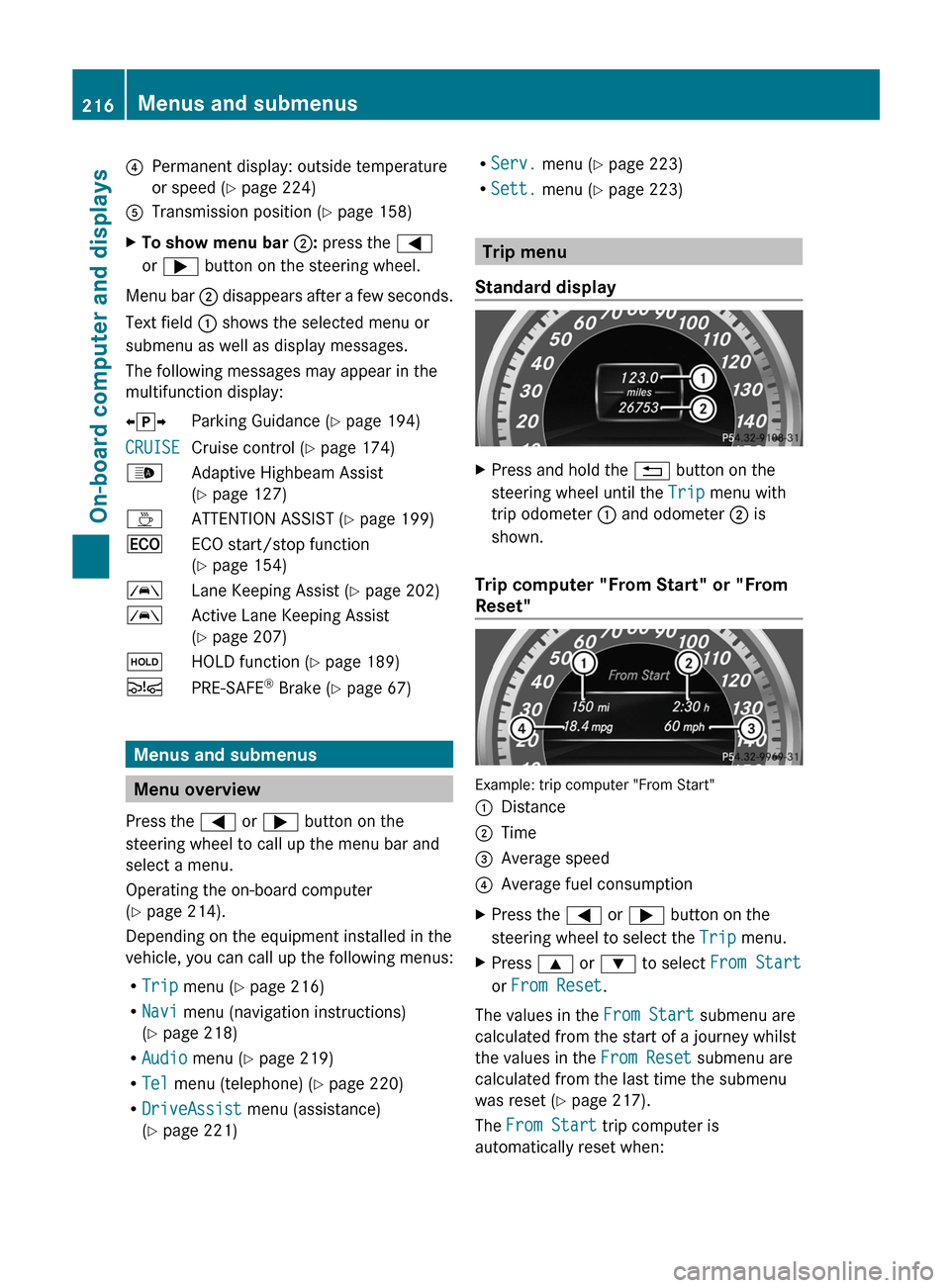
?
Permanent display: outside temperature
or speed ( Y page 224)
A Transmission position ( Y page 158)
X To show menu bar ;: press the =
or ; button on the steering wheel.
Menu bar ; disappears after a few seconds.
Text field : shows the selected menu or
submenu as well as display messages.
The following messages may appear in the
multifunction display:
XjY Parking Guidance (Y page 194)
CRUISE Cruise control (
Y page 174)
_ Adaptive Highbeam Assist
(Y page 127)
À ATTENTION ASSIST (Y page 199)
¤ ECO start/stop function
(Y page 154)
à Lane Keeping Assist (Y page 202)
à Active Lane Keeping Assist
(Y page 207)
ë HOLD function ( Y page 189)
Ä PRE-SAFE ®
Brake (Y page 67) Menus and submenus
Menu overview
Press the = or ; button on the
steering wheel to call up the menu bar and
select a menu.
Operating the on-board computer
(Y page 214).
Depending on the equipment installed in the
vehicle, you can call up the following menus:
R Trip menu (Y page 216)
R Navi menu (navigation instructions)
(Y page 218)
R Audio menu (Y page 219)
R Tel menu (telephone) ( Y page 220)
R DriveAssist menu (assistance)
(Y page 221) R
Serv. menu (Y page 223)
R Sett. menu (Y page 223) Trip menu
Standard display X
Press and hold the % button on the
steering wheel until the Trip menu with
trip odometer : and odometer ; is
shown.
Trip computer "From Start" or "From
Reset" Example: trip computer "From Start"
:
Distance
; Time
= Average speed
? Average fuel consumption
X Press the = or ; button on the
steering wheel to select the Trip menu.
X Press 9 or : to select From Start
or From Reset.
The values in the From Start submenu are
calculated from the start of a journey whilst
the values in the From Reset submenu are
calculated from the last time the submenu
was reset ( Y page 217).
The From Start trip computer is
automatically reset when: 216
Menus and submenus
On-board computer and displays
Page 219 of 372
R
The ignition has been switched off for more
than four hours.
R 999 hours have been exceeded.
R 9,999 miles have been exceeded.
The From Reset trip computer is
automatically reset if the value exceeds
9,999 hours or 99,999 miles.
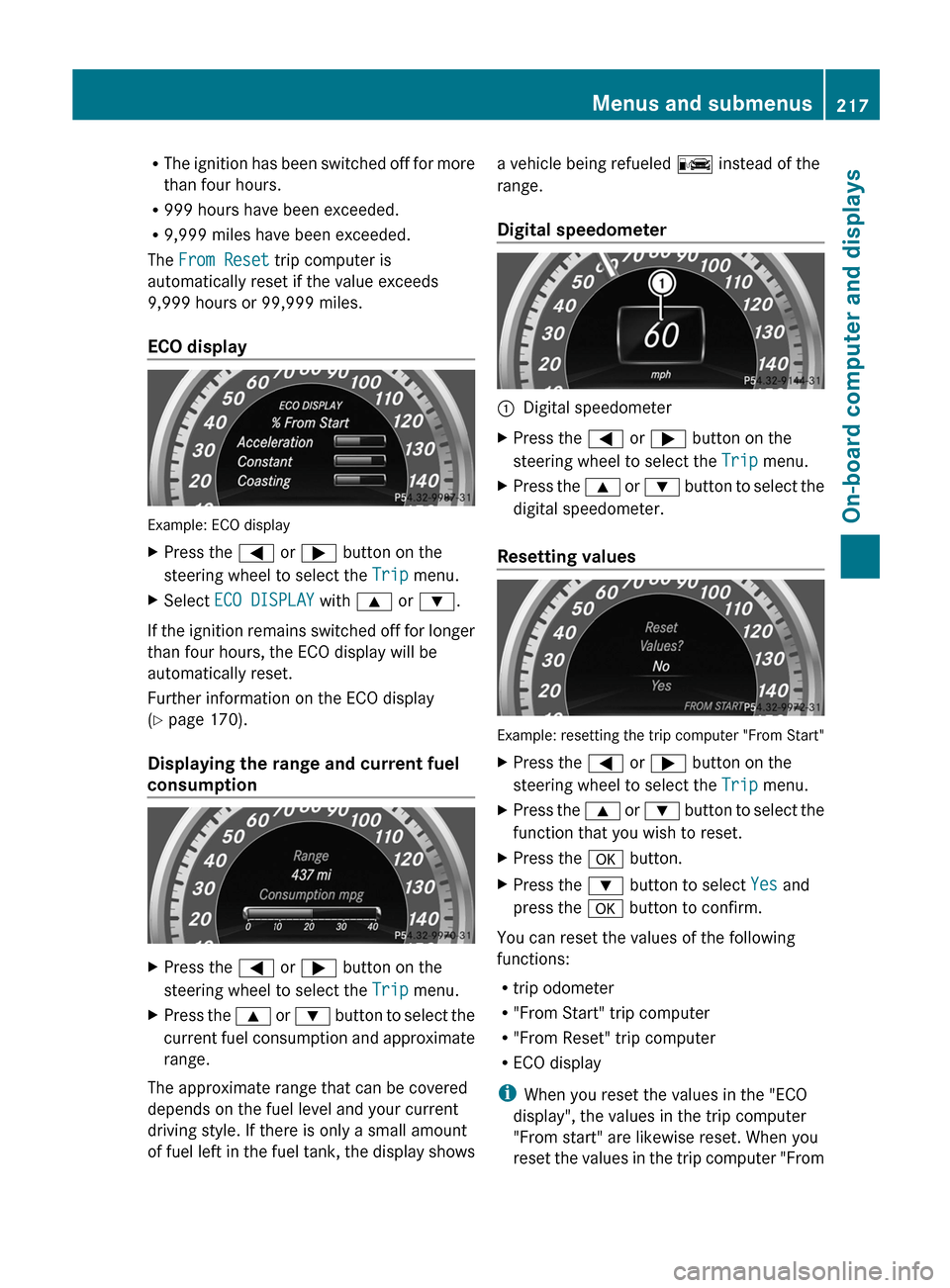
ECO display Example: ECO display
X
Press the = or ; button on the
steering wheel to select the Trip menu.
X Select ECO DISPLAY with 9 or :.
If the ignition remains switched off for longer
than four hours, the ECO display will be
automatically reset.
Further information on the ECO display
(Y page 170).
Displaying the range and current fuel
consumption X
Press the = or ; button on the
steering wheel to select the Trip menu.
X Press the 9
or : button to select the
current fuel consumption and approximate
range.
The approximate range that can be covered
depends on the fuel level and your current
driving style. If there is only a small amount
of
fuel left in the fuel tank, the display shows a vehicle being refueled
C instead of the
range.
Digital speedometer :
Digital speedometer
X Press the = or ; button on the
steering wheel to select the Trip menu.
X Press the 9
or : button to select the
digital speedometer.
Resetting values Example: resetting the trip computer "From Start"
X
Press the = or ; button on the
steering wheel to select the Trip menu.
X Press the 9
or : button to select the
function that you wish to reset.
X Press the a button.
X Press the : button to select Yes and
press the a button to confirm.
You can reset the values of the following
functions:
R trip odometer
R "From Start" trip computer
R "From Reset" trip computer
R ECO display
i When you reset the values in the "ECO
display", the values in the trip computer
"From start" are likewise reset. When you
reset
the values in the trip computer "From Menus and submenus
217
On-board computer and displays Z
Page 220 of 372
start", the values in the "ECO display"are
likewise reset.
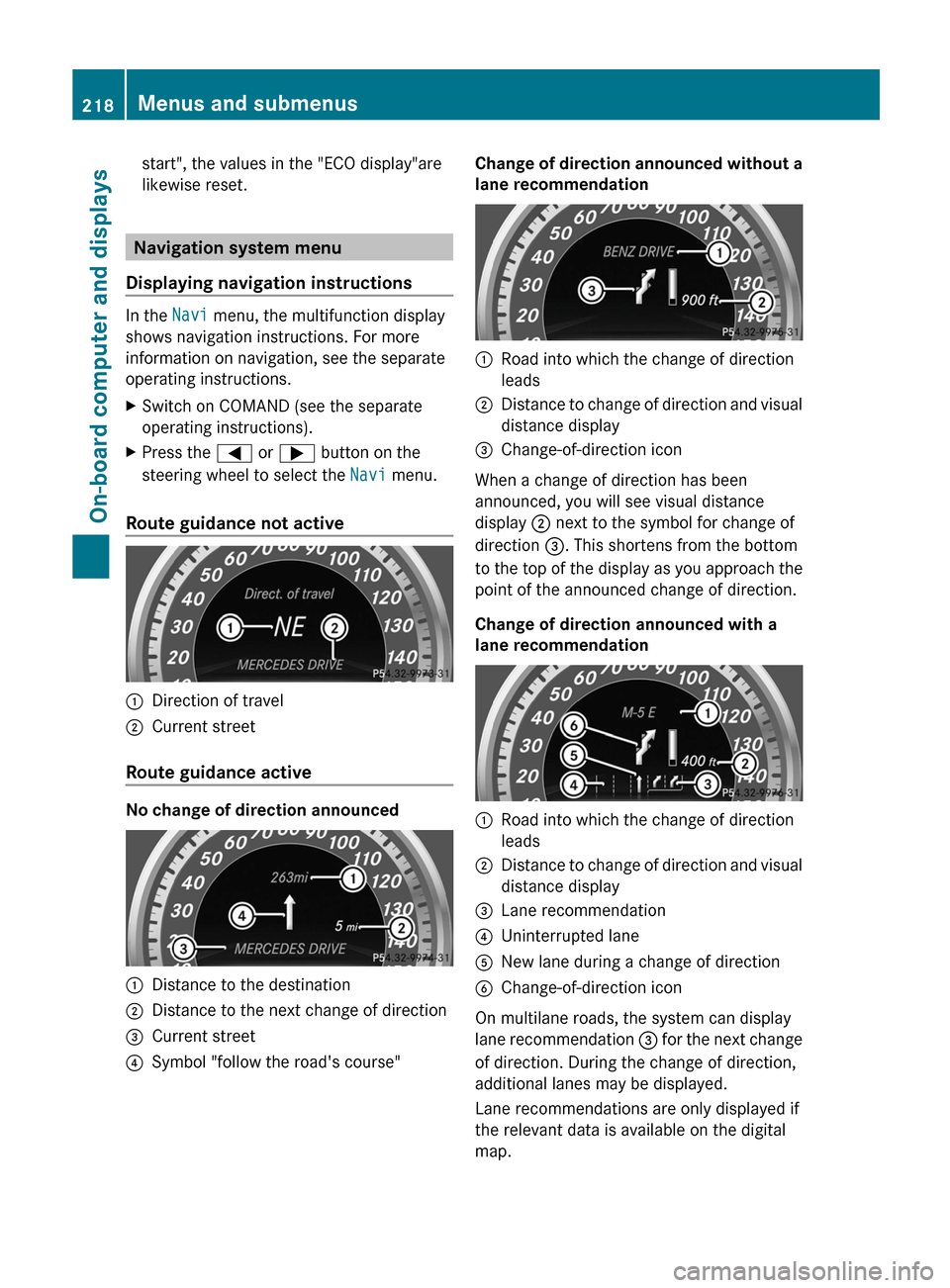
Navigation system menu
Displaying navigation instructions In the
Navi menu, the multifunction display
shows navigation instructions. For more
information on navigation, see the separate
operating instructions.
X Switch on COMAND (see the separate
operating instructions).
X Press the = or ; button on the
steering wheel to select the Navi menu.
Route guidance not active :
Direction of travel
; Current street
Route guidance active No change of direction announced
:
Distance to the destination
; Distance to the next change of direction
= Current street
? Symbol "follow the road's course" Change of direction announced without a
lane recommendation
:
Road into which the change of direction
leads
; Distance to change of direction and visual
distance display
= Change-of-direction icon
When a change of direction has been
announced, you will see visual distance
display ; next to the symbol for change of
direction =. This shortens from the bottom
to
the top of the display as you approach the
point of the announced change of direction.
Change of direction announced with a
lane recommendation :
Road into which the change of direction
leads
; Distance to change of direction and visual
distance display
= Lane recommendation
? Uninterrupted lane
A New lane during a change of direction
B Change-of-direction icon
On multilane roads, the system can display
lane
recommendation = for the next change
of direction. During the change of direction,
additional lanes may be displayed.
Lane recommendations are only displayed if
the relevant data is available on the digital
map. 218
Menus and submenus
On-board computer and displays
Page 221 of 372
Other status indicators of the
navigation system
R
O: you have reached the destination or an
intermediate destination.
R New Route... or Calculating Route:
calculating a new route
R Off Map or Off Mapped Road : the vehicle
position is outside the area of the digital
map (off-map position).
R No Route : no route could be calculated to
the selected destination. Audio menu
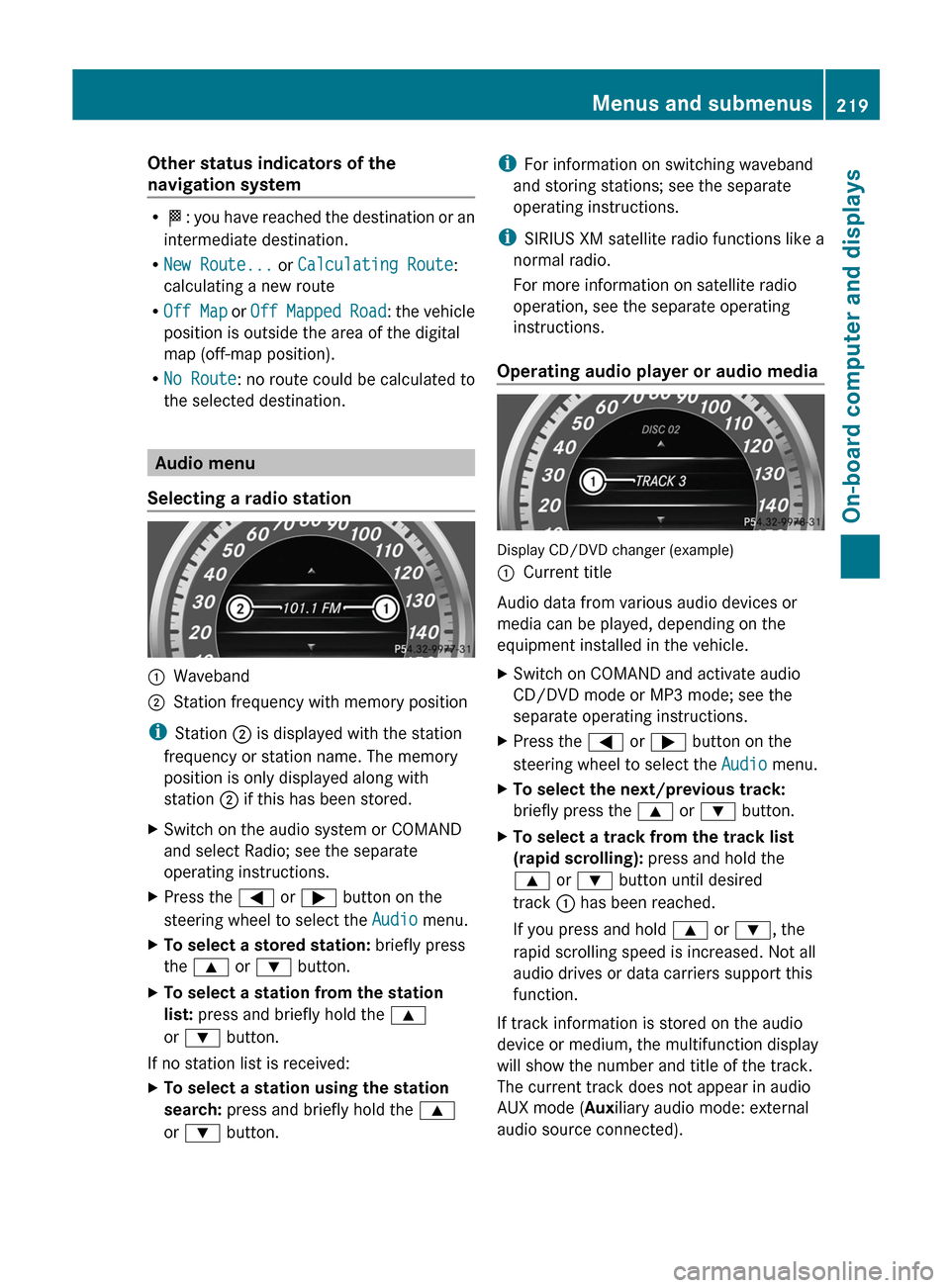
Selecting a radio station :
Waveband
; Station frequency with memory position
i Station ; is displayed with the station
frequency or station name. The memory
position is only displayed along with
station ; if this has been stored.
X Switch on the audio system or COMAND
and select Radio; see the separate
operating instructions.
X Press the = or ; button on the
steering wheel to select the Audio menu.
X To select a stored station: briefly press
the 9 or : button.
X To select a station from the station
list: press and briefly hold the 9
or : button.
If no station list is received:
X To select a station using the station
search: press and briefly hold the 9
or : button. i
For information on switching waveband
and storing stations; see the separate
operating instructions.
i SIRIUS XM satellite radio functions like a
normal radio.
For more information on satellite radio
operation, see the separate operating
instructions.
Operating audio player or audio media Display CD/DVD changer (example)
:
Current title
Audio data from various audio devices or
media can be played, depending on the
equipment installed in the vehicle.
X Switch on COMAND and activate audio
CD/DVD mode or MP3 mode; see the
separate operating instructions.
X Press the = or ; button on the
steering wheel to select the Audio menu.
X To select the next/previous track:
briefly press the 9 or : button.
X To select a track from the track list
(rapid scrolling): press and hold the
9 or : button until desired
track : has been reached.
If you press and hold 9 or :, the
rapid scrolling speed is increased. Not all
audio drives or data carriers support this
function.
If track information is stored on the audio
device or medium, the multifunction display
will show the number and title of the track.
The current track does not appear in audio
AUX mode (Auxiliary audio mode: external
audio source connected). Menus and submenus
219
On-board computer and displays Z