radio MERCEDES-BENZ E-CLASS COUPE 2017 User Guide
[x] Cancel search | Manufacturer: MERCEDES-BENZ, Model Year: 2017, Model line: E-CLASS COUPE, Model: MERCEDES-BENZ E-CLASS COUPE 2017Pages: 541, PDF Size: 10.71 MB
Page 267 of 541
Ad
justing the volume #
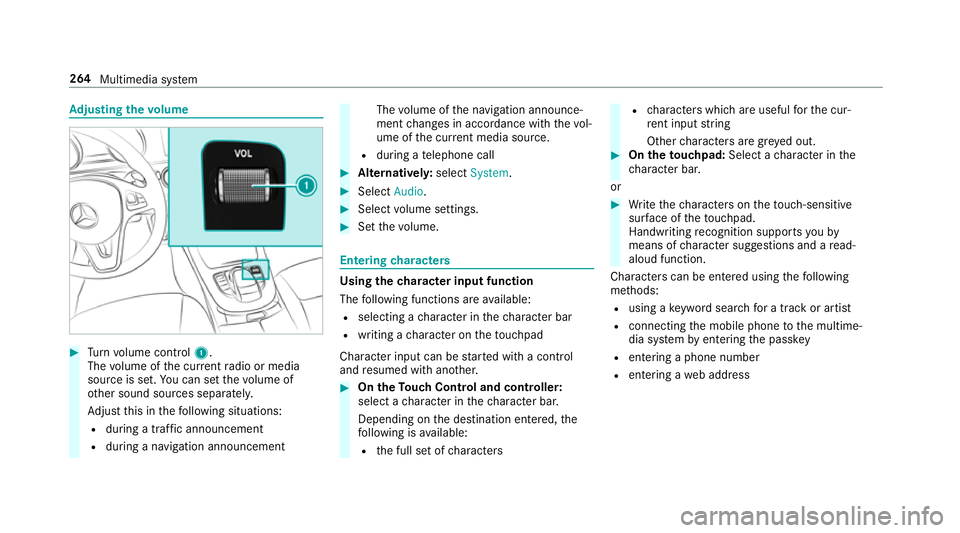
Turn volume control 1.
The volume of the cur rent radio or media
source is set. You can set thevo lume of
ot her sound sources separatel y.
Ad just this in thefo llowing situations:
R during a traf fic announcement
R during a navigation announcement The
volume of the navigation announce‐
ment changes in accordance with thevo l‐
ume of the cur rent media sou rce.
R during a telephone call #
Alternativel y:select System. #
Select Audio. #
Select volume settings. #
Set thevo lume. Entering
characters Using
thech aracter input function
The following functions are available:
R selecting a character in thech aracter bar
R writing a character on theto uchpad
Character input can be star ted with a control
and resumed with ano ther. #
On theTo uch Control and controller:
select a character in thech aracter bar.
Depending on the destination entered, the
fo llowing is available:
R the full set of characters R
characters which are useful forth e cur‐
re nt input string
Other characters are gr eyed out. #
On theto uchpad: Select acharacter in the
ch aracter bar.
or #
Write thech aracters on theto uch-sensitive
sur face of theto uchpad.
Handwriting recognition suppo rts yo uby
means of character suggestions and a read-
aloud function.
Characters can be entered using thefo llowing
me thods:
R using a keyword sear chfor a track or artist
R connecting the mobile phone tothe multime‐
dia sy stem byentering the passk ey
R entering a phone number
R entering a web address 264
Multimedia sy stem
Page 291 of 541
R
Registration is car ried out at a Mercedes-
Benz Service Centre on the Mercedes me
we bsite.
R Ifre gistration is not comple ted within this
time period, Live Traf fic Information will be
deactivated. If Live Traf fic Information is
used af terth is period, e.g. af ter six months,
th ere maining free usage period is 2.5years.
In fo rm ation on theve hicle's position is regularly
sent toDaimler AG. The da tais immediately ren‐
de red anonymous byDaimler AGand forw arded
to the traf fic da taprov ider. Using this data, traf‐
fi c re ports releva nt totheve hicle's position are
sent totheve hicle. The vehicle acts as a sensor
fo rth eflow of traf fic and helps toimpr ovethe
qu ality of the tra ffic reports.
If yo u do not wish totransmit your vehicle posi‐
tion, you can ha vethis service deactivated at a
Mercedes-Benz Service Cent re.
Useful information on FM RDS-TMC:
R A FM RDS-TMC radio station broadcasts traf‐
fi c re ports alongside thera dio prog ramme.
R FM RDS-TMC is not available in all countries. Displ
aying subscription information
Re quirement:
R The vehicle is equipped with Live Traf fic
Information.
Multimedia sy stem:
, Navigation .
Z Options
The subscription expiry date is automatically dis‐
pla yed:
R one month before theex piry date.
R one week before theex piry date.
R ontheex piry date. #
Todispl aymanuall y:select Live Traffic Sub-
scription Info.
Depending on thest atus, one of thefo llowing
messages appears:
R The period of validity forth e subscription
is displa yed.
R The subscription has expired. #
Select Extend subscription .
The website forex tending the subscription is
called up. #
Ente r and confirm dates or follow the instruc‐
tions.
Re gis tering on Mercedes me
Live Traf fic Information must be regis tere d. Re g‐
istration is car ried out at a Mercedes-Benz
Service Centre.
Re quiremen t:yo u ha vea user account on the
Mercedes me website. #
Create a user account with Mercedes me
https://me.mercedes-benz.co m. #
Ava lid email address is requ ired forth is. #
Regis terth eve hicle using theve hicle identifi‐
cation number (VIN). #
Have theve hicle linked tothe Mercedes me
user account at a Mercedes-Benz Service
Centre. The vehicle registration documents
and a form of identification are requ ired for
th is. #
Accept thege neral and specific term s of use.
Extending a subscription
Re quiremen t:yo u ha vea user account on the
Mercedes me website. 288
Multimedia sy stem
Page 328 of 541
Setting Internet
favo urites
Multimedia sy stem:
, Con-
nect .
z Browser .
Z Options .
Bo
okmarks
Selecting favo urites #
Select bookma rks.
Creating favo urites #
Select Add new bookmark. #
Enter URL and name. #
Select ¡.
Editing favo urites #
Select bookma rks. #
Select Edit. #
Enter URL and name. #
Select ¡.
Deleting favo urites #
Select Delete. #
Select Yes. Closing
the br owser
Multimedia sy stem:
, Connect .
z Browser #
Select åClose browser . Internet
radio Calling up the In
ternetradio
Re quirements:
R There is an account on http://
www.me rcedes.me.
R The Internet radio service is activated.
R The data volume is available.
Depending on the count ry, data volume may
need tobe pur chased.
R Afast Internet connection for data transmis‐
sion free of inter fere nce.
The services are countr y-dependent.
Fo r more information, consult a Mercedes-
Benz service centre. Multimedia sy
stem:
, Radio .
Ý Internet radio #
Select TuneIn radio.
The Internet radio display appears. The last
st ation set starts playing.
% The connection quality depends on the local
mobile phone reception. Multimedia sy
stem 325
Page 329 of 541
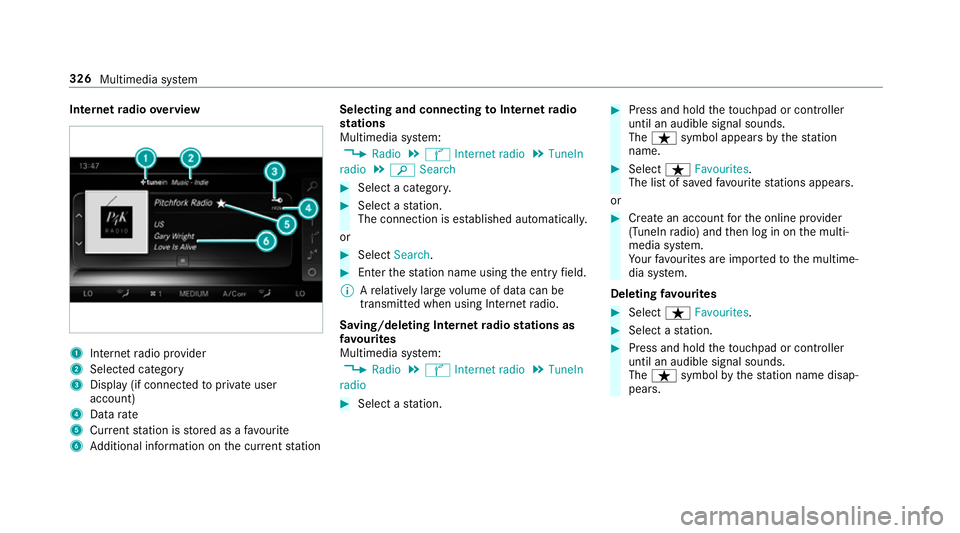
Internet
radio overview 1
Inte rn et radio pr ovider
2 Selec ted category
3 Display (if connec tedto private user
account)
4 Data rate
5 Current station is stored as a favo urite
6 Additional information on the cur rent station Selecting and connecting
toInternet radio
st ations
Multimedia sy stem:
, Radio .
Ý Internet radio .
TuneIn
radio .
è Search #
Select a categor y. #
Select a station.
The connection is es tablished automaticall y.
or #
Select Search. #
Enter thest ation name using the entry field.
% Arelatively lar gevolume of data can be
transmitte d when using Internet radio.
Saving/deleting Internet radio stations as
fa vo urites
Multimedia sy stem:
, Radio .
Ý Internet radio .
TuneIn
radio #
Select a station. #
Press and hold theto uchpad or cont roller
until an audible signal sounds.
The ß symbol appears bythest ation
name. #
Select ßFavourites.
The list of sa vedfavo urite stations appears.
or #
Create an account forth e online pr ovider
(TuneIn radio) and then log in on the multi‐
media sy stem.
Yo ur favo urites are impor tedto the multime‐
dia sy stem.
Deleting favo urites #
Select ßFavourites. #
Select a station. #
Press and hold theto uchpad or cont roller
until an audible signal sounds.
The ß symbol bythest ation name disap‐
pears. 326
Multimedia sy stem
Page 330 of 541
Setting
the Internet radio options
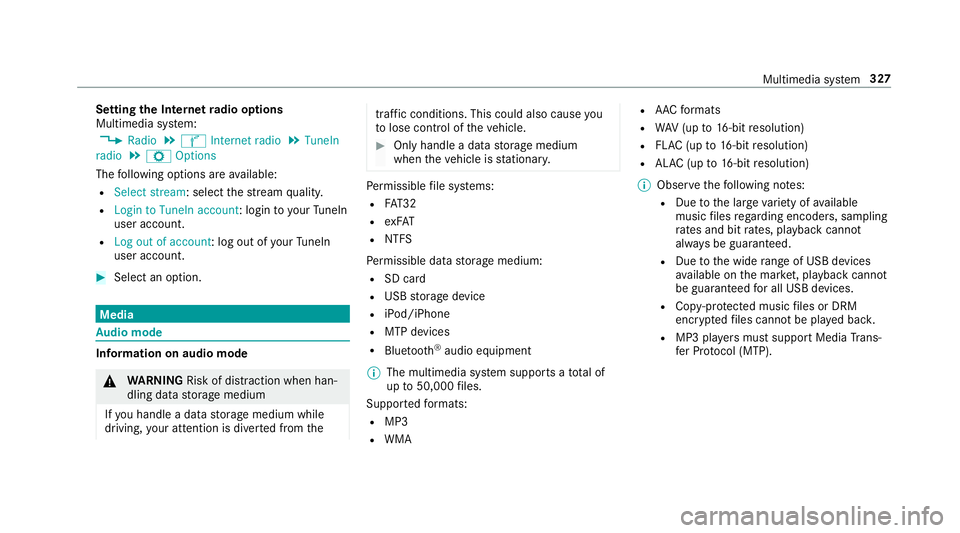
Multimedia sy stem:
, Radio .
Ý Internet radio .
TuneIn
radio .
Z Options
The following options are available:
R Select stream: select thest re am qualit y.
R Login to TuneIn account : loginto yourTuneIn
user account.
R Log out of account: log out of your TuneIn
user account. #
Select an option. Media
Au
dio mode In
fo rm ation on audio mode &
WARNING Risk of di stra ction when han‐
dling da tastorage medium
If yo u handle a data storage medium while
driving, your attention is diver ted from the traf
fic conditions. This could also cause you
to lose control of theve hicle. #
Only handle a data storage medium
when theve hicle is stationar y. Pe
rm issible file sy stems:
R FAT32
R exFAT
R NTFS
Pe rm issible data storage medium:
R SD card
R USB storage device
R iPod/iPhone
R MTP devices
R Blue tooth ®
audio equipment
% The multimedia sy stem supports a total of
up to50,000 files.
Suppor tedfo rm ats:
R MP3
R WMA R
AAC form ats
R WAV (up to16-bit resolution)
R FLAC (up to16-bit resolution)
R ALAC (up to16-bit resolution)
% Obser vethefo llowing no tes:
R Due tothe lar gevariet y of available
music files rega rding encoders, sampling
ra tes and bit rates, playback cannot
alw ays be guaranteed.
R Due tothe wide range of USB devices
av ailable on the mar ket, pl ayback cann ot
be guaranteed for all USB devices.
R Cop y-pr otected music files or DRM
enc rypte dfiles cannot be pla yed bac k.
R MP3 pla yers must support Media Trans‐
fe r Pr otocol (MTP). Multimedia sy
stem 327
Page 341 of 541
Ac
tivating Blue tooth ®
audio
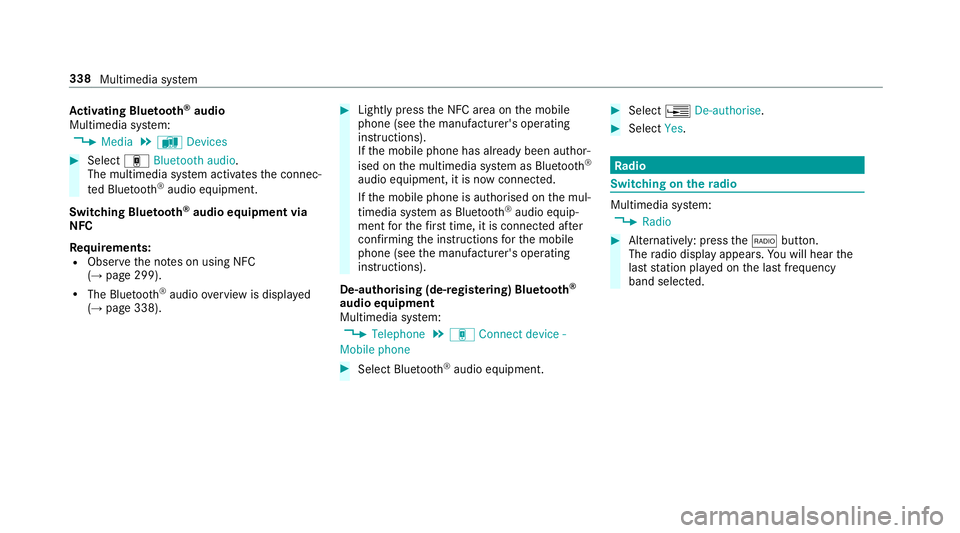
Multimedia sy stem:
, Media .
à Devices #
Select áBluetooth audio.
The multimedia sy stem activates the connec‐
te d Blue tooth®
audio equipment.
Swit ching Blue tooth ®
audio equipment via
NFC
Requ irements:
R Obser vethe no tes on using NFC
(→ page 299).
R The Blue tooth®
audio overview is displa yed
( → page 338). #
Lightly press the NFC area on the mobile
phone (see the manufacturer's operating
instructions).
If th e mobile phone has already been author‐
ised on the multimedia sy stem as Blue tooth®
audio equipment, it is now connec ted.
If th e mobile phone is authorised on the mul‐
timedia sy stem as Blue tooth ®
audio equip‐
ment forth efirs t time, it is connected af ter
confirming the instructions forth e mobile
phone (see the manufacturer's operating
instructions).
De-authorising (de-regis tering) Blue tooth ®
audio equipment
Multimedia sy stem:
, Telephone .
á Connect device -
Mobile phone #
Select Blue tooth®
audio equipment. #
Select ¥De-authorise. #
Select Yes. Ra
dio Switching on the
radio Multimedia sy
stem:
, Radio #
Alternatively: press the$ button.
The radio display appears. You will hear the
last station pla yed on the last frequency
band selected. 338
Multimedia sy stem
Page 342 of 541
Ra
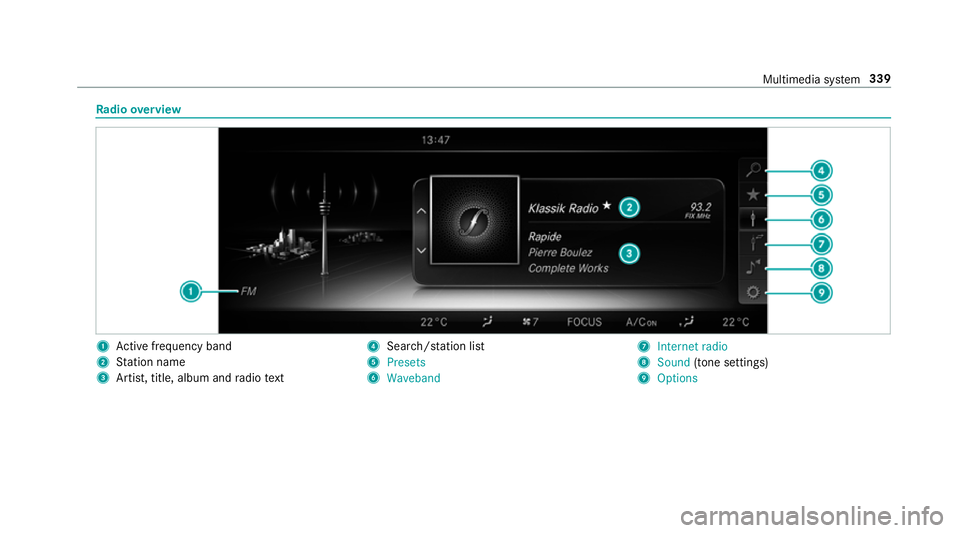
dio overview 1
Active frequency band
2 Station name
3 Artist, title, album and radio text 4
Search/s tation li st
5 Presets
6 Waveband 7
Internet radio
8 Sound (tone settings)
9 Options Multimedia sy
stem 339
Page 343 of 541
Setting
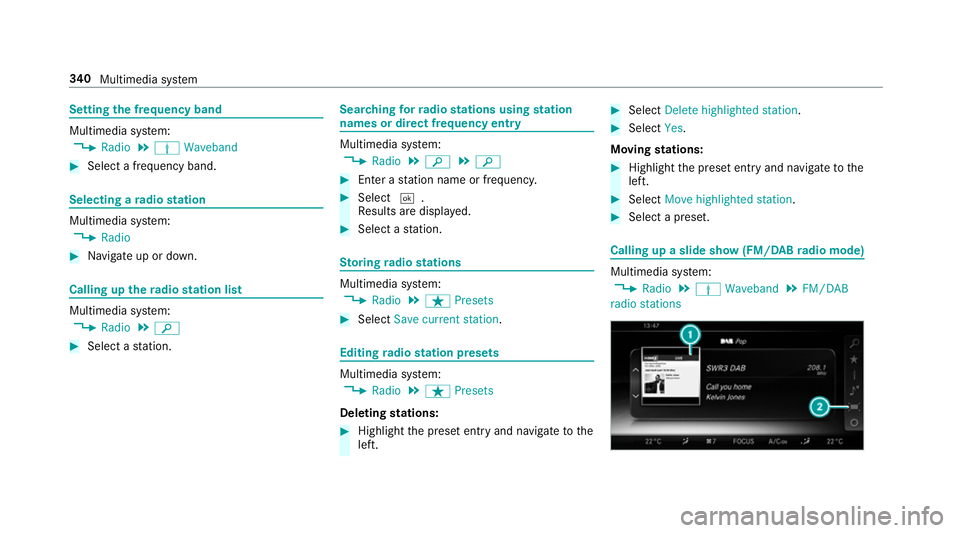
the frequency band Multimedia sy
stem:
, Radio .
Þ Waveband #
Select a frequency band. Selecting a
radio station Multimedia sy
stem:
, Radio #
Navigate up or down. Calling up
thera dio station list Multimedia sy
stem:
, Radio .
è #
Select a station. Sear
ching forra dio stations using station
names or direct frequency entry Multimedia sy
stem:
, Radio .
è .
è #
Ente r astation name or frequenc y. #
Select ¬.
Re sults are displa yed. #
Select a station. St
oring radio stations Multimedia sy
stem:
, Radio .
ß Presets #
Select Save current station . Editing
radio station presets Multimedia sy
stem:
, Radio .
ß Presets
Deleting stations: #
Highlight the preset entry and navigatetothe
left. #
Select Delete highlighted station. #
Select Yes.
Moving stations: #
Highlight the preset entry and navigatetothe
left. #
Select Move highlighted station. #
Select a preset. Calling up a slide show (FM/DAB
radio mode) Multimedia sy
stem:
, Radio .
Þ Waveband .
FM/DAB
radio stations 340
Multimedia sy stem
Page 344 of 541
Slide show
1displ ays additional information
pr ov ided bythest ation as an image. This can
include logos, album co vers, music trac ks, pro‐
grammes, ne wsor service information, forex am‐
ple. The additional information is shown in full-
sc reen mode byselecting 2. #
Toactivate full-screen mode: select#
Full screen. #
Todeactivate full-sc reen mode: select
%. Fr
equency fix function Multimedia sy
stem:
, Radio .
Z Options .
Frequency fix #
Activate Oor deacti vate ª the function.
If th e function is activated, the set frequency
is ke pt eve n ifthere ception is poo r. Ta
gging music trac ks Multimedia sy
stem:
, Radio .
Z Options
If ra dio stations pr ovide there leva nt information,
th is function allo wsyouto trans fer information
on the music track cur rently pl aying toan
Apple ®
device. You can then pur chase the audio
fi le from theiTunes Store ®
. #
Select Tag this song.
The track information is sa ved. Switching traf
fic announcements on/off Multimedia sy
stem:
, System .
õ Audio .
Traffic
announcements #
Switch the function on Oor off ª.
or #
Hold the8 button on the multifunction
st eering wheel. Setting
the traf fic information service vol‐
ume increase #
Select Traffic announcements volume
increase. #
Select No increase or avalue. Ac
tivating/deactivating radio text Multimedia sy
stem:
, Radio .
Z Options .
Display radio
text information #
Activate Oor deacti vate ª the function. TV
Information on
TVmode Ubiquito
usDTCP-MOST
Copyright ®
20 15 Ubiquitous Corp.
The TVtuner enables reception of digital chan‐
nels according tothefo llowing standards:
R DVB-T
R DVB-T2 Multimedia sy
stem 341
Page 349 of 541
Channel list
overview The
TVtuner sho wsthe cur rent programme on
th e digital TVchannels or radio stations with
adequate reception in its ownch annel list.
The order of thech annel lists is alphabetical or
countr y-specific.
The TVtuner requ ires a short amount of time to
update the information.
The channel lists show thefo llowing information:
R recei vable channel names
R program title
The information is shown under thefo llowing
conditions:
R it is broadcast bythe digital channel
R there ception conditions are adequate Favo
urites Overview of
favo urites
Yo u can create a total of 40 digital TVchannel
fa vo urites. Qui
ck-saving a TVchannel
Multimedia sy stem:
, Media .
à Devices .
TV #
In full-screen mode, press theto uchpad for
longer than thre e seconds.
The cur rent TV channel is stored in the
fa vo urites in the next available position.
St oring TVchannels
Multimedia sy stem:
, Media .
à Devi-
ces .
TV .
ß Favourites #
Select Save current station .
The cur rent channel is stored in thefa vo ur‐
ites in the next available position. #
Alternatively: highlight thech annel in the
ch annel list and store as a favo urite.
Moving channels in thefa vo urites #
Highlight a channel in thefa vo urites. #
Select ¥Move highlighted station. #
Highlight the new position. #
Confirm the position. Deleting
stations #
Highlight a channel in thefa vo urites. #
Select ¥Delete highlighted station. #
Select Yes.
Using a voice tag
Multimedia sy stem:
, Media .
à Devi-
ces .
TV .
ß Favourites #
Highlight a TVchannel in thefa vo urites. #
Select ¥Voice tag . #
Alternatively: use a voice tag inthech annel
list.
Creating a voice tag #
Select Add. #
Say a voice tag.
A message appears when thevo ice tag has
been created.
Lis tening toavo ice tag #
Select Listen. 346
Multimedia sy stem