phone MERCEDES-BENZ E-CLASS COUPE 2017 Owner's Manual
[x] Cancel search | Manufacturer: MERCEDES-BENZ, Model Year: 2017, Model line: E-CLASS COUPE, Model: MERCEDES-BENZ E-CLASS COUPE 2017Pages: 541, PDF Size: 10.71 MB
Page 168 of 541
Brazil
Es
te equipamento opera em caráter secundário,
is to é, não tem direito à pr oteção contra inter fer‐
ência prejudicial, mesmo de es tações do mesmo
tipo, e não pode causar inter ferê ncia a si stemas
operando em caráter primário.
Pa ra maio res informações acessar
www.anatel.go v.br
Fu rther information on the declaration of con‐
fo rm ity for wireless vehicle components
(→ page 22). Electric parking brake
Au
tomatically applying the electric parking
brake &
WARNING Risk of accident and inju ry
due tochildren left unat tended in the
ve hicle
If yo u lea vechildren unat tended in theve hi‐
cle, they may be able toset theve hicle in
motion, forex ample by:
R Releasing the parking brake.
R Shifting the automatic transmission out
of park position jor shifting the manual
transmission into neutral.
R Starting the engine.
In addition, they may operate vehicle equip‐
ment. #
Never lea vechildren and animals unat‐
te nded in theve hicle. #
When leaving theve hicle, alw aysta ke
th eke y with you and lock theve hicle.
This also applies tomobile phones if the
"Digital Car Key in the smartphone" function is activated via
the Mercedes
connect me web app. Ve
hicles with manual transmission:
The electric parking brake is applied while the
ve hicle is being kept stationary bythe HOLD
function if one of thefo llowing conditions are
fulfilled:
R The engine is switched off.
R The seat belt tongue is not inser ted in the
seat belt buckle of the driver's seat and the
driver's door is opened.
R There is a sy stem malfunction.
R The po wer supp lyis insuf ficient.
R The vehicle is stationary for a lengt hyperiod.
When the electric parking brake is applied,
th e! indicator lamp lights up in the instru‐
ment clus ter.
The electric parking brake is not automatically
applied if the engine is switched off bythe ECO
st art/ stop function.
Ve hicles with automatic transmission: Driving and parking
16 5
Page 170 of 541
R
You mo vethe transmission out of transmis‐
sion position joryou ha veprev iously
driven fasterthan 3 km/h.
R Ifth e transmission is in position k,the boot
lid must be closed.
If th e electric parking brake is released,
th e! indicator lamp in the instrument clus‐
te r goes out. Applying or
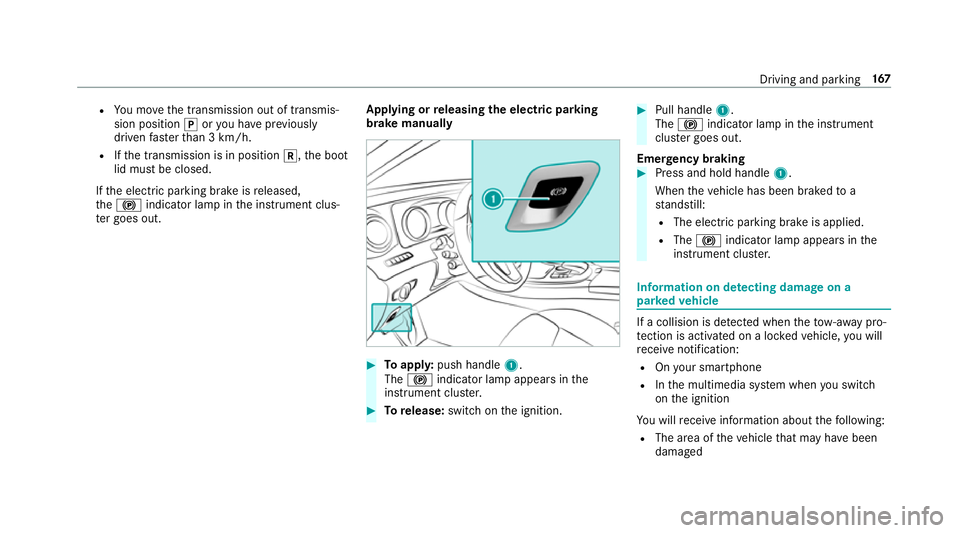
releasing the electric pa rking
brake manually #
Toappl y:push handle 1.
The ! indicator lamp appears in the
instrument clus ter. #
Torelease: switch on the ignition. #
Pull handle 1.
The ! indicator lamp in the instrument
clus ter goes out.
Emer gency braking #
Press and hold handle 1.
When theve hicle has been braked to a
st andstill:
R The electric parking brake is applied.
R The ! indicator lamp appears in the
instrument clus ter. Information on de
tecting dama geon a
pa rked vehicle If a collision is de
tected when theto w- aw ay pro‐
te ction is acti vated on a loc kedve hicle, you will
re cei venotification:
R Onyour smartphone
R Inthe multimedia sy stem when you swit ch
on the ignition
Yo u will recei veinformation about thefo llowing:
R The area of theve hicle that may ha vebeen
damaged Driving and parking
167
Page 215 of 541
Fu
nction of Remo teParking Pilot
% Remo teParking Pilot is an additional func‐
tion of Parking Pilot. Comply with local traf‐
fi c la wsand regulations when using Remo te
Pa rking Pilot on public roads.
Re mo teParking Pilot supports the parking pro‐
cedure while you are outside your vehicle. Once
yo u ha veselected a suitable parking space, you
th en exitth eve hicle and guide it into the parking
space using a suitable mobile phone. Remo te
Pa rking Pilot accelerates, brakes, steers the
ve hicle and changes gear. You can cancel the
parking procedure at any time using your mobile
phone.
Yo u can also use your mobile phone tomo ve
yo ur vehicle backwards and forw ards in the
st ra ight-ahead position (exploration mode). This
is useful, forex ample if a garage is so nar row
th at it is dif ficult or impossible toget in or out of
th eve hicle af ter it has been par ked. Parking
Pilot automatically per form s any minor steering
cor rections that are requ ired.
Re mo teParking Pilot is only an aid. It is not a
substitute foryo ur attention tothe sur roundings. The
responsibility for safe manoeuvring and
parking remains with you. Make sure that no
persons, animals or objects etc. are in the
manoeuvring range. Co mply wi thlocal traf fic
la ws and regulations when using Remo teParking
Pilot on public roads.
Fo rth eRe mo teParking Pilot function, you
re qu ire a mobile phone and the cur rent Remo te
Pa rking Pilot app.
The following operating sy stems are suppor ted:
R Android™
R Apple ®
iOS
If th e connection between theve hicle and the
mobile phone is inter rupte d while a parking
manoeuvre is being per form ed, the manoeuvre
can be continued if the connection is re-es tab‐
lished within about two minutes.
The following scenarios are suppor ted:
R Parking in a parking space parallel tothe
direction of tra vel.
R Parking in a parking space at right angles to
th e direction of tra vel. R
Exiting a parking space at right angles tothe
direction of tra vel (exploration mode).
R Parking in a stra ight-ahead position, for
ex ample into a garage or carport (exploration
mode).
R Exiting a parking space in a stra ight-ahead
position, forex ample from a garage or car‐
port (exploration mode).
If te ch nical problems arise du ring a pa rking
manoeuvre (e.g. the permitted downhill gradient
is exc eeded), thefo llowing actions are per‐
fo rm ed automatically:
R The parking manoeuvre is cancelled.
R The vehicle is brought toast andstill.
R Transmission position jis engaged.
R The vehicle is switched off.
If th e parking manoeuvre is cancelled, a cor re‐
sponding message is displa yed on the mobile
phone. You can then take ove r and manoeuvre
th eve hicle into the parking space yourself. Alter‐
nativel y,yo u can mo vetheve hicle back toits
original position, if necessar y.212
Driving and pa rking
Page 216 of 541
Whilst
theve hicle is being par ked with Parking
Pilot, you can inter rupt the process totake con‐
trol of theve hicle with Remo teParking Pilot and
manoeuvre it into its final position.
Yo u can find fur ther information in the operating
instructions forth eRe mo teParking Pilot app
http://www.me rcedes.me.
Sy stem limitations
Sn owfa ll or heavy rain may lead toa parking
space being measured inaccurately or, in cer tain
cases, toconnection problems wi th the mobile
phone. Parking spaces that are partial ly occu‐
pied bytrailer dr awbars might not be identified
as such or be measured incor rectl y.Only use
Re mo teParking Pilot on a le vel, high-grip sur‐
fa ce. The pa rking space must be at least 0.60 m
wider than theve hicle without the outside mir‐
ro rs.
Do not use Remo teParking Pilot, forex ample, in
th efo llowing situations:
R Inextreme weather conditions such as ice or
pac ked snow or in heavy rain.
R Ifyo u are transpo rting a load that pr otru des
be yond theve hicle. R
Ifyo u ha veinstalled snow chains.
R Ifth e parking space is on a downhill or uphill
incline.
Re mo teParking Pilot is cancelled if, among
ot her things, one of thefo llowing actions is car‐
ri ed out:
R You swit choff Parking Pilot.
R You press a but ton on thekey.
R ESP ®
inter venes.
During the parking procedure, you must not
st and more than appr ox. 3.0 m away from the
ve hicle. Otherwise, the procedure will be inter‐
ru pted and a cor responding message will be dis‐
pla yed on the mobile phone. If you mo vecloser
to theve hicle, you will be able tocontinue the
procedure.
Fu rther information on cancelling the function
can be found in the operating instructions for
th eRe mo teParking Pilot app. Operating
Remo teParking Pilot &
WARNING Risk of accident due to
objects located abo veor below the
de tection range of Parking Pilot
If th ere are objects abo veor below the
de tection range, thefo llowing situations may
arise:
R Parking Pilot may steer too ear ly.
R The vehicle may not stop in front of these
objects.
This could cause a collision. #
Inthese situations, do not use Parking
Pilot. Objects located abo
veor below the de tection
ra nge of Parking Pilot are not de tected when the
parking space is being measured. These are also
not take n into account when the parking
manoeuvre is calculated, e.g. overhanging loads,
ove rhangs or loading ramp s of lor ries or the
boundaries of the parking space. In some cir‐
cums tances, Parking Pilot may therefore guide
yo u into the parking space prematurely. Driving and parking
213
Page 217 of 541
&
WARNING Danger due toinsuf ficient
view of theve hicle sur roundings
If th eve hicle is being par ked with Remo te
Pa rking Pilot, the view of theve hicle's sur‐
ro undings may be limited. #
When you park theve hicle with Remo te
Pa rking Pilot, obser vethefo llowing
points, forex ample:
R Make sure that you ha vethe best
view possible of theve hicle and the
ve hicle's sur roundings.
R Make sure that no persons, animals
or objects are in the path of your
ve hicle.
R Make sure that you main tain a suita‐
ble dis tance totheve hicle and that
nei ther you nor other road users
could be endangered.
R Beaware of theve hicle's sur round‐
ings at all times and identify possi‐
ble dan gers.
R If necessar y,cancel the parking
process. Ke
ep in mind that the sy stem limits must be
obser ved at all times. If necessar y,cancel the
parking manoeuvre.
Please no tethat you can on lyuse Remo tePark‐
ing Pilot if you ha veava lid driving licence.
No persons or pets are permit tedto remain in
th eve hicle during the parking manoeuvre.
Alw ays make sure that other road users can
access their vehicles.
% Keep theke y with you during the parking
manoeuvre. You can cancel the parking
manoeuvre and bring theve hicle toast and‐
st ill by pressing a button on thekey.
Re quiremen t:
R The mobile phone and Parking Pilot are con‐
nec ted (→ page 216) Pa
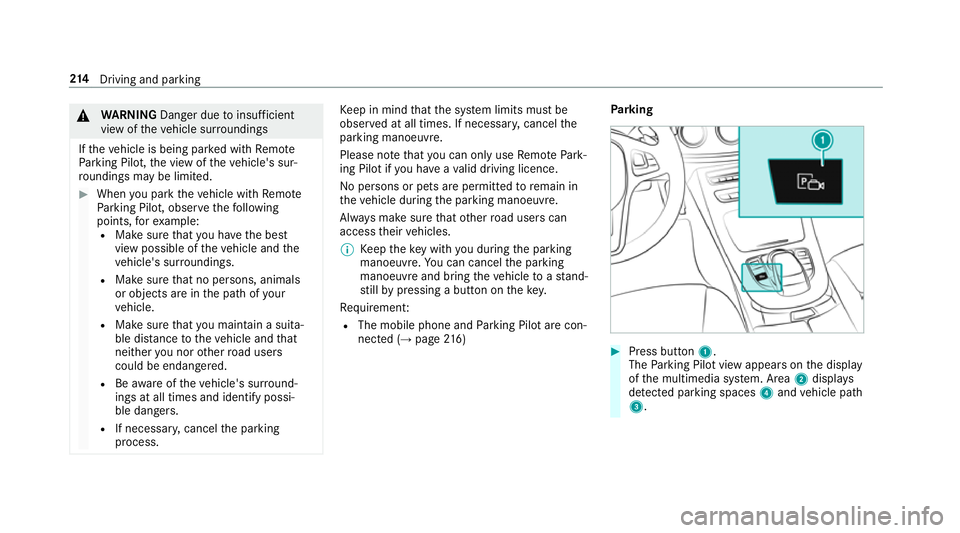
rking #
Press button 1.
The Parking Pilot view appears on the display
of the multimedia sy stem. Area 2displa ys
de tected pa rking spaces 4and vehicle path
3. 214
Driving and pa rking
Page 218 of 541
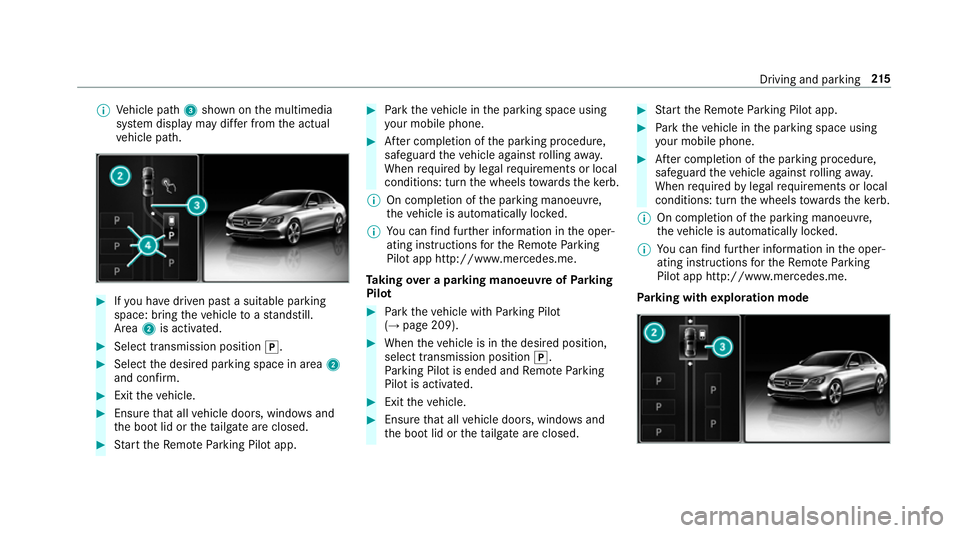
%
Vehicle path 3shown on the multimedia
sy stem display may dif fer from the actual
ve hicle path. #
Ifyo u ha vedriven past a suitable parking
space: bring theve hicle toast andstill.
Area 2is activated. #
Select transmission position j.#
Select the desired parking space in area 2
and confi rm. #
Exit theve hicle. #
Ensure that all vehicle doors, windo wsand
th e boot lid or theta ilgate are closed. #
Start theRe mo teParking Pilot app. #
Park theve hicle in the parking space using
yo ur mobile phone. #
After completion of the parking procedure,
safeguard theve hicle against rolling away.
When requ ired bylegal requirements or local
conditions: turn the wheels towa rdsth eke rb.
% On completion of the parking manoeuvre,
th eve hicle is automatically loc ked.
% You can find fur ther information in the oper‐
ating instructions forth eRe mo teParking
Pilot app http://www.me rcedes.me.
Ta king over a parking manoeuv reofParking
Pilot #
Park theve hicle with Parking Pilot
(→ page 209). #
When theve hicle is in the desired position,
select transmission position j.
Pa rking Pilot is ended and Remo teParking
Pilot is activated. #
Exit theve hicle. #
Ensure that all vehicle doors, windo wsand
th e boot lid or theta ilgate are closed. #
Start theRe mo teParking Pilot app. #
Park theve hicle in the parking space using
yo ur mobile phone. #
After completion of the parking procedure,
safeguard theve hicle against rolling away.
When requ ired bylegal requirements or local
conditions: turn the wheels towa rdsth eke rb.
% On completion of the parking manoeuvre,
th eve hicle is automatically loc ked.
% You can find fur ther information in the oper‐
ating instructions forth eRe mo teParking
Pilot app http://www.me rcedes.me.
Pa rking with explo ration mode Driving and pa
rking 215
Page 219 of 541
#
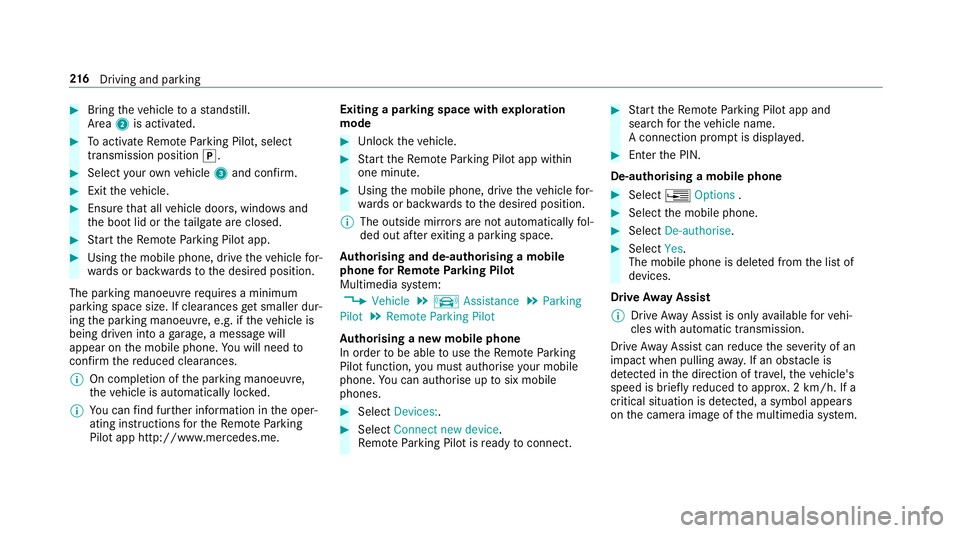
Bring theve hicle toast andstill.
Area 2is activated. #
Toactivate Remo teParking Pilot, select
transmission position j.#
Select your ow nve hicle 3and confirm. #
Exit theve hicle. #
Ensure that all vehicle doors, windo wsand
th e boot lid or theta ilgate are closed. #
Start theRe mo teParking Pilot app. #
Using the mobile phone, drive theve hicle for‐
wa rds or backwards tothe desired position.
The parking manoeuvre requires a minimum
parking space size. If clearances get smaller dur‐
ing the parking manoeuvre, e.g. if theve hicle is
being driven into a garage , a message will
appear on the mobile phone. You will need to
confirm there duced clearances.
% On completion of the parking manoeuvre,
th eve hicle is automatically loc ked.
% You can find fur ther information in the oper‐
ating instructions forth eRe mo teParking
Pilot app http://www.me rcedes.me. Exiting a parking space with
explo ration
mode #
Unlock theve hicle. #
Start theRe mo teParking Pilot app within
one minute. #
Using the mobile phone, drive theve hicle for‐
wa rds or backwards tothe desired position.
% The outside mir rors are not automatically fol‐
ded out af terex iting a parking space.
Au thorising and de-authorising a mobile
phone forRe mo teParking Pilot
Multimedia sy stem:
, Vehicle .
k Assistance .
Parking
Pilot .
Remote Parking Pilot
Au thorising a new mobile phone
In order tobe able touse theRe mo teParking
Pilot function, you must authorise your mobile
phone. You can authorise up tosix mobile
phones. #
Select Devices:. #
Select Connect new device .
Re mo teParking Pilot is ready toconnect. #
Start theRe mo teParking Pilot app and
sear chforth eve hicle name.
A connection prom ptis displa yed. #
Ente rth e PIN.
De-authorising a mobile phone #
Select ¥Options . #
Select the mobile phone. #
Select De-authorise. #
Select Yes.
The mobile phone is dele ted from the list of
devices.
Drive Away Assist
% Drive AwayAssi stis only available forve hi‐
cles with automatic transmission.
Drive AwayAssi stcan reduce the se verity of an
impact when pulling away. If an obs tacle is
de tected in the direction of tr avel, theve hicle's
speed is brief lyreduced toappr ox. 2 km/h. If a
critical situation is de tected, a symbol appea rs
on the camera image of the multimedia sy stem. 216
Driving and pa rking
Page 239 of 541
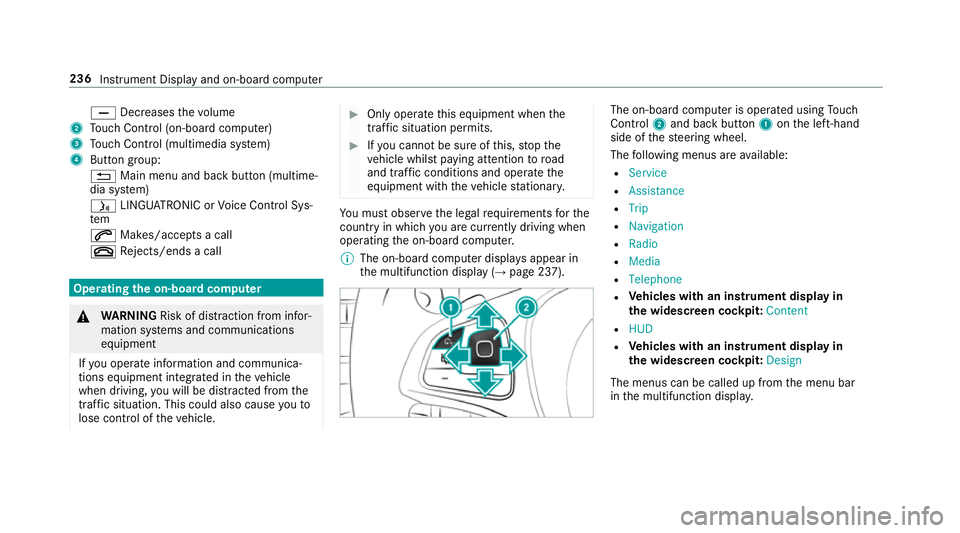
X
Decreases thevo lume
2 Touch Control (on-board co mputer)
3 Touch Control (multimedia sy stem)
4 Button group:
% Main menu and back button (multime‐
dia sy stem)
ó LINGU ATRO NIC or Voice Cont rol Sys‐
tem
6 Makes/accepts a call
~ Rejects/ends a call Ope
rating the on-board co mputer &
WARNING Risk of di stra ction from infor‐
mation sy stems and communications
equipment
If yo u operate information and communica‐
tions equipment integ rated in theve hicle
when driving, you will be distracted from the
traf fic situation. This could also cause youto
lose control of theve hicle. #
Only operate this equipment when the
traf fic situation permits. #
Ifyo u cannot be sure of this, stop the
ve hicle whilst paying attention toroad
and traf fic conditions and ope rate the
equipment with theve hicle stationar y. Yo
u must obse rveth e legal requirements forthe
country in whi chyou are cur rently driving when
operating the on-board computer.
% The on-board computer displa ysappear in
th e multifunction display (→ page 237). The on-board computer is operated using
Touch
Control 2and back but ton1 onthe left-hand
side of thesteering wheel.
The following menus are available:
R Service
R Assistance
R Trip
R Navigation
R Radio
R Media
R Telephone
R Vehicles with an instrument display in
th e widescreen cockpit: Content
R HUD
R Vehicles with an instrument display in
th e widescreen cockpit: Design
The menus can be called up from the menu bar
in the multifunction displa y.236
Instrument Display and on-board computer
Page 246 of 541
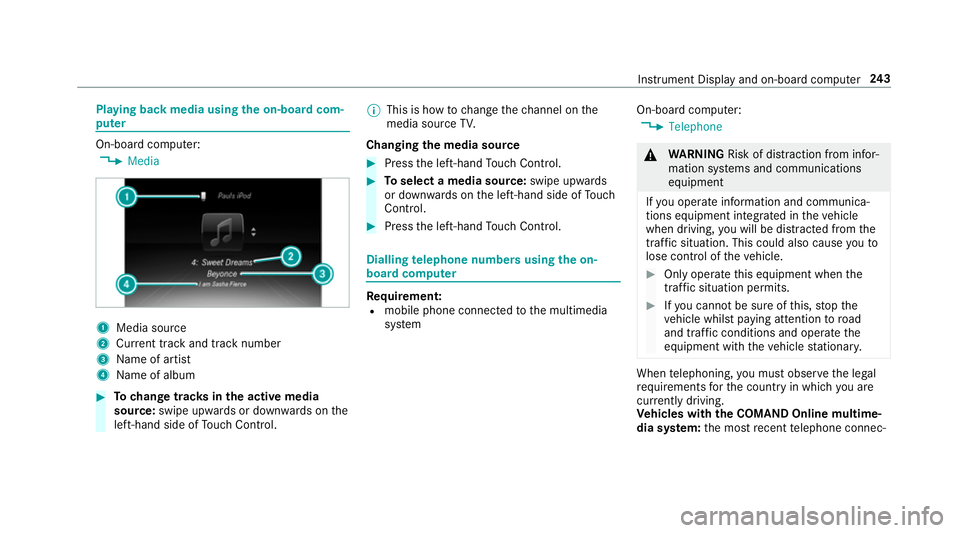
Playing back media using
the on-boa rdcom‐
pu ter On-board computer:
, Media 1
Media source
2 Current track and track number
3 Name of artist
4 Name of album #
Tochange trac ksinthe active media
source: swipe upwards or down wards on the
left-hand side of Touch Control. %
This is how tochange thech annel on the
media source TV.
Changing the media source #
Press the left-hand Touch Control. #
Toselect a media source: swipe upwards
or down wards on the left-hand side of Touch
Control. #
Press the left-hand Touch Control. Dialling
telephone numbers using the on-
board compu ter Re
quirement:
R mobile phone connec tedto the multimedia
sy stem On-board computer:
, Telephone &
WARNING Risk of di stra ction from infor‐
mation sy stems and communications
equipment
If yo u operate information and communica‐
tions equipment integrated in theve hicle
when driving, you will be distracted from the
traf fic situation. This could also cause youto
lose control of theve hicle. #
Only operate this equipment when the
traf fic situation permits. #
Ifyo u cannot be sure of this, stop the
ve hicle whilst paying attention toroad
and traf fic conditions and ope rate the
equipment with theve hicle stationar y. When
telephoning, you must obse rveth e legal
re qu irements forth e count ryin which you are
cur rently driving.
Ve hicles with the COMAND Online multime‐
dia sy stem: the most recent telephone connec‐ Instrument Display and on-board computer
243
Page 247 of 541
tions (dialled,
recei ved and missed calls) are dis‐
pla yed in theTelephone menu. #
Toselect thete lephone number: swipe
upwards or down wards on the left-hand
To uch Control. #
Press the left-hand Touch Control.
If th ere is only one telephone number
sa ve dto an entr y:thete lephone number is
selec ted. #
Ifth ere are multiple telephone numbers
sa ve dto an entr y:swipe upwards or down‐
wa rds on the left-hand Touch Control to
select the desired telephone number. #
Press the left-hand Touch Control.
The telephone number is dialled.
The following displa ysmay appear ins tead of the
te lephone numbers dialled:
R Please wait... :th e application is starting.
When a Blue tooth®
connection tothe mobile
phone is not es tablished, the menu for
authorising and connecting a mobile phone is
displa yed in the multimedia sy stem
(→ page 298). R
Updating data...: the call list is being upda‐
te d.
R Importing contacts... :th e conta cts from the
mobile phone or from a storage medium are
being impor ted.
Ac cepting/rejecting a call
When youre cei vea call, a message appears in
th e Head-up-Display Incoming call. #
Swipe upwards or down wards on the left-
hand Touch Control and select 6(Accept)
or ~ (Reject). #
Press the left-hand Touch Control.
The call may be accep ted/rejec ted using the
6 or~ buttons on thesteering wheel. Ad
justing the head-up display settings in the
on-board co mputer On-board computer:
, HUD
The following head-up display settings can be
adjus ted:
R Position R
Brightness
R Display content #
Toselect the setting: swipe upwards or
down wards on the left-hand Touch Control. #
Press the left-hand Touch Control. #
Toadjust theva lue: swipe upwards or
down wards on the left-hand Touch Control. #
Press the left-hand Touch Control. 244
Instrument Display and on-board computer