language MERCEDES-BENZ E-CLASS COUPE 2018 User Guide
[x] Cancel search | Manufacturer: MERCEDES-BENZ, Model Year: 2018, Model line: E-CLASS COUPE, Model: MERCEDES-BENZ E-CLASS COUPE 2018Pages: 593, PDF Size: 10.63 MB
Page 367 of 593
Fu
nction of the emer gency call sy stem self-
diagnosis (Russia)
Yo ur car verifies the operability of the emer‐
ge ncy call sy stem each time the ignition is ON.
In case of sy stem failure, you will be informed
with text messa geon the instrument clus ter and
with red indicator SOS NOT READY onthe media
displa y.
Please, make sure, that during 30 seconds af ter
switching ignition ON there d indicator SOS
NOT READY inthe upper right corner of the
media display is switched OFF, this means the
emer gency call sy stem passed diagnostics suc‐
cessfully. If necessar y,switch ON the media dis‐
pla y,if it was switched OFF before.
St arting/ending ERA-GLONASS test mode
(Russia)
Re quirements:
R The star ter battery is suf ficiently charge d.
R The ignition is switched on.
R The vehicle has been stationary for at least
one minute. #
Tostart thete st mode: press and hold the
~ button on the multifunction steering
wheel for at least five seconds.
The test mode is star ted and automatically
ends af terth e language test has been per‐
fo rm ed. #
Toend thete st mode manuall y:switch off
th e ignition.
The test mode is ended. Online and Internet functions
Internet connection
Information on connecting
tothe Internet &
WARNING Risk of di stra ction from infor‐
mation sy stems and communications
equipment
If yo u operate information and communica‐
tion equipment integ rated in theve hicle
when driving, you will be distracted from the
traf fic situation. This could also cause youto
lose control of theve hicle. #
Only operate this equipment when the
traf fic situation permits. #
Ifyo u cannot be sure of this, stop the
ve hicle whilst paying attention toroad
and traf fic conditions and ope rate the
equipment with theve hicle stationar y. Yo
u must obse rveth e legal requirements forthe
country in whi chyou are cur rently driving when
operating the multimedia sy stem. &
WARNING Risk of di stra ction from oper‐
ating mobile communication equipment
while theve hicle is in motion
If yo u operate mobile communication equip‐
ment when driving, you will be distracted
from the tra ffic situation. This could also
cause youto lose control of theve hicle. #
Only operate this equipment when the
ve hicle is stationar y. Yo
u must obse rveth e legal requirements forthe
country in whi chyou are cur rently driving when 364
Multimedia sy stem
Page 371 of 593
Connection
status Connection
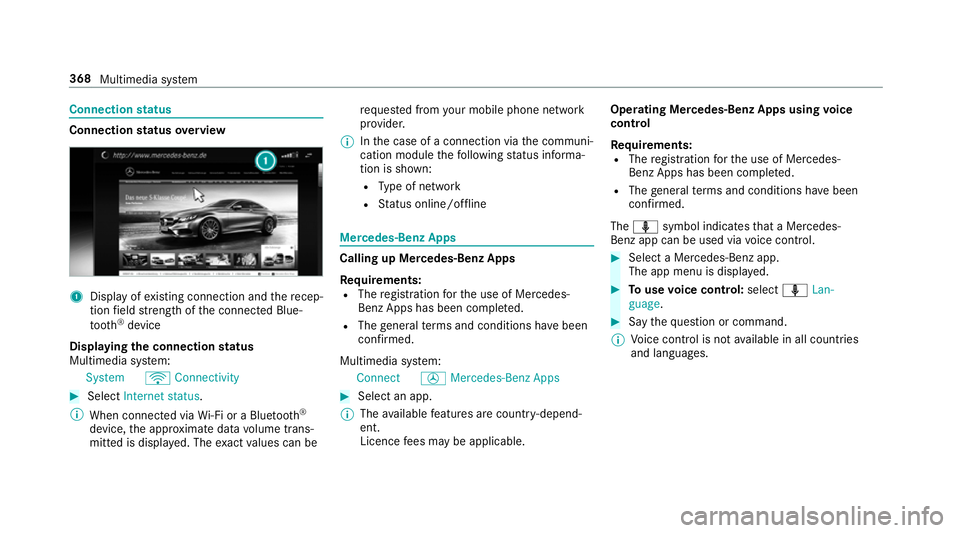
status overview 1
Display of existing connection and there cep‐
tion field stre ngth of the connected Blue‐
tooth ®
device
Displaying the connection status
Multimedia sy stem:
System öConnectivity #
Select Internet status .
% When connected via Wi-Fi or a Blu etoo th®
device, the appr oximate data volume trans‐
mit ted is displa yed. The exact values can be re
qu ested from your mobile phone network
pr ov ider.
% Inthe case of a connection via the communi‐
cation module thefo llowing status informa‐
tion is shown:
R Type of network
R Status online/of fline Mercedes-Benz Apps
Calling up Mercedes-Benz Apps
Re
quirements:
R The registration forth e use of Mercedes-
Benz Apps has been comple ted.
R The general term s and conditions ha vebeen
con firm ed.
Multimedia sy stem:
Connect ÚMercedes-Benz Apps #
Select an app.
% The available features are countr y-depend‐
ent.
Licence fees may be applicable. Operating Mercedes-Benz Apps using
voice
control
Re quirements:
R The registration forth e use of Mercedes-
Benz Apps has been comple ted.
R The general term s and conditions ha vebeen
con firm ed.
The o symbol indicates that a Mercedes-
Benz app can be used via voice control. #
Select a Mercedes-Benz app.
The app menu is displa yed. #
Touse voice control: selectoLan-
guage. #
Say thequ estion or command.
% Voice control is not available in all countries
and languages. 368
Multimedia sy stem
Page 395 of 593
Overview of
the displa ysintheTV cont rol
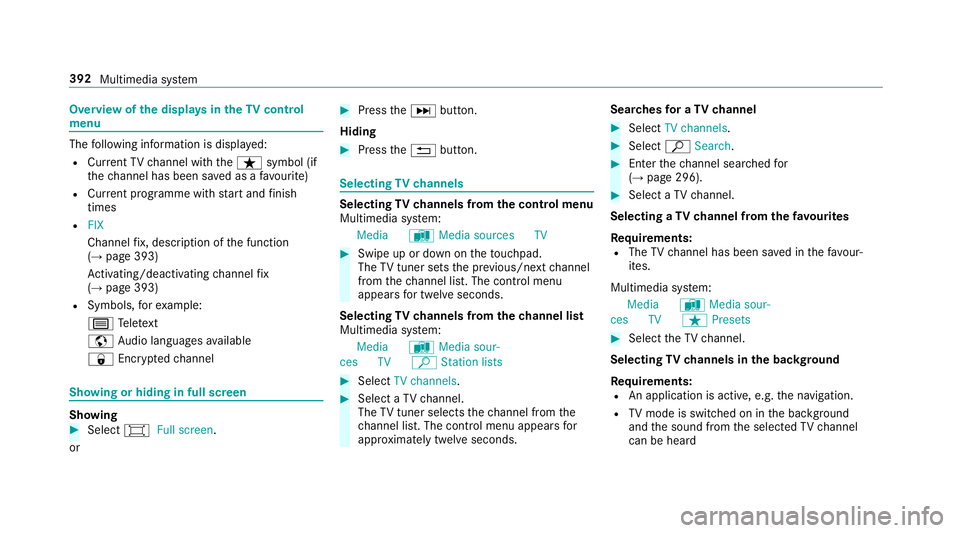
menu The
following information is displa yed:
R Cur rent TV channel with theß symbol (if
th ech annel has been sa ved as a favo urite)
R Cur rent programme wi thstart and finish
times
R FIX
Channel fix, description of the function
(→ page 393)
Ac tivating/deactivating channel fix
( → page 393)
R Symbols, forex ample:
p Telete xt
z Audio languages available
r Encryp tedch annel Showing or hiding in full screen
Showing
#
Select #Full screen .
or #
Press theD button.
Hiding #
Press the% button. Selecting
TVchannels Selecting
TVchannels from the control menu
Multimedia sy stem:
Media àMedia sources TV #
Swipe up or down on theto uchpad.
The TVtuner sets the pr evious/n extch annel
from thech annel list. The control menu
appears for twelve seconds.
Selecting TVchannels from thech annel list
Multimedia sy stem:
Media àMedia sour-
ces TV ªStation lists #
Select TV channels. #
Select a TVchannel.
The TVtuner selects thech annel from the
ch annel list. The control menu appears for
appr oximately twelve seconds. Sear
ches for a TVchannel #
Select TV channels . #
Select ªSearch . #
Enter thech annel sear ched for
( → page 296). #
Select a TVchannel.
Selecting a TVchannel from thefa vo urites
Re quirements:
R The TVchannel has been sa ved in thefa vo ur‐
ites.
Multimedia sy stem:
Media àMedia sour-
ces TV ßPresets #
Select theTV channel.
Selecting TVchannels in the bac kground
Re quirements:
R An application is active, e.g. the navigation.
R TVmode is switched on in the bac kground
and the sound from the selected TVchannel
can be heard 392
Multimedia sy stem
Page 397 of 593
Quic
k-saving a TVchannel
Multimedia sy stem:
Media àMedia sources TV #
In full-screen mode, press theto uchpad for
longer than thre e seconds.
The cur rent TV channel is stored in the
fa vo urites in the next available position.
St oring TVchannels
Multimedia sy stem:
Media àMedia sour-
ces TV ßPresets #
Select Store current station in the presets .
or #
Highlight a channel in thech annel list and
st ore as a favo urite.
The cur rent channel is stored in thefa vo ur‐
ites in the next available position.
Moving channels in thefa vo urites #
Highlight a channel in thefa vo urites. #
Select ¥Move highlighted station. #
Highlight the new position. #
Confirm the position.
Deleting channels #
Highlight a channel in thefa vo urites. #
Select ¥Delete highlighted station. #
Select Yes.
Using a voice tag
Multimedia sy stem:
Media àDevi-
ces TV ßFavourites #
Highlight a TVchannel in thefa vo urites. #
Select ¥Voice tag . #
Alternatively: use a voice tag inthech annel
list.
Creating a voice tag #
Select Add. #
Say a voice tag.
A messa geappears when thevo ice tag has
been created.
Lis tening toavo ice tag #
Select Listen. Deleting a
voice tag #
Select Delete.
A message appears asking whe ther youwa nt
to dele tethevo ice tagfo rth eTV channel. #
Select Yes. TV
prog ramme Overvi
ewof audio language and subtitles
Au dio language
R It is possible tochoose between se veral
audio languages when a programme is broad‐
cast in multiple languages.
R If En glish, forex ample, is set as the sy stem
language and a TVchannel is broadcasting in
th is language, En glish is selec ted automati‐
cally.
The prog ramme transmission may be indica ted
with thefo llowing symbols:
m Programme with audio explanations for
th e visually impaired
o Stereo broadcast 394
Multimedia sy stem
Page 398 of 593
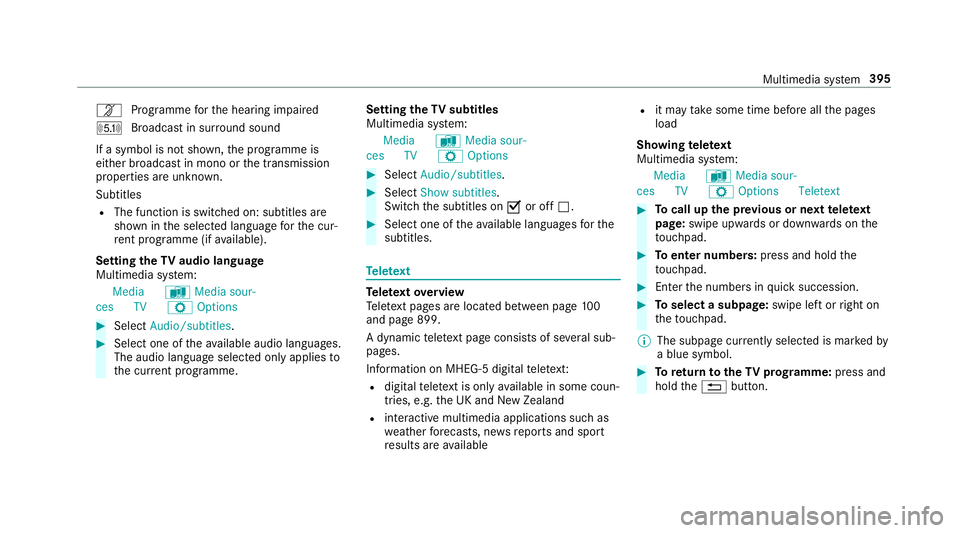
n
Programme forth e hearing impaired
O Broadcast in sur round sound
If a symbol is not shown, the prog ramme is
either broadca stin mono or the transmission
properties are unkn own.
Subtitles
R The function is switched on: subtitles are
shown in the selected language forth e cur‐
re nt programme (if available).
Setting theTV audio language
Multimedia sy stem:
Media àMedia sour-
ces TV ZOptions #
Select Audio/subtitles. #
Select one of theav ailable audio languages.
The audio language selec ted only applies to
th e cur rent programme. Setting the
TVsubtitles
Multimedia sy stem:
Media àMedia sour-
ces TV ZOptions #
Select Audio/subtitles. #
Select Show subtitles.
Switch the subtitles on Oor off ª. #
Select one of theav ailable languages forthe
subtitles. Te
lete xt Te
lete xt ove rview
Te lete xt pa ges are located between page 100
and page 899.
A dynamic telete xt pa geconsi sts of se veral sub‐
pages.
Information on MHEG-5 digital telete xt:
R digi taltelete xt is only available in some coun‐
tries, e.g. the UK and New Zealand
R interactive multimedia applications such as
weather fore casts, ne wsreports and sport
re sults are available R
it may take some time before all the pages
load
Showing telete xt
Multimedia sy stem:
Media àMedia sour-
ces TV ZOption sTeletext #
Tocall up the pr evious or next telete xt
page: swipe upwards or down wards on the
to uchpad. #
Toenter numbers: press and holdthe
to uchpad. #
Enterth e numbers in quick succession. #
Toselect a subpage: swipe left orright on
th eto uchpad.
% The subpage cur rently selected is ma rked by
a blue symbol. #
Toreturn totheTV prog ramme: press and
hold the% button. Multimedia sy
stem 395
Page 569 of 593
Knee airbag
................................................ 38L
Lamp see In terior lighting
Lamps (instrument display) see Warning/indicator lamps
Lane de tection (au tomatic)
see Active Lane Keeping Assist
Lane Keeping Assist
see Active Lane Keeping Assist
Language .................................................3 04
No tes .................................................. 304
Setting .................................................3 04
LED light see Intelligent Light Sy stem
Le vel control sy stem
see AIR BODY CONTROL
Light switch Overview .............................................1 28
Lighting see Interior lighting
see Lights Lights
........................................................ 12 8
Ac tive headla mps ................................ 131
Ad aptive Highbeam Assist Plus .......... .133
Ad justing the instrument lighting ........ 265
Ad versewe ather light .......................... 13 3
Au tomatic driving lights ....................... 12 9
City lighting ........................................ .133
Combination switch ............................ .130
Cornering light ..................................... 13 2
Driving ab road (symm etrical dipped
beam) .................................................. 12 8
Fo g light (extended range) ................... 13 2
Haza rdwa rning lights .......................... 131
Headla mpflasher ................................ 13 0
High beam ........................................... 13 0
Intellige nt Light Sy stem ....................... 131
Light switch .........................................1 28
Low beam ............................................ 12 8
Mo torw ay mode ................................... 13 2
Pa rking lights ...................................... .128
Re ar fog light ....................................... 12 8
Re sponsibility for lighting sy stems .......1 28
Setting the dipped beam ..................... 13 4
Setting theex terior lighting switch-
off delay time ...................................... 13 5
Setting the sur round lighting .............. .135 St
anding lights .................................... .128
Tu rn signal lights ................................. 13 0
Limiter ...................................................... 202
Ac tivating ............................................ 203
Buttons ................................................ 203
Calling up a speed ............................... 203
Deactivating ........................................ 203
Fu nction .............................................. 202
Pa ssive mode ...................................... 202
Pe rm anent setting .............................. .204
Re quirements: .................................... .203
Selecting ............................................. 203
Setting a speed ................................... 203
St oring a speed ................................... 203
Sy stem limitations ...............................2 02
Limiting speed see Limi ter
LINGU ATRO NIC ........................................ 274
Application specific voice commands
............................................................ .275
Au dible help functions .........................2 76
Global voice commands ...................... .275
Impr oving speech quality .................... .276
Langua gesetting ................................. 276
Media pla yervo ice commands ............ 283 566
Index
Page 582 of 593
Switching
the sur round sound on/off
Burmes ter®
sur round sound sy stem ... 398
Synchronisation function Activating/deactivating (multimedia
sy stem) ................................................ 14 8
Switching on/off (control panel) ......... 14 8
Sy stem settings
Ac tivating/deactivating PIN pr otec‐
tion ...................................................... 305
Re set function (multimedia sy stem) ....3 09
Setting the dis tance unit ..................... 304
Setting the time and date automati‐
cally ..................................................... 299
Setting the time zone .......................... 299
Setting the time/date form at .............. 299
Swit ching transmission of theve hicle
position on/off .................................... 300
Sy stem settings
see Blue tooth®
see Data import/export
see Language
see Software update
see Wi-Fi T
Ta ilpipes (Care) ........................................ 414
Ta ke -back of end-of-life vehicles .............. 19
Pr otection of the environment ............... 19
Ta nk content
Ad Blue ®
............................................... 470
Fu el ..................................................... 469
Re ser ve(fuel) ...................................... 469
Te ch nical data
Axle load (trailer operation) ................. 477
Fa stening points (trailer hitch) .............4 76
Information .......................................... 461
Mounting dimensions (trailer hitch) ..... 476
No tes (trailer hitch) .............................. 475
Overhang dimension (trailer hitch) .......4 76
To ngue weight .................................... .477
To wing capacity (trailer operation) ...... .476
Ty re pressure monitoring sy stem ........ 446
Ve hicle identification plate .................. 463
Te lephone ........................................ 270, 339
Ac tivating functions du ring a call ......... 347
Auth orising a mobile phone (Remo te
Pa rking Assist) .................................... .241
Business telephony settings ................ 344 Call and
ringtone volume .................... .346
Calls with se veral participants ............ .347
Connecting a mobile phone (busi‐
ness telephony) .................................. .342
Connecting a mobile phone (Near
Field Communication (NFC)) .............. .345
Connecting a mobile phone (Pass‐
ke y) .................................................... .340
Connecting a mobile phone (Secu re
Simple Pairing) .................................... 340
De-authorising a mobile phone ............ 345
Disconnecting a mobile phone ............ 345
Importing con tacts .............................. 349
Importing contacts (o verview) ............ .349
Incoming call during an existing call .... 347
Information .......................................... 340
Inter changing mobile phones .............. 344
Locking theve hicle (mobile phone) .......76
Menu (on-board computer) .................. 270
Mobile phone voice recognition .......... 346
No tes .................................................. 338
Operating modes ................................. 340
Re ception and transmission volume .... 346
St arting theve hicle (mobile phone) ..... 16 0
Switching mobile phones (Near Field
Communication (NFC)) ........................ 345 Index
57 9
Page 585 of 593
Tr
anspo rting
Ve hicle ................................................ 435
Tr im element (Care) .................................416
Tr ip
Menu (on-board computer) .................. 266
Tr ip computer
Displaying ............................................ 266
Re setting ............................................. 268
Tr ip distance ............................................ 266
Displaying ............................................ 266
Re setting ............................................. 268
Tr ip me ter
see Trip dis tance
Tu rn signal indicator
see Turn signal lights
Tu rn signal lights .....................................1 30
Switching on/off ................................. 13 0
TV ............................................................. 282
Ac tivating ............................................ 390
Ad justing the brightness ..................... 396
Calling up the menu (CI+ module) .......3 96
Displ ays in theTV control menu .......... 392 Fu
nction/no tes (audio language,
subtitles) ............................................. 394
Information .......................................... 388
Overview ..............................................3 91
Picture settings ................................... 396
Picture settings overview .................... 396
Setting subtitles .................................. 395
Setting the audio language .................. 395
Showing telete xt ................................. .395
Showing/hiding full screen ................. 392
Te lete xt overview ................................. 395
Vo ice commands (LINGU ATRO NIC) .....2 82
TV channel
Ac tivating/deactivating channel fix ..... 393
Channel fix .......................................... 393
Channel li stove rview .......................... 393
EPG (elect ronic programme guide) ...... 393
Overview of favo urites ........................ .393
Quick sa ve........................................... 394
Selecting from thech annel list ............ 392
Selecting from the control menu ......... 392
Selecting from thefa vo urites .............. 392
Selecting in the bac kground ................ 392
St oring .................................................3 94
Using a voice tag ................................. 394 Tw
o phone mode
see Second telephone
Tw o-w ayradios
Fr equencies ......................................... 462
No tes on ins tallation ............................ 461
Tr ansmission output (maximum) ........ .462
Ty re inflation compressor
see TIREFIT kit
Ty re pressure ........................................... 443
Checking (tyre pressure monitoring
sy stem) ............................................... 444
No tes .................................................. 442
Re starting the tyre pressure loss
wa rning sy stem ................................... 448
Re starting the tyre pressure monitor‐
ing sy stem ...........................................4 45
TIREFIT kit .......................................... .422
Ty re pressure loss warning sy stem
(function) ............................................. 448
Ty re pressure monitoring sy stem
(function) ............................................. 444
Ty re pressure table .............................. 443
Ty re pressure loss warning sy stem
Fu nction .............................................. 448582
Index