ESP MERCEDES-BENZ E-CLASS COUPE 2018 Manual PDF
[x] Cancel search | Manufacturer: MERCEDES-BENZ, Model Year: 2018, Model line: E-CLASS COUPE, Model: MERCEDES-BENZ E-CLASS COUPE 2018Pages: 593, PDF Size: 10.63 MB
Page 254 of 593
speed,
for braking in good time and forst ay ing
in lane.
Ac tive Lane Keeping Assist can bring theve hicle
back into the lane with a lane-cor recting brake
application. In the case of a broken lane marking
being de tected, a brake application will only be
made if a vehicle has been de tected in the adja‐
cent lane. Oncoming tra ffic can be de tected.
Ve hicles with Driving Assistance pac kageor
Driving Assistance Plus pa ckage: overtaking
ve hicles and vehicles in adjacent lanes can also
be de tected.
Ac tive Lane Keeping Assist is available in the
speed range between 60 km/h and 200 km/h. If a lane-co
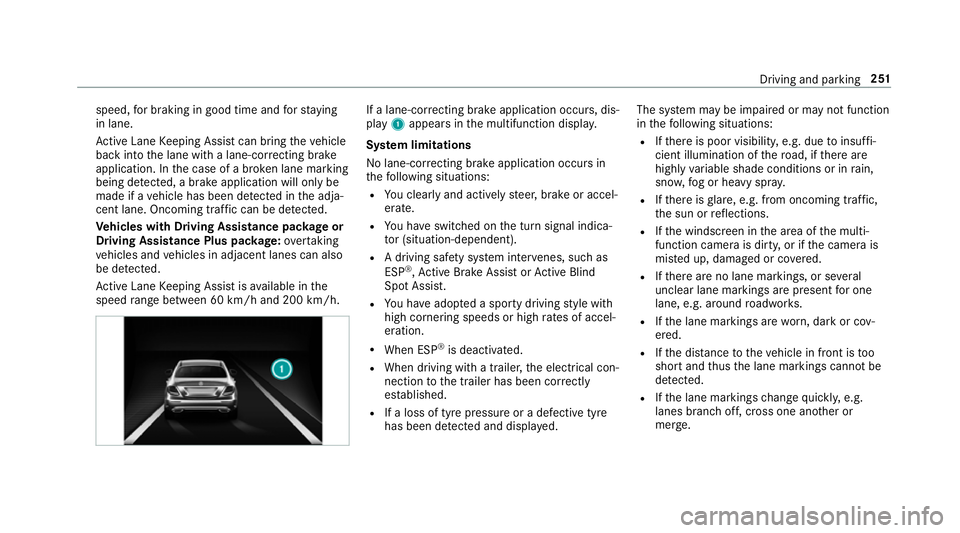
rrecting brake application occurs, dis‐
play 1appears in the multifunction displa y.
Sy stem limitations
No lane-cor recting brake application occu rsin
th efo llowing situations:
R You clear lyand actively steer, brake or accel‐
erate.
R You ha veswitched on the turn signal indica‐
to r (situation-dependent).
R A driving saf ety sy stem inter venes, su chas
ESP ®
,Ac tive Brake Assi stor Active Blind
Spot Assi st.
R You ha veadop ted a sporty driving style with
high cornering speeds or high rates of accel‐
eration.
R When ESP ®
is deactivated.
R When driving with a trailer, the electrical con‐
nection tothe trailer has been cor rectly
es tablished.
R If a loss of tyre pressure or a defective tyre
has been de tected and displ ayed. The sy
stem may be impaired or may not function
in thefo llowing situations:
R Ifth ere is poor visibility, e.g. due toinsuf fi‐
cient illumination of thero ad, if there are
highly variable shade conditions or in rain,
sno w,fog or heavy spr ay.
R Ifth ere is glare, e.g. from oncoming traf fic,
th e sun or reflections.
R Ifth e windscreen in the area of the multi‐
function camera is dirty, or if the camera is
mis ted up, damaged or co vered.
R Ifth ere are no lane markings, or se veral
unclear lane markings are present for one
lane, e.g. around roadwor ks.
R Ifth e lane markings are worn, dark or cov‐
ered.
R Ifth e dis tance totheve hicle in front is too
short and thus the lane markings cann otbe
de tected.
R Ifth e lane markings change quickl y,e.g.
lanes branch off, cross one ano ther or
mer ge. Driving and pa
rking 251
Page 255 of 593
R
Ifth e car riag ewa y is very nar row and wind‐
ing.
Ve hicles with Driving Assistance pac kage or
Driving Assistance Plus pa ckage: Active Lane
Ke eping Assist uses radar sensors tomonitor
se veral areas around theve hicle. If thera dar
sensors in there ar bumper are dirty or co vered
with sn ow,th e sy stem may be impaired or may
not function. If an obs tacle in the lane in which
yo u are driving has been de tected, no lane-cor‐
re cting brake application occu rs.
Ac tivating/deactivating Active Lane Keeping
Assist (vehicles with Parking Assist
PA RKTRONIC) &
WARNING Risk of accident despi te
Ac tive Lane Keeping Assist warning
A lane-cor recting brake application cannot
al wa ys bring theve hicle back into the origi‐
nal lane. #
Alw aysst eer, brake or accelera teyour‐
self, especially if Active Lane Keeping Assist
warnsyo u or makes a lane-cor‐
re cting brake application. &
WARNING Risk of accident despi teinter‐
ve ntion of Active Lane Keeping Assist
Ac tive Lane Keeping Assist does not de tect
traf fic conditions or road users. In very rare
cases, the sy stem may make an inappropri‐
ate brake application, e.g. af ter intentional ly
driving over a solid lane marking.
The brake application can be inter rupte d at
any time if yousteer slightly in the opposite
direction. #
Alw ays make sure that there is suf fi‐
cient di stance tothe side forot her traf‐
fi c or obs tacles. &
WARNING Risk of accident despi teLane
Ke eping Assist
Lane Keeping Assist cann otalw ays clearly
de tect lane markings. In su
chcases, Lane Keeping Assist can:
R give an unnecessary warning
R not give a warning #
Alw ays pay particular attention tothe
traf fic situation and keep within the
lane, especially if Active Lane Keeping
Assist alerts you. Be sure
toobser vethe sy stem limitations of
Ac tive Lane Keeping Assist. 252
Driving and parking
Page 259 of 593
The operation of
thefo llowing sy stems depends
on the trailer being connected cor rectly:
R Active Lane Keeping Assist
R ESP ®
R Parking Assist PARKTRONIC
R Active Parking Assist
R Blind Spot Assist or Active Blind Spot Assi st
Coupling up a trailer
* NO
TEDama getotheve hicle battery due
to full dischar ge Charging
the trailer battery using the po wer
supply of the trailer can damage theve hicle
batter y. #
Do not use theve hicle's po wer supply
to charge the trailer batter y.#
Remo vethe co ver from the ball head and
st ore it in a safe place (→ page113). #
Position the trailer on a le vel sur face behind
th eve hicle and couple it up totheve hicle. #
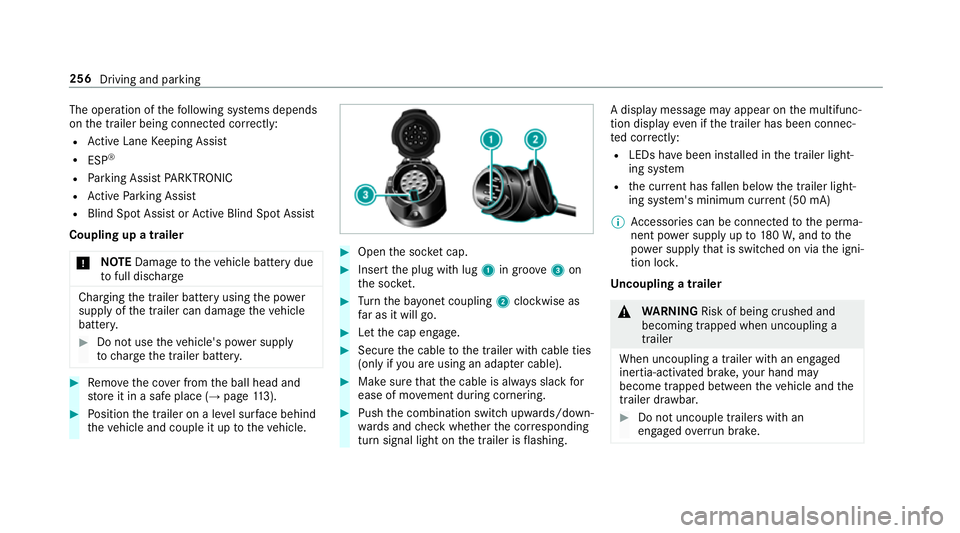
Open the soc ket cap. #
Inse rtthe plug with lug 1in groo ve3 on
th e soc ket. #
Turn the ba yonet coupling 2clockwise as
fa r as it will go. #
Let the cap engage. #
Secure the cable tothe trailer with cable ties
(only if you are using an adap ter cable). #
Make sure that the cable is alw ays slack for
ease of mo vement during cornering. #
Push the combination switch upwards/down‐
wa rds and check whe ther the cor responding
turn signal light on the trailer is flashing. A display message may appear on
the multifunc‐
tion display even if the trailer has been connec‐
te d cor rectly:
R LEDs ha vebeen ins talled in the trailer light‐
ing sy stem
R the cur rent has fallen below the trailer light‐
ing sy stem's minimum cur rent (50 mA)
% Accessories can be connected tothe perma‐
nent po wer supp lyup to180W, and tothe
po we r supp lythat is swit ched on via the igni‐
tion loc k.
Un coupling a trailer &
WARNING Risk of being crushed and
becoming trapped when uncoupling a
trailer
When uncoupling a trailer wi than engaged
ine rtia-activated brake, your hand may
become trapped between theve hicle and the
trailer dr awbar. #
Do not uncouple trailers with an
engaged overrun brake. 256
Driving and pa rking
Page 277 of 593
Note
s on operating saf ety&
WARNING Risk of di stra ction from infor‐
mation sy stems and communications
equipment
If yo u operate information and communica‐
tion equipment integ rated in theve hicle
when driving, you will be distracted from the
traf fic situation. This could also cause youto
lose control of theve hicle. #
Only operate this equipment when the
traf fic situation permits. #
Ifyo u cannot be sure of this, stop the
ve hicle whilst paying attention toroad
and traf fic conditions and ope rate the
equipment with theve hicle stationar y. &
WARNING Risk of di stra ction from oper‐
ating mobile communication equipment
while theve hicle is in motion
If yo u operate mobile communication equip‐
ment when driving, you will be distracted from
the tra ffic situation. This could also
cause youto lose control of theve hicle. #
Only operate this equipment when the
ve hicle is stationar y. Fo
ryo ur ow n sa fety, al ways obser vethefo llow‐
ing points when operating mobile communica‐
tions equipment and especially your voice con‐
trol sy stem:
R Obser vethe legal requ irements forth e coun‐
try in which you are driving.
R While driving, on ly operate mobile communi‐
cations equipment and your voice control
sy stem when the tra ffic conditions permit it.
Yo u may otherwise be distracted from the
traf fic conditions and cause an accident,
inju ring yourself and others.
R Ifyo u use thevo ice control sy stem in an
emer gency your voice can change and your
te lephone call, e.g. an emer gency call, can
th ereby be unnecessarily dela yed.
R Familiarise yourself with thevo ice control
sy stem functions before starting the journe y. Operation
Overview of operation of LINGU
ATRO NIC on
the multifunction steering wheel LINGU
ATRO NIC is operational appr oximately
th irty seconds af terth e ignition is switched on. 274
LINGU ATRO NIC
Page 279 of 593
R
Application-specific voice commands are
only available forth e active application.
Once Linguatronic is star ted an autocue is
shown. Apart from theav ailable voice com‐
mands forth e application cur rently acti ve,th is
also cites example voice commands forot her
applications which are not active. In this wa y,
yo u will be familiar more quickly with theav aila‐
ble voice commands. The list can be scrolled or
it can be operated byspeech or the controller/
to uchpad. Information on
the language setting Yo
u can change the language of LINGU ATRO NIC
via the sy stem language settings. If the set sys‐
te m language is not suppor tedby LINGUA‐
TRONIC, English will be selected.
LINGU ATRO NIC is available in thefo llowing lan‐
guages:
R German
R English
R French R
Italian
R Dutch
R Polish
R Portuguese
R Russian
R Swedish
R Spanish
R Czech
R Turkish Using LINGU
ATRO NIC ef fectively Fe
atures of audible help functions Yo
ure cei veinformation and help forth efo llow‐
ing topics:
R Optimum operation: saythebrief instruc-
tion voice command.
R Cur rent application: onthe multifunction
st eering wheel, press the£ rocker switch
up and say theHelp voice command.
R Continued dialogue: saytheHelp voice
command during a voice dialogue. R
Specific function: sayvoice commands for
th e desired function, e.g. Help telephone. Note
s on how toimpr ovespeech quality If LINGU
ATRO NIC does not under stand you:
R onlyoperate LINGU ATRO NIC from the driv‐
er's seat.
R say thevo ice commands cohe rently and
clearly, but do not exaggerate thewo rds.
R avoid loud noises that cause inter fere nce
while making a voice command ent ry, e.g.
th e blo wer.
A vo ice tag in the address book is not recog‐
nised:
R only crea tesensible address book entries in
th e sy stem/mobile phone, e.g. enter sur‐
name and firs t name in the cor rect field.
R do not use any abbr eviations, unnecessary
spaces or special characters.
If a station list ent ryis not recognised:
R say theRead out station list voice command. 276
LINGU ATRO NIC
Page 289 of 593
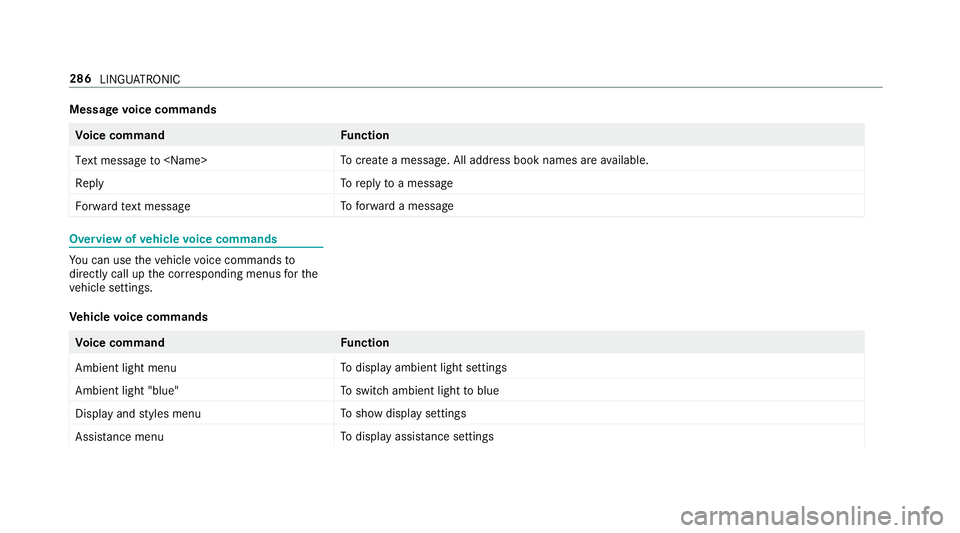
Message
voice commands Vo
ice command Function
Text message to
crea tea message. All address book names are available.
Reply To
reply toa message
Forward text message To
forw ard a message Overview of
vehicle voice commands Yo
u can use theve hicle voice commands to
directly call up the cor responding menus forthe
ve hicle settings.
Ve hicle voice commands Vo
ice command Function
Ambient light menu To
display ambient light settings
Ambient light "blue" To
switch ambient light toblue
Display and styles menu To
show display settings
Assistance menu To
display assis tance settings 286
LINGUATRONIC
Page 311 of 593
th
e mobile phone connection in your vehicle
and, as an option, ins talled automaticall y.Yo u
can moni torth est atus of your updates on the
Mercedes me por tal and find information about
po tential inno vations.
Yo ur advantages at a glance:
R con veniently recei vesoftware update s via
th e mobile phone network
R impr ovesth equ ality and availability of
Mercedes me connect services
R keeps your multimedia sy stem and communi‐
cation module up-to-date
Fu rther information about software updates can
be found at http://me.mercedes-benz.com
Pe rforming a software upda te
Requ irements:
R There is an Internet connection
(→ page 364).
R For automatic updates: your vehicle has a
permanently installed communication mod‐
ule. Multimedia sy
stem:
System Software update
Au tomatic update #
Activate OAutomatic online updates.
Up dates are per form ed.
The cur rent status of the updates is dis‐
pla yed.
Manual update #
Deactivate ªAutomatic online updates. #
Select an update from the list and start the
update.
Ac tivating the so ftwa reupdate #
Restart the sy stem.
Fu nction of important sy stem upda tes
Impor tant sy stem updates may be necessary for
th e security of your multimedia sy stem's data.
Please ins tallth ese updates, or else the security
of your multimedia sy stem cann otbe ensured.
% If automatic software updates are activated,
th e sy stem updates will be downloaded auto‐
matically (→ page 308). As soon as an update is
available for download,
a cor responding message appears onthe media
displa y.
Yo u ha vethefo llowing selection options:
R Download
The update will be downloaded in the back‐
ground.
R Details
Information about the pending sy stem
update is displa yed.
R Later
The update can be downloaded manually at a
later time (→ page 308).
If th e download is comple ted and the update is
re ady for ins tallation, you will be informed of this
af te rth e next ignition cycle, forex ample.
% Park theve hicle safely in a suitable location
before starting the ins tallation.
Re quirements forth e ins tallation:
R The ignition is switched on.
R The engine is not running. 308
Multimedia sy stem
Page 314 of 593
%
Please no tethat theav ailable prog rammes
and the associated functions are dependant
on your vehicle equipment. Depending on
yo ur equipment, fewe r functions may be
av ailable.
St arting the ENERGIZING comfort prog ram
Re quirements:
R The ignition is switched on.
% ENE RGIZING comfort is available appr ox‐
imately five minutes af terst arting the multi‐
media sy stem.
Multimedia sy stem:
Vehicle ENERGIZING Comfort
Selecting a seat #
Select Seat selection. #
Select the desired seat or All seatsO.
St arting a prog ram #
Select Refresh, Warmth, Vitality,JoyorWell-
being.
The selected program will runfo rte n minu tes. Configuring a prog
ram #
Call up fur ther options Üforth e desired
programme. #
Switch the functions included in the program
on O or off ª.
St arting training #
Select Training. #
Select Muscle relaxation, Muscle stimulation
or Balance.
The selected training video starts and is dis‐
pla yed in the media displa y. #
Select Full-screen video.
The training video is displ ayed in full screen.
% For more information on pausing or skipping
th ro ugh videos, see (→ page376).
If, during an active program, a function require‐
ment is no longer met, a cor responding message
appears . The acti veprogram is cancelled. Na
vigation Switching navigation on
Multimedia sy
stem:
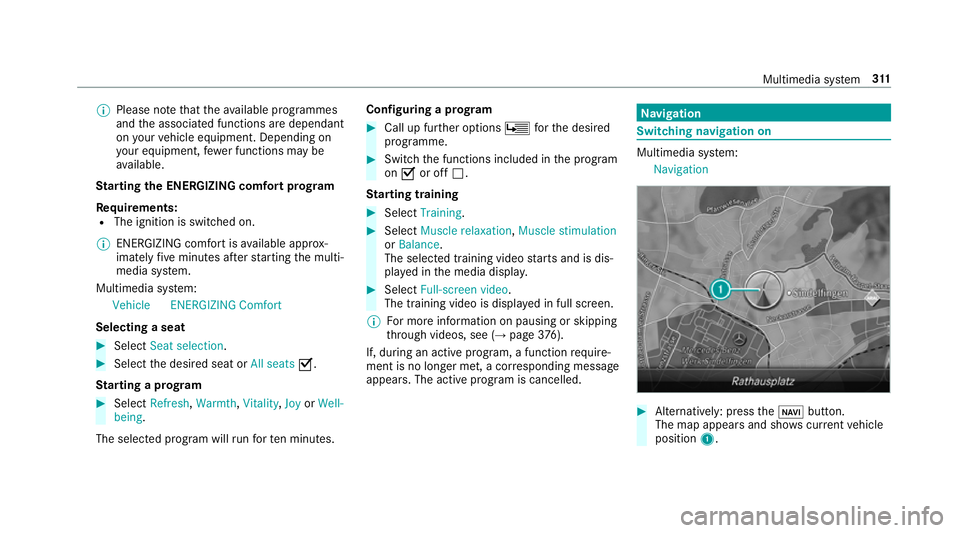
Navigation #
Alternatively: press theß button.
The map appears and sho wscurrent vehicle
position 1. Multimedia sy
stem 311
Page 322 of 593
#
Ifth e map is displa yed in full screen mode,
press the cent ral control element.
The map menu appears. #
Select "mo vemap" in map menu 2
(→ page 332). #
Swipe in any direction on theTo uch Control
or touchpad.
or #
Slide the controller in any direction.
The map mo ves in the cor responding direc‐
tion under the crosshair. The more you mo ve
yo ur finger away from thest arting position
on theto uchpad, thefast erthe map mo ves. #
Press theTo uch Control, the controller or the
to uchpad.
If se veral destinations are located around the
crosshair, a li stsho wstheav ailable POIs and
ro ads.
If a destination is located exact ly on the
crosshair, the destination address is dis‐
pla yed. #
Select the destination in the list.
The destination address is shown. Setting
the map orientation to2D or 3D #
Highlight Map orientation: 2D/3D. #
Press theTo uch Control, theto uchpad or the
controller.
The map will be displ ayed in the selected
map orientation.
Showing traf fic messages in the vicinity of
th e map #
Select Traffic messages for the vicinity.
The map appears. #
Swipe left or right on theto uchpad.
or #
Slide the controller tothe left or right.
The pr evious or next traf fic incident is high‐
lighted on the map. Information on the tra ffic
incident is displa yed.
% Traf fic re ports are not available in all coun‐
tries.
Showing POIs in the vicinity of the map #
Select Surrounding POIs . #
Swipe left or right on theto uchpad.
or #
Slide the controller tothe left or right.
The pr evious or next POI is highligh ted on the
map. The name or the address is shown. #
Tofilter the display byPOI categor y:
swipe down on theTo uch Control or the
to uchpad.
or #
Slide the controller down. #
Select the POI categor y.
% User defined allowspersonal POI symbols to
be selected (→ page 333). Ro
ute Calculating a
route
Re quirements:
R The destination has been entered.
R The destination address is shown. #
Ifro ute guidance is not active, select Start
route guidance .
The route tothe destination is calculated.
The map sho ws thero ute. Route guidance
th en begins. Multimedia sy
stem 319
Page 324 of 593
fi
c re ports. You can continue touse the cur‐
re nt route or use the dynamic route ins tead.
Selecting route options
Multimedia sy stem:
Navigation ÀRoute and posi-
tion Avoid options
Av oiding areas #
Select Areas(→page 335).
Av oiding mo torw ays, ferries, mo torail trains,
tunnels, unpa vedro ads #
Select Oor deselect ªavo id option.
Using routes requiring a special tollst icker #
Select Use vignette roads .#
Select Oor deselect ªAllor countries.
The route take s into account roads in the
selected countries which requ ire youto pay a
time-based fee (vignette). A vignette allo ws
fo rth e use of a route network for a limi ted
time pe riod. Using
tollro ads #
Select Use toll roads. #
Select Payment in cash orElectronic billing
or Off.
The route take s into account roads that
re qu ire the payment of a usage fee (toll).
If Off is selected, tollro ads are not take n into
account.
These route options are not available in every
countr y.
The selected route options cannot alw ays be
implemented. Therefore, a route may include a
fe rry, for ins tance, eventh ough theavo idFerries
option is enabled. A message appears and you
will hear a cor responding message.
Selecting notifications
Multimedia sy stem:
Navigation ZOption sAnnounce-
ments #
Switch an announcement on Oor off ª. Yo
u can choose from thefo llowing announce‐
ments:
R Announce traffic warnings
This function is not available in all countries.
R Announce street names
The multimedia sy stem announces the
names of thero ads that will follow the
upcoming change of direction.
This function is not available in all countries
and languages.
Displ aying destination information
Requ irements:
R A destination is entered.
Multimedia sy stem:
Navigation #
Select Intermediate destinations and info.
The following information is displa yed:
R Intermediate destinations and destination
The route can also include up tofour
intermediate destinations.
R Name, addre ss Multimedia sy
stem 321