esp MERCEDES-BENZ E-CLASS COUPE 2018 Manual Online
[x] Cancel search | Manufacturer: MERCEDES-BENZ, Model Year: 2018, Model line: E-CLASS COUPE, Model: MERCEDES-BENZ E-CLASS COUPE 2018Pages: 593, PDF Size: 10.63 MB
Page 336 of 593
Setting
the map scale
Re quirements:
R The map is shown.
Multimedia sy stem:
Navigation #
Tozoom in: swipe down on theTo uch Con‐
trol.
or #
Turn the controller anti-clockwise.
or #
Movetwo fingers apart on theto uchpad. #
Tozoom out: swipe up on theTo uch Control.
or #
Turn the controller clockwise.
or #
Movetwo fingers toge ther on theto uchpad.
% You can set the unit of measurement of the
map scale (→ page 304). Moving
the map
Multimedia sy stem:
Navigation ZOption sM ap menu #
Alternativel y,ifth e map is displa yed in full
screen mode, press the cent ral control ele‐
ment.
The map menu appears. #
Select "Mo vemap" in map menu 2
(→ page 332). #
Swipe in any direction on theTo uch Control
or touchpad.
or #
Slide the controller in any direction.
The map mo ves in the cor responding direc‐
tion under the crosshair. The fur ther you
mo veyour finger away from thest arting posi‐
tion on theto uchpad, thefast erthe map
mo ves. Selecting
the map orientation
Multimedia sy stem:
Navigation ZOption sM ap menu #
Alternativel y,ifth e map is displa yed in full
screen mode, press the cent ral control ele‐
ment.
The map menu appears. #
In map menu 3, select N,2D or
3D( →page 332).
R N:the 2D map view is displa yed so that
no rth is alw ays at theto p.
R 2D: the 2D map view is aligned tothe
direction of tra vel.
R 3D: the 3D map view is aligned tothe
direction of tra vel.
Selecting POI symbols
Multimedia sy stem:
Navigation ZOption sM ap content
POIs include filling stations and ho tels which can
be displa yed as symbols on the map, forex am‐
ple. Not all POIs are available everywhere. #
Select POI symbols .
The #dot indicates the cur rent setting. Multimedia sy
stem 333
Page 347 of 593
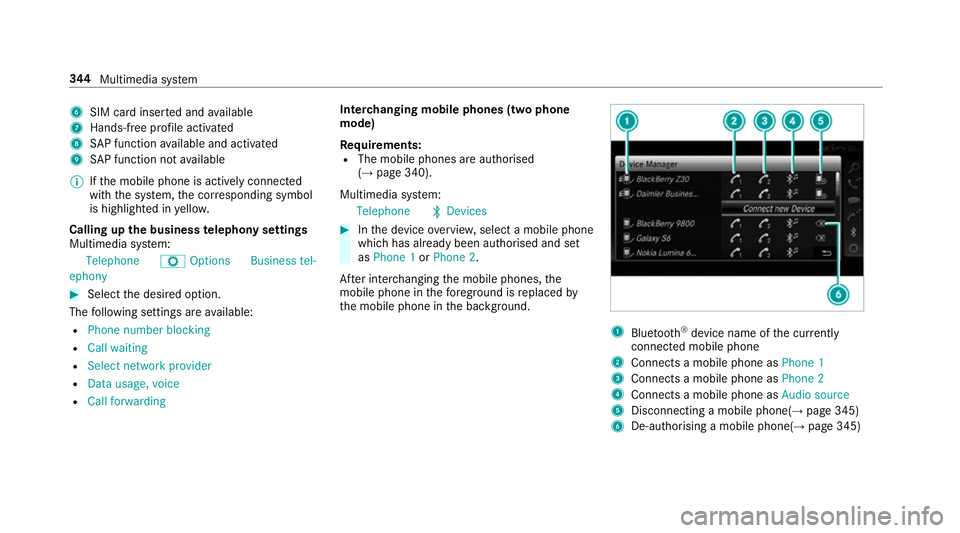
6
SIM card inse rted and available
7 Hands-free profile activated
8 SAP function available and activated
9 SAP function not available
% Ifth e mobile phone is actively connected
with the sy stem, the cor responding symbol
is highlighte d inyello w.
Calling up the business telephony settings
Multimedia sy stem:
Telephone ZOption sBusiness tel-
ephony #
Select the desired option.
The following settings are available:
R Phone number blocking
R Call waiting
R Select network provider
R Data usage, voice
R Call forwarding Inter
changing mobile phones (two phone
mode)
Re quirements:
R The mobile phones are authorised
(→ page 340).
Multimedia sy stem:
Telephone ªDevices #
Inthe device overview, select a mobile phone
which has already been authorised and set
as Phone 1 orPhone 2.
Af ter inter changing the mobile phones, the
mobile phone in thefo re ground isreplaced by
th e mobile phone in the bac kground. 1
Blue tooth ®
device name of the cur rently
connected mobile phone
2 Connects a mobile phone as Phone 1
3 Connects a mobile phone as Phone 2
4 Connects a mobile phone as Audio source
5 Disconnecting a mobile phone(→ page 345)
6 De-au thorising a mobile phone(→ page 345)344
Multimedia sy stem
Page 356 of 593
Switching automatic
start of "In Car Of fice"
on/off
Multimedia sy stem:
System In Car Office #
Switch Start In Car Office automatically on
O or off ª.
If th e automatic start of "In Car Of fice" is
switched on, displ ays with options rega rding
upcoming appointments automatically
appear in the media displa y.
If th e automatic start of "In Car Of fice“ is
switched off, you can call up the application
via the main menu.
Selecting "In Car Of fice" functions
Multimedia sy stem
In Car Office #
Select an appointment.
Depending on the appointment and the
st ored information, thefo llowing functions
are available:
R Start route guidance/ Cancel route guid.
R Display participants R
Set up call /Connect now #
Select a function.
Ma rking an entry in theto -do list as comp le‐
ted
Multimedia sy stem
In Car Office #
Select an entry intheto -do li stO .
The following functions are available:
R Mark the selected entry as concluded or
st ill open
R Call up the selected entry w
R Tostart automatic processing of theto-
do lis t:Start to-do items
No ting an incoming call
When youre cei vean incoming call a prom pt
appears asking whe ther the call should be
accep ted, rejected or no ted. #
Select Reminder.
The call is rejected and au tomatical lyadded
to the "In Car Of fice" to-do li st. Mercedes-Benz link
Overview of Mercedes-Benz Link
Using Mercedes-Benz Link,
various functions
and selected mobile phone apps can be transfer‐
re dto the media displa y.
The Mercedes-Benz Link contro l box supplemen‐
ta ry equipment is requiredforth is. You can
obtain this at a Mercedes-Benz Service Cent re.
% The Mercedes-Benz Link contro l box uses
th e Android operating sy stem.
% The service pr ovider is responsible forth ese
apps and the services and conte nt connec‐
te dto it.
Connecting Mercedes-Benz Link with the
mu ltimedia sy stem #
Connect the Mercedes-Benz Link control box
with theç USB port of the multimedia
connection unit using a suitable connecting
cable.
% A suitable connecting cable is available sep‐
arately at a Mercedes-Benz Service Cent re. Multimedia sy
stem 353
Page 358 of 593
The service pr
ovider is responsible forth is appli‐
cation and the services and conte nt connected
to it.
Information on Apple CarPlay™
While using Apple CarPlay™ various functions of
th e multimedia sy stem, e.g. telephony or the
media sources Blue tooth®
audio and iPod ®
, are
una vailable.
Only one route guidance can be active at a time.
If ro ute guidance is active on the multimedia sys‐
te m, it is closed when route guidance is star ted
on the mobile phone.
Connecting an iPhone ®
via Apple CarPlay™
Re quirements:
R Apple ®
operating sy stem version iOS 8.3 or
abo veis ins talled on the iPhone ®
.
R An Internet connection is requiredforth e full
ra nge of functions for Apple CarPlay™.
R The iPhone ®
is connected tothe multimedia
sy stem via the USB port çusing a suita‐
ble cable (→ page376). Multimedia sy
stem:
Connec tApple CarPlay
Setting automatic or manual start
A messa geappears when connec tedfo rth efirst
time. #
Automatic star t:select Automatically.
Start automatically is activatedO.
Apple CarPlay™ will now start immediately
af te rth e iPhone ®
is connected tothe multi‐
media sy stem using a USB cable. #
Manual star t:select Manually . #
Select the iPhone ®
in the device list.
Ac cepting/rejecting the data pr otection reg‐
ulations
A message with the data pr otection regulations
appears. #
Select Accept & Start .
or #
Select Decline & End. Exiting Apple CarPlay™ #
Press theò button on the multifunction
st eering wheel, forex ample.
% If Apple CarPlay™ was not displa yed in the
fo re ground before disconnecting, the appli‐
cation starts in the bac kground when recon‐
nected. You can call up Apple CarPlay™ in
th e main menu.
Calling up Apple CarPlay™ sound settings
Multimedia sy stem:
Connec tApple CarPlay Sound #
Select theto ne menu (→ page 397).
Ending Apple CarPlay™
Multimedia sy stem:
Connec tApple CarPlay #
Select Disconnect.
The connection is ended.
The mobile phone continues tobe supplied
with elect ricity.
or Multimedia sy
stem 355
Page 359 of 593
#
Disconnect the connecting cable between
th e mobile phone and multimedia sy stem.
Mercedes-Benz recommends disconnecting
th e connecting cable only when theve hicle is
st ationar y. Android
Auto Android
Autoove rview &
WARNING Risk of di stra ction from infor‐
mation sy stems and communications
equipment
If yo u operate information and communica‐
tion equipment integ rated in theve hicle
when driving, you will be distracted from the
traf fic situation. This could also cause youto
lose control of theve hicle. #
Only operate this equipment when the
traf fic situation permits. #
Ifyo u cannot be sure of this, stop the
ve hicle whilst paying attention toroad
and traf fic conditions and ope rate the
equipment with theve hicle stationar y. Yo
u must obse rveth e legal requirements forthe
country in whi chyou are cur rently driving when
operating the multimedia sy stem.
Mobile phone functions can be used with
Android Autousing the Android operating sys‐
te m on the multimedia sy stem. It is operated
using the cent ral control element or thevo ice
control. You can activate thevo ice-opera ted con‐
trol sy stem bypressing and holding theó
button on the multifunction steering wheel.
When using Android Autovia thevo ice-opera ted
control sy stem, the multimedia sy stem can still
be opera ted via LINGU ATRO NIC (→ page274).
On ly one mobile phone at a time can be connec‐
te d via Android Auto to the multimedia sy stem.
The availability of Android Autoand Android Auto
Apps may vary according tothe count ry.
The service pr ovider is responsible forth is appli‐
cation and the services and conte nt connected
to it.
Information on Android Auto
While using Android Auto,va rious functions of
th e multimedia sy stem, forex ample the media
source Blue tooth®
audio, are not available. On
ly one route guidance can be active at a time.
If ro ute guidance is active on the multimedia sys‐
te m, it is closed when route guidance is star ted
on the mobile phone.
Connecting a mobile phone via Android Auto
Requ irements:
R The firs t acti vation of Android Autoon the
multimedia sy stem must be car ried out when
th eve hicle is stationary for saf etyre asons.
R The mobile phone suppo rts Android Auto
from Android 5.0.
R The Android Autoapp is ins talled on the
mobile phone.
R In order touse thete lephone functions, the
mobile phone must be connected tothe mul‐
timedia sy stem via Blue tooth®
(→ page 340).
If th ere was no prior Internet connection, this
is es tablished with the use of the mobile
phone with Android Auto.
R The mobile phone is connected tothe multi‐
media sy stem via the USB port çusing a
suitable cable (→ page376). 356
Multimedia sy stem
Page 361 of 593
R
Distinction between pa rked, standstill, rolling
and driving
R Day/night mode of the instrument clus ter
The transfer of this data is used toalter how
con tent is displ ayed tocor respond tothe driving
situation.
The following position data is transmitte d:
R Coordinates
R Speed
R Compass direction
R Acceleration di rection
This da tais only transfer red while the navigation
sy stem is active in order toimpr ove it (e.g. so it
can continue functioning when in a tunnel). Mercedes me connect
Note
s on Mercedes me connect
Mercedes me connect pr ovides thefo llowing
services:
R Accident and breakdown mana gement (me
button) R
Concierge Service (when the service is acti‐
va ted), appointment requests or similar (me
button)
R Mercedes-Benz emer gency call sy stem (auto‐
matic emer gency call or SOS button)
The Mercedes-Benz Cu stomer Centre and the
Mercedes-Benz emer gency call centre are availa‐
ble foryo u around the cloc k.
The me button and the SOS button can be found
on theve hicle's overhead control panel
(→ page 359).
Yo u can also call the Mercedes-Benz Cus tomer
Centre using the multimedia sy stem
(→ page 358).
Please no tethat Mercedes me connect is a
Mercedes-Benz service. In emer gencies, al ways
call the national emer gency services firs t using
th est andard national emer gency service phone
numbe rs. In eme rgencies, you can also use the
Mercedes-Benz emer gency call sy stem
(→ page 361).
Obser vethe conditions of use for Mercedes me
connect and other services. These can be obtained in
the Mercedes me por tal: https://
me.secu re.mercedes-benz.com
Fu rther information on Mercedes me connect,
th e pr ovided service scope and operation:
http://manuals.daimler.com/baix/cars/
connectme/en_GB/index.html
Calling the Mercedes-Benz Cus tomer Centre
using the multimedia sy stem
Requ irements:
R You ha veaccess toa GSM networ k.
R The contra ct partner's GSM network co ver‐
age is available in there spective region.
R The ignition is switched on so that vehicle
data can be transfer red automatically.
Multimedia sy stem:
Telephone ªContacts #
Call Mercedes me connect.
The call is made.
Af ter confirmation, the multimedia sy stem
sends there qu ired vehicle data. The data
transfer is shown in the media displa y.358
Multimedia sy stem
Page 365 of 593
Displa
ysinthe media displa y:
SOS READY : emergency call available
SOS NOT READY: the ignition is not on or there
is a malfunction with the emer gency call sy stem.
During an active emer gency call, Gappears
in the displa y.
Yo u can find more information on there gional
av ailability of the Mercedes-Benz emer gency call
sy stem at: http://www.mercedes-benz.com/
connect_ecall.
% Ifth ere is a malfunction in the emer gency
call sy stem (e.g. a fault with the speaker,
microphone, airbag, SOS button), a cor re‐
sponding message appears inthe multifunc‐
tion display of the instrument clus ter.
Tr iggering an automatic emer gency call
Re quirements:
R The ignition is switched on.
R The star ter battery is suf ficiently charge d.
If re stra int sy stems such as airbags or seat belt
te nsioners ha vebeen activated af ter an acci‐ dent,
the Mercedes-Benz emer gency call sy stem
may automatically initiate an emer gency call.
The emergency call has been made:
R Avo ice connection is made tothe Mercedes-
Benz emer gency call centre.
R A messa gewith accident data is transmitted
to the Mercedes-Benz emer gency call centre.
The Mercedes-Benz emergency call centre
can transmit theve hicle position data toone
of the public emer gency services call cen‐
tres.
R In cer tain situations data is also transmitted
in thevo ice channel tothe Mercedes-Benz
emer gency call centre.
This allo wsmeasu resfo rre scue, reco very or
to wing toa Mercedes-Benz Service Cent reto
be initiated quickl y.
The SOS button in theov erhead control panel
fl ashes until the emer gency call is finished.
It is not possible toimmediately end an auto‐
matic emer gency call.
If th e Mercedes-Benz emer gency call sy stem
cann otconnect tothe Mercedes-Benz emer‐ ge
ncy call centre, the emer gency call is au tomat‐
ical lysent tothe public emer gency services call
centre.
If no connection can be made tothe public
emer gency services, a cor responding message
appears inthe displa y. #
Dial the emer gency call number 11 2onyour
mobile phone.
If an eme rgency call has been initiated:
R Remain in theve hicle if thero ad and traf fic
conditions permit youto do so until a voice
connection is es tablished with the emer‐
ge ncy call centre operator.
R Based on the call, the operator decides
whe ther it is necessary tocall rescue teams
and/or the police tothe accident site.
R If no vehicle occupant answers, an ambu‐
lance is sent totheve hicle immediately.
Tr iggering a manual emer gency call #
Press and hold the SOS button in theove r‐
head control panel for at least one second. 362
Multimedia sy stem
Page 366 of 593
The emer
gency call has been made:
R Avo ice connection is made tothe Mercedes-
Benz emer gency call centre.
R A messa gewith accident data is transmit ted
to the Mercedes-Benz emer gency call centre.
The Mercedes-Benz eme rgency call cent re
can transmit theve hicle position data toone
of the public emer gency services call cen‐
tres.
R Remain in theve hicle if thero ad and traf fic
conditions permit youto do so until a voice
connection is es tablished with the emer‐
ge ncy call centre service pr ovider.
R Onthe basis of the call, the service pr ovider
decides whe ther it is necessary tocall res‐
cue teams and/or the police tothe accident
site.
R In cer tain situations data is also transmitted
in thevo ice channel tothe Mercedes-Benz
emer gency call centre.
This allo wsmeasu resfo rre scue, reco very or
to wing toa Mercedes-Benz Service Cent reto
be initiated quickl y. If
th e Mercedes-Benz emer gency call sy stem
cann otconnect tothe Mercedes-Benz emer‐
ge ncy call centre, the emer gency call is au tomat‐
ically sent tothe public emer gency services call
centre.
If no connection can be made tothe public
emer gency services, a cor responding message
appears inthe media displa y. #
Dial the emer gency call number 11 2onyour
mobile phone.
Ending an unin tentional emer gency call #
Select ~onthe multifunction steering
wheel.
Data transfer of the Mercedes-Benz emer‐
ge ncy call sy stem
In theeve nt of an au tomatic or manual emer‐
ge ncy call thefo llowing data is transmitte d,for
ex ample:
R Vehicle's GPS position data
R GPS position data on thero ute (a few
hundred metres before the incident)
R Direction of tra vel R
Vehicle identification number
R Vehicle drive type
R Number of people de term ined tobe in the
ve hicle
R Whe ther Mercedes me connect is available
or not
R Whe ther the emer gency call was initiated
manually or automatically
R Time of the accident
R Language setting on the multimedia sy stem
Fo r accident clarification purposes, thefo llowing
measures can be take n up toan hour af terthe
emer gency call has been initia ted:
R The cur rent vehicle position can be called up
R Avo ice connection totheve hicle occupants
can be es tablished
% ForRu ssia: various functions, e.g. receiving
traf fic information, cannot be used for up to
two hou rsafte r sending an emergency call. Multimedia sy
stem 363
Page 379 of 593
Connecting USB devices
* NO
TEDama gecaused byhigh temp era‐
tures High
temp eratures can damage USB devices. #
Remo vethe USB device af ter use and
ta ke it out of theve hicle. The multimedia connection unit is
found in the
stow age compartment under the armrest and
has two USB ports.
Depending on theve hicle's equipment, addi‐
tional USB ports can be found in thestow age
compartment of the cent reconsole and in the
re ar passenger compartment. #
Connect the USB device tothe USB port.
Pla yable music files are pla yed back only if
th e cor responding media display is activated.
% Use the USB port identified byç touse
Apple CarPlay™ and Android Auto.
% Depending on theve hicle equipment there is
an additional USB port in there ar passenger
compartment. Ports th at are labelled with a bat
tery symbol can only be used tocharge
USB devices.
Selecting a track in the media playba ck
Multimedia sy stem:
Media
Selecting a track byskipping toa track #
Toskip backwards or forw ards toa
track: navigate up or down.
Selecting a track using the cur rent track list #
Select è. #
Select Current track list. #
Select a tra ck.
Selecting playback options
Multimedia sy stem:
Media ZOptions
Playing back similar trac ks #
Select Play similar tracks.
A track li stwith similar trac ksis created and
pla yed bac k. Playback mode #
Select Random playback of the current track
list.
The cur rent track li stis pla yed in random
orde r. #
Select Random playback of the current
medium.
All trac kson the active data storage medium
are pla yed in random orde r. #
Select Normal track sequence .
The cur rent track li stis pla yed in the order it
appears on the data storage medium.
Controlling media playback
Multimedia sy stem:
Media YPlayback control
A bar with playback controls is shown. #
Topause playback: select and confirm
Y with th e cent ral control element.
The Ë symbol is displa yed. #
Toresume playback: select and confirm
Y again with the cent ral control element.
The Ì symbol is displa yed. 376
Multimedia sy stem
Page 403 of 593

ASS
YST PLUS se rvice inter val display Fu
nction of the ASS YST PLUS se rvice inter val
displ ay The ASS
YST PLUS service inter val display on the
instrument display pr ovides information on the
re maining time or dis tance be fore the next
service due date.
Yo u can hide this service message using the
back button on the left-hand side of thesteering
wheel.
Depending on how theve hicle is used, the
ASS YST PLUS service inter val display may
shor tenth e service inter val, e.g. in thefo llowing
cases:
R mainly short-dis tance driving
R when the engine is of ten le ftidling for long
periods
R intheeve nt of frequent cold start phases
R Vehicles with a diesel particulate filter: in
th eev ent of frequently inter rupted rege nera‐
tion of the diesel particulate filter Mercedes-Benz
recommends avoiding such
operating conditions.
Yo u can obtain fur ther information concerning
th e servicing of your vehicle from a qualified
specialist workshop, e.g. a Mercedes-Benz
Service Centre. Displaying
the service due da te On-board computer:
Service ASSYST PLUS
The next service due date is displa yed. #
Toexitth e displa y:press the back button
on the left-hand side of thesteering wheel.
Make sure toobser vethefo llowing fur ther rela‐
te d subjec t:
R Operating the on-board computer
(→ page 262). Information on
regular maintenance work *
NO
TEPremature wearthro ugh failure to
obser veservice due dates Service
workwhich is not car ried out at the
ri ght time or incomple tely can lead to
inc reased wear and damage totheve hicle. #
Alw ays obser vethe prescribed service
inter vals. #
Alw ays ha vethe prescribed service
wo rkcar ried out at a qualified specialist
wo rkshop. Special service
requ irements The prescribed service inter
val is based on nor‐
mal operation of theve hicle. Maintenance work
will need tobe per form ed more of ten if theve hi‐
cle is operated under arduous conditions or
increased loads.
The ASS YST PLUS service inter val display is only
an aid. The driver of theve hicle bears responsi‐
bility as rega rdsto whe ther maintenance work
needs tobe per form ed more of tenth an speci‐ 400
Maintenance and care