change time MERCEDES-BENZ E-CLASS ESTATE 2016 Owner's Manual
[x] Cancel search | Manufacturer: MERCEDES-BENZ, Model Year: 2016, Model line: E-CLASS ESTATE, Model: MERCEDES-BENZ E-CLASS ESTATE 2016Pages: 565, PDF Size: 11.34 MB
Page 250 of 565
#
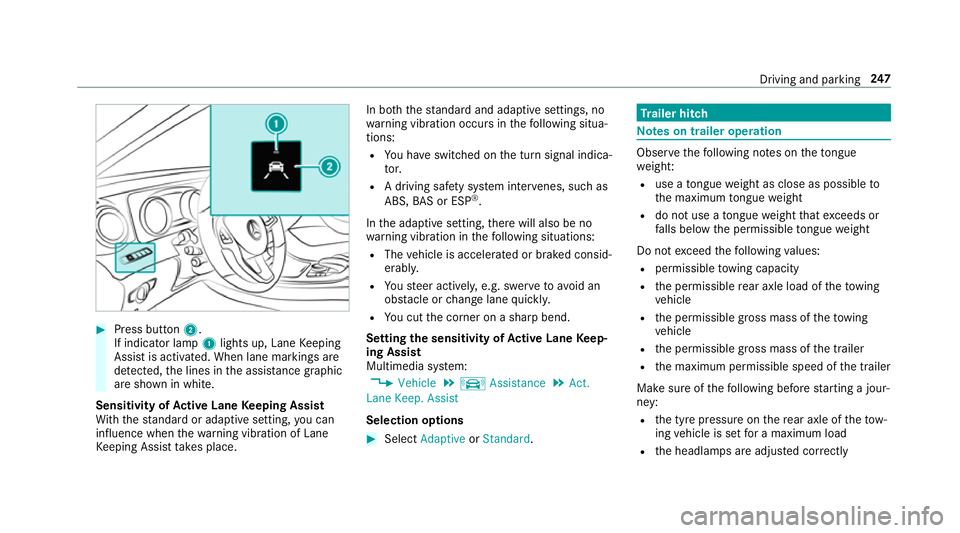
Press button 2.
If indicator lamp 1lights up, Lane Keeping
Assist is activated. When lane markings are
de tected, the lines in the assis tance graphic
are shown in white.
Sensitivity of Active Lane Keeping Assist
Wi th th est andard or adaptive setting, you can
influence when thewa rning vibration of Lane
Ke eping Assist take s place. In bo
th thest andard and adaptive settings, no
wa rning vibration occurs in thefo llowing situa‐
tions:
R You ha veswitched on the turn signal indica‐
to r.
R A driving sa fety sy stem inter venes, su chas
ABS, BAS or ESP ®
.
In the adaptive setting, there will also be no
wa rning vibration in thefo llowing situations:
R The vehicle is accelerated or braked consid‐
erably.
R Yousteer actively, e.g. swer vetoavo id an
obs tacle or change lane quickl y.
R You cut the corner on a sharp bend.
Setting the sensitivity of Active Lane Keep‐
ing Assist
Multimedia sy stem:
, Vehicle .
k Assistance .
Act.
Lane Keep. Assist
Selection options #
Select Adaptive orStandard. Tr
ailer hitch Note
s on trailer operation Obser
vethefo llowing no tes on theto ngue
we ight:
R use a tongue weight as close as possible to
th e maximum tongue weight
R do not use a tongue weight that exc eeds or
fa lls below the permissible tongue weight
Do not exceed thefo llowing values:
R permissible towing capacity
R the permissible rear axle load of theto wing
ve hicle
R the permissible gross mass of theto wing
ve hicle
R the permissible gross mass of the trailer
R the maximum permissible speed of the trailer
Make sure of thefo llowing before starting a jour‐
ney:
R the tyre pressure on there ar axle of theto w‐
ing vehicle is set for a maximum load
R the headlamps are adjus ted cor rectly Driving and pa
rking 247
Page 263 of 565
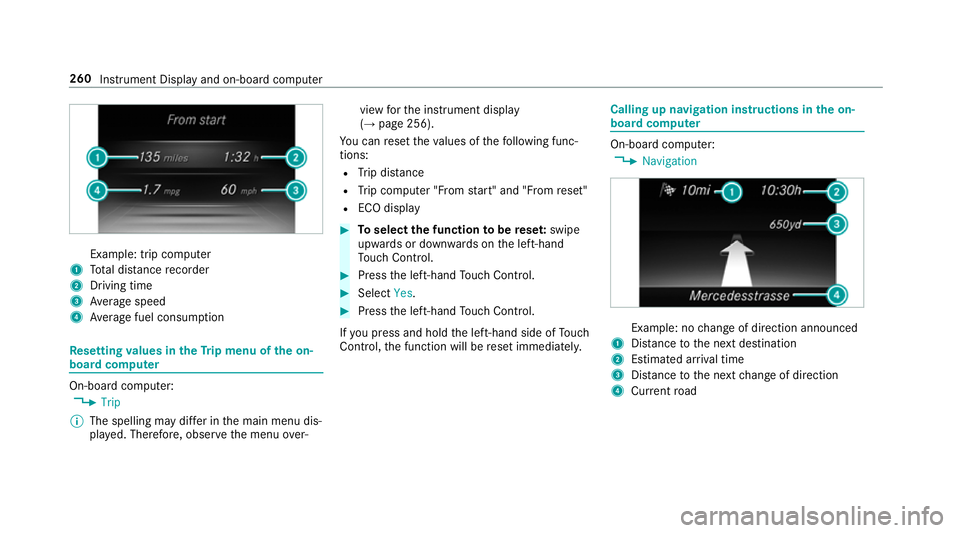
Example: trip computer
1 Total dis tance recorder
2 Driving time
3 Average speed
4 Average fuel consum ption Re
setting values in theTr ip menu of the on-
board compu terOn-board computer:
, Trip
% The spelling may dif fer in the main menu dis‐
pla yed. Therefore, obser vethe menu over‐ view
forth e instrument display
(→ page 256).
Yo u can reset theva lues of thefo llowing func‐
tions:
R Trip dis tance
R Trip computer "F rom start" and "F rom reset"
R ECO display #
Toselect the function tobe rese t:swipe
upwards or down wards on the left-hand
To uch Control. #
Press the left-hand Touch Control. #
Select Yes. #
Press the left-hand Touch Control.
If yo u press and hold the left-hand side of Touch
Control, the function will be reset immediately. Calling up navigation instructions in
the on-
board compu ter On-board computer:
, Navigation Example: no
change of direction announced
1 Distance tothe next destination
2 Estimated ar riva l time
3 Distance tothe next change of direction
4 Current road 260
Instru ment Display and on-board computer
Page 264 of 565
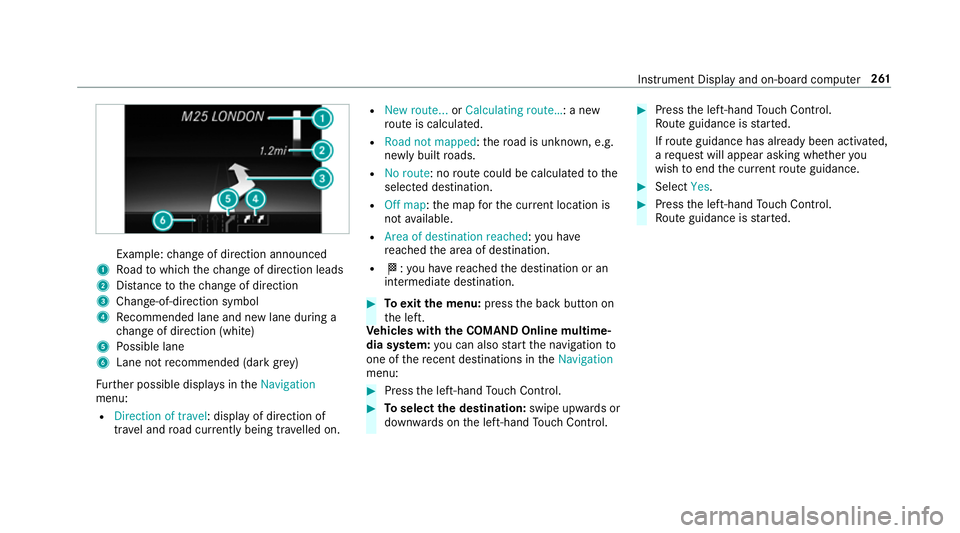
Example:
change of direction announced
1 Road towhich thech ange of direction leads
2 Distance tothech ange of direction
3 Chan ge-of-direction symbol
4 Recommended lane and new lane du ring a
ch ange of direction (white)
5 Possible lane
6 Lane not recommended (da rkgrey)
Fu rther possible displa ysintheNavigation
menu:
R Direction of travel: display of direction of
tra vel and road cur rently being tr avelled on. R
New route... orCalculating route… : a new
ro ute is calculated.
R Road not mapped :th ero ad is unknown, e.g.
newly built roads.
R No route: no route could be calculated tothe
selected destination.
R Off map: the map forth e cur rent location is
not available.
R Area of destination reached :yo u ha ve
re ached the area of destination.
R O: you ha vereached the destination or an
intermediate destination. #
Toexitth e menu: pressthe back button on
th e left.
Ve hicles with the COMAND Online multime‐
dia sy stem: you can also start the navigation to
one of there cent destinations in theNavigation
menu: #
Press the left-hand Touch Control. #
Toselect the destination: swipe upwards or
down wards on the left-hand Touch Control. #
Press the left-hand Touch Control.
Ro ute guidance is star ted.
If ro ute guidance has already been activated,
a re qu est will appear asking whe ther you
wish toend the cur rent route guidance. #
Select Yes. #
Press the left-hand Touch Control.
Ro ute guidance is star ted. Instrument Display and on-board computer
261
Page 266 of 565
%
This is how tochange thech annel on the
media source TV.
Changing the media source #
Press the left-hand Touch Control. #
Toselect a media source: swipe upwards
or down wards on the left-hand side of Touch
Control. #
Press the left-hand Touch Control. Dialling
telephone numbers using the on-
board compu ter Re
quirements:
R Mobile phone connec tedto the multimedia
sy stem On-board computer:
, Telephone &
WARNING Risk of di stra ction from infor‐
mation sy stems and communications
equipment
If yo u operate information and communica‐
tions equipment integ rated in theve hicle
when driving, you will be distracted from the
traf fic situation. This could also cause youto
lose control of theve hicle. #
Only operate this equipment when the
traf fic situation permits. #
Ifyo u cannot be sure of this, stop the
ve hicle whilst paying attention toroad
and traf fic conditions and ope rate the
equipment with theve hicle stationar y. When
telephoning, you must obse rveth e legal
re qu irements forth e count ryin which you are
cur rently driving.
Ve hicles with the COMAND Online multime‐
dia sy stem: the most recent telephone connec‐ tions (dialled,
recei ved and missed calls) are dis‐
pla yed in theTelephone menu. #
Toselect thete lephone number: swipe
upwards or down wards on the left-hand
To uch Control. #
Press the left-hand Touch Control.
If th ere is only one telephone number
sa ve dto an entr y:thete lephone number is
selec ted. #
Ifth ere are multiple telephone numbers
sa ve dto an entr y:swipe upwards or down‐
wa rds on the left-hand Touch Control to
select the desired telephone number. #
Press the left-hand Touch Control.
The telephone number is dialled.
The following displa ysmay appear ins tead of the
te lephone numbers dialled:
R Please wait... :th e application is starting.
When a Blue tooth®
connection tothe mobile
phone is not es tablished, the menu for
authorising and connecting a mobile phone is
displa yed in the multimedia sy stem
(→ page 318). Instrument Displ
ayand on-board computer 263
Page 287 of 565
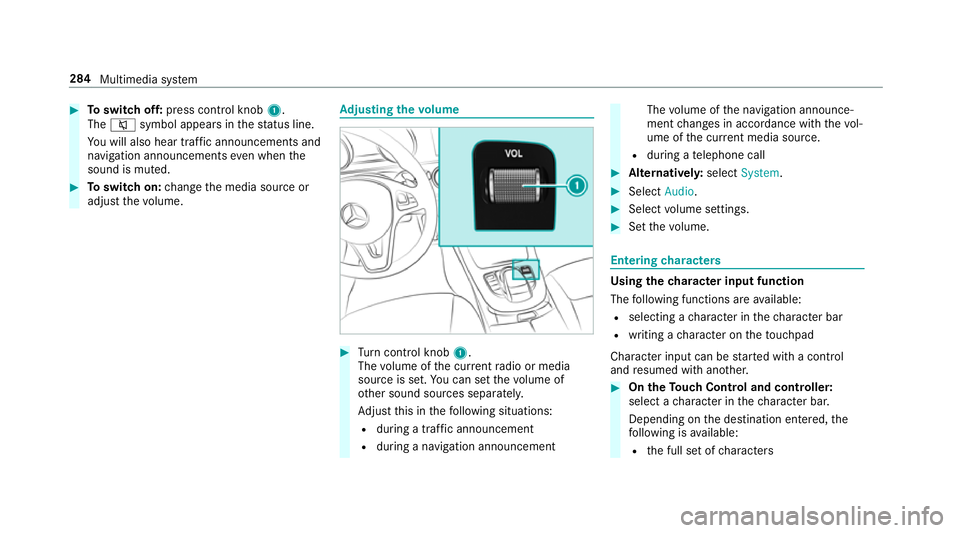
#
Toswitch off: press control knob 1.
The 8 symbol appears in thest atus line.
Yo u will also hear traf fic announcements and
navigation announcements even when the
sound is muted. #
Toswitch on: change the media source or
adjust thevo lume. Ad
justing the volume #
Turn control knob 1.
The volume of the cur rent radio or media
source is set. You can set thevo lume of
ot her sound sources separatel y.
Ad just this in thefo llowing situations:
R during a traf fic announcement
R during a navigation announcement The
volume of the navigation announce‐
ment changes in accordance with thevo l‐
ume of the cur rent media sou rce.
R during a telephone call #
Alternativel y:select System. #
Select Audio. #
Select volume settings. #
Set thevo lume. Entering
characters Using
thech aracter input function
The following functions are available:
R selecting a character in thech aracter bar
R writing a character on theto uchpad
Character input can be star ted with a control
and resumed with ano ther. #
On theTo uch Control and controller:
select a character in thech aracter bar.
Depending on the destination entered, the
fo llowing is available:
R the full set of characters 284
Multimedia sy stem
Page 288 of 565
R
characters which are useful forth e cur‐
re nt input string
Other characters are gr eyed out. #
On theto uchpad: Select acharacter in the
ch aracter bar.
or #
Write thech aracters on theto uch-sensitive
sur face of theto uchpad.
Handwriting recognition suppo rts yo uby
means of character suggestions and a read-
aloud function.
Characters can be entered using thefo llowing
me thods:
R using a keyword sear chfor a track or artist
R connecting the mobile phone tothe multime‐
dia sy stem byentering the passk ey
R entering a phone number
R entering a web address Character input using
the controller
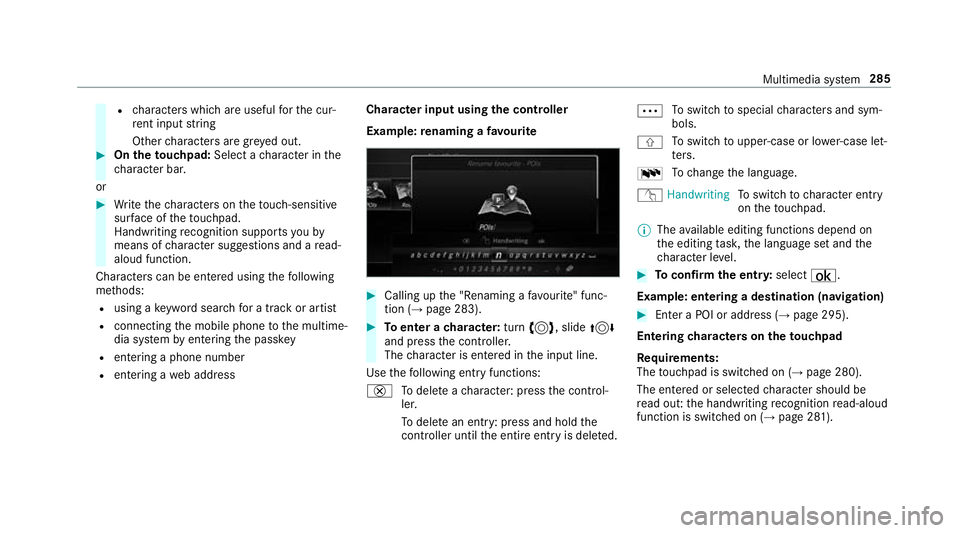
Example: renaming a favo urite #
Calling up the "Renaming a favo urite" func‐
tion (→ page 283). #
Toenter a character: turn3, slide 4
and press the controller.
The character is entered in the input line.
Use thefo llowing ent ryfunctions:
£ Todele teach aracter: press the control‐
ler.
To dele tean ent ry: press and hold the
controller until the entire entry is deleted. Ä
To
switch tospecial characters and sym‐
bols.
X To
switch toupper-case or lo wer-case let‐
te rs.
B To
change the language.
v Handwriting To
switch tocharacter ent ry
on theto uchpad.
% The available editing functions depend on
th e editing task, the language set and the
ch aracter le vel. #
Toconfirm the entr y:select ¡.
Example: entering a destination (navigation) #
Enter a POI or address (→ page 295).
Entering characters on theto uchpad
Re quirements:
The touchpad is swit ched on (→ page 280).
The entered or selected character should be
re ad out: the handwriting recognition read-aloud
function is swit ched on (→ page 281). Multimedia sy
stem 285
Page 290 of 565
Time
and date Setting
the time and da teautomatically
Multimedia sy stem:
, System .
Time and date .
Automatic
time setting
The cor rect time is requ ired forth efo llowing
functions:
R route guidance with time-dependent traf fic
guidance
R calculation of expected time of ar rival #
Activate Oor deacti vate ª the function.
Setting the time zone
Multimedia sy stem:
, System .
Time and date .
Time zone:
A list of count ries is displa yed. #
Select a count ry#.
Depending on the count ry, time zones are
displa yed. #
Select a time zone.
The time zone set is displa yed af terTime
zone:. Setting summer time
The
Automatic Summer Time andSummer Time
options cannot be selected in all countries.
Multimedia sy stem:
, System .
Time and date
Au tomatically #
Switch Automatic Summer Time onO or off
ª.
Manual ly #
Deactivate ªAutomatic Summer Time . #
Select Summer Time. #
Select OnorOff.
Setting the time and date form at
Multimedia sy stem:
, System .
Time and date .
Set format #
Set the date and time form at#.
Setting the time manually
Re quirement:
The Automatic time setting function is deactiva‐
te d or is not suppor ted in a time zone. Multimedia sy
stem:
, System .
Time and date .
Time set-
ting #
Set the hours. #
Navigate totheright toset the minutes. #
Set the minutes. #
Confirm changes when exiting the menu.
The date is set automatically via GPS. Blue
tooth ® Blue
tooth ®
settings
Blue tooth ®
tech nology is a standard for short-
ra nge wi reless data transfer up toappr oximately
10 m.You can use Blue tooth®
to connect your
mobile phone tothe multimedia sy stem and use
th efo llowing functions, forex ample:
R hands-free sy stem with access tothefo llow‐
ing options:
- con tacts (→ page 322)
- call lists (→ page 324)
- text messa ges (→ page 324) Multimedia sy
stem 287
Page 298 of 565
%
If a climate control setting is changed, a cli‐
mate bar appears brief ly.Showing/hiding
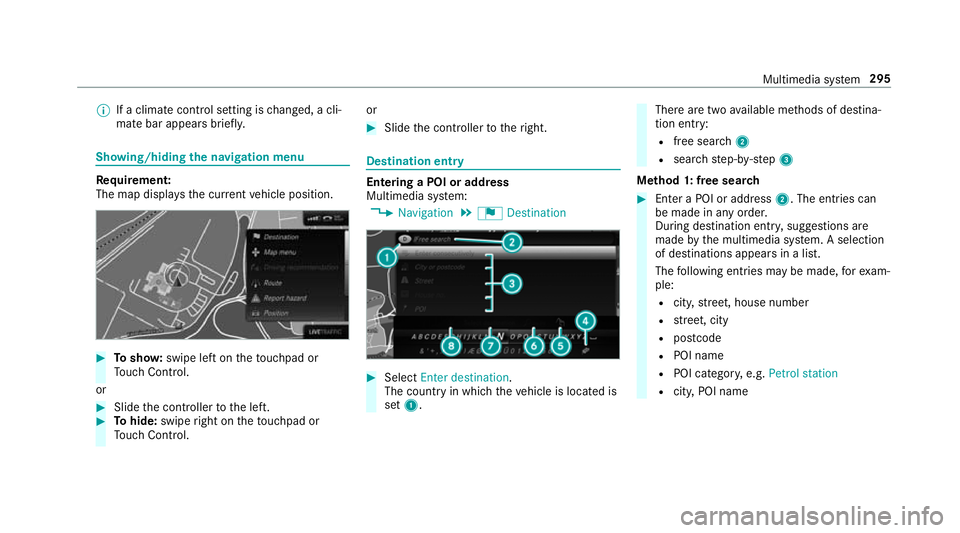
the navigation menu Re
quirement:
The map displa ys the cur rent vehicle position. #
Tosho w:swipe left on theto uchpad or
To uch Control.
or #
Slide the controller tothe left. #
Tohide: swipe right on theto uchpad or
To uch Control. or #
Slide the controller totheright. Destination entry
Entering a POI or addre
ss
Multimedia sy stem:
, Navigation .
¬ Destination #
Select Enter destination .
The count ryin which theve hicle is located is
set 1. There are two
available me thods of destina‐
tion entry:
R free sear ch2
R sear ch st ep-by-step 3
Me thod 1: free sear ch #
Enter a POI or address 2. The entries can
be made in any orde r.
During de stination ent ry, suggestions are
made bythe multimedia sy stem. A selection
of destinations appears in a list.
The following ent ries may be made, forex am‐
ple:
R city,stre et, house number
R stre et, city
R postcode
R POI name
R POI categor y,e.g. Petrol station
R city, POI name Multimedia sy
stem 295
Page 299 of 565
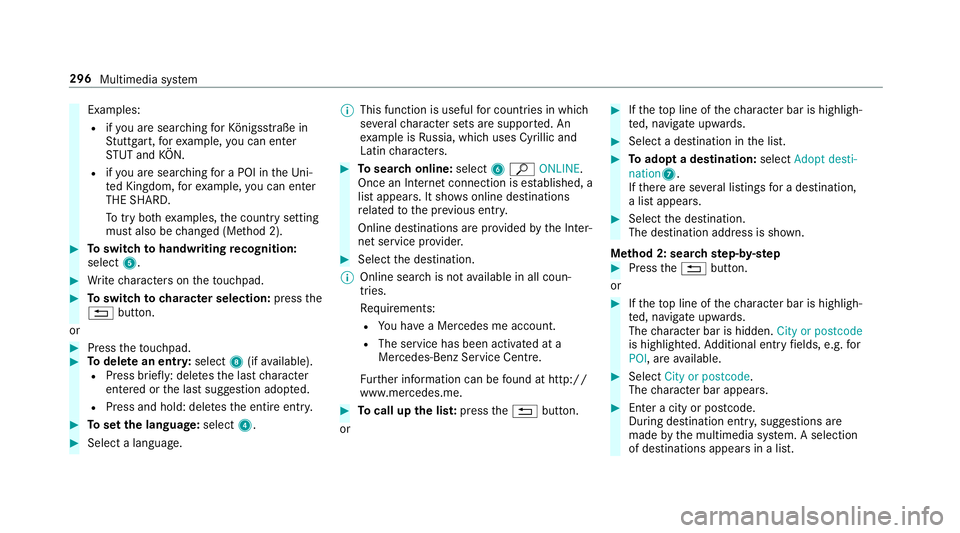
Examples:
R ifyo u are sear ching forKö nigsstraße in
St utt gart,fo rex ample, you can en ter
ST UT and KÖN.
R ifyo u are sear ching for a POI in theUn i‐
te d Kingdom, forex ample, you can en ter
THE SHARD.
To try bo thexamples, the count rysetting
must also be changed (Me thod 2). #
Toswitch tohandwriting recognition:
select 5. #
Write characters on theto uchpad. #
Toswitch to character selection: pressthe
% button.
or #
Press theto uchpad. #
Todel ete an entr y:select 8(ifavailable).
R Press brief ly: del etes the last character
entered or the last suggestion adop ted.
R Press and hold: dele testh e entire entry. #
Toset the language: select4. #
Select a language. %
This function is useful for countries in which
se veralch aracter sets are suppo rted. An
ex ample is Russia, which uses Cyrillic and
Latin characters. #
Tosear chonline: select6ª ONLINE.
Once an In tern et connection is es tablished, a
list appears. It sho wsonline destinations
re lated tothe pr evious ent ry.
Online destinations are pr ovided bythe Inter‐
net service pr ovider. #
Select the destination.
% Online sear chis not available in all coun‐
tries.
Re quirements:
R You ha vea Mercedes me account.
R The service has been activated at a
Mercedes-Benz Service Cent re.
Fu rther information can be found at http://
www.mercedes.me. #
Tocall up the lis t:press the% button.
or #
Ifth eto p line of thech aracter bar is highligh‐
te d, navigate upwards. #
Select a destination in the list. #
Toadopt a destination: selectAdopt desti-
nation7.
If th ere are se veral listings for a destination,
a list appears. #
Select the destination.
The destination address is shown.
Me thod 2: sear chstep- by-step #
Press the% button.
or #
Ifth eto p line of thech aracter bar is highligh‐
te d, navigate upwards.
The character bar is hidden. City or postcode
is highlighted. Additional ent ryfields, e.g. for
POI, are available. #
Select City or postcode.
The character bar appears. #
Enter a city or postcode.
During destination entr y,suggestions are
made bythe multimedia sy stem. A selection
of destinations appears in a list. 296
Multimedia sy stem
Page 300 of 565
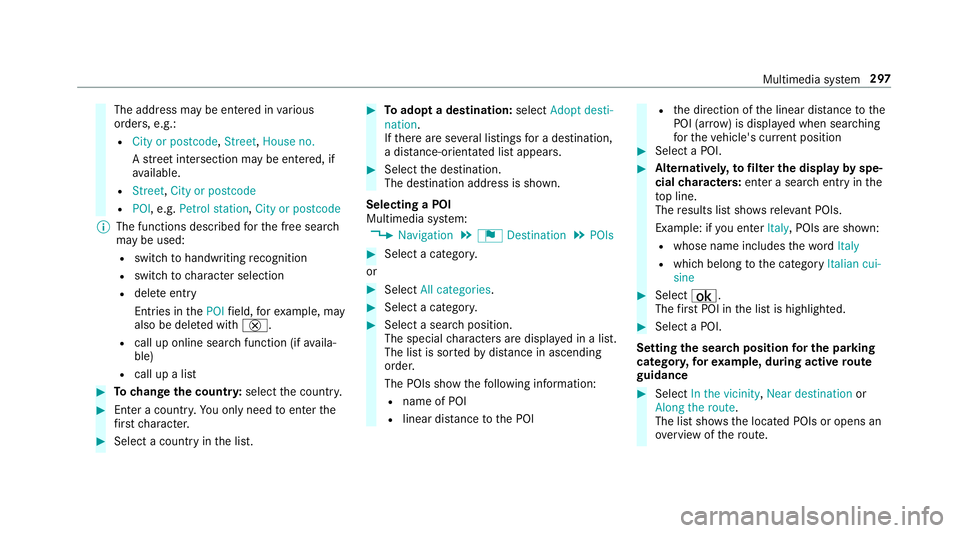
The address may be entered in
various
orders, e.g.:
R City or postcode, Street,House no.
A stre et intersection may be entered, if
av ailable.
R Street, City or postcode
R POI , e.g. Petrol station, City or postcode
% The functions desc ribed forth e free sear ch
may be used:
R switch tohandwriting recognition
R switch tocharacter selection
R dele teentry
Entries in thePOI field, forex ample, may
also be dele ted with £.
R call up online sear chfunction (if availa‐
ble)
R call up a list #
Tochange the count ry:select the count ry. #
Enter a countr y.Yo u on lyneed toenter the
fi rs tch aracter. #
Select a country in the list. #
Toadopt a destination: selectAdopt desti-
nation.
If th ere are se veral listings for a destination,
a dis tance-o rientated list appears. #
Select the destination.
The destination address is shown.
Selecting a POI
Multimedia sy stem:
, Navigation .
¬ Destination .
POIs #
Select a categor y.
or #
Select All categories. #
Select a categor y. #
Select a sea rch position.
The special characters are displa yed in a list.
The list is sor tedby distance in ascending
orde r.
The POIs show thefo llowing information:
R name of POI
R linear dis tance tothe POI R
the direction of the linear dis tance tothe
POI (ar row) is displa yed when sear ching
fo rth eve hicle's cur rent position #
Select a POI. #
Altern ativel y,to filter the display byspe‐
cial characters: enter a sea rch entry in the
to p line.
The results list sho wsreleva nt POIs.
Example: if you en terItaly, POIs are shown:
R whose name includes thewo rdItaly
R which belong tothe category Italian cui-
sine #
Select ¡.
The firs t POI in the list is highlighted. #
Select a POI.
Setting the sear chposition for the parking
ca tegor y,forex ample, during active route
guidance #
Select In the vicinity ,Near destination or
Along the route.
The list sho ws the located POIs or opens an
ove rview of thero ute. Multimedia sy
stem 297