USB MERCEDES-BENZ E-CLASS ESTATE 2016 Owners Manual
[x] Cancel search | Manufacturer: MERCEDES-BENZ, Model Year: 2016, Model line: E-CLASS ESTATE, Model: MERCEDES-BENZ E-CLASS ESTATE 2016Pages: 565, PDF Size: 11.34 MB
Page 113 of 565
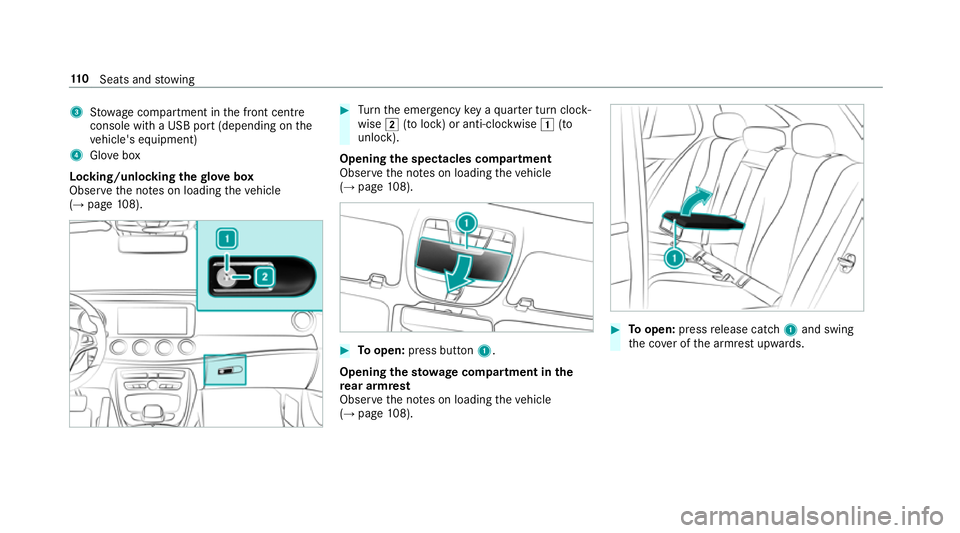
3
Stow age compartment in the front cent re
console wi tha USB port (depending on the
ve hicle's equipment)
4 Glovebox
Locking/unlocking thegl ove box
Obser vethe no tes on loading theve hicle
(→ page 108). #
Turn the emer gency key a quarter turn clock‐
wise 2(to lock) or anti-clockwise 1(to
unlock).
Opening the spectacles compa rtment
Obse rveth e no tes on loading theve hicle
(→ page 108). #
Toopen: press button 1.
Opening thesto wage compa rtment in the
re ar armrest
Obse rveth e no tes on loading theve hicle
(→ page 108). #
Toopen: pressrelease cat ch1 and swing
th e co ver of the armrest upwards. 11 0
Seats and stowing
Page 271 of 565
Vo
ice prom pting #
Tostart or continue a dialogue: pressthe
ó button on the multifunction steering
wheel.
Yo u can say a command af ter an acou stic
signal. #
Tocor rect an ent ry:say theCorrection
command. #
Toselect an entry from the selection lis t:
say the line number or the conte nts. #
Tobrows eth e selection lis t:say theCon-
tinue orBack command. #
Tointer rupt the dialogue: saythePause
command. #
Tocancel the dialogue: saytheCancel
command. Operable functions
Yo
u can use the LINGU ATRO NIC voice control
sy stem tooperate thefo llowing equipment
re ga rdless of thefe atures:
R Telephone R
Text messa ges
R Navigation
R Address book
R Radio
R Audio (memory card, Media Inter face, USB
and Blu etoo th®
audio)
R TV
R Vehicle Command types
A distinction is made between
thefo llowing
command types:
R Global commands can be said at any time
and rega rdless of the cur rent application,
e.g. theNavigate to, CallorText message to
commands.
R Application-specific commands are only
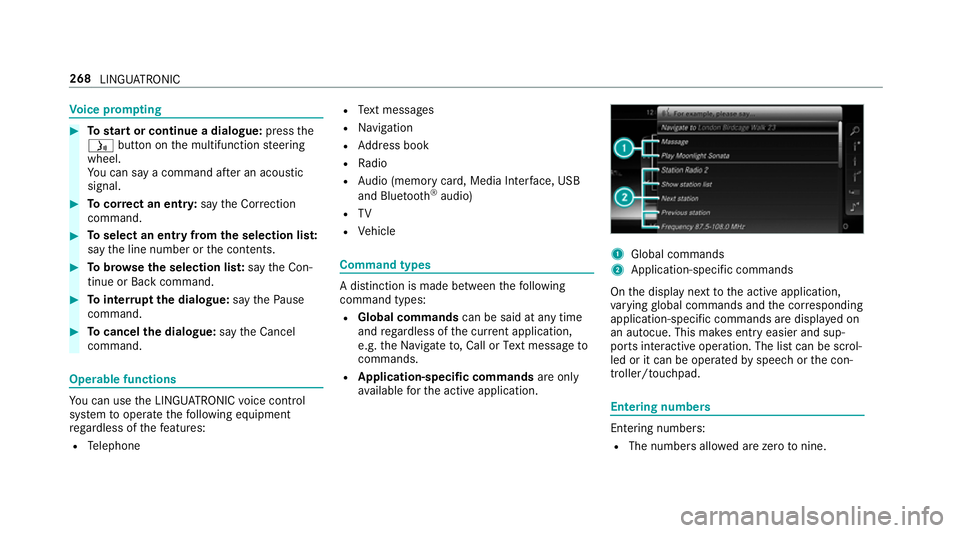
av ailable forth e active application. 1
Global commands
2 Application-specific commands
On the display next tothe active application,
va rying global commands and the cor responding
application-specific commands are displa yed on
an autocue. This makes ent ryeasier and sup‐
ports interactive operation. The list can be scrol‐
led or it can be operated byspeech or the con‐
troller/touchpad. Entering numbers
Ente
ring numbe rs:
R The numbers allo wed are zerotonine . 268
LINGUATRONIC
Page 273 of 565
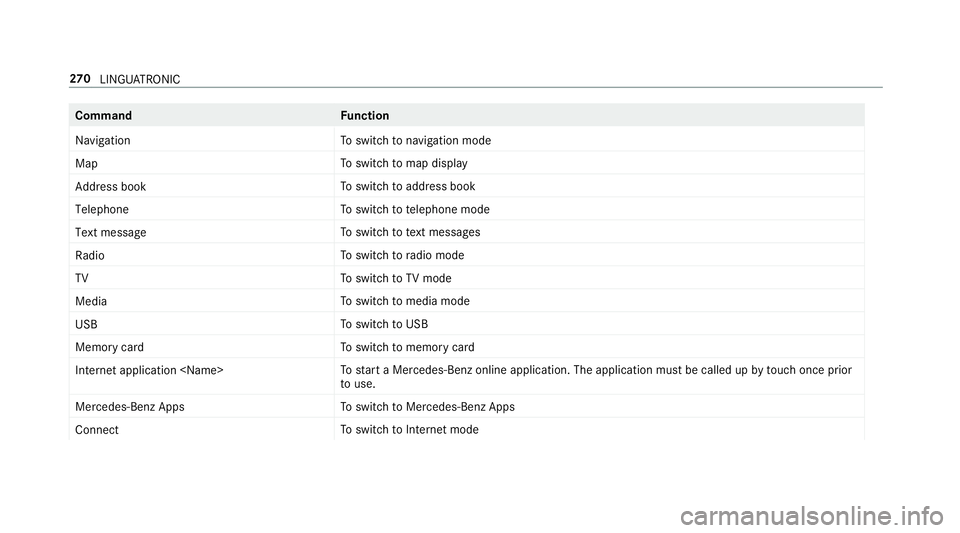
Command
Function
Navigation To
switch tonavigation mode
Map To
switch tomap display
Address book To
switch toaddress book
Telephone To
switch totelephone mode
Text message To
switch totext messa ges
Radio To
switch toradio mode
TV To
switch toTV mode
Media To
switch tomedia mode
USB To
switch toUSB
Memory card To
switch tomemory card
Internet application
start a Mercedes-Benz online application. The application must be called up bytouch once prior
to use.
Mercedes-Benz Apps To
switch toMercedes-Benz Apps
Connect To
switch toInternet mode 270
LINGU ATRO NIC
Page 294 of 565
Ac
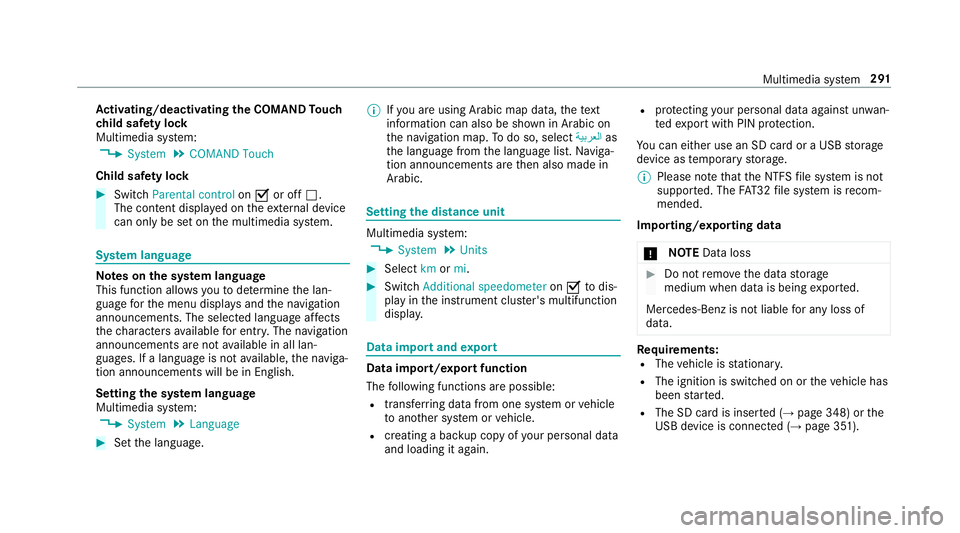
tivating/deactivating the COMAND Touch
ch ild saf ety lock
Multimedia sy stem:
, System .
COMAND Touch
Child saf ety lock #
Switch Parental control onO or off ª.
The content displa yed on theex tern al device
can on lybe set on the multimedia sy stem. Sy
stem language Note
s onthe sy stem language
This function allo wsyouto determ ine the lan‐
guage forth e menu displa ysand the navigation
announcements. The selected language af fects
th ech aracters available for entr y.The navigation
announcements are not available in all lan‐
guages. If a language is not available, the naviga‐
tion announcements will be in Engl ish.
Setting the sy stem language
Multimedia sy stem:
, System .
Language #
Set the language. %
Ifyo u are using Arabic map data, thete xt
information can also be shown in Arabic on
th e navigation map. Todo so, select ةيبرعلاas
th e language from the language list. Naviga‐
tion announcements are then also made in
Arabic. Setting
the distance unit Multimedia sy
stem:
, System .
Units #
Select kmormi. #
Switch Additional speedometer onO todis‐
play in the instrument clus ter's multifunction
displa y. Data import and
export Data import/export function
The
following functions are possible:
R transfer ring da tafrom one sy stem or vehicle
to ano ther sy stem or vehicle.
R creating a bac kup copy of your personal data
and loading it again. R
protecting your personal data against un wan‐
te dex port with PIN pr otection.
Yo u can either use an SD card or a USB storage
device as temp orary storage.
% Please no tethat the NTFS file sy stem is not
suppor ted. The FAT32 file sy stem is recom‐
mended.
Importing/exporting data
* NO
TEData loss #
Do not remo vethe data storage
medium when data is being expor ted.
Mercedes-Benz is not liable for any loss of
data. Re
quirements:
R The vehicle is stationar y.
R The ignition is switched on or theve hicle has
been star ted.
R The SD card is inser ted (→ page 348) or the
USB device is connecte d (→page 351). Multimedia sy
stem 291
Page 296 of 565
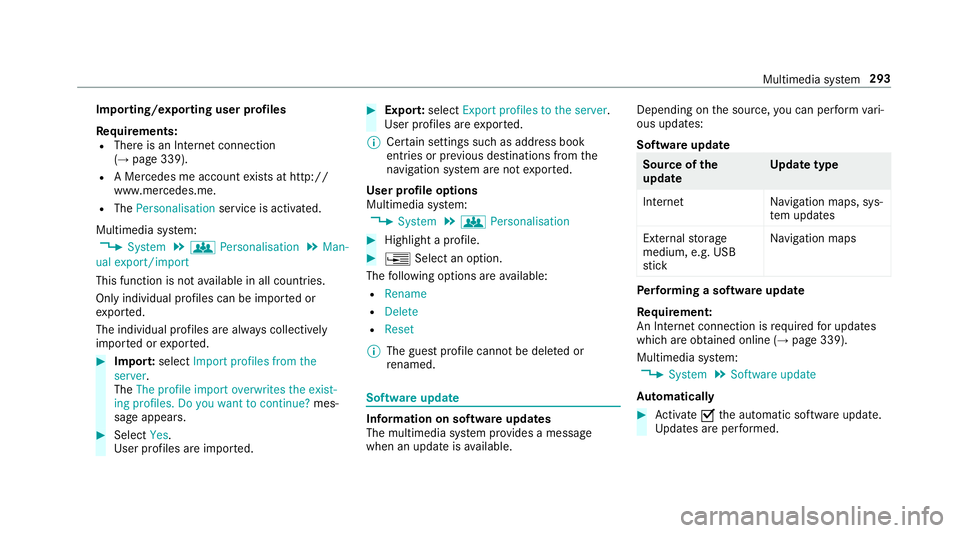
Importing/exporting user profiles
Re
quirements:
R There is an Internet connection
(→ page 339).
R A Mercedes me account exists at http://
www.me rcedes.me.
R The Personalisation service is activated.
Multimedia sy stem:
, System .
g Personalisation .
Man-
ual export/import
This function is not available in all countries.
On lyindividual profiles can be impor ted or
ex por ted.
The individual profiles are alw ays collectively
impor ted or expor ted. #
Impor t:select Import profiles from the
server.
The The profile import overwrites the exist-
ing profiles. Do you want to continue? mes‐
sage appears. #
Select Yes.
User profiles are impor ted. #
Expor t:select Export profiles to the server.
User profiles are expor ted.
% Certain settings such as address book
ent ries or pr evious destinations from the
navigation sy stem are not expor ted.
User profile options
Multimedia sy stem:
, System .
g Personalisation #
Highlight a profile. #
¥ Select an option.
The following options are available:
R Rename
R Delete
R Reset
% The guest profile cannot be dele ted or
re named. So
ftwa reupdate Information on software updates
The multimedia sy
stem pr ovides a message
when an update is available. Depending on
the source, you can per form vari‐
ous updates:
Software update Source of
the
update Up
date type
Interne tN avigation maps, sys‐
te m updates
External storage
medium, e.g. USB
st ick Na
vigation maps Pe
rforming a software upda te
Re quirement:
An Internet connection is requ ired for updates
which are obtained online (→ page 339).
Multimedia sy stem:
, System .
Software update
Au tomatically #
Activate Othe automatic software update.
Up dates are per form ed. Multimedia sy
stem 293
Page 326 of 565
R
geo-coordinates
Editing thefo rm at of a contact's name
Multimedia sy stem:
, Telephone .
Z Options .
Name
format
The following options are available:
R Surname, first name
R Surname First name
R First name Surname #
Select an option.
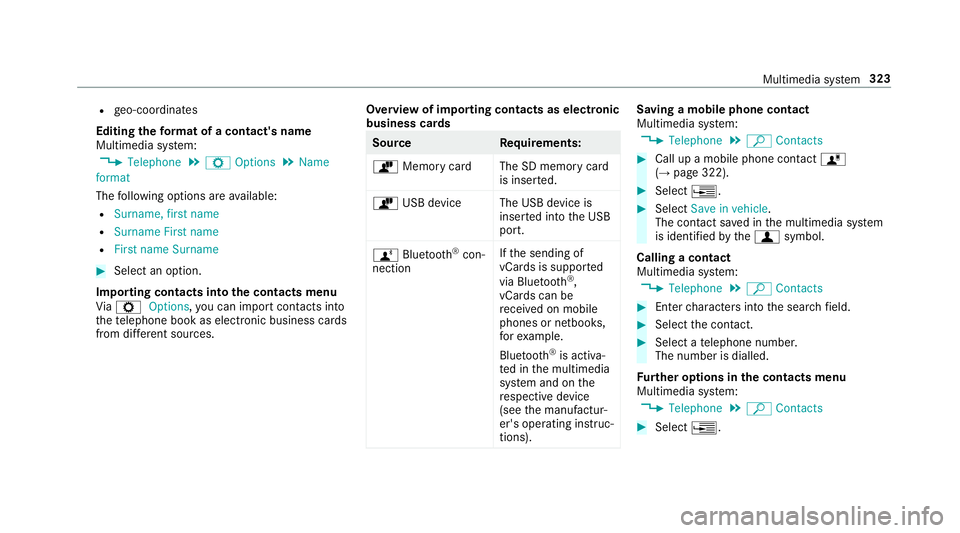
Importing contacts into the contacts menu
Vi aZ Options, you can import contacts into
th ete lephone book as elect ronic business cards
from di fferent sources. Overview of importing contacts as electronic
business cards Source
Requirements:
ò Memory car dThe SD memory card
is inser ted.
ò USB device The USB device is
inserted into the USB
port.
ñ Bluetooth ®
con‐
nection If
th e sending of
vCards is suppor ted
via Blue tooth®
,
vCard s can be
re cei ved on mobile
phones or netbooks,
fo rex ample.
Blue tooth ®
is activa‐
te d in the multimedia
sy stem and on the
re spective device
(see the manufactur‐
er's operating instruc‐
tions). Saving a mobile phone contact
Multimedia sy
stem:
, Telephone .
ª Contacts #
Call up a mobile phone conta ctó
(→ page 322). #
Select ¥. #
Select Save in vehicle.
The contact sa ved in the multimedia sy stem
is identified bythef symbol.
Calling a contact
Multimedia sy stem:
, Telephone .
ª Contacts #
Ente rch aracters into the sear chfield. #
Select the conta ct. #
Select a telephone number.
The number is dialled.
Fu rther options in the contacts menu
Multimedia sy stem:
, Telephone .
ª Contacts #
Select ¥. Multimedia sy
stem 323
Page 339 of 565
Te
rm inating the connection between the
mo bile phone and thete lephone module
There are two waysof disconnecting the
mo bile phone and module:
Au tomatic discon‐
nection Occu
rsafte r leaving
th ere ception range
Manual disconnec‐
tion Occu
rsby term inating
th e Blue tooth®
con‐
nection on the mobile
phone (see the manu‐
fa cturer's ope rating
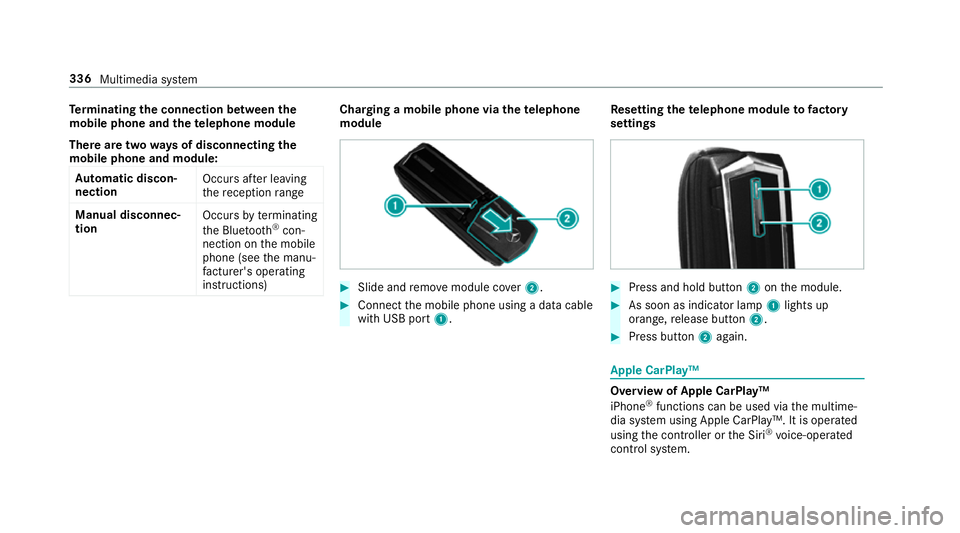
instructions) Charging a mobile phone via the
telephone
module #
Slide and remo vemodule co ver2. #
Connect the mobile phone using a data cable
with USB port 1. Re
setting thete lephone module to factory
settings #
Press and hold button 2onthe module. #
As soon as indicator lamp 1lights up
orange, release button 2. #
Press button 2again. Apple CarPlay™
Overview of Apple CarPlay™
iPhone
®
functions can be used via the multime‐
dia sy stem using Apple CarPlay™. It is operated
using the controller or the Siri ®
vo ice-operated
control sy stem. 336
Multimedia sy stem
Page 340 of 565
Only one mobile phone at a time can be connec‐
te
d via Apple CarPlay™ tothe multimedia sys‐
te m.
While using Apple CarPlay™, various functions of
th e multimedia sy stem, e.g. the navigation, are
not available.
The availability of Apple CarPlay™ may vary
according tothe count ry.
The service pr ovider is responsible forth is appli‐
cation and the services and conte nt connected
to it.
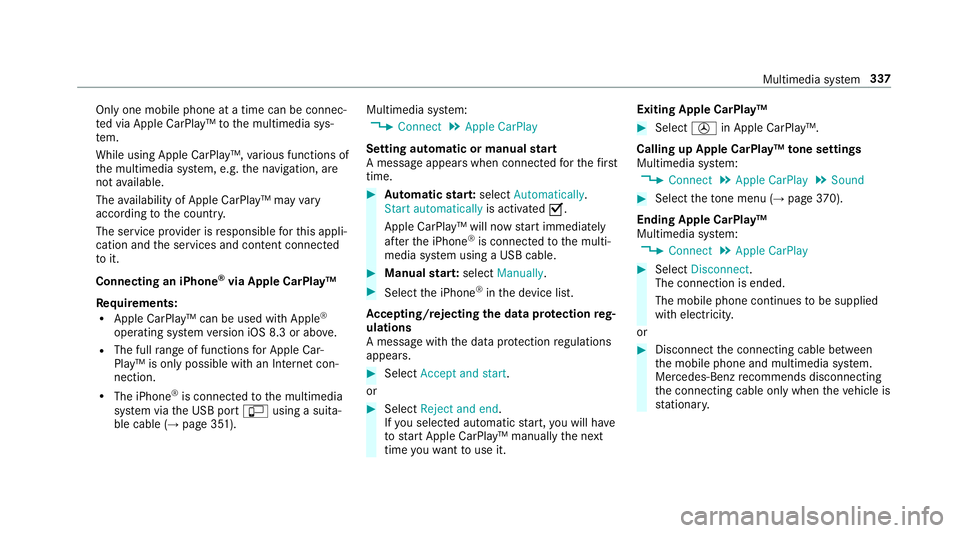
Connecting an iPhone ®
via Apple CarPlay™
Requ irements:
R Apple CarPlay™ can be used with Apple ®
operating sy stem version iOS 8.3 or abo ve.
R The full range of functions for Apple Car‐
Play™ is only possible with an Internet con‐
nection.
R The iPhone ®
is connected tothe multimedia
sy stem via the USB port çusing a suita‐
ble cable (→ page 351). Multimedia sy
stem:
, Connect .
Apple CarPlay
Setting automatic or manual start
A messa geappears when connec tedfo rth efirst
time. #
Automatic star t:select Automatically.
Start automatically is activatedO.
Apple CarPlay™ will now start immediately
af te rth e iPhone ®
is connected tothe multi‐
media sy stem using a USB cable. #
Manual star t:select Manually . #
Select the iPhone ®
in the device list.
Ac cepting/rejecting the data pr otection reg‐
ulations
A message with the data pr otection regulations
appears. #
Select Accept and start.
or #
Select Reject and end.
If yo u selected automatic start, you will ha ve
to start Apple CarPlay™ manually the next
time youwa nttouse it. Exiting Apple CarPlay™ #
Select Úin Apple CarPlay™.
Calling up Apple CarPlay™ tone settings
Multimedia sy stem:
, Connect .
Apple CarPlay .
Sound #
Select theto ne menu (→ page 370).
Ending Ap ple CarPlay™
Multimedia sy stem:
, Connect .
Apple CarPlay #
Select Disconnect.
The connection is ended.
The mobile phone continues tobe supplied
with elect ricity.
or #
Disconnect the connecting cable between
th e mobile phone and multimedia sy stem.
Mercedes-Benz recommends disconnecting
th e connecting cable only when theve hicle is
st ationar y. Multimedia sy
stem 337
Page 341 of 565
Android
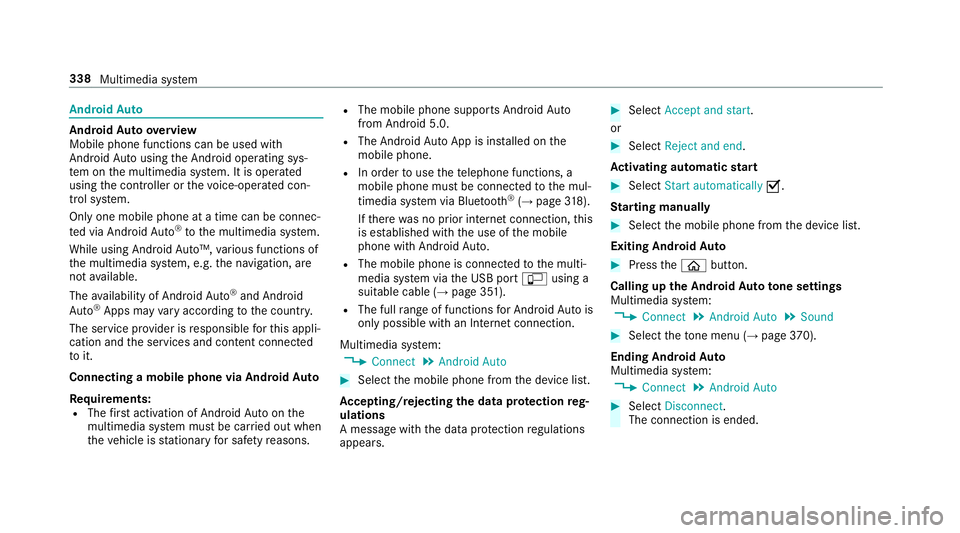
Auto Android
Autoove rview
Mobile phone functions can be used with
Android Autousing the Android operating sys‐
te m on the multimedia sy stem. It is operated
using the controller or thevo ice-operated con‐
trol sy stem.
Only one mobile phone at a time can be connec‐
te d via Android Auto®
to the multimedia sy stem.
While using Android Auto™, various functions of
th e multimedia sy stem, e.g. the navigation, are
not available.
The availability of Android Auto®
and Android
Au to®
Apps may vary according tothe count ry.
The service pr ovider is responsible forth is appli‐
cation and the services and conte nt connected
to it.
Connecting a mobile phone via Android Auto
Requ irements:
R The firs t acti vation of Android Autoon the
multimedia sy stem must be car ried out when
th eve hicle is stationary for saf etyre asons. R
The mobile phone suppo rts Android Auto
from Android 5.0.
R The Android AutoApp is ins talled on the
mobile phone.
R In order touse thete lephone functions, a
mobile phone must be connec tedto the mul‐
timedia sy stem via Blue tooth®
(→ page 318).
If th ere was no prior internet connection, this
is es tablished with the use of the mobile
phone with Android Auto.
R The mobile phone is connected tothe multi‐
media sy stem via the USB port çusing a
suitable cable (→ page 351).
R The full range of functions for Android Autois
only possible with an Internet connection.
Multimedia sy stem:
, Connect .
Android Auto #
Select the mobile phone from the device list.
Ac cepting/rejecting the data pr otection reg‐
ulations
A message with the data pr otection regulations
appears. #
Select Accept and start.
or #
Select Reject and end.
Ac tivating automatic start #
Select Start automatically O.
St arting manually #
Select the mobile phone from the device list.
Exiting Android Auto #
Press theò button.
Calling up the Android Auto to ne settings
Multimedia sy stem:
, Connect .
Android Auto .
Sound #
Select theto ne menu (→ page 370).
Ending And roid Au to
Multimedia sy stem:
, Connect .
Android Auto #
Select Disconnect.
The connection is ended. 338
Multimedia sy stem
Page 342 of 565
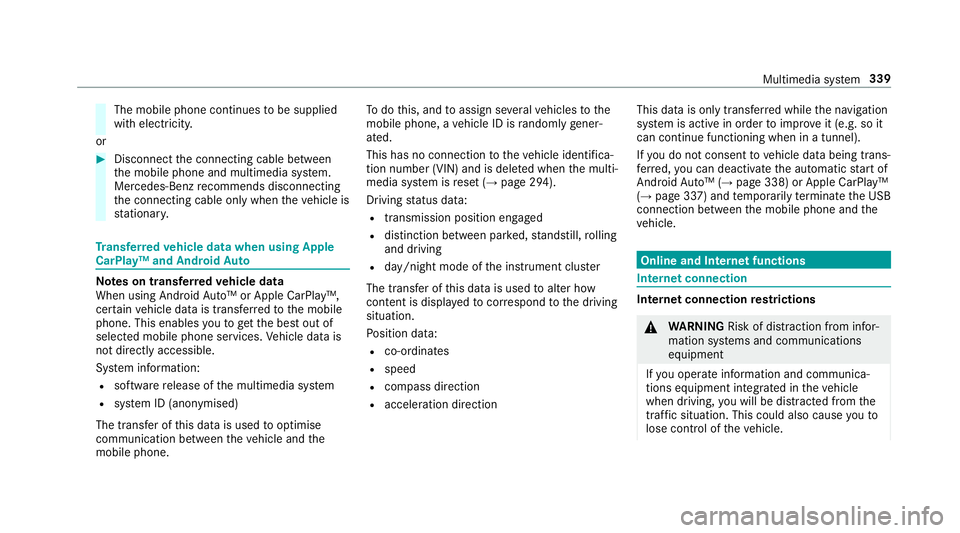
The mobile phone continues
tobe supplied
with elect ricity.
or #
Disconnect the connecting cable between
th e mobile phone and multimedia sy stem.
Mercedes-Benz recommends disconnecting
th e connecting cable only when theve hicle is
st ationar y. Tr
ansfer redve hicle data when using Apple
CarPlay™ and Android Auto Note
s on transfer redve hicle data
When using Android Auto™ or Apple CarPl ay™,
cer tain vehicle data is transfer redto the mobile
phone. This enables youto getth e best out of
selected mobile phone services. Vehicle data is
not directly accessible.
Sy stem information:
R software release of the multimedia sy stem
R system ID (anonymised)
The transfer of this data is used tooptimise
communication between theve hicle and the
mobile phone. To
do this, and toassign se veralve hicles tothe
mobile phone, a vehicle ID is randomly gener‐
ated.
This has no connection totheve hicle identifica‐
tion number (VIN) and is dele ted when the multi‐
media sy stem is reset (→ page 294).
Driving status data:
R transmission position engaged
R distinction between par ked, standstill, rolling
and driving
R day/night mode of the instrument clus ter
The transfer of this data is used toalter how
con tent is displ ayed tocor respond tothe driving
situation.
Po sition data:
R co-ordinates
R speed
R compass direction
R acceleration direction This data is only transfer
red while the navigation
sy stem is active in order toimpr ove it (e.g. so it
can continue functioning when in a tunnel).
If yo u do not consent tovehicle data being trans‐
fe rred, you can deactivate the automatic start of
Android Auto™ (→ page 338) or Apple CarPlay™
(→ page 337) and temp orarily term inate the USB
connection between the mobile phone and the
ve hicle. Online and Internet functions
Internet connection
Internet connection
restrictions &
WARNING Risk of di stra ction from infor‐
mation sy stems and communications
equipment
If yo u operate information and communica‐
tions equipment integ rated in theve hicle
when driving, you will be distracted from the
traf fic situation. This could also cause youto
lose control of theve hicle. Multimedia sy
stem 339