reset MERCEDES-BENZ E-CLASS ESTATE 2020 User Guide
[x] Cancel search | Manufacturer: MERCEDES-BENZ, Model Year: 2020, Model line: E-CLASS ESTATE, Model: MERCEDES-BENZ E-CLASS ESTATE 2020Pages: 489, PDF Size: 9.15 MB
Page 276 of 489
The driver's seat is equipped with an access pre‐
ve nter.
If th e driver's door is open, the driver's seat will
not be set af ter calling up the driver's profile.
Profiles store your vehicle settings and settings
fo rth e multimedia sy stem. If theve hicle is used
by several drivers, the driver can select their
ow n profile wi thout changing thestored profile
settings of other drivers.
% Information on profiles from Mercedes me
connect can be found in the Digital Opera‐
to r's Manual.
Ve hicle settings are, forex ample, driver's seat,
st eering wheel and mir ror settings, clima tecon‐
trol and ambient lighting. Forth e settings of the
multimedia sy stem, you can select, forex ample,
ra dio stations, pr evious destinations as well as
th emes, suggestions and favo urites.
Fo rre cur ring driving situations, su chas long
drives on the mo torw ay,yo u can sa veyour pre‐
fe rred settings in a theme in theve hicle. In a
th eme you can sa vethe display of the digital
map, your prefer redra dio station and prefer red
drive prog ram, forex ample. The
vehicle can learn the habits of the driver. It
th en of fers suggestions forth e most probable
navigation destinations, media sources, radio
st ations or con tacts. The pre-requirements for
th at are the selection of a profile, your consent
to there cording of da taand suf ficient collected
da ta.
Fa vourites pr ovide quick access toapplications
th at are used of ten. You can select favo urites
from categories or add them directly toan appli‐
cation. Configuring profiles,
themes and sugges‐
tions Multimedia sy
stem:
4 © 5
f Profiles
Creating a new profile #
Select WCreate profile . #
Select an avatar. #
Enterth e name and confi rmwith a. #
Select Continue r. #
Select Current settings. #
Select Save. #
Activate Blu etoo th®
and select Connect
phone, toconnect a mobile phone wi th the
user profile . #
Select Finished.
Selecting profile options #
Select Äfor a profile.
The following functions are available:
R Editing, resetting or deleting a profile
R Resetting themes or favo urites
R Con figuring suggestions
Configuring suggestions #
Select Äfor a profile. #
Select Suggestions settings . #
Switch Allow destination suggestions, Allow
music suggestions andAllow contact sugges-
tions on or off. MBUX multimedia sy
stem 273
Page 277 of 489
#
Todeactivate the learning function for
one da y:activate Deact. learn. for 24h .
Fo r24 hours no new actions will be trained
and no data recorded forth e active profile.
Suggestions will continue tobe shown.
Example: if the option is switched on and a
ro ute toa new destination has been calcula‐
te d, this destination would not be take n into
account forth e learning function.
Creating new themes #
Select ©. #
Select THEMES . #
Select WSet theme.
The settings which are sa ved in theth eme
are shown. #
Select Continue r. #
Select AudioandNavigation (Navigation) and
st ore the active settings in theth eme. #
Select Continue r. #
Select an entry screen.#
Select Continue r. #
Select an image. #
Enter the names into the entry field and con‐
fi rm with a. #
Select Save. Sy
stem settings Overview of
the sy stem settings menu In
the sy stem settings menu, you can make set‐
tings in thefo llowing menus and control ele‐
ments:
R Display
- Styles
- Instrument lighting
- Display brightness
- Edge lighting
- Day/night design
R Control elements
- Keyboard language and handwriting rec‐
ognition
- Touchpad sensitivity
- Sensitivity of theTo uch Controls R
LINGU ATRO NIC
R MBUX Interior Assis tant
R Sound
- Enter tainment
- Navigation and traf fic announcements
- Telephone
- Voice amplification tothere ar
R Connectivity
- Wi-Fi, Blu etoo th, NFC
R MBUX Remo teControl
- Auth orising and deauthorising devices
R Time & date
R Langua ge
R Units for dis tance
R Software upda tes
R Data import/expo rt
R PIN pr otection
R System Reset 274
MBUX multimedia sy stem
Page 285 of 489
or
#
Select Start new route guidance.
The destination address is set as the new
destination. The pr evious destination and the
intermediate destinations are dele ted. Ro ute
guidance tothe new destination begins.
Selecting route settings #
Select Z. #
Select Advanced . #
Select Route. #
Select thero ute type. #
Take traf fic information into consideration
wi th Dynamic route guidance r.#
Select route options with Avoid options.#
Activate Suggest alternative route.
Alternati veroutes are calculated forev ery
ro ute. #
Activate Activate commuter route .
If th ere qu irements are met, the multimedia
sy stem automatically de tects that theve hicle
is on a commuter route. Route guidance
begins without voice output. Ac
tivating route guidance with augmented
re ality #
During route guidance, tap on the camera
symbol on the media displa y.
The camera image will be shown ins tead of
th e navigation map before a turning manoeu‐
vre and will show additional information. #
Toreturn tothe navigation map: tapon
th e camera symbol again.
Displaying additional information in the cam‐
era ima ge #
Select Z. #
Select Advanced . #
Select Augmented Reality. #
Activate Street names andHouse numbers.
During route guidance, stre et names and
house numbe rsare shown in the camera
image. Using map functions
Multimedia sy
stem:
4 © 5
Navigation
Setting the map scale #
Tozoom in: tap twice quickly with one finger
on the media displa y. #
Tozoom out: tap with two fingers on the
media displa y.
Moving the map #
Moveone finger in any di rection on the
to uchsc reen. #
Toreset the map tothe cur rent vehicle
position: press\briefly.
Selecting map orientation #
Tapre peatedly on theÄ compass symbol
on the map.
The view changes in the sequence 3D,2D
heading up to2D north up .
Switching mo torw ay information on/off #
Select Z. 282
MBUX multimedia sy stem
Page 307 of 489
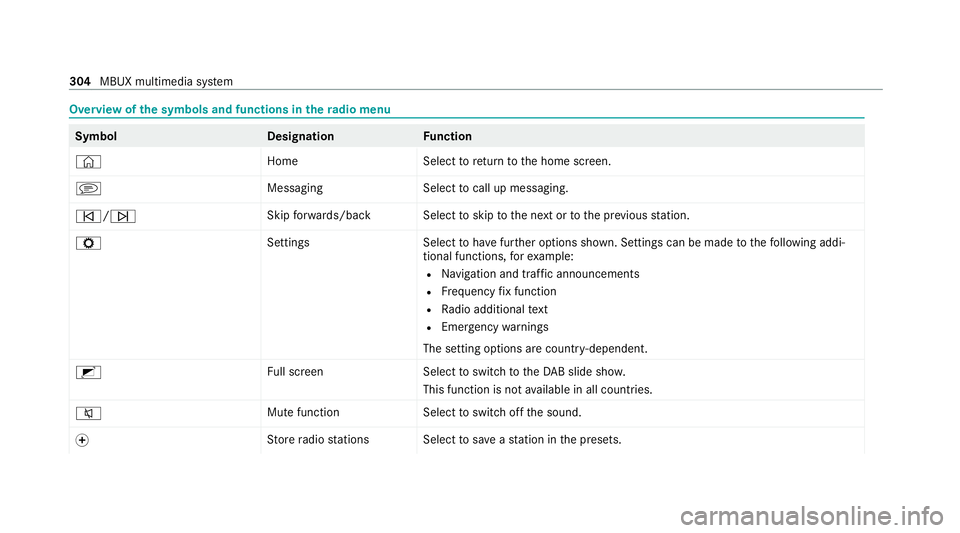
Overview of
the symbols and functions in thera dio menu Symbo
lD esignationFunction
© HomeSelecttoreturn tothe home screen.
j MessagingSelecttocall up messaging.
û/ü Skip
forw ards/bac kS electtoskip tothe next or tothe pr evious station.
Z SettingsS electtohave further options shown. Settings can be made tothefo llowing addi‐
tional functions, forex ample:
R Navigation and traf fic announcements
R Frequency fix function
R Radio additional text
R Emergency warnings
The setting options are countr y-dependent.
2 Full screen Selecttoswitch totheDA B slide sho w.
This function is not available in all countries.
8 Mute function
Selecttoswitch off the sound.
f St
ore radio stations Select tosave ast ation in the presets. 304
MBUX multimedia sy stem
Page 312 of 489
fi
ed based on the actual operating conditions
and/or loads.
Examples of arduous operating conditions:
R regular city driving with frequent intermedi‐
ate stops
R mainly short-dis tance driving
R frequent operation in mountainous terrain or
on poor road sur faces
R when the engine is of ten le ftidling for long
periods
R operation in particula rly dusty conditions
and/or if air-recirculation mode is frequently
used
In these or similar operating conditions, ha vethe
interior air filter, engine air cleaner, engine oil
and oil filter etc. changed more frequent ly. The
ty re s must be checked more frequently if the
ve hicle is operated under increased loads. Fur‐
th er information can be obtained at a qualified
specialist workshop. Battery disconnection periods
The ASS
YST PLUS se rvice inter val display
can only calculate the service due da tewhen
th e bat tery is connected. #
Notedown the service due date displa yed on
th e instrument display before disconnecting
th e battery (/ page 308). Engine compartment
Ac
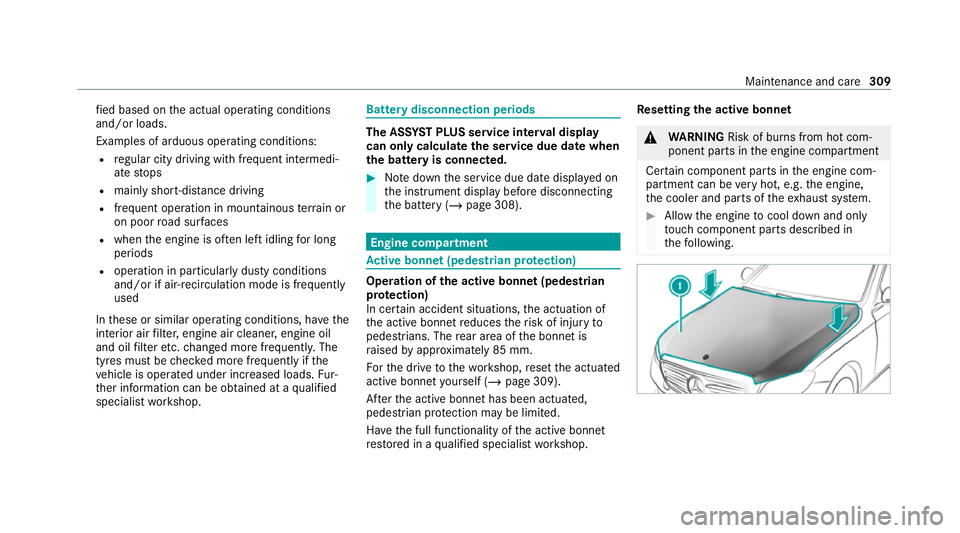
tive bonn et(pedestrian pr otection) Operation of
the active bonnet (pedestrian
pr otection)
In cer tain accident situations, the actuation of
th e active bonn etreduces therisk of injury to
pedestrians. The rear area of the bonn etis
ra ised byappr oximately 85 mm.
Fo rth e drive tothewo rkshop, reset the actuated
active bonn etyourself (/ page 309).
Af terth e active bonn ethas been actuated,
pedestrian pr otection may be limited.
Ha ve the full functionality of the active bonn et
re stored in a qualified specialist workshop. Re
setting the active bonnet &
WARNING Risk of bu rns from hot com‐
ponent parts in the engine compartment
Cer tain component parts in the engine com‐
partment can be very hot, e.g. the engine,
th e cooler and parts of theex haust sy stem. #
Allow the engine tocool down and only
to uch co mponent parts described in
th efo llowing. Maintenance and care
309
Page 473 of 489
Digital
Vehicle Keyst icke r ...................... 76
Emergency key ...................................... 78
KEYLESS-GO .......................................... 76
Opening theta ilgate .............................. 79
Un locking/opening the doors from
th e inside ............................................... 75
Low beam Swit ching on/off ................................ .133
Symmetrical low beam ........................ 13 3
Lu bricant additives
see Additives
Lu ggage
Lu ggage net ......................................... 12 5
Secu ring ............................................... 11 5
Lu mbar support
see Lumbar support (4-w ay)
Lu mbar support (4-w ay).......................... 101M
Maintenance see ASS YST PLUS
Malfunction Restra int sy stem ................................... 36 Manoeuvring assistant
Activating/deactivating ...................... .239
Cross Traf fic Alert ............................... 238
Drive AwayAssi st................................ 238
Map ........................................................... 282
Displaying online map contents .......... 283
Displaying weather information .......... .283
Moving ................................................ 282
Selecting the map orientation .............2 82
Setting the map scale .......................... 282
Switching mo torw ay information
on/off ................................................ .282
Massage prog rammes
Overview ............................................ .105
Re setting the settings .......................... 106
Massage prog rams
Selecting the front seats ..................... 106
Massage settings Resetting ............................................. 106
Matt finish (cleaning instructions) .........318
Maximum gross vehicle weight ............ .363
Maximum speed see Limi ter MBUX Interior Assistant
Switching there ading light forthe
driver and front passenger on/off
con tact-free ......................................... 271
Switching the sear chlight forthe
driver on/off ........................................ 271
MBUX Interior Assistant (multimedia
sy stem) .................................................... 270
Overview ............................................. 270
MBUX multimedia sy stem ...................... 264
Ac tivating/deactivating standby
mode .................................................. .193
Configu ring drive program I ................. 175
No tes ................................................... 264
Overview ............................................. 264
Setting route-based speed adap ta‐
tion ...................................................... 215
St andby mode function ...................... .193
Media Overview of the functions and sym‐
bols ..................................................... 300
Media mode Connecting Blue tooth®
audio equip‐
ment .................................................... 302 47 0
Index