audio MERCEDES-BENZ E-CLASS SALOON 2016 User Guide
[x] Cancel search | Manufacturer: MERCEDES-BENZ, Model Year: 2016, Model line: E-CLASS SALOON, Model: MERCEDES-BENZ E-CLASS SALOON 2016Pages: 557, PDF Size: 11.09 MB
Page 343 of 557
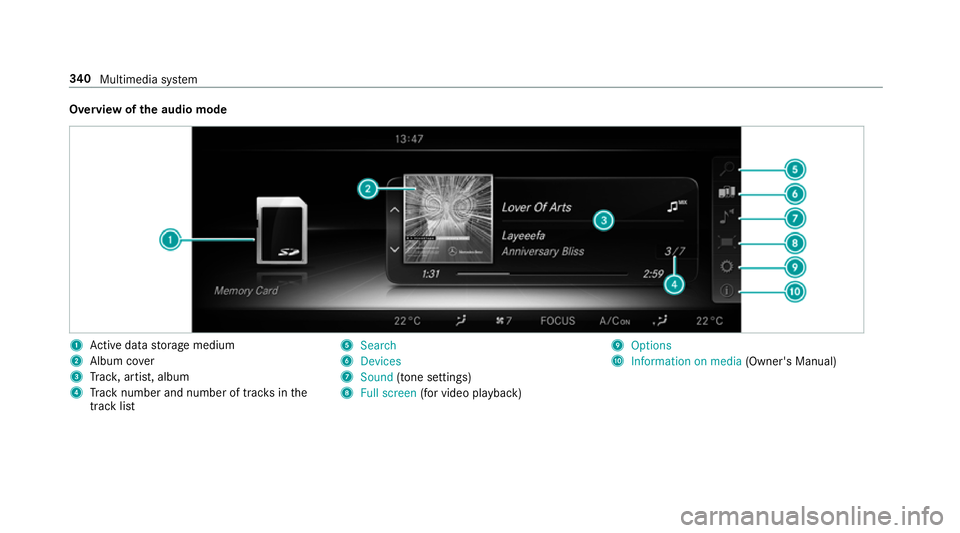
Overview of
the audio mode 1
Active da tastorage medium
2 Album co ver
3 Trac k, artist, album
4 Track number and number of trac ksinthe
track li st 5
Search
6 Devices
7 Sound (tone settings)
8 Full screen (for video pl ayback) 9
Options
A Information on media (Owner's Manual)340
Multimedia sy stem
Page 347 of 557
Ac
tivating/deactivating full-screen mode
Multimedia sy stem:
, Media .
à Devices #
Select a data storage medium.
Pla yable video files are pla yed bac k. #
Toactivate full-screen mode: select#
Full screen. #
Todeactivate full-sc reen mode: pressthe
to uchpad.
Changing video settings
Multimedia sy stem:
, Media .
Z Options .
Video set-
tings
The following picture form ats are available:
R Automatic
R 16:9
R 4:3
R Zoom #
Select the picture form at. Ad
justing the brightness manually #
Select Brightness . #
Adjust the brightness. Media sear
ch St
arting the media sear ch
Multimedia sy stem:
, Media .
ª Search
Depending on the connected media sources and
fi les, thefo llowing categories are lis ted:
R Current track list
R Keyword search
R Playlists
R Artists
R Albums
R Tracks
R Folder
R Music genres
R Year
R Composers R
Videos
R Podcasts (Apple®
devices)
R Audiobooks (Apple®
devices) #
Select a categor y.
% The categories are available as soon as the
entire media conte nt has beenread and ana‐
lysed. Media
Interface Information about
the Media Inter face
Media In terface is a universal inter face forthe
connection of mobile audio equipment. The mul‐
timedia sy stem has two USB ports. The USB
ports are located in thestow age compartment
under the armrest.
Suppor ted devices
The Media Inter face allo wsyouto connect the
fo llowing data storage media:
R iPod ®
R iPhone ®
R MP3 pla yer 344
Multimedia sy stem
Page 349 of 557
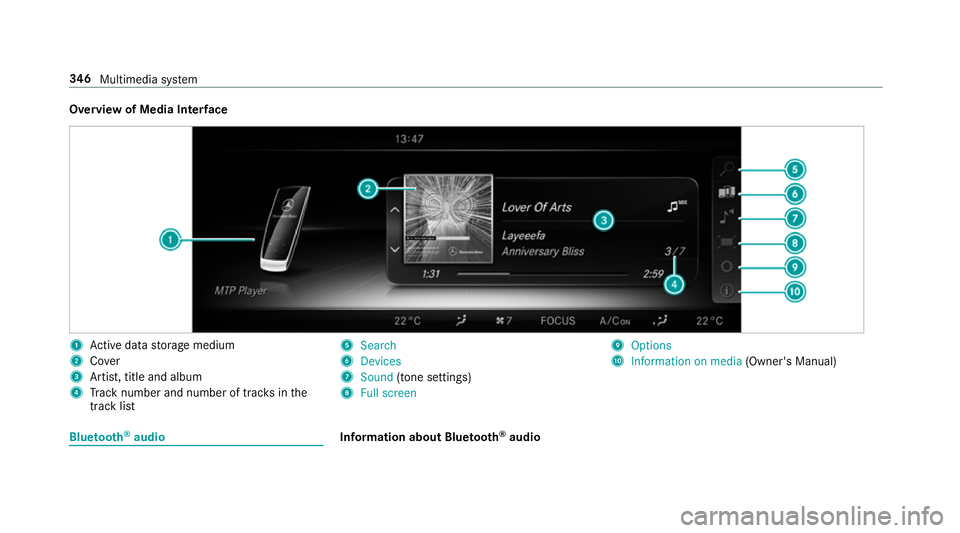
Overview of Media Inter
face 1
Active da tastorage medium
2 Cover
3 Artist, title and album
4 Track number and number of trac ksinthe
track li st 5
Search
6 Devices
7 Sound (tone settings)
8 Full screen 9
Options
A Information on media (Owner's Manual)Blue
tooth ®
audio Information about Blue
tooth ®
audio 346
Multimedia sy stem
Page 350 of 557
Before using
your Blue tooth®
audio equipment
with the multimedia sy stem forth efirs t time,
yo u will need toauthorise it (→ page 348).
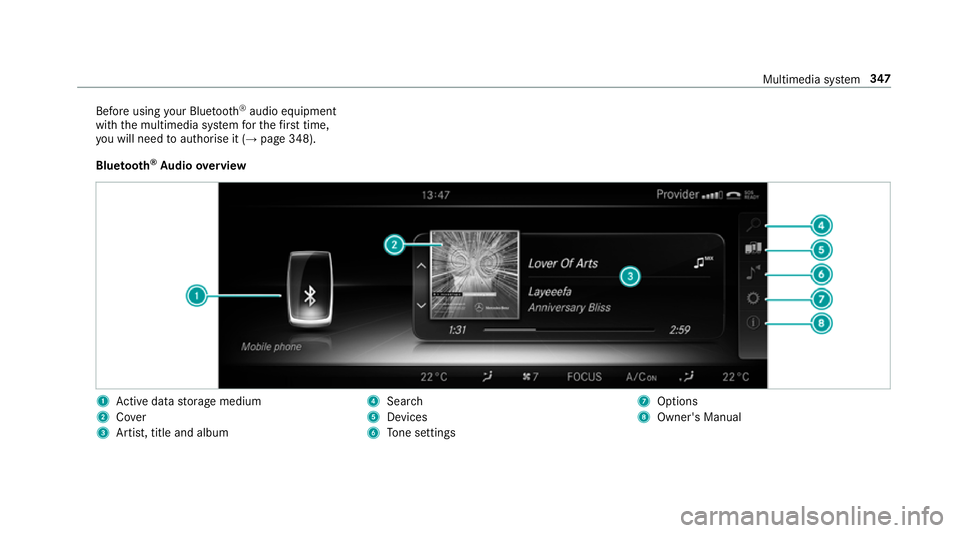
Blu etoo th®
Au dio overview 1
Active da tastorage medium
2 Cover
3 Artist, title and album 4
Search
5 Devices
6 Tone settings 7
Options
8 Owner's Manual Multimedia sy
stem 347
Page 351 of 557
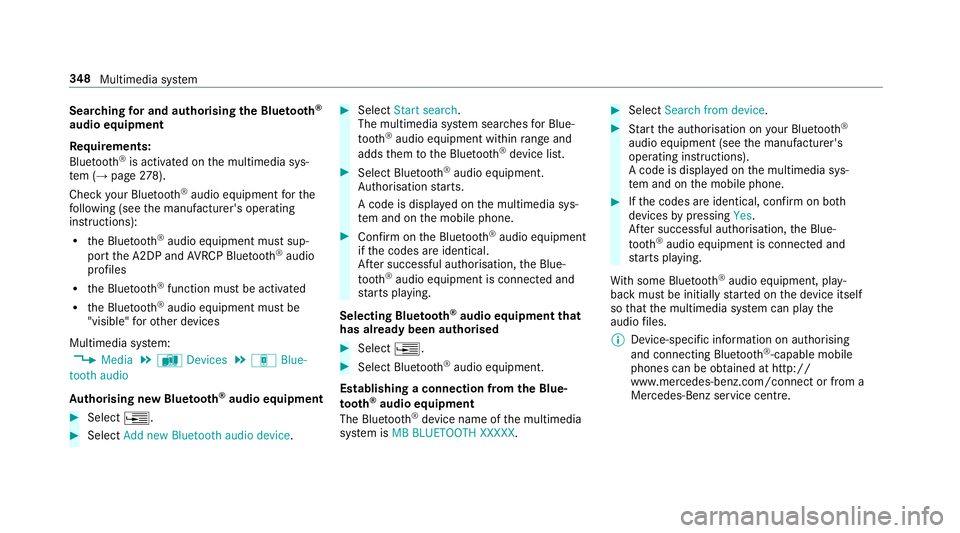
Sear
ching for and authorising the Blue tooth ®
audio equipment
Requ irements:
Blue tooth ®
is activated on the multimedia sys‐
te m (→ page278).
Che ckyour Blue tooth®
audio equipment forthe
fo llowing (see the manufacturer's operating
instructions):
R the Blue tooth®
audio equipment must sup‐
port the A2DP and AVRC P Blue tooth®
audio
profiles
R the Blue tooth®
function must be activated
R the Blue tooth®
audio equipment must be
"visible" forot her devices
Multimedia sy stem:
, Media .
à Devices .
á Blue-
tooth audio
Au thorising new Blu etoo th®
audio equipment #
Select ¥. #
Select Add new Bluetooth audio device. #
Select Start search .
The multimedia sy stem sear ches for Blue‐
tooth ®
audio equipment within range and
adds them tothe Blue tooth ®
device list. #
Select Blue tooth®
audio equipment.
Auth orisation starts.
A code is displa yed on the multimedia sys‐
te m and on the mobile phone. #
Confirm on the Blue tooth®
audio equipment
if th e codes are identical.
Af ter successful auth orisation,the Blue‐
tooth ®
audio equipment is connec ted and
st arts playing.
Selecting Blu etoo th®
audio equipment that
has already been authorised #
Select ¥. #
Select Blue tooth®
audio equipment.
Establishing a connection from the Blue‐
to oth ®
audio equipment
The Blue tooth®
device name of the multimedia
sy stem is MB BLUETOOTH XXXXX. #
Select Search from device. #
Start the authorisation on your Blue tooth®
audio equipment (see the manufacturer's
operating instructions).
A code is displa yed on the multimedia sys‐
te m and on the mobile phone. #
Ifth e codes are identical, confi rmon bo th
devices bypressing Yes.
Af ter successful auth orisation,the Blue‐
tooth ®
audio equipment is connec ted and
st arts playing.
Wi th some Blue tooth ®
audio equipment, play‐
back must be initially star ted on the device itself
so that the multimedia sy stem can play the
audio files.
% Device-specific information on authorising
and connecting Blue tooth®
-capable mobile
phones can be obtained at http://
ww w.mercedes-benz.com/connect or from a
Mercedes-Benz service centre. 348
Multimedia sy stem
Page 352 of 557
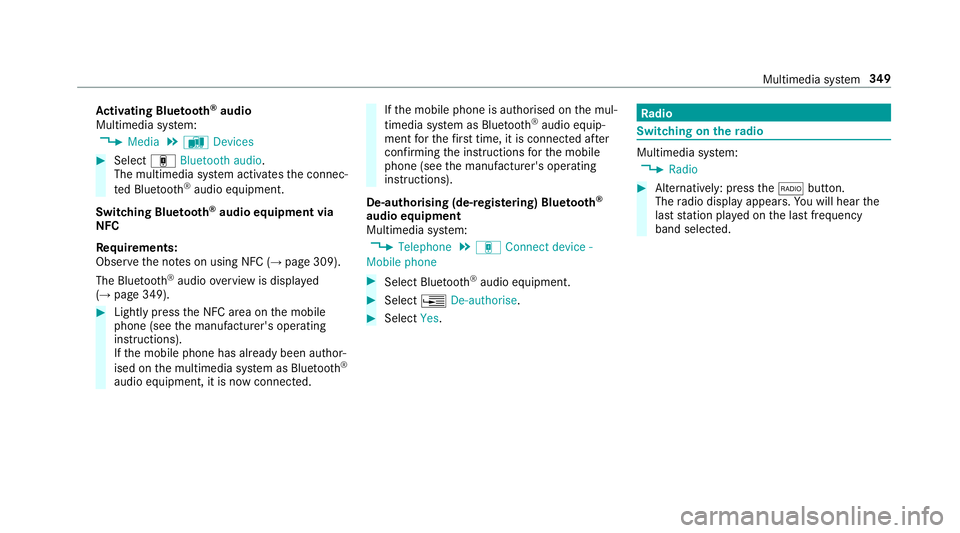
Ac
tivating Blue tooth ®
audio
Multimedia sy stem:
, Media .
à Devices #
Select áBluetooth audio.
The multimedia sy stem activates the connec‐
te d Blue tooth®
audio equipment.
Swit ching Blue tooth ®
audio equipment via
NFC
Requ irements:
Obser vethe no tes on using NFC (→ page 309).
The Blue tooth®
audio overview is displa yed
( → page 349). #
Lightly press the NFC area on the mobile
phone (see the manufacturer's operating
instructions).
If th e mobile phone has already been author‐
ised on the multimedia sy stem as Blue tooth®
audio equipment, it is now connec ted. If
th e mobile phone is authorised on the mul‐
timedia sy stem as Blue tooth®
audio equip‐
ment forth efirs t time, it is connected af ter
confirming the instructions forth e mobile
phone (see the manufacturer's operating
instructions).
De-authorising (de-regis tering) Blue tooth ®
audio equipment
Multimedia sy stem:
, Telephone .
á Connect device -
Mobile phone #
Select Blue tooth®
audio equipment. #
Select ¥De-authorise. #
Select Yes. Ra
dio Switching on the
radio Multimedia sy
stem:
, Radio #
Alternatively: press the$ button.
The radio display appears. You will hear the
last station pla yed on the last frequency
band selected. Multimedia sy
stem 349
Page 355 of 557
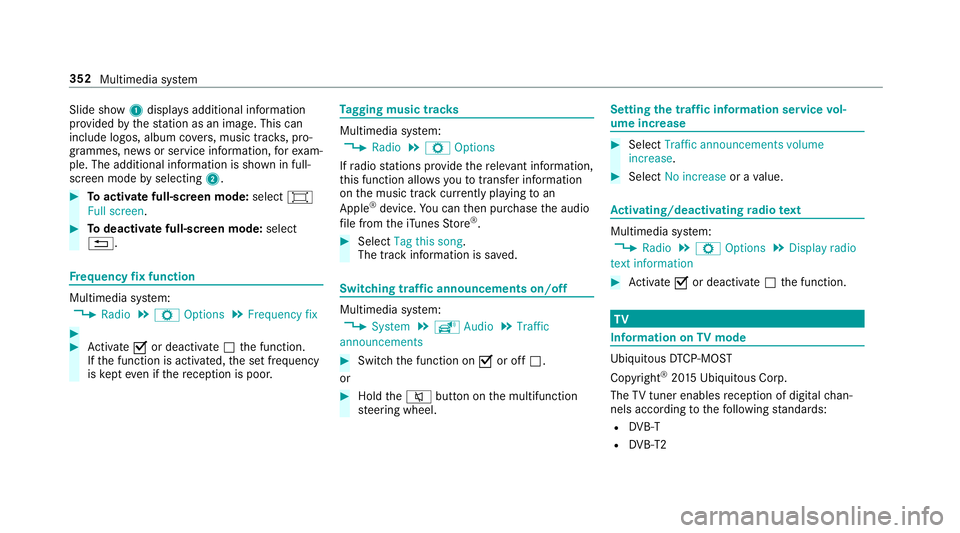
Slide show
1displ ays additional information
pr ov ided bythest ation as an image. This can
include logos, album co vers, music trac ks, pro‐
grammes, ne wsor service information, forex am‐
ple. The additional information is shown in full-
sc reen mode byselecting 2. #
Toactivate full-screen mode: select#
Full screen. #
Todeactivate full-sc reen mode: select
%. Fr
equency fix function Multimedia sy
stem:
, Radio .
Z Options .
Frequency fix #
#
Activate Oor deacti vate ª the function.
If th e function is activated, the set frequency
is ke pt eve n ifthere ception is poo r. Ta
gging music trac ks Multimedia sy
stem:
, Radio .
Z Options
If ra dio stations pr ovide there leva nt information,
th is function allo wsyouto trans fer information
on the music track cur rently pl aying toan
Apple ®
device. You can then pur chase the audio
fi le from theiTunes Store ®
. #
Select Tag this song.
The track information is sa ved. Switching traf
fic announcements on/off Multimedia sy
stem:
, System .
õ Audio .
Traffic
announcements #
Switch the function on Oor off ª.
or #
Hold the8 button on the multifunction
st eering wheel. Setting
the traf fic information service vol‐
ume increase #
Select Traffic announcements volume
increase. #
Select No increase or avalue. Ac
tivating/deactivating radio text Multimedia sy
stem:
, Radio .
Z Options .
Display radio
text information #
Activate Oor deacti vate ª the function. TV
Information on
TVmode Ubiquito
usDTCP-MOST
Copyright ®
20 15 Ubiquitous Corp.
The TVtuner enables reception of digital chan‐
nels according tothefo llowing standards:
R DVB-T
R DVB-T2 352
Multimedia sy stem
Page 358 of 557
6
Devices
7 Streaming services 8
Sound
9 Full screen Displ
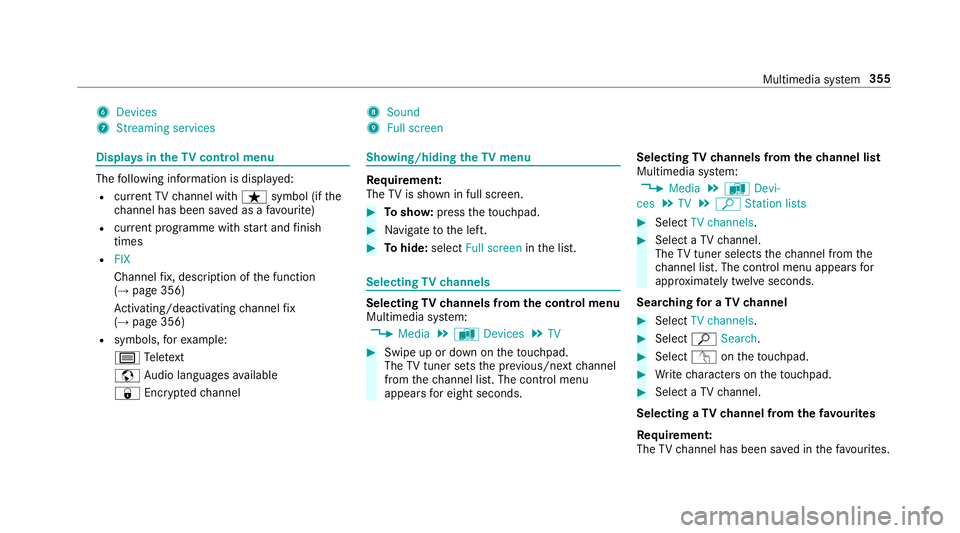
ays in theTV cont rol menu The
following information is displa yed:
R current TV channel with ßsymbol (if the
ch annel has been sa ved as a favo urite)
R current programme wi thstart and finish
times
R FIX
Channel fix, description of the function
(→ page 356)
Ac tivating/deactivating channel fix
( → page 356)
R symbols, forex ample:
p Telete xt
z Audio languages available
r Encryp tedch annel Showing/hiding
theTV menu Re
quirement:
The TVis shown in full screen. #
Tosho w:press theto uchpad. #
Navigate tothe left. #
Tohide: select Full screen inthe list. Selecting
TVchannels Selecting
TVchannels from the control menu
Multimedia sy stem:
, Media .
à Devices .
TV #
Swipe up or down on theto uchpad.
The TVtuner sets the pr evious/n extch annel
from thech annel list. The control menu
appears for eight seconds. Selecting
TVchannels from thech annel list
Multimedia sy stem:
, Media .
à Devi-
ces .
TV .
ª Station lists #
Select TV channels. #
Select a TVchannel.
The TVtuner selects thech annel from the
ch annel list. The control menu appears for
appr oximately twelve seconds.
Sear ching for a TVchannel #
Select TV channels . #
Select ªSearch . #
Select vontheto uchpad. #
Write characters on theto uchpad. #
Select a TVchannel.
Selecting a TVchannel from thefa vo urites
Re quirement:
The TVchannel has been sa ved in thefa vo urites. Multimedia sy
stem 355
Page 361 of 557
Deleting a
voice tag #
Select Delete.
A message appears asking whe ther youwa nt
to dele tethevo ice tagfo rth eTV channel. #
Select Yes. TV
prog ramme Au
dio language and subtitles
Au dio language
R It is possible tochoose between se veral
audio languages when a programme is broad‐
cast in multiple languages.
R If,forex ample, En glish is set as the sy stem
language and a TVchannel is broadcasting in
th is language, En glish is selec ted automati‐
cally.
R The prog ramme transmission may be indica‐
te d with thefo llowing symbols:
m Programme with audio explanations for
th e visually impaired
o Stereo broadcast
n Programme forth e hard of hearing If a symbol is not shown,
the programme is
either broadcast in mono or the transmission
properties are unkn own.
Subtitles
R The function is switched on:
Subtitles are shown in the selected language
fo rth e cur rent programme (if available).
Setting the audio language
Multimedia sy stem:
, Media .
à Devi-
ces .
TV .
Z Options #
Select Audio/subtitles. #
Select one of theav ailable audio languages.
The audio language selec ted only applies to
th e cur rent programme.
Setting subtitles
Multimedia sy stem:
, Media .
à Devi-
ces .
TV .
Z Options #
Select Audio/subtitles. #
Select Show subtitles.
The subtitles are switched on Oor off ª. #
Select one of theav ailable languages forthe
subtitles.
The language selected only applies tothe
cur rent programme. Te
lete xt Te
lete xt ove rview
Te lete xt pa ges are located between page 100
and page 899.
A dynamic telete xt pa geconsi sts of se veral sub‐
pages.
Information on MHEG-5 digital telete xt:
R digi taltelete xt is only available in some coun‐
tries, e.g. the UK and New Zealand
R interactive multimedia applications such as
weather fore casts, ne wsreports and sport
re sults are available
R it may take some time before all the pages
load 358
Multimedia sy stem
Page 536 of 557

Multimedia sy
stem .......................... 268, 276
Ac tivating/deactivating standby
mode .................................................. .179
Ad justing thevo lume .......................... .274
Calling up lists and menus .................. .271
Central cont rols .................................. 269
Configuring display settings ................ .276
Main functions .....................................2 71
Overview ............................................. 268
Re storing thefa ctory settings ............. 284
Switching the sound on/off ................. 273N
Na vigation
Ac tivating ............................................ 284
Calling up the Digital Owner's Man‐
ual .......................................................3 06
Commands (LING UATRONIC) ............... 261
Menu (on-board computer) .................. 250
Showing/hiding the menu ...................2 85
Up dating the map data ........................ 305
Na vigation
see Destination
see Destination entry
see Map see
Route
see Route guidance
see Traf fic information
Na vigation announcements ...................295
Ac tivating/deactivating ...................... .295
Ad justing thevo lume .......................... .295
Re peating ............................................ 296
Switching audio fadeout on/off .......... 295
Switching on/off during a phone call .. 295
Na vigation messages
On-board computer ............................. 250
Ne arField Communication
St arting theve hicle (mobile phone) ..... 154
Ne arField Communication (NFC) .......... 309
Connecting the mobile phone tothe
multimedia sy stem .............................. 309
Switching Blue tooth ®
audio equip‐
ment .................................................... 349
Swit ching mobile phones .................... 309
Ne utral
Selecting ............................................. 16 4
NFC see Near Field Communication (NFC) No
ise
Wheels and tyres ................................ .401 O
Occupant saf ety .......... 30, 32, 37, 39, 44, 45
Pe ts in theve hicle ................................. 63
Occupant saf ety
see Child seat
Odome ter
see Total dis tance recorder
Oil see Engine oil
On-board co mputer ................................. 254
Assis tance graphic menu .................... 24 8
Displ aying the service due date ........... 363
Media menu ........................................2 52
Menu content ...................................... 254
Menu designs ...................................... 255
Menus ................................................. 24 6
Multifunction display ........................... 247
Na vigation menu ................................. 250
Operating ............................................ 24 6
Ra dio menu .........................................2 52
Service menu ...................................... 24 8 Index
533