reset MERCEDES-BENZ E-CLASS SALOON 2016 User Guide
[x] Cancel search | Manufacturer: MERCEDES-BENZ, Model Year: 2016, Model line: E-CLASS SALOON, Model: MERCEDES-BENZ E-CLASS SALOON 2016Pages: 557, PDF Size: 11.09 MB
Page 255 of 557
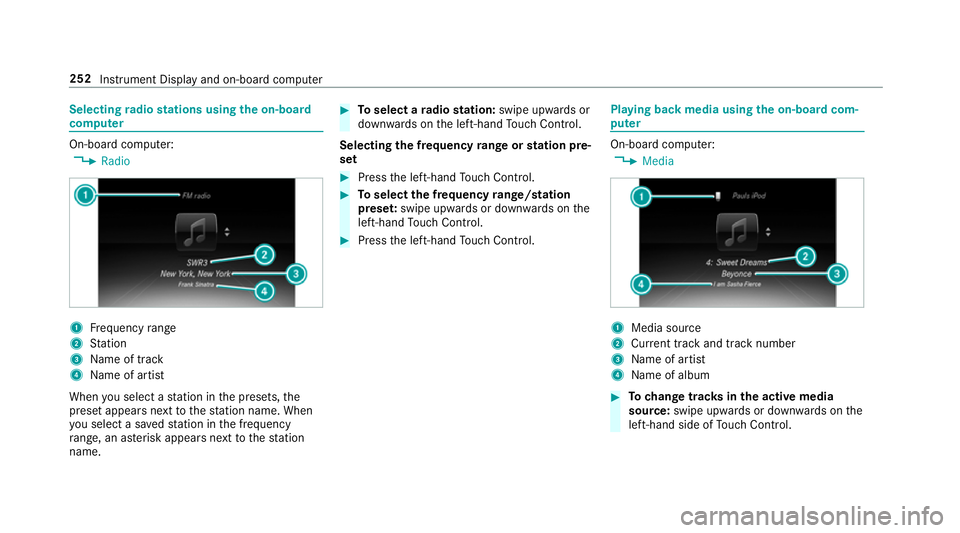
Selecting
radio stations using the on-boa rd
compu ter On-board computer:
, Radio 1
Frequency range
2 Station
3 Name of track
4 Name of artist
When you select a station in the presets, the
preset appears next tothest ation name. When
yo u select a sa vedstation in the frequency
ra nge, an as terisk appears nexttothest ation
name. #
Toselect a radio station: swipe upwards or
down wards on the left-hand Touch Control.
Selecting the frequency range or station pre‐
set #
Press the left-hand Touch Control. #
Toselect the frequency range/station
prese t:swipe upwards or down wards on the
left-hand Touch Control. #
Press the left-hand Touch Control. Playing back media using
the on-boa rdcom‐
pu ter On-board computer:
, Media 1
Media source
2 Current track and track number
3 Name of artist
4 Name of album #
Tochange trac ksinthe active media
source: swipe upwards or down wards on the
left-hand side of Touch Control. 252
Instru ment Display and on-board computer
Page 276 of 557
#
Select New favourite .
The catego ries are displa yed. #
Select a categor y.
The favo urites are displ ayed. #
Select a favo urite. #
Add a favo urite at the desired position.
If a favo urite has already been added at this
position, it will be overwritten.
Ad ding your ow nfa vo urite (e xamp le) #
Select Vehicle. #
Select Full screen: Consumption. #
Press and hold the© button until the
fa vo urites are displ ayed. #
Add a favo urite at the desired position.
Re naming a favo urite #
Press the© button.
The main functions are displa yed. #
Navigate down wards once. #
Select a favo urite. #
Navigate down wards once.
The Favourites menu appears. #
Select Rename. #
Enterch aracters. #
Toconfirm the entr y:select ¡.
Moving a favo urite #
Press the© button.
The main functions are displa yed. #
Navigate down wards once. #
Select a favo urite. #
Navigate down wards once.
The Favourites menu appears. #
Select Move. #
Movethefa vo urite tothe desired position.
If a favo urite has already been added at this
position, it will be overwritten.
Deleting a favo urite #
Press the© button.
The main functions are displa yed. #
Navigate down wards once. #
Select a favo urite. #
Navigate down wards once.
The Favourites menu appears. #
Todel ete: select Clear. #
Select Yes. #
Toresto reall favo urites: selectReset all.
A prom ptappears. #
Select Yes.
The favo urites will restore tofactory settings. Switching the sound on/o
ff Multimedia sy
stem 273
Page 285 of 557
Multimedia sy
stem:
, System .
System backup #
Select Import data orExport data.
Importing #
Select a data storage medium.
A prom ptappears asking whe ther youre ally
wish to overwrite the cur rent da ta. If da ta
originates from ano ther vehicle, this is recog‐
nised du ring da tareading.
The multimedia sy stem is restar ted once the
data has been impor ted.
% Current vehicle settings can be edited af ter
th e import.
Exporting
If PIN pr otection is activated, your PIN is reques‐
te d. #
Ente ryo ur four-digit PIN. #
Select a data storage medium.
The data is expor ted. The data export may
ta ke several minutes. Ac
tivating/deactivating PIN pr otection for
data export
Multimedia sy stem:
, System .
System backup #
Toactivate: activatePIN protection O. #
Enter your four-digit PIN. #
Enteryo ur four-digit PIN again.
PIN pr otection is activated when bo thPINs
match. #
Todeactivate: deactivatePIN protection ª. #
Enter your four-digit PIN.
% Ifyo u ha veforg ottenyo ur PIN, a Mercedes-
Benz service centre can deactivate your PIN
pr otection foryo u.
Alternatively: you can deactivate PIN pr otec‐
tion byresetting your personal data
(→ page 284). User profile
Selecting a user profile
Multimedia sy
stem:
, System .
g Personalisation #
Select Guestor individual profile #.
% Some settings from the user profile are only
loaded when theve hicle is stationary or
when the ignition is switched on.
Creating a user profile
Multimedia sy stem:
, System .
g Personalisation .
Cre-
ate profile #
Ente r a name. #
Select a.
The user profile sa ves individual settings, e.g.:
R system settings
R settings in theTV tuner's channel list
R navigation and traf fic information
The settings di ffer depending on theve hicle
equipment. 282
Multimedia sy stem
Page 286 of 557
Importing/exporting user profiles
Re
quirements:
R There is an Internet connection
(→ page 329).
R A Mercedes me account exists at http://
www.me rcedes.me.
R The Personalisation service is activated.
Multimedia sy stem:
, System .
g Personalisation .
Man-
ual export/import
This function is not available in all countries.
On lyindividual profiles can be impor ted or
ex por ted.
The individual profiles are alw ays collectively
impor ted or expor ted. #
Impor t:select Import profiles from the
server.
The The profile import overwrites the exist-
ing profiles. Do you want to continue? mes‐
sage appears. #
Select Yes.
User profiles are impor ted. #
Expor t:select Export profiles to the server.
User profiles are expor ted.
% Certain settings such as address book
ent ries or pr evious destinations from the
navigation sy stem are not expor ted.
User profile options
Multimedia sy stem:
, System .
g Personalisation #
Highlight a profile. #
¥ Select an option.
The following options are available:
R Rename
R Delete
R Reset
% The guest profile cannot be dele ted or
re named. So
ftwa reupdate Information on software updates
The multimedia sy
stem pr ovides a message
when an update is available. Depending on
the source, you can per form vari‐
ous updates:
Software update Source of
the
update Up
date type
Interne tN avigation maps, sys‐
te m updates
External storage
medium, e.g. USB
st ick Na
vigation maps Pe
rforming a software upda te
Re quirement:
An Internet connection is requ ired for updates
which are obtained online (→ page 329).
Multimedia sy stem:
, System .
Software update
Au tomatically #
Activate Othe automatic software update.
Up dates are per form ed. Multimedia sy
stem 283
Page 287 of 557
The cur
rent status of the updates is dis‐
pla yed.
The automatic software update is not availa‐
ble in all countries.
Manually #
Deactivate ªthe automatic software
update. #
Select an update from the list and start the
update.
Ac tivating the so ftwa reupdate #
Restart the sy stem. Re
set function Multimedia sy
stem:
, System .
Reset
The multimedia sy stem is reset tothefa ctory
settings.
Pe rsonal data is dele ted, forex ample:
R station presets
R connec ted mobile phones #
Select Yes.
A prom ptappears asking whe ther you wish
to reset.
No selected: the process is cancelled. #
Select Yes.
The multimedia sy stem is reset tofactory
settings and restar ted. Na
vigation Switching navigation on
Multimedia sy
stem:
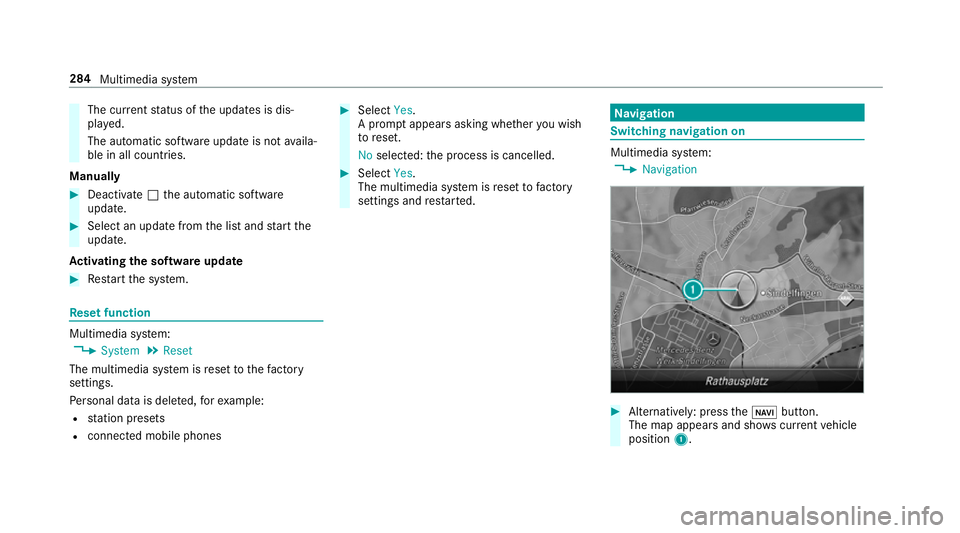
, Navigation #
Alternatively: press theß button.
The map appears and sho wscurrent vehicle
position 1. 284
Multimedia sy stem
Page 332 of 557
The mobile phone continues
tobe supplied
with elect ricity.
or #
Disconnect the connecting cable between
th e mobile phone and multimedia sy stem.
Mercedes-Benz recommends disconnecting
th e connecting cable only when theve hicle is
st ationar y. Tr
ansfer redve hicle data when using Apple
CarPlay™ and Android Auto Note
s on transfer redve hicle data
When using Android Auto™ or Apple CarPl ay™,
cer tain vehicle data is transfer redto the mobile
phone. This enables youto getth e best out of
selected mobile phone services. Vehicle data is
not directly accessible.
Sy stem information:
R software release of the multimedia sy stem
R system ID (anonymised)
The transfer of this data is used tooptimise
communication between theve hicle and the
mobile phone. To
do this, and toassign se veralve hicles tothe
mobile phone, a vehicle ID is randomly gener‐
ated.
This has no connection totheve hicle identifica‐
tion number (VIN) and is dele ted when the multi‐
media sy stem is reset (→ page 284).
Driving status data:
R transmission position engaged
R distinction between par ked, standstill, rolling
and driving
R day/night mode of the instrument clus ter
The transfer of this data is used toalter how
con tent is displ ayed tocor respond tothe driving
situation.
Po sition data:
R co-ordinates
R speed
R compass direction
R acceleration direction This data is only transfer
red while the navigation
sy stem is active in order toimpr ove it (e.g. so it
can continue functioning when in a tunnel).
If yo u do not consent tovehicle data being trans‐
fe rred, you can deactivate the automatic start of
Android Auto™ (→ page 328) or Apple CarPlay™
(→ page 327) and temp orarily term inate the USB
connection between the mobile phone and the
ve hicle. Online and Internet functions
Internet connection
Internet connection
restrictions &
WARNING Risk of di stra ction from infor‐
mation sy stems and communications
equipment
If yo u operate information and communica‐
tions equipment integ rated in theve hicle
when driving, you will be distracted from the
traf fic situation. This could also cause youto
lose control of theve hicle. Multimedia sy
stem 329
Page 353 of 557

Ra
dio overview 1
Active frequency band
2 Station name
3 Artist, title, album and radio text 4
Search/s tation li st
5 Presets
6 Waveband 7
Internet radio
8 Sound (tone settings)
9 Options 350
Multimedia sy stem
Page 354 of 557
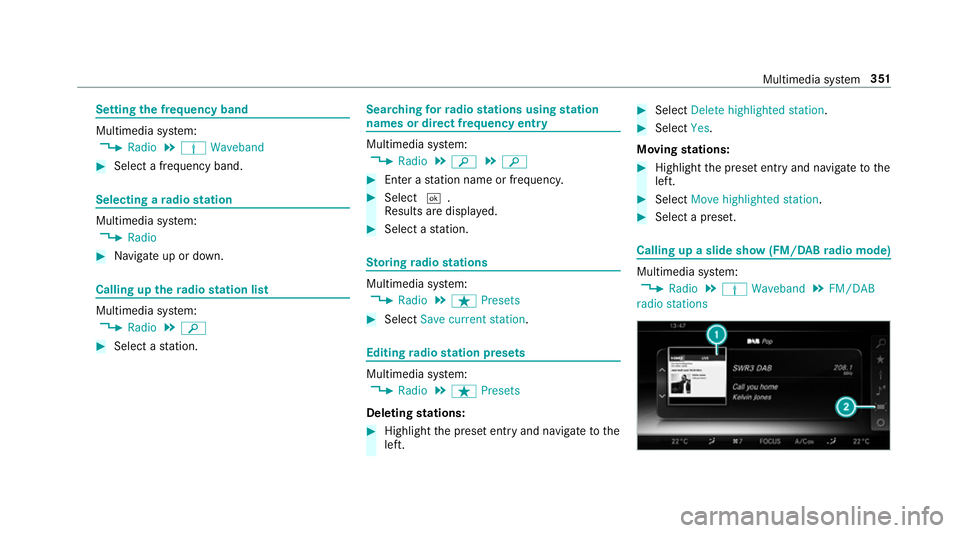
Setting
the frequency band Multimedia sy
stem:
, Radio .
Þ Waveband #
Select a frequency band. Selecting a
radio station Multimedia sy
stem:
, Radio #
Navigate up or down. Calling up
thera dio station list Multimedia sy
stem:
, Radio .
è #
Select a station. Sear
ching forra dio stations using station
names or direct frequency entry Multimedia sy
stem:
, Radio .
è .
è #
Ente r astation name or frequenc y. #
Select ¬.
Re sults are displa yed. #
Select a station. St
oring radio stations Multimedia sy
stem:
, Radio .
ß Presets #
Select Save current station . Editing
radio station presets Multimedia sy
stem:
, Radio .
ß Presets
Deleting stations: #
Highlight the preset entry and navigatetothe
left. #
Select Delete highlighted station. #
Select Yes.
Moving stations: #
Highlight the preset entry and navigatetothe
left. #
Select Move highlighted station. #
Select a preset. Calling up a slide show (FM/DAB
radio mode) Multimedia sy
stem:
, Radio .
Þ Waveband .
FM/DAB
radio stations Multimedia sy
stem 351
Page 357 of 557
If
th eve hicle is tr avelling faster than 5 km/h
th ete levision picture is hidden from the driver. If
available, thech annel and pro‐
gr amme information is continuously dis‐
pla yed. TV
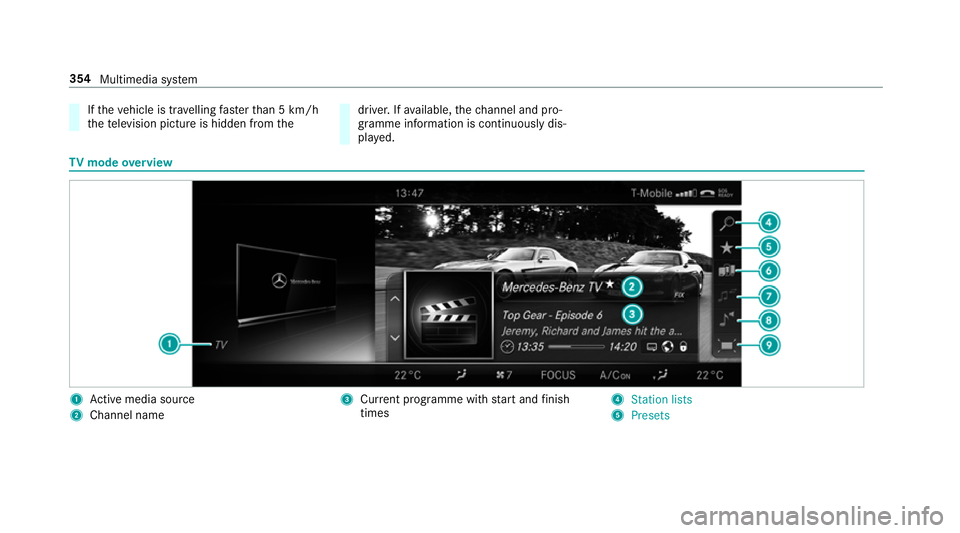
mode overview 1
Active media sou rce
2 Channel name 3
Current programme wi thstart and finish
times 4
Station lists
5 Presets 354
Multimedia sy stem
Page 362 of 557
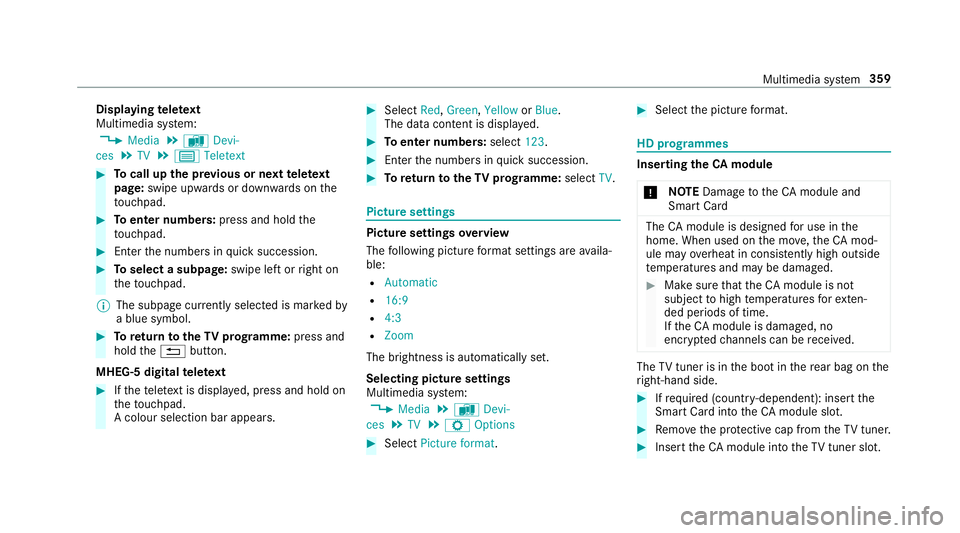
Displaying
telete xt
Multimedia sy stem:
, Media .
à Devi-
ces .
TV .
p Teletext #
Tocall up the pr evious or next telete xt
page: swipe upwards or down wards on the
to uchpad. #
Toenter numbers: press and holdthe
to uchpad. #
Enterth e numbers in quick succession. #
Toselect a subpage: swipe left orright on
th eto uchpad.
% The subpage cur rently selected is ma rked by
a blue symbol. #
Toreturn totheTV prog ramme: press and
hold the% button.
MHEG-5 digital telete xt #
Ifth ete lete xt is displ ayed, press and hold on
th eto uchpad.
A colour selection bar appears. #
Select Red,Green, YelloworBlue .
The data content is displ ayed. #
Toenter numbers: select123. #
Enterth e numbers in quick succession. #
Toreturn totheTV prog ramme: selectTV. Pictu
resettings Picture settings
overview
The following picture form at settings are availa‐
ble:
R Automatic
R 16:9
R 4:3
R Zoom
The brightness is automatically set.
Selecting picture settings
Multimedia sy stem:
, Media .
à Devi-
ces .
TV .
Z Options #
Select Picture format. #
Select the picture form at. HD prog
rammes Inse
rting theCA module
* NO
TEDama getotheCA module and
Smart Card The
CAmodule is designed for use in the
home. When used on the mo ve,th eCA mod‐
ule may overheat in consis tently high outside
te mp eratures and may be damaged. #
Make sure that theCA module is not
subject tohigh temp eratures forex ten‐
ded pe riods of time.
If th eCA module is dama ged, no
enc rypte dch annels can be recei ved. The
TVtuner is in the boot in there ar bag on the
ri ght-hand side. #
Ifre qu ired (countr y-dependent): insert the
Smart Ca rdinto theCA module slot. #
Remo vethe pr otective cap from theTV tune r. #
Insert theCA module into theTV tuner sl ot. Multimedia sy
stem 359