ESP MERCEDES-BENZ E-CLASS SALOON 2016 Repair Manual
[x] Cancel search | Manufacturer: MERCEDES-BENZ, Model Year: 2016, Model line: E-CLASS SALOON, Model: MERCEDES-BENZ E-CLASS SALOON 2016Pages: 557, PDF Size: 11.09 MB
Page 239 of 557
R
The lane markings are worn, dark or co vered.
R The dis tance totheve hicle in front is too
small and the lane markings thus cannot be
de tected.
R The lane markings change quickl y,e.g. lanes
branch off, cross one ano ther or mer ge.
R The road is very nar row and winding.
Ve hicles with Driving Assistance pac kage or
Driving Assistance Plus pa ckage: Active Lane
Ke eping Assist uses radar sensors tomonitor
se veral areas around theve hicle. If thera dar
sensors in there ar bumper are dirty or co vered
with sn ow,th e sy stem may be impaired or may
not function. If an obs tacle in the lane in which
yo u are driving has been de tected, no lane-cor‐
re cting brake application occu rs.
Ac tivating Active Lane Keeping Assist &
WARNING Risk of accident despi te
Ac tive Lane Keeping Assist warning
A lane-cor recting brake application cannot
al wa ys bring theve hicle back into the origi‐
nal lane. #
Alw aysst eer, brake or accelera teyour‐
self, especially if Active Lane Keeping
Assist warnsyo u or makes a lane-cor‐
re cting brake application. &
WARNING Risk of accident despi teinter‐
ve ntion of Active Lane Keeping Assist
Ac tive Lane Keeping Assist does not de tect
traf fic conditions or road users. In very rare
cases, the sy stem may make an inappropri‐
ate brake application, e.g. af ter intentional ly
driving over a solid lane marking.
The brake application can be inter rupte d at
any time if yousteer slightly in the opposite
direction. #
Alw ays make sure that there is suf fi‐
cient di stance tothe side forot her traf‐
fi c or obs tacles. &
WARNING Risk of accident despi teLane
Ke eping Assist
Lane Keeping Assist cann otalw ays clearly
de tect lane markings. In su
chcases, Lane Keeping Assist can:
R give an unnecessary warning
R not give a warning #
Alw ays pay particular attention tothe
traf fic situation and keep within the
lane, especially if Active Lane Keeping
Assist alerts you. Re
quirement:
The driving speed is at least 60 km/h. 236
Driving and parking
Page 240 of 557
#
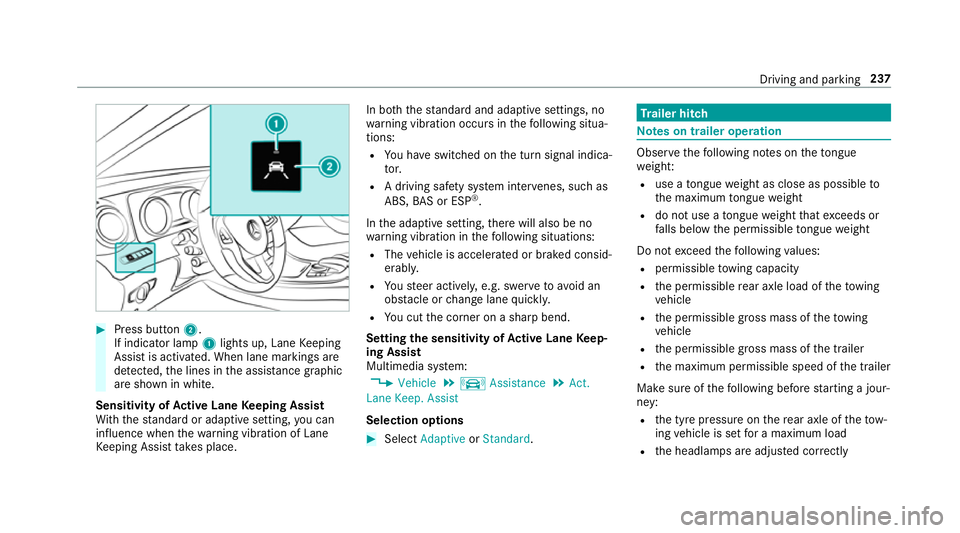
Press button 2.
If indicator lamp 1lights up, Lane Keeping
Assist is activated. When lane markings are
de tected, the lines in the assis tance graphic
are shown in white.
Sensitivity of Active Lane Keeping Assist
Wi th th est andard or adaptive setting, you can
influence when thewa rning vibration of Lane
Ke eping Assist take s place. In bo
th thest andard and adaptive settings, no
wa rning vibration occurs in thefo llowing situa‐
tions:
R You ha veswitched on the turn signal indica‐
to r.
R A driving sa fety sy stem inter venes, su chas
ABS, BAS or ESP ®
.
In the adaptive setting, there will also be no
wa rning vibration in thefo llowing situations:
R The vehicle is accelerated or braked consid‐
erably.
R Yousteer actively, e.g. swer vetoavo id an
obs tacle or change lane quickl y.
R You cut the corner on a sharp bend.
Setting the sensitivity of Active Lane Keep‐
ing Assist
Multimedia sy stem:
, Vehicle .
k Assistance .
Act.
Lane Keep. Assist
Selection options #
Select Adaptive orStandard. Tr
ailer hitch Note
s on trailer operation Obser
vethefo llowing no tes on theto ngue
we ight:
R use a tongue weight as close as possible to
th e maximum tongue weight
R do not use a tongue weight that exc eeds or
fa lls below the permissible tongue weight
Do not exceed thefo llowing values:
R permissible towing capacity
R the permissible rear axle load of theto wing
ve hicle
R the permissible gross mass of theto wing
ve hicle
R the permissible gross mass of the trailer
R the maximum permissible speed of the trailer
Make sure of thefo llowing before starting a jour‐
ney:
R the tyre pressure on there ar axle of theto w‐
ing vehicle is set for a maximum load
R the headlamps are adjus ted cor rectly Driving and pa
rking 237
Page 243 of 557
The operation of
thefo llowing sy stems depends
on the trailer being connected cor rectly:
R ESP ®
R Parking Assist PARKTRONIC
R Parking Pilot
R Blind Spot Assist or Active Blind Spot Assi st
R Active Lane Keeping Assist
Coupling up a trailer
* NO
TEDama getothe battery due tofull
dischar ge Charging
the trailer battery using the po wer
supply of the trailer can damage the batter y. #
Do not use the po wer supp lyto charge
th e trailer batter y.#
Remo vethe pr otective co vering from the ball
head and store it in a safe place. #
Position the trailer on a le vel sur face behind
th eve hicle and couple it up totheve hicle. #
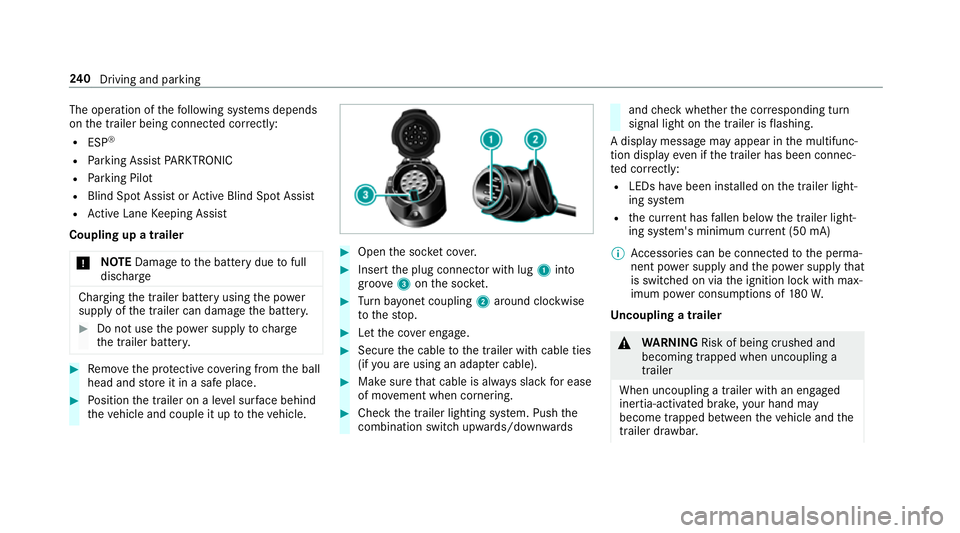
Open the soc ket co ver. #
Insert the plug connector with lug 1into
groo ve3 onthe soc ket. #
Turn bayonet coupling 2around clo ckwise
to thestop. #
Let the co ver engage. #
Secure the cable tothe trailer with cable ties
(if you are using an adap ter cable). #
Make sure that cable is alw ays slack for ease
of mo vement when cornering. #
Check the trailer lighting sy stem. Push the
combination switch up wards/down wards and
check whe ther the cor responding turn
signal light on the trailer is flashing.
A display message may appear in the multifunc‐
tion display even if the trailer has been connec‐
te d cor rectly:
R LEDs ha vebeen ins talled on the trailer light‐
ing sy stem
R the cur rent has fallen below the trailer light‐
ing sy stem's minimum cur rent (50 mA)
% Accessories can be connected tothe perma‐
nent po wer supp lyand the po wer supply that
is swit ched on via the ignition lock with max‐
imum po wer consum ptions of 180W.
Un coupling a trailer &
WARNING Risk of being crushed and
becoming trapped when uncoupling a
trailer
When uncoupling a trailer wi than engaged
ine rtia-activated brake, your hand may
become trapped between theve hicle and the
trailer dr awbar. 240
Driving and pa rking
Page 260 of 557
Operating saf
ety &
WARNING Risk of di stra ction from infor‐
mation sy stems and communications
equipment
If yo u operate information and communica‐
tions equipment integ rated in theve hicle
when driving, you will be distracted from the
traf fic situation. This could also cause youto
lose control of theve hicle. #
Only operate this equipment when the
traf fic situation permits. #
Ifyo u cannot be sure of this, stop the
ve hicle whilst paying attention toroad
and traf fic conditions and ope rate the
equipment with theve hicle stationar y. &
WARNING Risk of di stra ction from oper‐
ating mobile communication equipment
while theve hicle is in motion
If yo u operate mobile communication equip‐
ment when driving, you will be distracted from
the tra ffic situation. This could also
cause youto lose control of theve hicle.
Only operate this equipment when theve hi‐
cle is stationar y. Fo
ryo ur ow n sa fety, al ways obser vethefo llow‐
ing points when operating mobile communica‐
tions equipment and especially your voice con‐
trol sy stem:
R Obser vethe legal requ irements forth e coun‐
try in which you are driving.
R While driving, on ly operate mobile communi‐
cations equipment and your voice control
sy stem when the tra ffic conditions permit it.
Yo u may otherwise be distracted from the
traf fic conditions and cause an accident,
inju ring yourself and others.
R Do not use thevo ice control sy stem in an
emer gency as your voice can change and
yo ur telephone call can be unnecessarily
dela yed.
R Familiarise yourself with thevo ice control
sy stem functions before starting the journe y. Operation
Operating
the multifunction steering wheel LINGU
ATRO NIC is operational appr oximately
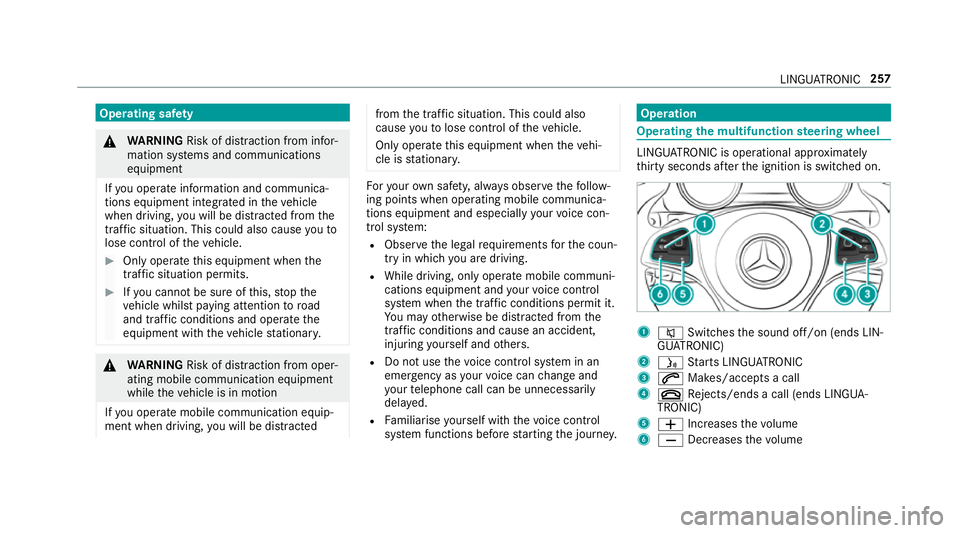
th irty seconds af terth e ignition is switched on. 1
8 Switches the sound off/on (ends LIN‐
GU ATRO NIC)
2 ó Starts LINGU ATRO NIC
3 6 Makes/accepts a call
4 ~ Rejects/ends a call (ends LINGUA‐
TRONIC)
5 W Increases thevo lume
6 X Decreases thevo lume LINGU
ATRO NIC 257
Page 261 of 557
Vo
ice prom pting #
Tostart or continue a dialogue: pressthe
ó button on the multifunction steering
wheel.
Yo u can say a command af ter an acou stic
signal. #
Tocor rect an ent ry:say theCorrection
command. #
Toselect an entry from the selection lis t:
say the line number or the conte nts. #
Tobrows eth e selection lis t:say theCon-
tinue orBack command. #
Tointer rupt the dialogue: saythePause
command. #
Tocancel the dialogue: saytheCancel
command. Operable functions
Yo
u can use the LINGU ATRO NIC voice control
sy stem tooperate thefo llowing equipment
re ga rdless of thefe atures:
R Telephone R
Text messa ges
R Navigation
R Address book
R Radio
R Audio (memory card, Media Inter face, USB
and Blu etoo th®
audio)
R TV
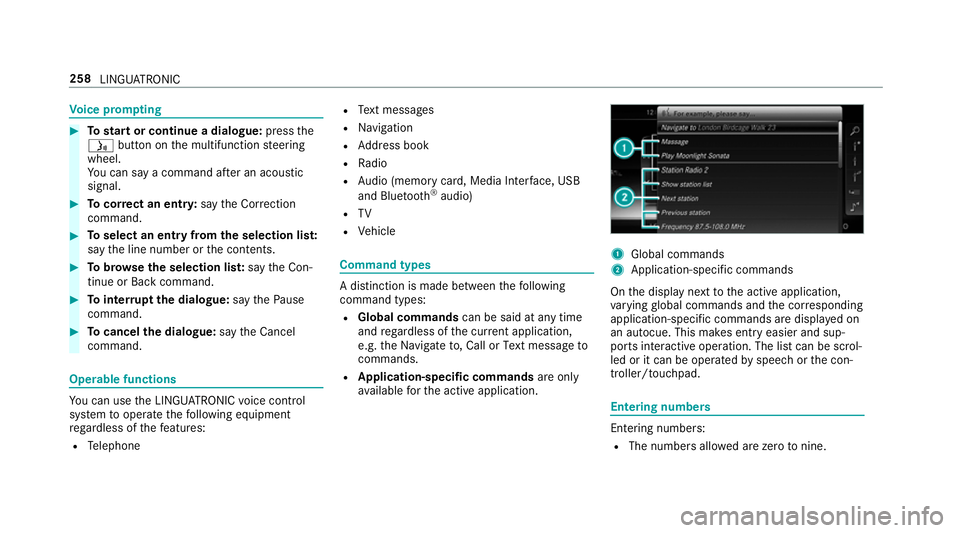
R Vehicle Command types
A distinction is made between
thefo llowing
command types:
R Global commands can be said at any time
and rega rdless of the cur rent application,
e.g. theNavigate to, CallorText message to
commands.
R Application-specific commands are only
av ailable forth e active application. 1
Global commands
2 Application-specific commands
On the display next tothe active application,
va rying global commands and the cor responding
application-specific commands are displa yed on
an autocue. This makes ent ryeasier and sup‐
ports interactive operation. The list can be scrol‐
led or it can be operated byspeech or the con‐
troller/touchpad. Entering numbers
Ente
ring numbe rs:
R The numbers allo wed are zerotonine . 258
LINGUATRONIC
Page 269 of 557
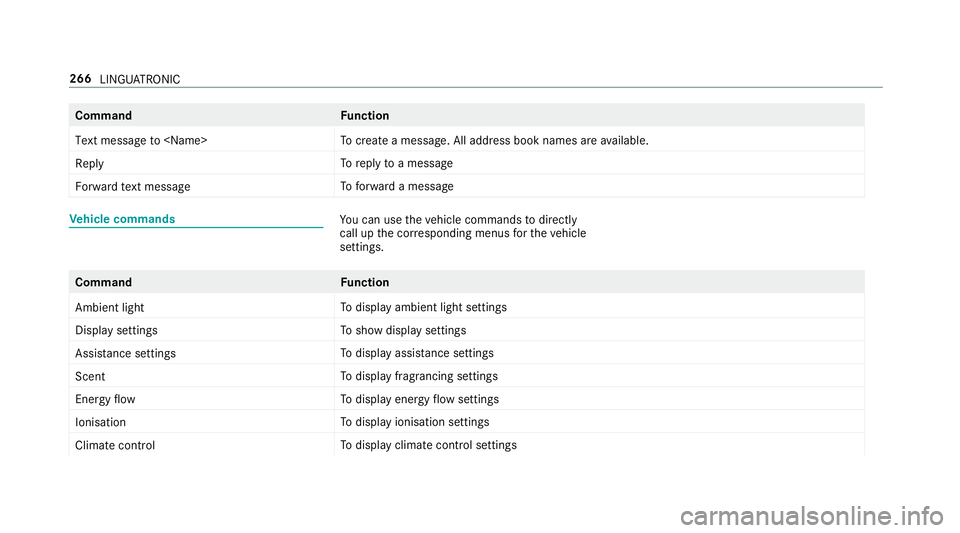
Command
Function
Text message to
crea tea message. All address book names are available.
Reply To
reply toa message
Forward text message To
forw ard a message Ve
hicle commands Yo
u can use theve hicle commands todirect ly
call up the cor responding menus forth eve hicle
settings. Command
Function
Ambient light To
display ambient light settings
Display settings To
show display settings
Assistance settings To
display assis tance settings
Scent To
display fragrancing settings
Energy flow To
display energy flow settings
Ionisation To
display ionisation settings
Climate control To
display climate control settings 266
LINGU ATRO NIC
Page 291 of 557
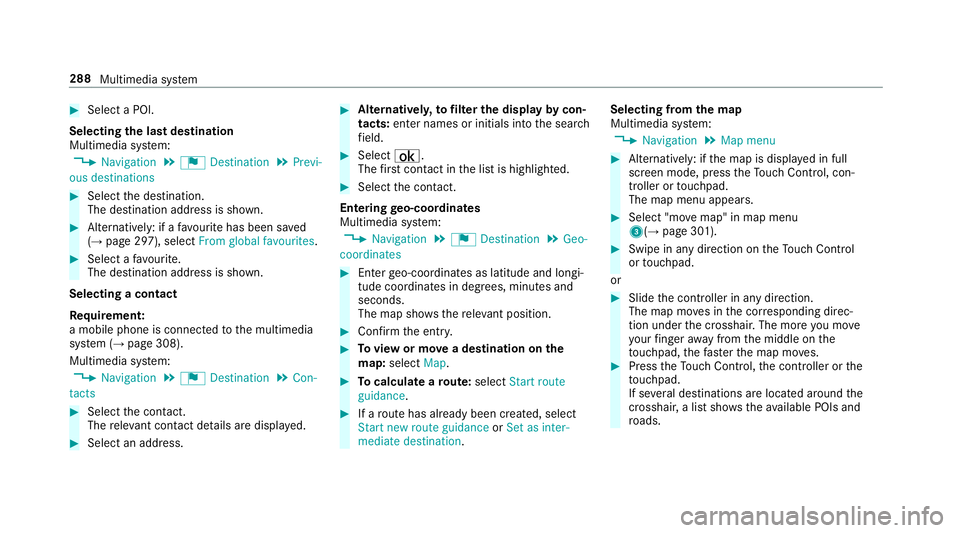
#
Select a POI.
Selecting the last destination
Multimedia sy stem:
, Navigation .
¬ Destination .
Previ-
ous destinations #
Select the destination.
The destination address is shown. #
Alternatively: if a favo urite has been sa ved
( → page 297), select From global favourites .#
Select a favo urite.
The destination address is shown.
Selecting a contact
Re quirement:
a mobile phone is connec tedto the multimedia
sy stem (→ page 308).
Multimedia sy stem:
, Navigation .
¬ Destination .
Con-
tacts #
Select the conta ct.
The releva nt contact de tails are displa yed. #
Select an address. #
Alternativel y,to filter the display bycon‐
tacts: enter names or initials into the sear ch
fi eld. #
Select ¡.
The firs t contact in the list is highlighted. #
Select the conta ct.
En tering geo-coordina tes
Multimedia sy stem:
, Navigation .
¬ Destination .
Geo-
coordinates #
Ente rge o-coordinates as latitude and longi‐
tude coordinates in degrees, minutes and
seconds.
The map sho ws there leva nt position. #
Confirm the entry. #
Toview or mo vea destination on the
map: select Map. #
Tocalculate a route: select Start route
guidance. #
If a route has already been created, select
Start new route guidance orSet as inter-
mediate destination . Selecting from
the map
Multimedia sy stem:
, Navigation .
Map menu #
Alternatively: if the map is displa yed in full
screen mode, press theTo uch Control, con‐
troller or touchpad.
The map menu appears. #
Select "mo vemap" in map menu
3(→ page 301). #
Swipe in any direction on theTo uch Control
or touchpad.
or #
Slide the controller in any direction.
The map mo ves in the cor responding direc‐
tion under the crosshair. The more you mo ve
yo ur finger away from the middle on the
to uchpad, thefast erthe map mo ves. #
Press theTo uch Control, the controller or the
to uchpad.
If se veral destinations are located around the
crosshair, a li stsho wstheav ailable POIs and
ro ads. 288
Multimedia sy stem
Page 295 of 557
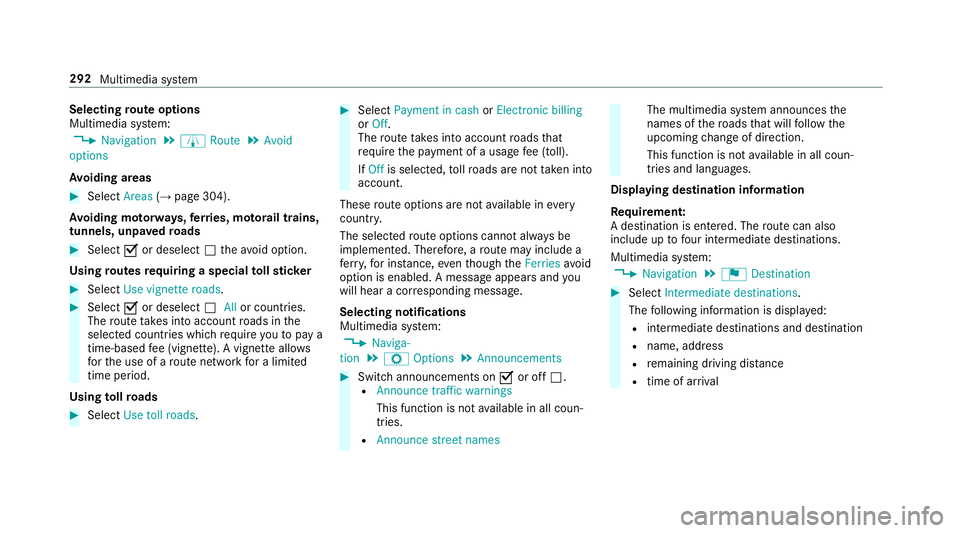
Selecting
route options
Multimedia sy stem:
, Navigation .
À Route .
Avoid
options
Av oiding areas #
Select Areas(→page 304).
Av oiding mo torw ays, ferries, mo torail trains,
tunnels, unpa vedro ads #
Select Oor deselect ªtheavo id option.
Using routes requiring a special tollst icker #
Select Use vignette roads .#
Select Oor deselect ªAllor countries.
The route take s into account roads in the
selected countries which requ ire youto pay a
time-based fee (vignette). A vignette allo ws
fo rth e use of a route network for a limi ted
time pe riod.
Using tollro ads #
Select Use toll roads. #
Select Payment in cash orElectronic billing
or Off.
The route take s into account roads that
re qu ire the payment of a usage fee (toll).
If Off is selected, tollro ads are not take n into
account.
These route options are not available in every
countr y.
The selected route options cannot alw ays be
implemented. Therefore, a route may include a
fe rry, for ins tance, eventh ough theFerries avoid
option is enabled. A message appears and you
will hear a cor responding message.
Selecting notifications
Multimedia sy stem:
, Naviga-
tion .
Z Options .
Announcements #
Switch announcements on Oor off ª.
R Announce traffic warnings
This function is not available in all coun‐
tries.
R Announce street names The multimedia sy
stem announces the
names of thero ads that will follow the
upcoming change of direction.
This function is not available in all coun‐
tries and languages.
Displ aying destination information
Re quirement:
A destination is entered. The route can also
include up tofour intermediate destinations.
Multimedia sy stem:
, Navigation .
¬ Destination #
Select Intermediate destinations.
The following information is displa yed:
R intermediate destinations and destination
R name, address
R remaining driving dis tance
R time of ar rival 292
Multimedia sy stem
Page 305 of 557
%
Company logos displ ayed on the map are
trademar ksofthere spective companies and
used solely forth e purpose of indicating the
locations of these companies. The use of
such logos on the map does not indicate
appr oval of, suppo rtof or advertising by
th ese companies forth e navigation sy stem
itself.
Setting the map scale
Multimedia sy stem:
, Navigation .
Map menu #
Alternatively: when the map is displa yed in
full-sc reen mode, press theTo uch Control,
th e controller or theto uchpad.
The map menu appears. #
Select "Set map scale" in map menu
1(→ page 301).
The map scale appears with the cur rently
selected scale.
Ve hicles forright-side traf fic: the map alw ays
sho ws th e currently selected map scale at
th e bottom left. Ve
hicles for left-side traf fic: the map alw ays
sho ws th e currently selected map scale at
th e bottom right. #
Swipe up or down on theTo uch Control or
th eto uchpad.
or #
Movetwo fingers apart or toget her on the
to uchpad.
or #
Slide the controller up or down.
Moving the map
Multimedia sy stem:
, Navigation .
Map menu #
Alternatively: when the map is displa yed in
full-sc reen mode, press theTo uch Control,
th e controller or theto uchpad.
The map menu appears. #
Select "mo vemap" in map menu
3(→ page 301). #
Moveyour finger in any di rection on the
To uch Control or touchpad.
or #
Slide the controller in any direction.
The map mo ves in the cor responding direc‐
tion under the crosshair. The more you mo ve
yo ur finger away from the middle on the
to uchpad, thefast erthe map mo ves.
Selecting the map orientation
Multimedia sy stem:
, Navigation .
Map menu #
Alternatively: when the map is displa yed in
full-sc reen mode, press theTo uch Control,
th e controller or theto uchpad.
The map menu appears. #
In map menu 2, select N,2D or
3D( →page 301).
R NThe map is aligned in 2D and displ ayed
so that no rth is up.
R 2DThe map is aligned in 2D and dis‐
pla yed in the direction of tra vel.
R 3D: The map is aligned in 3D and dis‐
pla yed in the direction of tra vel. 302
Multimedia sy stem
Page 330 of 557
Only one mobile phone at a time can be connec‐
te
d via Apple CarPlay™ tothe multimedia sys‐
te m.
While using Apple CarPlay™, various functions of
th e multimedia sy stem, e.g. the navigation, are
not available.
The availability of Apple CarPlay™ may vary
according tothe count ry.
The service pr ovider is responsible forth is appli‐
cation and the services and conte nt connected
to it.
Connecting an iPhone ®
via Apple CarPlay™
Requ irements:
R Apple CarPlay™ can be used with Apple ®
operating sy stem version iOS 8.3 or abo ve.
R The full range of functions for Apple Car‐
Play™ is only possible with an Internet con‐
nection.
R The iPhone ®
is connected tothe multimedia
sy stem via the USB port çusing a suita‐
ble cable (→ page 341). Multimedia sy
stem:
, Connect .
Apple CarPlay
Setting automatic or manual start
A messa geappears when connec tedfo rth efirst
time. #
Automatic star t:select Automatically.
Start automatically is activatedO.
Apple CarPlay™ will now start immediately
af te rth e iPhone ®
is connected tothe multi‐
media sy stem using a USB cable. #
Manual star t:select Manually . #
Select the iPhone ®
in the device list.
Ac cepting/rejecting the data pr otection reg‐
ulations
A message with the data pr otection regulations
appears. #
Select Accept and start.
or #
Select Reject and end.
If yo u selected automatic start, you will ha ve
to start Apple CarPlay™ manually the next
time youwa nttouse it. Exiting Apple CarPlay™ #
Select Úin Apple CarPlay™.
Calling up Apple CarPlay™ tone settings
Multimedia sy stem:
, Connect .
Apple CarPlay .
Sound #
Select theto ne menu (→ page 360).
Ending Apple CarPlay™
Multimedia sy stem:
, Connect .
Apple CarPlay #
Select Disconnect.
The connection is ended.
The mobile phone continues tobe supplied
with elect ricity.
or #
Disconnect the connecting cable between
th e mobile phone and multimedia sy stem.
Mercedes-Benz recommends disconnecting
th e connecting cable only when theve hicle is
st ationar y. Multimedia sy
stem 327