bta MERCEDES-BENZ E-Class SEDAN 2010 W212 Comand Manual
[x] Cancel search | Manufacturer: MERCEDES-BENZ, Model Year: 2010, Model line: E-Class SEDAN, Model: MERCEDES-BENZ E-Class SEDAN 2010 W212Pages: 224, PDF Size: 7.4 MB
Page 135 of 224
iIn everyday speech, this format
designation has been replaced by the
designation “MP3”.
R Microsoft Windows ®
Media Audio V2, V7,
V8 und V9 (WMA).
Notes on Copyright
The music tracks that you can create for
playback in MP3 mode are generally
copyright-protected under applicable
international and national laws.
In many countries, the reproduction of
copyrighted material is not permitted even if
only for personal use without the express
prior consent of the copyright holder.
Please check the current copyright laws for
your country and comply with them.
These restrictions do not apply, for example,
to your own compositions and recordings or
for recordings for which authorization has
been obtained from the copyright holder.
Notes about DVD Audio Discs
COMAND can playback commercially
available, prerecorded Audio DVDs that bear
the following label. You will usually find the
label on the DVD booklet, the inlay or the DVD
itself.
i Audio DVDs differ from recordable DVD-R
and DVD-RW discs.
Data on Audio DVDs are stored either in
uncompressed format or in lossless
compressed format. The sound quality on
Audio DVDs is therefore better than on
recordable DVDs that contain MP3 data
because the MP3 format uses a lossy type of
compression. You cannot delete data from or
record additional data to commercially
available, prerecorded Audio DVDs. Please
note the following information about CDs/
DVDs and pay special attention to the notes
on copied and/or self-written CDs/DVDs.
Permissible Bit and Sampling Rates
R Fixed and variable bit rates from 32 kbps to
320 kbps
R Sampling rates from 8 kHz to 48 kHz
i Only use MP3 tracks with a bit rate of
128 kbps or higher and with a sampling rate
of 44.1 kHz or higher. Lower rates may
result in impaired sound quality. This is
particularly true if the surround sound
function has been activated.
WMA (Windows ®
Media Audio) format of the
following type:
R fixed bit rates from 5 kBit/s up to
384 kBit/s
R sampling rates from 8 kHz to 48 kHz.
COMAND does not support WMA files of the
following type:
R DRM (Digital Rights Management)
encrypted files
i If other music files are stored in these
audio formats on a storage medium, in
addition to MP3 files, the loading process
may take longer before the first track is
played.
Notes about CD/DVD Discs
i Discs with copy protection do not comply
with the CD Audio standard and in some
cases cannot be played by COMAND. When
playing copied discs, problems may occur
with the playback.
A wide variety of discs, disc writing software
and writers are available. Due to this variety
we cannot guarantee that the system will be
able to play discs that you have written/
copied yourself.
CD Audio/DVD Audio/MP3133AudioZ
Page 145 of 224
Gracenote®
Media Database
i This function is only available in CD Audio
mode.
CD information including album title, artist
name and track name is obtained from the
Gracenote ®
Media Database. A version of the
Gracenote ®
Media Database is stored on the
COMAND’s hard drive. Access to this
database is indicated by the Gracenote logo
being displayed in the lower right of some
audio displays.
Many audio CDs contain CD text. COMAND
uses the information contained in this text for
displaying the name of the artist, album and
track.
If the audio CD does not contain any CD text,
COMAND can recognize unknown audio
tracks in CD Audio mode with the aid of the
Gracenote Media Database. For this to
happen, the corresponding information must
be stored in the Gracenote Media Database
and the “Read CD Database” function must
be switched on.
If this is the case, COMAND provides the
corresponding data, such as name of artist,
album and track, in the corresponding
displays and lists.
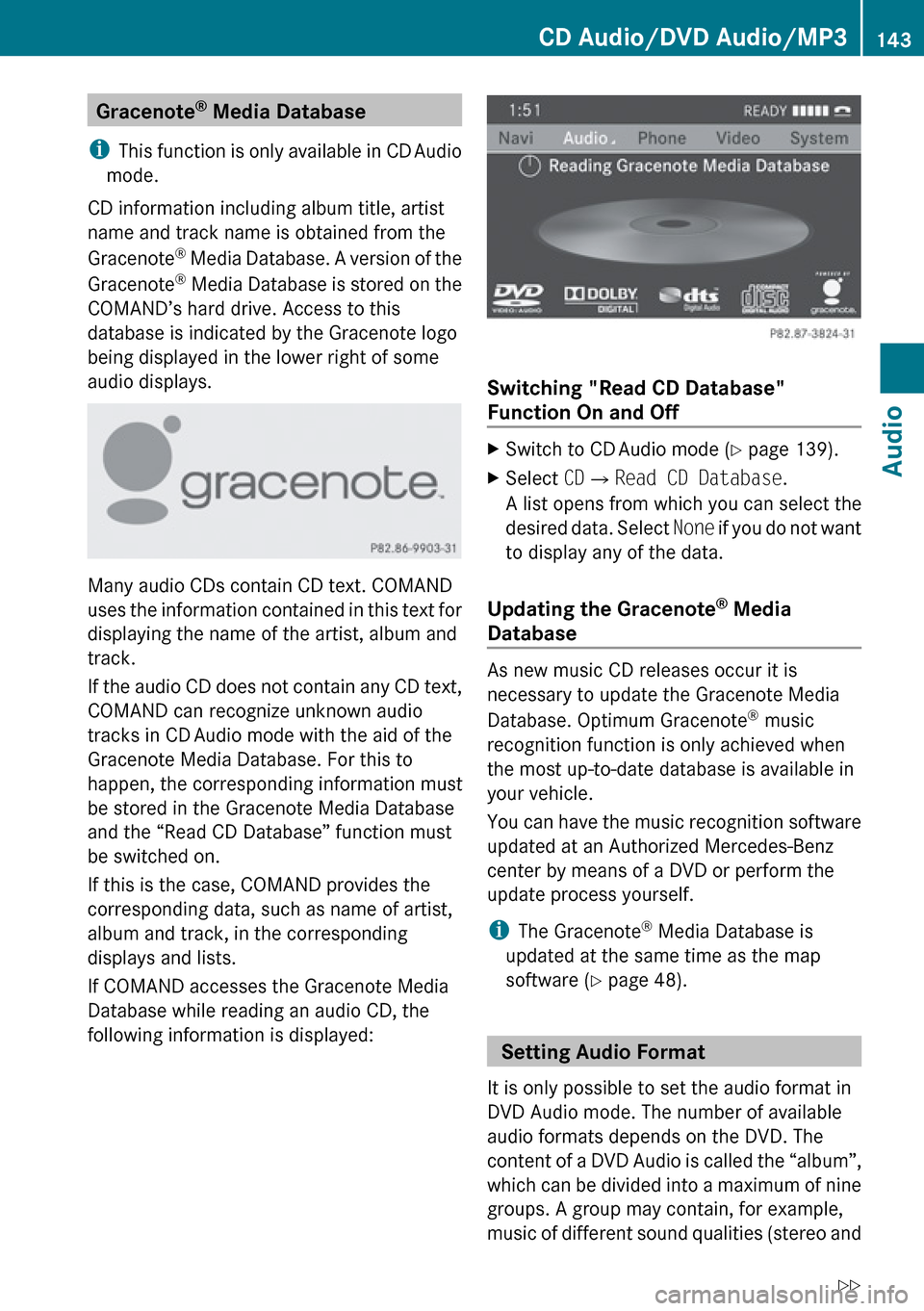
If COMAND accesses the Gracenote Media
Database while reading an audio CD, the
following information is displayed:
Switching "Read CD Database"
Function On and Off
XSwitch to CD Audio mode ( Y page 139).XSelect CD£ Read CD Database .
A list opens from which you can select the
desired data. Select None if you do not want
to display any of the data.
Updating the Gracenote ®
Media
Database
As new music CD releases occur it is
necessary to update the Gracenote Media
Database. Optimum Gracenote ®
music
recognition function is only achieved when
the most up-to-date database is available in
your vehicle.
You can have the music recognition software
updated at an Authorized Mercedes-Benz
center by means of a DVD or perform the
update process yourself.
i The Gracenote ®
Media Database is
updated at the same time as the map
software ( Y page 48).
Setting Audio Format
It is only possible to set the audio format in
DVD Audio mode. The number of available
audio formats depends on the DVD. The
content of a DVD Audio is called the “album”,
which can be divided into a maximum of nine
groups. A group may contain, for example,
music of different sound qualities (stereo and
CD Audio/DVD Audio/MP3143AudioZ
Page 147 of 224
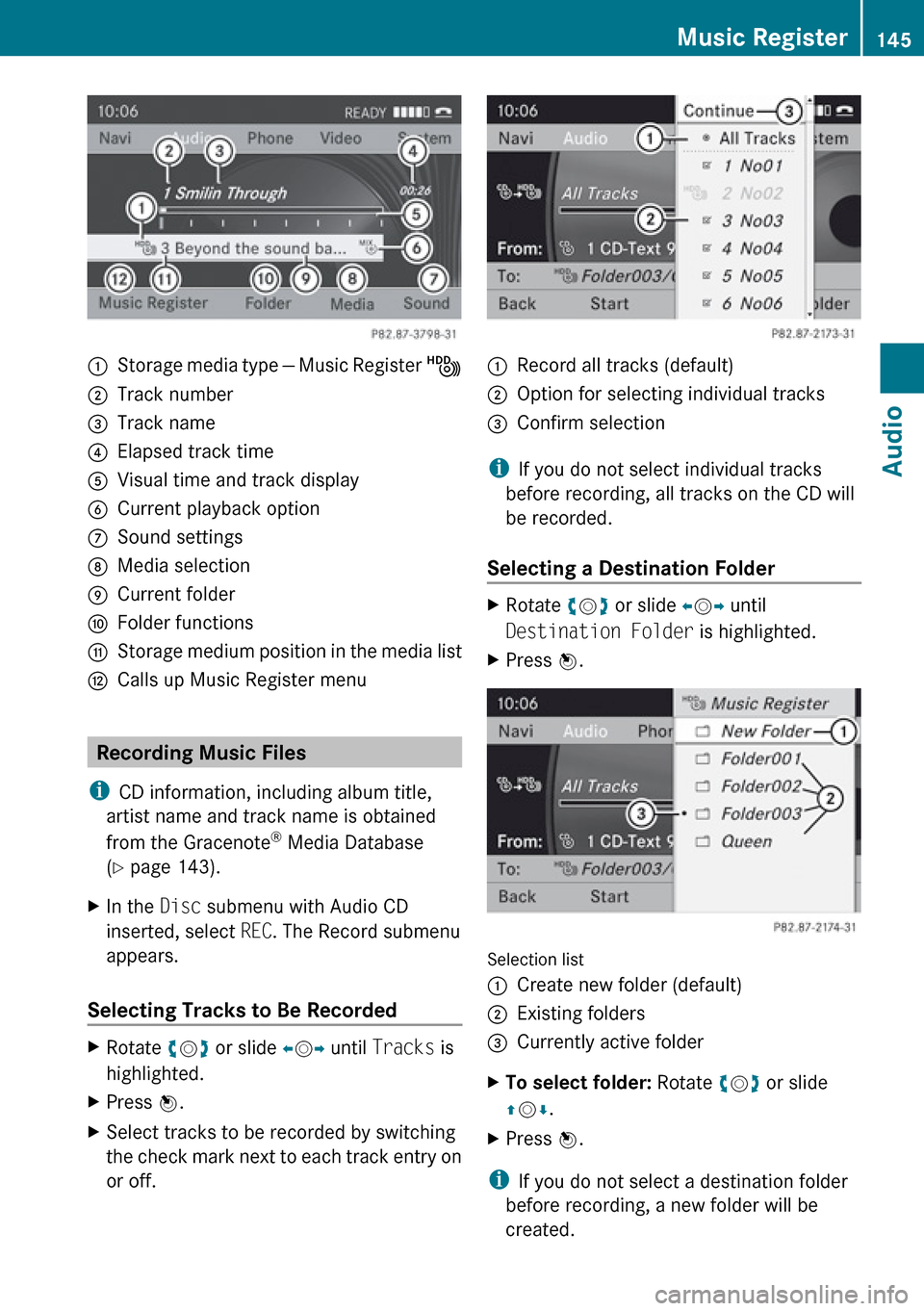
1Storage media type — Music Register Ñ2Track number3Track name4Elapsed track time5Visual time and track display6Current playback option7Sound settings8Media selection9Current folderaFolder functionsbStorage medium position in the media listcCalls up Music Register menu
Recording Music Files
i CD information, including album title,
artist name and track name is obtained
from the Gracenote ®
Media Database
( Y page 143).
XIn the Disc submenu with Audio CD
inserted, select REC. The Record submenu
appears.
Selecting Tracks to Be Recorded
XRotate ym z or slide om p until Tracks is
highlighted.XPress n.XSelect tracks to be recorded by switching
the check mark next to each track entry on
or off.1Record all tracks (default);Option for selecting individual tracks=Confirm selection
i If you do not select individual tracks
before recording, all tracks on the CD will
be recorded.
Selecting a Destination Folder
XRotate ym z or slide om p until
Destination Folder is highlighted.XPress n.
Selection list
1Create new folder (default)2Existing folders3Currently active folderXTo select folder: Rotate ym z or slide
q m r.XPress n.
i
If you do not select a destination folder
before recording, a new folder will be
created.
Music Register145AudioZ
Page 149 of 224
Deleting Folders/TrackXSelect Folder .XTo select a folder/track: Rotate ym z or
slide qm r.XSelect Options £Delete .
A query appears. No is highlighted.XDo not delete: Press the n button.XTo delete: Select Yes and press n.
A message appears.
Playback Options
The following options are available:
R Normal Track Sequence
You will hear the tracks in the normal
sequence (e.g. track 1, 2, 3 etc.).
R Random Tracks:
You hear the tracks in random order.
R Random Folder
The tracks of the currently active folder and
any subfolders are heard in random order.
XTo select an option: Switch to Music
Register ( Y page 144).XSelect Music Register in the submenu.
The option list appears. A R dot indicates
the activated option.XSelect an option.
The option is activated. A corresponding
display will appear in the main area for all
options except Normal Track Sequence .
i
The option Normal Track Sequence is
automatically activated if you change the
medium which is currently being played or
if you select another medium. An activated
option remains active after COMAND is
switched on or off.
Media Interface
Important Notes
Connection Options
Via the UCI connection (Universal Consumer
Interface) you can connect the following
media to COMAND:
R iPods
R MP3 player
R USB devices
Supported iPod ®
Versions
The following iPod ®
versions are fully
supported:
R iPod ®
mini
R iPod ®
nano
R iPod ®
classic
R iPod ®
touch
Supported USB Devices
The following USB devices are supported:
R USB sticks (flash memory)
R USB hard drives (1-inch, 1.8-inch and
2.5-inch drives) with a starting/continuous
current rating of maximum 800 mA
(otherwise a separate power supply will be
necessary)
i The Media Interface supports USB
storage media of "USB Device Subclass 6".
You can obtain information about the "USB
Device Subclass 6" from the manufacturer.
Further Information on Supported
Devices
Further information on compatible
multimedia devices is available via the
Internet at www.mbusa-mobile.com. Or call
the Mercedes-Benz Customer Assistance
Center at 1-800-FOR-MERCedes
(1-800-367-6372) (US), or Customer
Relations at 1-800-387-0100 (Canada).
Media Interface147AudioZ
Page 215 of 224
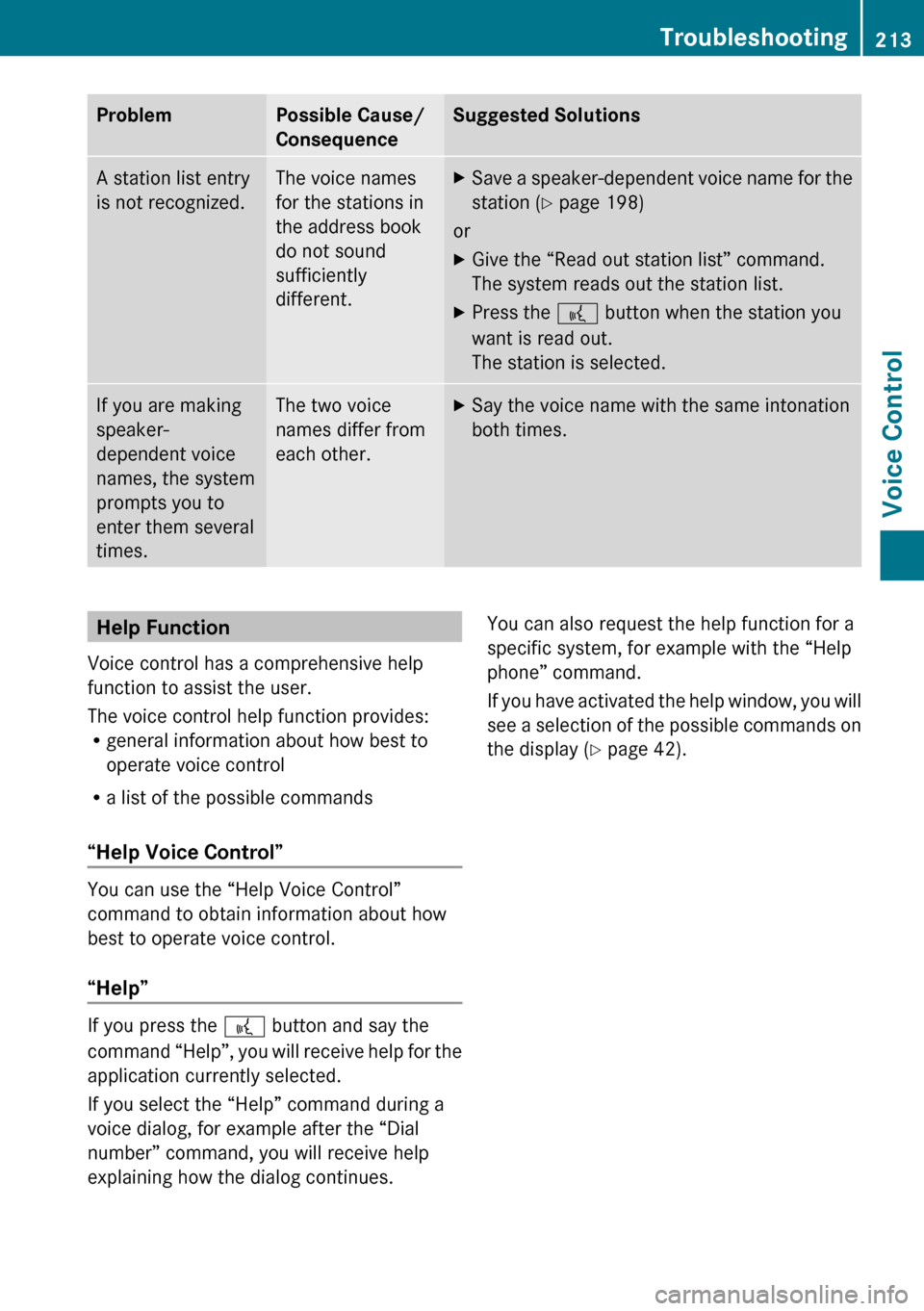
ProblemPossible Cause/
ConsequenceSuggested SolutionsA station list entry
is not recognized.The voice names
for the stations in
the address book
do not sound
sufficiently
different.XSave a speaker-dependent voice name for the
station ( Y page 198)
or
XGive the “Read out station list” command.
The system reads out the station list.XPress the ? button when the station you
want is read out.
The station is selected.If you are making
speaker-
dependent voice
names, the system
prompts you to
enter them several
times.The two voice
names differ from
each other.XSay the voice name with the same intonation
both times.Help Function
Voice control has a comprehensive help
function to assist the user.
The voice control help function provides:
R general information about how best to
operate voice control
R a list of the possible commands
“Help Voice Control”
You can use the “Help Voice Control”
command to obtain information about how
best to operate voice control.
“Help”
If you press the ? button and say the
command “Help”, you will receive help for the
application currently selected.
If you select the “Help” command during a
voice dialog, for example after the “Dial
number” command, you will receive help
explaining how the dialog continues.
You can also request the help function for a
specific system, for example with the “Help
phone” command.
If you have activated the help window, you will
see a selection of the possible commands on
the display ( Y page 42).Troubleshooting213Voice ControlZ