trip computer MERCEDES-BENZ EQC SUV 2019 Owners Manual
[x] Cancel search | Manufacturer: MERCEDES-BENZ, Model Year: 2019, Model line: EQC SUV, Model: MERCEDES-BENZ EQC SUV 2019Pages: 629, PDF Size: 11.02 MB
Page 267 of 629
VO
L: control knob, adjusts thevo lume or
switches the sound off 8(press)
6 Makes/accepts a call
~ Rejects/ends a call
5 ò Calls up the home screen
6 Touch Control multimedia sy stem
7 % Back button Operating
the on-boa rdcompu ter &
WARNING Risk of di stra ction from infor‐
mation sy stems and communications
equipment
If yo u operate information and communica‐
tion equipment integ rated in theve hicle
when driving, you will be distracted from the
traf fic situation. This could also cause youto
lose control of theve hicle. #
Only operate this equipment when the
traf fic situation permits. #
Ifyo u cannot be sure of this, stop the
ve hicle whilst paying attention toroad and traf
fic conditions and ope rate the
equipment with theve hicle stationar y. Obser
vethe legal requ irements forth e count ry
in which you are cur rently driving when operat‐
ing the on-board computer.
% The on-board computer displa yswill appear
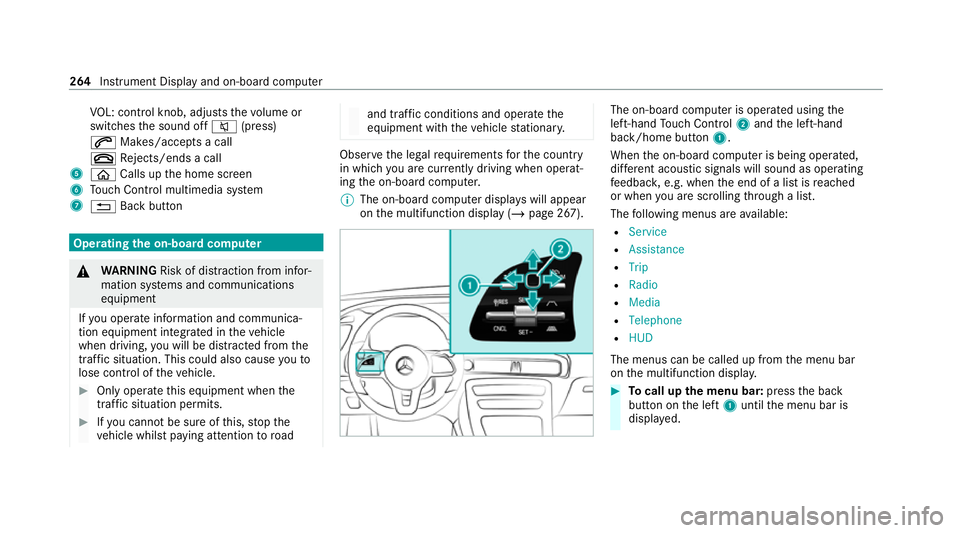
on the multifunction display (/ page 267). The on-board computer is operated using
the
left-hand Touch Control 2and the left-hand
back/home button 1.
When the on-board computer is being operated,
dif fere nt acoustic signals will sound as operating
fe edbac k,e.g. when the end of a list is reached
or when you are sc rolling thro ugh a list.
The following menus are available:
R Service
R Assistance
R Trip
R Radio
R Media
R Telephone
R HUD
The menus can be called up from the menu bar
on the multifunction displa y. #
Tocall up the menu bar: pressthe back
button on the left 1until the menu bar is
displa yed. 264
Instrument Display and on-board computer
Page 268 of 629
%
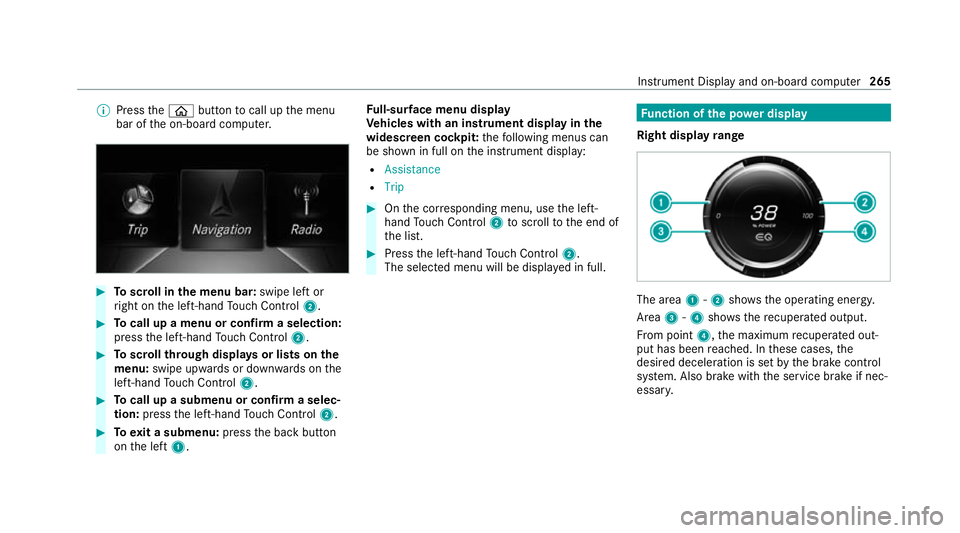
Press theò button tocall up the menu
bar of the on-board computer. #
Toscroll in the menu bar: swipe left or
ri ght on the left-hand Touch Control 2. #
Tocall up a menu or confirm a selection:
press the left-hand Touch Control 2. #
Toscroll through displa ysor lists on the
menu: swipe upwards or down wards on the
left-hand Touch Control 2. #
Tocall up a submenu or confirm a selec‐
tion: press the left-hand Touch Control 2. #
Toexit a submenu: pressthe back button
on the left 1. Fu
ll-sur face menu display
Ve hicles with an instrument display in the
widescreen cockpit: thefo llowing menus can
be shown in full on the instrument display:
R Assistance
R Trip #
Onthe cor responding menu, use the left-
hand Touch Control 2toscroll tothe end of
th e list. #
Press the left-hand Touch Control 2.
The selected menu will be displ ayed in full. Fu
nction of the po wer display
Right display range The area
1-2 showsthe operating energy.
Area 3-4 showsthere cuperated output.
Fr om point 4,the maximum recuperated out‐
put has been reached. In these cases, the
desired deceleration is set bythe brake control
sy stem. Also brake with the service brake if nec‐
essar y. Instrument Display and on-board computer
265
Page 272 of 629
R
Active Dis tance Assi stDISTRONIC displa ys
( / page 212)
R Active Lane Change Assi stdispla ys
( / page 221) Calling up displa
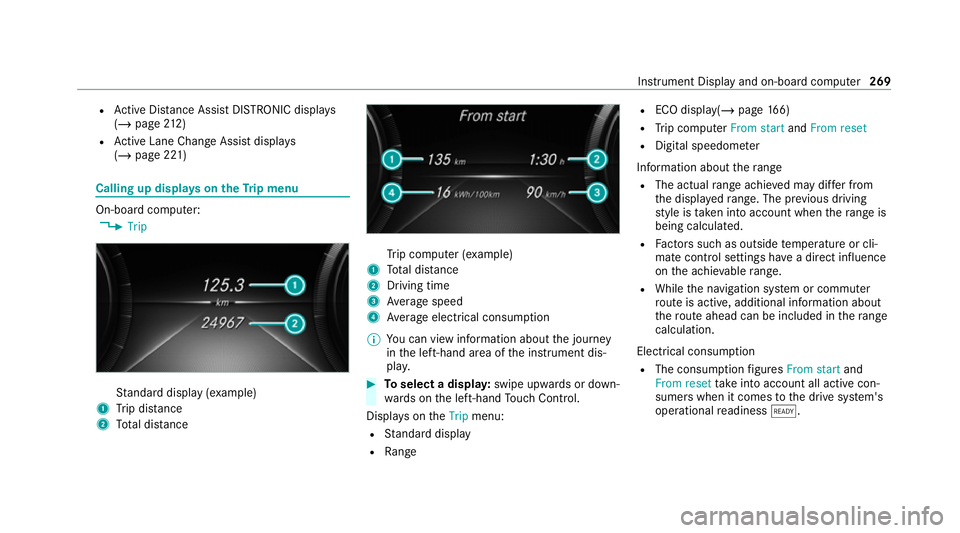
yson theTr ip menu On-board computer:
4 Trip St
andard display (e xamp le)
1 Trip dis tance
2 Total dis tance Tr
ip computer (e xamp le)
1 Total dis tance
2 Driving time
3 Average speed
4 Average electrical consum ption
% You can view information about the journey
in the left-hand area of the instrument dis‐
pla y. #
Toselect a displa y:swipe upwards or down‐
wa rds on the left-hand Touch Control.
Displa yson theTrip menu:
R Standard display
R Range R
ECO displ ay(/ page 166)
R Trip computer From startandFrom reset
R Digital speedom eter
Information about thera nge
R The actual range achi eved may dif fer from
th e displa yedra nge. The pr evious driving
st yle is take n into account when thera nge is
being calculated.
R Factors su chas outside temp erature or cli‐
mate control settings ha vea direct influence
on the achie vable range.
R While the navigation sy stem or commuter
ro ute is active, additional information about
th ero ute ahead can be included in thera nge
calculation.
Electrical consu mption
R The consumption figures From start and
From reset take into account all active con‐
sumers when it comes tothe drive sy stem's
operational readiness õ. In
stru ment Display and on-board computer 269
Page 273 of 629
Re
setting values on the trip menu of the on-
board compu terOn-board computer:
4 Trip
Yo u can reset theva lues of thefo llowing func‐
tions:
R Trip dis tance
R Trip computer From startandFrom reset
R ECO display (/ page166) #
Toselect the function tobe rese t:swipe
upwards or down wards on the left-hand
To uch Control. #
Press the left-hand Touch Control. #
Select Yes. #
Press the left-hand Touch Control.
If yo u press and hold the left-hand Touch Con‐
trol, theva lues of the function will be reset
immediatel y. Calling up navigation instructions on
the on-
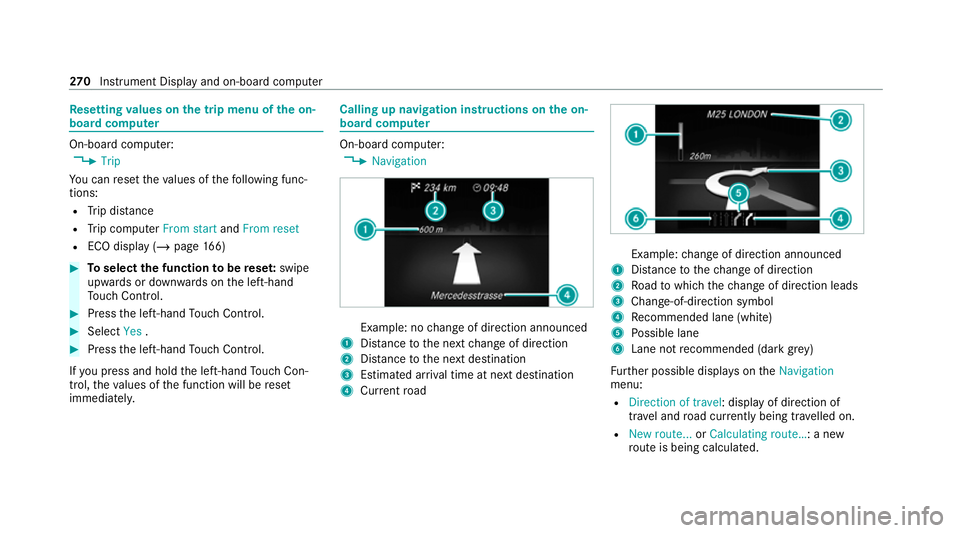
board compu ter On-board computer:
4 Navigation Example: no
change of direction announced
1 Distance tothe next change of direction
2 Distance tothe next destination
3 Estimated ar riva l time at next destination
4 Current road Example:
change of direction announced
1 Distance tothech ange of direction
2 Road towhich thech ange of direction leads
3 Chan ge-of-direction symbol
4 Recommended lane (white)
5 Possible lane
6 Lane not recommended (da rkgrey)
Fu rther possible displa yson theNavigation
menu:
R Direction of travel: display of direction of
tra vel and road cur rently being tr avelled on.
R New route... orCalculating route… : a new
ro ute is being calculated. 270
Instrument Display and on-board computer
Page 620 of 629
Tr
ansmission position display ................173
Tr anspo rting
Ve hicle ................................................ 485
Tr im element (Care) .................................471
Tr ip
Menu (on-board computer) .................. 269
Tr ip computer
Displaying ............................................ 269
Re setting ............................................. 270
Tr ip distance ............................................ 269
Displaying ............................................ 269
Re setting ............................................. 270
Tr ip me ter
see Trip dis tance
Tu neIn
Calling up ............................................ 433
Calling up thest ation list (category
last selec ted) .......................................4 36
Deleting stations ................................ .436
Logging out ......................................... 436
Overview ............................................. 435
Re gis tering .......................................... 436
Saving stations .................................... 436 Selecting and connecting
toast ation
............................................................ .435
Selecting stre am ................................ .436
Setting options ................................... .436
Te rm s of use ........................................4 36
Tu rn signal indicator
see Turn signal lights
Tu rn signal lights .....................................1 35
Switching on/off ................................. 13 5
TV ............................................................. 286
Ac tivating ............................................ 448
Ad justing the brightness ..................... 454
Calling up the menu (CI+ module) .......4 55
Information .......................................... 447
Overview ............................................. 449
Picture settings ................................... 454
Setting subtitles ..................................4 53
Setting the audio language .................. 453
Showing telete xt ................................. .454
Showing/hiding full screen ................. 450
Te lete xt overview ................................. 454
Vo ice commands (LINGU ATRO NIC) .....2 86
TV channel
Ac tivating/deactivating channel fix ..... 452 Channel
fix ........................................... 451
Channel li stove rview .......................... 452
Count ry-specific character set ............ 452
EPG (electronic programme guide) ...... 451
Overview of favo urites ........................ .452
Selecting from thech annel list ............ 450
Selecting from the control menu ......... 450
Selecting from thefa vo urites .............. .451
Selecting in the bac kground ................ 451
St oring ................................................ 452
Tw o-w ayradios
Fr equencies ......................................... 51 0
No tes on ins tallation .......................... .509
Tr ansmission output (maximum) .......... 51 0
Ty re inflation compressor
see TIREFIT kit
Ty re pressure ........................................... 492
Checking (ty repressure monitoring
sy stem) ............................................... 493
No tes ................................................... 491
Re starting the tyre pressure monitor‐
ing sy stem ...........................................4 94
TIREFIT kit ............................................ 476
Ty re pressure monitoring sy stem
(function) ............................................. 492 Index
617