display MERCEDES-BENZ G-CLASS SUV 2016 Owners Manual
[x] Cancel search | Manufacturer: MERCEDES-BENZ, Model Year: 2016, Model line: G-CLASS SUV, Model: MERCEDES-BENZ G-CLASS SUV 2016Pages: 261, PDF Size: 6.01 MB
Page 194 of 261
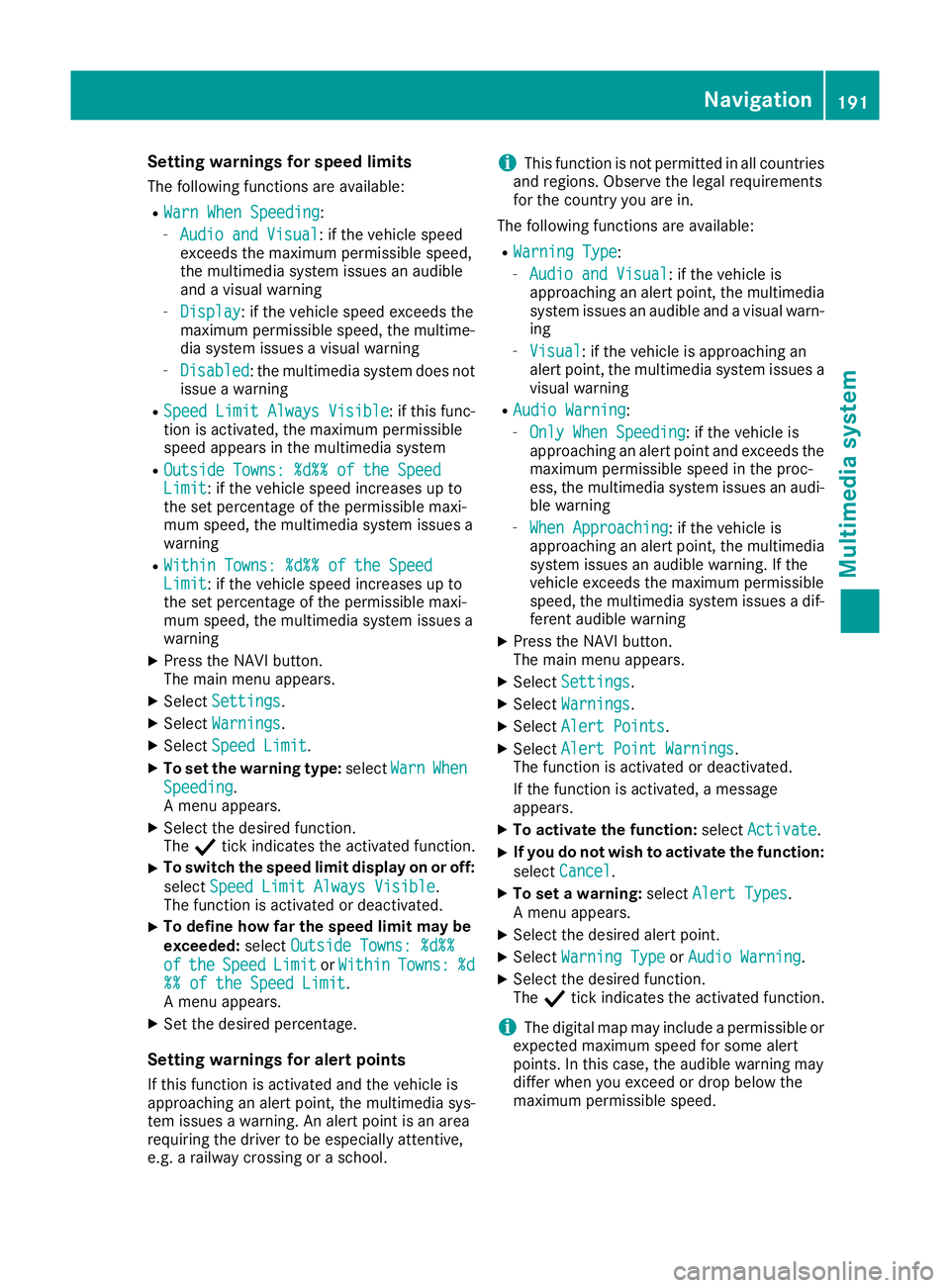
Setting warnings for speed limits
The following functions are available:
R Warn When Speeding Warn When Speeding:
- Audio and Visual Audio and Visual:ift he vehicle speed
exceeds the maximum permissible speed,
the multimedia system issues an audible
and avisual warning
- Display Display:ift he vehicle speed exceeds the
maximum permissible speed, the multime- dia system issues avisual warning
- Disabled
Disabled:t he multimedia system does not
issue awarning
R Speed Limit Always Visible
Speed Limit Always Visible :ifthis func-
tion is activated, the maximum permissible
speed appears in the multimedia system
R Outside Towns: %d%% of the Speed Outside Towns: %d%% of the Speed
Limit Limit:ift he vehicle speed increases up to
the set percentage of the permissiblem axi-
mum speed, the multimedia system issues a
warning
R Within Towns: %d%% of the Speed Within Towns: %d%% of the Speed
Limit Limit:ift he vehicle speed increases up to
the set percentage of the permissiblem axi-
mum speed, the multimedia system issues a
warning
X Press the NAVI button.
The main menu appears.
X Select Settings Settings.
X Select Warnings
Warnings.
X Select Speed Limit
Speed Limit.
X To set the warning type: selectWarn
WarnWhen
When
Speeding
Speeding.
Am enu appears.
X Select the desired function.
The Ytick indicates the activated function.
X To switch the speed limit display on or off:
select Speed Limit Always Visible Speed Limit Always Visible.
The function is activated or deactivated.
X To define how far the speed limit may be
exceeded: selectOutside Towns: %d%%
Outside Towns: %d%%
of
of the
the Speed
Speed Limit
LimitorWithin
Within Towns:
Towns:%d
%d
%% of the Speed Limit
%% of the Speed Limit.
Am enu appears.
X Set the desired percentage.
Setting warnings for alert points
If this function is activated and the vehicle is
approaching an alert point, the multimedia sys-
tem issues awarning. An alert point is an area
requiring the driver to be especially attentive,
e.g. arailway crossing or aschool. i
This function is not permitted in all countries
and regions. Observe the legal requirements
for the country you are in.
The following functions are available:
R Warning Type
Warning Type:
- Audio and Visual Audio and Visual:ift he vehicle is
approaching an alert point, the multimedia
system issues an audibl eand avisual warn-
ing
- Visual
Visual:ift he vehicle is approaching an
alert point, the multimedia system issues a
visual warning
R Audio Warning
Audio Warning:
- Only When Speeding
Only When Speeding:i fthe vehicle is
approaching an alert point and exceeds the maximum permissible speed in the proc-
ess, the multimedia system issues an audi-ble warning
- When Approaching When Approaching :ifthe vehicle is
approaching an alert point, the multimedia
system issues an audibl ewarning. If the
vehicle exceeds the maximum permissible
speed, the multimedia system issues adif-
ferent audibl ewarning
X Press the NAVI button.
The main menu appears.
X Select Settings
Settings.
X Select Warnings Warnings.
X Select Alert Points
Alert Points.
X Select Alert Point Warnings Alert Point Warnings.
The function is activated or deactivated.
If the function is activated, amessage
appears.
X To activat ethe function: selectActivate Activate.
X If you do not wish to activat
ethe function:
select Cancel
Cancel.
X To set awarning: selectAlert Types
Alert Types.
Am enu appears.
X Select the desired alert point.
X Select Warning Type
Warning Type orAudio Warning
Audio Warning.
X Select the desired function.
The Ytick indicates the activated function.
i The digital map may include
apermissible or
expected maximum speed for some alert
points. In this case, the audibl ewarning may
differ when you exceed or drop below the
maximum permissible speed. Navigati
on
191Multimedi asystem Z
Page 195 of 261
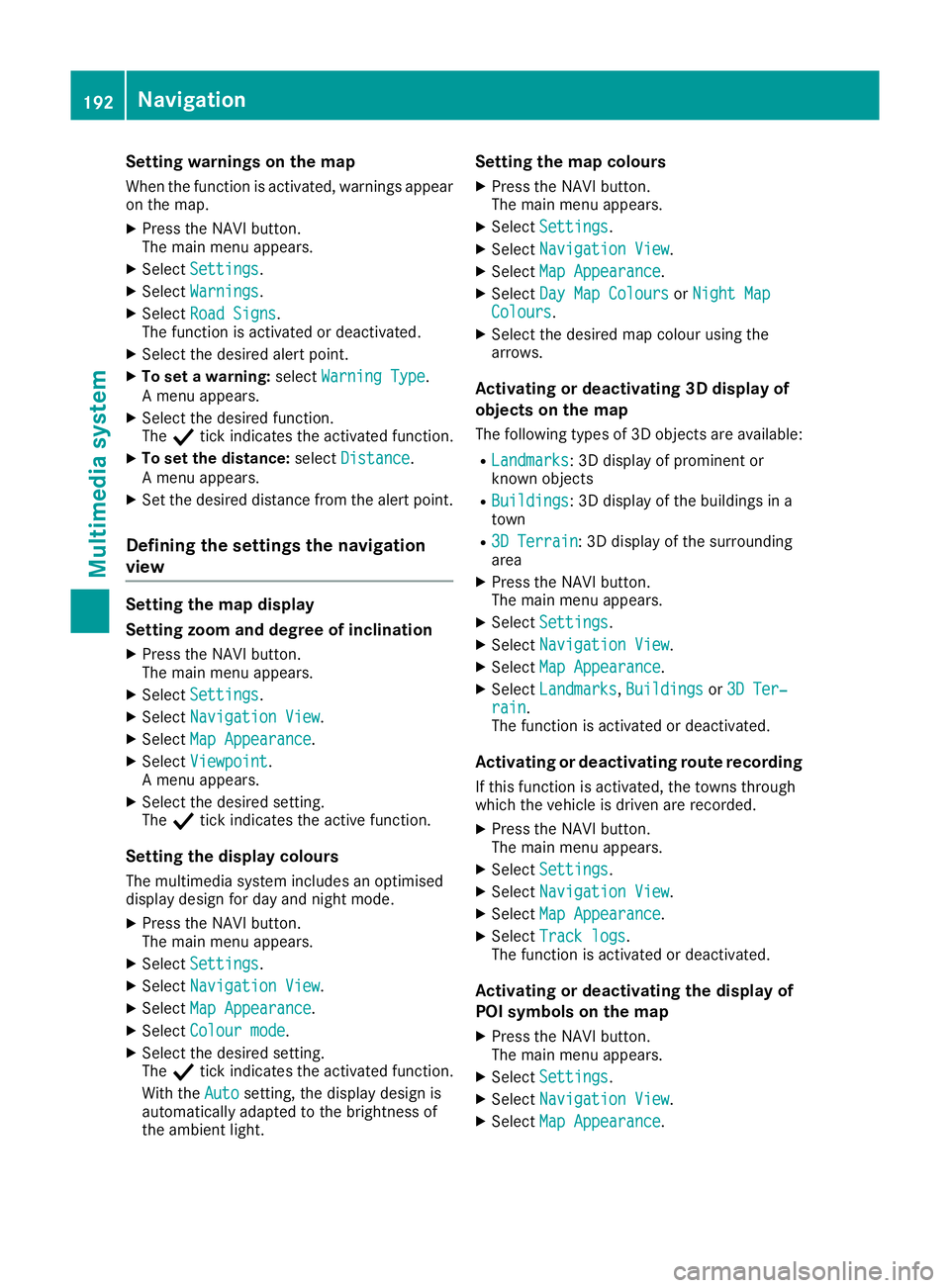
Setting warnings on the map
When the function is activated, warnings appear on the map.
X Press the NAVI button.
The main menu appears.
X Select Settings
Settings.
X Select Warnings
Warnings.
X Select Road Signs
Road Signs.
The function is activated or deactivated.
X Select the desired alert point.
X To set awarning: selectWarning Type Warning Type.
Am enu appears.
X Select the desired function.
The Ytick indicates the activated function.
X To set the distance: selectDistance
Distance.
Am enu appears.
X Set the desired distance from the alert point.
Defining the settings the navigation
view Setting the map display
Setting zoom and degree of inclination X Press the NAVI button.
The main menu appears.
X Select Settings
Settings.
X Select Navigation View
Navigation View.
X Select Map Appearance
Map Appearance.
X Select Viewpoint
Viewpoint.
Am enu appears.
X Select the desired setting.
The Ytick indicates the active function.
Setting the display colours
The multimedia system includes an optimised
display design for day and night mode.
X Press the NAVI button.
The main menu appears.
X Select Settings
Settings.
X Select Navigation View
Navigation View.
X Select Map Appearance
Map Appearance.
X Select Colour mode Colour mode.
X Select the desired setting.
The Ytick indicates the activated function.
With the Auto Autosetting, the display design is
automatically adapted to the brightness of
the ambient light. Setting the map colours
X Press the NAVI button.
The main menu appears.
X Select Settings Settings.
X Select Navigation View
Navigation View.
X Select Map Appearance
Map Appearance.
X Select Day Map Colours
Day Map Colours orNight Map
Night Map
Colours
Colours.
X Select the desired map colour using the
arrows.
Activating or deactivating 3D display of
objects on the map
The following types of 3D objects are available:
R Landmarks Landmarks:3Dd isplayofprominent or
known objects
R Buildings
Buildings:3Dd isplayofthe buildings in a
town
R 3D Terrain
3D Terrain:3Dd isplayofthe surrounding
area
X Press the NAVI button.
The main menu appears.
X Select Settings Settings.
X Select Navigation View Navigation View.
X Select Map Appearance Map Appearance.
X Select Landmarks
Landmarks, Buildings
Buildingsor3D Ter‐
3D Ter‐
rain
rain.
The function is activated or deactivated.
Activating or deactivating route recording
If this function is activated, the towns through
which the vehicle is driven are recorded.
X Press the NAVI button.
The main menu appears.
X Select Settings Settings.
X Select Navigation View
Navigation View.
X Select Map Appearance
Map Appearance.
X Select Track logs
Track logs.
The function is activated or deactivated.
Activating or deactivating the display of
POI symbols on the map
X Press the NAVI button.
The main menu appears.
X Select Settings Settings.
X Select Navigation View Navigation View.
X Select Map Appearance
Map Appearance. 192
NavigationMultimedia system
Page 196 of 261
X
Select PlaceMarkers
Plac eMarkers.
X Select the desire dPOI.
Am enu appears.
X Select View on Map
View on Map.
The Ytick indicates the activate dfunction.
or X Select Select Subcategories
Select Subcategories.
The subcategorie sare displayed.
X Select the desire dsubcategory.
If the subcategory symbo lisblue,it is dis-
played on the map.
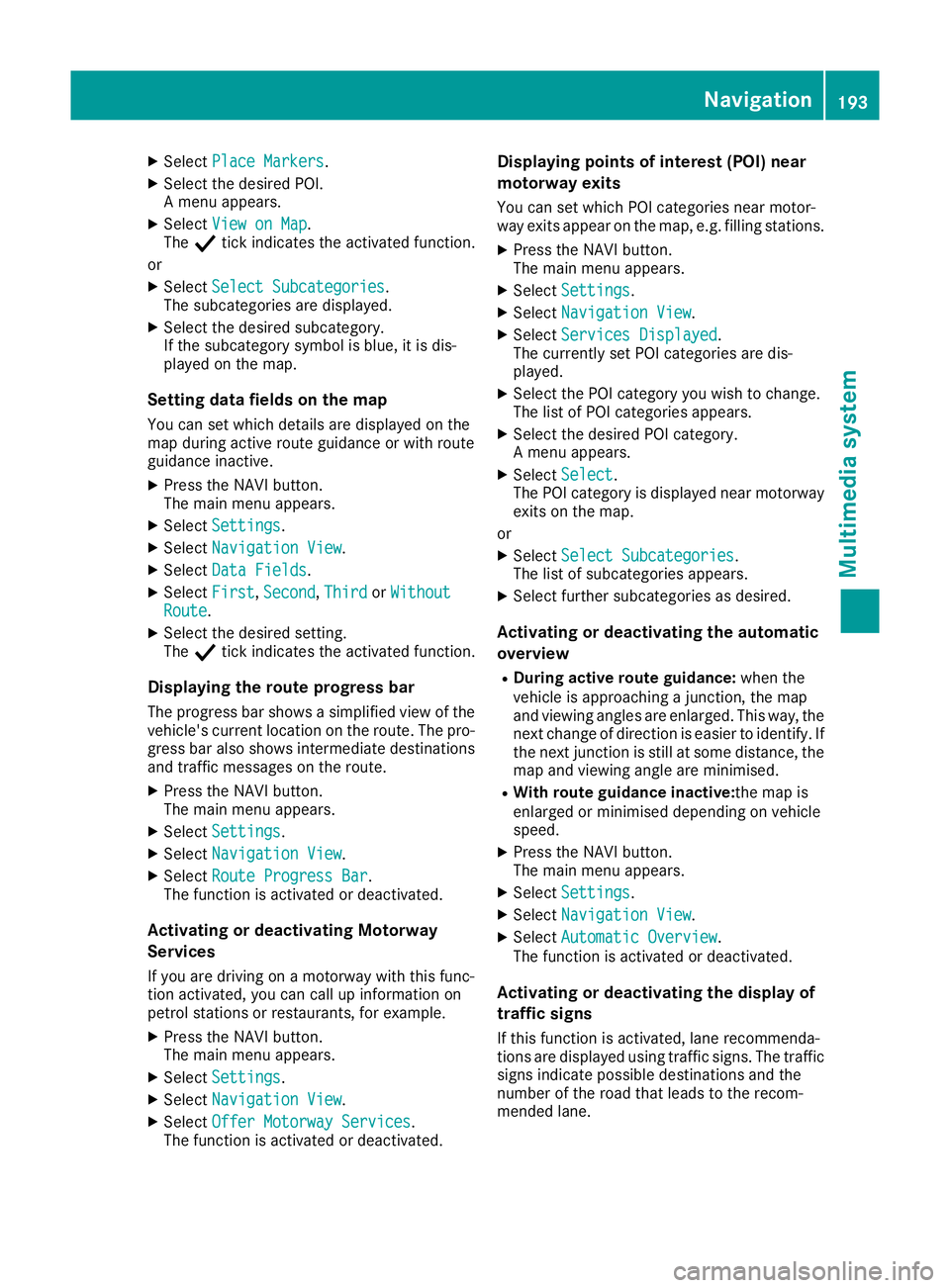
Setting data fields on the map You can set which detail sare displayed on the
map during active route guidance or with route
guidance inactive.
X Press the NAVI button.
The mai nmenu appears.
X Select Settings Settings .
X Select Navigation View Navigation View .
X Select Data Fields
Data Fields.
X Select First
First, Second
Second, Third
ThirdorWithout
Without
Route
Route.
X Select the desired setting.
The Ytick indicate sthe activated function.
Displaying the route progress bar The progress bar shows asimplifiedv iew of the
vehicle's current location on the route. The pro-
gress bar also shows intermediate destinations and traffic messages on the route.
X Press the NAVI button.
The main menu appears.
X Select Settings
Settings.
X Select Navigation View Navigation View.
X Select Route Progress Bar
Route Progress Bar.
The function is activated or deactivated.
Activating or deactivating Motorway
Services
If you are driving on amotorway with this func-
tion activated, you can call up information on
petrol stations or restaurants, for example.
X Press the NAVI button.
The main menu appears.
X Select Settings Settings.
X Select Navigation View
Navigation View.
X Select Offer Motorway Services
Offer Motorway Services.
The function is activated or deactivated. Displaying points of interest (POI) near
motorway exi
ts
You can set whic hPOI categorie snearm otor-
way exit sappear on th emap, e.g. fillin gstations.
X Press th eNAVIbutton.
The main men uappears.
X Select Settings Settings.
X Select Navigatio nView
Navigatio nView.
X Select Services Displayed
Services Displayed .
The currentl yset POI categorie sare dis-
played.
X Selec tthe POI category you wish to change.
The list of POI categorie sappears.
X Selec tthe desire dPOI category.
Am enua ppears.
X Select Select
Select .
The POI category is displayed near motorway
exit sont hemap.
or X Select Select Subcategories
Select Subcategories.
The list of subcategories appears.
X Selec tfurther subcategories as desired.
Activating or deactivating th eautomatic
overview
R During active rout eguidance: when the
vehicl eisapproachin gajunction ,the map
and viewin gangles are enlarged. This way, the
next chang eofdirection is easier to identify. If
th en extjunction is still at som edistance, the
map and viewin gangle are minimised.
R Wit hroute guidance inactive: them ap is
enlarged or minimised dependin gonvehicle
speed.
X Press th eNAVIbutton.
The main men uappears.
X Select Settings
Settings.
X Select Navigatio nView
Navigatio nView.
X Select Automatic Overview
Automatic Overview.
The function is activated or deactivated.
Activating or deactivating th edispla yof
traffic signs
If this function is activated, lan erecommenda-
tion sare displayed usin gtraffic signs .The traffic
signs indicate possibl edestination sand the
number of th eroadt hatleads to th erecom-
mended lane. Navigation
193Multimediasystem Z
Page 197 of 261
X
Press the NAVI button.
The main menu appears.
X Select Settings Settings.
X Select Navigation View
Navigation View.
X Select Signposts
Signposts.
The function is activated or deactivated.
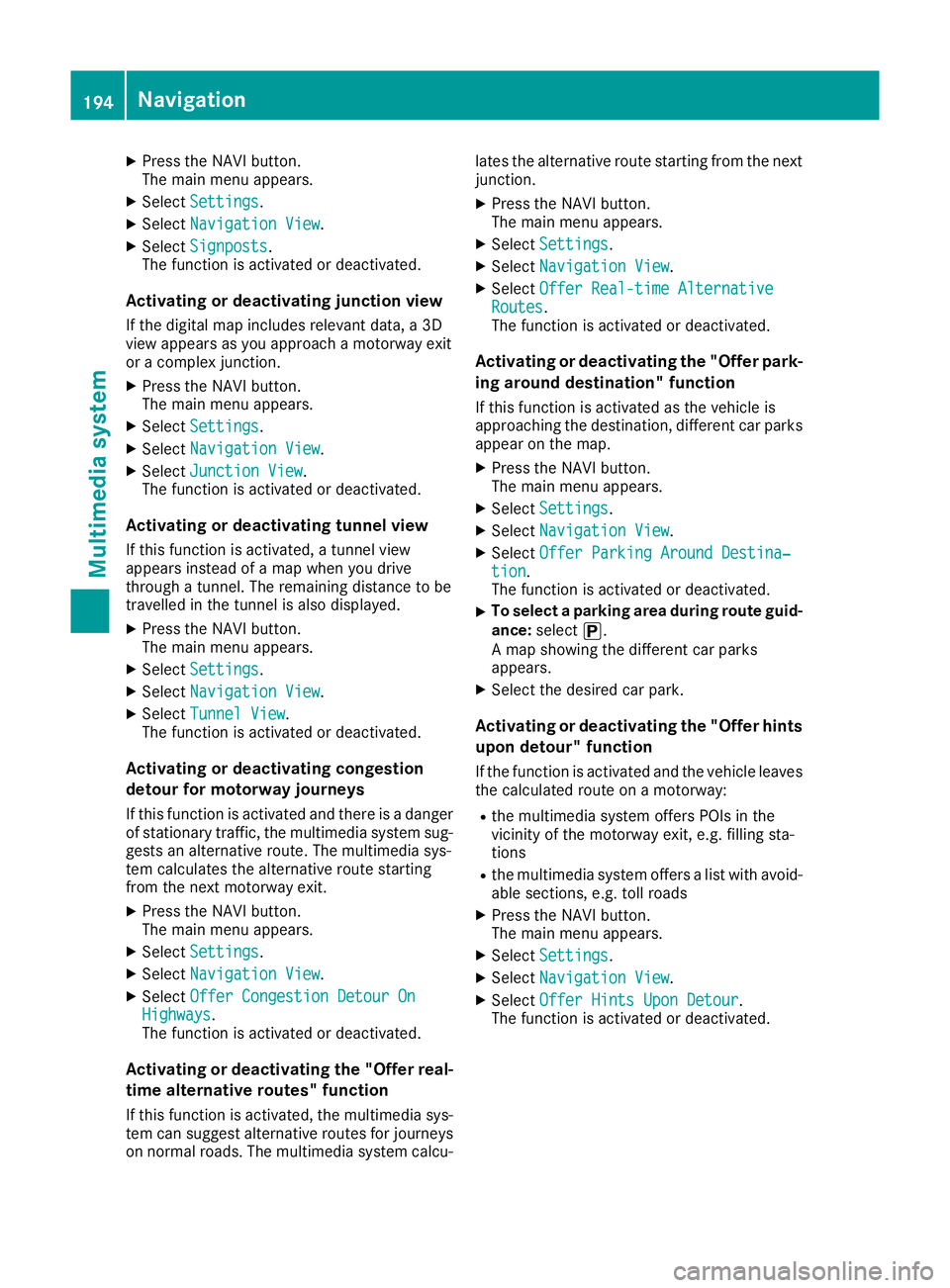
Activating or deactivating junction view If the digital map includes relevant data, a3D
view appears as you approach amotorway exit
or ac omplex junction.
X Press the NAVI button.
The main menu appears.
X Select Settings Settings.
X Select Navigation View
Navigation View.
X Select Junction View
Junction View.
The function is activated or deactivated.
Activating or deactivating tunnel view
If this function is activated, atunnel view
appears instead of amap when you drive
through atunnel. The remaining distanc etobe
travelled in the tunnel is also displayed.
X Press the NAVI button.
The main menu appears.
X Select Settings
Settings.
X Select Navigation View Navigation View.
X Select Tunnel View
Tunnel View.
The function is activated or deactivated.
Activating or deactivating congestion
detour for motorway journeys
If this function is activated and there is adanger
of stationary traffic, the multimedia system sug-
gests an alternative route. The multimedia sys-
tem calculates the alternative route starting
from the next motorway exit.
X Press the NAVI button.
The main menu appears.
X Select Settings Settings.
X Select Navigation View
Navigation View.
X Select Offer Congestion Detour On
Offer Congestion Detour On
Highways
Highways.
The function is activated or deactivated.
Activating or deactivating the "Offer real-
time alternativer outes" function
If this function is activated, the multimedia sys-
tem can suggest alternative routes for journeys
on normal roads. The multimedia system calcu- late
sthe alternative rout estartin gfromt he next
junction.
X Press the NAV Ibutton.
The main men uappears.
X Select Settings Settings .
X Select Navigation View Navigation View .
X Select OfferReal-tim eAlternative
Offe rReal-tim eAlternative
Routes
Routes.
The function is activate dordeactivated.
Activating or deactivating the "Offer park-
ing around destination" function
If this function is activated as the vehicle is
approaching the destination, different car parks
appearont he map.
X Press the NAVI button.
The main menu appears.
X Select Settings Settings.
X Select Navigation View
Navigation View.
X Select Offer Parking Around Destina‐
Offer Parking Around Destina‐
tion
tion.
The function is activated or deactivated.
X To selectap
arking area during route guid-
ance: select í.
Am ap showing the different car parks
appears.
X Select the desired car park.
Activating or deactivating the "Offer hints
upon detour" function
If the function is activated and the vehicle leaves the calculated route on amotorway:
R the multimedia system offers POIs in the
vicinity of the motorway exit, e.g. filling sta-
tions
R the multimedia system offers alist with avoid-
able sections, e.g. toll roads
X Press the NAVI button.
The main menu appears.
X Select Settings Settings.
X Select Navigation View
Navigation View.
X Select Offer Hints Upon Detour
Offer Hints Upon Detour.
The function is activated or deactivated. 194
NavigationMultimedia system
Page 198 of 261
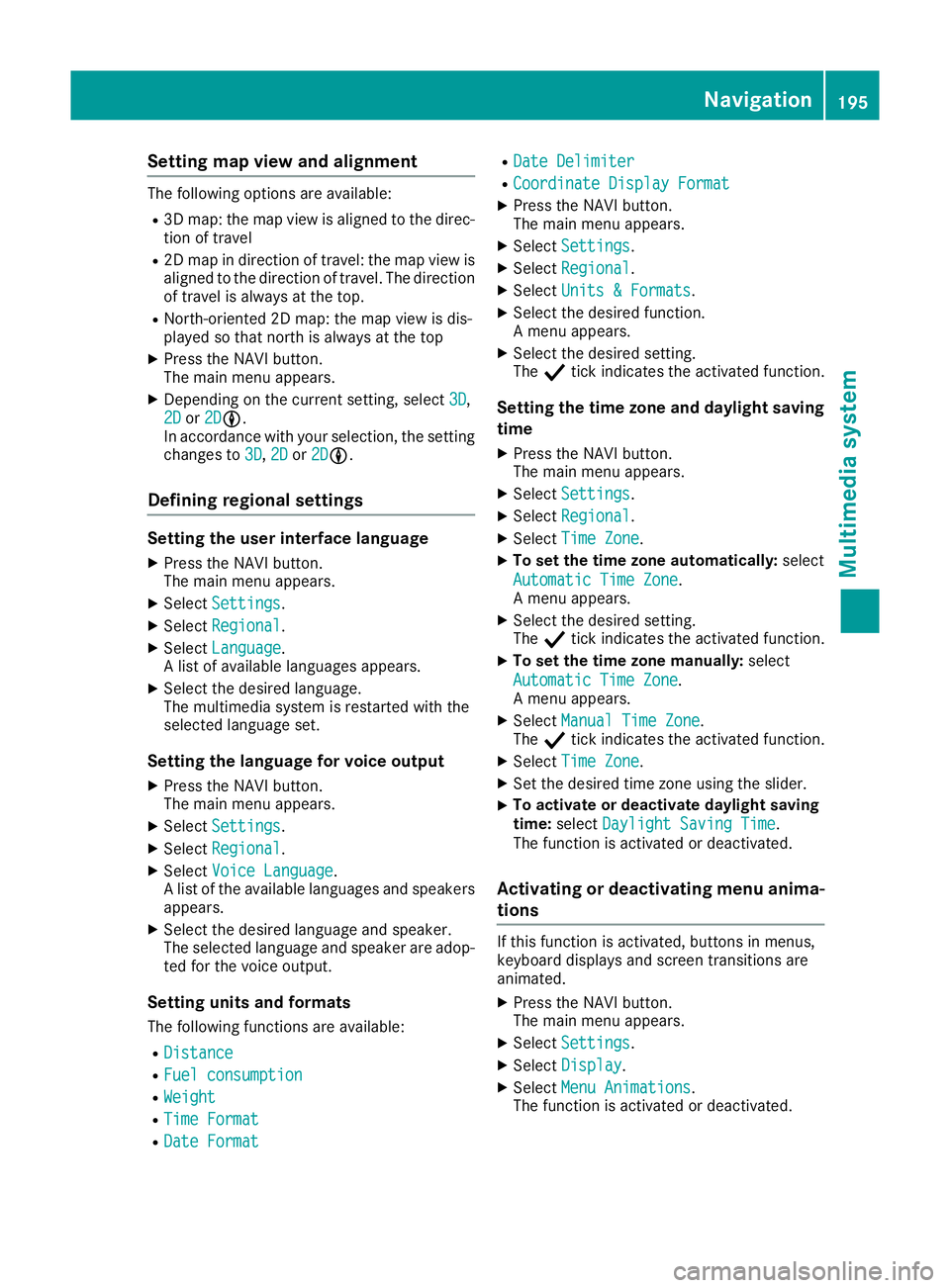
Setting map view and alignment
The following options are available:
R 3D map: the map view is aligned to the direc-
tion of travel
R 2D map in direction of travel: the map view is
aligned to the direction of travel. The direction
of travel is alwaysatt he top.
R North-oriented 2D map: the map view is dis-
played so that northisa lwaysatthe top
X Press the NAVI button.
The main menu appears.
X Dependin gonthe current setting, select 3D 3D,
2D
2D or2D
2DLL.
In accordance with your selection, the setting
changes to 3D
3D, 2D
2Dor2D
2DLL.
Defining regional settings Setting the user interface language
X Press the NAVI button.
The main menu appears.
X Select Settings Settings.
X Select Regional
Regional.
X Select Language
Language.
Al ist of available languages appears.
X Select the desired language.
The multimedia system is restarted with the
selected language set.
Setting the language for voice output
X Press the NAVI button.
The main menu appears.
X Select Settings Settings.
X Select Regional
Regional.
X Select Voice Language
Voice Language.
Al ist of the available languages and speakers
appears.
X Select the desired language and speaker.
The selected language and speaker are adop-
ted for the voice output.
Setting units and formats The following functions are available:
R Distance
Distance
R Fuel consumption Fuel consumption
R Weight
Weight
R Time Format
Time Format
R Date Format
Date Format R
Date Delimiter
Date Delimiter
R Coordinate Display Format
Coordinate Display Format
X Press the NAVI button.
The main menu appears.
X Select Settings
Settings.
X Select Regional Regional.
X Select Units &Formats
Units &Formats.
X Select the desired function.
Am enu appears.
X Select the desired setting.
The Ytick indicates the activated function.
Setting the time zone and daylight saving
time
X Press the NAVI button.
The main menu appears.
X Select Settings
Settings.
X Select Regional Regional.
X Select Time Zone
Time Zone.
X To set the time zone automatically: select
Automatic Time Zone
Automatic Time Zone.
Am enu appears.
X Select the desired setting.
The Ytick indicates the activated function.
X To set the time zone manually: select
Automatic Time Zone Automatic Time Zone.
Am enu appears.
X Select Manual Time Zone Manual Time Zone.
The Ytick indicates the activated function.
X Select Time Zone
Time Zone.
X Set the desired time zone using the slider.
X To activate or deactivate daylight saving
time:
select Daylight Saving Time Daylight Saving Time.
The function is activated or deactivated.
Activating or deactivating menu anima-
tions If this function is activated, buttons in menus,
keyboard displays and screen transitions are
animated.
X Press the NAVI button.
The main menu appears.
X Select Settings Settings.
X Select Display
Display.
X Select Menu Animations
Menu Animations.
The function is activated or deactivated. Navigation
195Multimedia system Z
Page 216 of 261
Note
sono illevel Depending on your drivin
gstyle ,the vehicle
consumes up to 0.8 litres of oi lper 1,000 km.
The oi lconsumption ma ybehighe rtha nt his
when the vehicl eisnew or if yo ufrequentl ydrive
at high engine speeds.
To check the oi llev el:
R park the vehicl eonalevel surface
R the engine shoul dbeswitched off for approx-
imatel yfivem inute sifthe engine is at normal
operating temperature
R if the engine is not at normal operating tem-
perature, e.g .ifthe engine wa sonlys tarted
briefly, wait approximately 30 minute sbefore
carrying out the measurement
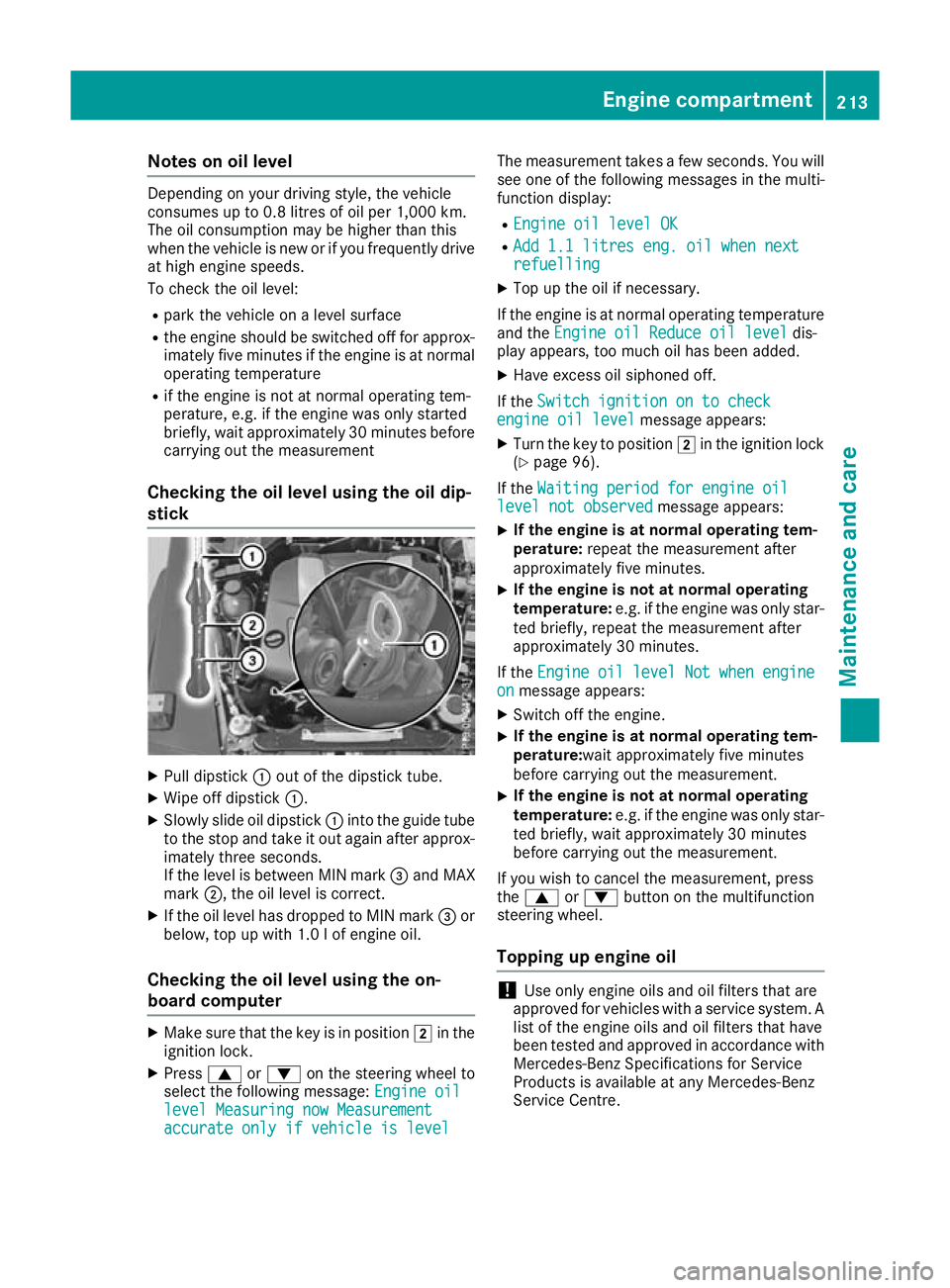
Checking the oil level using the oil dip-
stick X
Pull dipstick :out of the dipstick tube.
X Wipe off dipstick :.
X Slowly slide oil dipstick :into the guide tube
to the stop and take it out again after approx- imately three seconds.
If the level is between MIN mark =and MAX
mark ;,the oil level is correct.
X If the oil level has dropped to MIN mark =or
below, top up with 1.0 lofe ngine oil.
Checking the oil level using the on-
board computer X
Make sure that the key is in position 2in the
ignition lock.
X Press 9or: on the steering wheel to
select the following message: Engine oil Engine oil
level Measuring now Measurement level Measuring now Measurement
accurate only if vehicle is level accurate only if vehicle is level The measurement takes
afew seconds. You will
see one of the following messages in the multi-
function display:
R Engine oil level OK Engine oil level OK
R Add 1.1 litres eng. oil when next
Add 1.1 litres eng. oil when next
refuelling refuelling
X Top up the oil if necessary.
If the engine is at normal operating temperature and the Engine oil Reduce oil level
Engine oil Reduce oil level dis-
play appears, too much oil has been added.
X Have excess oil siphoned off.
If the Switch ignition on to check
Switch ignition on to check
engine oil level
engine oil level message appears:
X Turn the key to position 2in the ignition lock
(Y page 96).
If the Waiting period for engine oil
Waiting period for engine oil
level not observed
level not observed message appears:
X If the engine is at normal operating tem-
perature:
repeat the measurement after
approximately five minutes.
X If the engine is not at normal operating
temperature:
e.g. if the engine was only star-
ted briefly, repeat the measurement after
approximately 30 minutes.
If the Engine oil level Not when engine Engine oil level Not when engine
on
on message appears:
X Switch off the engine.
X If the engine is at normal operating tem-
perature:wait approximately five minutes
before carrying out the measurement.
X If the engine is not at normal operating
temperature:
e.g. if the engine was only star-
ted briefly, wait approximately 30 minutes
before carrying out the measurement.
If you wish to cancel the measurement ,press
the 9 or: button on the multifunction
steering wheel.
Topping up engineo il !
Use only engine oils and oil filters that are
approved for vehicles with aservice system. A
list of the engine oils and oil filters that have
been tested and approved in accordance with
Mercedes-Benz Specifications for Service
Products is available at any Mercedes-Benz
Service Centre. Engine compartment
213Maintenance and care Z
Page 218 of 261
Allow an overheating engine to coo
ldown
before opening the bonnet. If ther eisafirein
the engine compartment, leav ethe bonnet
closed and notify the fir ebrigade.
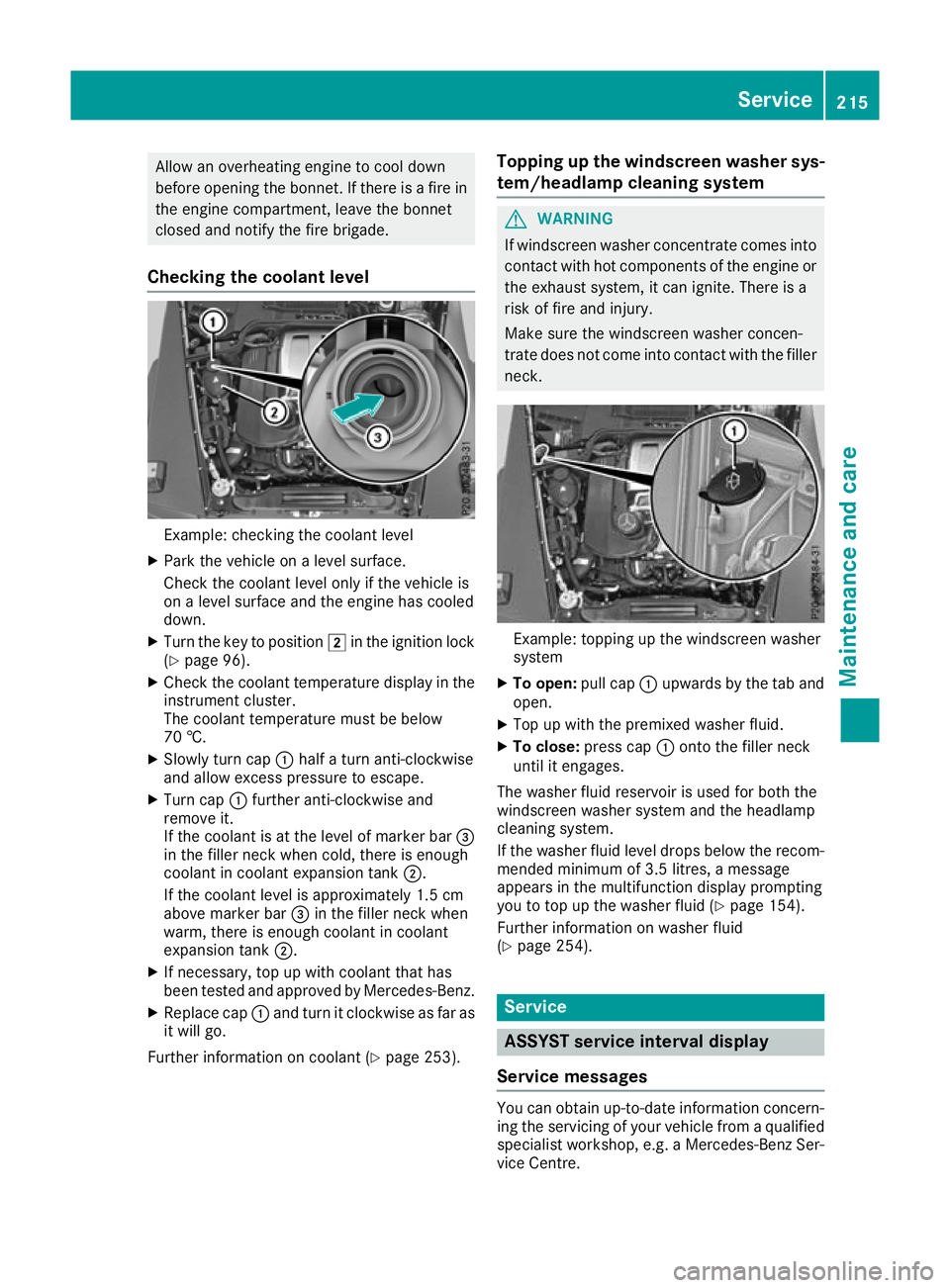
Checkin gthe coolant level Example: checking the coolant level
X Park the vehicl eonalevel surface.
Check the coolant level onl yifthe vehicl eis
on alevel surface and the engine ha scooled
down.
X Turn the key to position 2in the ignition lock
(Y page 96).
X Check the coolant temperatur edisplay in the
instrument cluster.
The coolant temperatur emustbeb elow
70 †.
X Slowl yturnc ap : half aturna nti-clockwise
and allo wexcess pressure to escape.
X Turn cap :furthe ranti-clockwise and
remove it.
If the coolant is at the level of marker bar =
in the fille rneck when cold, there is enough
coolant in coolant expansio ntank ;.
If the coolant level is approximately 1.5 cm
above marker bar =in the fille rneck when
warm, there is enoug hcoolant in coolant
expansio ntank ;.
X If necessary ,top up with coolant tha thas
been teste dand approved by Mercedes-Benz.
X Replace cap :and tur nitclockwise as fa ras
it will go.
Furthe rinformatio noncoolant (Y page 253). Topping up the windscreen washe
rsys-
tem/headlamp cleanin gsystem G
WARNING
If wind screen washer concentrate comes into
contact with hot components of the engine or
the exhaust system, it can ignite. There is a
risk of fire and injury.
Make sure the windscreen washer concen-
trate does not come into contact with the filler neck. Example: topping up the windscreen washer
system
X To open: pull cap:upwards by the tab and
open.
X Top up with the premixed washe rfluid.
X To close: press cap :onto the fille rneck
unti lite ngages.
The washe rfluid reservoi risusedf or both the
windscree nwashe rs ystem and the headlamp
cleaning system.
If the washe rfluid level drops belo wthe recom-
mended minimu mof3.5 litres ,amessage
appear sinthe multifunctio ndisplay prompting
yo utot op up the washe rfluid (Y page 154).
Furthe rinformatio nonwashe rfluid
(Y page 254). Service
ASSYST service interval display
Service messages Yo
uc an obtain up-to-dat einformation concern-
ing the servicin gofyour vehicle from aqualified
specialis tworkshop, e.g. aMercedes-Ben zSer-
vice Centre. Service
215Maintenance and care Z
Page 219 of 261
The ASSYST service interval display inform
syou
of the next service due date.
If as ervice due date has been exceeded, you
also hear awarning tone.
The multifunction display shows aservice mes-
sage for afew seconds, e.g.:
Service Ain999,999 km
Service Ain999,999 km
Service Ain..d ays
Service Ain..d ays
Service Adue
Service Adue
Service Aoverdue by 999,999 km
Service Aoverdue by 999,999 km
Service Aoverdue by .. days
Service Aoverdue by .. days
Maintaining the time-dependent service sched-
ule:
X Call up and noted own the service due date
before disconnectin gthe battery.
or X After reconnecting the battery, subtract the
battery disconnection periods from the ser-
vice date shown on the display.
The symbol and the letter indicate which type of service is due:
¯ Minor service A
A
± Major service B B
The ASSYST service interval display does not
take into account any periods of time during
which the battery is connected.
Hiding service messages X
To hide the service message, press the %
back button on the multifunction steering
wheel (Y page 132).
Displaying service messages Use the buttons on the multifunction steering
wheel.
X Switch the ignition on.
X Press =or; to select the standard
display menu on the steering wheel
(Y page 133).
X Press 9or: to select the ASSYST ser-
vice interval display.
The ¯ or± service symbol and the ser-
vice due date are displayed. Special service requirements The prescribed service interval is based on nor-
mal operation of the vehicle. Servic ework will
need to be performed more often if the vehicle is operated under arduous conditions or increased
loads, for example:
R regular city driving with frequent intermediate
stops
R if the vehicle is primarily used to travel short
distances
R for frequent operation in mountainous terrain
or on poor road surfaces
R if the engine is often left idling for long periods
In these or similar operating conditions, have,
for example, the air filter, engine oil and oil filter changed more frequently. The tyres must be
checked more frequently if the vehicle is oper-
ated under increased loads. Further information can be obtained at aqualified specialist work-
shop, e.g. aMercedes-Benz Servic eCentre. Fuel/water separator
! If you continue driving without having the
fuel/wate rseparato rserviced, this could
caus edamag etotheengine. An yresulting
damag eisnotcovered by th ewarranty. H
Environmenta
lnote
Dispose of servic eproduct sinane nviron-
mentally-responsible manner.
If th efuel/water separator needs servicing:
R the ! Clean
Clean the thefuel
fuel filter
filter message
is shown in th emultifunction display
R aw arning tone sounds
X Consult aqualifie dspecialist workshop. Care
General notes
! For cleaning your vehicle, do not use any of
the following:
R dry ,rough or hard cloths
R abrasive cleaning agents
R solvents
R cleaning agents containing solvents
Do not scrub. 216
CareMaintenanc
eand care
Page 223 of 261
Cleaning th
etrailer tow hitch !
Do not clean the bal
lcoupling with ahigh-
pressure cleaner. Do not use solvents.
! Please note the care instructionsint
he
trailer coupling manufacturer's operating
instructions. H
Environmental note
Dispose of oilya nd greasycloths in an envi-
ronmentally-responsible manner.
The ball coupling must be cleaned if it becomes dirt yorc orroded.
X Remov erust ,e.g.w ith aw ire brush.
X After cleaning ,lightly oil or greas ethe ball
coupling.
X Chec kthatthe vehicle' strailer to whitch is
working properly.
You can also have th emaintenanc ework on the
ball coupling and th etrailer to whitch carried out
by aq ualifie dspecialist workshop. Interior care
Cleaning th edisplay !
For cleaning, do not use any of the following:
R alcohol-based thinne rorpetrol
R abrasive cleaning agents
R commercially-available householdc leaning
agents
These may damage the displays urface. Do
not put pressure on the displays urface when
cleaning. This could lead to irreparable dam-
age to the display.
X Before cleaning the display, make sure that it
is switched off and has cooled down.
X Cleant he displays urface using acommer-
cially available microfibre cloth and TFT/LCD
displayc leaner.
X Dry the displays urface usingadry microfibre
cloth.
Cleaning the plastic trim G
WARNING
Care products and cleaning agents containing solvents can cause surfaces in the cockpit to become porous.T
his could result in plastic
parts breakin gaway when the airbags are
deployed. There is adanger of injury.
Do not use care product sand cleanin gagents
containin gsolvents to clean the cockpit.
! Never attac
hthe following to plastic surfa-
ces:
R stickers
R films
R perfume oil container or similar
You could otherwise damage the plastic.
! Do not allow cosmetics
,insec trepellent or
sunscreen to come in contact with the plastic trim .This maintains the high-quality look of
the surfaces.
X Wipe the plastic trim with adamp, lint-free
cloth, e.g. amicrofibre cloth.
X Heavy soiling: use care and cleanin gprod-
ucts recommended and approved by
Mercedes-Benz.
The surface may chang ecolour temporarily.
Wait until the surface is dry again.
Cleaning the steering wheel and selec-
tor lever X
Thoroughly wipe with adamp cloth or use
leather care agents that have been recom-
mended and approved by Mercedes-Benz.
Cleaning wood trim and trim elements !
Do not use solvent-based cleaning agents
such as tar remover, wheel cleaners, polishes
or waxes. There is otherwise arisk of damag-
ing the surface.
X Wipe the wood trim and trim elements with a
damp, lint-free cloth, e.g. amicrofibre cloth.
X Heavy soiling: use care and cleaning prod-
ucts recommended and approved by
Mercedes-Benz.
Cleaning the seat covers General notes
! Clean cloth covers with
amicrofibre cloth
moistened with asolution containing 1%
detergent (e.g. washing-up liquid). Rubc are-220
CareMaintenanc
eand care
Page 242 of 261
R
Chec kthe tyrefor foreign objects.
R Chec kwhether th ewheel is losin gair or the
valv eisl eaking.
If you are unable to rectif ythe damage, con-
tac taq ualified specialist workshop. H
Environmenta
lnote
Chec kthe tyrep ressure regularly, at least
ever y14d ays.
The recommended tyr epressures for various
operatin gcondition scan be foun donthetyre
pressure table on th efuel filler flap
(Y page 109).
Operation with atrailer: thea pplicable value
for th erear axle is th emaximum value stated in
th et yrep ressure table.
The tyr epressure table may also state tyr epres-
sures for differen tload conditions. Thes eare
defined in th etable as differen tnumbers of pas-
sengers and amounts of luggage. The actual
number of seat smay differ fro mthis.
If tyr esizes are not specified ,the tyrep ressures
stated on th etyrep ressure informatio nlabel
apply for all tyres approved for this vehicle. If one or mor
etyre sizes precedes atyre pres-
sure, the following tyre pressure information is
valido nly for that tyre size.
Use asuitable pressure gauge to check the tyre
pressure. The outer appearance of atyre does
not give any reliable indicatio nofthe tyre pres-
sure.
You can also check the tyre pressure using the
on-board computer.
If possible, correct tyre pressures only when the
tyres are cold. The tyres are cold:
R if the vehicl ehas been parked with the tyres
out of direct sunlight for at least three hours
and
R if the vehicle has not been driven further than
1.6 km
Dependin gonthe outside temperature, the
vehicle speed and the load on the tyres, the tyre temperature and thus the tyre pressure changes by approximately 10 kPa (0.1 bar/1.5 psi )per
10 †. Take this into account when checking the
pressure of warm tyres. Correct the tyre pres-
sure only if it is too low for the current operating
condition.
Drivin gwithatyre pressure that is too high or
too low can:
R shorten the service life of the tyres
R cause increased tyre damage
R have anegative effect on handling character-
istics and thus driving safety (e.g. aquaplan-
ing)
The tyre pressure values given for low loads are minimum values that offer you good driving
comfor tcharacteristics.
However, you can also use the values given for
higher loads. These are permissible and will not
adversely affect the runnin gofthe vehicle. Tyre pressur
emonitor
General notes If
at yre pressure monitor is fitted, the vehicle's
wheelsh ave sensors fitted that monitor the tyre
pressures in all four tyres. The tyre pressure
monitor warns you if the pressure drops in one
or more of the tyres. The tyre pressure monitor
functions only if the corresponding sensors are
fitted to all wheels.
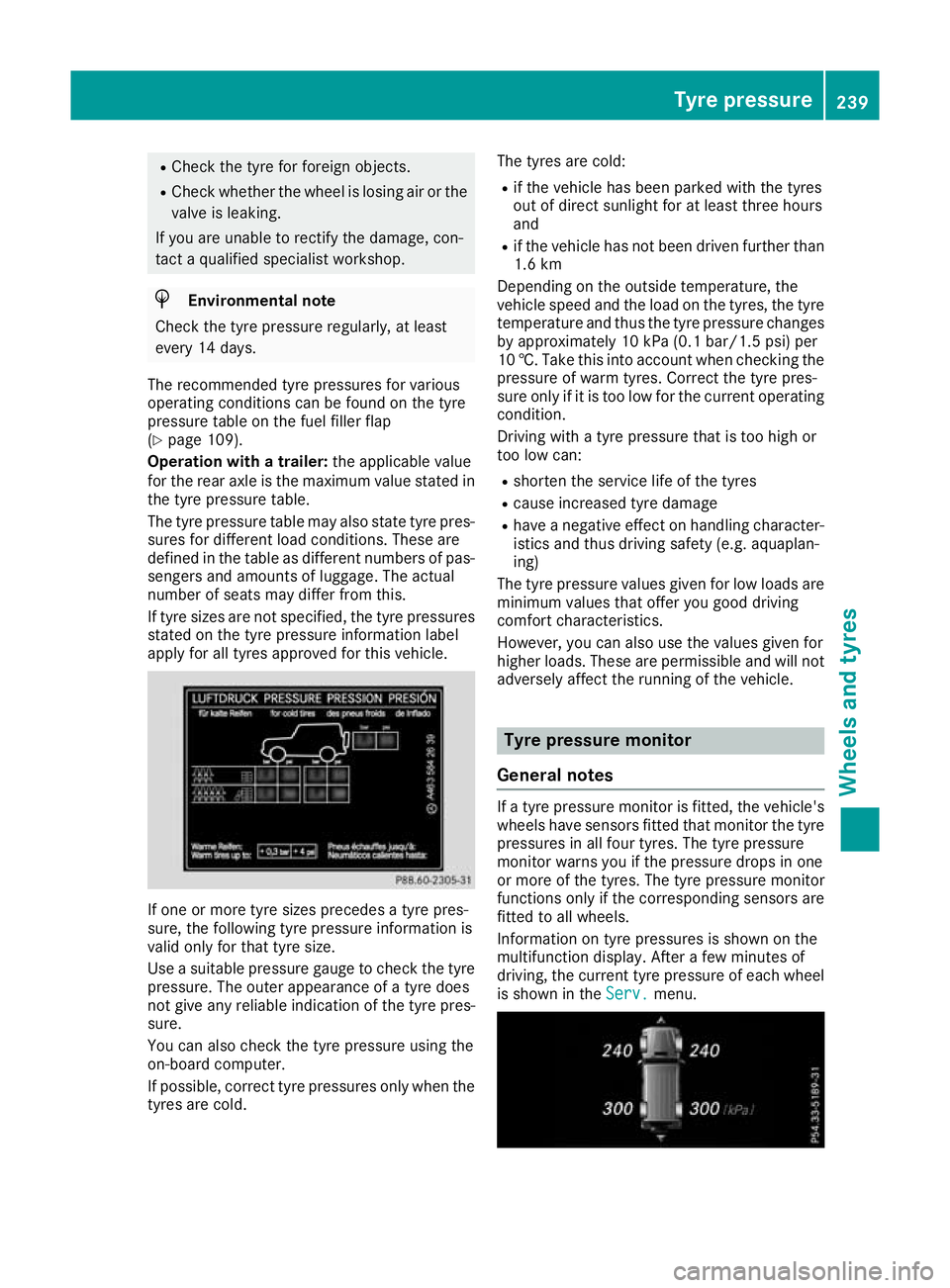
Information on tyre pressures is shown on the
multifunction display. After afew minutes of
driving, the current tyre pressure of each wheel
is shown in the Serv.
Serv. menu. Tyrep
ressure
239Wheels and tyres Z