audio MERCEDES-BENZ G-CLASS SUV 2016 User Guide
[x] Cancel search | Manufacturer: MERCEDES-BENZ, Model Year: 2016, Model line: G-CLASS SUV, Model: MERCEDES-BENZ G-CLASS SUV 2016Pages: 261, PDF Size: 6.01 MB
Page 168 of 261
Introduction
Oper
ating safety
Important safet ynotes G
WARNING
Operating the integrated information systems and communications equipment in the vehicle
while driving will distract you from traffic con-
ditions. You could then lose control of the
vehicle. Ther eisarisk of an accident.
Only operate these devices if road traffic con-
ditions permit. If you are unsure about the
surrounding conditions, pullo ver toasafe
location and make entries only while the vehi-
cle is stationary.
Observe the lega lrequirements for the country
you are in.
The navigation system calculates the route to
the destination without taking account of the
following, for example:
R traffic lights
R stop and give way signs
R parking or stopping restrictions
R road narrowing
R other road and traffic rule sand regulations
The multimedi asystem may provid eincorrect
navigation announcements if the surroundings
do not correspond to the data on the digital map (for example, aroute may have been diverted or
the direction of aone-wa ystreet may have
changed).
For this reason, you must alwayso bserve road
and traffic rule sand regulations during your
journey .Roada nd traffic rule sand regulations
alwaysh ave priority over the system' sdriving
recommendations.
Remember that even at aspee dof50k m/h,
yourv ehiclecovers adistance of 14 mper sec-
ond.
When using the device please follow:
R the safety notes in this manual
R traffic rules and regulations
R laws and safety standards pertainin gtomotor
vehicles G
WARNING
Modifications to electronic components, their software as well as wiring could affect their
function and/or the oper ation of other net-
worked components. This coul dinparticular
alsobet he case for systems relevant to
safety .They might not function properly any-
more and/or jeopardise the operational
safety of the vehicle. There is an increased
risk of an accident and injury.
Do not attempt to modify the wiring as wellas
electronic components or their software.
Always have work on electrica land electronic
components carrie dout at aqualified special-
ist workshop. Correct use
Th em ultimedia system can be used for th efol-
lowing:
R to receive radio stations
R to play back audio file sonmemory cards and
other dat acarriers
R to mak ecalls via th eBluetooth ®
function
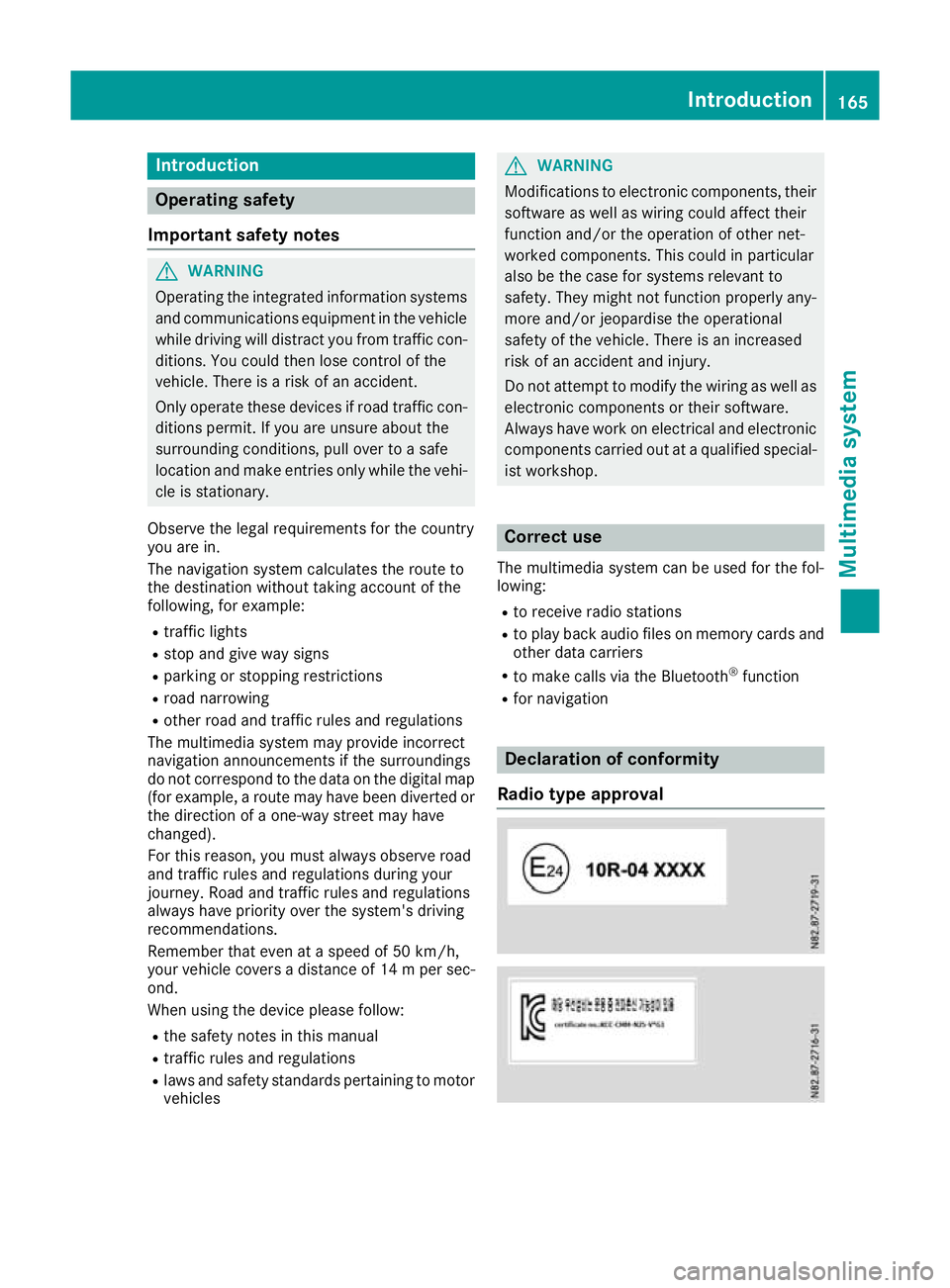
R for navigation Declaration of conformity
Radio type approval Introduction
165Multimedia system Z
Page 176 of 261
X
Select ¯.
X Select Controller setting
Controller setting.
X Select the desire dsetting.
The #dot indicates the current setting.
i If the
Change station/title
Change station/title function is
active and the navigation system is running in
the front, zooming into or ou tofthe map is
only possible via the touchscreen.
i In the 3D display
,you can only zoom ou tof
the map up to acertain scale .Ifyouzoom out
beyond this scale ,the map switches to a2D
display. Settin
gthe system language
X Select ¯.
X Select the Language
Language.
Al ist of available languages appears.
X Select the desired language.
The #dot indicates the active language. Raisin
gorlowering the volume of
audio sources
Yo uc an raise or lowe rthe volume of individual
audi osources relative to the volume set on the
multimedi asystem. For example, yo ucan set
traffic reports to play back louder than the cur-
rentl yset volume.
X Select ¯.
X Select Volume
Volume.
X Select the desire daudio source.
Am enu appears.
X Set the desire dvalue using the arrows.
X Select Save ý.
The menu is closed. Starting
aself diagnosis
The self-diagnosis checksw hether radio and
GPS signals are being received and whether all
loudspeakers are emittings ound.
X Select ¯.
X Select Self-diagnosis Self-diagnosis.
The diagnostics display appears.
X Select TEST
TEST.
The self diagnosis starts. Calling up version info
rmation
X Select ¯.
X Select Versio ninfo
Versio ninfo.
Information on th esoftwar estatus of th emul-
timedia system is displayed. Resettin
gthe multimedi asystem
Resetting to factory settings Thi
sfunction return sthe settings of the multi-
media system to the factor ysettings. This will
delete all personal settings.
X Select ¯.
X Select Factory reset Factory reset.
Ap rompt appears asking whether you wish to
reset the multimedia system.
X To reset: selectYES
YES.
The multimedia system is reset to its factory
settings.
Restarting the multimedia system In the following cases, restarting the multimedia
system may be useful:
R if the multimedia system is not operating cor-
rectly
R if malfunctions occur
R if the vehicl eisdisplayedatani ncorrect loca-
tion on the map
There are two methods of restarting the multi-
media system.
Method 1: restart using the on/off knob
X Remove any devices that may be connected
to the multimedia system.
X Press and hold the on/off knob for five sec-
onds.
The multimedia system restarts.
Method 2: restart using the RESET button on the
front of the device
X Remove any devices that may be connected
to the multimedia system.
X Switch off the ignition.
X Using apointed object, press the RESET but-
ton on the front of the multimedia system.
The multimedia system restarts. System settings
173Multimedia system Z
Page 177 of 261
Bluetooth
®
settings
Requirements for aBluetooth ®
connec-
tion Yo
uc an connec tBluetooth ®
-compatible mobile
phones and other audio equipmen ttothe mul-
timedia system.
To do so, the followin gcondition smust be met:
R mobile phones must support Hands Fre ePro-
file 1. 0ora bove
R the Bluetooth ®
devic emust be located inside
the vehicle in the vicinity of the multimedia
system
R every Bluetooth ®
devic emust have its own
Bluetooth ®
name, which you can assign your-
self
R Bluetooth ®
must be activate donboth the
multimedia syste mand on the respective
Bluetooth ®
device
R the Bluetooth ®
devic emust be visible for the
multimedia system
R the Bluetooth ®
devic emust support the audio
profile A2DP
i You can obtain further information about
suitable mobile phones:
R at aq ualified specialis tworkshop
R on the Internet at http://www.mercedes-
benz.com/connect
Activating or deactivating th eBlue-
tooth ®
function Switchin
gonthe Bluetooth ®
function on the
multimedi asystem is arequirement for:
R telephony with aBluetooth ®
-capable mobile
phone
R audi oplaybac kwithaB luetooth ®
-capable
mobil edevice
X Press the PHON Ebutton.
X Select O.
Am enu appears.
X Select Bluetooth
Bluetooth.
The #dot indicates that the function is
switched on. Searching for and pairin
gwithaBlue-
tooth ®
device When using your Bluetooth
®
device with the
multimedia system for the first time, you must
search for the Bluetooth ®
device and then pair
it.
Depending on the Bluetooth ®
device used, a
pairing code has to be entered into the Blue-
tooth ®
device or aprompt confirmed on the
Bluetooth ®
device.
There are two options for the search:
R on the Bluetooth ®
device, search for the mul-
timedia system
R on the multimedia system, search for the
Bluetooth ®
device
i Searchin
gonthe Bluetooth ®
device for the
multimedia system is, in most cases, easier.
Starting the search on the Bluetooth ®
device
X Press the PHONE button.
Al ist appears with Bluetooth ®
devices that
have already been paired.
X Start asearch for other Bluetooth ®
devices on
the Bluetooth ®
device (see the manufactur-
er's operating instructions).
i The Bluetooth ®
name "MB Bluetooth" has
been set as the default for the multimedia
system.
X Select the multimedia system on the Blue-
tooth ®
device.
Starting the search on the multimedia system X Press the PHONE button.
Al ist appears with Bluetooth ®
devices that
have already been paired.
X Select Add new device Add new device.
Am essage appears. The multimedia system
searches for available Bluetooth ®
devices.
If Bluetooth ®
devices are available, these
appear in alist. If no Bluetooth ®
devices are
available, amessage appears that no Blue-
tooth ®
device has been found. 174
System settingsMultimedia system
Page 180 of 261
Switching alternative frequencies
on/off
If this function is switched on, the multimedia
system tries to ensure the best possible recep-
tion, using alternative frequencies where nec-
essary. In doing so, regional programmes are
taken into account. In addition, the switching
behaviour is affected by environmental condi-
tions and reception condition sand may, there-
fore, change. Poor reception condition scould
lead to undesired and disruptive frequency
changes. In this case, switch off AF AFstation
tracking.
This function is available in the FM waveband.
X Select Oin radio mode.
X Select AF (Alternative Frequency) AF (Alternative Frequency).
The #dot indicates that the function is
switched on. Switching traffic announcements on/
off
When the function is activated, the multimedia
system switches to astation broadcasting traf-
fic reports for the duration of atraffic report:
R ifas tation without traffic reports is switched
on
R if another audio source is switched on
X Select Oin radio mode.
X Select TA (Traffic Announcement)
TA (Traffic Announcement).
The #dot indicates that the function is
switched on.
This function is available in the FM waveband. Media
Activating media mode
X Press the MEDIAb utton.
The list of audio source sappears. Available
audio source sare highlighted.
X Selec tthe desired audio source. USB devic
eand memory card
Important safet ynotes G
WARNING
SD cards are small parts. The ycan be swal-
lowed and caus echoking. This poses an
increased risk of injury or even fatal injury.
Keep the SD card out of the reach of children. If aSDc ard is swallowed,s eek medical atten-
tion immediately.
Connecting aUSB device X
Connect the USB device to the USB port with
the contacts facing down.
Inserting an dremoving an SD card Insertin
ganSDc ard
X Inser tthe SD car dintot he SD car dslot with
th ec ontacts at thefront and facing down-
wards.
Removing an SD card X Press th eSDc ard.
X Remove th eSDc ard.
Activating audio playback from an SD
car dorU SB device i
The multimedia system supports USB devi-
ces and microS Dcards up to amaximum
capacity of 32 GB.
X Press the MEDIA button.
X Select USB Stick USB Stick orSD card
SD card.
The folder structure of the selected audio
source appears.
X Select the required folder.
X Select the required track.
Playback of the audio file starts. The audio
files are played in the order in which they were
saved to the data medium. Media
177Multimedia system Z
Page 181 of 261
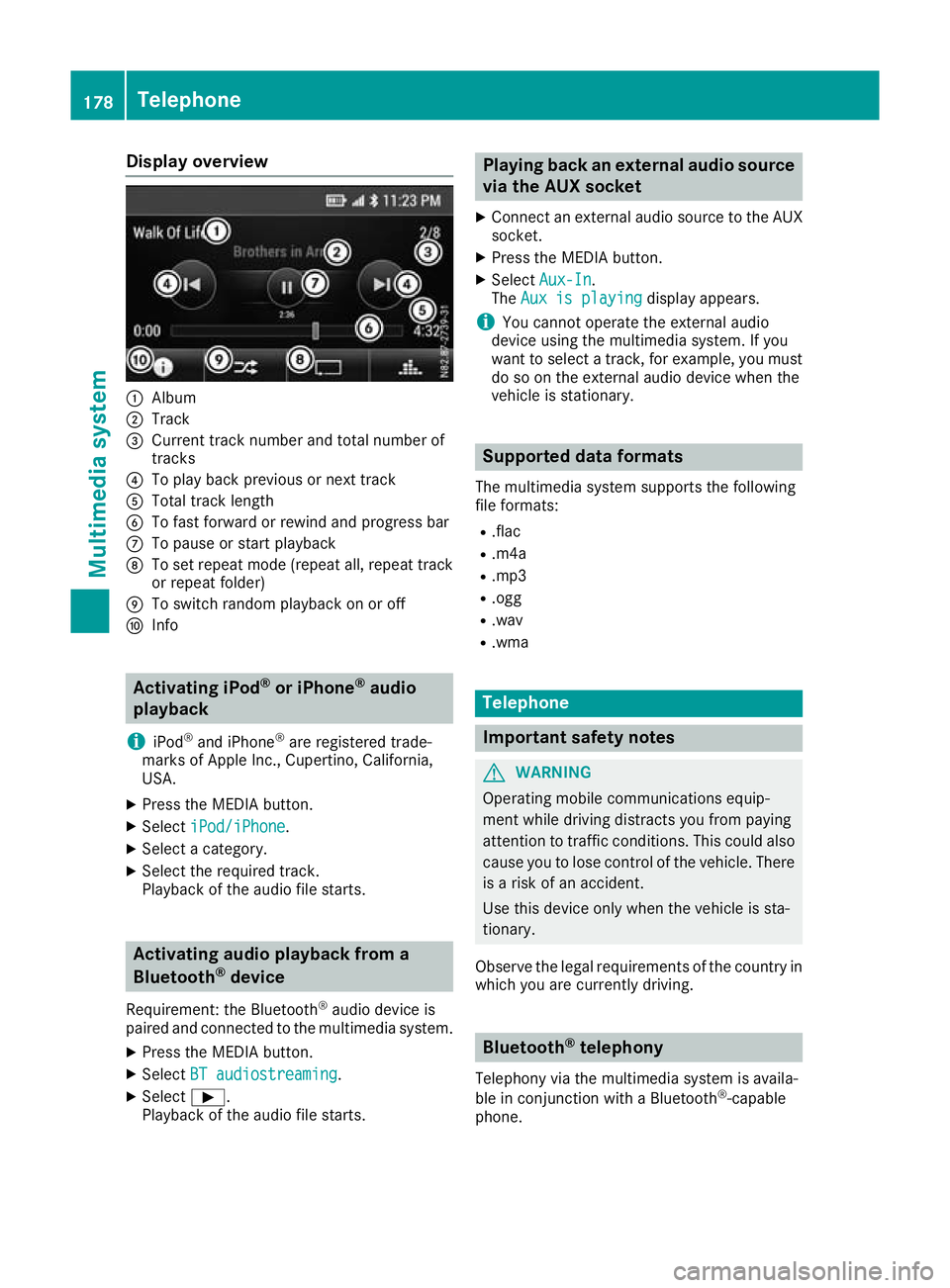
Display overview
:
Album
; Track
= Curren ttrac knumbe rand tota lnumbe rof
tracks
? To play back previous or next track
A Tota ltrac klen gth
B To fas tforwar dorrewind and progress bar
C To paus eorstart playback
D To set repea tmode(repeat all, repea ttrack
or repea tfolder)
E To switch rando mplaybac konoro ff
F Info Activatin
giPod ®
or iPhone ®
audio
playback
i iPod ®
and iPhone ®
are registere dtrade-
marks of Apple Inc. ,Cupertino ,California,
USA.
X Press th eMEDIA button.
X Select iPod/iPhone
iPod/iPhone.
X Selec tacategory.
X Selec tthe require dtrack.
Playbac koftheaudio file starts. Activating audio playback from a
Bluetooth ®
device
Requirement :the Bluetooth ®
audio device is
paired and connecte dtothemultimedia system.
X Press th eMEDIA button.
X Select BT audiostreaming
BT audiostreaming.
X Select Ì.
Playbac koftheaudio file starts. Playin
gback an external audio source
via the AUX socket
X Connect an external audio source to the AUX
socket.
X Press the MEDIAb utton.
X Select Aux-In
Aux-In.
The Aux is playing
Aux is playing display appears.
i You cannot operate the external audio
device using the multimedia system. If you
want to select atrack ,for example, you must
do so on the external audio device when the
vehicle is stationary. Supported dataf
ormats
The multimedia system supports the following
file formats:
R .flac
R .m4a
R .mp3
R .ogg
R .wav
R .wma Telephone
Important safety notes
G
WARNING
Operating mobile communications equip-
ment while driving distracts you from paying
attention to traffic conditions .This coul dalso
caus eyou to lose control of the vehicle. There
is ar isk of an accident.
Use this device only when the vehicl eissta-
tionary.
Observe the lega lrequirements of the country in
which you are currently driving. Bluetooth
®
telephony
Telephony via the multimedia system is availa-
ble in conjunction with aBluetooth ®
-capable
phone. 178
TelephoneMultimedi
asystem
Page 182 of 261
Call disconnected while th
evehicle is
in motion
The followin gcoul dbet hecaus eofc all discon-
nection:
R theG SM7
network coverag eisinsufficient
R thev ehicle has moved int oaGSM cel lwithno
free channels
R theS IMcar dused is no tcompatible wit hthe
network available
R you are usin gamobile phon ewith" Twincard"
and th emobile phon ewitht he secon dSIM
car disa lreadylogged on to th enetwork 999 or 112 emergency call
Makin gemergency calls without entering aPIN
is only possible using the mobile phone.
The 999 or112 emergency call number is a
public service. Anym isuse is punishable by law. Telephone op
eration
Requirements Th
ef ollowing conditions must be fulfilled in
order to make calls using the multimedia sys-
tem:
R the Bluetooth ®
function of the multimedia
system is activated
R the Bluetooth ®
function of the mobile phone
is activated
R the mobile phone is paired and connected to
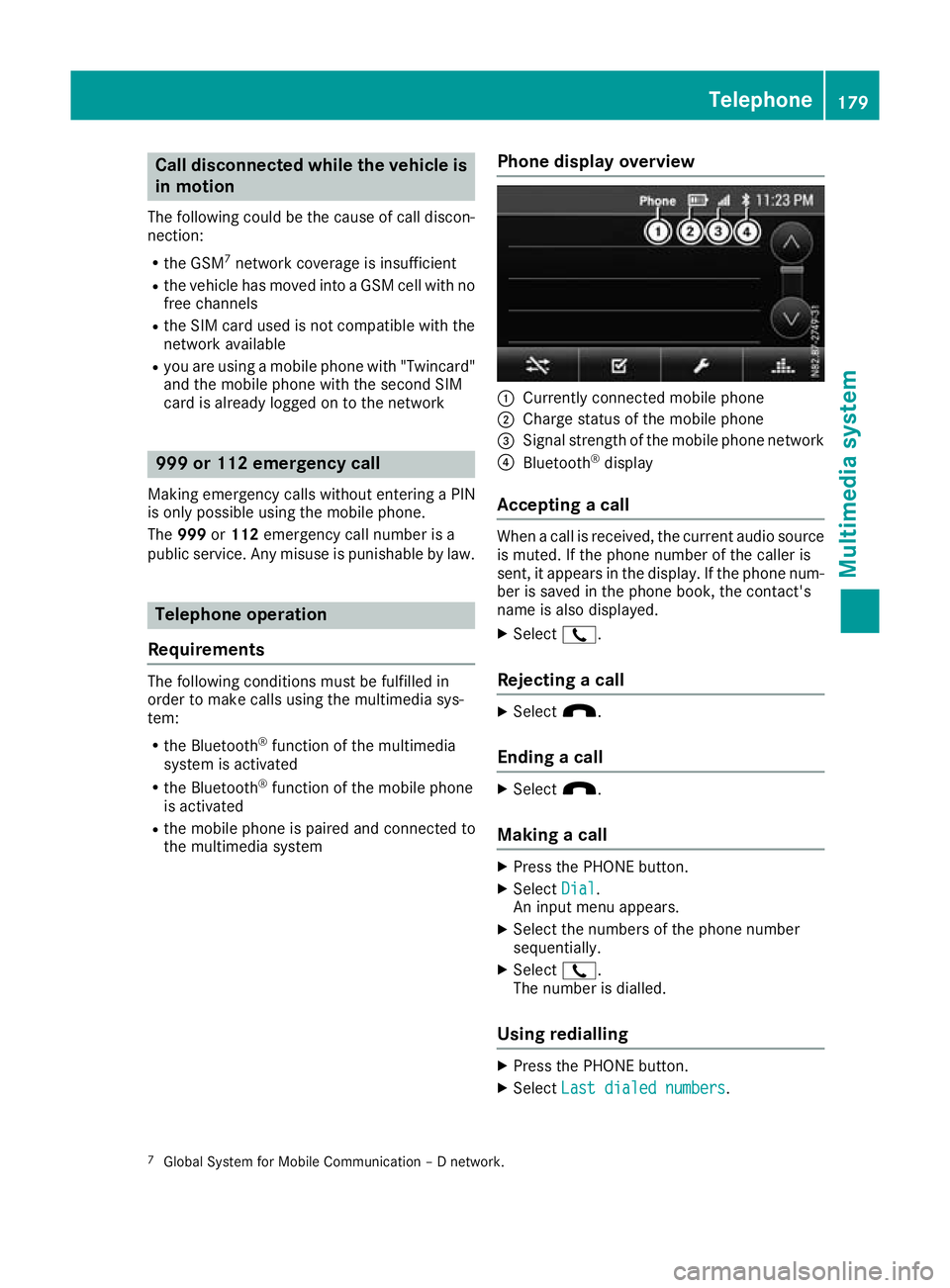
the multimedia system Phone display overview :
Currently connected mobile phone
; Charge status of the mobile phone
= Signal strength of the mobile phone network
? Bluetooth ®
display
Accepting acall When
acall is received, the curren taudio source
is muted. If the phone number of the caller is
sent ,itappears in the display. If the phone num-
ber is saved in the phone book, the contact's
name is also displayed.
X Select 2.
Rejecting acall X
Select x.
Ending acall X
Select x.
Making acall X
Press the PHONE button.
X Select Dial Dial.
An input men uappears.
X Select the numbers of the phone number
sequentially.
X Select 2.
The number is dialled.
Using redialling X
Press the PHONE button.
X Select Last dialed numbers
Last dialed numbers.
7 GlobalS ystem for Mobile Communicatio n–Dnetwork. Telephone
179Multimedia system Z
Page 194 of 261
Setting warnings for speed limits
The following functions are available:
R Warn When Speeding Warn When Speeding:
- Audio and Visual Audio and Visual:ift he vehicle speed
exceeds the maximum permissible speed,
the multimedia system issues an audible
and avisual warning
- Display Display:ift he vehicle speed exceeds the
maximum permissible speed, the multime- dia system issues avisual warning
- Disabled
Disabled:t he multimedia system does not
issue awarning
R Speed Limit Always Visible
Speed Limit Always Visible :ifthis func-
tion is activated, the maximum permissible
speed appears in the multimedia system
R Outside Towns: %d%% of the Speed Outside Towns: %d%% of the Speed
Limit Limit:ift he vehicle speed increases up to
the set percentage of the permissiblem axi-
mum speed, the multimedia system issues a
warning
R Within Towns: %d%% of the Speed Within Towns: %d%% of the Speed
Limit Limit:ift he vehicle speed increases up to
the set percentage of the permissiblem axi-
mum speed, the multimedia system issues a
warning
X Press the NAVI button.
The main menu appears.
X Select Settings Settings.
X Select Warnings
Warnings.
X Select Speed Limit
Speed Limit.
X To set the warning type: selectWarn
WarnWhen
When
Speeding
Speeding.
Am enu appears.
X Select the desired function.
The Ytick indicates the activated function.
X To switch the speed limit display on or off:
select Speed Limit Always Visible Speed Limit Always Visible.
The function is activated or deactivated.
X To define how far the speed limit may be
exceeded: selectOutside Towns: %d%%
Outside Towns: %d%%
of
of the
the Speed
Speed Limit
LimitorWithin
Within Towns:
Towns:%d
%d
%% of the Speed Limit
%% of the Speed Limit.
Am enu appears.
X Set the desired percentage.
Setting warnings for alert points
If this function is activated and the vehicle is
approaching an alert point, the multimedia sys-
tem issues awarning. An alert point is an area
requiring the driver to be especially attentive,
e.g. arailway crossing or aschool. i
This function is not permitted in all countries
and regions. Observe the legal requirements
for the country you are in.
The following functions are available:
R Warning Type
Warning Type:
- Audio and Visual Audio and Visual:ift he vehicle is
approaching an alert point, the multimedia
system issues an audibl eand avisual warn-
ing
- Visual
Visual:ift he vehicle is approaching an
alert point, the multimedia system issues a
visual warning
R Audio Warning
Audio Warning:
- Only When Speeding
Only When Speeding:i fthe vehicle is
approaching an alert point and exceeds the maximum permissible speed in the proc-
ess, the multimedia system issues an audi-ble warning
- When Approaching When Approaching :ifthe vehicle is
approaching an alert point, the multimedia
system issues an audibl ewarning. If the
vehicle exceeds the maximum permissible
speed, the multimedia system issues adif-
ferent audibl ewarning
X Press the NAVI button.
The main menu appears.
X Select Settings
Settings.
X Select Warnings Warnings.
X Select Alert Points
Alert Points.
X Select Alert Point Warnings Alert Point Warnings.
The function is activated or deactivated.
If the function is activated, amessage
appears.
X To activat ethe function: selectActivate Activate.
X If you do not wish to activat
ethe function:
select Cancel
Cancel.
X To set awarning: selectAlert Types
Alert Types.
Am enu appears.
X Select the desired alert point.
X Select Warning Type
Warning Type orAudio Warning
Audio Warning.
X Select the desired function.
The Ytick indicates the activated function.
i The digital map may include
apermissible or
expected maximum speed for some alert
points. In this case, the audibl ewarning may
differ when you exceed or drop below the
maximum permissible speed. Navigati
on
191Multimedi asystem Z