display MERCEDES-BENZ G-CLASS SUV 2018 Owners Manual
[x] Cancel search | Manufacturer: MERCEDES-BENZ, Model Year: 2018, Model line: G-CLASS SUV, Model: MERCEDES-BENZ G-CLASS SUV 2018Pages: 549, PDF Size: 10.22 MB
Page 335 of 549
Creating a bookmark
#
Select Add new bookmark. #
Enter a URL and a name. #
Select ¡.
Editing a bookmark #
Highlight a bookmar k.#
Select p. #
Select Edit. #
Enter a URL and a name. #
Select ¡.
Deleting a bookmark #
Highlight a bookmar k.#
Select p. #
Select Delete. #
Select Yes.
Closing the br owser
Multimedia sy stem:
4 Connect 5
z Browser #
Select åClose browser . Internet
radio Calling up In
ternetradio
Re quirements:
R There is an account on http://
www.me rcedes.me.
R The Internet radio service is activated.
R The data volume is available.
Depending on the count ry, data volume may
need tobe pur chased.
R Afast Internet connection for data transmis‐
sion free of inter fere nce.
The services are countr y-dependent.
Fo r more information, consult a Mercedes-
Benz service centre.
Multimedia sy stem:
4 Radio 5
Þ Radio source #
Select TuneIn radio.
The Internet radio display appears. The last
st ation set starts playing.
% The connection quality depends on the local
mobile phone reception. In
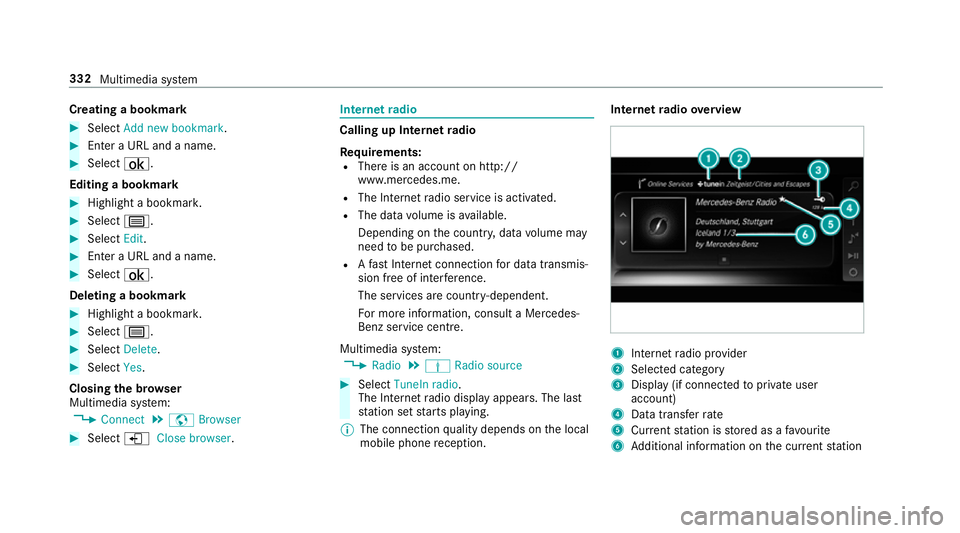
tern etradio overview 1
Inte rn et radio pr ovider
2 Selec ted category
3 Display (if connec tedto private user
account)
4 Data transfer rate
5 Current station is stored as a favo urite
6 Additional information on the cur rent station 332
Multimedia sy stem
Page 340 of 549
Connecting USB devices
* NO
TEDama gecaused byhigh temp era‐
tures High
temp eratures can damage USB devices. #
Remo vethe USB device af ter use and
ta ke it out of theve hicle. The multimedia connection unit is
found in the
stow age compartment under the armrest and
has two USB ports.
Depending on theve hicle's equipment, addi‐
tional USB ports can be found in thestow age
compartment of the cent reconsole and in the
re ar passenger compartment. #
Connect the USB device tothe USB port.
Pla yable music files are pla yed back only if
th e cor responding media display is activated.
% Use the USB port identified byç touse
Apple CarPlay™ and Android Auto.
% Depending on theve hicle equipment there is
an additional USB port in there ar passenger
compartment. Ports th at are labelled with a bat
tery symbol can only be used tocharge
USB devices.
Selecting a track in the media playba ck
Multimedia sy stem:
4 Media
Selecting a track byskipping toa track #
Toskip backwards or forw ards toa
track: navigate up or down.
Selecting a track using the cur rent track list #
Select è. #
Select Current track list. #
Select a tra ck.
Selecting playback options
Multimedia sy stem:
4 Media 5
Z Options
Playing back similar trac ks #
Select Play similar tracks.
A track li stwith similar trac ksis created and
pla yed bac k. Playback mode #
Select Random playback of the current track
list.
The cur rent track li stis pla yed in random
orde r. #
Select Random playback of the current
medium.
All trac kson the active data storage medium
are pla yed in random orde r. #
Select Normal track sequence .
The cur rent track li stis pla yed in the order it
appears on the data storage medium.
Controlling media playback
Multimedia sy stem:
4 Media 5
Y Playback control
A bar with playback controls is shown. #
Topause playback: select and confirm
Y with th e cent ral control element.
The Ë symbol is displa yed. #
Toresume playback: select and confirm
Y again with the cent ral control element.
The Ì symbol is displa yed. Multimedia sy
stem 337
Page 350 of 549
Ra
dio Switching on the
radio Multimedia sy
stem:
4 Radio #
Alternatively: press the$ button.
The radio display appears. You will hear the
last station pla yed on the last frequency
band selected. Multimedia sy
stem 347
Page 353 of 549
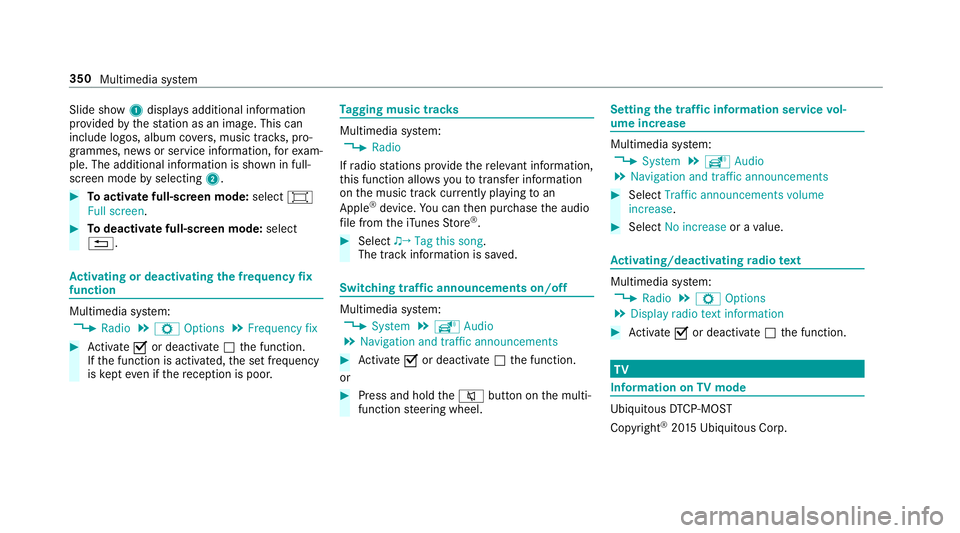
Slide show
1displ ays additional information
pr ov ided bythest ation as an image. This can
include logos, album co vers, music trac ks, pro‐
grammes, ne wsor service information, forex am‐
ple. The additional information is shown in full-
sc reen mode byselecting 2. #
Toactivate full-screen mode: select#
Full screen. #
Todeactivate full-sc reen mode: select
%. Ac
tivating or deactivating the frequency fix
function Multimedia sy
stem:
4 Radio 5
Z Options 5
Frequency fix #
Activate Oor deacti vate ª the function.
If th e function is activated, the set frequency
is ke pt eve n ifthere ception is poo r. Ta
gging music trac ks Multimedia sy
stem:
4 Radio
If ra dio stations pr ovide there leva nt information,
th is function allo wsyouto trans fer information
on the music track cur rently pl aying toan
Apple ®
device. You can then pur chase the audio
fi le from theiTunes Store ®
. #
Select ♫→ Tag this song.
The track information is sa ved. Switching traf
fic announcements on/off Multimedia sy
stem:
4 System 5
õ Audio
5 Navigation and traffic announcements #
Activate Oor deacti vate ª the function.
or #
Press and hold the8 button on the multi‐
function steering wheel. Setting
the traf fic information service vol‐
ume increase Multimedia sy
stem:
4 System 5
õ Audio
5 Navigation and traffic announcements #
Select Traffic announcements volume
increase. #
Select No increase or avalue. Ac
tivating/deactivating radio text Multimedia sy
stem:
4 Radio 5
Z Options
5 Display radio text information #
Activate Oor deacti vate ª the function. TV
Information on
TVmode Ubiquito
usDTCP-MOST
Copyright ®
20 15 Ubiquitous Corp. 350
Multimedia sy stem
Page 358 of 549
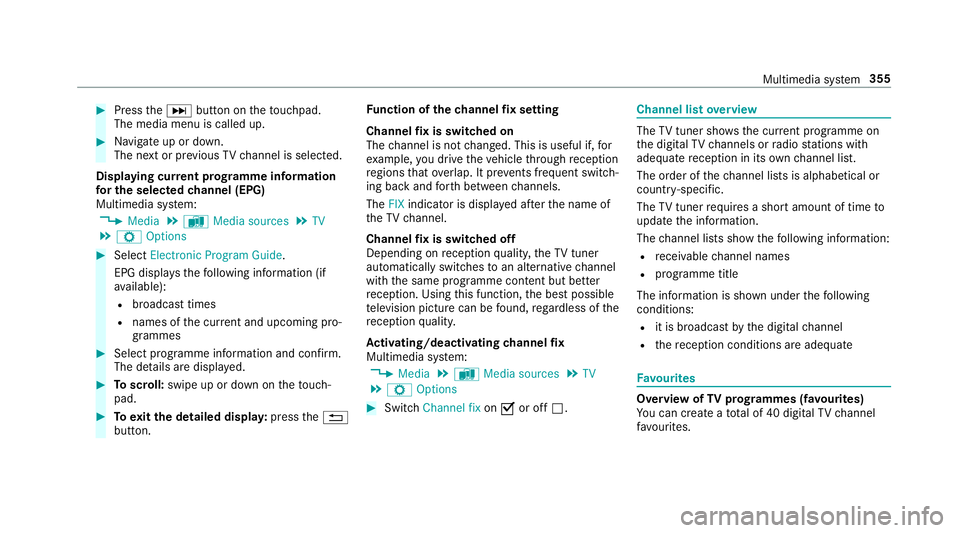
#
Press theD button on theto uchpad.
The media menu is called up. #
Navigate up or down.
The next or pr evious TVchannel is selec ted.
Displaying cur rent prog ramme in form ation
fo r the selected channel (EPG)
Multimedia sy stem:
4 Media 5
à Media sources 5
TV
5 Z Options #
Select Electronic Program Guide.
EPG displa ys thefo llowing information (if
av ailable):
R broadcast times
R names of the cur rent and upcoming pro‐
grammes #
Select programme information and confirm.
The de tails are displa yed. #
Toscroll: swipe up or down on theto uch‐
pad. #
Toexitth e detailed displa y:press the%
button. Fu
nction of thech annel fix setting
Channel fix is switched on
The channel is not changed. This is useful if, for
ex ample, you drive theve hicle thro ugh reception
re gions that ove rlap. It pr events frequent switch‐
ing ba ckand forth between channels.
The FIXindicator is displa yed af terth e name of
th eTV channel.
Channel fix is switched off
Depending on reception qualit y,theTV tuner
au tomatical lyswitches toan alternative channel
with the same programme conte nt but better
re ception. Using this function, the best possible
te levision picture can be found, rega rdless of the
re ception qualit y.
Ac tivating/deactivating channel fix
Multimedia sy stem:
4 Media 5
à Media sources 5
TV
5 Z Options #
Switch Channel fix onO or off ª. Channel list
overview The
TVtuner sho wsthe cur rent programme on
th e digital TVchannels or radio stations with
adequate reception in its ownch annel list.
The order of thech annel lists is alphabetical or
countr y-specific.
The TVtuner requ ires a short amount of time to
update the information.
The channel lists show thefo llowing information:
R recei vable channel names
R programme title
The information is shown under thefo llowing
conditions:
R it is broadcast bythe digital channel
R there ception conditions are adequate Favo
urites Overview of
TVprog rammes (f avourites)
Yo u can create a total of 40 digital TVchannel
fa vo urites. Multimedia sy
stem 355
Page 364 of 549
&
WARNING Risk of inju ryfrom unsecu red
items in theve hicle
If objects such as headphones/headsets or
ex tern al audio/video sources are not
secured in theve hicle interior, they can be
fl ung around and hit vehicle occupants. #
Alw aysstow these items or similar
objects carefully so that they cannot be
fl ung around, forex ample in a loc kable
ve hicle stowage compartment. Obse
rveth e no tes on loading theve hicle. &
WARNING Risk of accident and inju ry
caused byspilling liquids on a display
Spilled liquids could result in a fire or an
electric shoc k. #
Do not pour or sp ray any liquids on to
th e displa y. *
NO
TEDama getothere ar display and/or
th ere ar ben chseat The
rear displa ysoftheRe ar Seat En tertain‐
ment Sy stem and/or there ar ben chseat can
be damaged when folding there ar ben ch
seat forw ards. #
Make sure that when folding there ar
ben chseat forw ards it does not come
into con tact wi th there ar displa ysand
th e front seats. *
NO
TEDama getocomponent pa rts when
adjusting the front seats The
rear displa ysoftheRe ar Seat En tertain‐
ment Sy stem, the front seats or other com‐
ponent parts can be damaged when adjust‐
ing the front seats. #
When adjusting the front seats and the
fi tted rear displa ysmake sure that they
do not come into con tact wi thother
component parts. Obser
vethe no tes on adjusting the front seats. Fu
nction restrictions
Ra dio-based elect ronic devices, e.g. mobile
phones, can inter fere with theRe ar Seat En ter‐
ta inment Sy stem and adversely af fect thequ ality
of the playbac k.Ke ep the number of these devi‐
ces in theve hicle tothe minimum necessar y.
Note s ontemp eratures: intheev ent that a
re ar display overheats a saf ety shutoff is car ried
out. Pr otect there ar displa ysfrom cons tant
di re ct sunlight.
If th ete mp erature fluctuates widel y,condensa‐
tion could occur on the inside of the screen. This
can adversely af fect the function. Only switch on
th ere ar displa yswhen they have adjus tedto the
ambient temp erature.
Declarations of conformity
Obser vethe no tes on thefo llowing topics:
R Elect romagnetic compatibility (/ page 22)
R Wireless vehicle components (/ page 22) Multimedia sy
stem 361
Page 365 of 549
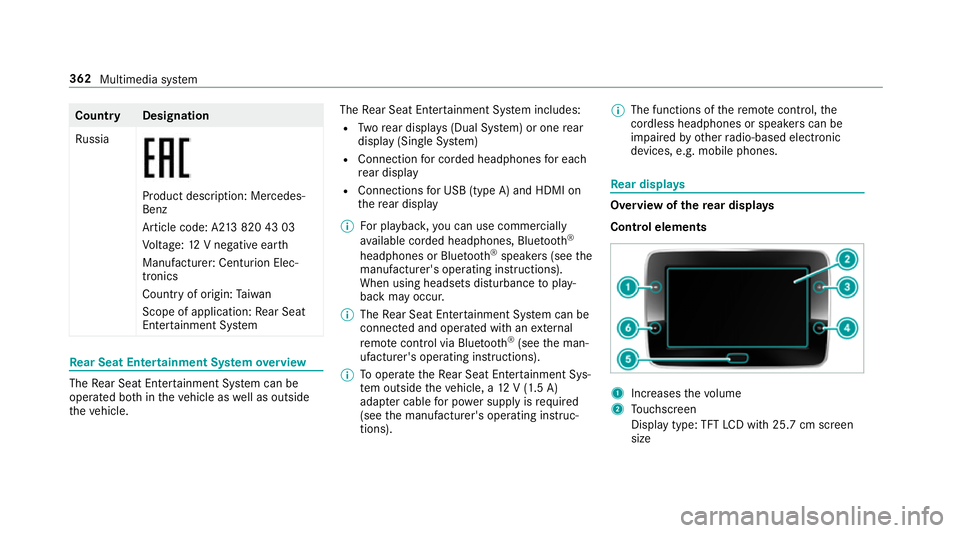
Count
ryDesignation
Ru ssia Product description: Mercedes-
Benz
Article code: A2
13820 43 03
Vo ltage: 12V negative ear th
Manufacturer: Centurion Elec‐
tronics
Country of origin: Taiwan
Scope of application: Rear Seat
En tertainment Sy stem Re
ar Seat Entertainment Sy stem overview The
Rear Seat En tertainment Sy stem can be
operated bo thintheve hicle as well as outside
th eve hicle. The
Rear Seat En tertainment Sy stem includes:
R Twore ar displa ys(Dual Sy stem) or one rear
display (Sin gle Sy stem)
R Connection for corded headphones for each
re ar display
R Connections for USB (type A) and HDMI on
th ere ar display
% For playback ,yo u can use commercially
av ailable corded headphones, Blue tooth®
headphones or Blue tooth®
speakers (see the
manufacturer's operating instructions).
When using headsets disturbance toplay‐
back may occur.
% The Rear Seat En tertainment Sy stem can be
connected and operated with an extern al
re mo tecontrol via Blu etoo th®
(see the man‐
ufacturer's operating instructions).
% Tooperate theRe ar Seat En tertainment Sys‐
te m outside theve hicle, a 12V (1.5 A)
adapte r cable for po wer supply is required
(see the manufacturer's operating instruc‐
tions). %
The functions of there mo tecontrol, the
cordless headphones or speakers can be
impaired by otherradio-based elect ronic
devices, e.g. mobile phones. Re
ar displa ys Overview of
there ar displa ys
Control elements 1
Increases thevo lume
2 Touchsc reen
Display type: TFT LCD wi th25.7 cm screen
size 362
Multimedia sy stem
Page 366 of 549
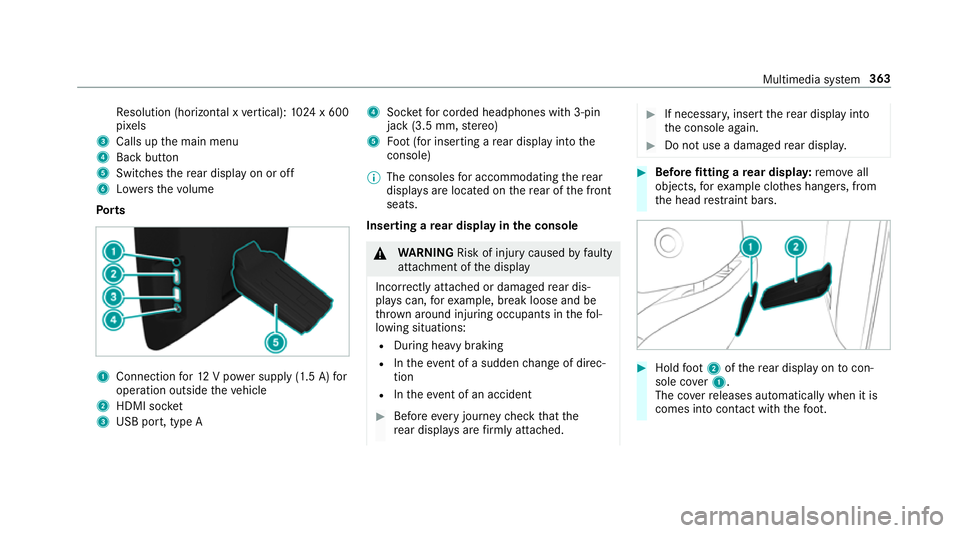
Re
solution (horizontal x vertical): 1024 x 600
pi xe ls
3 Calls up the main menu
4 Back button
5 Switches there ar display on or off
6 Lowe rsthevo lume
Po rts 1
Connection for12 V po wer supp ly(1.5 A) for
operation outside theve hicle
2 HDMI soc ket
3 USB port, type A 4
Socketfo r corded headphones with 3-pin
jack (3.5 mm, stereo)
5 Foot (for inserting a rear display into the
console)
% The consoles for accommodating there ar
displa ysare located on there ar of the front
seats.
Inserting a rear display in the console &
WARNING Risk of inju rycaused byfaulty
attachment of the display
Incor rectly attached or damaged rear dis‐
pla yscan, forex ample, break loose and be
th ro wn around injuring occupants in thefo l‐
lowing situations:
R During heavy braking
R Intheeve nt of a sudden change of direc‐
tion
R Intheeve nt of an accident #
Before every journey check that the
re ar displa ysare firm lyattached. #
If necessar y,inse rtthere ar display into
th e console again. #
Do not use a damaged rear displa y. #
Before fitting a rear displa y:remo veall
objects, forex ample clo thes hangers, from
th e head restra int bars. #
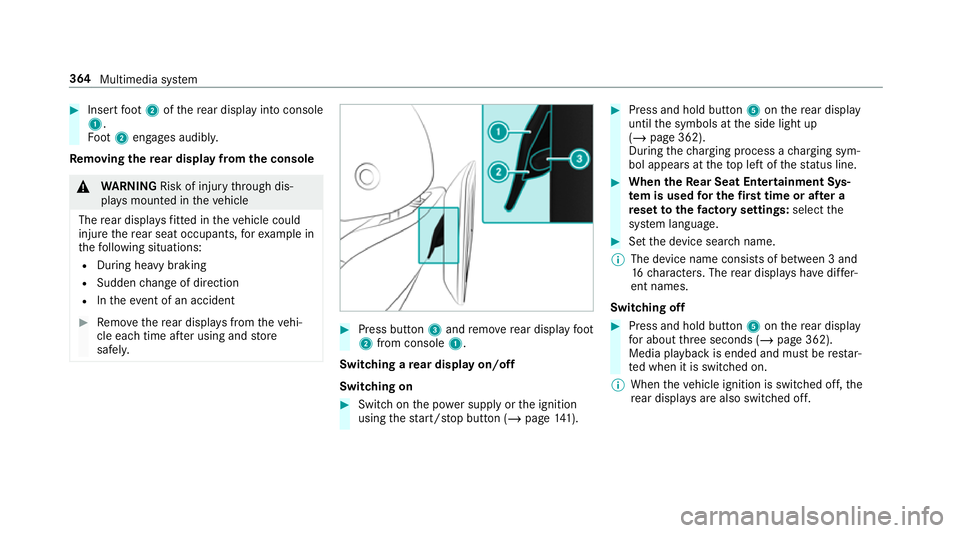
Hold foot 2 ofthere ar display on tocon‐
sole co ver1.
The co verre leases automatically when it is
comes into con tact wi th thefo ot. Multimedia sy
stem 363
Page 367 of 549
#
Insert foot 2 ofthere ar display into console
1.
Fo ot 2 engages audibly.
Re moving the rear display from the console &
WARNING Risk of inju rythro ugh dis‐
pla ysmounted in theve hicle
The rear displa ysfitted in theve hicle could
injure there ar seat occupants, forex ample in
th efo llowing situations:
R During heavy braking
R Sudden change of direction
R Intheev ent of an accident #
Remo vethere ar displa ysfrom theve hi‐
cle each time af ter using and store
safel y. #
Press button 3and remo verear display foot
2 from console 1.
Switching a rear display on/off
Switching on #
Switch on the po wer supp lyor the ignition
using thest art/ stop button (/ page141). #
Press and hold but ton5 onthere ar display
until the symbols at the side light up
(/ page 362).
During thech arging process a charging sym‐
bol appears at theto p left of thest atus line. #
When theRe ar Seat Entertainment Sys‐
te m is used for the firs t time or af ter a
re set tothefa ctory settings: selectthe
sy stem language. #
Set the device sear chname.
% The device name consi sts of between 3 and
16 characters. The rear displa yshave differ‐
ent names.
Switching off #
Press and hold button 5onthere ar display
fo r about thre e seconds (/ page 362).
Media playback is ended and must be restar‐
te d when it is switched on.
% When theve hicle ignition is switched off, the
re ar displa ysare also swit ched off. 364
Multimedia sy stem
Page 368 of 549
St
arting standby mode #
On there ar displa y:brief lypress button
5.
The signal tothere ar display is swit ched off.
Media playback is stopped.
Ending standby mode #
On there ar displa y:press button 5. #
Continue media playback with Ì.
Eliminating problems with switching on
If no signal appears in there ar displa y,car ryout
th efo llowing steps. #
Switch on the ignition.
or #
Check the connection toextern ally connec‐
te d devices. or #
Remo vethere ar display from the console
(/ page 364). #
Clean the conta cts. #
Insert there ar display into the console
(/ page 363).
or #
Have the fuses forth eve hicle seat checked
at a Mercedes-Benz service centre.
Operating a rear display #
Toselect a menu: brieflytap on the
to uchsc reen. #
Toscroll in lists: slowly movethe scroll bar
up or down. #
Toexitth e menu: pressthe% button. Cleaning
there ar display &
WARNING Risk of accident and inju ry
caused byspilling liquids on a display
Spilled liquids could result in a fire or an
electric shoc k. #
Do not pour or sp ray any liquids on to
th e displa y. #
Switch off there ar display and let it cool
down. #
Use a soft, lint-f ree clo th, mois tened wi th
wate r. Multimedia sy
stem 365