stop start MERCEDES-BENZ G-CLASS SUV 2018 User Guide
[x] Cancel search | Manufacturer: MERCEDES-BENZ, Model Year: 2018, Model line: G-CLASS SUV, Model: MERCEDES-BENZ G-CLASS SUV 2018Pages: 549, PDF Size: 10.22 MB
Page 164 of 549
#
Alw ays disengage the dif fere ntial lo cks
immediately on a firm , high-t raction
su rface. Dif
fere ntial lo cks impr ovethe traction of the
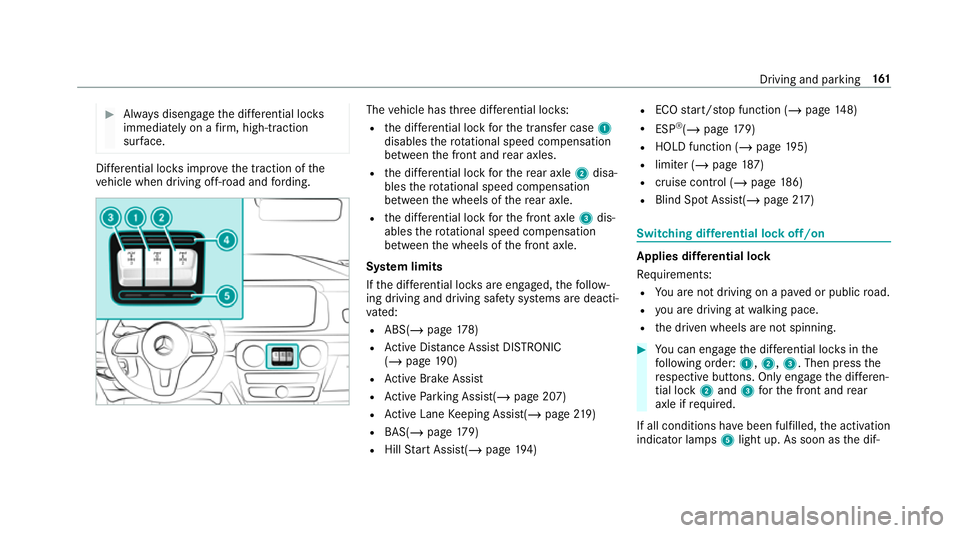
ve hicle when driving off-road and ford ing. The
vehicle has thre e dif fere ntial lo cks:
R the dif fere ntial lo ckforth e transfer case 1
disables thero tational speed compensation
between the front and rear axles.
R the dif fere ntial lo ckforth ere ar axle 2disa‐
bles thero tational speed compensation
between the wheels of there ar axle.
R the dif fere ntial lo ckforth e front axle 3dis‐
ables thero tational speed compensation
between the wheels of the front axle.
Sy stem limits
If th e dif fere ntial lo cks are engaged, thefo llow‐
ing driving and driving saf ety sy stems are deacti‐
va ted:
R ABS( /page 178)
R Active Dis tance Assi stDISTRONIC
(/ page 190)
R Active Brake Assi st
R Active Parking Assist(/ page 207)
R Active Lane Keeping Assist(/ page219)
R BAS(/ page179)
R Hill Start Assist(/ page194) R
ECO start/ stop function (/ page148)
R ESP ®
(/ page 179)
R HOLD fu nction (/ page 195)
R limi ter (/ page187)
R cruise control (/ page 186)
R Blind Spot Assi st(/ page 217) Swi
tching dif fere ntial lock off/on Applies dif
fere ntial lock
Re quirements:
R You are not driving on a pa ved or public road.
R you are driving at walking pace.
R the driven wheels are not spinning. #
You can en gage the dif fere ntial lo cks in the
fo llowing order: 1,2, 3. Then press the
re spective buttons. Only engage the dif fere n‐
tial lo ck2 and 3forth e front and rear
axle if requ ired.
If all conditions ha vebeen fulfilled, the activation
indicator lamps 5light up. As soon as the dif‐ Driving and parking
161
Page 171 of 549
To
pping up AdBlue ® #
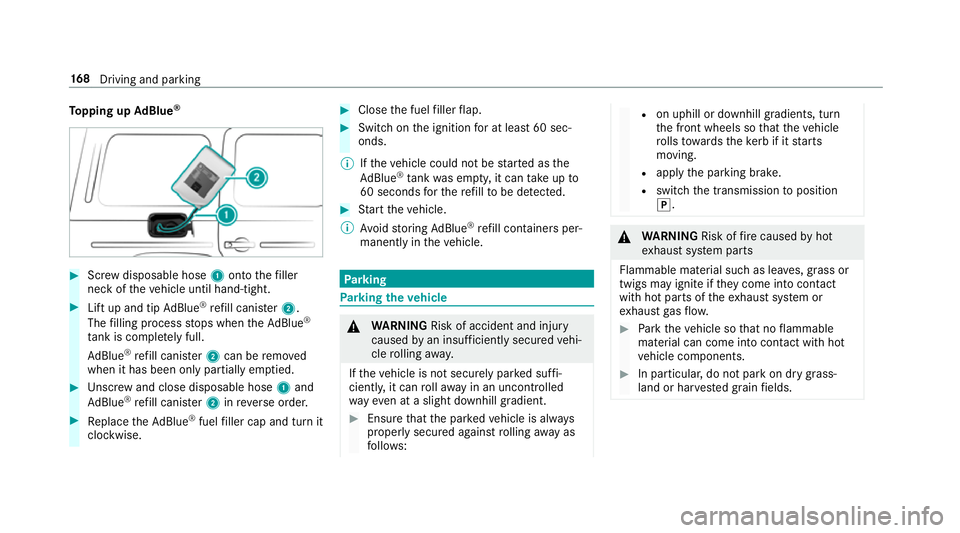
Screw disposable hose 1onto thefiller
neck of theve hicle until hand-tight. #
Lift up and tip AdBlue ®
re fill canis ter2.
The filling process stops when theAd Blue ®
ta nk is compl etely full.
Ad Blue ®
re fill canis ter2 can be remo ved
when it has been only partially em ptied. #
Unscr ew and close disposable hose 1and
Ad Blue ®
re fill canis ter2 inreve rse order. #
Replace theAd Blue ®
fuel filler cap and turn it
clockwise. #
Close the fuel filler flap. #
Swit chon the ignition for at least 60 sec‐
onds.
% Ifth eve hicle could not be star ted as the
Ad Blue ®
tan kwa s em pty, it can take up to
60 seconds forth ere fill to be de tected. #
Start theve hicle.
% Avoid storing AdBlue ®
re fill con tainers per‐
manently in theve hicle. Pa
rking Pa
rking theve hicle &
WARNING Risk of accident and inju ry
caused byan insuf ficiently secu redve hi‐
cle rolling away.
If th eve hicle is not securely par ked suf fi‐
ciently, it can rollaw ay in an uncont rolled
wa yev en at a slight downhill gradient. #
Ensure that the par kedve hicle is alw ays
properly secured against rolling away as
fo llo ws: R
on uphill or downhill gradients, turn
th e front wheels so that theve hicle
ro lls towa rdsth eke rb if it starts
moving.
R apply the parking brake.
R switch the transmission toposition
j. &
WARNING Risk offire caused byhot
ex haust sy stem parts
Flammable material such as lea ves, grass or
twigs may ignite if they come into contact
wi th hot parts of theex haust sy stem or
ex haust gasflow. #
Park theve hicle so that no flammable
material can come into con tact wi thhot
ve hicle components. #
In particular, do not park on dry grass‐
land or har vested grain fields. 16 8
Driving and pa rking
Page 198 of 549
This gives
you enough time tomo veyour foot
from the brake pedal tothe accelera tor pedal
and depress it before theve hicle begins toroll
aw ay. &
WARNING Risk of accident and inju ry
due totheve hicle rolling away
Af ter a short time, Hill Start Assist no lon ger
holds theve hicle and it can rollaw ay. #
Therefore, swiftly mo veyour foot from
th e brake pedal tothe accelerator
pedal. Ne ver attem pttolea vetheve hi‐
cle if it is being held byHill Start Assist. HOLD function
HOLD function
The HOLD function holds
theve hicle at a stand‐
st ill without requ iring youto depress the brake
pedal, e.g. while waiting in traf fic.
The HOLD function is only an aid. The responsi‐
bility forth eve hicle safely standing still remains
with the driver. Sy
stem limitations
The HOLD function is only intended toprov ide
assis tance when driving and is not a su fficient
means of safeguarding theve hicle against rolling
aw ay when stationar y.
R The incline must not be greater than 30%.
Ac tivating/deactivating the HOLD function &
WARNING Risk of an accident due tothe
HOLD function being activated when you
lea vetheve hicle
If yo u lea vetheve hicle while only the HOLD
function is braking theve hicle, theve hicle
can rollaw ay inthefo llowing situations:
R Ifth ere is a malfunction in the sy stem or
in the po wer supply.
R Ifth e HOLD function is deactivated by
depressing the accelerator pedal or brake
pedal, e.g. byave hicle occupant. #
Alw ays deactivate the HOLD function
and secure theve hicle against rolling
aw ay before leaving theve hicle. Re
quirements:
R The vehicle is stationar y.
R The driver's door is closed or the seat belt on
th e driver's side is fastened.
R The engine is running or has been au tomati‐
cally switched off bythe ECO start/ stop
function.
R The electric parking brake is released.
R Active Dis tance Assi stDISTRONIC is deacti‐
va ted.
R The transmission is in position h,kori.
Ac tivating the HOLD function #
Dep ress the brake pedal and af ter a short
time quickly depress fur ther until theë
display appears in the multifunction displa y. #
Release the brake pedal.
Deactivating the HOLD function #
Depress the accelerator pedal topull away.
or #
Depress the brake pedal until theë dis‐
play disappears from the multifunction dis‐
pla y. Driving and pa
rking 19 5
Page 213 of 549
#
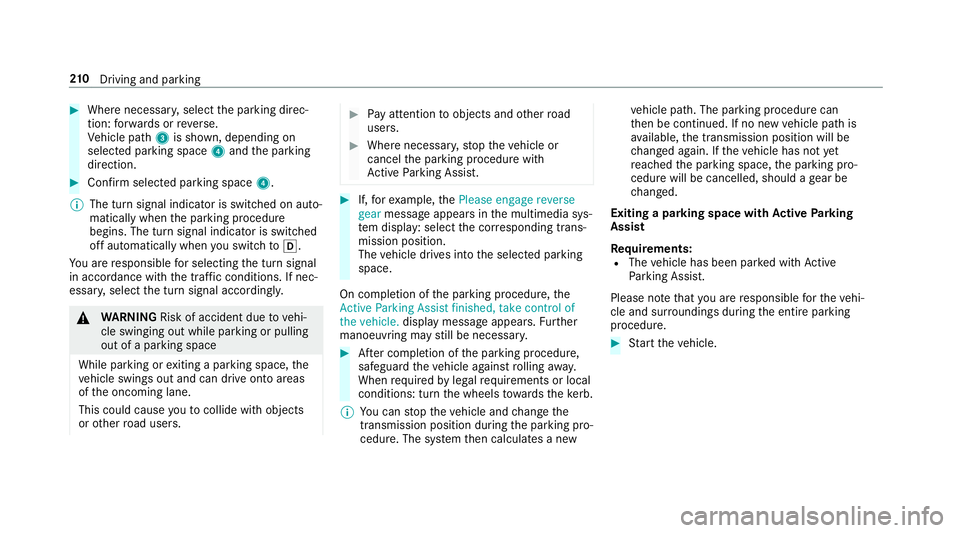
Where necessar y,select the parking direc‐
tion: forw ards or reve rse.
Ve hicle path 3is shown, depending on
selected parking space 4and the parking
direction. #
Confirm selected parking space 4.
% The turn signal indicator is switched on auto‐
matically when the parking procedure
begins. The turn signal indicator is switched
off automatically when you swit chtoh .
Yo u are responsible for selecting the turn signal
in accordance with the traf fic conditions. If nec‐
essar y,select the turn signal accordingly. &
WARNING Risk of accident due tovehi‐
cle swinging out while parking or pulling
out of a parking space
While parking or exiting a parking space, the
ve hicle swings out and can drive onto areas
of the oncoming lane.
This could cause youto collide wi thobjects
or other road users. #
Pay attention toobjects and other road
users. #
Where necessar y,stop theve hicle or
cancel the parking procedure with
Ac tive Parking Assist. #
If,forex ample, thePlease engage reverse
gear message appears in the multimedia sys‐
te m display: select the cor responding trans‐
mission position.
The vehicle drives into the selected parking
space.
On completion of the parking procedure, the
Active Parking Assist finished, take control of
the vehicle. displaymessa geappears. Further
manoeuvring may still be necessar y. #
After completion of the parking procedure,
safeguard theve hicle against rolling away.
When requ ired bylegal requirements or local
conditions: turn the wheels towa rdsth eke rb.
% You can stop theve hicle and change the
transmission position du ring the parking pro‐
cedure. The sy stem then calculates a new ve
hicle path. The parking procedure can
th en be continued. If no new vehicle path is
av ailable, the transmission position will be
ch anged again. If theve hicle has not yet
re ached the parking space, the parking pro‐
cedure will be cancelled, should a gear be
ch anged.
Exiting a pa rking space with Active Parking
Assist
Re quirements:
R The vehicle has been par ked with Active
Pa rking Assist.
Please no tethat you are responsible forth eve hi‐
cle and sur roundings during the entire parking
procedure. #
Start theve hicle. 210
Driving and pa rking
Page 232 of 549
The
following display con tent can be selected in
th eClassic andSport designs:
R Rev counter
R Navigation
R ECO display
R Consu mption
R G-m eter
The following con tent can be selected in thePro-
gressive design:
R Date
R Navigation
R ECO display
R Consu mption
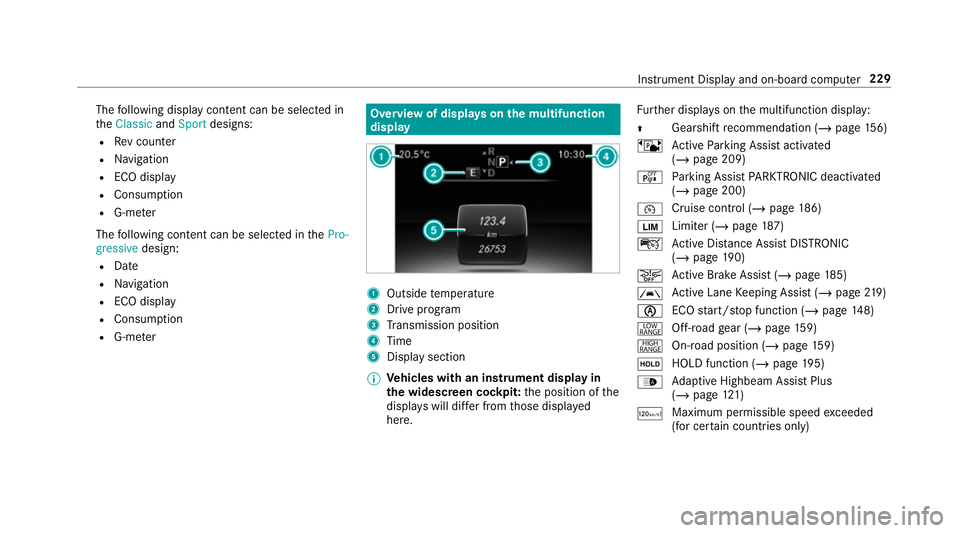
R G-m eter Overview of displa
yson the multifunction
display 1
Outside temp erature
2 Drive prog ram
3 Transmission position
4 Time
5 Display section
% Ve
hicles with an instrument display in
th e widescreen cockpit: the position of the
displa yswill dif fer from those displa yed
here. Fu
rther displa yson the multifunction display:
Z Gearshift
recommendation (/ page 156)
ë Active Parking Assist activated
(/ page 209)
é Parking Assist PARKTRONIC deacti vated
( / page 200)
¯ Cruise control (/
page186)
È Limi
ter (/ page187)
ç Active Dis tance Assi stDISTRONIC
(/ page 190)
æ Ac
tive Brake Assi st (/ page 185)
à Ac
tive Lane Keeping Assist (/ page219)
è ECO
start/ stop function (/ page148)
+ Off-
road gear (/ page159)
Ì On-road position (/ page 159)
ë HOLD fu
nction (/ page 195)
_ Ad
aptive Highbeam Assist Plus
(/ page 121)
ð Ma
ximum pe rmissible speed exceeded
(for cer tain countries only) Instrument Display and on-board computer
229
Page 238 of 549
Changing a media source
#
Press the left-hand Touch Control. #
Toselect a media source: swipe upwards
or down wards on the left-hand Touch Con‐
trol. #
Press the left-hand Touch Control. Dialling
telephone numbers using the on-
board compu ter &
WARNING Risk of di stra ction from infor‐
mation sy stems and communications
equipment
If yo u operate information and communica‐
tion equipment integ rated in theve hicle
when driving, you will be distracted from the
traf fic situation. This could also cause youto
lose control of theve hicle. #
Only operate this equipment when the
traf fic situation permits. #
Ifyo u cannot be sure of this, stop the
ve hicle whilst paying attention toroad and traf
fic conditions and ope rate the
equipment with theve hicle stationar y. When
telephoning, you must obse rveth e legal
re qu irements forth e count ryin which you are
cur rently driving.
Re quirements:
R The mobile phone is connec tedto the multi‐
media sy stem.
On-board computer: 4 Telephone
Ve hicles with the COMAND Online multime‐
dia sy stem: the most recent telephone calls
(dialled, recei ved and missed calls) are displa yed
on theTelephone menu. #
Toselect an entr y:swipe upwards or down‐
wa rds on the left-hand Touch Control. #
Press the left-hand Touch Control.
If th ere is only one telephone number
sa ve dto an entr y:thete lephone number
will be selec ted. #
Ifth ere are multiple telephone numbers
sa ve dto an entr y:swipe upwards or down‐ wa
rds on the left-hand touch cont rolto
select the desired telephone number. #
Press the left-hand Touch Control.
The telephone number will be dialled.
The following displa ysmay appear ins tead of the
te lephone numbers dialled:
R Please wait... :th e application is starting. If a
Blue tooth ®
connection tothe mobile phone
is not es tablished, the menu for auth orising
and connecting a mobile phone will be dis‐
pla yed on the multimedia sy stem
(/ page 301).
R Updating data...: the call list is being upda‐
te d.
R Importing contacts... : contacts are being
impor ted from the mobile phone or a storage
medium.
Ac cepting/rejecting a call
Ve hicles with head-up displa y:When you
re cei vea call, theIncoming call message will
appear on the head-up displa y. Instrument Display and on-board computer
235
Page 240 of 549
Note
s on operating saf ety &
WARNING Risk of di stra ction from infor‐
mation sy stems and communications
equipment
If yo u operate information and communica‐
tion equipment integ rated in theve hicle
when driving, you will be distracted from the
traf fic situation. This could also cause youto
lose control of theve hicle. #
Only operate this equipment when the
traf fic situation permits. #
Ifyo u cannot be sure of this, stop the
ve hicle whilst paying attention toroad
and traf fic conditions and ope rate the
equipment with theve hicle stationar y. &
WARNING Risk of di stra ction from oper‐
ating mobile communication equipment
while theve hicle is in motion
If yo u operate mobile communication equip‐
ment when driving, you will be distracted from
the tra ffic situation. This could also
cause youto lose control of theve hicle. #
Only operate this equipment when the
ve hicle is stationar y. Fo
ryo ur ow n sa fety, al ways obser vethefo llow‐
ing points when operating mobile communica‐
tions equipment and especially your voice con‐
trol sy stem:
R Obser vethe legal requ irements forth e coun‐
try in which you are driving.
R While driving, on ly operate mobile communi‐
cations equipment and your voice control
sy stem when the tra ffic conditions permit it.
Yo u may otherwise be distracted from the
traf fic conditions and cause an accident,
inju ring yourself and others.
R Ifyo u use thevo ice control sy stem in an
emer gency your voice can change and your
te lephone call, e.g. an emer gency call, can
th ereby be unnecessarily dela yed.
R Familiarise yourself with thevo ice control
sy stem functions before starting the journe y. Operation
Overview of operation of LINGU
ATRO NIC on
the multifunction steering wheel LINGU
ATRO NIC is operational appr oximately
th irty seconds af terth e ignition is switched on. LINGU
ATRO NIC 237
Page 282 of 549
Multimedia sy
stem:
4 Navigation
5 Intermediate destinations and info #
Select Start new route guidance.
The route is calculated with the set inter‐
mediate destinations.
Selecting a contact for destination entry
Re quirements:
R A mobile phone is connec tedto the multime‐
dia sy stem (/ page 301).
R Contacts ha vebeen downloaded
(/ page 309).
Multimedia sy stem:
4 Navigation
5 ¬ Previous and other destinations
5 Contacts #
Select the conta ct.
The contact de tails are displa yed. #
Select the address. Fi
ltering displa ysfor contacts #
Enter a name or telephone number, forex am‐
ple, into the sear chfield. #
Select ¡.
The firs t contact in the list is highlighted. #
Select the conta ct. #
Select the address.
Entering geo-coordina tes
Multimedia sy stem:
4 Navigation
5 ¬ Previous and other destinations
5 Geo-coordinates #
Ente rge o-coordinates as latitude and longi‐
tude coordinates in degrees, minutes and
seconds.
The map sho ws the position. #
Confirm the entry. #
Tocalculate a route: select Start route
guidance. #
If a route has already been created, select
Start new route guidance orSet as inter-
mediate destination . Entering
the destination as a 3 wordaddress
Re quirements:
R Sear ching for a destination using 3 word
addresses is possible in the online sear ch
( / page 274).
R There is an Internet connection.
% Sear ching for a destination using 3 word
addresses is not possible in all countries.
Multimedia sy stem:
4 Navigation 5
ª Enter destination #
Select Online search. #
Ente rth e destination address as a 3 word
address. Separate each of thewo rds with a
full stop.
The sear chresults are displa yed. #
Select the destination in the list.
The destination address is shown. The route
can be calculated. Multimedia sy
stem 279
Page 287 of 549
#
When there is a route, thefilling station is set
as the next intermediate destination.
St arting the automatic service station
sear ch
Re quirements:
R ATTENTION ASSIST and theSuggest rest
area function are activated (/ page215).
Driving si tuation
The ATTENTION ASSIST Do you want to start
the rest area search? messageis shown. #
Select Yes.
The service station sear ch starts. The availa‐
ble service stations along thero ute or in the
vicinity of theve hicle's cur rent position are
displ ayed. #
Select the service station.
The service station address is displa yed. #
Ifro ute guidance is not active, select Start
route guidance .
The selected service station is set as a desti‐
nation. Route guidance begins.
or #
Ifro ute guidance is active, select Start new
route guidance orSet as next intermediate
destination .
Start new route guidance: the selected
service station is set as a new destination.
The pr evious destination and all intermediate
destinations are dele ted. Ro ute guidance to
th e service station begins.
Set as next intermediate destination: the
selected service station is set as the next
intermediate destination. Route guidance
begins. Ro
ute guidance Note
s onroute guidance &
WARNING Risk of di stra ction from oper‐
ating integrated communication equip‐
ment while theve hicle is in motion
If yo u operate communication equipment
integrated in theve hicle when driving, you
will be distracted from the tra ffic situation.
This could also cause youto lose control of
th eve hicle. #
Only operate this equipment when the
traf fic situation permits. #
Ifyo u cannot be sure of this, stop the
ve hicle whilst paying attention toroad
and traf fic conditions and ope rate the
equipment with theve hicle stationar y. Yo
u must obse rveth e legal requirements forthe
country in whi chyou are cur rently driving when
operating the multimedia sy stem.
Ro ute guidance begins once a route has been
calculated.
The road and traf fic ru les and regulations alw ays
ha ve priority over multimedia sy stem driving
instructions.
The following driving instructions can be used:
R Navigation announcements
R Route guidance displ ays
R Lane recommendations
If yo u do not follow the driving instructions or if
yo u lea vethe calculated route, a new route is
calculated automaticall y.284
Multimedia sy stem
Page 319 of 549
Multimedia sy
stem:
4 Connect 5
Apple CarPlay
Setting automatic or manual start
A messa geappears when connec tedfo rth efirst
time. #
Automatic star t:select Automatically.
Start automatically is activatedO.
Apple CarPlay™ will now start immediately
af te rth e iPhone ®
is connected tothe multi‐
media sy stem using a USB cable. #
Manual star t:select Manually . #
Select the iPhone ®
in the device list.
Ac cepting/rejecting the data pr otection reg‐
ulations
A message with the data pr otection regulations
appears. #
Select Accept & Start .
or #
Select Decline & End. Exiting Apple CarPlay™ #
Press theò button on the multifunction
st eering wheel, forex ample.
% If Apple CarPlay™ was not displa yed in the
fo re ground before disconnecting, the appli‐
cation starts in the bac kground when recon‐
nected. You can call up Apple CarPlay™ in
th e main menu.
Calling up Apple CarPlay™ sound settings
Multimedia sy stem:
4 Connect 5
Apple CarPlay 5
Sound #
Select theto ne menu (/ page 359).
Ending Apple CarPlay™
Multimedia sy stem:
4 Connect 5
Apple CarPlay #
Select Disconnect.
The connection is ended.
The mobile phone continues tobe supplied
with elect ricity.
or #
Disconnect the connecting cable between
th e mobile phone and multimedia sy stem.
Mercedes-Benz recommends disconnecting
th e connecting cable only when theve hicle is
st ationar y. Android
Auto Android
Autoove rview &
WARNING Risk of di stra ction from infor‐
mation sy stems and communications
equipment
If yo u operate information and communica‐
tion equipment integ rated in theve hicle
when driving, you will be distracted from the
traf fic situation. This could also cause youto
lose control of theve hicle. #
Only operate this equipment when the
traf fic situation permits. #
Ifyo u cannot be sure of this, stop the
ve hicle whilst paying attention toroad
and traf fic conditions and ope rate the
equipment with theve hicle stationar y. 316
Multimedia sy stem