Interface MERCEDES-BENZ GL-Class 2012 X164 Comand Manual
[x] Cancel search | Manufacturer: MERCEDES-BENZ, Model Year: 2012, Model line: GL-Class, Model: MERCEDES-BENZ GL-Class 2012 X164Pages: 210, PDF Size: 5.11 MB
Page 140 of 210

!
Retain theoriginal musicfilesinasecure
location. Anerror inCOMAND mightresult
in the loss ofthe music filesstored inthe
MUSIC REGISTER. Mercedes-Benz isnot
liab lefor any loss ofdata. Switchin
gto MUSIC REGISTER
Option 1 X
Press theh function buttonrepeatedly
until theMUSIC REGISTER isswitched on.
If there areany music files,youwillhear the
first track inthe first folder foundor
play back willbegin atthe point itwas last
interrupted.
If there arenomusic files,youwillsee a
message tothis effect.
By pressing theh function button
repeatedly ,you can switch modes inthe
followi ngorder:
R audi oCD/DVD /MP3(disc)
R SD memory cardmode
R MUSIC REGISTER
R Media Interfacemode
X You first need tocopy music filestothe
MUSIC REGISTER (Ypage 138).
Option 2 X
Select Audio in
the main function barusing
the 9=; buttonsandpress the
9 button toconfirm.
If MUSIC REGISTER wasthelast mode
selected, itis now switched on.
If another audiosource isswitched on,you
can now switch onthe MUSIC REGISTER in
the audi omenu.
X Select Audio using
the9 button and
press the9button toconfirm.
The audi omenu appears.
X Select Music Register and
press the9
button toconfirm. Option
3 X
Press ther number button.
The MUSIC REGISTER isswitched on. Example
display:MUSIC REGISTER
: Type ofdata carrier: MUSICREGISTER
; Track number
= CD orDVD inserted
? Track name
A Track time
B Graphi ctime and track display
C Curren tplayback settings (no symbol for
"Norm altrack sequen ce")
D Soun dset tings
E Media selection
F Curren tfolder
G Folder functions
H Data carrier position inthe media list
I Tocall upthe MUSIC REGISTER menu Copying
musicdatato the MUSIC
REGISTER
Introdu ction You
cancopy music filesfrom discs inthe
DVD changer orfrom thememory card,as
long asthey areinMP3 and/or WMAformat.
i While copying, severalfunctionswillnot
be availa ble.Ifthis isthe case, youwillsee
a message tothis effect . 138
MUSIC
REGISTERAudio
Page 143 of 210

:
Fold ersel ectio nsymbo l
; Icon formus icfile
= Curr entfolder
X To select onefolder higher: selectthe
U symbol.
The display changes tothe next folder up.
Changing thefolder/tr ackname X
Select Folder using
the:=;
button sand press the9button toconf irm.
X Select afolder/t rackusing the:9
button sand press the9button toconf irm.
X Select Options and
press the9button to
conf irm.
X Select Change and
press the9button to
conf irm.
X En ter aname forthe folder/t rack.
X To save thechanges: select¬and
press the9button toconf irm.
Dele ting folders/tr acks X
Select Folder using
the:=;
button sand press the9button toconf irm.
X Select afolder/t rackusing the:9
button sand press the9button toconf irm.
X Select Options and
press the9button to
conf irm.
X Select Delete and
press 9toconf irm.
Aq uery appear s.No is
high light ed.
If you selectYes ,
th efol der s/track sare
delet ed.You seethePle ase Wait... mes
sage .Then, youseetheDeletion Procedure
Successful message.
If you select No ,
the process willbeaborted. Playback
options
The following optionsareavaila bletoyou:
R Normal TrackSequence The
track sare play edinthe normal order
(e.g. track 1,2,3, etc. ).
R Random Tracks All
the track son the medium areplay edin
random order.
R Random Folder (only
inMP3 mode)
The track sin the current lyactive folderare
play edinrandom order.
X To selec toptio ns:switch onthe MUSIC
REG ISTER (Ypage 138).
X Sel ect Musi cRegi ster .
The options list appea rs.The #dot
ind icates the optionselected .
X Sel ect anopti on.
The optionisswi tched on.For allopti ons
excep tNorm alTrac kSequ ence ,
yo uwi ll
see acorre spondingdispl ayinthe displ ay/
sel ectio nwindow.
i The Norm alTrac kSequ ence opt
ion is
autom atically selec tedwhen youchan ge
the disc youarecurr entlylist enin gto or
when youselec tadifferent medium.Ifan
option isselect ed,itremains selectedafter
COMAND isswitc hedonoroff. Media
Interfacemode Connection
options
Overview The
connection jacksare located:
R in the centercon sole stowage
compart ment(SL)
R in the glove box Media
Interfacemod e
141Audio Z
Page 144 of 210
To
conn ectexter naldevices tothe Media
Int erface, yourequire device-spec ificadapter
cables whichareincluded inthe Media
Int erface scopeofdelivery.
i Stow the individual partsinasecure
location.
Use only genuine Mercedes- Benz
conn ectin gcables.
You canconn ectthe following datacarriers
to COMAND viathe Media Interface:
R iPod ®
R USB devices (USBsticks,USB hard drives)
i iPod ®
is aregistered trademark ofApple
Inc .,Cupertino, California,USA.
Supp orted iPod®
varia nts The
following areexamples ofsupported
iPod ®
variants:
R iPod ®
mini
R iPod ®
nano
R iPod ®
classic
R iPod ®
touch
Supp orted USBdevices The
following USBdevices aresupported:
R USB sticks(flash memory)
R USB hard drives requiring astart up/
permanen tcurren tof max. 800mA(itmay
be necess arytoconn ectaseparate power
supply)
R cert ainMP3 players
i The Media Interface supports USB
storage mediaof"USB Device Subclass 6".
Infor mation concernin gUSB Device
Subclass 6isavail able from theequip ment
manufacturer.
For further detailsandalist ofsupported
devices, pleasecontactanauthorized
Mercedes-Benz Centerorvisit http://
www .mercedes-be nz.com/conne ctand proceed
asdescribed under"Media
Interf ace". Conne
ctinganexternal device
i Donot leave extern aldevices inthe
vehicle, asatextreme temperatures (e.g.in
direct sunlight orextremely lowoutside
temperatures) theycannot beguara nteed
to function correctly(see theoperating
instruct ionsforthe respective device).
Mercedes-Benz doesnottake
responsibili tyfor any damage toextern al
devices.
Never connectmore thanonedevice ata
time. Youwillotherwise notbeable toplay
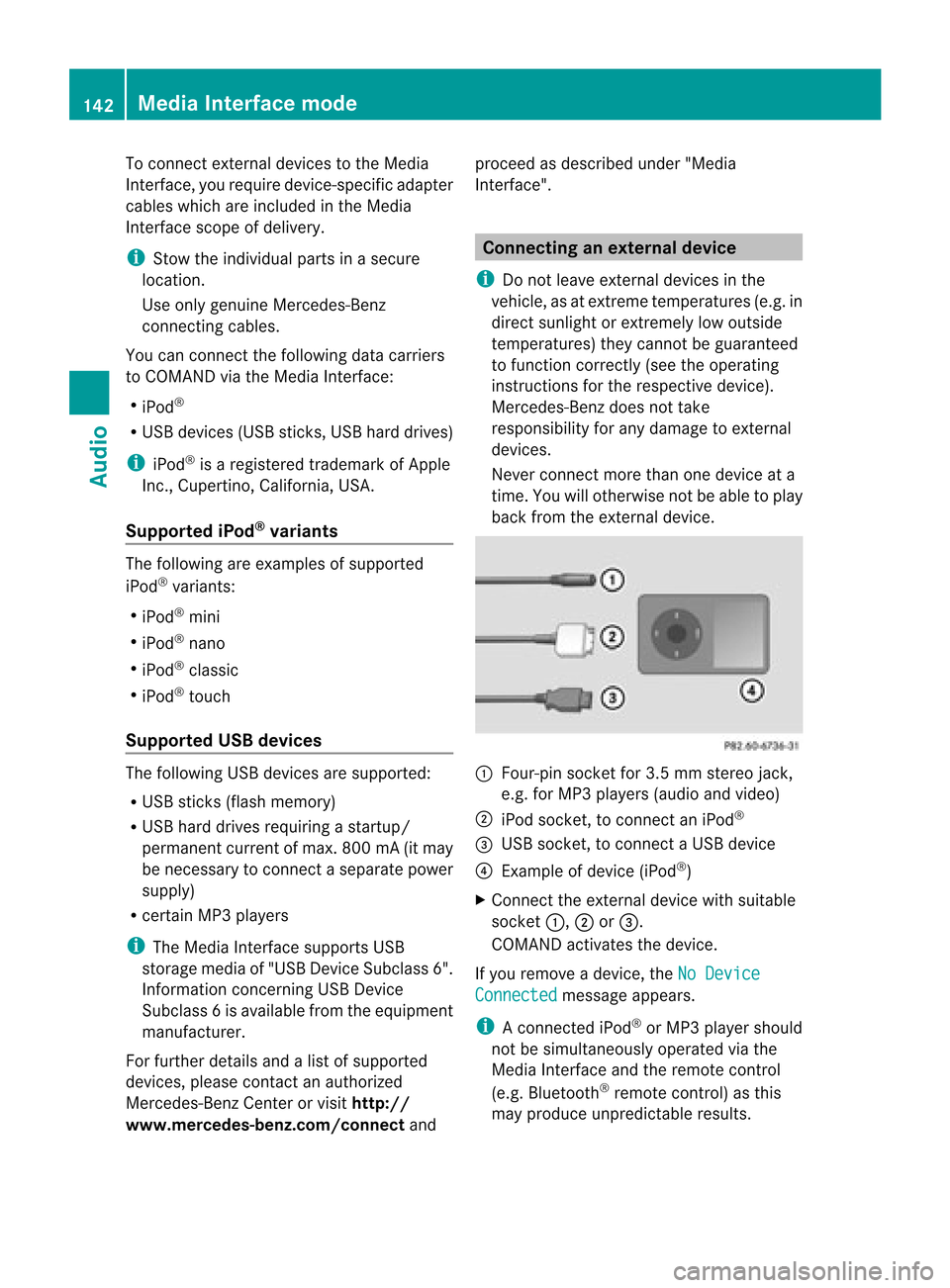
back fromtheextern aldevice. :
Four-pin socketfor3.5 mm stereo jack,
e.g. forMP3 players(audio and video)
; iPod socket ,to conn ectaniPod ®
= USB socket ,to conn ectaUSBdevice
? Examp leof device (iPod ®
)
X Co nnect theexter naldevice with suita ble
socke t:, ;or=.
CO MAND activate sthe device .
If yo uremo veade vice ,the No Device Connected message
appears.
i Aconn ected iPod®
or MP3 playershould
not besimultaneously operatedviathe
Media Interface andtheremote control
(e.g. Bluetooth ®
remote control)asthis
may produce unpredictable results.142
Media
Interface modeAudio
Page 145 of 210

i
Con necting aco mple tely disc harg ediPod
or MP3 player canresult inan extend ed
ini tializ ation per iod.
Er ror mes sage sappear whilethedev iceis
bein gact ivat edif:
R COMA NDdoes notsuppor tthe device
conn ected (External Device Unavailable ).
R two devices areconn ected simultaneously
(Please makesurethatonlyone device
isconnected ).
R the conn ected device consumes toomuch
power.
R the Media Interface connection isfaulty.
i Ifnecessary, consultanauthorized
Mercedes-Ben zCent er. Switches
onMedia Interfa cemode
General notes In
ext reme cases, startingupindividual
func tionscan take uptoseveral minutes–
this depends onthe external device andits
con tent(e.g. video podcasts ).
Only usetheoriginal software tostor edata
on your iPods andMP3 players. Otherwise,
some orall func tionsmay notbeavailable.
Opt ions forswitching on Opt
ion 1
X Connec tan ext ernal device (Ypage 142).
COMAND activatesthe device. Thebasic
display thenappears.
Opt ion 2
X Press theh functionbutton oneormore
times.
By pressing theh function button
repeatedly, youcan change theoperatin g
mode inthe following order:
R audio CD/DVD/MP3 (disc)
R SD memory cardmode R
MUSIC REGISTE R
R Media Interface mode
Opt ion 3
X Press thex number key.
This direct lyselect sthe con nected external
audio equipment.
Opt ion 4
X Use the9: buttonsto select the
ent ryunder position 0int he media list
(Y page 132)andpress the9button to
confirm .
COMAND activatestheconn ected device.
You willsee amessage tothis effect .The
basic displa ythen appea rs.
If no device isconn ected, youwillsee the
Media Int. entr
yinstead ofadevice
name. Example
ofMedia Interface display (iPod®
mode)
: Type ofdata medium
; Track number
= Track name
? Visual timedispla y
A Elapsed tracktime(also informat
00:0 0:00 foraudi obooks)
B Visual trackdispla y
C Current playback settin gs(no icon for
"Normal tracksequence")
D Sound settings
E Media list
F Album name(ifsuppli ed)
G Categories, playlists and/or folders Media
Interface mode
143Audio Z
Page 146 of 210
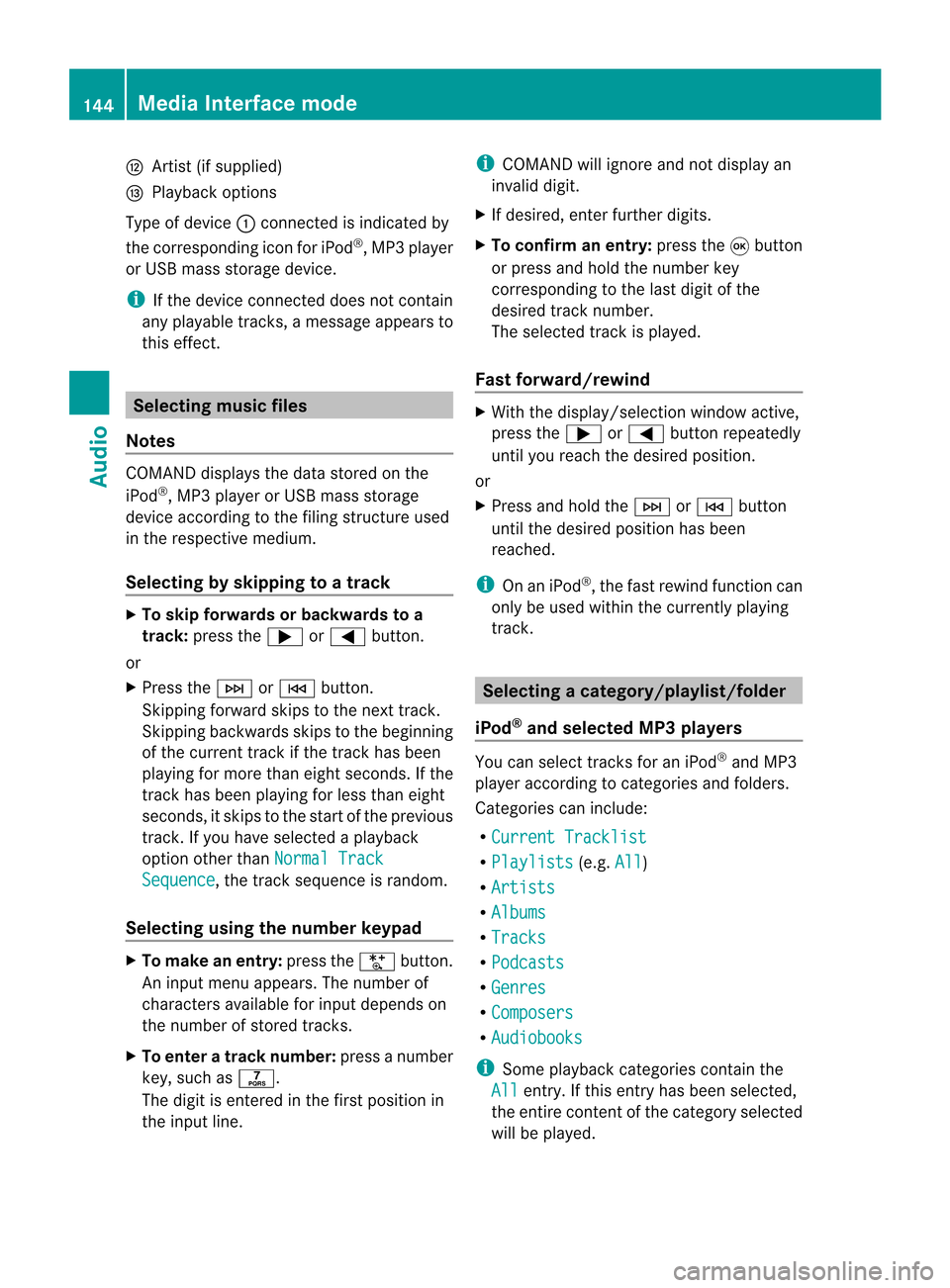
H
Artis t(ifsupplied)
I Playback options
Type ofdevic e: con nected isindic ated by
the correspo ndingicon foriPod ®
,MP3 player
or USB mass storage device.
i Ifthe devic econ nected does notcontain
any playable track s,amess ageappears to
this effect . Selecting
music files
Not es COMA
NDdisplays thedata stored onthe
iPod ®
,MP3 player orUSB mass storage
devic eacc ordin gto the filingst ruct ureused
in the respe ctive medium.
Selecting byskip ping toatrac k X
To skipfo rwa rds orbac kwards toa
trac k:pre ssthe ; or= button.
or
X Pre ssthe F orE button.
Skip ping forwa rdski ps tothe next track.
Skip ping backwa rdsskips tothe beginning
of the curre nttra ck ifthe track hasbe en
pl ay ing formor etha neight seco nds.Ift he
track hasbeen playingforless than eight
seconds, itskips tothe start ofthe previous
track .Ify ou have selected aplayb ack
option otherthanNormal Track Sequence ,
the track sequence israndom.
Selecting usingthenumber keypad X
To mak eane ntr y:press theU button .
An input menu appears. Thenumber of
charact ersavailable forinput depends on
the number ofstor edtrac ks.
X To enter atr ack number :press anumber
key, such asq.
The digit isent ered inthe first position in
the input line. i
COMAND willignore andnotdisplay an
invalid digit.
X Ifdesired, enterfurth erdigits.
X To confirm anentry :press the9button
or press andhold thenumber key
corr espondin gto the last digit ofthe
desired tracknumbe r.
The selected track isplayed.
Fast forwar d/rewind X
Wit hth edisp lay/s election win dow active,
pre ssthe; or= buttonr epeatedly
until youreach thedesired position.
or
X Press andhold theF orE button
until thedesired position hasbeen
reached.
i OnaniPod ®
,the fast rewind function can
only beused within thecurren tlyplaying
trac k. Selecting
acatego ry/play list/fol der
iPo d®
and selected MP3 playe rs You
canselect tracks foraniPo d®
and MP3
pla yera ccord ingtocate goriesand folder s.
Ca tego riescan include:
R Curr entTracklist R
Play lists (e
.g. All )
R Arti sts R
Albu ms R
Trac ks R
Podc asts R
Genr es R
Comp osers R
Audi obooks i
Some play ba ck cate goriescontai nthe
All entr
y.Ifthis entryhas been selected,
the entire contentofthe category selected
will beplay ed. 144
Media
Interface modeAudio
Page 147 of 210
USB
devices For
USB mass storage devices ,you can select
folders andalso playlists (ifavailable). When
playing backplaylists, COMAND canalso
display therespec tivealbum andartist name
(metadat a),ifthes ehave been uploaded to
the system .
Playlists areindicat edinthe display bya
special icon.When youopen theplay list, the
corresponding tracksare opened and
play back begins. NowRandom Categories is
availa bleasaplay back option instead of
Random Folder .
For USB mass storage devices, youcan
choose todispla ythe metadata contained in
the tags ofthe encoded musicdata,orto
displa ythe fileand directory nameswhenthe
music isplay ing.
X To display thealbum andartist's
name: selectMedia Int. in
the basic
displa yusing the:=; buttons
and press the9button toconfirm .
X Select Display Metadata using
the
9: buttonsandpress the9button
to confirm .
Selec tingacatego ryand open inga
fol der X
Press the9button whenthe displa y/
selection windowisactive.
or
X Select Music in
the basic displa yusing
the :=; buttonsandpress the
9 button toconfirm .
You willsee theavaila blecategories orthe
folder content(e.g. other folders). The
category selectedorthe folder nameisin
the status barofthe displa y.
i The Music menu
itemisnot availa bleuntil
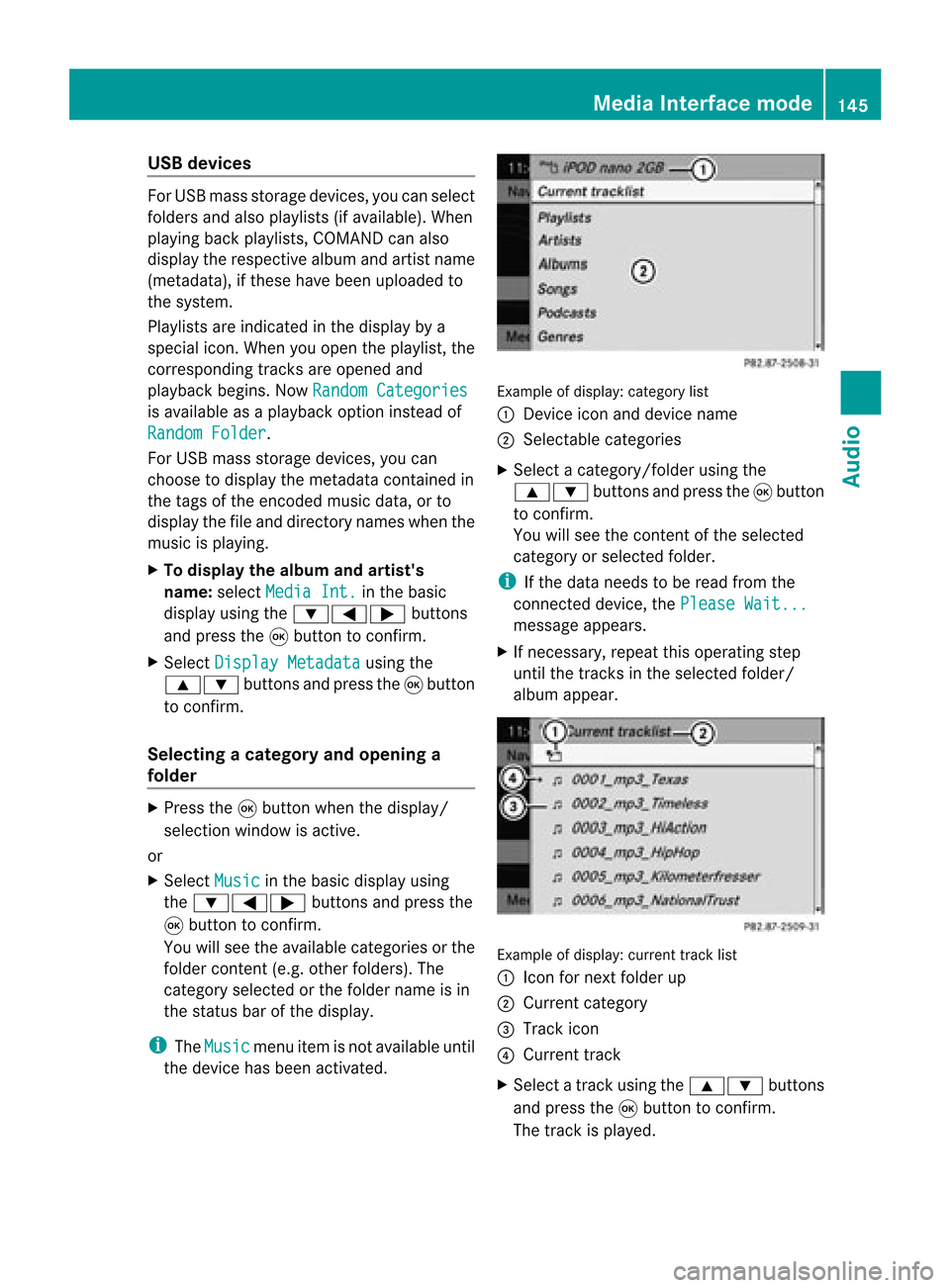
the device hasbeen activated. Example
ofdisplay :categ orylist
: Dev iceicon anddevic enam e
; Sele ctable categor ies
X Sele ctacat egor y/folder usingth e
9: buttonsand pres sth e9 butt on
to con firm.
You willsee thecon tent oftheselec ted
cat egor yor selec tedfold er.
i Ifth edata needstobe read from the
con necteddevic e,thePle ase Wait... mes
sage appears .
X Ifnec essar y,repe atthis oper atingst ep
unt ilth etrack sin thes elected folder/
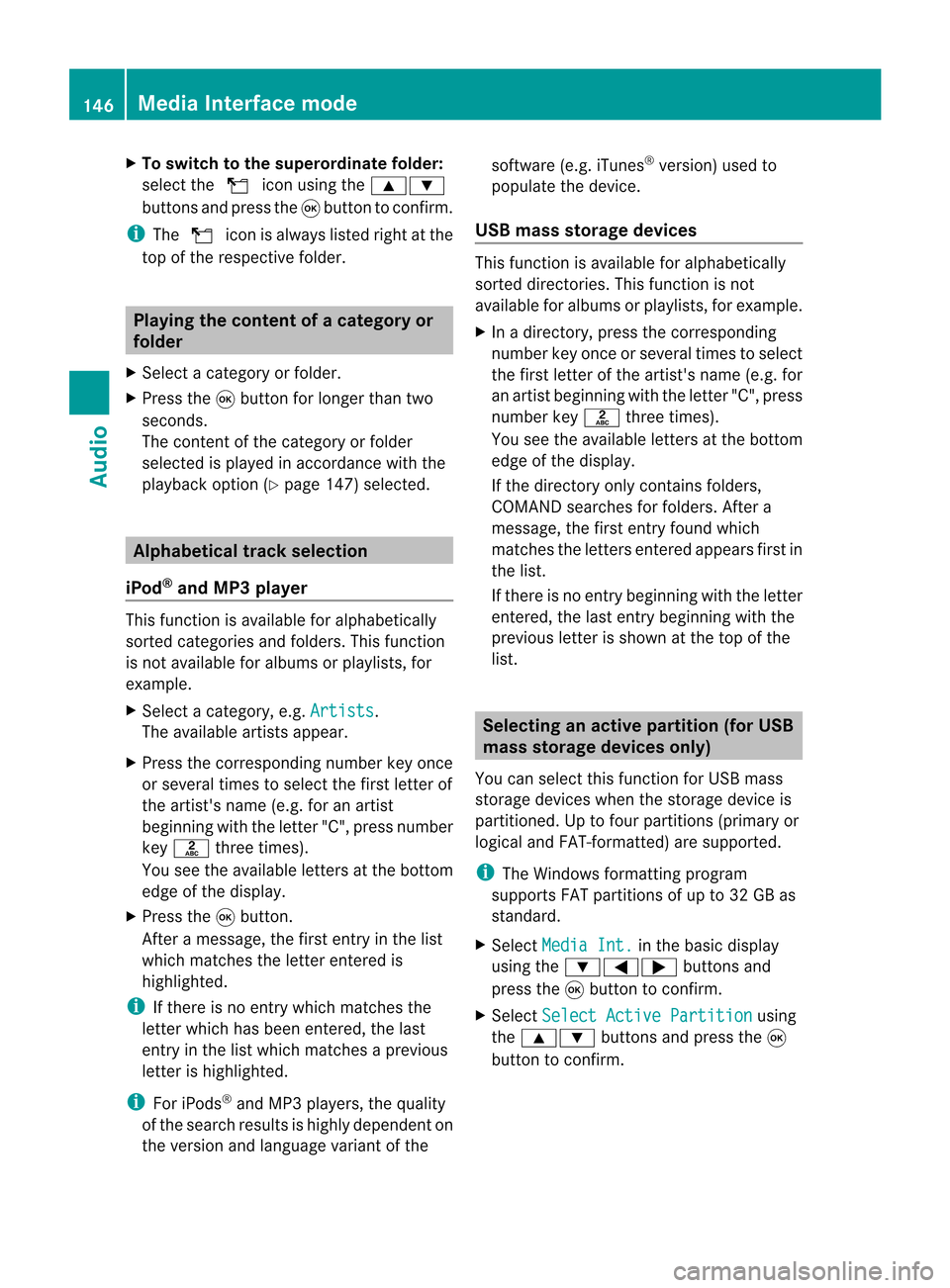
album appear. Ex
ample ofdisplay: currenttrac klist
: Icon fornex tfolder up
; Current category
= Track icon
? Current track
X Select atrac kusing the9: buttons
and press the9button toconfirm.
The track isplay ed. Media
Interface mode
145Audio Z
Page 148 of 210
X
To switchto the supe rordinate folde r:
sel ect the U iconu sing the9:
buttons andpress the9button toconfirm.
i The U iconisalwa yslisted rightatthe
top ofthe respective folder. Playing
thecontent ofacategory or
folder
X Select acategory orfolder.
X Press the9button forlonger thantwo
seconds.
The cont entofthe category orfolder
selected isplay edinaccordance withthe
play back option (Ypage 147)selected. Alphabetical
track sele ction
iPod ®
and MP3 player This
function isavail able foralpha betically
sorted categories andfolders. Thisfunction
is not avail able foralbu msorplay lists, for
example.
X Select acategory, e.g.Artists .
The avail able artists appear.
X Press thecorresponding numberkeyonce
or several timestoselect thefirst letter of
the artist's name(e.g.foranartist
beginning withtheletter "C",press number
key l three times).
You seetheavail able letters atthe bottom
edge ofthe displa y.
X Press the9button.
Aft eramessage, thefirst entry inthe list
which matches theletter entered is
highlig hted.
i Ifthere isno entry which matches the
letter which hasbeen entered, thelast
entry inthe listwhich matches aprevious
letter ishighlig hted.
i For iPods ®
and MP3 players, thequal ity
of the search results ishighly dependent on
the version andlangua gevariant ofthe software
(e.g.iTunes ®
version) usedto
popul atethe device.
USB mass storage devices This
function isavail able foralpha betically
sorted directories. Thisfunction isnot
avail able foralbu msorplay lists, forexample.
X In adirectory, pressthecorresponding
number keyonce orseveral timestoselect
the first letter ofthe artist's name(e.g.for
an artist beginning withtheletter "C",press
number keyl three times).
You seetheavail able letters atthe bottom
edge ofthe displa y.
If the directory onlycontains folders,
COMAND searchesforfolders. Aftera
message, thefirst entry found which
matches theletters entered appearsfirst in
the list.
If there isno entry beginning withtheletter
entered, thelast entry beginning withthe
previous letterisshown atthe top ofthe
list. Selec
tinganactive partition (forUSB
mass storage devices only)
You canselect thisfunction forUSB mass
storage devices whenthestorage deviceis
partitioned. Uptofour partitions (primaryor
logical andFAT- formatted) aresupported.
i The Windows formattingprogram
supports FATpartitions ofup to32 GB as
standard.
X Select Media Int. in
the basic displa y
using the:=; buttonsand
press the9button toconfirm.
X Select Select ActivePartition using
the 9: buttonsandpress the9
button toconfirm. 146
Media
Interface modeAudio
Page 149 of 210

Playback
options
The following optionsareavaila bletoyou:
R Normal TrackSequence You
hear thetrack sin their normal order
(numerical oralphab etical,forexample).
R Random Tracks All
the track son the medium areplay edin
random order.
R Random Categories or
Random Folder (in
the case ofUSB devices whenFolder has
been selected):
The track sin the current lyactive category
or folder, including anysub-folders, are
play edinrandom order.
i ForUSB devices, therandom playlists can
cont ainamaximum of300 randomly
selected tracks.
X To selec ta playback option:select
Media Int. in
the basic display using
the :=; buttonsandpress the
9 button toconf irm.
The options listappears. The#dot
indicates theoption selected.
X Select anoption usingthe9:
buttons andpress the9button toconf irm. Notes
onUSB devices
Data forma ts The
following dataformats aresupported:
R mp3: CBR,VBR(upto320 kbit/ s)
R wma: CBR,VBR(upto320 kbit/ s)
Notes onUSB devices R
Avoid storing dataother thanmusic dataon
the USB device sothat thestart- uptime is
not exten dedunnecessarily.
R Up toeight directory levelswithupto1000
track sare supported. R
Do not use aUSB exten sioncable or
adapter. Thesemayimpair functionality.
R As earch ofthe USB device isperform edin
the backgr oundandanyplaylists foundare
provided inaseparate categoryin addition
to the folders. Initialization oflarger USB
mass storage devices containin gahigh
number offiles cantake uptoseveral
minut es.
i Files protec tedwith DRM (Digital Rights
Managemen t)are not supported bythe
Media Interface. Audio
AUXmode Notes
onaud ioAUX mode
You canconnectan ext ernal audio source
(AUX) toCOMAND .The sock etfor this is
located inthe glove box.
If COMAND isequipped withaMedia
Int erface, external audio sources are
con nected using theassociated cableset.
The audio cablesetreplaces theaudio AUX
sock et.
i You canfind more information onthe
Int ernet athtt p://ww w.mer cedes-
benz.com /connectand inthe "Media
Int erface mode" section(Ypage 141). Switching
onaud ioAUX mode
When youconnectane xterna lau dio sou rce,
au dio AUX isnot selecte dau toma tically.
X Sel ect Aud io in
the mainfunctio nbarusin g
th e9=; buttons and pres sth e
9 buttonto confirm .
If AU Xmod ewas thelast mod eselec ted, it
will nowbe act ive.
If ano ther audio sourceisswit ched on,you
can nowswit chtoaudio AUXmod ein the
audio menu.
X Sel ect Audio usin
gth e9 buttonand
pres sth e9 buttonto confirm .
The audio menuappear s. Aud
ioAUX mode
147Aud io Z
Page 153 of 210
There
isarisk ofbeing distract edfrom the
road andtraff iccondit ionsifthis isdone while
the vehicle isin motion . Notes
aboutdiscs
Playba ckproblems mayoccur whenplaying
copied discs.Therearealarge variety of
discs, DVDauthoring software,writing
software andwriters available.This variety
means thatthere isno guarantee thatthe
system willbeable toplay discs thatyouhave
copied yourself.
! Donot affix stick ersorlabels tothe discs,
as they could peeloffand damage
COMAND .Stic kers cancause thedisc to
bend, which canresult inread errors and
disc recogn itionproblems.
! COMAND isdesigned toaccommo date
discs which comply withtheEN6090 8
standard. Youcantheref oreonly usediscs
with amaximum thickness of1.3 mm.
If you insert thickerdiscs, e.g.those that
cont aindata onboth sides (DVD onone
side andaudio dataonthe other), they
cann otbe eject edand candamage
COMAND .
Use round discswithadiameter of12 cm.
Do not use discs withadiameter of8cm,
even withanadapter. DVD
playback conditions
There arevideo DVDsavaila bleonthe market
which donot conf orm tothe curren t
standards.
These DVDscan create picture, soundor
other problems duringplayback.
COMAND canplay back video DVDs
produced accordingto the following
standards:
R region code1orregion code0(no reg ion
cod e) i
Ifyo uins ert avid eo DVD with adi ffer ent
reg ionc ode, youwillsee amessage tothis
effect .
R PAL orNTSC standard
You willgenerally findtherelevant details
either onthe DVD itself oron the DVD case.
i COMAND isset toregion code1at the
factor y.This settingcan bechanged atan
authorized Mercedes-B enzCenter. Thiswill
allow youtoplay video DVDswith a
different regioncode,provided thatthey
are produced inaccordanc ewith thePAL
or NTSC standard. Theregion codecanbe
changed uptofive times. Function
restrictions
Dependin gon the DVD ,it is possible that
cert ainfunct ionsoractions willbe
temporarily blockedormay notfunct ionatall.
As soon asyou trytoactivate thesefunctions
or actions ,you willsee theKsymbol inthe
display . Inserting
andremoving DVDs
X Proceed asdescribed inthe "Insert ingand
eject ingCDs andDVD s"section
(Y page 127). Switching
tovideo DVDmode
Option 1 X
Insert avideo DVD(Ypage 127).
COMAND loadsthemedium insertedand
start sto play it.
Option 2 X
Press theh functionbutton .
COMAND switchestothe disc mode last
set (audi oCD, audio DVD,MP3 CD, video
DVD )or Media Interface. COMAND
accesses alldiscs inthe DVD changer. Video
DVDmode
151Video Z
Page 158 of 210
X
Sel ect Menulan guage or
Aud io lan
guage and
pressthe 9button to
confi rm.
In both cases, amenu appe ars afte rafew
seconds. The#dot infront ofan entry
indi cates thecurrently selected langua ge.
X Select asetting using the 9:
buttons andpress the9button toconfirm.
X To exitthe menu: pressthe=
or ; button. Subtitle
sand camera angle
These functions arenot available onallDVDs.
The numbe rofsubt itle lang uages andcam era
ang lesavailab ledepe ndson theco nten to f
the DVD. Itis po ssi ble tha tthe settin gsmay
also beaccessed inthe DVD menu
(Y page 154).
X Show themenu (Ypage 152).
X Select DVD-Video in
the menu using
the :=; buttonsandpress the
9 button toconfirm .
X Select DVDFunctions and
press the9
button toconfirm .
X Select Subtitles or
Camera Angle and
press the9button toconfirm .
In both cases, amenu appears.The #dot
in front ofan entr yindicates thecurrent
settin g.
X Select asettin gusing the9:
buttons andpress the9button toconfirm .
X To exit themenu: pressthe=
or ; button. Interactive
content
DVD scan cont aininteract ivecont ent(e.g. a
video game). Inavideo game, forexample,
you may beable toinfluence eventsby
selecting andtriggering actions.Thetype and
number ofactions depend onthe DVD . X
Select anaction usingthe
9:=; buttonsandpress
the 9button toexecute it.
A menu appearsand thefirst entry,
Select ,
is highlighted.
X Press the9button.
or
X Show thecont rolmenu whileinvideo DVD
mode, ifnecessary.
X Select Menu using
the=;
9: buttonsandpress the9button
to confirm .
X Select DVD-V in
the menu usingthe
=;9: buttonsandpress
the 9button toconfirm .
X Select DVDFunctions and
press the9
button toconfirm .
X Select orexecute anaction usingthearrow
keys. Video
AUXmode Conne
ctingexternal videosources
If your vehicle isequipp edwith aMedia
Int erface, youcan conn ectanextern alvideo
source.
You require anadditional audio/video cable
set toconn ectanextern alvideo source to
Media Interface.
For details, pleaseconsult anauthorized
Mercedes-Ben zCenter orvisit http://
www .mer<00030005000400050013002500020005000E001D00210003000F000D00220003
000FB nnect.and
proceed asdescribed under"Media
Int erface".
The conn ection jacksarelocated:
R in the cent erconsole stowage
compartmen t(SL)
R in the glove box 156
Video
AUXmodeVideo