change time MERCEDES-BENZ GL-Class 2016 X166 Comand Manual
[x] Cancel search | Manufacturer: MERCEDES-BENZ, Model Year: 2016, Model line: GL-Class, Model: MERCEDES-BENZ GL-Class 2016 X166Pages: 246, PDF Size: 6.72 MB
Page 201 of 246

COMANDiscapable of playing back video
DVDs produced according to the fol lowing
standards:
RRegion co de1 or region code 0 (no region
code)
RPAL or NTSC standard
You willgenerally find the relevant details
either on the DVD itself or on the DVD case.
iIf you insert a video DVD with a different
region code, a message to this effect
appears.
iCOMAND isset to region co de1 at the
factory. This setting can be changed at an
authorized Mercedes-Benz Center. It isalso
possible to play video DVDs with a different
region code, provided that they are pro-
duced inaccordance with the PAL or NTSC
TV standard. The region code can be
changed a maximum of four times.
Control options
There are various control menus availab lein
DVD video mode.
Most DVDs have their own control menu.
The DVD's control menu isoperated directly
using the controller or DVD functions.
Control menu and
functionOperation
RDVD's control
menu
Se lection of title,
scene, language,
subtit les ...Operation with the
controller
RMenuOptions
Se lection of
brig htness, con-
trast, color, for-
mat
Operation using the
menu bar options,
video settings
Control menu and
functionOperation
RVideo menu
Se lection of
scene, fast
forward or rewindIn full-screen mode,
slide 6the con-
troller
RDVD functions
Se lection of title,
scene, language,
subtit les ...Infull-screen mode,
press the controller
Function restrictions
Depending on the DVD, certain functions or
actions may not function at all. The symbol K
appears inthe display.
Switching on video DVD mode
RInsert and eject a discfrom the single drive
(
Ypage 182)
RIn sert a disc into the DVD changer
(
Ypage 182)
Further options for switching on:
RUsing the number keypad (Ypage 179)
RUsing the main function bar (Ypage 179)
RUsing the device list (Ypage 179)
RUsing the Õbutton (Ypage 178)
DVD basic display
:Status bar
;Main function bar
Video DVD mode199
Media
Z
Page 221 of 246

map scales 50 mi (50 km), 200 mi (200 km)
and 500 mi (500 km).
RMenu itemAtmospheric Pressure
Shows the position of high and low-pres-
sure areas (H, L), weather fronts and iso-
bars It is shown in map scales 200 mi
(200 km) and 500 mi (500 km).
RMenu itemTropical Storm Tracking
Shows the direction and propagation speed
(track) of a tropical storm in all map scales
with information on times and strength.
RMenu item Winds
Shows the wind direction and wind speed in
map scale of 5 mi (5 km).
Sample displays of weather data in the
map
Displaying the rain radar:
XActivate the Radar Mapdisplay level
(
Ypage 218).
The rain radar image is then displayed if
weather data is available.
iYou can call up the legend for the precip-
itation radar (
Ypage 221).
The transparency of the precipitation radar
map display level can be adjusted in five
stages.
Displaying storm characteristics:
XActivate the StormCharacteristicsdis-
play level (
Ypage 218).
If weather data is available, the weather
map will then display the storm character-
istics. You can call up the legend for storms
(
Ypage 221).
The following information on a storm cell is
displayed (if available):
Rcharacteristics of the storm cell
Rdate and time of observation (time
stamp)
Rdirectional movement speed and path
Propagation speed: the speed at which the
storm cell is advancing.
Displaying weather fronts:
XActivate the Atmospheric Pressuredis-
play level (
Ypage 218).
If weather data is available, the weather
map will then display the weather fronts.
The example shows the position of high and
low-pressure areas (H, L), weather fronts
and isobars. Isobars are lines that show
where the air pressure is the same.
Legend: weather fronts
Weather
frontExplanation
Cold front
(blue line
with blue tri-
angles)If a cold front moves in, the
weather remains changea-
ble and there are often rain
showers and thunder-
storms. The air tempera-
ture decreases.
Warm front
(red line with
red semi-cir-
cles)A warm front may cause
more prolonged steady
rain, more cloud cover and
a slow rise in temperature.
Weather forecasts219
SIRIUS Weather
Page 222 of 246

Weather
frontExplanation
Stationary
front
(red and blue
line with red
semi-circles
and blue tri-
angles)The weather front moves
minimally. The weather
remains changeable in this
area.
Occlusion
(purple line
with purple
semi-circles
and trian-
gles)When the faster cold front
catches up and joins the
warm front ahead of it, an
occluded front is formed.
The weather remains
changeable and rainy
within an occlusion.
Displaying the track of a storm:
XActivate theTropical Storm Tracking
display level (Ypage 218).
If weather data is available, the weather
map will then display the track of the storm.
Example: in the middle of the map you can
see the current position of the tropical low-
pressure area (cyclone). To the right of this
a solid line shows the previous path with
positions and times. The forecast for the
direction of propagation is shown by a dot-
ted line with positions and times.
You can find out more information about
cyclones in the Storm Guide (
Ypage 222).
Showing information (if available):
Rname of the tropical storm and category
Rtime stamp
Rdirectional movement speed and path
Rmaximum wind speed
Propagation speed: the speed at which the
storm cell of a tropical cyclone is advancing.
A tropical storm is separated into different
categories according to the location at which
it develops.
Region of origincategory
Atlantic, North
and South
Pacific OceansTropical Low Pres‐
sure System
Atlantic, North
and South
Pacific OceansTropicalDepression
Atlantic, North
and South
Pacific OceansName of tropical storm
(Tropical Storm)
Atlantic, North
and South
Pacific OceansName of tropical storm
(Hurricane Cate‐
gory 3)
Displays hurricane cat-
egories 1 through 5
Northwestern
Pacific OceanTropical Low Pres‐
sure System
Northwestern
Pacific OceanName of tropical storm
(Tropical Cyclone)
220Weather forecasts
SIRIUS Weather
Page 223 of 246

Region of origincategory
Northwestern
Pacific OceanName of tropical storm
(Typhoon)
Northwestern
Pacific OceanName of tropical storm
(Super-Typhoon)
You can also see the time stamp for the
weather data on map scales of 50 miles and
smaller.
The weather map shows wind directions and
wind speeds.
Legend (precipitation radar and storms)
XDisplay the menu on the weather map
(
Ypage 218).
XTo selectView: turn and press the control-
ler.
XSelect Legend.
iThe symbol for a tornadic storm is also
valid for a cyclone (mesocyclone).
Precipita-
tion typeColor scale
RainEleven shades from light (light
green) to heavy (red)
MixedLight (light violet) to heavy
(violet)
SnowLight (light turquoise) to
heavy (turquoise)
Time stamp
The time stamp shows when the weather data
was created by the weather station.
A time stamp corresponds to the time at the
vehicle's current position. The changeover
from summer time to standard time is per-
formed automatically.
XDisplay the menu on the weather map
(
Ypage 218).
XTo select View: turn and press the control-
ler.
XSelect Time Stamp.
Changing to the information chart
XDisplay the menu on the weather map
(
Ypage 218).
XTo select Weather Table: turn and press
the controller.
Storm Watch Box
Storm watch areas for which there are storm
advisories are displayed as red areas on the
weather map.
Activating/deactivating the display of areas
in red:
XDisplay the menu on the weather map
(
Ypage 218).
XTo select View: turn and press the control-
ler.
The list of display levels appears.
Weather forecasts221
SIRIUS Weather
Page 226 of 246

Your COMANDequipment
i
These operatin ginstruction sdescribe all
th estandar dan doptional equipmen tof
your COMAN Dsystem, as available at th e
time of going to print .Country-specifi cdif -
ference sare possible. Bear in min dthat
your vehicle may no tfeature all function s
described here. Thi salso applies to safety-
relevant systems an dfunctions.
iRead th einformation on qualified special-
ist workshop sin th evehicle Operator's
Manual.
Overview
Important safet ynotes
GWARNING
The CD/DVD drive is aclass 1lase rproduct.
If you ope nth ehousin gof th eCD/DVD drive,
there is aris kof exposure to invisible lase r
radiation .Thi slase rradiation could damage
your retina. There is aris kof injury.
Never ope nth ehousing. Always hav emain -
tenanc ean drepair wor kcarrie dout at aquali -
fie dspecialis tworkshop .
GWARNING
If objects suc has headphones/headset sor
external audio/video sources are no tsecure d
in th epassenger compartment, they can be
flun garound an dhit vehicle occupants .There
is aris kof injury, fo rexample in th eevent of
sudden braking or asudden change in direc -
tion .
Always stow these items or similar objects
carefully so that they canno tbe flun garound ,
fo rexample in alockable vehicle stowag e
compartment.
Equipment
Observ ethat arange of Rear Seat Entertain -
men tSystems are available fo rMercedes -Benz vehicles
.In this Operator's Manual, th e
Rear Seat Entertainmen tSyste mCode 86 4is
used fo rillustration purposes. If you hav e a
differen tRear Seat Entertainmen tSyste min
your vehicle, pleas erefer to th emanufactur-
er' soperatin ginstructions.
Component s
The Rear Seat Entertainmen tSyste m
includes :
Rtwoscreens fo rth erea rbehin dth efront-
seat head restraints
Rtw oremot econtrols
Rasingle drive (rear-compartmen tdrive)
RAU Xjack son bot hrea rscreens (AUX dis -
play) an don th erear-compartmen tdrive
(AUX drive)
Rheadphone sfo reac hrea rscree n
Rtwoset sof cordless headphone s
224Overview
Rear Seat Entertainment System
Page 238 of 246
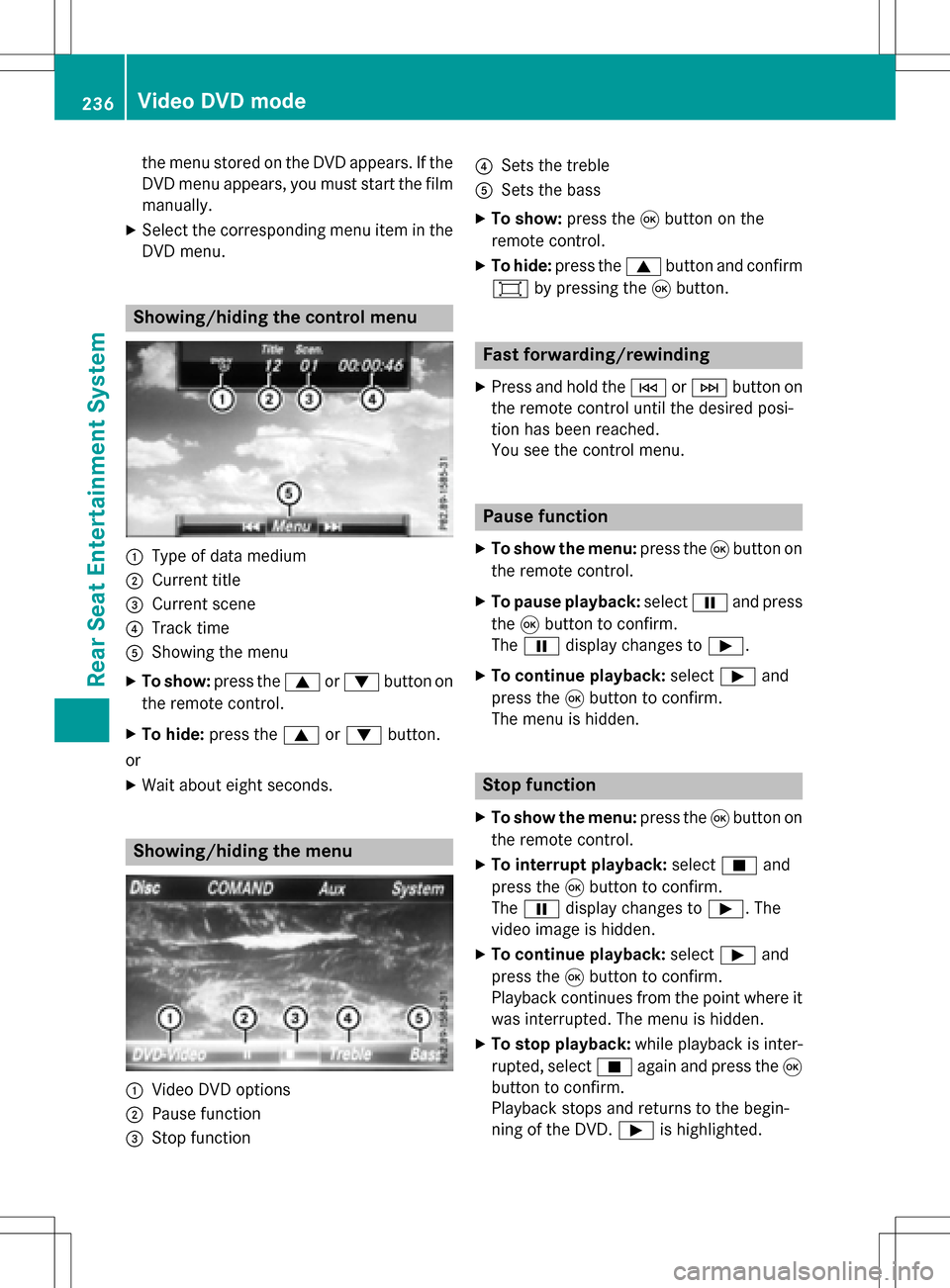
the menu stored on the DVD appears. If the
DVD menu appears, you must start the film
manually.
XSelect the corresponding menu item in the
DVD menu.
Showing/hiding the control menu
:Type of data medium
;Current title
=Current scene
?Track time
AShowing the menu
XTo show: press the9or: button on
the remote control.
XTo hide: press the 9or: button.
or
XWait about eight seconds.
Showing/hiding the menu
:Video DVD options
;Pause function
=Stop function
?Sets the treble
ASets the bass
XTo show: press the9button on the
remote control.
XTo hide: press the 9button and confirm
# by pressing the 9button.
Fast forwarding/rewinding
XPress and hold the EorF button on
the remote control until the desired posi-
tion has been reached.
You see the control menu.
Pause function
XTo show the menu: press the9button on
the remote control.
XTo pause playback: selectËand press
the 9button to confirm.
The Ë display changes to Ì.
XTo continue playback: selectÌand
press the 9button to confirm.
The menu is hidden.
Stop function
XTo show the menu: press the9button on
the remote control.
XTo interrupt playback: selectÉand
press the 9button to confirm.
The Ë display changes to Ì. The
video image is hidden.
XTo continue playback: selectÌand
press the 9button to confirm.
Playback continues from the point where it was interrupted. The menu is hidden.
XTo stop playback: while playback is inter-
rupted, select Éagain and press the 9
button to confirm.
Playback stops and returns to the begin-
ning of the DVD. Ìis highlighted.
236Video DVD mode
Rear Seat Entertainment System