audio MERCEDES-BENZ GL SUV 2009 User Guide
[x] Cancel search | Manufacturer: MERCEDES-BENZ, Model Year: 2009, Model line: GL SUV, Model: MERCEDES-BENZ GL SUV 2009Pages: 309, PDF Size: 10.27 MB
Page 106 of 309
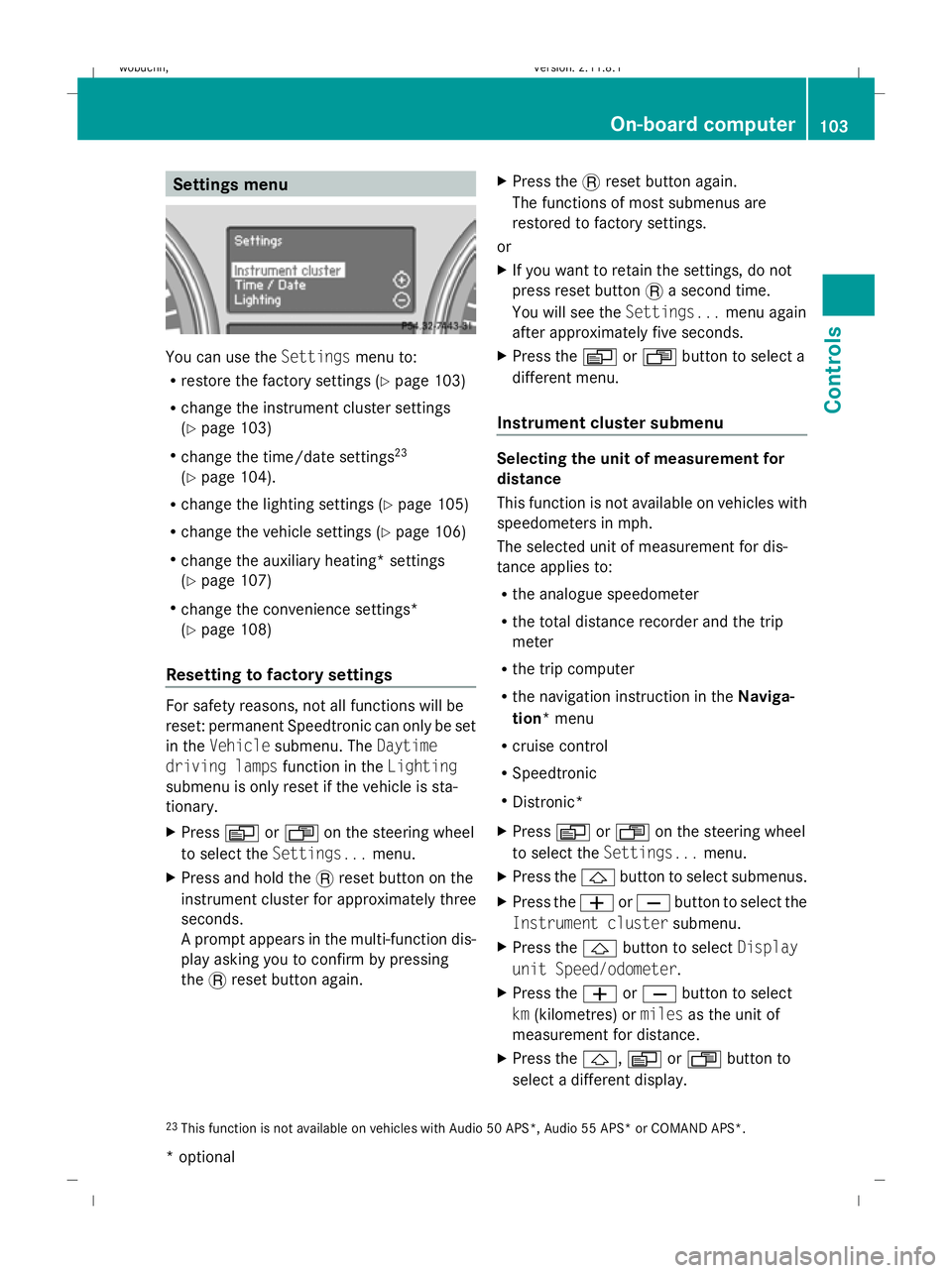
Settings menu
You can use the
Settingsmenu to:
R restore the factory settings (Y page 103)
R change the instrument cluster settings
(Y page 103)
R change the time/date settings 23
(Y page 104).
R change the lighting settings (Y page 105)
R change the vehicle settings (Y page 106)
R change the auxiliary heating* settings
(Y page 107)
R change the convenience settings*
(Y page 108)
Resetting to factory settings For safety reasons, not all functions will be
reset: permanent Speedtronic can only be set
in the Vehicle submenu. The Daytime
driving lamps function in theLighting
submenu is only reset if the vehicle is sta-
tionary.
X Press VorU on the steering wheel
to select the Settings... menu.
X Press and hold the .reset button on the
instrument cluster for approximately three
seconds.
A prompt appears in the multi-function dis-
play asking you to confirm by pressing
the .reset button again. X
Press the .reset button again.
The functions of most submenus are
restored to factory settings.
or
X If you want to retain the settings, do not
press reset button .a second time.
You will see the Settings...menu again
after approximately five seconds.
X Press the VorU button to select a
different menu.
Instrument cluster submenu Selecting the unit of measurement for
distance
This function is not available on vehicles with
speedometers in mph.
The selected unit of measurement for dis-
tance applies to:
R
the analogue speedometer
R the total distance recorder and the trip
meter
R the trip computer
R the navigation instruction in the Naviga-
tion* menu
R cruise control
R Speedtronic
R Distronic*
X Press VorU on the steering wheel
to select the Settings... menu.
X Press the &button to select submenus.
X Press the WorX button to select the
Instrument cluster submenu.
X Press the &button to select Display
unit Speed/odometer.
X Press the WorX button to select
km (kilometres) or milesas the unit of
measurement for distance.
X Press the &,VorU button to
select a different display.
23 This function is not available on vehicles with Audio 50 APS*, Audio 55 APS* or COMAND APS*. On-board computer
103Controls
* optional
X164_AKB; 2; 3, en-GB
wobuchh,
Version: 2.11.8.1 2009-03-31T14:14:58+02:00 - Seite 103 Z
Dateiname: 6515431202_buchblock.pdf; erzeugt am 01. Apr 2009 00:17:16; WK
Page 107 of 309
Selecting the distance units for the digital
speedometer
This function is not available on vehicles with
speedometers in mph.
X Press VorU on the steering wheel
to select the Settings... menu.
X Press the &button to select submenus.
X Press the WorX button to select the
Instrument cluster submenu.
X Press the &button to select Display
unit Digital speedometer.
X Press the WorX button to select
km (kilometres) or milesas the unit of
measurement for distance.
X Press the &,VorU button to
select a different display.
Selecting the language
X Press VorU on the steering wheel
to select the Settings... menu.
X Press the &button to select submenus.
X Press the WorX button to select the
Instrument cluster submenu.
X Press the &button to select Language.
X Press the WorX button to select the
desired language.
X Press the &,VorU button to
select a different display.
Selecting the status line display
Vehicles for the United Kingdom: this func-
tion is not available.
X Press VorU on the steering wheel
to select the Settings... menu.
X Press the &button to select submenus.
X Press the WorX button to select the
Instrument cluster submenu.
X Press the &button to select Status
line display. X
Press the WorX button to select the
status line display: vehicle speed ( Speed)
or outside temperature (Outside temp.).
The selected display now appears con-
stantly in the lower multi-function display.
When you scroll through the Standard dis-
play menu (Y page 99), you will see the
display you have not selected.
X Press the &,VorU button to
select a different display.
Time/date submenu 24 Setting the date and time
Your vehicle may be equipped with one of the
following audio systems:
A: Audio 20
B: Audio 50 APS*
C: COMAND APS*
X You can see which audio system is fitted in
your vehicle by referring to the separate
operating instructions.
Depending on the audio system, the time and
date are received from GPS satellites and
cannot be set using the on-board computer
(see the following table). A B C
Set using the on-board com-
puter X
Automatic GPS satellite recep-
tion X X
X
Press VorU on the steering wheel
to select the Settings... menu.
X Press the &button to select submenus.
X Press the WorX button to select the
Time/Date submenu.
24 This function is not available on vehicles with Audio 50 APS* or COMAND APS*. 104
On-board computerControls
* optional
X164_AKB; 2; 3, en-GB
wobuchh,
Version: 2.11.8.1 2009-03-31T14:14:58+02:00 - Seite 104
Dateiname: 6515431202_buchblock.pdf; erzeugt am 01. Apr 2009 00:17:16; WK
Page 114 of 309
Calling up the range
X
Press VorU on the steering wheel
to select the trip computer menu.
X Press &or* to select Range:
The multi-function display shows the esti-
mated range of the vehicle, based on the
current driving style and the fuel level. If
there is only a small amount of fuel remain-
ing in the fuel tank, a vehicle refuelling
C appears instead of the range.
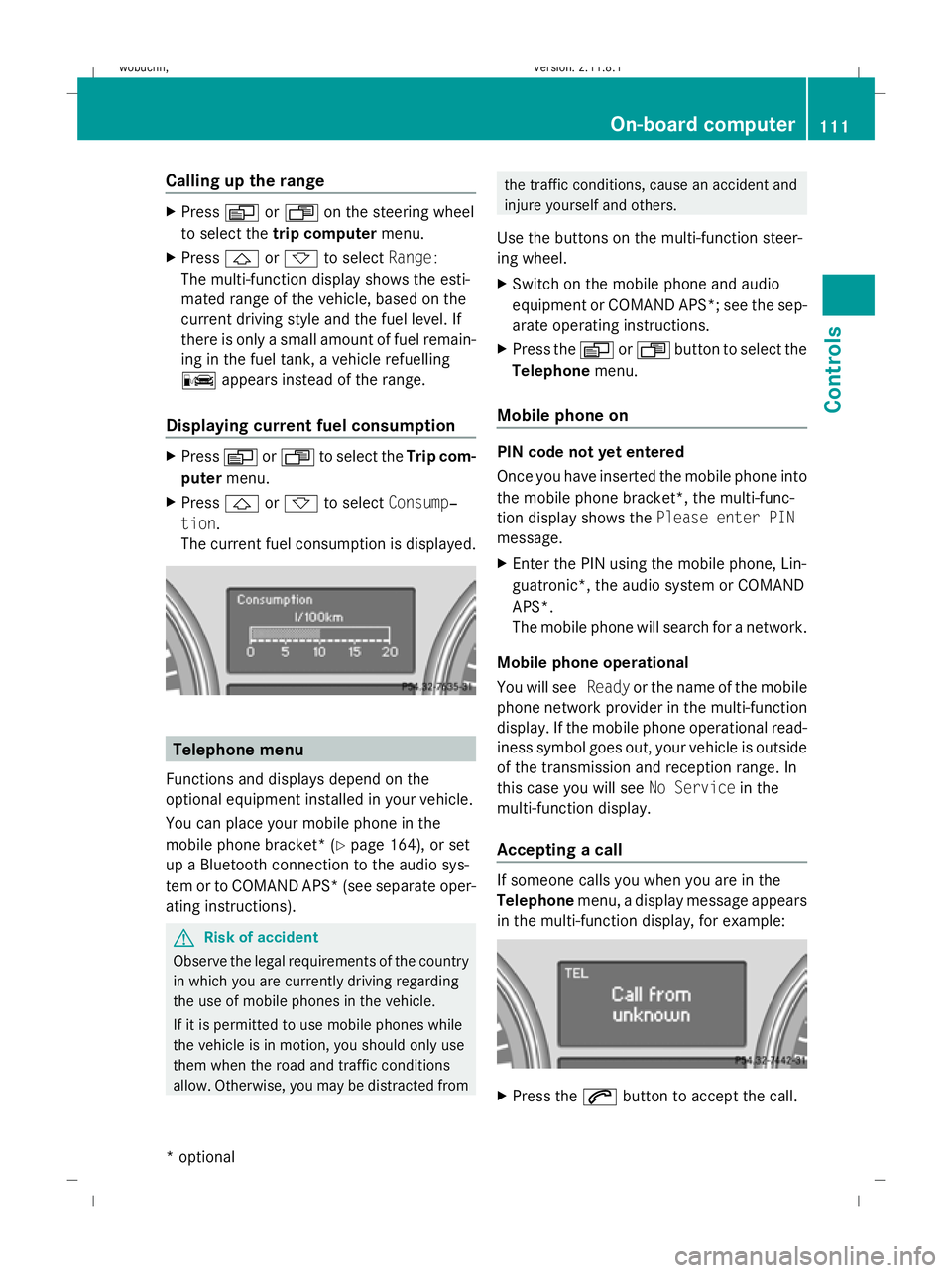
Displaying current fuel consumption X
Press VorU to select the Trip com-
puter menu.
X Press &or* to select Consump‐
tion.
The current fuel consumption is displayed. Telephone menu
Functions and displays depend on the
optional equipment installed in your vehicle.
You can place your mobile phone in the
mobile phone bracket* (Y page 164), or set
up a Bluetooth connection to the audio sys-
tem or to COMAND APS* (see separate oper-
ating instructions). G
Risk of accident
Observe the legal requirements of the country
in which you are currently driving regarding
the use of mobile phones in the vehicle.
If it is permitted to use mobile phones while
the vehicle is in motion, you should only use
them when the road and traffic conditions
allow. Otherwise, you may be distracted from the traffic conditions, cause an accident and
injure yourself and others.
Use the buttons on the multi-function steer-
ing wheel.
X Switch on the mobile phone and audio
equipment or COMAND APS*; see the sep-
arate operating instructions.
X Press the VorU button to select the
Telephone menu.
Mobile phone on PIN code not yet entered
Once you have inserted the mobile phone into
the mobile phone bracket*, the multi-func-
tion display shows the Please enter PIN
message.
X Enter the PIN using the mobile phone, Lin-
guatronic*, the audio system or COMAND
APS*.
The mobile phone will search for a network.
Mobile phone operational
You will see Readyor the name of the mobile
phone network provider in the multi-function
display. If the mobile phone operational read-
iness symbol goes out, your vehicle is outside
of the transmission and reception range. In
this case you will see No Servicein the
multi-function display.
Accepting a call If someone calls you when you are in the
Telephone
menu, a display message appears
in the multi-function display, for example: X
Press the 6button to accept the call. On-board computer
111Controls
* optional
X164_AKB; 2; 3, en-GB
wobuchh,
Version: 2.11.8.1 2009-03-31T14:14:58+02:00 - Seite 111 Z
Dateiname: 6515431202_buchblock.pdf; erzeugt am 01. Apr 2009 00:17:18; WK
Page 155 of 309
seat backrests are securely locked into
place.
R always place the load behind unoccupied
seats if possible.
R secure the load with sufficiently strong and
wear-resistant load restraints. Pad sharp
edges for protection.
i Load restraints are available at any quali-
fied specialist workshop, e.g. a Mercedes-
Benz Service Centre. Stowage compartments
G
Risk of injury
The stowage compartments must be closed
when items are stored in them. Luggage nets
are not designed to secure heavy items of
luggage.
You or other vehicle occupants could be
injured by objects being thrown around if you:
R brake sharply
R change direction suddenly
R are involved in an accident
Sharp-edged and fragile objects must not be
placed in the luggage net.
Glove compartment i
Depending on the vehicle's equipment,
there is an AUX-IN connection installed in
the glove compartment, or a Media Inter-
face*, which is a universal interface for
portable audio equipment, e.g. for an iPod
or USB device. The glove compartment can be locked and
unlocked using the emergency key element
(Y
page 250).
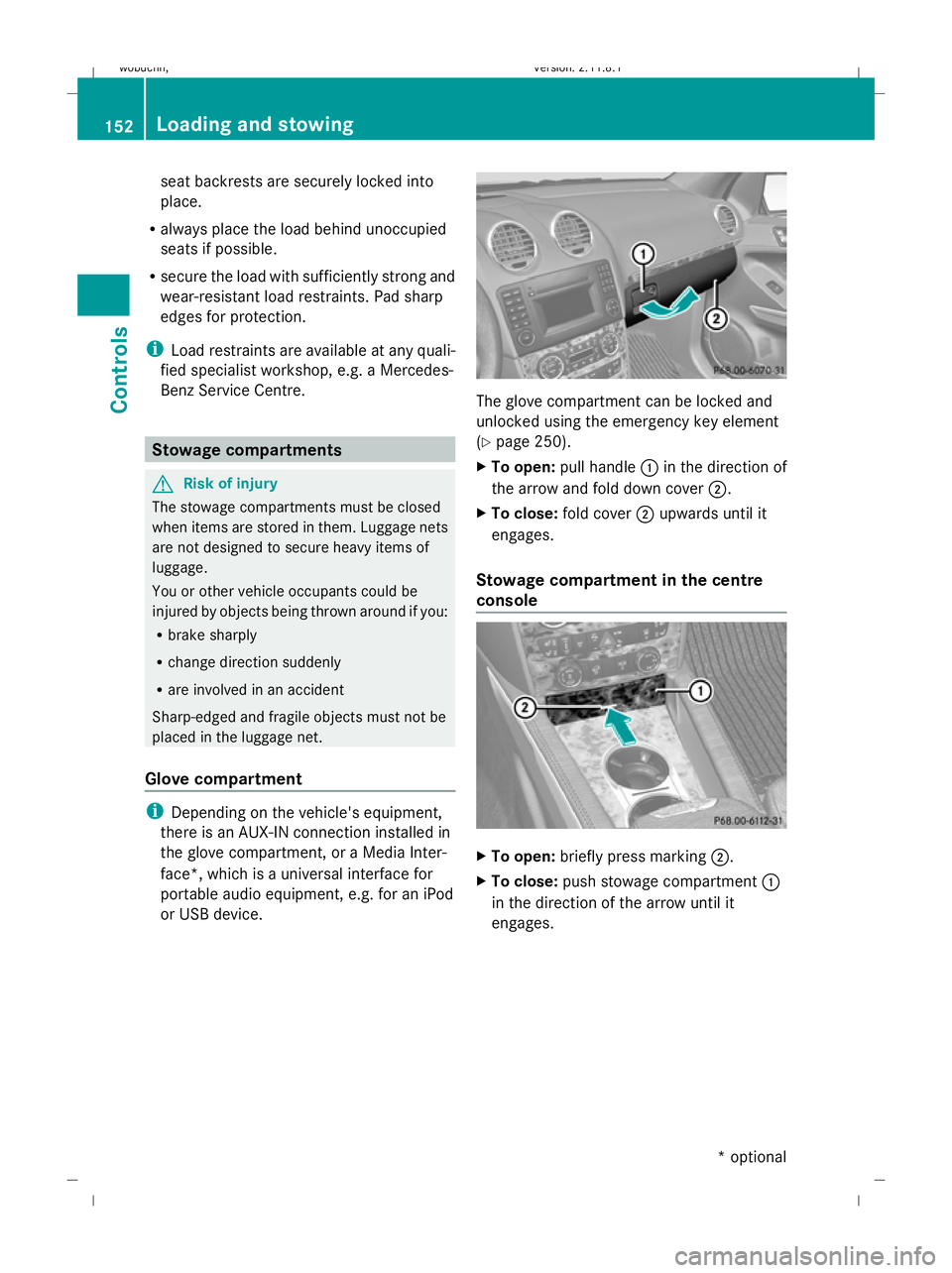
X To open: pull handle :in the direction of
the arrow and fold down cover ;.
X To close: fold cover ;upwards until it
engages.
Stowage compartment in the centre
console X
To open: briefly press marking ;.
X To close: push stowage compartment :
in the direction of the arrow until it
engages. 152
Loading and stowingControls
* optional
X164_AKB; 2; 3, en-GB
wobuchh,
Version: 2.11.8.1 2009-03-31T14:14:58+02:00 - Seite 152
Dateiname: 6515431202_buchblock.pdf; erzeugt am 01. Apr 2009 00:17:33; WK
Page 170 of 309
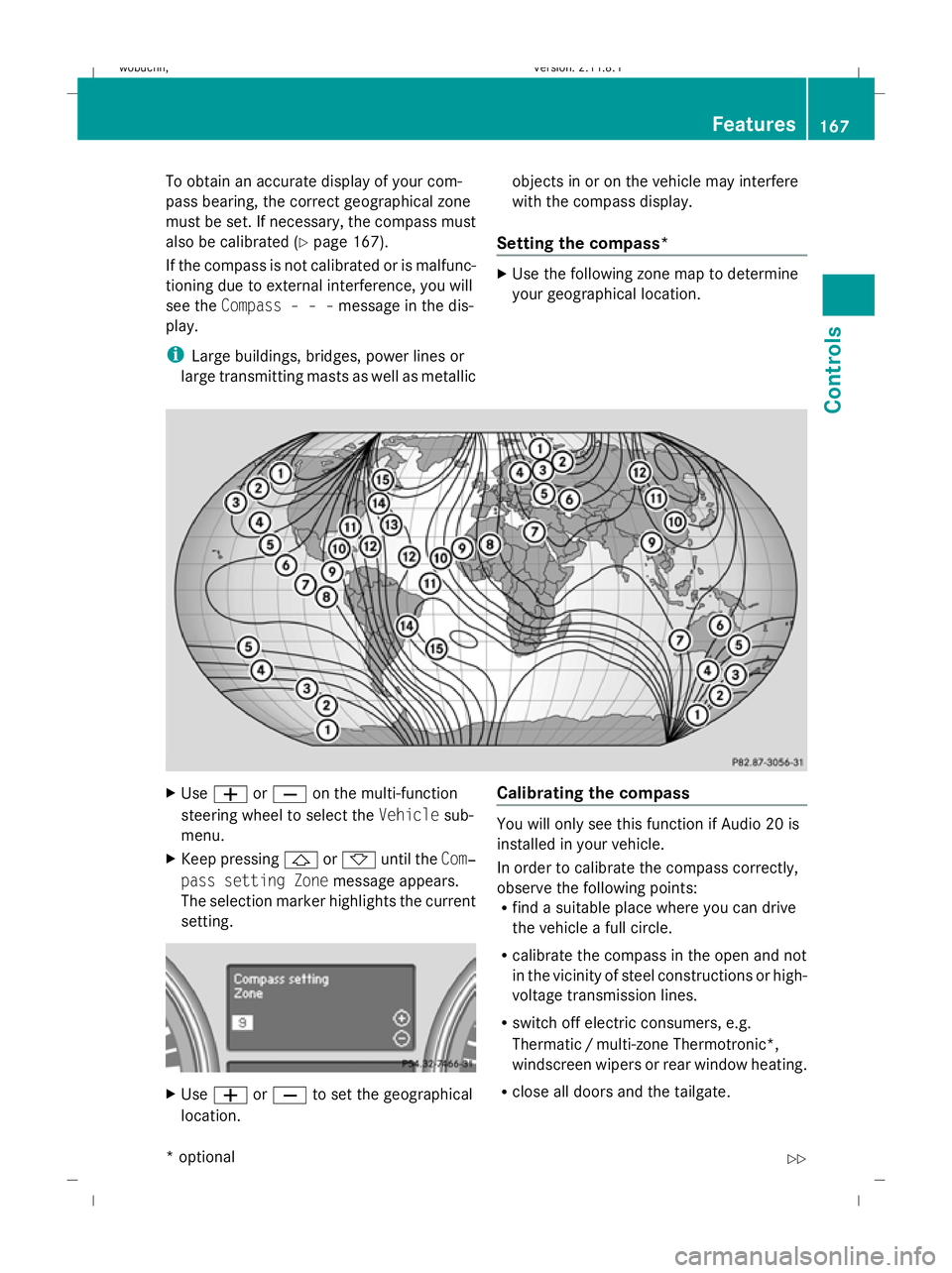
To obtain an accurate display of your com-
pass bearing, the correct geographical zone
must be set. If necessary, the compass must
also be calibrated (Y page 167).
If the compass is not calibrated or is malfunc-
tioning due to external interference, you will
see the Compass – – – message in the dis-
play.
i Large buildings, bridges, power lines or
large transmitting masts as well as metallic objects in or on the vehicle may interfere
with the compass display.
Setting the compass* X
Use the following zone map to determine
your geographical location. X
Use W orX on the multi-function
steering wheel to select the Vehiclesub-
menu.
X Keep pressing &or* until the Com‐
pass setting Zone message appears.
The selection marker highlights the current
setting. X
Use W orX to set the geographical
location. Calibrating the compass You will only see this function if Audio 20 is
installed in your vehicle.
In order to calibrate the compass correctly,
observe the following points:
R
find a suitable place where you can drive
the vehicle a full circle.
R calibrate the compass in the open and not
in the vicinity of steel constructions or high-
voltage transmission lines.
R switch off electric consumers, e.g.
Thermatic /multi-zone Thermotronic*,
windscreen wipers or rear window heating.
R close all doors and the tailgate. Features
167Controls
* optional
X164_AKB; 2; 3, en-GB
wobuchh,
Version: 2.11.8.1 2009-03-31T14:14:58+02:00 - Seite 167 Z
Dateiname: 6515431202_buchblock.pdf; erzeugt am 01. Apr 2009 00:17:43; WK
Page 235 of 309
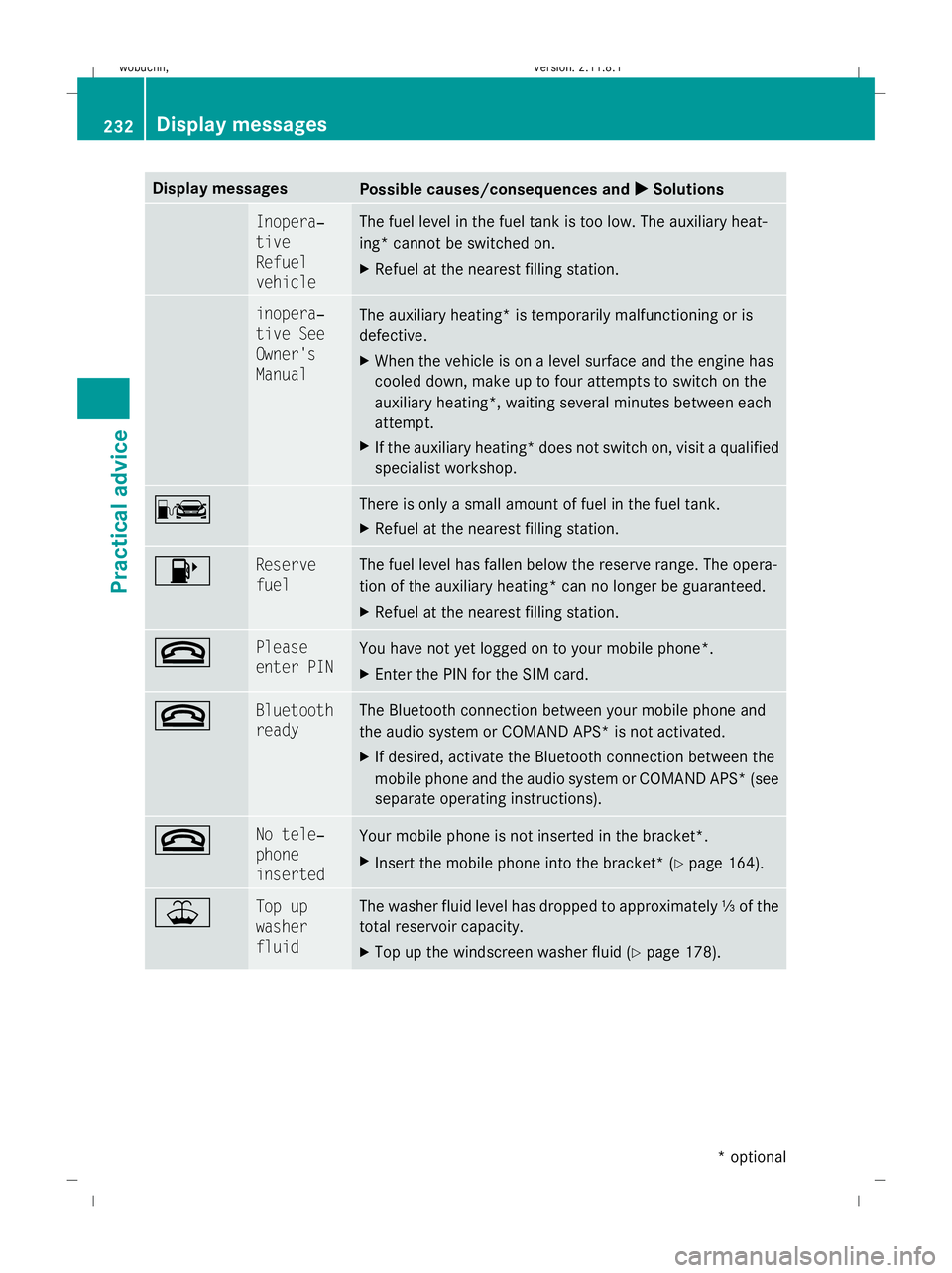
Display messages
Possible causes/consequences and
X
X Solutions & Inopera‐
tive
Refuel
vehicle The fuel level in the fuel tank is too low. The auxiliary heat-
ing* cannot be switched on.
X
Refuel at the nearest filling station. & inopera‐
tive See
Owner's
Manual
The auxiliary heating* is temporarily malfunctioning or is
defective.
X
When the vehicle is on a level surface and the engine has
cooled down, make up to four attempts to switch on the
auxiliary heating*, waiting several minutes between each
attempt.
X If the auxiliary heating* does not switch on, visit a qualified
specialist workshop. C There is only a small amount of fuel in the fuel tank.
X
Refuel at the nearest filling station. 8 Reserve
fuel The fuel level has fallen below the reserve range. The opera-
tion of the auxiliary heating* can no longer be guaranteed.
X
Refuel at the nearest filling station. ~ Please
enter PIN
You have not yet logged on to your mobile phone
*.
X Enter the PIN for the SIM card. ~ Bluetooth
ready The Bluetooth connection between your mobile phone and
the audio system or COMAND APS* is not activated.
X
If desired, activate the Bluetooth connection between the
mobile phone and the audio system or COMAND APS* (see
separate operating instructions). ~ No tele‐
phone
inserted
Your mobile phone is not inserted in the bracket*.
X
Insert the mobile phone into the bracket* ( Ypage 164). ¥ Top up
washer
fluid The washer fluid level has dropped to approximately
⅓of the
total reservoir capacity.
X Top up the windscreen washer fluid (Y page 178).232
Display messagesPractical advice
* optional
X164_AKB; 2; 3, en-GB
wobuchh,
Version: 2.11.8.1 2009-03-31T14:14:58+02:00 - Seite 232
Dateiname: 6515431202_buchblock.pdf; erzeugt am 01. Apr 2009 00:18:01; WK